
Microsoft Support’s current Windows Startup Settings guidance identifies the direct fix: open msconfig, go to the Boot tab, clear Safe boot, and restart. The important practical distinction is that the Recovery menu’s Safe Mode choices are intended for a one-time troubleshooting boot; a Safe boot setting applied through System Configuration continues until it is explicitly removed.
Do not jump straight to Reset this PC, a repair install, or Startup Repair for this symptom. Those recovery actions address broader startup failures, while a machine that reliably reaches Safe Mode has already shown it can load Windows. Clear the boot configuration first.
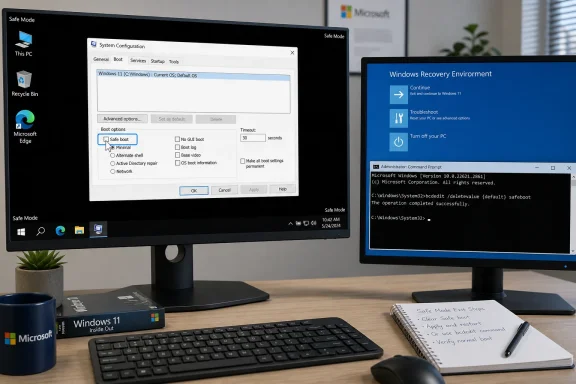 Clear Safe boot in System Configuration
If you can sign in to the Safe Mode desktop, this is the quickest and lowest-risk route.
- Press Windows key + R to open the Run dialog.
- Type
msconfig, then press Enter. - Select the Boot tab.
- Under Boot options, clear the checkbox beside Safe boot.
- Select Apply, then OK.
- Choose Restart when Windows asks.
On a typical single-boot PC, that is all that is needed. After the restart, Windows should load its normal drivers, services, desktop shell, and sign-in configuration.
Look carefully at the Boot tab before changing anything else. The list at the top can contain more than one Windows entry on PCs that dual-boot, retain an old installation, or were configured with a separate troubleshooting entry. Make sure the entry marked as the current or default operating system is selected before clearing Safe boot.
Avoid treating the General tab’s Normal startup and Selective startup options as the main fix. Those controls can affect which services and startup items load, but the setting that repeatedly forces Safe Mode is the Safe boot checkbox on the Boot tab. Changing unrelated startup settings can create a second problem and make it harder to identify what was actually fixed.
Why a Restart Sometimes Does Not Work
Windows can enter Safe Mode in two different ways, and confusing them explains many failed attempts to leave it.
The first is through Windows Recovery Environment’s Startup Settings screen. From there, pressing 4 or F4 for Safe Mode, 5 or F5 for Safe Mode with Networking, or 6 or F6 for Safe Mode with Command Prompt selects a limited startup mode for that boot. Microsoft’s documentation says pressing Enter at the Startup Settings screen starts Windows normally. In this situation, a normal restart should be enough.
The second is a persistent boot setting. Selecting Safe boot in msconfig changes the boot configuration so Windows asks for Safe Mode every time. This is useful while repeatedly testing a driver, service, startup program, or malware-removal procedure, but it is easy to forget after the underlying troubleshooting is done. A normal restart simply follows the saved instruction again.
This also explains why Safe Mode with Networking may not solve the immediate problem. Networking adds the necessary network drivers and services, but it does not cancel a persistent Safe boot instruction. It remains Safe Mode until the boot option is cleared.
Use Windows Recovery Environment When the Desktop Is Unusable
If you cannot get to the Safe Mode desktop, cannot open msconfig, or Windows is failing before you can sign in, use Windows Recovery Environment, commonly called WinRE.
If Windows still lets you reach the sign-in screen or desktop, hold Shift while selecting Power > Restart. On the blue recovery screen, select:
Troubleshoot > Advanced options > Startup Settings > Restart
After the PC restarts to Startup Settings, press Enter to attempt a normal Windows boot. This is worth trying when Safe Mode was selected from the recovery menu and the machine is not actually configured to force Safe Mode on every boot.
If the PC cannot reach that point, Microsoft Support documents another way to invoke Automatic Repair: interrupt boot twice. Start the PC, wait until the Windows or manufacturer logo appears, then hold the power button until it shuts down. Repeat once. On the third startup, Windows should enter Automatic Repair, where Advanced options opens WinRE.
Use forced shutdowns only to reach recovery when the normal restart path is unavailable. Do not repeatedly cut power during updates, firmware work, or disk encryption operations; the goal is two controlled interruptions, not an open-ended reboot cycle.
Windows may request a BitLocker recovery key before it permits access to certain recovery tools. That is expected on encrypted devices. The recovery key is not a Safe Mode password and cannot be bypassed by changing Startup Settings; have it available before proceeding.
Remove the Persistent Boot Entry from WinRE
If Startup Settings does not get you out of Safe Mode, return to:
Troubleshoot > Advanced options > Command Prompt
At the Command Prompt, enter the following command exactly, including the spaces and curly braces:
bcdedit /deletevalue {default} safeboot
Then close Command Prompt and select Continue to restart Windows.
This removes the safeboot value from the default Windows boot entry. Microsoft Learn documents BCDEdit as the tool for managing the Boot Configuration Data store and identifies /deletevalue as the operation for removing a specific boot-entry setting. Microsoft’s Windows troubleshooting documentation also uses this command for a system that cannot return to normal mode because Safe Boot remains configured.
The command is more targeted than Startup Repair, System Restore, Reset this PC, or reinstalling Windows. It changes the saved instruction that tells the Windows boot loader to use Safe Mode; it does not remove applications, personal files, user accounts, or Windows updates.
If BCDEdit reports that the element cannot be found, do not start trying random boot commands. It usually means the default boot entry does not have a saved Safe Mode value. Go back to WinRE’s Startup Settings and choose Enter for a normal boot, or investigate the separate reason Windows is failing outside Safe Mode.
If the computer has a custom boot menu with multiple Windows installations, the affected entry may not be the default one. Advanced users can inspect the entries with:
bcdedit /enum
Look for the Windows Boot Loader entry whose description and device details match the Windows installation that is stuck in Safe Mode. For most home and office PCs with one Windows installation, however, {default} is the correct target. If the output is unclear, stop rather than deleting values from unfamiliar identifiers.
If WinRE Will Not Open
A PC with a damaged recovery partition, a failed drive, or a more serious boot problem may not open Windows Recovery Environment through the built-in route. Microsoft Support’s fallback is Windows installation media created on another working PC.
Boot the affected computer from the Windows 10 or Windows 11 USB installer. At the first Windows Setup screen, select Repair your computer rather than Install now. That opens the same recovery toolset, including:
Troubleshoot > Advanced options > Command Prompt
Run the BCDEdit command there, then restart without the USB drive attached. Selecting Repair your computer is the key step: booting from installation media does not require reinstalling Windows, and it should not be used as an excuse to erase a system whose only confirmed issue is a lingering Safe Mode boot flag.
Microsoft lists Startup Repair, System Restore, Reset, and reinstalling Windows as separate recovery options for distinct kinds of failures. They remain available if the PC still cannot load normally after Safe boot has been removed, but they are escalation steps—not the first response to this specific loop.
Check the First Normal Boot
Once Windows returns to normal mode, confirm the fix before resuming the original troubleshooting work. Open msconfig again, select Boot, and verify that Safe boot remains unchecked. If it has reappeared without anyone setting it, look for a script, remote-management policy, diagnostic tool, or another person with administrative access that may be changing boot configuration.
If normal Windows still crashes, freezes, or displays a black screen after Safe Mode has been cleared, that is a separate fault which Safe Mode merely helped isolate. The next useful comparison is what changes between Safe Mode and normal startup: third-party services, startup applications, display drivers, storage filters, endpoint-security tools, and recently installed drivers are common places to begin.
For this problem, though, the immediate outcome should be simple: clear Safe boot in msconfig when the desktop is available, or remove the safeboot boot value from WinRE when it is not.
