
Microsoft’s current mouse-and-keyboard guidance starts with the physical path: reconnect the device, try another USB port, bypass an unpowered hub, inspect cables, and test the mouse on another PC. Its driver documentation also confirms the next branch of the investigation: Windows Update is the preferred delivery mechanism for most drivers, but Device Manager can update, reinstall, or roll back a device driver when the timing points to a software change. The important part is the order: isolate the connection first, then change Windows settings only when the symptom fits.
This guide applies to wired USB mice, wireless mice with a USB receiver, and Bluetooth mice on Windows 11 and Windows 10. Windows 10 reached end of support on October 14, 2025, although enrolled Extended Security Updates systems can continue receiving security fixes; the mouse troubleshooting steps themselves remain the same.
 Identify the failure pattern before changing settings
Move the mouse continuously for 30 seconds, then leave it untouched for a minute or two and move it again. If the first movement is delayed, jumps, or takes a second to wake up, USB or Bluetooth power management is a credible suspect. If the cursor is poor continuously, including during that initial test, power saving is less likely to be the root cause.
Next, determine whether the problem is limited to the mouse or affects the whole PC. Open Task Manager with Ctrl + Shift + Esc and watch CPU, Memory, Disk, and GPU while the cursor becomes jerky. A system that is pegged on CPU, disk, or GPU can make pointer motion look like a mouse failure even though Windows is simply struggling to draw the desktop responsively.
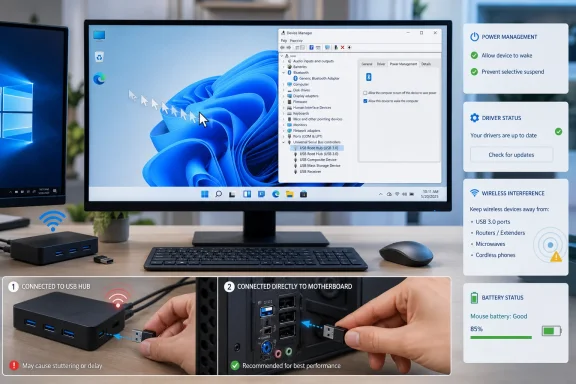
The most useful physical test is also the simplest: connect the mouse or receiver directly to a different USB port. Do not test through the same hub, monitor, keyboard passthrough, docking station, or front-panel extension cable, because that preserves too many variables. On a desktop, use a rear motherboard port; on a laptop, test a port on the opposite side if available.
If the issue disappears on a different port, do not begin by reinstalling drivers. You have evidence that the original connection path is implicated. A marginal port, loose front-panel cable, overloaded hub, dock firmware issue, or wireless receiver placement is more plausible than a broken Windows mouse driver.
Rule out the mouse, receiver, and USB path
A wired mouse that misses movement, disconnects briefly, or works only when its cable is held a certain way needs a hardware check before Windows repair work. Inspect the cable at both the mouse body and USB plug, clean the optical sensor, and test it on a second PC. If it stutters on another system, Windows is out of the case.
For a wireless mouse with a USB receiver, remove the receiver, wait roughly 10 seconds, and reconnect it directly to the PC. Microsoft specifically advises bypassing hubs and ensuring that any hub in use has its own power. Replace or recharge the mouse battery even if its indicator says it is not empty; low battery can first appear as intermittent cursor movement rather than a complete shutdown.
Receiver location is often overlooked. A tiny receiver plugged into the rear of a metal desktop case can sit behind a wall of metal, cables, and USB devices. Use a short USB extension or a front port to bring the receiver within clear range of the mouse, then retest. Conversely, if moving it closer makes the problem worse near a USB 3.x drive, dock, or cable, move it away from those devices.
Bluetooth mice need one extra check. Microsoft notes that unshielded USB devices near a USB 3.0 port can interfere with a sluggish Bluetooth connection. Disconnect nearby USB storage and docks temporarily, or move the Bluetooth mouse away from that cluster. If the cursor becomes stable, the issue is radio interference or placement, not a pointer-speed setting.
Use this short comparison to keep the diagnosis honest:
- A mouse that fails on two PCs is likely defective, depleted, contaminated, or physically damaged.
- A mouse that fails only through one hub, dock, monitor port, or front-panel port implicates that connection path.
- A USB-receiver mouse that improves when the receiver is moved closer is dealing with range or interference.
- A Bluetooth mouse that worsens around USB 3.x equipment may be affected by local radio noise.
- A mouse that stutters only after it has been idle is a reasonable candidate for a power-management change.
Check USB power management in Device Manager
Windows uses USB selective suspend to reduce power consumption by suspending idle devices or individual hub ports. Microsoft recommends leaving selective suspend enabled generally, particularly on mobile PCs, because it reduces power use and helps systems reach lower-power states. A mouse that does not resume cleanly is the exception worth testing; turning off power saving should be a targeted diagnostic step, not a permanent first response across every USB device.
Open Device Manager by right-clicking Start and selecting Device Manager. First expand Mice and other pointing devices and identify the actual mouse entry. It may appear as “HID-compliant mouse,” a vendor name, or multiple entries if the device has extra buttons or receiver functions.
Then expand Universal Serial Bus controllers. Look for entries such as USB Root Hub, Generic USB Hub, or similarly named hub devices. Right-click one hub at a time, choose Properties, and open Power Management if that tab exists. Clear Allow the computer to turn off this device to save power, click OK, and test the mouse after it has sat idle.
Do not be surprised if some USB controllers or mouse entries have no Power Management tab. That is normal on many modern systems: Windows and the controller driver may expose power policy differently, and there is no benefit in forcing a registry tweak merely to make a missing checkbox appear. Change only the hub or adapter that exposes the setting, and keep track of what you changed so it can be reversed.
Bluetooth mouse owners should repeat the same check under Bluetooth. Open the properties of the Bluetooth adapter, select Power Management if it is available, and clear the same “Allow the computer to turn off this device” option. Microsoft’s Bluetooth troubleshooting guidance identifies power-saving settings and outdated adapter drivers as common reasons for recurring Bluetooth drops or sluggish peripheral behavior.
After each change, test the original symptom: leave the mouse alone long enough for the fault to appear, then resume movement. A setting that does not change the reproduction should be restored instead of accumulated. Disabling every power-saving control can cost laptop battery life without curing a damaged cable or an overloaded dock.
Update, reinstall, or roll back the right driver
“Update the mouse driver” is frequently too vague to be useful. A basic wired USB mouse often uses Microsoft’s HID driver stack and may not have a separate vendor driver to update. A gaming mouse, Bluetooth mouse, wireless receiver, laptop chipset, USB controller, or Bluetooth adapter may have a manufacturer-specific package that matters far more.
Start with Settings > Windows Update > Check for updates, then install any available driver updates and restart. Microsoft identifies Windows Update as the normal route for drivers supplied for most hardware. If it offers nothing new, use the support page for the PC maker or motherboard maker—using the exact model—not a generic driver-download site.
In Device Manager, inspect these categories based on the connection type:
- For a wired USB mouse or USB receiver, check Mice and other pointing devices, Human Interface Devices, and Universal Serial Bus controllers.
- For a Bluetooth mouse, check Bluetooth and update the Bluetooth adapter before assuming the mouse itself needs a driver.
- For a laptop with problems across several USB devices, prioritize the PC maker’s chipset, USB controller, and BIOS or firmware packages rather than repeatedly updating “HID-compliant mouse.”
Right-click the relevant item, choose Properties, and use the Driver tab to record the provider, version, and date before altering anything. Then select Update Driver and let Windows search automatically, or use Browse my computer for drivers only when you have downloaded a package from the manufacturer’s official support page.
If the lag began immediately after a Windows or driver update, choose Roll Back Driver when the button is available. Microsoft explicitly recommends rollback as a response when a device worked before a recent update. Restart after the rollback and retest before trying an uninstall.
Uninstalling a device is the next step, not the first. For a wired or receiver-based mouse, uninstall the affected mouse entry or USB device in Device Manager, disconnect the device, restart, and reconnect it so Windows rebuilds the device instance. For Bluetooth, Microsoft’s procedure is to uninstall the Bluetooth adapter, shut down or restart as instructed, and let Windows reinstall it; have the PC maker’s Bluetooth package ready in case automatic reinstallation does not solve the fault.
Avoid the settings that mask the real problem
Pointer speed, “Enhance pointer precision,” polling-rate utilities, RGB control suites, and third-party driver updaters are poor first moves for intermittent lag. Pointer-speed changes alter how far the cursor travels; they do not repair a USB device that pauses after sleep or a receiver that is losing packets.
High polling rates can expose weak connection paths, especially through low-quality hubs or heavily loaded docks. If a gaming mouse offers 1,000 Hz, 2,000 Hz, 4,000 Hz, or higher polling, temporarily return it to a normal setting in the manufacturer’s software and test directly connected to the PC. Improvement there does not prove Windows is broken—it shows the current USB path or system workload cannot reliably sustain the chosen setting.
Do not download a random “driver updater” to chase a generic HID mouse entry. Microsoft advises obtaining manual driver downloads from the manufacturer rather than third-party sites. The practical risk is not merely an outdated driver: an incorrect chipset, USB, or Bluetooth package can replace a working configuration with one that is less compatible with the PC.
The repair is complete when the mouse remains smooth in the same scenario that previously failed: same port, same receiver position, same dock state, and after the same idle period. If it only works after disabling USB power saving, leave that targeted change in place and note the battery-life tradeoff on a laptop. If it only works in a different port or on another PC, replace or repair the hardware path rather than endlessly tuning Windows.
