
The practical fix is to stop Windows from power-managing the specific USB path used by the controller, then test whether the behavior disappears. This is worthwhile troubleshooting for a wired Xbox controller, DualSense, arcade stick, fight pad, or generic USB gamepad that suffers intermittent stalls or disconnects. It is not a universal low-latency setting: it will not improve a controller that is already awake and reporting normally, and it will not repair a bad cable, overloaded hub, wireless interference, or a game’s own input handling.
Microsoft’s USB documentation describes selective suspend as a power-saving feature that can suspend an individual port without stopping other devices on the same hub. Microsoft recommends leaving the feature enabled in general because it reduces power draw, especially on laptops. The gaming exception is narrow and testable: if a controller fails specifically after it has been idle, preventing the relevant device or hub from sleeping can remove the faulty resume step.
 Confirm that USB power management fits the symptom
Start by looking for a pattern rather than changing every performance setting in Windows. USB power management is a plausible suspect when a controller works immediately after it is plugged in, then develops a pause or disconnect after sitting unused; when the problem happens after the PC wakes from sleep; or when the same issue is accompanied by the Windows USB device sound.
It is less likely to be the cause if the controller is delayed continuously from the moment a game starts. Constant input delay points more often to the game’s frame rate, V-Sync configuration, display latency, Bluetooth or 2.4 GHz wireless transport, background CPU load, controller emulation software, or a faulty USB connection. A USB suspend change is designed to address a transition from idle to active—not to lower the normal polling interval of the controller.
Before making changes, plug the controller directly into the PC if possible. Avoid a front-panel extension, an unpowered hub, a monitor’s USB hub, and a loose adapter during the test. Those components can introduce their own power or signal problems, which makes it impossible to tell whether Windows was responsible.
If a direct rear motherboard port solves the issue by itself, keep the controller there and inspect the original hub, cable, or front-panel connection. Do not treat a power-plan tweak as proof that the original hardware path was sound.
Stop the controller’s USB hub from powering down
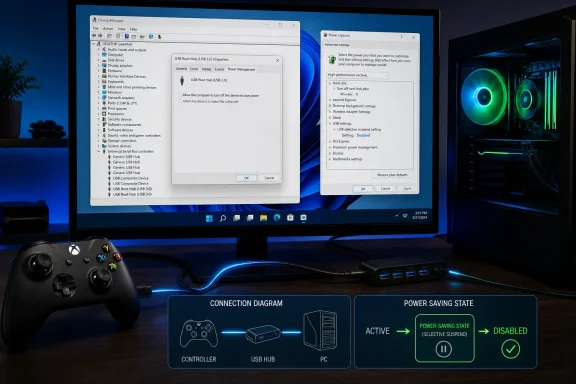
Device Manager exposes a power-management checkbox for many USB hubs. Microsoft’s hardware documentation confirms that clearing Allow the computer to turn off this device to save power disables selective suspend for that device node. The important limitation is that the checkbox is not guaranteed to appear on every controller, hub, or PC; its presence depends on the driver and hardware.
- Connect the wired controller you actually use for gaming.
- Press
Windows + X, choose Device Manager, and expand Universal Serial Bus controllers. - Look for entries such as USB Root Hub, Generic USB Hub, USB Hub, or SuperSpeed USB Hub. The exact names vary by chipset and Windows driver.
- Right-click one hub, choose Properties, and open the Power Management tab.
- If you see Allow the computer to turn off this device to save power, clear the checkbox and select OK.
- Repeat only for other USB hubs that could be serving the controller, then restart Windows or unplug and reconnect the controller before testing.
The difficult part is identifying the correct hub. A desktop can have several independent USB controllers and hubs, while a laptop may expose fewer visible branches. Do not blindly disable the setting on every entry unless you have exhausted a targeted test; doing so can increase idle power use and may leave more peripherals powered when the PC is running on battery.
A practical beginner method is to change one likely hub at a time. Start with the hub corresponding to the physical port in use, restart or reconnect the controller, then reproduce the idle period that normally triggers the fault. If nothing changes, restore the checkbox and test another hub. This preserves a clear record of what actually helped.
Some controllers also appear under Human Interface Devices, Xbox Peripherals, Sound, video and game controllers, or a vendor-specific category. Check their Properties windows as well. If a controller entry has a Power Management tab with the same power-saving checkbox, clear it for that controller. If the tab does not exist, leave it alone; forcing registry edits to create or alter hidden device power policies is not an appropriate first-line fix.
Microsoft’s driver documentation makes the reason clear: a driver can decide which power options it exposes to users. The missing checkbox does not mean Windows is ignoring the controller, nor does it prove that power management is the problem.
Disable USB selective suspend in the active power plan
The broader setting is USB selective suspend in the active Windows power plan. This controls Windows’ general policy for putting idle USB devices into a lower-power state. Use it after, or alongside, the hub-level test when the controller is still losing responsiveness after idle periods.
On both Windows 10 and Windows 11, the most reliable path remains the classic Power Options panel:
- Open Control Panel and select Hardware and Sound > Power Options.
- Next to the plan marked as active, choose Change plan settings.
- Select Change advanced power settings.
- Expand USB settings, then expand USB selective suspend setting.
- Set the option to Disabled. On a laptop, set both On battery and Plugged in to Disabled if the controller problem occurs in both situations.
- Select Apply, then OK, and reconnect the controller or restart the PC.
Windows 11’s Settings app surfaces common screen, sleep, and battery controls under Settings > System > Power & battery, but the selective-suspend switch may still require opening the legacy advanced power settings dialog. Microsoft’s current Windows support material continues to direct users to Power Options for more detailed power controls, so do not assume the option has been removed simply because it is absent from the modern Settings page.
This change applies to the selected power plan, not every plan stored on the computer. If you switch between Balanced, High performance, or a manufacturer-supplied gaming plan, confirm the setting in the plan you actually use. A laptop can also change behavior when it moves between battery and AC power if only one of those values was altered.
Test the change instead of assuming it worked
A successful test needs to reproduce the failure condition. Launch a game or controller tester, leave the controller untouched for the length of time that normally causes the first missed input or disconnect, then press a button and watch for an immediate response. Repeat after a normal Windows sleep-and-wake cycle if wake behavior was part of the original complaint.
Watch for these results:
- The controller remains connected and the first button press works normally after idle time.
- Windows no longer plays a USB disconnect or reconnect sound while the controller is in use.
- The behavior returns only when the controller is connected through a particular hub, extension, or front-panel port.
- The issue occurs even with selective suspend disabled and the controller connected directly to the PC.
The final result is the most useful one. If disabling the relevant power options changes nothing, restore USB selective suspend and move to hardware isolation: try a known-good data cable, another rear USB port, no hub, and another PC if one is available. Check Windows Update and the controller manufacturer’s support software for firmware or driver updates, particularly with controllers that use composite USB devices for audio, headset, or advanced features.
Microsoft’s USB compatibility guidance says a compliant USB device should not disconnect from its upstream port during selective suspend. In real troubleshooting, though, an intermittent disconnect can be caused by the controller firmware, a USB host controller driver, insufficient hub power, a damaged cable, or the physical port. Disabling power saving may work around a poor resume path, but it should not be mistaken for a diagnosis of every USB dropout.
The battery and sleep trade-off
Selective suspend exists for a reason. Microsoft describes it as a way to reduce power use by suspending idle devices individually, and it strongly recommends keeping the feature enabled by default. Disabling it system-wide is therefore best treated as a targeted reliability trade-off, particularly on portable PCs.
For a desktop used primarily for gaming, the additional idle power draw is usually a reasonable price if it ends reproducible controller dropouts. For a laptop, start with the Device Manager setting for the affected hub or controller; that is the narrower change. If only the broader setting solves the problem, consider disabling USB selective suspend only while plugged in and retaining the default behavior on battery.
Keep a note of what you changed. Driver updates, a Windows feature update, a BIOS reset, or reinstalling USB controller drivers can restore defaults or reshuffle the device entries visible in Device Manager. If the problem reappears after a major update, repeat the targeted test before changing unrelated gaming settings.
For a wired controller that misses its first input after sitting idle or randomly disconnects, these USB power settings are a fast, reversible fix to test. If the issue persists with the controller directly attached, selective suspend disabled, and a known-good cable, the next purchase should not be another “low-latency” Windows tweak—it should be the evidence needed to isolate the controller, cable, hub, or PC USB hardware.