
mklink in Windows 10 and Windows 11 lets you place a file or folder where an application expects it while keeping the actual data somewhere else—or let two file names refer to the same NTFS data without making a second copy. It is built into Command Prompt, and Microsoft documents four modes: file symbolic links, directory symbolic links, hard links, and directory junctions.
The important distinction is that these are file-system objects, not .lnk shortcuts. Programs generally follow them as though they were using the original path. That makes mklink useful for relocating large game libraries, satisfying an older application’s fixed folder path, or keeping a single file available in two local folders. It also makes careless deletion dangerous: removing the link itself is safe when done correctly, but deleting files through a folder link deletes the real target files.
Microsoft’s mklink reference confirms the command is available on Windows 10 and Windows 11 and uses this order:
mklink [switch] <link> <target>
The first path is always the new link you are creating. The second is the existing target. Reverse them, and Windows will either fail because the target already exists or create the link in the wrong location.
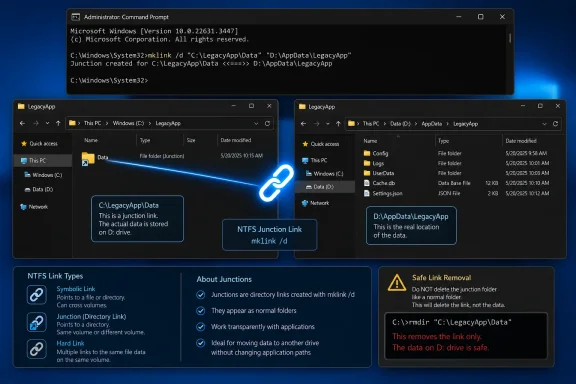 Pick the Link Type Before You Run the Command
Use the link type that matches the object you are linking and the storage layout you need. A hard link is a special case: it is not a redirect to another path, but an additional directory entry for the same file.
| Link type | mklink command | Use it for | Key limitation |
|---|---|---|---|
| File symbolic link | mklink | One file pointing to another file | The target can be local or network-based, but the link can break if the target moves. |
| Directory symbolic link | mklink /d | One folder path pointing to another folder | The target can be on another local drive or a UNC network path. |
| Hard link | mklink /h | Two names for one local file without using additional disk space | Files only; both paths must be on the same NTFS volume. |
| Directory junction | mklink /j | A local compatibility folder path redirected to another local folder | Directories only; it cannot target a mapped network share. |
A symbolic link, commonly shortened to symlink, is the most flexible option. It stores a reference to a target path. If you create a directory symlink at C:\Apps\OldData pointing to D:\Data\OldData, an app opening C:\Apps\OldData\settings.json is actually working with D:\Data\OldData\settings.json.
A junction also links directories, but it is a local NTFS reparse point rather than the more general symbolic-link mechanism. Microsoft’s file-system documentation says junctions can cross local volumes, such as from C: to D:, but cannot refer to mapped network volumes. For a local folder relocation where an older program insists on a particular path, a junction is often the least surprising choice.
A hard link is for a different job. Both names are equal references to the same file data on one NTFS volume. There is no original-versus-copy relationship after creation: editing either name edits the one underlying file, and storage is released only after the final hard-link name is deleted. Microsoft’s fsutil hardlink documentation is useful here because it can enumerate every hard link for a file before you remove one.
Open Command Prompt and Prepare the Paths
Open Command Prompt, preferably by searching for cmd. For symbolic links, an elevated Command Prompt remains the reliable default: right-click Command Prompt and choose Run as administrator.
On a personally managed developer machine, Developer Mode can allow non-elevated symbolic-link creation in supported configurations. Microsoft notes that enabling Developer Mode itself requires administrator access, and an organization can disable it through policy. If mklink reports that you do not have sufficient privilege, use an elevated Command Prompt rather than repeatedly changing the command syntax.
Before creating any link:
- Make sure the target already contains the file or folder you intend to use.
- Make sure the link path does not already exist as a file or directory.
- Put quotation marks around any path containing spaces.
- Use full paths while learning or documenting a setup; relative paths work, but they make future troubleshooting harder.
For example, suppose a program expects its data at C:\LegacyApp\Data, but you have moved that data folder to D:\AppData\LegacyApp. The folder at D:\AppData\LegacyApp must exist first. Do not leave an empty C:\LegacyApp\Data directory in place; remove or rename that empty placeholder before creating the link at that same path.
Create File and Folder Symbolic Links
Without a switch, mklink creates a symbolic link to a file:
mklink "C:\Work\CurrentReport.xlsx" "D:\Reports\2026\CurrentReport.xlsx"
This creates C:\Work\CurrentReport.xlsx as a link to the actual workbook on D:. Opening, saving, or replacing the file through the link affects the target path. If D:\Reports\2026\CurrentReport.xlsx is later renamed or moved, the symlink remains but becomes a broken link.
For a directory symbolic link, add /d:
mklink /d "C:\LegacyApp\Data" "D:\AppData\LegacyApp"
Use a directory symbolic link when the folder might need to point to a network location:
mklink /d "C:\ProjectAssets" "\\FileServer01\Design\ProjectAssets"
Microsoft’s Windows file-system documentation explicitly supports symbolic links to remote files and directories using UNC paths. Prefer the UNC form, such as \\FileServer01\Share, instead of a mapped drive letter such as Z:. Mapped letters depend on the user session and may not exist for a service, scheduled task, elevated process, or another user account.
A symbolic link does not make a backup and does not isolate data. If you open the link and delete C:\LegacyApp\Data\database.db, Windows follows the link and deletes D:\AppData\LegacyApp\database.db. Treat the linked folder as the real folder because, operationally, it is.
Use Junctions for Local Folder Redirection
Create a directory junction with /j:
mklink /j "C:\LegacyApp\Data" "D:\AppData\LegacyApp"
For most desktop file-relocation jobs, this looks much like the /d example above. The practical reason to select /j is compatibility: junctions have been part of Windows folder redirection for decades, and some older utilities handle local junction paths more predictably than directory symlinks.
The limitation is decisive. Do not use a junction for this:
mklink /j "C:\ProjectAssets" "\\FileServer01\Design\ProjectAssets"
Junctions are for directories on local volumes, not network shares. Use mklink /d for the network case.
Junctions and directory symlinks are both reparse points, a Windows mechanism that changes normal path processing. This is why disk-usage reports and recursive backup, sync, or cleanup tools deserve special attention. Microsoft warns that Explorer and dir /s can follow directory junctions and count destination files as though they are part of the host volume. A scan of C: may therefore appear to include data physically stored on D:.
That behavior does not mean data was duplicated. It means the tool followed the alternate path. Check how your backup, deduplication, and synchronization software treats reparse points before relying on it; some tools preserve the link, while others traverse it and copy the target contents.
Use Hard Links Only for Files on One NTFS Volume
Create a hard link with /h:
mklink /h "C:\Work\Final\Budget.xlsx" "C:\Archive\Budget-Approved.xlsx"
Both paths must be files on the same NTFS volume. This works because a hard link adds another name to the same underlying file record; it does not create a path redirect and does not allocate a second copy of the data.
The following will fail by design because the file paths use different volumes:
mklink /h "C:\Work\Budget.xlsx" "D:\Archive\Budget.xlsx"
Hard links cannot represent directories. They are also a poor choice when you want to move a file between drives later, because the same-volume requirement prevents the link from spanning that move. Use a symbolic link when the file needs to live on a different drive or may be redirected to a network share.
To see all names attached to a hard-linked file, use:
fsutil hardlink list "C:\Archive\Budget-Approved.xlsx"
Microsoft documents fsutil hardlink list for exactly this inspection task. Run it before deleting a file that may have been hard-linked, especially if the file appears in an archive, build-output, or media-management workflow. Deleting one hard-link name does not delete the file while another hard-link name remains.
Verify the Link and Remove It Without Touching the Target
After creating a folder link, inspect reparse points in its parent directory:
dir /al "C:\LegacyApp"
The /a attribute filter with l shows reparse points, including directory links. For hard links, use fsutil hardlink list because a hard link looks like an ordinary file in a directory listing.
Test a folder link by creating a harmless text file through the link:
echo test> "C:\LegacyApp\Data\link-test.txt"
Then confirm that the file appears at the target path, such as:
D:\AppData\LegacyApp\link-test.txt
Delete the test file afterward from either path. They are the same object as far as the linked view is concerned.
When it is time to remove a link, delete only the link path:
del "C:\Work\CurrentReport.xlsx"
Use del for a file symbolic link or one hard-link name. The target of a file symbolic link remains; for a hard link, the underlying data remains only if at least one other hard-link name still exists.
For a directory symbolic link or junction, use rmdir or its alias rd:
rmdir "C:\LegacyApp\Data"
Do not add /s when removing a directory link. The safe command removes the directory link entry itself. A recursive deletion command can act on the contents reached through that path, which is precisely the data you meant to preserve.
The rule worth keeping is simple: create the real data location first, link the old path to it, verify the destination, and remove the link only by targeting the link path. Done that way, mklink is a clean way to reorganize storage without duplicating files or breaking software that still expects yesterday’s folder layout.