
Solution
Ok... I found a solution to this.....
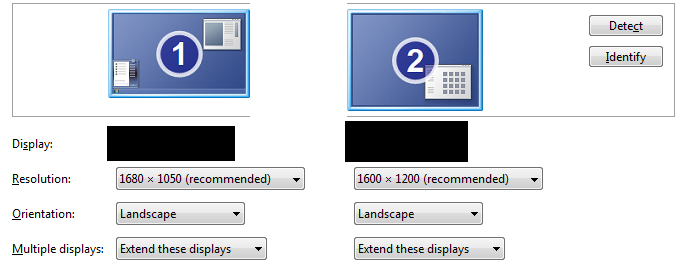
In my case the duel monitor set up is one screen 1 = 1680x1050 and screen 2 = 1600x1200.....

So.... BOTH screens together = 3280x1280.....
BUT the desktop of the 1st screen has less height than the 2nd. The "active" area of the screen space as you can see it is the same dimensions of the screen... so I have made a image for you guys... where red is screen1 and blue is screen2 and green is an area of the bitmap NOT seen on the screen at all....

So all you need to do is fill in the RED and the BLUE areas and ignore the green, or even have...
In my case the duel monitor set up is one screen 1 = 1680x1050 and screen 2 = 1600x1200.....
So.... BOTH screens together = 3280x1280.....
BUT the desktop of the 1st screen has less height than the 2nd. The "active" area of the screen space as you can see it is the same dimensions of the screen... so I have made a image for you guys... where red is screen1 and blue is screen2 and green is an area of the bitmap NOT seen on the screen at all....

So all you need to do is fill in the RED and the BLUE areas and ignore the green, or even have...

maddmaxx
Senior Member
- Joined
- Jan 13, 2009
- Messages
- 198
Hmmmm, I have been running duel monitors for years starting with XP. I have not come across this issue before. What steps have you tried? Seems to me that I remember this from XP but don't recall the solution. I'll do some research and get back to you.

- Thread Author
- #5
this requires installing software.... I was wondering if there is a way with out using active desktop or 3rd party software.
Jon Tackabury has created a Free piece of software that lets you easily set separate wallpapers for each desktop.
Once the software is installed, you’ll notice a new tray icon.
- Thread Author
- #6
Ok... I found a solution to this.....
In my case the duel monitor set up is one screen 1 = 1680x1050 and screen 2 = 1600x1200.....
So.... BOTH screens together = 3280x1280.....
BUT the desktop of the 1st screen has less height than the 2nd. The "active" area of the screen space as you can see it is the same dimensions of the screen... so I have made a image for you guys... where red is screen1 and blue is screen2 and green is an area of the bitmap NOT seen on the screen at all....
So all you need to do is fill in the RED and the BLUE areas and ignore the green, or even have stuff on green, just be aware you will not see it...
and load it up in backgrounds Control Panel\All Control Panel Items\Personalization\Desktop Background
Select picture locations and select your desktop background directory... and then set it to TILE
now you will have a single image, shown on both screens, but as the image itself has 2 background, you get two backgrounds on each screen!!! No software needed!

Hope this helps!
In my case the duel monitor set up is one screen 1 = 1680x1050 and screen 2 = 1600x1200.....
So.... BOTH screens together = 3280x1280.....
BUT the desktop of the 1st screen has less height than the 2nd. The "active" area of the screen space as you can see it is the same dimensions of the screen... so I have made a image for you guys... where red is screen1 and blue is screen2 and green is an area of the bitmap NOT seen on the screen at all....
So all you need to do is fill in the RED and the BLUE areas and ignore the green, or even have stuff on green, just be aware you will not see it...
and load it up in backgrounds Control Panel\All Control Panel Items\Personalization\Desktop Background
Select picture locations and select your desktop background directory... and then set it to TILE
now you will have a single image, shown on both screens, but as the image itself has 2 background, you get two backgrounds on each screen!!! No software needed!

Hope this helps!