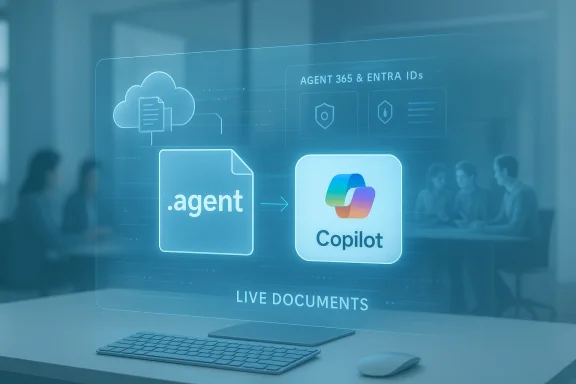
Microsoft has quietly moved a new Copilot surface into the place most work actually lives: your OneDrive. What started as a set of preview concepts has reached general availability for commercial tenants —
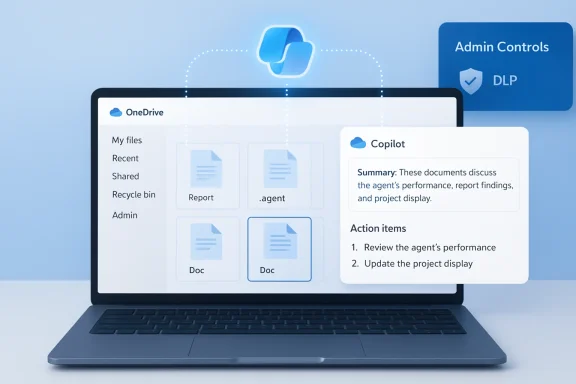
OneDrive now supports AI “agents” saved as .agent files that can reason across up to 20 selected documents at once, delivering consolidated summaries, action items, risk signals, and other cross‑document intelligence inside a full‑screen Copilot experience. This change is small in UI footprint but large in operational impact: OneDrive agents shift Copilot from single-file assistance into a shareable, project‑scoped assistant that lives alongside the files it reasons over.
 Background / Overview
Microsoft’s Copilot strategy has steadily evolved from chat‑first helpers into an
agentic platform: persistent, identity‑aware assistants that can hold context, call tools, and operate across cloud surfaces. Agents in OneDrive are a practical expression of that direction — they let users pick a bounded set of files or folders and create a lightweight agent that remains anchored to that exact dataset. The agent is stored as a normal file in OneDrive (a .agent file), appears in search and filters like other file types, and opens into Copilot where you can ask cross‑document questions such as “What decisions have we made so far?” or “What risks keep coming up?”
This is consistent with Microsoft’s broader platform work — Copilot Studio for authoring agents, Agent 365 as a governance plane, and runtime constructs like agent workspaces and agent accounts on Windows — all aimed at making agents manageable IT assets rather than ephemeral experiments. Those plumbing pieces matter because they influence what administrators can audit, control, and block.
What OneDrive agents do — a practical guide
What you can expect as an end user
- Create an agent on OneDrive on the web by selecting files/folders and choosing “Create an agent,” or via the + Create menu. The agent is saved as a .agent file and has a custom icon; opening it launches a full‑screen Copilot view.
- Agents operate over the files you include; they do not automatically sweep all your OneDrive content. You pick the content and can add instructions to focus the agent’s behavior.
- The current file and folder limits are explicit: agents accept up to 20 files (and if you add a folder it must contain no more than 20 files). Supported file types include common document formats such as DOC, DOCX, PPT, PPTX, PDF, TXT, RTF, and MD.
- Sharing works like a normal OneDrive file: you can share the .agent file with colleagues, but they only get useful answers when they also have access to the source documents the agent references. If a recipient lacks file permissions the agent won’t be able to ground responses in those documents.
License and availability
- Agents in OneDrive are available only to work or school accounts with a Microsoft 365 Copilot license; consumer and pay‑as‑you‑go consumption billing accounts are excluded from agent creation. The feature is web‑only at launch.
How agents are built and where the knowledge comes from
Microsoft provides two parallel models for agent knowledge:
- Agents can reference live OneDrive and SharePoint files as knowledge sources (the agent queries those files when answering). This model keeps content where it lives and avoids creating persistent copies.
- For scenarios that need embedded content, Microsoft also supports embedded file content where uploaded files become part of the agent’s embedded knowledge; those embedded files are stored in SharePoint Embedded and count against tenant storage quotas. This is documented behavior and has billing and storage implications.
For organizations using Copilot Studio and the agent manifest model, agents can include capabilities such as scoped web search, and administrators can control whether web search is permitted for agents across the tenant. The manifest-driven model lets developers declare the knowledge sources and capabilities an agent is allowed to use, creating a more auditable surface for administrators.
What Microsoft says — and what it doesn’t say
Microsoft’s OneDrive blog and support pages emphasize simple setup and the productivity benefits of scoped, shareable agents. Microsoft explicitly states that “getting started requires no special admin setup” for OneDrive on the web (provided users have the required Copilot license) and frames agents as behaving like normal OneDrive files.
That messaging is attractive for end users, but it
raises operational questions for administrators: how and where is file content processed, what telemetry is collected, and how is data used for model improvement or telemetry? Several reputable reporters and community threads have flagged the lack of granular, public detail about those data flows, and Microsoft has not been detailed in all public responses. The Register, for example, highlighted the absence of an immediate Microsoft reply when pressed on privacy implications. Where Microsoft documentation is explicit (for example, where embedded files are stored) it should be treated as authoritative; where Microsoft is silent, cautious assumptions are prudent until clarified.
Strengths and real user benefits
The OneDrive agent model delivers several clear, practical wins:
- Reduced friction for cross‑document work. Instead of opening dozens of files and trying to stitch together decisions or action items, a scoped agent can surface named owners, deadlines, and repeating risks in a single query. That saves time for project leads, legal reviewers, and knowledge workers.
- Persistent, shareable context. Agents act as a project‑scoped memory that can be refined over time. Because they are files, they can be versioned, moved, and shared using existing OneDrive controls. This is a simple, discoverable way to keep a team aligned without forcing document copies into an external analysis tool.
- Tight integration with Microsoft agent tooling. Agents authored with Copilot Studio and deployed through Microsoft 365 admin channels can be managed like other tenant assets, with assignment and lifecycle controls. This makes agents appear less like rogue AI features and more like first‑class enterprise services.
Risks, unknowns, and the adversarial surface
The productivity upside does not remove a set of serious operational risks. IT leaders should treat OneDrive agents as a new attack and compliance surface.
Key risk areas
- Data flow and telemetry opacity. The most consequential question is whether document content processed by agents is routed to cloud LLMs outside tenant boundaries, whether snippets are logged, and whether interactions are used for model training. Microsoft documentation describes where embedded files are stored and how web searches can be controlled, but public clarity on telemetry and training is incomplete. Administrators with data residency and regulatory obligations must seek explicit vendor attestations before enabling broad rollout. Treat vendor policy statements as promises until verified.
- Permission‑driven hallucination risks. Sharing a .agent file without ensuring recipients also have access to the underlying files increases the chance Copilot will answer confidently but incorrectly. Microsoft’s documentation and PR acknowledge this behavior: an opened agent that lacks access to source files will not produce useful answers. That reduces risk, but also produces blunt failure modes that can mislead non‑technical collaborators.
- Prompt injection and data exfiltration. Any system that composes outputs from untrusted documents can be targeted with malicious content crafted to change agent behavior. Attackers could embed instructions in documents or attachments that an agent might follow. Robust runtime protections, content sanitization, and human‑in‑the‑loop confirmation for sensitive actions are essential mitigations. Community analyses of agentic features across Windows and Microsoft 365 have called attention to these vectors.
- Administrative controls that are limited or gated. Microsoft has added admin tooling for agents and Copilot scenarios but some admin controls are deliberately conservative (e.g., scoped uninstall policies or staged toggles). The control model favors pilot‑first rollouts and requires administrators to proactively configure settings and test policies; there is not always a single “kill switch.” Admins must design enforcement through Intune, AppLocker/WDAC, or other platform controls where necessary.
What administrators should do now — a practical playbook
If you are responsible for compliance, security, or identity in a Microsoft tenant, treat OneDrive agents as a change in your risk surface and plan accordingly.
- Inventory and pilot
- Confirm which users have Microsoft 365 Copilot licenses and whether agents are currently visible in your tenant. Start with a small pilot group that mirrors your top compliance classes.
- Identify high‑risk repositories (legal, HR, finance) and explicitly exclude them from early testing unless you have reviewed data flows with compliance stakeholders.
- Update policy and DLP
- Ensure Data Loss Prevention policies apply to content that could be referenced by agents. If your DLP tools support it, monitor agent interactions and block known exfiltration patterns. Consider controlling the ability to embed files in agents via tenant settings or authoring policies.
- Control web search and external knowledge
- Microsoft allows tenant admins to disable web search for Copilot and agents. If your organization cannot accept agents performing external web lookups, set that control before broad deployment.
- Logging, auditing, and SIEM integration
- Validate that agent lifecycle events and interactions are surfaced in audit logs the way other SharePoint/OneDrive events are. Integrate audit streams with your SIEM and define retention and review processes. Confirm whether logs include sufficient provenance to support forensics.
- Governance for agent publication
- If you plan to deploy tenant‑wide or developer‑produced agents (Copilot Studio), use the Microsoft 365 admin controls (Copilot Control System) to publish and scope agents, and restrict who can upload or assign agents. The admin upload and validation workflow lets you test agents in a narrow audience before production.
- End‑user guidance and training
- Provide clear guidance to users about:
- What types of documents should never be included in agents
- How to check collaborator file access before sharing a .agent file
- How to interpret agent outputs and verify instead of accepting them unquestioningly
For end users: safe practices before you create or share an agent
- Only include files you intend to share with your collaborators and that are necessary for the agent’s purpose.
- Validate permissions: before sharing the .agent file, double‑check that every intended reader has the same access to the underlying files.
- Keep instructions explicit: use the agent’s optional instruction field to constrain scope (for example, “Only summarize decisions and action items, do not generate new recommendations”).
- Use agents for synthesis and triage, not final legal, financial, or safety decisions. Always double‑check any critical output against the original sources.
These are pragmatic guardrails — they won’t eliminate model error or adversarial content, but they reduce common misuse patterns and accidental exposure.
Known limitations and unverifiable claims
There are a few claims that require caution or additional verification:
- Microsoft’s statement that the feature “requires no special admin setup” is accurate from a user onboarding perspective but does not eliminate tenant‑level governance or compliance work. Administrators still need to validate telemetry, DLP integration, and consent models against organizational requirements before permitting broad adoption. Treat the “no special admin setup” remark as a simplification for everyday users, not a guarantee of compliance‑friendliness.
- Public reporting notes that Microsoft did not provide an immediate, detailed reply to press questions about the privacy implications of agents. That gap should be treated as a signal to request formal clarification from Microsoft if your organization requires contractual or technical assurances around data handling. Until Microsoft publishes explicit, third‑party audited attestations, claims about telemetry use or training‑data exclusion should be considered vendor statements rather than independently verified facts.
- Implementation details that matter for compliance — the exact telemetry fields logged, retention periods, and whether agent interactions are used to improve models — are not fully transparent in the public product pages. Administrators with regulatory obligations should request written clarifications or seek contractual protections through their account teams. If you cannot obtain satisfactory detail, restrict agent usage accordingly.
Realistic rollout scenarios — when agents make sense
Agents are particularly useful where cross‑document awareness dramatically reduces manual work. Examples include:
- Project status aggregation: summarize meeting notes, decision logs, and milestone tracking across multiple docs.
- Mergers & acquisitions diligence: quick triage of red‑flag topics that recur across decks, contracts, and notes (with legal sign‑off).
- Product launch readiness: synthesize release checklists, dependency owners, and outstanding issues across several files.
- Academic or research synthesis: combine multiple papers or datasets to extract recurring themes.
These scenarios assume careful permissions management and a human reviewer in the loop for any high‑stakes output. When those conditions hold, agents can be a genuine productivity multiplier.
The bottom line: embrace cautiously, govern proactively
Agents in OneDrive represent a logical and useful next step for Copilot: they reduce friction, make cross‑document queries natural, and reuse OneDrive’s familiar sharing model to package AI assistance as a shareable file. For everyday project work they will likely save time and centralize context in ways that teams will appreciate.
At the same time, the operational implications — telemetry, compliance, prompt injection, and administrative controls — are real and require deliberate planning. Microsoft provides clear authoring and admin controls in its documentation, but some of the most important data‑handling questions remain insufficiently explicit in public materials. Organizations should not treat “no special admin setup” as an invitation to skip compliance checks; instead, they should pilot agents, update DLP and audit configurations, and collect written assurances from Microsoft where necessary.
If your organization is already deeply invested in Microsoft 365 and Copilot, agents in OneDrive are worth evaluating now. If you run a regulated environment, do not roll them out tenant‑wide until you have validated data flows, logging, and policy controls. In every case, treat agent outputs as
assistive rather than authoritative — verify before you act.
Agents bring Copilot closer to the files where decisions are made. That’s a powerful productivity idea; the work now is to make sure it’s paired with governance that keeps the productivity gains from turning into governance, privacy, or security losses.