

In 2026, the safest way to check a Windows PC for viruses is to start in the built-in Windows Security app, run a Quick scan with Microsoft Defender Antivirus, update security intelligence, then escalate to Full, Custom, Offline, or second-opinion scanners only when the evidence justifies it. That order matters because modern Windows malware defense is less about finding one magic “virus checker” and more about using the right scanner at the right depth. Microsoft’s own support guidance, VirusTotal’s documentation, and recent vendor changes from Norton and Google all point in the same direction: old cleanup rituals have aged out, while Windows’ built-in tooling has become the default first line of defense.
The useful mental model is not “download a cleaner.” It is triage. If your PC is merely acting strange, you start with the lowest-risk check. If Windows is reporting threats, if malware returns after removal, or if a suspicious file came from an untrusted source, you move deeper. The trick is knowing when to stop clicking and when to escalate.
For years, Windows users treated Microsoft’s antivirus as the thing you used only if you had nothing better installed. That reputation is increasingly outdated. Microsoft Defender Antivirus is now the built-in malware engine behind Windows Security on Windows 10 and Windows 11, and Microsoft’s support pages describe the standard scan path directly inside the Windows Security app.
That does not mean Defender is magical, or that every third-party antivirus is unnecessary. It does mean the default answer to “How do I check my PC for a virus?” is no longer “go find a free scanner on the web.” The default answer is to open Windows Security and see what is already protecting the machine.
The distinction matters because malware cleanup advice has a long half-life. Search results, forum posts, and old YouTube walkthroughs still recommend tools that have been removed, retired, or narrowed in scope. Google removed Chrome Cleanup Tool scanning with Chrome 111, and Norton says Norton Power Eraser was discontinued on April 30, 2026 and stopped working after that date.
That is why a 2026 virus-checking workflow should begin with Microsoft’s current interface, not with a decade-old utility name. Windows Security is not just a dashboard; it is the front door for quick scans, full scans, custom scans, protection updates, offline scans, provider status, and protection history. If malware has not broken Windows itself, that is where the first few clicks belong.
A Quick scan is not a full inspection of every byte on every drive. It is designed to check the places where malware commonly hides and executes. That makes it the sensible first test when a user says the PC feels wrong, a browser keeps redirecting, or a download looked suspicious but there is not yet hard evidence of a system-wide compromise.
After the scan finishes, the next stop is Protection history. That screen is where Windows Security shows recent protection events, quarantined items, allowed threats, remediation actions, and Microsoft Defender Offline results. Microsoft says Protection history is the place to review offline scan results, and its support material indicates that protection events are retained for a limited period, so it is worth checking immediately rather than days later.
This is also the point where the user should resist the urge to stack tools. Running five cleaners in a panic can create false positives, broken quarantine states, and needless confusion. A clean Quick scan does not prove a PC is pristine, but it gives you a baseline before you escalate.
This is one of the most common sources of user confusion. People open Windows Security, see Microsoft branding, and assume Defender is doing the scanning. In reality, Windows Security may be showing the state of a third-party antivirus provider. If that provider is active, its own app may be responsible for full-system scans and real-time protection.
There is nothing inherently wrong with that arrangement. Windows is designed to avoid two real-time antivirus engines fighting over every file operation. But it does mean the user has to know which tool owns protection before following Defender-specific instructions.
If Defender is active and real-time protection is off, the fix is inside Virus & threat protection settings. Choose Manage settings and turn Real-time protection on. If a third-party antivirus is active, do not try to force Defender into the same role without deciding whether that third-party product should remain installed.
Microsoft’s Defender guidance emphasizes security intelligence and cloud-delivered protection because modern malware moves quickly. A file that looked unknown in the morning may be classified by the afternoon after Microsoft, security vendors, or enterprise telemetry systems encounter more samples. Updating before a manual scan reduces the chance that a known threat slips through simply because the local machine has stale signatures.
This is also why “I ran a scan last week” is not a complete answer. Malware defense is temporal. A clean scan from June 25 does not necessarily answer a suspicious download from July 4, and a laptop that has been offline for weeks may need updates before its scan results mean much.
For managed PCs, this step may be controlled by policy. Microsoft Defender for Endpoint, Intune, Group Policy, or another enterprise security platform may decide when definitions update and which scan options users can access. On a work or school machine, the correct escalation path may be the IT help desk, not a local admin improvising with consumer tools.
The tradeoff is time and performance. A Full scan can take a long while, especially on systems with large drives, external storage, developer folders, virtual machines, archives, or network-heavy workflows. On a desktop with terabytes of games, ISOs, code repositories, and backups, “full” can become a long and noisy operation.
That does not make Full scan useless. It makes it situational. If the PC has downloaded a suspicious installer, if Defender has quarantined a threat and you want a broader sweep, or if the system has been sitting unpatched and unattended, a Full scan is a reasonable escalation.
What Full scan should not become is a superstitious maintenance chore. Defender’s real-time protection already scans files as they are opened, downloaded, and executed. Scheduled quick scans and real-time monitoring usually provide more practical protection than making users wait through frequent full-disk scans they do not understand.
The even faster route is File Explorer. Right-click a file or folder, choose Show more options, and select Scan with Microsoft Defender. Microsoft’s support page documents this path for Windows 10 and Windows 11, and it is often the cleanest way to inspect a downloaded ZIP, a USB drive folder, or a suspicious attachment saved to disk.
Custom scans are especially useful for practical triage. If a user downloaded one installer from a sketchy mirror, the first question is not always whether every file on the PC is infected. It is whether that installer, its extracted folder, or the USB stick it came from triggers detection.
That precision also reduces false urgency. A Custom scan that flags one item gives the user a specific object to quarantine, delete, or investigate. A vague system-wide fear becomes a concrete file path, and concrete file paths are where cleanup decisions become safer.
The path is inside Windows Security: Virus & threat protection, Scan options, Microsoft Defender Antivirus Offline scan, then Scan now. Save open work first, because the machine restarts. After the scan completes, Windows restarts again, and results appear in Protection history.
The reason this scan exists is simple. Some malware hides by loading early, injecting into processes, tampering with services, or defending itself while Windows is running. Scanning outside the normal Windows session can make those tricks harder to pull off.
There are caveats. Microsoft’s current support guidance ties the feature to Microsoft Defender Antivirus, and the user-submitted guide correctly notes that it may not appear when a non-Microsoft antivirus is the active provider. It also notes an ARM-based PC limitation, which users should verify against their own Windows build and hardware because Microsoft’s consumer interface and device support details can shift.
A quarantined threat is not the same thing as an active infection. Quarantine usually means the engine isolated the item so it cannot run. An allowed threat, a failed remediation, or repeated detections in the same path is more concerning.
Protection history can also reveal patterns. If the same browser extension, temporary folder, or startup path keeps appearing, the problem may be a recurring installer, a malicious scheduled task, a compromised browser profile, or a user repeatedly restoring the same bad file. The history view gives you a timeline rather than a vibe.
For home users, a screenshot of Protection history can be useful before asking for help on a forum. For admins, the equivalent story usually belongs in Defender for Endpoint, Intune, event logs, or the organization’s EDR console. Either way, the principle is the same: do not diagnose from memory when the system has already recorded events.
For a suspicious file, VirusTotal can provide a second-opinion snapshot. If one obscure engine flags a file and dozens do not, that may suggest a false positive, though it does not prove innocence. If many reputable engines agree, the file deserves caution.
The privacy warning is not optional. VirusTotal’s own documentation says submitted files and URLs can be shared with the security community and examining partners. That is good for collective defense, but bad for confidential tax documents, internal company installers, unpublished code, legal files, HR exports, or anything private.
For sensitive files, search by hash instead of uploading the file itself. A hash lookup can show whether VirusTotal has already seen that exact file without handing over the contents. If the hash is unknown, that absence is not a clean bill of health; it only means the public dataset may not already contain the sample.
Safety Scanner is best thought of as a second Microsoft opinion when Defender is unavailable, questionable, or not the product actively installed. Download the correct 32-bit or 64-bit version from Microsoft, run it, choose the scan type, and review the on-screen results. If you need it again after 10 days, download it again.
The Malicious Software Removal Tool, or MSRT, is even more specialized. Microsoft’s KB890830 article says it targets specific prevalent malware families and does not replace an antivirus product. Microsoft generally ships it through Windows Update on a monthly cadence, while also offering standalone downloads.
That makes MSRT useful but easy to overstate. It is not a universal malware detector. It is a targeted removal tool for known, widespread threats Microsoft has chosen to cover. If MSRT finds something, take it seriously; if it finds nothing, do not treat that as proof that every threat class has been ruled out.
Google announced the removal of Chrome Cleanup Tool scanning with Chrome 111, a change covered at the time by outlets such as PC Watch and reflected in Chrome’s modern security model. Chrome still has Safety Check for browser updates, compromised passwords, harmful extensions, and related browser hygiene. But that is not a whole-PC malware scan.
Norton’s Power Eraser is a sharper example because it was once widely recommended for aggressive cleanup. Norton’s own support page says Power Eraser was discontinued on April 30, 2026, stopped working, and no longer receives support or updates. Any guide still telling users to rely on it after that date is not merely old; it is operationally wrong.
This is the broader lesson. Security tools age differently from ordinary utilities. A discontinued image viewer may still open a JPEG. A discontinued malware cleaner is a liability because it depends on current threat intelligence, supported infrastructure, and maintained detection logic.
Chrome’s Safety Check can help with browser-specific problems. In Chrome, open Settings, go to Privacy and security, select Safety Check, and follow the prompts. Edge has its own security and privacy controls, and Windows Security can still scan downloaded files or suspicious extension installers saved to disk.
The important distinction is scope. A browser safety check is not a replacement for Defender, and Defender is not a complete browser account audit. If a malicious extension is synced through a Google or Microsoft account, cleaning the local PC without fixing the browser profile may only produce a temporary victory.
That is why users should pair scanning with basic account hygiene. Remove unknown extensions, review notification permissions, check startup pages and search engines, update the browser, and change passwords from a clean device if credential theft is suspected. Malware cleanup and browser cleanup overlap, but they are not the same job.
That is not bureaucracy for its own sake. A malware alert on a work laptop may involve company credentials, VPN tokens, customer data, source code, or regulated information. A home user can decide to delete a suspicious file and move on; an enterprise admin may need to preserve evidence, rotate credentials, or check lateral movement.
Users should not upload company files to VirusTotal without permission. VirusTotal’s sharing model is valuable for public threat intelligence, but it is a poor fit for confidential internal documents or proprietary binaries. In a corporate environment, the right second-opinion service may be a private sandbox, an EDR submission workflow, or a security team process.
The same applies to removal tools. Running random cleaners with administrative privileges on a managed endpoint can interfere with telemetry, break forensic context, or violate policy. If the PC is owned by an employer or school, the right answer is to use the organization’s incident process.
This is why the order of operations matters. A Quick scan gives fast signal. A Full scan broadens coverage. A Custom scan focuses on a suspicious object. Defender Offline changes the operating environment. VirusTotal and Safety Scanner provide second opinions. Protection history tells you what actually happened.
The user’s symptoms also matter. A one-time scare after downloading a file is different from repeated account logins from new locations, unexplained admin accounts, disabled security settings, or ransomware notes. At some point, the issue stops being “run another scanner” and becomes “disconnect the machine, preserve evidence, restore from known-good backups, and rotate credentials.”
Backups are the quiet part of virus checking. If malware has encrypted, modified, or exfiltrated data, a scanner cannot turn back time. Good backups, tested restores, and separate account security are what make malware recovery survivable.
The useful mental model is not “download a cleaner.” It is triage. If your PC is merely acting strange, you start with the lowest-risk check. If Windows is reporting threats, if malware returns after removal, or if a suspicious file came from an untrusted source, you move deeper. The trick is knowing when to stop clicking and when to escalate.
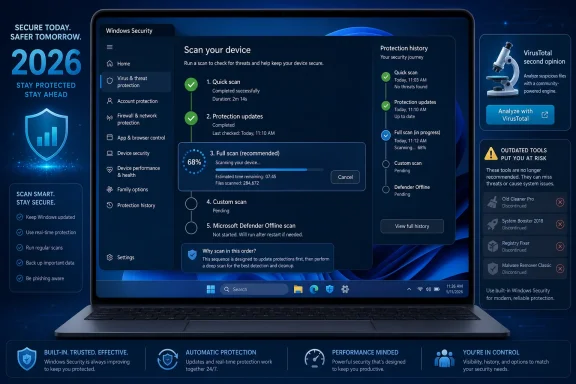 Windows’ Virus Checker Is No Longer the Emergency Backup
For years, Windows users treated Microsoft’s antivirus as the thing you used only if you had nothing better installed. That reputation is increasingly outdated. Microsoft Defender Antivirus is now the built-in malware engine behind Windows Security on Windows 10 and Windows 11, and Microsoft’s support pages describe the standard scan path directly inside the Windows Security app.That does not mean Defender is magical, or that every third-party antivirus is unnecessary. It does mean the default answer to “How do I check my PC for a virus?” is no longer “go find a free scanner on the web.” The default answer is to open Windows Security and see what is already protecting the machine.
The distinction matters because malware cleanup advice has a long half-life. Search results, forum posts, and old YouTube walkthroughs still recommend tools that have been removed, retired, or narrowed in scope. Google removed Chrome Cleanup Tool scanning with Chrome 111, and Norton says Norton Power Eraser was discontinued on April 30, 2026 and stopped working after that date.
That is why a 2026 virus-checking workflow should begin with Microsoft’s current interface, not with a decade-old utility name. Windows Security is not just a dashboard; it is the front door for quick scans, full scans, custom scans, protection updates, offline scans, provider status, and protection history. If malware has not broken Windows itself, that is where the first few clicks belong.
The First Scan Should Be Fast, Boring, and Built In
The right first move is a Quick scan. Open Windows Security, choose Virus & threat protection, look under Current threats, and select Quick scan. Microsoft’s consumer guidance presents this as the standard first scan, and its enterprise documentation explains why quick scans are especially useful against malware that starts with the system or hooks into common startup locations.A Quick scan is not a full inspection of every byte on every drive. It is designed to check the places where malware commonly hides and executes. That makes it the sensible first test when a user says the PC feels wrong, a browser keeps redirecting, or a download looked suspicious but there is not yet hard evidence of a system-wide compromise.
After the scan finishes, the next stop is Protection history. That screen is where Windows Security shows recent protection events, quarantined items, allowed threats, remediation actions, and Microsoft Defender Offline results. Microsoft says Protection history is the place to review offline scan results, and its support material indicates that protection events are retained for a limited period, so it is worth checking immediately rather than days later.
This is also the point where the user should resist the urge to stack tools. Running five cleaners in a panic can create false positives, broken quarantine states, and needless confusion. A clean Quick scan does not prove a PC is pristine, but it gives you a baseline before you escalate.
The Antivirus Provider Screen Is the Reality Check
Before assuming Defender is scanning the system, check who is actually protecting the PC. In Windows Security, go to Virus & threat protection, select Who’s protecting me?, then open Manage providers. Microsoft’s own support page notes that if a compatible non-Microsoft antivirus is installed, Microsoft Defender Antivirus automatically goes into disabled mode, and uninstalling that product should return Defender to active mode.This is one of the most common sources of user confusion. People open Windows Security, see Microsoft branding, and assume Defender is doing the scanning. In reality, Windows Security may be showing the state of a third-party antivirus provider. If that provider is active, its own app may be responsible for full-system scans and real-time protection.
There is nothing inherently wrong with that arrangement. Windows is designed to avoid two real-time antivirus engines fighting over every file operation. But it does mean the user has to know which tool owns protection before following Defender-specific instructions.
If Defender is active and real-time protection is off, the fix is inside Virus & threat protection settings. Choose Manage settings and turn Real-time protection on. If a third-party antivirus is active, do not try to force Defender into the same role without deciding whether that third-party product should remain installed.
Fresh Security Intelligence Comes Before Deeper Scanning
A virus scan is only as useful as the detection data and cloud intelligence behind it. Before running a Full scan or Offline scan, open Windows Security, go to Virus & threat protection, select Protection updates, and check for updates. This is a small step, but it is the difference between scanning with yesterday’s assumptions and scanning with the latest definitions available to the engine.Microsoft’s Defender guidance emphasizes security intelligence and cloud-delivered protection because modern malware moves quickly. A file that looked unknown in the morning may be classified by the afternoon after Microsoft, security vendors, or enterprise telemetry systems encounter more samples. Updating before a manual scan reduces the chance that a known threat slips through simply because the local machine has stale signatures.
This is also why “I ran a scan last week” is not a complete answer. Malware defense is temporal. A clean scan from June 25 does not necessarily answer a suspicious download from July 4, and a laptop that has been offline for weeks may need updates before its scan results mean much.
For managed PCs, this step may be controlled by policy. Microsoft Defender for Endpoint, Intune, Group Policy, or another enterprise security platform may decide when definitions update and which scan options users can access. On a work or school machine, the correct escalation path may be the IT help desk, not a local admin improvising with consumer tools.
Full Scan Is a Search Warrant, Not a Daily Ritual
A Full scan checks far more of the system than a Quick scan. In Windows Security, go to Virus & threat protection, open Scan options, choose Full scan, and select Scan now. Microsoft describes a Full scan as scanning every file and program on the device, which makes it appropriate when a quick check finds something, symptoms persist, or the machine has been exposed to obvious risk.The tradeoff is time and performance. A Full scan can take a long while, especially on systems with large drives, external storage, developer folders, virtual machines, archives, or network-heavy workflows. On a desktop with terabytes of games, ISOs, code repositories, and backups, “full” can become a long and noisy operation.
That does not make Full scan useless. It makes it situational. If the PC has downloaded a suspicious installer, if Defender has quarantined a threat and you want a broader sweep, or if the system has been sitting unpatched and unattended, a Full scan is a reasonable escalation.
What Full scan should not become is a superstitious maintenance chore. Defender’s real-time protection already scans files as they are opened, downloaded, and executed. Scheduled quick scans and real-time monitoring usually provide more practical protection than making users wait through frequent full-disk scans they do not understand.
Custom Scan Is the Precision Tool Most Users Forget
Custom scan is the overlooked middle ground. It lets you scan a specific file, folder, or drive without turning the whole PC into a crime scene. In Windows Security, choose Scan options, select Custom scan, click Scan now, and pick the location you want checked.The even faster route is File Explorer. Right-click a file or folder, choose Show more options, and select Scan with Microsoft Defender. Microsoft’s support page documents this path for Windows 10 and Windows 11, and it is often the cleanest way to inspect a downloaded ZIP, a USB drive folder, or a suspicious attachment saved to disk.
Custom scans are especially useful for practical triage. If a user downloaded one installer from a sketchy mirror, the first question is not always whether every file on the PC is infected. It is whether that installer, its extracted folder, or the USB stick it came from triggers detection.
That precision also reduces false urgency. A Custom scan that flags one item gives the user a specific object to quarantine, delete, or investigate. A vague system-wide fear becomes a concrete file path, and concrete file paths are where cleanup decisions become safer.
Defender Offline Is the Reboot Button for Stubborn Malware
Microsoft Defender Offline is the escalation step for malware that resists normal removal. It restarts the PC and scans from the Windows Recovery Environment, which means Windows itself is not fully loaded while the scan runs. Microsoft recommends this mode when a device may be exposed to malware or when you want to scan without normal Windows running.The path is inside Windows Security: Virus & threat protection, Scan options, Microsoft Defender Antivirus Offline scan, then Scan now. Save open work first, because the machine restarts. After the scan completes, Windows restarts again, and results appear in Protection history.
The reason this scan exists is simple. Some malware hides by loading early, injecting into processes, tampering with services, or defending itself while Windows is running. Scanning outside the normal Windows session can make those tricks harder to pull off.
There are caveats. Microsoft’s current support guidance ties the feature to Microsoft Defender Antivirus, and the user-submitted guide correctly notes that it may not appear when a non-Microsoft antivirus is the active provider. It also notes an ARM-based PC limitation, which users should verify against their own Windows build and hardware because Microsoft’s consumer interface and device support details can shift.
Protection History Is Where the Story Becomes Evidence
The scan is not the end of the process. Protection history is where Windows Security turns “I think I had a virus” into “Windows found this item, took this action, at this time.” That distinction matters when deciding whether to restore a file, delete it permanently, run another scan, or call IT.A quarantined threat is not the same thing as an active infection. Quarantine usually means the engine isolated the item so it cannot run. An allowed threat, a failed remediation, or repeated detections in the same path is more concerning.
Protection history can also reveal patterns. If the same browser extension, temporary folder, or startup path keeps appearing, the problem may be a recurring installer, a malicious scheduled task, a compromised browser profile, or a user repeatedly restoring the same bad file. The history view gives you a timeline rather than a vibe.
For home users, a screenshot of Protection history can be useful before asking for help on a forum. For admins, the equivalent story usually belongs in Defender for Endpoint, Intune, event logs, or the organization’s EDR console. Either way, the principle is the same: do not diagnose from memory when the system has already recorded events.
VirusTotal Is a Microscope, Not a House Call
VirusTotal is useful, but it is often misunderstood. It checks submitted files, URLs, domains, IP addresses, and hashes against multiple engines and data sources. It does not scan your whole PC, and it does not replace real-time antivirus.For a suspicious file, VirusTotal can provide a second-opinion snapshot. If one obscure engine flags a file and dozens do not, that may suggest a false positive, though it does not prove innocence. If many reputable engines agree, the file deserves caution.
The privacy warning is not optional. VirusTotal’s own documentation says submitted files and URLs can be shared with the security community and examining partners. That is good for collective defense, but bad for confidential tax documents, internal company installers, unpublished code, legal files, HR exports, or anything private.
For sensitive files, search by hash instead of uploading the file itself. A hash lookup can show whether VirusTotal has already seen that exact file without handing over the contents. If the hash is unknown, that absence is not a clean bill of health; it only means the public dataset may not already contain the sample.
Microsoft’s One-Time Scanners Fill Narrow Gaps
Microsoft Safety Scanner remains a useful emergency tool, but it has a narrow purpose. Microsoft says it is a downloadable, on-demand scanner that expires 10 days after download and does not replace a real-time antimalware product. That expiration is a feature, not a bug: it pushes users to download a fresh copy with current detection data.Safety Scanner is best thought of as a second Microsoft opinion when Defender is unavailable, questionable, or not the product actively installed. Download the correct 32-bit or 64-bit version from Microsoft, run it, choose the scan type, and review the on-screen results. If you need it again after 10 days, download it again.
The Malicious Software Removal Tool, or MSRT, is even more specialized. Microsoft’s KB890830 article says it targets specific prevalent malware families and does not replace an antivirus product. Microsoft generally ships it through Windows Update on a monthly cadence, while also offering standalone downloads.
That makes MSRT useful but easy to overstate. It is not a universal malware detector. It is a targeted removal tool for known, widespread threats Microsoft has chosen to cover. If MSRT finds something, take it seriously; if it finds nothing, do not treat that as proof that every threat class has been ruled out.
The Old Cleanup Playbook Is Now a Liability
The most dangerous part of virus-checking advice is not usually the first scan. It is the antique recommendation that sends users hunting for discontinued tools. In 2026, two examples stand out: Chrome Cleanup Tool and Norton Power Eraser.Google announced the removal of Chrome Cleanup Tool scanning with Chrome 111, a change covered at the time by outlets such as PC Watch and reflected in Chrome’s modern security model. Chrome still has Safety Check for browser updates, compromised passwords, harmful extensions, and related browser hygiene. But that is not a whole-PC malware scan.
Norton’s Power Eraser is a sharper example because it was once widely recommended for aggressive cleanup. Norton’s own support page says Power Eraser was discontinued on April 30, 2026, stopped working, and no longer receives support or updates. Any guide still telling users to rely on it after that date is not merely old; it is operationally wrong.
This is the broader lesson. Security tools age differently from ordinary utilities. A discontinued image viewer may still open a JPEG. A discontinued malware cleaner is a liability because it depends on current threat intelligence, supported infrastructure, and maintained detection logic.
Browser Trouble Is Not Always a Windows Virus
Many “virus” reports begin in the browser: search redirects, pop-ups, unwanted notifications, weird homepages, or extensions the user does not recognize. Those can be malware symptoms, but they can also be browser settings, notification permissions, search provider hijacks, malicious extensions, or sync bringing bad settings back after cleanup.Chrome’s Safety Check can help with browser-specific problems. In Chrome, open Settings, go to Privacy and security, select Safety Check, and follow the prompts. Edge has its own security and privacy controls, and Windows Security can still scan downloaded files or suspicious extension installers saved to disk.
The important distinction is scope. A browser safety check is not a replacement for Defender, and Defender is not a complete browser account audit. If a malicious extension is synced through a Google or Microsoft account, cleaning the local PC without fixing the browser profile may only produce a temporary victory.
That is why users should pair scanning with basic account hygiene. Remove unknown extensions, review notification permissions, check startup pages and search engines, update the browser, and change passwords from a clean device if credential theft is suspected. Malware cleanup and browser cleanup overlap, but they are not the same job.
Enterprise PCs Belong to the Console, Not the Kitchen Table
A work PC changes the rules. If the device is managed, local scan options may be hidden, controlled, logged, or overridden by policy. Microsoft Defender for Endpoint and Intune allow administrators to initiate scans, review detections, isolate devices, and enforce security baselines at scale.That is not bureaucracy for its own sake. A malware alert on a work laptop may involve company credentials, VPN tokens, customer data, source code, or regulated information. A home user can decide to delete a suspicious file and move on; an enterprise admin may need to preserve evidence, rotate credentials, or check lateral movement.
Users should not upload company files to VirusTotal without permission. VirusTotal’s sharing model is valuable for public threat intelligence, but it is a poor fit for confidential internal documents or proprietary binaries. In a corporate environment, the right second-opinion service may be a private sandbox, an EDR submission workflow, or a security team process.
The same applies to removal tools. Running random cleaners with administrative privileges on a managed endpoint can interfere with telemetry, break forensic context, or violate policy. If the PC is owned by an employer or school, the right answer is to use the organization’s incident process.
A Clean Scan Is Reassuring, Not Absolute
No antivirus scan can prove a negative in the philosophical sense. A clean scan means the tools used did not detect known or suspicious behavior in the places they checked at that time. That is valuable information, but it is not omniscience.This is why the order of operations matters. A Quick scan gives fast signal. A Full scan broadens coverage. A Custom scan focuses on a suspicious object. Defender Offline changes the operating environment. VirusTotal and Safety Scanner provide second opinions. Protection history tells you what actually happened.
The user’s symptoms also matter. A one-time scare after downloading a file is different from repeated account logins from new locations, unexplained admin accounts, disabled security settings, or ransomware notes. At some point, the issue stops being “run another scanner” and becomes “disconnect the machine, preserve evidence, restore from known-good backups, and rotate credentials.”
Backups are the quiet part of virus checking. If malware has encrypted, modified, or exfiltrated data, a scanner cannot turn back time. Good backups, tested restores, and separate account security are what make malware recovery survivable.
The 2026 Playbook Is Smaller Than the Panic Suggests
A good virus-checking workflow is not complicated, but it is disciplined. The best results come from using current tools in a deliberate order and avoiding obsolete cleanup lore.- Start with Windows Security and run a Quick scan before downloading any third-party cleaner.
- Confirm which antivirus provider is active, because Defender may be disabled when a compatible non-Microsoft antivirus is installed.
- Update protection intelligence before running deeper scans so the engine has current detection data.
- Use Full scan for broader suspicion, Custom scan for a specific file or folder, and Defender Offline for stubborn malware that may resist removal inside Windows.
- Treat VirusTotal as a second-opinion service for files, URLs, domains, and hashes, not as a private whole-PC scanner.
- Avoid retired advice such as Chrome Cleanup Tool scans and Norton Power Eraser, because discontinued security tools are not safe foundations for 2026 troubleshooting.
References
- Primary source: Technobezz
Published: 2026-07-04T08:10:13.853639
How to Use a Virus Checker on Your PC (2026) | Technobezz
Use this virus checker guide to scan your Windows PC, check suspicious files, and review threats safely.www.technobezz.com - Related coverage: publicdocumentcentre.education.tas.gov.au
3 Tips if you think your computer is infected
</rdf:Alt> </dc:description> <dc:creator> <rdf:Seq> <rdf:li>%Username%publicdocumentcentre.education.tas.gov.au
