

Windows 11 recovery has become a crowded toolbox rather than a single “reinstall and hope” button, as a new Windows Central guide notes. The practical distinction is simple: start with the least destructive option that matches the failure, then escalate only if it does not work.
For a PC that still boots but has damaged system components or unexplained instability, Microsoft’s “Fix problems using Windows Update” option is now the gentlest first move. It reinstalls the current Windows version while retaining installed applications, personal files, accounts, and settings. Per Microsoft’s support documentation, it is particularly suited to update-related component failures without the disruption of a reset.
For a recently installed driver, application, or registry change, System Restore remains useful. It returns system settings and installed software to a saved restore point without touching personal files. Safe Mode is the companion diagnostic option: if the machine behaves normally there, a third-party driver or startup application is the likely culprit.
If a new cumulative update causes boot or stability trouble, use WinRE’s Uninstall Updates function before considering a reset. The separate Go back option is intended for feature-update regressions, but it is time-limited: Microsoft says the prior installation is normally retained for 10 days after an upgrade.
When Windows will not boot, Startup Repair is the conventional first stop in the Windows Recovery Environment. It can address common boot configuration and startup-file faults. Microsoft’s newer Quick Machine Recovery adds a cloud-assisted path for broader failures: on Windows 11 24H2 build 26100.4700 or later, it can enter WinRE, query Windows Update for a remediation, apply it, and reboot. Microsoft describes the mechanism as best-effort, not a replacement for hands-on recovery.
The newest option, Cloud rebuild, goes further. Microsoft says the preview feature reformats the operating-system partition, downloads a clean Windows image and compatible drivers from Windows Update, and returns the machine to the out-of-box setup experience. That makes it a useful fallback after a failed reset or broken local recovery image, but Microsoft currently labels it preview and advises evaluation on non-production systems.
Point-in-time restore is another recent addition, distinct from classic System Restore. Microsoft says it captures a comprehensive local state—including OS, apps, settings, and files—roughly every 24 hours and can restore one of the previous 72 hours. The trade-off is equally broad: changes made after the chosen point, including local files and passwords, are lost.
Before using any reset, rebuild, or rollback tool, back up data and ensure the BitLocker recovery key is available.
For a PC that still boots but has damaged system components or unexplained instability, Microsoft’s “Fix problems using Windows Update” option is now the gentlest first move. It reinstalls the current Windows version while retaining installed applications, personal files, accounts, and settings. Per Microsoft’s support documentation, it is particularly suited to update-related component failures without the disruption of a reset.
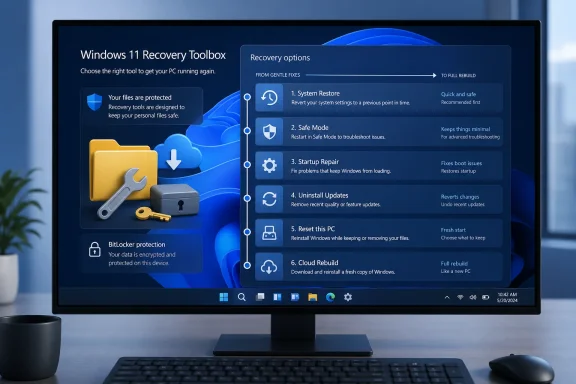 Choose the recovery tool by symptom
For a recently installed driver, application, or registry change, System Restore remains useful. It returns system settings and installed software to a saved restore point without touching personal files. Safe Mode is the companion diagnostic option: if the machine behaves normally there, a third-party driver or startup application is the likely culprit.If a new cumulative update causes boot or stability trouble, use WinRE’s Uninstall Updates function before considering a reset. The separate Go back option is intended for feature-update regressions, but it is time-limited: Microsoft says the prior installation is normally retained for 10 days after an upgrade.
When Windows will not boot, Startup Repair is the conventional first stop in the Windows Recovery Environment. It can address common boot configuration and startup-file faults. Microsoft’s newer Quick Machine Recovery adds a cloud-assisted path for broader failures: on Windows 11 24H2 build 26100.4700 or later, it can enter WinRE, query Windows Update for a remediation, apply it, and reboot. Microsoft describes the mechanism as best-effort, not a replacement for hands-on recovery.
Reset versus rebuild
Reset this PC is the next escalation for persistent software corruption or when a machine needs to be handed over. “Keep my files” preserves user data but removes apps and resets settings; “Remove everything” wipes the installation. Cloud download is generally the safer reset source when local recovery files could be damaged, though it requires a reliable connection.The newest option, Cloud rebuild, goes further. Microsoft says the preview feature reformats the operating-system partition, downloads a clean Windows image and compatible drivers from Windows Update, and returns the machine to the out-of-box setup experience. That makes it a useful fallback after a failed reset or broken local recovery image, but Microsoft currently labels it preview and advises evaluation on non-production systems.
Point-in-time restore is another recent addition, distinct from classic System Restore. Microsoft says it captures a comprehensive local state—including OS, apps, settings, and files—roughly every 24 hours and can restore one of the previous 72 hours. The trade-off is equally broad: changes made after the chosen point, including local files and passwords, are lost.
Before using any reset, rebuild, or rollback tool, back up data and ensure the BitLocker recovery key is available.
References
- Primary source: Windows Central
Published: 2026-07-15T14:41:05+00:00
Windows 11 has more recovery options than ever, and here’s exactly when I would use each one to fix a broken PC | Windows Central
Windows 11 has more recovery tools than ever, but choosing the right one can be confusing. Here's what each feature does and when to use it.www.windowscentral.com - Official source: learn.microsoft.com
Quick Machine Recovery | Microsoft Learn
Learn about quick machine recovery and how to configure it with the RemoteRemediation configuration service provider (CSP).learn.microsoft.com - Official source: support.microsoft.com
Recovery options in Windows | Microsoft Support
Learn about the recovery options in Windows. Find out how to reset your PC, go back to a previous version of Windows, or use media to reinstall Windows.support.microsoft.com
