

YouTube full screen not working in Google Chrome, Microsoft Edge, or Mozilla Firefox on Windows 11 and Windows 10 is usually caused by a stuck YouTube player session, an extension, damaged site data, browser graphics acceleration, or a managed-browser policy. Start with the player test below, then use the section that matches the symptom. These instructions cover YouTube in a desktop browser—not the YouTube mobile or TV app.
Do not confuse Theater mode with full screen. Theater mode enlarges the player within the YouTube page; it does not take over the display.
For Windows 11:
Chrome Enterprise and Microsoft Edge support a policy named FullscreenAllowed. When an administrator disables it, users, web apps, and extensions cannot enter browser full screen. This is not a YouTube setting and cannot be fixed by clearing cookies.
Check whether the browser is managed:
If full screen works in another browser on the same PC but not your managed work browser, use the working personal browser only if your organization’s policies permit it.
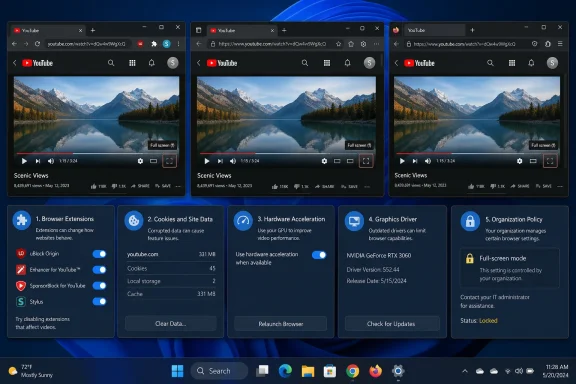 Confirm that it is a YouTube player problem
- Open a video directly on YouTube, rather than on a page where the video is embedded.
- Move the pointer over the video and select Full screen in the lower-right corner.
- If nothing happens, click once inside the video player and press F.
- To exit, press F again or press Esc.
Do not confuse Theater mode with full screen. Theater mode enlarges the player within the YouTube page; it does not take over the display.
Test browser full screen separately
Press F11 while viewing YouTube.- If F11 works, Windows and the browser can enter full screen. The problem is likely isolated to YouTube site data, an extension, or the player session.
- If F11 does not work in any website, skip to Check for work or school restrictions.
- Press F11 again to leave browser full screen.
- Press Ctrl+Shift+R in Edge or Firefox.
- In Chrome, hold Ctrl and select Reload, or press Ctrl+Shift+R.
- Test a different YouTube video.
Rule out extensions and browser profile problems
Ad blockers, video download tools, picture-in-picture tools, dark-mode injectors, script blockers, privacy extensions, and VPN/proxy extensions can interfere with YouTube controls. Test without them before clearing data or changing graphics settings.Microsoft Edge
- Open Edge.
- Select Settings and more (...) > Extensions > Manage extensions.
- Turn off all extensions temporarily.
- Return to YouTube, reload the page, and test full screen.
- If it works, turn extensions back on one at a time, testing YouTube after each one.
Google Chrome
- Open Chrome.
- Select More (...) > Extensions > Manage extensions.
- Turn off all extensions.
- Reload YouTube and test full screen.
- Re-enable extensions individually until the fault returns.
Mozilla Firefox
- Open Firefox.
- Select the menu button (≡) > Add-ons and themes > Extensions.
- Turn off each extension using its toggle.
- Reload YouTube and test.
- Re-enable extensions one at a time after finding the cause.
- In Edge, select Settings and more > New InPrivate window.
- In Chrome, select More > New Incognito window.
- In Firefox, select ≡ > New private window.
Clear YouTube site data and cached files
Clearing cookies signs you out of YouTube and may remove site preferences. It does not delete your Google Account, subscriptions, playlists, or uploaded videos.Chrome
For the smallest-impact repair, remove YouTube data only:- Open Chrome.
- Select More > Settings > Privacy and security > Third-party cookies.
- Select See all site data and permissions.
- Search for
youtube. - Delete the matching YouTube site data.
- Close and reopen Chrome, sign in to YouTube if required, and test full screen.
- Select More > Delete browsing data.
- Choose a Time range.
- Select Cookies and other site data and Cached images and files.
- Select Delete data.
- Restart Chrome.
Edge
- Open Edge and select Settings and more > Settings.
- Open Privacy, search, and services.
- Under Clear browsing data, select Choose what to clear.
- Pick a time range.
- Select Cookies and other site data and Cached images and files.
- Select Clear now.
- Close all Edge windows, reopen Edge, and test YouTube.
Firefox
- Open Firefox and select ≡ > Settings.
- Select Privacy & Security.
- Under Cookies and Site Data, select Clear Data.
- Select Cookies and Site Data and Temporary Cached Files and Pages.
- Select Clear.
- Restart Firefox and test YouTube.
Update the browser before changing Windows settings
A current browser avoids old video playback and web-platform faults.Chrome
- Select More > Help > About Google Chrome.
- Let Chrome check for an update.
- Select Relaunch if offered.
- Test YouTube again.
Edge
- Select Settings and more > Help and feedback > About Microsoft Edge.
- Let Edge download and apply any update.
- Restart Edge when prompted.
Firefox
- Select ≡ > Help > About Firefox.
- Let Firefox check for updates.
- Restart Firefox when prompted.
Fix black video, flickering, or a frozen image in full screen
If YouTube enters full screen but the video turns black, flickers, shows green artifacts, or freezes while audio continues, test browser graphics acceleration. This is a workaround and diagnostic step: it can reduce video efficiency or battery life, but it identifies whether the graphics path is involved.Chrome
- Select More > Settings.
- Select System.
- Turn off Use graphics acceleration when available.
- Select Relaunch.
- Test YouTube full screen.
Edge
- Select Settings and more > Settings.
- Select System and performance.
- Turn off Use hardware acceleration when available.
- Restart Edge.
- Test YouTube.
Update the Windows display driver
Warning: A display driver update can briefly blank the screen and requires a restart. Save open work first.For Windows 11:
- Select Start > Settings > Windows Update > Advanced options.
- Select Optional updates.
- Expand Driver updates.
- Select an available display or graphics driver update.
- Select Download and install.
- Restart the PC after installation.
- Select Start > Settings > Update & Security > Windows Update.
- Select Check for updates.
- If available, select View optional updates.
- Select an appropriate display-driver update and choose Download and install.
- Restart Windows.
Check embedded videos and multi-monitor behavior
A YouTube video embedded on another site can be configured without a full-screen option. You cannot override that setting from YouTube.- Select the video title, YouTube logo, or an available Watch on YouTube link.
- Test the same video directly on YouTube.
- If it works there, the embedding website must change its player configuration.
- Disconnect or temporarily disable extra displays.
- Test YouTube full screen on the primary display.
- If the issue disappears, reconnect the display and check for graphics driver updates.
- Press Windows key+P and confirm that the intended display mode is selected.
Check for work or school restrictions
If neither YouTube’s Full screen button nor F11 works, especially on a managed PC, browser policy may be blocking full-screen mode.Chrome Enterprise and Microsoft Edge support a policy named FullscreenAllowed. When an administrator disables it, users, web apps, and extensions cannot enter browser full screen. This is not a YouTube setting and cannot be fixed by clearing cookies.
Check whether the browser is managed:
- In Edge, open Settings and more > Settings and look for a message stating that the browser is managed by your organization.
- In Chrome, open More > Settings and look for a management notice.
If full screen works in another browser on the same PC but not your managed work browser, use the working personal browser only if your organization’s policies permit it.
References
- Primary source: Technobezz
Published: 2026-07-17T16:29:15.710000+00:00
YouTube Full Screen Not Working? How to Fix It (2026) | Technobezz
YouTube full screen not working? Fix player controls, phone rotation, browser settings, embedded videos, and TV app issues.www.technobezz.com
