

Microsoft has quietly started to push a major change to the Windows 11 taskbar: an opt‑in “Ask Copilot” search pill that blends the long‑standing Windows Search index with Copilot’s conversational, voice, and vision capabilities, arriving first to Windows Insiders in the Dev and Beta channels via Preview Build 26220.7051 (KB5067115).
Windows Search began life as a lightweight indexer that let users find apps, files and settings quickly. Over the years Microsoft layered web results, OneDrive integration, and richer file‑type handlers, but the core model — an indexed local database maintained by the Windows Search service and SearchIndexer.exe — remained the same. That indexer monitors file system changes and provides the fast, local hits that make Start‑menu and Explorer lookups instant. Copilot, Microsoft’s AI assistant, was originally a sidebar and standalone app that could summarize content, answer questions, and act as a conversational layer across services. Over 2024–2025 Microsoft has steadily deepened Copilot’s integration across Windows surfaces — File Explorer actions, context menus, the Copilot app itself, and now the taskbar search slot. The company frames this as making Windows an “AI OS” and an attempt to make AI assistance immediate and integrated into regular workflows.
From a usage perspective the experience feels like Windows Search with a generative overlay: typed queries still surface local files and system settings, but you can pivot into a conversational flow immediately to ask for summaries, clarifications, or subsequent actions. At present the Vision and Voice buttons in some Insider flights still open the Copilot app rather than invoking the full taskbar modalities — Microsoft is continuing to iterate on the behavior in preview.
However, this is also the point where convenience intersects with governance, compute, and privacy. Microsoft’s architecture — keeping the index local while layering Copilot on top — is pragmatic and defensible, and the Copilot+ hardware tier gives the company a path to reduce cloud dependency for qualifying machines. That said, many important details remain in preview: the extent of on‑device inference on non‑Copilot+ PCs, exact telemetry and compute costs, enterprise auditability for agentic actions, and the clarity of permission flows in everyday usage. Until Microsoft publishes more detailed admin and telemetry guides and the feature matures out of Insider preview, cautious, staged adoption is the prudent course. Ask Copilot will not instantly replace the old Windows Search for most users — Microsoft left the Start menu search and legacy APIs intact — but it marks a turning point in how Windows thinks about discovery: search becomes conversational, multimodal, and agentable. For enthusiasts and IT pros alike, the preview is worth testing; for broad enterprise rollouts it’s a technology to pilot carefully and govern thoroughly.
By the time Ask Copilot reaches general availability, the details will matter: permission UX, admin controls, model placement (cloud versus local), and the transparency of what Copilot reads and why. The taskbar is a high‑visibility real estate — Microsoft’s move to make it an AI hub is bold, and it will reshape daily Windows workflows if the company can pair convenience with clear controls and measurable privacy guarantees.
Source: Windows Latest First look at how Copilot will change Windows 11 taskbar search
 Background
Windows Search began life as a lightweight indexer that let users find apps, files and settings quickly. Over the years Microsoft layered web results, OneDrive integration, and richer file‑type handlers, but the core model — an indexed local database maintained by the Windows Search service and SearchIndexer.exe — remained the same. That indexer monitors file system changes and provides the fast, local hits that make Start‑menu and Explorer lookups instant. Copilot, Microsoft’s AI assistant, was originally a sidebar and standalone app that could summarize content, answer questions, and act as a conversational layer across services. Over 2024–2025 Microsoft has steadily deepened Copilot’s integration across Windows surfaces — File Explorer actions, context menus, the Copilot app itself, and now the taskbar search slot. The company frames this as making Windows an “AI OS” and an attempt to make AI assistance immediate and integrated into regular workflows. What Ask Copilot in the taskbar actually is
A hybrid search + chat entry point
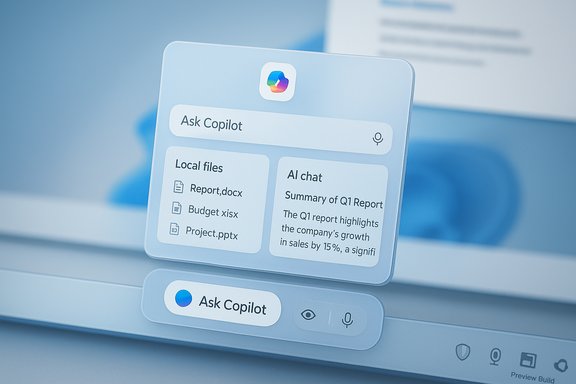
Ask Copilot is not a wholly new search engine; it’s a hybrid front end. When enabled, the taskbar’s search box becomes an “Ask Copilot anything” pill that returns the same local results (apps, files, settings) pulled through the existing Windows Search APIs while simultaneously offering an AI conversational layer that understands intent and accepts natural‑language prompts. In short: the index and indexing plumbing remain intact, Copilot adds semantics and multimodal inputs on top. Because Microsoft chose to reuse existing search APIs, the initial behavior mirrors classic Windows Search: instant local hits while you type, and quick links to settings and applications. Copilot augments that by letting you follow up in natural language, ask for summaries, or hand in visual or voice context (where available).One‑click voice and vision
The Ask Copilot pill includes explicit shortcuts for Copilot Voice (press‑to‑talk or wake word) and Copilot Vision (share a window or region for OCR and visual analysis). Microsoft’s design places those multimodal inputs directly in the taskbar so users can start a conversation, hand Copilot an image or a live window, or speak hands‑free, without opening the full Copilot app first. The company describes Vision as a session‑based, user‑initiated action (Copilot doesn’t continuously scan your screen) and the wake‑word detector as a local spotter that begins cloud processing only after activation.Hands‑on: the new UI and first impressions
A click on the Ask Copilot field produces a compact floating panel above the taskbar with a text box, a Copilot icon to the left and the Vision/Voice buttons to the right. The animation and microcopy are deliberately lightweight: the floating panel is smaller and less intrusive than the old full Search pane, and Microsoft appears to be optimizing for speed and minimal context switching. Early Insider hands‑on reports found the UI less noisy than the legacy Search and slightly quicker to appear, though small layout quirks (overlapping placeholder text when dismissing the floating pane) have been observed in preview builds.From a usage perspective the experience feels like Windows Search with a generative overlay: typed queries still surface local files and system settings, but you can pivot into a conversational flow immediately to ask for summaries, clarifications, or subsequent actions. At present the Vision and Voice buttons in some Insider flights still open the Copilot app rather than invoking the full taskbar modalities — Microsoft is continuing to iterate on the behavior in preview.
Under the hood: indexing, APIs and the privacy model
The indexer remains the indexer
Ask Copilot relies on the Windows Search platform and the SearchIndexer service for local hits; it does not replace the existing index or the IFilter plumbing that returns quick file matches and metadata. This was a conscious architectural decision: maintain the speed of indexed lookups while letting Copilot augment results with semantic understanding and multimodal context. The search index is still managed locally and is used to surface filenames, app names, and settings in real time.Permissioned access, session scope
Microsoft emphasizes a permissioned model: Copilot does not gain unfettered access to personal files simply because Ask Copilot is enabled. Local hits are returned via the existing Windows Search APIs; Copilot reads file contents or screen captures only when the user explicitly grants access (for example through a file upload or by initiating a Copilot Vision share). The Copilot app exposes granular toggles for file search and file read permissions so users can control what Copilot can access. That said, the UX around permissions is a crucial area to watch because users often conflate “search results shown in the UI” with third‑party access to content.Copilot Vision and Voice — potential and current preview limits
Copilot Vision: share to analyze
Copilot Vision promises an on‑demand screen‑aware assistant that can OCR text, summarize documents or tables, identify images or UI elements, and produce contextual, step‑by‑step guidance that points at where to click. The taskbar makes sharing a window or region a single click away via the new “Share with Copilot” affordance in taskbar previews. Microsoft says Vision sessions are session‑bound, explicit, and revocable. Early demos show useful flows (summarizing slides, extracting table data, and highlighting UI elements), but in preview the taskbar Vision buttons sometimes simply route users to the Copilot app while Microsoft finishes the deeper taskbar integrations.Copilot Voice: wake word and press‑to‑talk
Microsoft introduced an opt‑in wake word — “Hey, Copilot” — alongside a press‑to‑talk UI. The wake‑word detector runs locally as a small on‑device spotter and uses a short audio buffer; cloud processing begins only after activation and user consent. This model is intended to reduce privacy concerns about continuous streaming, but it depends on correct user expectations: the local spotter is just a trigger, not the full voice model. Important: full voice responses and deeper generative reasoning still use cloud services unless the device qualifies as a Copilot+ PC and runs local models for certain workloads.Where Copilot+ hardware matters (and where it doesn’t)
Microsoft distinguishes two runtime models: cloud‑backed Copilot features available on all Windows 11 PCs, and enhanced, low‑latency on‑device experiences on Copilot+ PCs — devices that include a high‑performance NPU rated at 40+ TOPS. Copilot+ machines can run some inference locally for faster, more private results (for example, local image generation, real‑time translation, and certain semantic indexing tasks). If you care about latency or want more on‑device processing, Copilot+ hardware is where those gains appear. That hardware distinction matters for the taskbar feature because the bulk of real‑time multimodal processing (vision OCR, local semantic search and low‑latency voice spotter work) can be shifted on‑device for Copilot+ machines, reducing cloud trips and improving responsiveness. For the majority of PCs without NPUs meeting the 40+ TOPS bar, Copilot will still function but will lean on cloud inference for heavier reasoning and generative outputs.Administration, policy and how to toggle Ask Copilot
Ask Copilot is opt‑in by design and can be enabled or disabled from the taskbar settings. The visible toggle lives at:- Settings > Personalization > Taskbar > Ask Copilot (turn on/off).
Practical benefits — what users will notice first
- Faster contextual help without app switching: ask a question, show a window to Copilot Vision and get a summary or step‑by‑step guidance without leaving the app.
- Fewer clicks to voice interactions: wake‑word or press‑to‑talk turns Copilot into a hands‑free helper for quick lookups.
- Unified local + generative results: move from a file hit to a human‑friendly summary or follow‑up action in seconds.
Risks, unanswered questions and things to watch
- Privacy communication: Microsoft’s permissioned model is reasonable, but the UX must make the difference between “search results shown locally” and “Copilot can read my files” crystal clear. Ambiguous messaging will erode trust quickly.
- Telemetry and cloud dependency: heavy reliance on cloud inference for non‑Copilot+ PCs could increase bandwidth usage and raise cost/latency issues, especially in constrained environments. Microsoft is gatekeeping features with server‑side toggles, but there are no public cost or resource numbers yet — this remains an unverifiable area until Microsoft publishes telemetry or third‑party benchmarks. Treat claims about compute load and pricing impact as provisional.
- UI confusion and discoverability: overlaying chat with local search risks surprising users when Copilot suggests synthesis or actions instead of simply opening a file or settings page. Early testers already note small layout issues and behavior differences between the Start menu search and Ask Copilot. Microsoft will need to ensure consistency across Start, taskbar and the Copilot app.
- Enterprise governance: admins need fine‑grained controls, DLP alignment, and audit trails. Early guidance suggests staged deployments; organizations should not enable agentic Copilot Actions at scale until there is clear admin tooling and logging for what actions were taken and why.
- Accessibility and false positives: the wake‑word spotter is local, but false activations or unexpected voice captures remain a user concern. The opt‑in design mitigates this, but careful defaults and visible listening indicators are essential.
A short, practical checklist for users and admins
- Users:
- Review Copilot’s File Search and File Read settings inside the Copilot app before using Ask Copilot.
- Keep Ask Copilot off by default; enable only if comfortable with the new model and after testing it on non‑sensitive files.
- Use the wake‑word opt‑in only when you understand local/remote processing tradeoffs.
- Administrators:
- Pilot the preview on a representative set of devices and collect telemetry.
- Apply Group Policy/MDM controls to disable Copilot if necessary while testing.
- Ensure DLP solutions account for Copilot file upload and Vision share flows.
- Demand audit logging for any agentic Copilot Actions before wider rollout.
Final analysis: incremental UX win, but a consequential platform shift
Ask Copilot in the taskbar is small as a UI change but big in intention. Replacing — or rather augmenting — the central search surface with a conversational, multimodal assistant reframes the way users will discover apps, files and help inside Windows. Early previews show a cleaner, faster UI and the promise of powerful multimodal inputs (voice + vision) available with a single click. Those are clear user‑facing wins.However, this is also the point where convenience intersects with governance, compute, and privacy. Microsoft’s architecture — keeping the index local while layering Copilot on top — is pragmatic and defensible, and the Copilot+ hardware tier gives the company a path to reduce cloud dependency for qualifying machines. That said, many important details remain in preview: the extent of on‑device inference on non‑Copilot+ PCs, exact telemetry and compute costs, enterprise auditability for agentic actions, and the clarity of permission flows in everyday usage. Until Microsoft publishes more detailed admin and telemetry guides and the feature matures out of Insider preview, cautious, staged adoption is the prudent course. Ask Copilot will not instantly replace the old Windows Search for most users — Microsoft left the Start menu search and legacy APIs intact — but it marks a turning point in how Windows thinks about discovery: search becomes conversational, multimodal, and agentable. For enthusiasts and IT pros alike, the preview is worth testing; for broad enterprise rollouts it’s a technology to pilot carefully and govern thoroughly.
By the time Ask Copilot reaches general availability, the details will matter: permission UX, admin controls, model placement (cloud versus local), and the transparency of what Copilot reads and why. The taskbar is a high‑visibility real estate — Microsoft’s move to make it an AI hub is bold, and it will reshape daily Windows workflows if the company can pair convenience with clear controls and measurable privacy guarantees.
Source: Windows Latest First look at how Copilot will change Windows 11 taskbar search
