

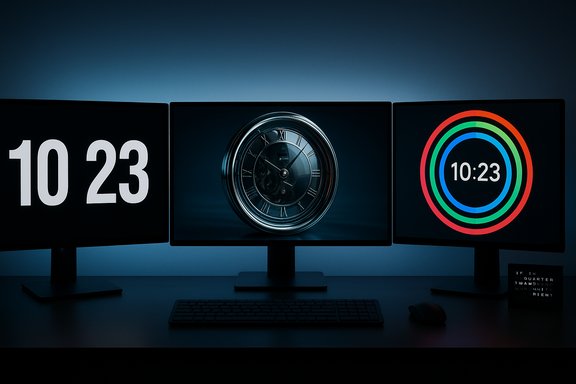
Fliqlo’s enduring minimal flip-clock aesthetic and a handful of stylistic alternatives are the focus of a practical roundup that aims to help Windows users pick a clock screensaver that’s both beautiful and reliable for modern desktops. The choices span the famously simple Fliqlo flip clock, highly tweakable analog/digital modules grouped under the generic “ClockSaver” name, richly rendered 3D clock scenes from 3Planesoft, the data‑visual PolarClock rings, and the playful word-based Word Clock — each offering a different balance of legibility, performance, and personality. The shortlist walks readers through strengths, customization options, and the real-world tradeoffs you should expect when installing a third‑party .scr screensaver on Windows.
Background
Screensavers are no longer strictly about preventing CRT burn-in; today they serve aesthetic, functional, and ambient roles. A clock screensaver converts idle screen time into something useful — a large, readable time display for home offices, a decorative ambient piece for living-room PCs hooked to TVs, or a design statement on high-resolution monitors. The right choice depends on your priorities: absolute legibility at a glance, lightweight performance and low power draw, or purely decorative complexity. This article verifies the technical claims vendors make about compatibility and features, cross-checks them with independent sources, and flags where claims are outdated or unverifiable.Why a dedicated clock screensaver still makes sense
- A screensaver clock gives a single glanceable display with large numerals or visual cues that are easier to read across a room than the small taskbar clock.
- Modern lock/sleep behavior and external monitor setups mean a screensaver that supports multi‑display and scaling is more useful than ever.
- For devices used as bedside or kitchen clocks, screensaver apps with brightness/dim options and auto-sleep integration deliver practical value.
1) Fliqlo Flip Clock — Best overall for timeless simplicity
Fliqlo exemplifies the “less-is-more” approach: a high‑contrast black background with big white flip‑style numerals that mimic a mechanical split‑flap clock. It’s the go‑to for users who want legibility, simple controls, and a look that matches either minimalist or vintage‑modern setups.What Fliqlo delivers
- Large, highly legible digits with a flip animation that’s both nostalgic and unobtrusive.
- Customization: toggle between 12/24‑hour formats, adjust clock size, and dim/brighten within the saver’s options.
- Cross‑platform presence: officially available for Windows and macOS (and an iOS/iPadOS app variant), with Windows builds listed on the developer’s site.
Strengths
- Legibility at distance — the core reason many pick Fliqlo for home and office screens.
- Simplicity and reliability — fewer bells and whistles mean fewer incompatibilities across Windows 10 and Windows 11. Official pages still list Windows 10/8.1 support for the Windows build.
- Low configuration overhead — most users set size and format once and forget it.
Potential issues & caveats
- Some users have reported occasional certificate/compatibility alerts or the screensaver failing to render on specific macOS/Windows builds; when those issues appear they usually trace to OS security settings or an older Fliqlo version that needs replacing. These reports show the importance of downloading the current build from the official site.
- The Windows package is free, but always verify the download on the official fliqlo.com site rather than third‑party download mirrors to reduce risk.
Best use cases
- Workstations and living‑room PCs where maximum readability is the priority.
- Multi‑monitor setups when you want the clock large on one screen and unobtrusive elsewhere (Fliqlo’s options cover size and display choices).
2) “ClockSaver” — a category name that requires scrutiny
“ClockSaver” in many writeups is shorthand for a family of lightweight analog/digital clock screensavers rather than a single, consistent product. Historically the name has been used by multiple authors and projects (some open source, some proprietary), so claims about one “ClockSaver” must be verified per download.What to expect from common ClockSaver variants
- Analog clock variants with configurable hand colors, second‑hand toggle, and dial styling (often open‑source or free). Many are Mac‑focused but Windows ports exist.
- Lightweight performance — these are typically small, low‑CPU screensavers intended to be unobtrusive.
Strengths
- Extremely small footprint and simple visuals — ideal for older PCs or machines where you do not want GPU usage spikes.
- Customization for analog purists: hand colors, tick marks, optionally a second hand.
Risks and verification needs
- The label “ClockSaver” applies to multiple unrelated projects; you must verify the developer, checksum, and platform compatibility before installing. For example, SourceForge hosts a ClockSaver project that’s Mac oriented and was last updated years ago; Softpedia lists Mac builds. Don’t assume a random “ClockSaver” binary is safe.
- If you find a Windows executable called ClockSaver, confirm whether it’s a .scr module built for modern Windows (Windows 10/11) and check for code signing where available.
Practical installation checklist
- Confirm the exact project page and author before download.
- Verify MD5/SHA checksum if provided.
- Run the binary through a reputable multi‑engine scanner for peace of mind (Virustotal is an acceptable pre‑install check).
- If the file is a .saver or .scr, install it in the standard Windows screensaver folder (for .scr put it in C:\Windows\System32, for .saver use the OS’s screensaver manager on macOS).
3) 3D Clock Screensaver (3Planesoft) — realism and cinematic presence
3Planesoft produces polished, pay‑for 3D clocks — richly textured scenes with moving parts, dynamic lighting, and immersive camera work. These are not lightweight: they are designed to be visually engaging desktop showpieces.Key facts
- 3Planesoft sells multiple 3D clock screensaver titles (Mechanical Clock, Coral Clock, Digital Clock, etc., typically priced around the low double‑digit USD range. System requirements commonly list compatibility with Windows 7–11 and a DirectX runtime requirement.
Strengths
- High production value — excellent if the PC doubles as a media or living‑room centerpiece.
- Optimized for widescreen and modern displays — many titles advertise 4K and widescreen support for crisp visuals.
Tradeoffs and risks
- Performance: these screensavers use GPU power and can be resource‑intensive (they require DirectX and a capable GPU). Expect higher CPU/GPU draw than minimalist clocks.
- Cost: the polished visuals come at a price (purchases are typical).
- Security: these are standard Windows screensaver modules (.scr) delivered by a commercial vendor — verify you download directly from 3Planesoft to avoid tampered installers.
Recommended use cases
- Home theater PCs, living-room desktops, or workstation displays where visuals matter more than power efficiency.
- Secondary displays that are powered while you’re away and can showcase the 3D scene without affecting work.
4) PolarClock 3 — data‑visual rings with kinetic charm
PolarClock is a creative visualization that encodes hours, minutes, and seconds as concentric arcs or rings. It’s more an artful visualization than a pure numeric readout, and earlier versions were Flash‑based or experimental visualizations.Notes on availability and provenance
- PolarClock began as a web/visualization project and later appeared as a screensaver. Current downloads come from third‑party archives and community mirrors; official, recently maintained releases are harder to find. The original visualization is preserved in protovis examples and multiple community download sites mirror older releases. That history means compatibility and security vary by download.
Strengths
- Aesthetically striking — colorful rings make it a stylish ambient piece for creative setups.
- Configurable visuals in many builds: color palettes, language/time format, and animation speed.
Limitations and cautions
- Readability: Polar visualization sacrifices instant numeric clarity; at a glance you may need a moment to decode the time. That’s intentional but important to know for functional use.
- Age/maintenance: many PolarClock ports are dated and dependent on deprecated runtimes (Flash, older DLLs). If you choose PolarClock, prefer a modern reimplementation or an actively maintained port and avoid Flash‑based installers. Community threads report DLL type‑library or runtime errors when running old builds on modern Windows.
5) Word Clock — creative, language‑centric time display
Word Clock flips digits into text: a grid of letters highlights phrases like “It is half past two”. This idea has several implementations: downloadable screensavers, web simulators, and standalone apps that show minute‑accurate textual time in multiple languages.What Word Clock offers
- Unique presentation — time shown in human phrasing rather than numerals, with dynamic letter highlighting. Screensavers and small apps offer grid and circular layouts.
- Customizable layout and language support, depending on the implementation.
Strengths
- Design appeal — a conversation piece and excellent for design‑forward desktops.
- Multi‑language options in some builds make it a fun choice for multilingual households or offices.
Practical limitations
- Readability from a distance depends on font size and layout; word grids may be harder to parse on very large displays unless the saver supports large fonts. Screensavers with adjustable font/background settings mitigate this.
- Installation caution: like other niche screensavers, Word Clock is often distributed on third‑party portals; prefer well‑known download sites and scan binaries pre‑install.
Installation safety and best practices (applies to all screensavers)
- Download only from the official developer page or a reputable source. Official pages for Fliqlo and 3Planesoft are the preferred first stop.
- Verify the file type: Windows screensavers end in .scr and are executable — treat them with the same caution you would any EXE. If a “screensaver” comes as EXE or installer, examine what else it installs.
- Check digital signatures and checksums where provided. Signed binaries reduce tampering risk.
- Scan with multi‑engine scanners (for example, uploading to a reputable multi‑engine scanner before executing).
- Run in a controlled environment first (e.g., virtual machine or secondary PC) if you’re unsure of origin.
- Prefer well‑maintained projects: active maintenance increases the chance of security patches and compatibility updates.
Performance, energy use, and multi‑monitor behavior
- Lightweight clocks (Fliqlo, many ClockSaver builds, Word Clock grid if simple) typically have minimal CPU/GPU usage and are battery friendly on laptops. Fliqlo explicitly advertises energy‑efficient behavior and simple rendering; this makes it a go‑to for power‑sensitive setups.
- Complex 3D scenes (3Planesoft) use GPU resources and may prevent aggressive power‑saving. Consider using a power profile that allows displays to sleep even if screensavers run, or set those displays to low‑power scenes.
- Dual/Multiple monitors: if you run multiple monitors, confirm the saver supports multi‑monitor arrangements. Fliqlo’s Windows and Mac variants expose display sizing options; many older screensavers default to one monitor only. For multi‑monitor control and placement, pairing a saver with a window/wallpaper manager like DisplayFusion can help place clocks where you want them.
Accessibility and usability details
- Prefer options that support 12/24‑hour toggling if you share the machine with users in different conventions. Fliqlo and many Word Clock builds support this.
- If you need second‑level precision (for broadcast or lab work), choose a saver that can show seconds or integrates with system time to a visible second. Some versions of Fliqlo and other digital clocks offer optional seconds display or reveal seconds on interaction.
- Contrast and font size matter for distance readability — black backgrounds with white numerals (Fliqlo) or large-word grids are better choices for legibility.
Alternatives and complementary approaches
- If a screensaver module isn’t ideal, consider a dedicated desktop widget, Rainmeter skin, or a fullscreen kiosk app that behaves like a clock but is easier to control and update. Tools like Rainmeter allow fully customizable clock skins and are a common alternative for those who want persistent on‑desktop clocks rather than idle screensaver clocks.
- For dynamic wallpapers that also show a clock, apps such as Lively Wallpaper or Wallpaper Engine let you create a “screensaver-like” behavior without using the OS screensaver system. This is useful on systems where screensavers are restricted by corporate policy but wallpaper apps are permitted.
Final verdict and recommendations
- For most Windows users who want a clean, dependable, and visually neutral clock that’s readable at a distance, Fliqlo is the top recommendation. It blends legibility, simple customization, low resource usage, and an active presence—download from the official site and use the internal size/brightness controls.
- If you want cinematic, high‑fidelity visuals and are comfortable with slightly heavier resource usage (and paying for polish), 3Planesoft’s 3D clock screensavers deliver striking results for living‑room or demo machines. Verify DirectX and GPU compatibility before purchase.
- Choose PolarClock or Word Clock for creative or design‑forward desktops where stylistic expression matters more than immediate numeric clarity. Be cautious about older builds and prefer reimplementations or actively maintained ports.
- Treat any product labeled “ClockSaver” as a family of projects; confirm identity and origin before installing. Many ClockSaver variants are Mac‑focused, and Windows builds may be community ports.
Closing notes on verification and caution
The screensavers discussed here were cross‑checked with official developer pages where available (Fliqlo, 3Planesoft) and with independent archives and community discussion to validate claims about features and compatibility. When vendor documentation was unclear or downloads were maintained via community archives, those claims were flagged as potentially outdated and in need of user verification. Users should always prefer official vendor pages or well‑established repositories, verify checksums or signatures when possible, and scan any screensaver executable before enabling it on a primary machine. The idle screen is part of your desktop’s personality — with a well‑chosen clock screensaver you can reclaim that black space and turn it into a statement that’s both useful and beautiful.Source: Windows Report Top 5 Clock Screensavers for a Stylish Windows Desktop
