Boost Windows Productivity with 5 Free Utilities: Files Everything ShareX Notepad++ Audacity

  • Thread Author
Blue-toned desktop with four floating windows: Files, Everything, Notepad++, and Audacity.
Windows ships with competent basics, but there’s a small ecosystem of free utilities that genuinely outpace Microsoft’s built‑ins for everyday work—file management, search, screen capture, text editing, and audio editing included—and swapping in a handful of them can repay the time it takes to install them with real, repeatable productivity gains. Fast Company highlighted five especially useful replacements—Files, Everything, ShareX, Notepad++, and Audacity—and each one brings capabilities the built‑in tools either lack or implement clumsily.

Background / Overview​

Microsoft’s built‑in utilities have improved, but they still make trade‑offs: generic UX for broad compatibility, conservative feature sets to avoid confusion, and telemetry/OS‑level integration that sometimes strips control. That gap created fertile ground for small, focused projects—often open source—to iterate quickly and specialize, giving Windows users fast, no‑cost upgrades for specific tasks.
This feature dissects the five free apps Fast Company singled out, verifies their core capabilities against vendor documentation and independent reviews, and flags the practical trade‑offs you should weigh before switching. The aim is to give a clear, action‑oriented view: what each app adds, why it matters, how to adopt it safely, and where to be cautious.

Files: a modern File Explorer replacement​

What Files promises​

Files (from the Files Community) is a modern, open‑source file manager built to feel native on Windows 11 while offering power‑user features that File Explorer still either lacks or implements awkwardly. The app emphasizes a Fluent‑styled UI, dual‑pane browsing for fast file moves, file tagging for flexible organization, tabs, QuickLook previews, and cloud‑drive integrations. The project is actively developed, with regular release notes and a public GitHub repo.

Why it matters vs. File Explorer​

  • Dual‑pane mode dramatically reduces the friction of copying and organizing files between folders.
  • File tagging lets you organize across folders without breaking hierarchical structure.
  • Built‑in previews and tabbed navigation speed routine file triage.
For users who shunt files constantly—photographers, designers, or anyone migrating lots of downloads—those features can cut minutes from repetitive workflows and reduce context switching.

Verification & sources​

Files’ feature list, its release cadence, and recent dual‑pane improvements are documented in the Files Community changelogs and GitHub project pages; XDA and other independent outlets have covered the v4.0+ releases, noting the Omnibar and improved dual‑pane controls. These independent writeups corroborate Fast Company’s claims about dual panes, tagging, and cloud integration.

Practical trade‑offs and risks​

  • Performance varies by system and configuration; some users report sluggish behavior, especially when indexing very large network locations or enabling many preview plugins. Community threads and forum posts document both praise and complaints about speed—test on your files and drives before committing. If you use Files for replacing Explorer at the OS level, keep a recovery plan handy.

Recommended adoption steps​

  1. Install Files alongside File Explorer (it’s designed to coexist).
  2. Test dual‑pane workflows on a non‑critical folder set.
  3. If you rely on cloud providers, verify each provider’s integration and sync status UI before moving irreplaceable files.

Everything: instant filename search that actually feels instant​

What Everything does differently​

Everything from Voidtools indexes file and folder names (not content, by default) and exposes a highly optimized search UI that returns results as you type, often in milliseconds—far faster than Windows Search for filename lookups. It preserves a tiny footprint, updates in real time, and supports advanced filters and regex. That design choice (name‑only indexing) is the secret ingredient for its speed.

Why it beats Windows Search for most cases​

  • Instant, as‑you‑type results for filenames—even on large drives.
  • Minimal resource use compared with content‑indexing services.
  • Excellent keyboard shortcuts for power users who prefer a lean, launcher‑style workflow.
For the common scenario—“I know the filename (or part of it) and I want the file immediately”—Everything usually wins.

Verification & sources​

Voidtools’ official documentation explains how Everything indexes NTFS metadata for speed and the trade‑offs for content searching (content search is possible but slow), and independent how‑to guides consistently recommend Everything when speed is the priority. These sources back Fast Company’s characterization of Everything as a fast filename search tool.

Practical trade‑offs and risks​

  • By default it does not index file contents; if you frequently search inside documents you’ll need to enable content search (with a performance cost).
  • To index full NTFS volumes globally, some configurations may require elevated privileges—plan for that in managed environments.
  • Everything is disk‑centric: if you expect cloud drive content to be included automatically, confirm the provider’s local sync behavior (or add network shares explicitly in Everything’s options).

ShareX: screen capture as a workflow engine, not a single‑task utility​

What ShareX adds​

ShareX is an open‑source capture and sharing powerhouse: screenshots, scrolling captures, screen recording, built‑in annotation and a long list of automated “after capture” tasks (save, copy link, upload to many sites). It also supports scripting, custom uploaders, OCR, and a robust set of export options—making it a general‑purpose capture workflow tool rather than just a screenshot widget.

Why ShareX outperforms Snipping Tool​

  • Automations: chain capture → annotate → upload → URL shorten → clipboard copy automatically.
  • Advanced capture types: scrolling capture and region stitching are far stronger and more configurable than the built‑in Snipping Tool.
  • Extensibility: custom uploaders and dozens of destination templates for teams and self‑hosted storage.
ShareX is the “if your screenshots are part of your job” tool: tech writers, support teams, and QA will appreciate the automation and upload options.

Verification & sources​

ShareX’s GitHub repo and changelog document scrolling capture improvements, upload destinations, and the project’s GPL licensing; multiple independent tech sites list ShareX as the top free capture tool and validate the same feature set highlighted by Fast Company.

Practical trade‑offs and risks​

  • It’s powerful but has a steep learning curve. The abundance of settings can be overwhelming.
  • The default auto‑upload to cloud services may not suit sensitive screenshots—check privacy settings and disable auto‑upload for confidential material.
  • No built‑in advanced video editor: use ShareX for capture and a separate editor for trimming or complex edits.

Notepad++: lightweight editor, large feature set​

What Notepad++ brings to the table​

Notepad++ is the long‑running free code/text editor for Windows that provides tabbed editing, syntax highlighting for dozens of languages, macros, and a mature plugin ecosystem. It remains faster and lighter than many full IDEs while providing advanced search/replace features and many developer conveniences.

Why it’s better than Notepad​

  • Tabbed files and split views make juggling many text files tolerable.
  • Syntax highlighting and code folding improve readability for developers and anyone editing config or markup.
  • Plugin support lets you add FTP, diff, and other workflows without resorting to heavier tools.
For quick edits, configuration file work, and coding tasks where a full IDE would be overkill, Notepad++ is still a top choice.

Verification & sources​

Notepad++’s project documentation and many independent writeups detail its feature set, plugin architecture, and long history as a lightweight editor—supporting Fast Company’s description of it as the standard go‑to text editor for power users.

Practical trade‑offs and risks​

  • Notepad++ is Windows‑only; cross‑platform teams often standardize on VS Code or other editors.
  • It isn’t a full IDE—if you require language-aware refactoring, integrated debugging, or modern workspace features, consider a true IDE.

Audacity: free audio editing beyond “Sound Recorder”​

What Audacity offers​

Audacity is a full‑featured, free, open‑source audio editor and recorder: multitrack editing, noise reduction, spectral analysis, effects, and support for common export formats (with optional LAME/FFmpeg helpers for certain formats). It’s a practical DAW for podcast editing, narration clean‑ups, and quick audio production tasks.

Why it beats the built‑in Sound Recorder​

  • Sound Recorder only captures straight audio with no editing. Audacity offers trimming, multitrack mixing, noise profiling and removal, equalization, and plug‑in support.
  • Powerful effects and batch processing make it possible to clean and prepare many clips without expensive software.
For creators who produce spoken‑word content or need robust audio cleanup, Audacity is essentially mandatory.

Verification & sources​

Audacity’s official documentation and reputable Linux/Unix and Windows software sites document its real‑time effects, multi‑track support, noise reduction, and the optional LAME/FFmpeg integration—matching Fast Company’s characterization.

Practical trade‑offs and risks​

  • The UI is utilitarian and can be intimidating for beginners.
  • Recent changes in project management and distribution (including forks and packaging differences in some repositories) have caused community debate; stick to the official downloads or well‑known package managers for safety.
  • Exporting to MP3 historically required the optional LAME encoder; confirm your Audacity build includes the required encoders or follow the official guidance.

Side‑by‑side checklist: what to expect after swapping​

  • Files vs. File Explorer
    • Gains: dual panes, tags, modern UI, improved cloud widgets.
    • Watch: occasional performance variance on very large or networked file sets.
  • Everything vs. Windows Search
    • Gains: near‑instant filename searches and tiny footprint.
    • Watch: content search is not the default and is slower if enabled.
  • ShareX vs. Snipping Tool
    • Gains: workflow automations, many upload targets, scrolling capture.
    • Watch: learning curve and auto‑upload privacy settings.
  • Notepad++ vs. Notepad
    • Gains: syntax highlighting, macros, plugin ecosystem.
    • Watch: Notepad++ is not an IDE; consider your needs for refactoring/debugging.
  • Audacity vs. Sound Recorder
    • Gains: multitrack editing, noise reduction, effects and formats.
    • Watch: steeper UI; verify encoder support for desired export formats.

Installation and safety best practices​

  • Always download from official project pages or trusted package managers (official websites, GitHub releases, Microsoft Store, or reputable package managers like Chocolatey). Avoid third‑party mirrors that bundle extra software.
  • For apps that offer auto‑upload or cloud features (ShareX, Files cloud integrations), read privacy settings before enabling automatic uploads; configure destinations and disable cloud behavior for sensitive captures.
  • Create a system restore point or a file backup before making broad workflow changes (especially when replacing Explorer or changing default handlers).
  • Review application release notes for breaking changes and known bugs. Open‑source projects publish changelogs; reading those is quick insurance against surprises.

Critical analysis: strengths, caveats, and long‑term considerations​

These five replacements deliver clear, practical wins for many users: focused functionality, faster workflows, and strong communities. But some caveats deserve explicit mention.
  • Fragmentation risk: relying on many single‑purpose third‑party tools increases the number of components you must update and secure. In managed enterprise settings, that can be a maintenance burden.
  • Usability trade‑offs: power features often come with more settings and a steeper learning curve. Expect a small onboarding cost—especially with ShareX and Files—before you realize the gains.
  • Privacy and security: features that upload data to cloud services or maintain background services deserve scrutiny. Read privacy policies; if your work handles sensitive data, disable auto‑upload or use local storage only.
  • Community maintenance: most of these projects are community‑driven. That’s usually positive (rapid fixes, transparency), but keep an eye on active maintenance—abandoned projects with elevated privileges can become liabilities.
The balance: for individual power users and many teams, the productivity and capability improvements outweigh the risks—if you adopt responsibly and follow the safety steps above. Fast Company’s picks reflect that pragmatic trade‑off: high value, zero price, and generally respectable maintenance.

How to pick which ones to install first (practical ordering)​

  1. Everything — install first if you depend on finding files quickly; it’s tiny and non‑disruptive.
  2. Notepad++ — quick wins for anyone who edits configs or code; very low friction.
  3. ShareX — great if you create documentation, tutorials, or provide support; invest time in a short setup session.
  4. Audacity — install if you record or edit audio; accept the UI learning curve for big editing benefits.
  5. Files — install last and run it alongside File Explorer until you confirm it meets your performance and reliability needs.
This order minimizes disruption while prioritizing the tools that deliver the quickest, most universal productivity wins.

Conclusion​

Fast Company’s list highlights a practical truth: you don’t need expensive software to get better daily performance out of Windows. Files, Everything, ShareX, Notepad++, and Audacity each fill a concrete gap left by Microsoft’s defaults—dual‑pane file management, instant filename search, automated capture workflows, developer‑grade text editing, and full multi‑track audio editing. Each app is widely used, actively maintained, and documented by the projects themselves and independent reviewers; together they make a strong, low‑cost productivity toolkit for Windows users willing to trade a little setup time for sustained efficiency. If you adopt them, follow the simple safety steps above—official download sources, privacy checks for cloud features, and incremental testing—and expect meaningful time savings in day‑to‑day tasks without added recurring costs.

Source: Fast Company https://www.fastcompany.com/9142973...es-file-manager-screen-capture-audio-editing/
 

Accidentally pressing Shift + Delete and watching a file vanish can feel like a small disaster — but that keystroke rarely means the end of the line. This feature article lays out the four practical, proven ways to recover Shift‑deleted files on Windows 10 and Windows 11, explains the crucial difference between HDD and SSD behavior, gives step‑by‑step actions you can take right now, and weighs the strengths and risks of each method so you can choose the right path with confidence.

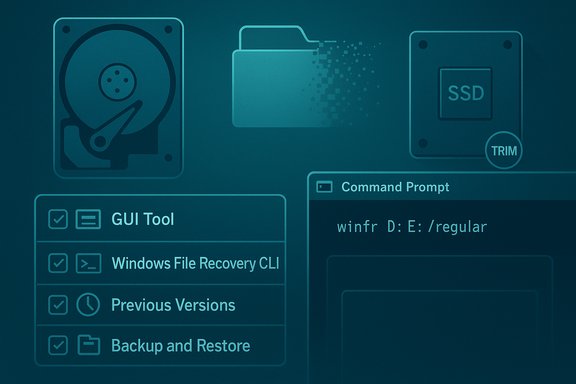
Blue-toned tech illustration showing a hard drive, SSD, a folder, and recovery tools with a command prompt.Background / Overview​

Shift + Delete removes a file’s directory pointer so the operating system no longer lists it, but the underlying data may remain on disk until overwritten. On traditional hard disk drives (HDDs) that usually means recovery is possible if you act quickly. On modern solid‑state drives (SSDs), however, the TRIM feature often causes the controller to mark blocks as erased immediately — which greatly reduces the chance of consumer‑level recovery. The storage type and whether TRIM has run are the two single most important factors determining recovery success.
Key technical facts you should know up front:
  • Shift + Delete bypasses the Recycle Bin and removes file pointers; the data is potentially recoverable until overwritten.
  • On SSDs with TRIM enabled, deleted data can be cleared quickly at the flash layer, making recovery difficult or impossible. Check TRIM status with: fsutil behavior query DisableDeleteNotify (0 = TRIM enabled, 1 = disabled).
  • Microsoft’s Windows File Recovery is a free, supported CLI tool for NTFS/exFAT/ReFS and is often the best first step before paid software — but it requires Windows 10 version 2004 or later.
Treat these as immutable priorities: stop writing to the affected drive, confirm whether the drive is HDD or SSD, and only run recovery tools from a different drive or an external device. Those three actions determine whether recovery is viable.

Immediate triage: the four things to do right now​

Do these before you try any recovery software or scans. Every minute and every write operation matters.
  • Stop using the source drive immediately. Do not save, download, or install anything to that drive. Every write increases the chance of overwriting deleted file clusters.
  • Identify drive type (HDD vs SSD) and check TRIM status (fsutil behavior query DisableDeleteNotify). If it’s an SSD with TRIM enabled, assume consumer recovery is unlikely and weigh whether to consult a professional lab.
  • If possible, shut down the PC and remove the drive. Attach it to another machine as a secondary disk or connect it via a USB adapter so recovery scans can run from a separate OS image.
  • Always recover recovered files to a different physical drive than the source. Never write recovery output back to the origin.
These steps sound basic because they are — and because they are the single biggest determinant of success.

Top 4 ways to recover Shift‑deleted files (practical guide)​

The methods below are ordered from approachable GUI tools through built‑in Microsoft tooling to snapshot‑based restores and legacy backups. Each option includes step‑by‑step instructions, realistic expectations, and practical caveats.

Option A — Use a GUI recovery tool (example: Tenorshare 4DDiG)​

Why choose this: GUI tools are user‑friendly, let you preview files, and handle many file formats and devices. Tenorshare 4DDiG is one widely used commercial option that supports quick and deep scans for images, videos, documents and more.
How it works (practical steps):
  • Install the recovery application on a different drive or run it from a USB environment. Never install any recovery program onto the affected drive.
  • Launch the program, pick the drive where files were deleted, and run a Quick Scan. If nothing appears, run a Deep (or Deep Scan) which reads raw sectors.
  • Preview recoverable items (thumbnails / partial previews) and select the files you want to restore. Save recovered files to a different physical disk.
Strengths:
  • Intuitive point‑and‑click workflow with previews.
  • Good signature libraries for many file types.
  • Safe when installed and run correctly (i.e., not on the source drive).
Risks and limits:
  • Many commercial GUIs impose free recovery limits (commonly around 2 GB) or locked features; verify current limits before relying on the free tier. Treat vendor free/recovery claims skeptically and confirm on the product page or independent reviews.
  • If the drive is an SSD and TRIM has run, GUI tools will usually fail. For mission‑critical SSD cases a lab may be the only option.
Alternative GUI tools to consider: Recuva, EaseUS Data Recovery, Stellar Windows Data Recovery, Disk Drill and PhotoRec (open‑source). Each has different strengths — compare recovery caps, file‑type support, and independent reviews before purchasing.

Option B — Windows File Recovery (Microsoft’s free CLI tool)​

Why choose this: It’s free, supported by Microsoft, and powerful for NTFS/exFAT/ReFS when metadata still exists. For technical users and many recoveries this should be your go‑to before paying for commercial tools.
Requirements:
  • Windows 10 version 2004 (build 19041) or later, or Windows 11.
  • An elevated Command Prompt (Run as administrator).
  • A different destination drive to store recovered data.
Common commands (quick guide):
  • Basic syntax: winfr <source> <destination> /mode /n <filter>
  • Example: Recover .pdf files deleted from D: to E:
    winfr D: E: /regular /n *.pdf
  • When to use /regular vs /extensive:
  • /regular: fast, uses Master File Table (MFT) metadata — ideal for recent NTFS deletions.
  • /extensive: deep sector scan with signature/segment options — use for formatted drives, missing MFT, or non‑NTFS situations.
Practical tips:
  • Use /regular first; if nothing appears, run /extensive with file‑type filters (e.g., .jpg, .docx) to narrow the search.
  • Always recover to a different physical disk. The tool creates a Recovery_ folder on the destination. Inspect logs after completion.
Strengths:
  • No cost and maintained by Microsoft.
  • Good for NTFS when deletion is recent and metadata is intact.
Risks and limits:
  • Command‑line interface can intimidate non‑technical users.
  • If clusters were overwritten or SSD TRIM cleared blocks, even extensive scans cannot rebuild data.

Option C — Previous Versions / File History (built‑in snapshot recovery)​

Why choose this: If you had File History, System Restore shadow copies, or previous snapshots enabled, restoring a file from a snapshot is far safer than raw undelete. Snapshots restore complete, intact copies rather than trying to piece together sectors.
How to use:
  • Right‑click the folder that contained the deleted files → Properties → Previous Versions tab.
  • If snapshots exist, select the appropriate version, then click Restore (or Open to inspect before restoring).
  • Alternatively use Control Panel → System and Security → File History → Restore personal files to navigate a timeline of backups.
Strengths:
  • Restores clean, intact copies.
  • Fast and reliable when enabled ahead of time.
Risks and caveats:
  • These features must have been configured prior to deletion. If File History or shadow copies were not active, there’s nothing to restore.

Option D — Backup and Restore (legacy Windows 7 backup utility)​

Why choose this: Some users still rely on the legacy Backup and Restore interface to keep system images or file backups. If you used that feature, the restore route is straightforward and reliable.
How to restore:
  • Open Control Panel → System and Security → Backup and Restore (Windows 7).
  • Click Restore my files, browse or search your backup, and restore selected items to a safe location (not the original drive unless you are certain it’s safe).
Strengths:
  • Restores exact backups rather than reconstructing deleted data.
  • Good option when File History wasn’t used but a legacy backup exists.
Risks:
  • Dependent on having previously created backups — otherwise not useful.

Advanced troubleshooting and do‑not‑do rules​

Short checklist of safe practices and dangerous mistakes:
  • Safe: If the drive shows signs of physical failure (strange clicking, unreadable sectors, SMART warnings), stop and consult a data recovery professional. Do not keep running automated scans that may stress a failing drive.
  • Dangerous: Running CHKDSK immediately on a drive you intend to recover can cause the system to change metadata or move/rename damaged files. If the data is critical, image the drive first and work from the clone. If imaging isn’t practical and files are visible, copy them off immediately before running CHKDSK.
  • Safe: If you must attempt fixes, use non‑destructive tools first (read‑only imaging and analysis). When you do run repair tools, document results and preserve a raw image.

Comparison: Which tool for which scenario?​

  • Casual accidental delete on an HDD, non‑technical user: Start with a GUI recovery tool (4DDiG, Recuva, EaseUS). Preview and restore to an external drive.
  • Technical user with NTFS and recent deletion: Use Windows File Recovery /regular mode, then /extensive if needed.
  • You previously had File History or snapshots: Restore from Previous Versions for the cleanest result.
  • SSD with TRIM enabled and mission‑critical data: Consider a professional lab and expect a high bill; consumer tools are unlikely to succeed.

Critical analysis — strengths, blind spots, and risks​

This guide aggregates practical methods that work in the vast majority of accidental deletion cases, but it’s important to evaluate real‑world constraints.
Strengths of the consumer recovery ecosystem:
  • Modern GUI tools make recovery accessible and provide previews so you can validate recovered files quickly.
  • Microsoft’s Windows File Recovery gives a powerful, no‑cost option for users comfortable with the command line. It’s optimized for NTFS metadata recovery and can dig deeper with Extensive mode.
  • Snapshot and backup systems (File History, Previous Versions, Backup & Restore) remain the most reliable, lowest‑risk recovery paths when they were enabled beforehand.
Important blind spots and cautions:
  • SSD/TRIM realities: TRIM reduces recovery success on SSDs. If TRIM has run, consumer tools frequently cannot recover deleted data. That’s not a vendor problem — it’s a physical limitation of flash management and wear‑leveling. When TRIM is active assume consumer recovery is a long shot.
  • Vendor claims vs reality: Some recovery vendors publish high success rates. Treat those as promotional and verify with independent reviews and test cases; success depends heavily on timing, file type, drive health, and whether the blocks were overwritten. Flag any specific vendor success‑rate claims as unverifiable without lab tests; treat them as marketing until independently confirmed.
  • Risk of overwriting: Installing recovery software on the affected drive or recovering to the same drive is the single most common user error that permanently destroys recoverable data. Avoid this at all costs.
  • CHKDSK and repairs: Some basic repair commands can rename or relocate damaged files during automatic fixes; image first if the data is vital. Use CHKDSK/ATTRIB carefully and only after considering imaging or professional help.
When an outcome is effectively impossible:
  • If you used Shift + Delete on an SSD with TRIM enabled and then continued normal use for a while, the practical chance of consumer recovery is near zero. Only laboratory‑level interventions (controller chip analysis or chip‑off techniques) may have a prospect, and those are costly and not guaranteed. Flag such cases clearly as high‑risk and expensive.

Prevention: the habits that eliminate this problem​

The single best way to beat Shift + Delete is to make recoveries unnecessary. Adopt this habit stack:
  • Follow the 3‑2‑1 backup rule: three copies, on two different media, one offsite (cloud). Use automated backups where possible.
  • Enable File History or an equivalent snapshot service. Snapshots greatly increase the speed and reliability of restores.
  • Use cloud sync with versioning (OneDrive, Google Drive) for actively edited documents. Versioning provides instantaneous rollback for logic errors and accidental deletes.
  • For sensitive data that must be unrecoverable, use cryptographic erase or vendor secure‑erase utilities for SSDs and SDelete (Sysinternals) with appropriate caution for HDD free‑space sanitization. On SSDs prefer vendor documented secure‑erase commands to ensure controller‑level compliance.

Realistic final checklist — what to do when Shift + Delete happens​

  • Immediately stop using the affected drive.
  • Confirm drive type and TRIM status (fsutil behavior query DisableDeleteNotify). If SSD+TRIM, manage expectations and prioritize professional consultation if data is critical.
  • If you have snapshots/backups, restore from Previous Versions or Backup & Restore first.
  • If no backups exist and the drive is HDD (or SSD with TRIM disabled), run Windows File Recovery (/regular first, then /extensive) or a reputable GUI recovery tool, always recovering to a different physical drive.
  • If consumer methods fail and the data is mission‑critical, obtain quotes from professional recovery labs and weigh cost vs data value — lab methods can be expensive and carry no absolute guarantees.

This guide consolidates best practices and methods that work in the field: GUI recovery for user friendliness, Microsoft’s Windows File Recovery for power and cost‑effectiveness, snapshot/backup restores for safety and integrity, and professional labs for the rare mission‑critical, edge cases. Act quickly, avoid writing to the affected drive, verify whether you have backups or snapshots before running raw scans, and treat SSD/TRIM as a decisive factor in whether consumer recovery is realistic.
By following the triage checklist above and choosing the recovery route that matches your drive type and technical comfort level, you maximize the chance of reclaiming files lost to Shift + Delete while avoiding common pitfalls that convert recoverable data into permanent loss.

Source: UrbanMatter [Fixed] How to Recover Shift Deleted Files in Windows 10/11 - UrbanMatter
 

Back
Top