

Configuration Manager 2503 administrators should plan to leave that branch before September 30, 2026, but the important decision is not simply whether to upgrade. The preferred target is Configuration Manager 2603; if change control requires Configuration Manager 2509, install KB37864969 before treating the upgrade as complete, because 2509 without that later rollup can retain the documented co-management scan-source issue.
Microsoft lists September 30, 2026, Pacific Time, as the end-of-support date for Configuration Manager current branch version 2503. That leaves time for a controlled migration, but it should not be treated as routine lifecycle housekeeping where the first newer version is automatically the finished destination.
The practical concern is co-management. In affected environments, Configuration Manager can leave a partial Windows Update scan-source policy behind when third-party updates are enabled. That policy can interfere with devices that are intended to receive Windows quality and feature updates through Intune and Windows Update for Business.
WindowsForum’s reporting on Configuration Manager servicing, including its coverage of a separate Configuration Manager 2509 security update, has repeatedly highlighted the same operational lesson: a version number alone is not a patch posture. For this co-management issue, the target state matters as much as the decision to leave 2503.
Configuration Manager 2603 is the simpler destination for most organizations because its published change information includes KB36495448, the co-management and third-party update scan-source fix.
A move to 2509 can still be appropriate where a team has a defined validation schedule, application dependency, or change-control reason to use that branch. But a bare 2509 deployment is not the finished state for organizations exposed to this issue. The required 2509 destination is:
The first row is the one administrators should prioritize. If the site is on 2503, KB32851084 is present, third-party updates are enabled, and the Windows Update workload is assigned or piloted to Intune, the supported planning choice is not to linger on an intermediate 2509 state. Move to 2603, or make KB37864969 part of the 2509 rollout before validation begins.
The key implication is straightforward: a device intended to follow Intune and Windows Update for Business policy for Windows quality and feature updates can instead behave according to an unintended scan-source configuration.
This is not merely a discrepancy between what the co-management workload assignment displays and what an administrator expects. The reason for the upgrade guidance is that the client’s Windows Update behavior must align with the workload path the organization selected.
For organizations using co-management as a staged transition away from WSUS-centered servicing, this deserves focused validation. Co-management deliberately allows workload-by-workload migration and pilot groups. That flexibility means an environment can contain devices with different intended update paths at the same time. A broad site-level upgrade check is therefore not enough; test the clients whose Windows Update workload has actually moved to Intune.
If the approved destination is 2509, build KB37864969 into the same servicing plan. Do not schedule the 2509 upgrade as one change and leave the later rollup as an optional cleanup item. The 2509 rollout is not complete for this issue until KB37864969 is present.
This distinction is particularly useful for teams that divide work between infrastructure administrators, endpoint engineering, and Intune operations. The infrastructure team can complete the site upgrade while the endpoint team validates clients, but both teams need the same target-state definition.
The essential evidence is not just that a client upgraded successfully. It is that an affected co-managed client receives the Windows Update behavior expected from its Intune-assigned workload.
Avoid treating a displayed workload assignment by itself as proof that the client is scanning from the intended source. The servicing fix exists because the client-side policy condition can matter even when the intended workload design is clear.
If the conditions do not match, investigate through the organization’s normal update troubleshooting process rather than assuming this particular scan-source issue is the cause.
That makes the deadline relevant for two separate reasons:
The practical goal before September 30, 2026 is not merely to remove Configuration Manager 2503. It is to ensure that every affected co-managed device reaches a fixed servicing state and that its real Windows update behavior matches the update workload the organization assigned.
Microsoft lists September 30, 2026, Pacific Time, as the end-of-support date for Configuration Manager current branch version 2503. That leaves time for a controlled migration, but it should not be treated as routine lifecycle housekeeping where the first newer version is automatically the finished destination.
The practical concern is co-management. In affected environments, Configuration Manager can leave a partial Windows Update scan-source policy behind when third-party updates are enabled. That policy can interfere with devices that are intended to receive Windows quality and feature updates through Intune and Windows Update for Business.
WindowsForum’s reporting on Configuration Manager servicing, including its coverage of a separate Configuration Manager 2509 security update, has repeatedly highlighted the same operational lesson: a version number alone is not a patch posture. For this co-management issue, the target state matters as much as the decision to leave 2503.
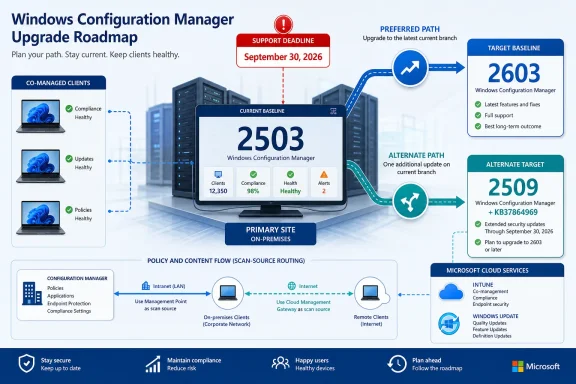 The Recommended Target Is 2603, or 2509 Fully Updated With KB37864969
Configuration Manager 2603 is the simpler destination for most organizations because its published change information includes KB36495448, the co-management and third-party update scan-source fix.A move to 2509 can still be appropriate where a team has a defined validation schedule, application dependency, or change-control reason to use that branch. But a bare 2509 deployment is not the finished state for organizations exposed to this issue. The required 2509 destination is:
- Configuration Manager 2509 with KB37864969 installed
- The issue is documented in Configuration Manager 2503 with KB32851084 installed and in Configuration Manager 2509.
- The April 2026 2509 rollup, KB36949461, did not include the scan-source correction.
- The later 2509 rollup, KB37864969, includes the scan-source fix.
Decision Matrix for Co-Managed Environments
The exposure is not universal across every Configuration Manager deployment. It is most relevant when co-management, third-party updates, and an Intune-controlled Windows Update workload overlap.| Current condition | Required target state | What to validate |
|---|---|---|
| Configuration Manager 2503 with KB32851084; third-party updates enabled; Windows Update for Business or Intune owns the Windows Update workload | Move to 2603, or move to 2509 and install KB37864969 before validation | Confirm that representative co-managed devices receive Windows update policy and update offers through their intended update-management path. |
| Configuration Manager 2503 without the identified exposure conditions | Move off 2503 before September 30, 2026 | Follow the organization’s normal current-branch upgrade and client validation process. |
| Configuration Manager 2509 with only KB36949461 | Install KB37864969 before closing the servicing change | Re-test the co-managed devices whose Windows Update workload is assigned to Intune. |
| Configuration Manager 2603 | Maintain normal servicing and client rollout planning | Validate a representative co-managed device ring after site and client changes. |
What Microsoft Documented About the Scan-Source Issue
Microsoft documented the issue in Configuration Manager 2503 with KB32851084 installed and in Configuration Manager 2509 when Configuration Manager third-party updates are enabled. The affected client can retain a partial Windows Update scan-source policy.The key implication is straightforward: a device intended to follow Intune and Windows Update for Business policy for Windows quality and feature updates can instead behave according to an unintended scan-source configuration.
This is not merely a discrepancy between what the co-management workload assignment displays and what an administrator expects. The reason for the upgrade guidance is that the client’s Windows Update behavior must align with the workload path the organization selected.
For organizations using co-management as a staged transition away from WSUS-centered servicing, this deserves focused validation. Co-management deliberately allows workload-by-workload migration and pilot groups. That flexibility means an environment can contain devices with different intended update paths at the same time. A broad site-level upgrade check is therefore not enough; test the clients whose Windows Update workload has actually moved to Intune.
A Focused Execution Plan
This article is a decision and validation guide rather than a substitute for Microsoft’s current installation documentation or an organization’s approved change procedure. The concrete objective is to reach a supported target state and prove it on the client groups affected by the documented conditions.1. Inventory the site and rollup level
For each primary site, record:- The current Configuration Manager version.
- Whether the site remains on 2503.
- Whether KB32851084 is installed on a 2503 site.
- Whether a 2509 site has KB37864969 installed.
- Whether the organization intends to use 2603 or remain temporarily on 2509.
2. Identify the client population that needs validation
Create a test list from devices that meet all of the following conditions:- They are co-managed.
- Their Windows Update workload is assigned or piloted to Intune.
- They are expected to receive Windows quality updates or feature updates through Windows Update for Business.
- The environment has Configuration Manager third-party updates enabled.
3. Select the upgrade destination before the maintenance window
For most organizations, make 2603 the default destination because the published 2603 information includes KB36495448.If the approved destination is 2509, build KB37864969 into the same servicing plan. Do not schedule the 2509 upgrade as one change and leave the later rollup as an optional cleanup item. The 2509 rollout is not complete for this issue until KB37864969 is present.
This distinction is particularly useful for teams that divide work between infrastructure administrators, endpoint engineering, and Intune operations. The infrastructure team can complete the site upgrade while the endpoint team validates clients, but both teams need the same target-state definition.
4. Roll out clients through the normal controlled process
After site servicing, use the organization’s established Configuration Manager client rollout process and maintenance controls. Keep the first client-validation group small enough that administrators can review outcomes before broadening deployment.The essential evidence is not just that a client upgraded successfully. It is that an affected co-managed client receives the Windows Update behavior expected from its Intune-assigned workload.
5. Validate actual update behavior
Use representative devices from the identified validation group and test both of the update categories named in the documented concern:- A quality update scenario.
- A feature update scenario, where the organization has an applicable offer or deployment plan.
Avoid treating a displayed workload assignment by itself as proof that the client is scanning from the intended source. The servicing fix exists because the client-side policy condition can matter even when the intended workload design is clear.
Troubleshooting Hypotheses to Use Carefully
A device that does not receive an expected update can have many causes. The documented Configuration Manager issue should be treated as a troubleshooting hypothesis only when the known exposure conditions are present:- The site is on the affected 2503 configuration or on 2509 without KB37864969.
- Configuration Manager third-party updates are enabled.
- The device is co-managed.
- The Windows Update workload is assigned or piloted to Intune.
- The device is expected to receive quality or feature updates through Windows Update for Business.
If the conditions do not match, investigate through the organization’s normal update troubleshooting process rather than assuming this particular scan-source issue is the cause.
Why the September 2026 Deadline Still Matters
Configuration Manager 2503 remains supported until September 30, 2026, but current-branch servicing is not a reason to postpone a planned move until the last possible maintenance window. Microsoft’s servicing model gives the newest branch both security and critical non-security fixes, while older supported branches receive security updates only.That makes the deadline relevant for two separate reasons:
- The organization must remove 2503 before its support period ends.
- The upgrade should land on a servicing level that addresses the co-management scan-source issue where the documented exposure conditions exist.
Frequently Asked Questions
Does Configuration Manager 2503 become unsupported on September 30, 2026?
Yes. Microsoft lists September 30, 2026, Pacific Time, as the end-of-support date for Configuration Manager current branch version 2503.Is Configuration Manager 2509 sufficient if KB36949461 is installed?
Not for this specific co-management scan-source issue. The available information says KB36949461 did not include the scan-source correction. Organizations using 2509 need the later KB37864969 rollup for that fix.Why is 2603 the preferred upgrade target?
Configuration Manager 2603 includes KB36495448, the relevant co-management and third-party update scan-source fix. It provides a clearer destination than stopping at an earlier 2509 servicing level.Which environments should prioritize this issue?
Prioritize co-managed environments where Configuration Manager third-party updates are enabled and the Windows Update workload is assigned or piloted to Intune for devices expected to receive Windows quality or feature updates through Windows Update for Business.Should administrators manually edit Windows Update policy or registry settings?
No manual change should be treated as a substitute for the Configuration Manager servicing fix. Confirm the site’s update level, apply the appropriate target-state update, and validate the affected client population through normal policy and update-management processes.The practical goal before September 30, 2026 is not merely to remove Configuration Manager 2503. It is to ensure that every affected co-managed device reaches a fixed servicing state and that its real Windows update behavior matches the update workload the organization assigned.
References
- Primary source: learn.microsoft.com
Microsoft Configuration Manager - Microsoft Lifecycle | Microsoft Learn
Microsoft Configuration Manager follows the Modern Lifecycle Policy.learn.microsoft.com - Independent coverage: docs.citrix.com
Upgrade a deployment | Workspace Environment Management™ 2503
You can upgrade Workspace Environment Management™ deployments to newer versions without having to first set up new machines or sites. This is called an in-place upgrade.docs.citrix.com
- Primary source: WindowsForum
Windows 10 ESU End of Support Banner Bug: Fixes and What Admins Should Do | Windows Forum
Microsoft’s recent admission that some Windows 10 machines are showing an “end of support” banner even after customers enrolled in Extended Security Updates...windowsforum.com
