

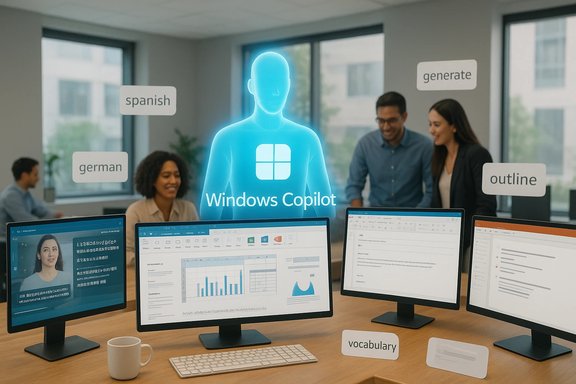
Microsoft’s Copilot is quietly shifting from a set of neat demos into the everyday toolkit for language work and office productivity — and the evidence is clear: translation and language learning now rank among the top real-world Copilot use cases, while practical features such as smarter PDF handling, faster Outlook replies and deep Excel help are driving adoption in offices and classrooms alike. This feature unpacks why these patterns matter, verifies the key technical claims, and weighs the benefits and risks Windows users and IT teams must manage as Copilot becomes a standard part of the productivity stack.
Microsoft has built Copilot to sit where users already work — inside Word, Outlook, Excel, PowerPoint, Teams and now at the OS level in Windows — turning conversational prompts into editable work artifacts. That positioning explains why language tasks (translation, tutoring, vocabulary practice) and everyday office workflows (PDF extraction, email triage, spreadsheet analysis) are emerging as the assistant’s highest-value, high-frequency use cases. Microsoft’s product and developer notes describe a multi-pronged architecture: tenant grounding (Microsoft Graph), multimodal inputs, model routing for speed vs. depth, and agentic flows that perform multi-step actions with explicit permission.
Two broad trends explain the convergence:
The right way to adopt Copilot balances enthusiasm with discipline: pilot targeted workflows, verify outputs, enforce governance, and match device procurement to the desired feature set. When managed responsibly, Copilot’s language and productivity capabilities can brighten accessibility, accelerate learning, and shave hours off routine office tasks. When unmanaged, they risk misconfigurations, data leakage and misplaced trust in imperfect outputs.
Windows users and IT teams should treat Copilot as what it is: a powerful drafting and assistant tool that amplifies human work — but does not replace the human judgment that remains essential for accuracy, compliance and trust.
Source: Slator https://slator.com/translation-lang...gadgets.com/microsoft-copilot-2026-tutorial/]
 Background / Overview
Microsoft has built Copilot to sit where users already work — inside Word, Outlook, Excel, PowerPoint, Teams and now at the OS level in Windows — turning conversational prompts into editable work artifacts. That positioning explains why language tasks (translation, tutoring, vocabulary practice) and everyday office workflows (PDF extraction, email triage, spreadsheet analysis) are emerging as the assistant’s highest-value, high-frequency use cases. Microsoft’s product and developer notes describe a multi-pronged architecture: tenant grounding (Microsoft Graph), multimodal inputs, model routing for speed vs. depth, and agentic flows that perform multi-step actions with explicit permission.Two broad trends explain the convergence:
- Language AI tools have matured to the point where real-time translation and transcript-based learning are reliable enough for day-to-day tasks. Independent industry analyses (Slator’s language AI reports and market roundups) place live speech translation, transcription and translation-as-a-feature among the fastest-growing language-AI use cases.
- Office productivity gains come from reducing context switching. Copilot now converts prompts into native files (Word, Excel, PowerPoint, PDF) and can extract data from PDFs or create pivot tables from plain-language requests — workflows that save minutes or hours every day for heavy users.
Why translation and language learning are top Copilot use cases
What the data and industry reports show
- Industry observers and language-industry trackers have repeatedly flagged translation, live speech translation and language-learning assistance as among the most impactful language-AI applications in 2024–2025. Slator’s market coverage and its 2025 Language AI materials identify live speech translation, transcription, and translation-as-a-feature as high-growth segments, driven by corporate events, education, and multimedia consumption.
- Corporate and SME surveys that track assistant usage list translation and multilingual support in the same cluster as summarization and drafting — tasks that produce immediate workplace value. Independent vendor and regional surveys show translation appearing repeatedly in the top five everyday AI tasks for knowledge workers.
How Copilot delivers language help
Copilot surfaces language assistance in two complementary ways:- Passive augmentation — on-device or tenant-aware features that produce live captions, translations or simplified language views across apps (for example, system-level Live Captions and translated subtitles on Copilot+ systems). These reduce friction during meetings and media consumption and help people follow content without switching apps.
- Active tutoring — Copilot agents or prompts that generate practice quizzes, explain grammar, produce vocabulary lists, or translate and adapt documents into graded reading levels. Schools, training vendors and corporate L&D pilots increasingly embed Copilot-style assistants to deliver learning in the flow of work.
Verified technical claims about language features
- Live captions and translation: Microsoft states that Windows’ Live Captions run on-device by default, and Copilot+ devices (machines certified with NPUs and optimized drivers) can add real-time translation from more than 40 input languages into English, with additional target languages depending on hardware. Independent hands‑on and community reporting confirm on-device processing and the 40+ language footprint in current Insider/preview builds. Treat translation captions as comprehension aids rather than legally binding transcripts.
- On-device vs. cloud: for privacy-conscious scenarios, Microsoft’s on-device processing is a substantive privacy design choice — captions are generated locally and not stored centrally by default. However, some Copilot flows may fallback to cloud models when device resources are insufficient; IT teams should verify tenant policies and retention settings before deploying broadly.
MS Copilot AI Guide 2026 — practical upgrades and verified functionality
The user-facing primers and community guides (the primers the Windows‑focused community has circulated widely) coalesce around a practical set of features Microsoft has matured in late 2024–2025 and into 2026. These are the ones that actually move the needle for power users.Smarter PDFs: extraction and export that matter
- What changed: Copilot in Office (notably Excel and Word) now supports extracting structured data from PDFs stored on OneDrive or SharePoint and turning those extracts into native Excel tables, pivot-ready datasets, or summarized Word reports. Beta and preview reporting describe a flow that scans PDFs, extracts tabular data and metrics, and returns structured outputs that can be audited and refined.
- Why it’s important: PDF is the dominant archival format for invoices, reports and regulatory filings. Reducing manual copy‑paste turns hours of grunt work into minutes and lowers extraction errors when users validate the results. For analysts, that means more time on interpretation and fewer on data capture.
- Verified limits and caveats:
- Availability: PDF extraction was rolled out initially to Beta/Copilot license holders; broad general-availability timing varies by tenant and build.
- Formatting variability: complex, multi-column or scanned PDFs still challenge extraction; verification is required for high‑stakes data. Botched layout or OCR issues will propagate errors into analysis if unchecked.
Outlook replies and inbox triage: fast and consistent responses
- What Copilot does in Outlook: prioritized inbox digests, thread summarization, tone-preserving draft replies and scheduled triage prompts that can run at recurring intervals to summarize unread mail and flag action items. Copilot can also generate suggested time slots and draft meeting agendas by checking availability in the calendar if connectors and consent are enabled.
- Practical verification: community guides and Microsoft docs cite a “Draft with Copilot” flow and confirm that Copilot can generate reply options and convert a chat or summary into a draft message in Outlook. Admins should confirm one-click draft creation limits and scheduled-prompt quotas in their tenant docs.
Excel tricks: Agent Mode, formulas and natural-language analytics
- Agent Mode & natural language queries: Copilot’s Excel support can now build pivots, suggest formulas, clean up tables, and create charts from plain‑English prompts. More advanced Agent Mode can run stepwise analyses and even execute Python or structured actions under the hood to reproduce workflows. Microsoft’s materials and community testing show meaningful automation gains while strongly recommending human validation for finance and regulatory workflows.
- Export to native artifacts: for longer Copilot responses, the UI surfaces an Export control that creates Word, Excel, PowerPoint or PDF outputs directly from chat responses, removing repetitive copy/paste steps. Community reports describe an approximate threshold (~600 characters in some preview builds) where the Export button appears automatically — a useful UX cue but not a rigid technical limit for all builds.
PowerPoint, Word and other app-level gains
- Narrative Builder in PowerPoint can now handle larger inputs (tens of thousands of words) to generate outlines and slide drafts, while Word’s in-document Copilot can rewrite specified passages inline and produce executive summaries from long documents. These changes favor longer-form work and lower the friction for drafting polished deliverables.
Technical verification — cross-checking the claims
To maintain journalistic rigor, key claims were cross-referenced across Microsoft materials, independent industry coverage, and community testing:- Translation availability (more than 40 input languages into English on Copilot+ hardware): confirmed by Microsoft product notes and consistent community reporting in Insider channels. Caveat: exact language lists and target-language support are hardware and build dependent.
- On-device transcription & privacy posture for Live Captions: Microsoft documents the on-device processing design for Live Captions; independent testing verifies captions do not persist on Microsoft servers by default in local scenarios, though certain Copilot features may use cloud fallback when device resources are insufficient. IT teams should verify tenant-level data flow settings.
- PDF extraction in Excel and the Export UX: Beta reports and community primers describe PDF extraction workflows and the Export button behavior in Copilot chat; broader GA timing and fine-grain thresholds vary by preview ring. Validate in your tenant before rolling out.
- Copilot pricing and licensing: commercial Microsoft 365 Copilot is typically offered as an add‑on SKU (example publicized list pricing was shown in business materials); IT and procurement should reference their contract terms for exact per-user fees and included features.
Strengths: what Copilot delivers well
- High-return, repeatable workflows: drafting, summarization, translation and spreadsheet automation yield immediate, measurable time savings — the kinds of tasks that compound into real weekly productivity gains.
- Contextual grounding: Copilot’s integration with Microsoft Graph (tenant files, calendar, mail) produces grounded outputs tied to the user’s work context — a material advantage over generic chatbots for business tasks.
- System-level accessibility features: Live Captions and translation make content accessible across apps and media, expanding inclusion and making multilingual collaboration easier with a single keyboard toggle.
- Native export & deliverables: converting chat outputs into editable Word/Excel/PPT/PDF artifacts immediately reduces manual rework and supports iterative human review.
Risks, limitations and governance concerns
- Hallucinations and factual errors: Copilot remains a drafting and assistant tool — it can produce plausible but incorrect outputs. Verification workflows are mandatory for legal, financial, or regulated content.
- Privacy and data governance: connectors and agentic actions can expose tenant content if consent boundaries and DLP rules are not properly configured. Admins must define what content agents can access and whether connectors create transient indices or cached metadata.
- Hardware fragmentation: Copilot+ features (NPU-accelerated translation, low-latency on-device inference) are tied to certified hardware tiers, creating uneven experiences across an organization. Procurement and IT planning must align device choices with the intended feature set.
- Preview instability and dependence on Insider rings: early access features may behave differently in production. Don’t roll preview builds into mission‑critical workflows without testing.
Recommended rollout and practical tips for Windows users and IT
The value of Copilot is real, but so are the operational choices that determine whether it’s useful, safe and adopted at scale. Below are pragmatic steps for pilots and rollouts.- Pilot design (short, measurable pilots)
1. Start with specific teams that will see early gains (sales ops for email triage, finance for PDF extraction, L&D for language practice).
2. Define success metrics (minutes saved per task, accuracy of extracted data, user satisfaction).
3. Run with restricted connectors and escalate gradually as confidence and governance matures. - Technical checklist for IT
- Confirm Copilot licensing and per-user entitlements with procurement.
- Inventory devices and mark which are Copilot+ eligible (NPU drivers, firmware). Align device procurement to required features.
- Configure tenant DLP, retention and connector policies before enabling wide access.
- User training and prompt literacy
- Teach staff structured prompting: identify role, task, constraints and attachments (e.g., “Act as a finance analyst; extract revenue lines from attached PDFs and create a pivot with YoY variance”).
- Emphasize the Review Rule: every Copilot output must be checked for accuracy and tone before external use.
- Privacy & compliance safeguards
- Use temporary chats or private sessions for sensitive matters; disable memory if retention or training is not permitted by policy.
- Require admin approval for connectors that reach external accounts (Google connectors, third-party APIs).
Conclusion — measured optimism, with guardrails
Copilot’s current evolution matters for one simple reason: it turns advanced language and data workflows from one-off experiments into everyday productivity features. Translation and language learning are no longer fringe scenarios — they sit squarely in the mainstream of Copilot use, supported by system-level captions and multimodal tutoring flows that aid comprehension and practice. At the same time, smarter PDF extraction, Outlook triage and Excel agent workflows are the concrete productivity gains organizations can measure and scale.The right way to adopt Copilot balances enthusiasm with discipline: pilot targeted workflows, verify outputs, enforce governance, and match device procurement to the desired feature set. When managed responsibly, Copilot’s language and productivity capabilities can brighten accessibility, accelerate learning, and shave hours off routine office tasks. When unmanaged, they risk misconfigurations, data leakage and misplaced trust in imperfect outputs.
Windows users and IT teams should treat Copilot as what it is: a powerful drafting and assistant tool that amplifies human work — but does not replace the human judgment that remains essential for accuracy, compliance and trust.
Source: Slator https://slator.com/translation-lang...gadgets.com/microsoft-copilot-2026-tutorial/]
