

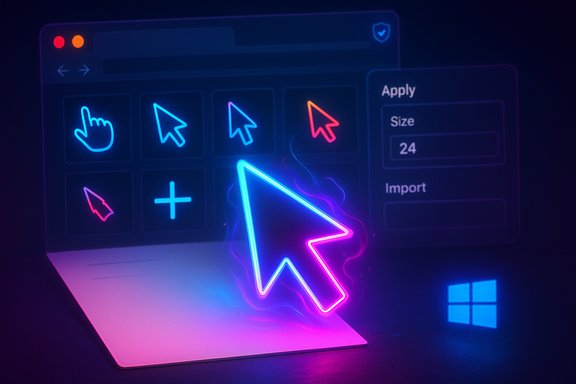
I get it: that flat white arrow that ships with Windows works reliably, but it’s easy to lose on pale backgrounds and it’s boring. If you want a fast, low‑risk way to inject personality into Windows or your browser — from starship‑grade lightsabers to tiny game characters, holiday mascots, or a neon aesthetic — the Custom Cursor ecosystem is worth a look. This piece tests the claims made by fan posts and reviews, verifies the technical details you need to know before installing, and weighs the benefits and the real risks of replacing Windows’ system pointer with a themed cursor from a third‑party tool.
Background
Windows has long offered basic pointer customization — size, color and classic pointer schemes — but it stops short of themed or animated cursors out of the box. The built‑in accessibility controls let you enlarge the pointer and choose high‑contrast or inverted styles, which solves many visibility problems without third‑party software, but they don’t supply the playful, themed pointers people are using today. Microsoft’s accessibility documentation confirms the platform-level pointer controls (size, color and text‑cursor indicators) that users rely on for visibility and readability. Meanwhile, a long tail of third‑party cursor projects (from hobbyist packs on community sites to browser extensions with millions of installs) exists because many people want more than Windows’ comfort‑focused defaults. Forum and archive posts stretching back a decade show sustained hobbyist interest in custom pointers, creative cursor packs and cursor tools — this is not a new fad, it’s a persistent corner of Windows customization culture.Overview: What is “Custom Cursor”?
Custom Cursor is best understood as two related experiences:- A browser extension (for Chrome / Edge and other Chromium browsers) that replaces the pointer inside web pages only.
- A standalone Windows app that installs cursor sets system‑wide so the pointer changes across apps on the desktop.
Key features and how they actually work
Massive library, themed packs, and curated collections
Custom Cursor’s public pages and marketplace listings confirm a huge, categorized collection of cursor packs — everything from movie and game references to seasonal, aesthetic, and animal packs. That means you can usually find a cursor that stands out on white document backgrounds or matches a mood for a holiday or fan set. The publisher highlights thousands of packs and millions of users across platforms, while independent extension listings show multi‑million installs for the core browser add‑on. What to verify in practice:- Packs are often distributed as sets; the extension and Windows app will show previews so you can judge how a pack behaves before applying it.
- Some packs are optimized for web use only (pointer images sized for HTML/CSS), while others are packaged for system use as .cur/.ani files if you install the Windows app or import them into the OS pointers dialog. App listings note the ability to upload or import cursor files.
Extension vs system app: scope and differences
- Browser extension: replaces the cursor only inside web pages. It’s lightweight and typically doesn’t change your system pointer outside the browser. The extension workflow is quick — pick a pack from the popup and the cursor is applied in that tab or across tabs. The developer documentation explains limitations: it can't modify browser internal pages (for security reasons) and it may require a tab reload for changes to take effect.
- Windows desktop app: installs a system pointer set so the cursor changes across the entire desktop. The Windows client advertises a one‑click Apply and size controls; third‑party download pages and Windows Store listings confirm the app exists as an installable package and that it can use standard .cur/.ani formats. However, distribution can vary across stores and third‑party download sites.
Creation and customization tools
The ecosystem offers two ways to create your own cursor packs:- Upload / Cursor Creator: upload an image and the site or app will convert it into cursor states (normal, busy, link, text caret where appropriate). Third‑party app pages describe upload steps and mention .cur file support, confirming you can import your own cursor files into the Windows client.
- Cursor Constructor / icon lists: a simpler interface where you pick icons and choose whether the pointer is an arrow or hand and set offsets/hotspots. Several cursor builders and extension pages describe similar pick‑and‑apply flows, and the Custom Cursor materials emphasize an easy "Add → Apply → Change Size" pattern.
Fun extras: randomizers and “magic” picks
Some third‑party cursor platforms include gimmicks like a “Magic 8 Ball” random selector that chooses a cursor at random from the catalog. This is typically a client-side feature of the gallery or extension and is harmless — mostly a convenience for people who want a surprise cursor quickly. The presence of randomizer UI is documented in promotional pages for various cursor tools and extension reviews.Installation, setup and the real‑world workflow
- Browser extension:
- Open the Chrome Web Store or Edge Add‑ons store.
- Add the Custom Cursor extension and pin it to the toolbar.
- Click the extension icon, browse the gallery, click a pack and then click to apply. Many guides note that some internal pages won’t show the custom cursor because of browser security rules; reload user tabs if needed.
- Windows app:
- Download from the publisher’s site or the Microsoft Store (prefer the Store for safety).
- Run the installer and open the app. Browse, preview and click Apply.
- If you want the pointer available system‑wide, install packs that provide .cur/.ani files or use the app’s Manage/Import feature. Popular third‑party download pages document the same flow and warn that admin rights may be required for system changes.
- The extension’s changes are cosmetic to the browser’s rendering; they won’t be visible in screenshots captured by the OS in some cases (screenshot utilities capture the OS pointer, not the CSS‑drawn cursor).
- The Windows client may require elevated permissions to update the system pointer scheme; third‑party listings note this explicitly. Always prefer official store packages when possible.
Security, privacy and copyright — what to watch for
Custom cursors are low‑privilege cosmetic items, but that doesn’t mean there’s no risk. The landscape has three main risk vectors:- Browser extension permissions and data handling: even seemingly harmless extensions can request broad site access. Reputable listings and the extension manifest should be examined — many cursor extensions declare minimal or local storage permissions only, but some require "access to data on all websites" to inject styles. Treat that permission as sensitive. Extension store pages often state the exact permissions requested; check them before installing.
- Executables and installers: the Windows app may come from the publisher or third‑party mirrors. Community reports frequently recommend the Microsoft Store as the safer route because Store packages are signed and vetted; unpackaged EXEs from random mirrors carry more risk. User forum posts show both happy installs and the occasional complaint of malware or instability when third‑party files were used — always scan any downloaded executable and prefer the official Store listing.
- Copyright and trademark: movie, TV, and game cursors may reproduce characters or artwork that are not licensed for distribution. Many packs are fan art; that’s common on the internet, but it can expose platform hosts to copyright takedown requests. This affects continuity of availability more than day‑to‑day safety, but it’s worth being aware that some themed packs can vanish suddenly. Independent gallery and extension pages occasionally flag takedowns or removed packs.
- Repackaged installers or sets from unknown mirrors.
- Extensions that require invasive permissions (especially "read and change all your data on websites" without a clear need).
- Packages bundled with other software or adware; reputable extension and Store listings will show if an app contains advertising in the product description or user reviews. Community posts and short independent reviews are a quick way to spot repeated complaints.
Cross‑checking key claims: free, ad‑free, and user counts
Pro‑Custom Cursor writeups frequently repeat a clean set of claims: free, no registration, no intrusive ads, and millions of users. These claims are broadly supported but with qualification:- Free and no subscription: the official Custom Cursor pages state the Windows app and browser extension are available free of charge and highlight an extensive free library. Independent extension listings also list the extension as free to install. That supports the “free” claim in general, but distribution can vary by region and by which publisher you install from, so verify the exact package before trusting it as completely ad‑free.
- Ads and pop‑ups: many user reviews and extension storefronts report no intrusive ads for the core extension, but other cursor projects sometimes monetize via in‑extension promotions or by offering premium packs. The safe approach is to assume the base extension is free and ad‑light but check store reviews for ad complaints before installing. If an installer bundled ads or extra toolbars, that’s a red flag and you should uninstall immediately.
- User numbers: the Chrome Web Store listing (and extension aggregator pages) report multi‑million installs for the well‑known Custom Cursor extension; the publisher’s site may claim a different “over X million users” number. These numbers are promotional and vary by platform and by how installs are counted, so treat them as directionally useful but not absolute. When an extension listing shows “5M+ users” that is a reliable indicator of large scale; publisher marketing claims may aggregate across platforms and older installs.
Alternatives and complementary tools
If you want cursor customization but prefer alternatives for privacy, licensing, or polish, consider:- Cursor World / community galleries: gallery sites provide curated packs and export in multiple formats for Windows and web. These projects emphasize open formats and accessibility considerations.
- CatCursor and similar browser-only extensions: smaller projects that explicitly advertise “100% free” and open formats; good for simple web tweaks.
- Traditional cursor tools like Stardock CursorFX (legacy) or resource sites and DIY cursors (.cur / .ani packs) for fully offline, controlled installation. These can be safer in environments where network access is restricted. Community archives document the long history and options for hand‑made cursor packs.
Practical recommendations and a step‑by‑step safe install checklist
If you want to try Custom Cursor (or any cursor extension/app) without avoidable risk, follow these steps:- Prefer official stores:
- Install the browser extension from the Chrome Web Store or Edge Add‑ons.
- If you want system‑wide cursors, prefer the Microsoft Store edition of the Windows app.
- Inspect permissions:
- Before adding the extension, check the requested permissions. If it asks for “access to all website data,” that’s expected for cursor injection, but it’s also a permission to treat with care. Review the developer’s privacy statement.
- Read recent reviews:
- Scan the most recent user reviews for any reports of ads, bundled software, or breakage after updates.
- Scan installers:
- If you download an EXE or MSI from a website, scan it with your antivirus and prefer signed installers. Avoid third‑party mirrors unless you can verify checksums.
- Test before committing:
- Use the extension first (it’s reversible) or install the Windows app on a test machine. If you manage corporate devices, check with IT before allowing system pointer changes.
- Keep backups:
- If you customize the Windows pointer scheme manually, save your original scheme or a system restore point so you can revert quickly.
Strengths: why this works well for many users
- Instant personality: A themed cursor is a tiny, low‑friction personalization change that can make an otherwise sterile desktop or document view feel fun.
- Visibility: Colorful, high‑contrast cursors often improve pointer visibility on white or pale backgrounds without changing global accessibility settings for text or UI.
- Creativity: Built‑in creators and upload tools make it trivial to turn favorite images into cursors, which is great for seasonal themes or quick personalization.
- Low resource cost: Browser extensions are typically tiny and the Windows app’s workload is trivial; most users report negligible CPU/RAM impact compared with heavier customizers. Independent extension and download pages reflect low file sizes and small memory footprints.
Risks and limitations
- Permission sensitivity: The extension needs the ability to style web pages, which translates to a permission that can be abused by malicious actors. Always verify the publisher identity and manifest before installing.
- Installer provenance: EXEs from third‑party mirrors pose real risk. Community threads have documented instances of users blaming cursors for unrelated malware — often those cases involve installs from untrusted sources. Prefer the Store.
- Copyright and removals: Some movie/game cursors are fan art and can be taken down. If you depend on specific character cursors, be prepared for sudden removals.
- Limited screenshot fidelity: CSS‑based cursor changes (browser extension) can be invisible to some native screenshot tools and screen‑capture workflows; that can be confusing during presentations or documentation.
- Cross‑platform inconsistency: Browser extensions won’t change the cursor in native desktop apps; Windows apps may not behave identically across multi‑monitor or mixed‑DPI setups.
Final verdict: when to use Custom Cursor (and when not to)
Custom Cursor and similar tools are an excellent, low‑cost way to add personality and improve pointer visibility without deep system tweaks. For browser‑only personalization or to inject small creative touches, the extension is safe and convenient; for a system‑wide change, the Windows app does exactly what it promises — but only if you install from a trusted source.The most defensible approach is simple:
- Use the browser extension if you only need fun pointers while surfing, and always install from the official Web Store.
- Use the Windows app if you want system‑wide cursors, but install the Microsoft Store edition (or verify the publisher’s identity and file signatures if downloading an installer directly).
- Always check permissions and recent user reviews before you install, and treat promotional numbers or “millions of users” as marketing rather than a security guarantee — they tell you popularity but not safety.
Conclusion
The standard Windows pointer was designed for utility and clarity — it accomplishes that well — but it wasn’t designed to be delightful. If delight, holiday cheer, or a cursor that’s actually visible on an all‑white document is what you want, Custom Cursor (in its browser and Windows forms) delivers a broad catalog, easy creation tools and a frictionless apply flow. The core claims — free, easy to use, and large collections — are supported by publisher pages and multiple independent listings; the caveat is that distribution, monetization and permissions vary between publishers and stores, so apply the usual app‑store hygiene before installing. With those precautions, a themed pointer is a tiny, reversible personalization tweak that brings real joy to a daily‑used UI element.
Source: Pocket-lint Standard Windows cursors are boring. I create custom pointers with this free app i
