

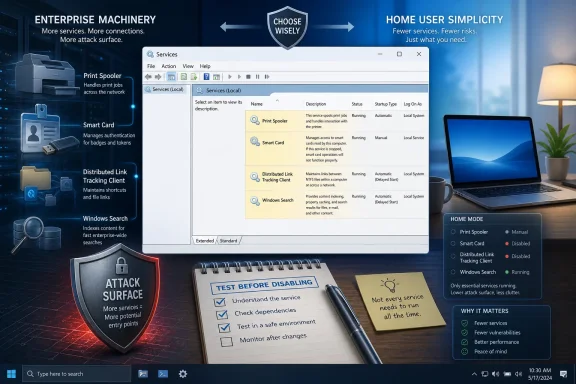
Windows still runs services such as Print Spooler, Smart Card, Distributed Link Tracking Client, and Windows Search on many consumer PCs because the operating system is built to cover home, business, education, government, and enterprise deployments from the same codebase. That design keeps Windows broadly compatible, but it also means a one-person laptop can inherit machinery intended for print fleets, badge authentication, roaming file links, and indexed corporate data. The real story is not that Microsoft ships “bloat” for sport; it is that Windows’ default posture favors readiness over minimalism. For home users, the useful question is no longer “What can I turn off?” but “Which background promises am I actually willing to give up?”
The MakeUseOf piece that sparked this round of service-auditing frustration lands because it describes a familiar Windows feeling: the sense that your own PC is doing work for someone else’s use case. You open Services, sort through the list, and discover names that sound like artifacts from a corporate imaging lab. Print Spooler. Smart Card. Distributed Link Tracking Client. Windows Search. They are not malware, not accidents, and usually not meaningful performance hogs on modern hardware — but they are reminders that Windows is not a bespoke home operating system.
That is both Microsoft’s advantage and its tax. Windows runs on gaming rigs, school laptops, government desktops, hospital workstations, retail terminals, domain-joined enterprise fleets, and family PCs that are mostly browsers with keyboards. Microsoft does not ship a different consumer kernel stripped of enterprise assumptions. It ships one platform with knobs, policies, services, compatibility layers, and decades of historical obligation.
This is why the “services you don’t need” genre is so durable. It turns a structural product compromise into a personal tuning ritual. Some of that ritual is useful. Some of it is placebo. And some of it is dangerous when a user disables first and understands later.
The right way to read the four services in question is not as a universal hit list. They are case studies in how Windows defaults work: Microsoft would rather start from “this PC might need to print, authenticate, resolve moved files, or search quickly” than from “this PC should run the fewest possible daemons until the user complains.” That bias makes sense at Microsoft scale. It can still be wrong for your machine.
Technically, Print Spooler does a straightforward job: it queues and manages print jobs between applications and printers or print servers. In day-to-day home use, it usually consumes little. Disabling it is not the secret to turning an aging laptop into a workstation. If the argument is purely performance, Print Spooler is rarely the villain.
The security argument is stronger. PrintNightmare in 2021 turned an obscure background component into a headline because the spooler sat at the intersection of driver installation, privilege boundaries, and network exposure. Microsoft patched the major flaws and changed Point and Print behavior, but the episode permanently altered how administrators think about printing on machines that do not need to print.
That lesson translates awkwardly to home PCs. A standalone consumer laptop is not a domain controller, and a patched Windows 11 machine behind a home router is not automatically a sitting duck because the spooler exists. But least privilege is still a sane principle: if a service provides a capability you never use, and that capability has a history of serious attack surface, disabling it is defensible.
The catch is that “I never print” must really mean never. Print-to-PDF does not require the same physical printing path in every scenario, but printer installation, certain legacy apps, shared printers, label printers, and some scanner software may assume the spooler is available. The safe test is not ideology; it is observation. Stop it, set it to disabled or manual only if you know why, reboot, and confirm that your actual workflows still work.
On a consumer machine, Smart Card support can look absurd. You may never have owned a reader. You may never have inserted a card into any PC. If Windows is a home appliance, the service feels like dead weight.
But Windows is not only a home appliance. Microsoft has to support a world where a user docks a laptop at a secure facility, signs in with a badge, accesses certificate-backed VPN resources, and uses line-of-business applications written around the Windows smart card stack. The same operating system image may need to work before and after a machine is joined to a domain, enrolled in management, or handed to an employee.
For most home users, disabling Smart Card is low-risk if there is no reader, no certificate-based authentication, and no specialized security token software depending on it. The performance upside will generally be microscopic. The clarity upside is larger: one fewer background service exists for a hardware and identity model you do not use.
This is where the service-tuning conversation should be honest. Turning off Smart Card will not make Windows feel dramatically faster. It may make your configuration feel less absurd. That distinction matters, because users often mix “lean” with “fast” when the real benefit is reducing unused functionality and attack surface.
There is also a future-looking wrinkle. Consumer authentication is moving toward hardware-backed identity, passkeys, secure enclaves, and phishing-resistant sign-ins. That does not mean the classic Smart Card service will suddenly become important to every home user, but it does mean authentication plumbing is not obsolete merely because it looks enterprise-coded. Disable what you do not use, but do not confuse unfamiliar with useless across the entire platform.
For a modern home user whose files live in Downloads, Desktop, OneDrive, Google Drive, Dropbox, or a handful of local folders, the feature can feel unnecessary. If a shortcut breaks, the user recreates it. If a document moves, the cloud client tracks it in its own way. If an app depends on a path, the app often handles its own library or database.
The service’s existence is not irrational, though. Windows carries a long memory because enterprises carry long workflows. A feature that looks vestigial on a gaming PC may still be part of a compatibility chain for document management systems, file shares, shell shortcuts, and older Office-era linking behaviors. Microsoft breaks those assumptions at its peril.
This is the hidden bargain of Windows compatibility. Users complain that the operating system contains too much old machinery, then complain again when old machinery disappears and a workflow breaks. Both complaints can be valid. The problem is not that legacy support has no value; it is that Microsoft’s default installation rarely distinguishes between a domain-joined office PC and a home desktop that has never seen Active Directory.
Distributed Link Tracking is therefore a good candidate for cautious disabling on many home systems, but a poor symbol for dramatic bloat. It is not usually burning cycles in the background like a misbehaving updater. It is there because Windows tries to preserve references in a filesystem universe more complicated than most home users now inhabit.
The Windows Search service builds and maintains an index so results can appear quickly. That index can include file names, file properties, and in some cases file contents. On a modern SSD-equipped system, the overhead may be modest and mostly invisible. On an older hard-drive machine, indexing can still feel like a small animal is rearranging furniture inside the disk.
The criticism of Windows Search has two parts, and only one is about resource use. The first is the old complaint: indexing costs CPU, memory, and disk activity, especially after major file changes, account setup, or index rebuilds. The second is more damning: many users do not trust Windows Search to find the right thing quickly. If a service consumes resources to deliver a result the user distrusts, its value collapses.
That is why third-party tools such as Everything have become folk remedies among power users. Everything indexes file names with extraordinary speed and gives users the directness that Windows Search often lacks. It does not replace every Windows Search integration, and it is not the same kind of content-search platform. But for the common task of “find the file I know exists,” it often feels like the tool Windows should have shipped.
Still, disabling Windows Search has consequences. Start menu results may degrade. File Explorer searches may slow down. Outlook and other applications may behave differently depending on their integration and configuration. Some users will experience liberation; others will spend a week wondering why basic discovery feels worse.
The smarter move is not always to disable Windows Search outright. On Windows 10 and Windows 11, users can adjust indexing locations, switch between classic and enhanced indexing modes, exclude folders, rebuild a corrupt index, or reduce what Windows is asked to watch. A leaner index is often better than no index. If the problem is that Windows Search is unreliable, a full disable may treat the symptom while leaving the larger design failure untouched.
That distinction matters because Windows users have been trained by decades of tuning folklore to treat every running service as a personal insult. In the Windows XP era, disabling services could sometimes produce noticeable gains on underpowered hardware. In the Windows Vista era, background activity became a cultural grievance. In the SSD era, the performance math changed, but the instinct remained.
The modern problem is less about raw resource consumption and more about default capability surface. A service can be lightweight and still unnecessary. It can be patched and still represent avoidable complexity. It can be valuable in one environment and unjustified in another.
For IT pros, this is basic attack-surface management. For home users, it is often discovered as “debloating.” The language differs, but the principle overlaps: do not run what you do not need, and do not disable what you do not understand. The first half appeals to enthusiasts. The second half prevents support nightmares.
Microsoft’s challenge is that defaults have to serve the user who plugs in a printer five minutes after setup, the employee whose smart card reader appears after enrollment, the office worker opening a linked document from a share, and the home user who wants a quiet task manager. There is no default configuration that makes all of them happy. So Microsoft chooses readiness, and leaves minimalism as an exercise for the motivated.
A home office with a Brother laser printer is not the same as a gaming tower with no peripherals. A retiree using a banking smart card or certificate token is not the same as a student laptop. A photographer with network storage and elaborate shortcuts is not the same as a Chromebook-like Windows user living entirely in the browser. A developer machine with indexed source trees may be improved by one search configuration and harmed by another.
The better method is the one described in the original piece: check status, disable cautiously, restart, and test for several days. That method treats Windows as an observed system rather than a superstition. It also creates a rollback path, which is the difference between tuning and vandalism.
Before changing services, users should record what they changed. A screenshot of the service properties is enough. So is a simple note with the service name, original startup type, and date changed. This sounds fussy until something breaks two weeks later and the user has no idea which clever optimization caused it.
Windows services are not browser tabs. Some exist as dependencies. Some wake only when triggered. Some are set to manual but appear active because another component called them. Judging them only by whether they are “running right now” can mislead, because a service’s steady-state resource usage may be close to nothing while its absence causes a specific feature to fail later.
This does not mean home users should panic at every service name. Windows is a heavily attacked, heavily patched platform, and Microsoft’s security engineering is far more sophisticated than the crude “turn everything off” advice that circulates online. But reducing unnecessary capability is a legitimate defensive move, especially for services tied to networking, authentication, remote management, or driver handling.
The phrase attack surface can sound like enterprise jargon until you translate it: it means “things that can be poked.” A service that is not running usually cannot be poked in the same way. A feature that is unavailable cannot fail open in quite the same fashion. That is the sober version of debloating, stripped of miracle-performance claims.
For sysadmins, this has long been codified through baselines, group policy, endpoint management, and role-based server configuration. A domain controller should not print unless it truly must. A kiosk should not expose general-purpose features. A workstation image should reflect the organization’s actual use, not merely Windows’ broadest defaults.
Home users can borrow the mindset without borrowing the bureaucracy. If you do not print, disabling the spooler is reasonable. If you do not use smart cards, Smart Card service is probably unnecessary. If you do not rely on moved shortcuts across NTFS volumes or network shares, Distributed Link Tracking Client is likely expendable. If you do search constantly, Windows Search deserves tuning before execution.
Microsoft has not done that in any serious consumer-facing way, partly because the support burden is ugly. If Windows asks whether you need printing and you say no, then your printer does not work six months later, most users will blame Windows rather than their earlier choice. If a school or employer later requires a certificate-based login, the machine must recover gracefully. Defaults are not just technical choices; they are future support contracts.
There is also the matter of ecosystem expectation. Hardware vendors, printer utilities, security products, document tools, and enterprise agents often assume Windows features are present. A more aggressively minimal Windows would be cleaner, but it would also force more installers to handle missing components properly. History suggests that many would not.
Instead, Microsoft has moved toward hiding complexity rather than removing it. Services remain, but Settings absorbs more user-facing control. Search becomes a cloud-and-local experience. Printing gets new driver models and security hardening. Authentication moves toward Windows Hello and passkeys while older infrastructure remains underneath.
For enthusiasts, this is unsatisfying. They want a Windows that admits what kind of PC it is running on. Microsoft wants a Windows that can become several kinds of PC without reinstalling. The tension is not going away.
 Windows Is Not Built for Your Desk Alone
The MakeUseOf piece that sparked this round of service-auditing frustration lands because it describes a familiar Windows feeling: the sense that your own PC is doing work for someone else’s use case. You open Services, sort through the list, and discover names that sound like artifacts from a corporate imaging lab. Print Spooler. Smart Card. Distributed Link Tracking Client. Windows Search. They are not malware, not accidents, and usually not meaningful performance hogs on modern hardware — but they are reminders that Windows is not a bespoke home operating system.That is both Microsoft’s advantage and its tax. Windows runs on gaming rigs, school laptops, government desktops, hospital workstations, retail terminals, domain-joined enterprise fleets, and family PCs that are mostly browsers with keyboards. Microsoft does not ship a different consumer kernel stripped of enterprise assumptions. It ships one platform with knobs, policies, services, compatibility layers, and decades of historical obligation.
This is why the “services you don’t need” genre is so durable. It turns a structural product compromise into a personal tuning ritual. Some of that ritual is useful. Some of it is placebo. And some of it is dangerous when a user disables first and understands later.
The right way to read the four services in question is not as a universal hit list. They are case studies in how Windows defaults work: Microsoft would rather start from “this PC might need to print, authenticate, resolve moved files, or search quickly” than from “this PC should run the fewest possible daemons until the user complains.” That bias makes sense at Microsoft scale. It can still be wrong for your machine.
The Print Spooler Is Small Until It Becomes Strategic
Print Spooler is the easiest service to mock and the hardest one for Microsoft to discard. Plenty of home users have not printed anything in years. Others own a wireless printer they use twice a year for tax forms, shipping labels, school paperwork, or some institution that still believes PDFs become real only after touching paper. Windows cannot know which camp you are in, so it assumes printing is a core capability.Technically, Print Spooler does a straightforward job: it queues and manages print jobs between applications and printers or print servers. In day-to-day home use, it usually consumes little. Disabling it is not the secret to turning an aging laptop into a workstation. If the argument is purely performance, Print Spooler is rarely the villain.
The security argument is stronger. PrintNightmare in 2021 turned an obscure background component into a headline because the spooler sat at the intersection of driver installation, privilege boundaries, and network exposure. Microsoft patched the major flaws and changed Point and Print behavior, but the episode permanently altered how administrators think about printing on machines that do not need to print.
That lesson translates awkwardly to home PCs. A standalone consumer laptop is not a domain controller, and a patched Windows 11 machine behind a home router is not automatically a sitting duck because the spooler exists. But least privilege is still a sane principle: if a service provides a capability you never use, and that capability has a history of serious attack surface, disabling it is defensible.
The catch is that “I never print” must really mean never. Print-to-PDF does not require the same physical printing path in every scenario, but printer installation, certain legacy apps, shared printers, label printers, and some scanner software may assume the spooler is available. The safe test is not ideology; it is observation. Stop it, set it to disabled or manual only if you know why, reboot, and confirm that your actual workflows still work.
Smart Card Support Is Enterprise Plumbing in Plain Sight
Smart Card is the service that most clearly reveals Windows’ institutional DNA. A physical smart card, badge, or token used for sign-in is not a normal home setup. It is common in environments where identity assurance matters: government agencies, defense contractors, regulated enterprises, and organizations that built authentication around certificates long before “passkey” became a household-adjacent term.On a consumer machine, Smart Card support can look absurd. You may never have owned a reader. You may never have inserted a card into any PC. If Windows is a home appliance, the service feels like dead weight.
But Windows is not only a home appliance. Microsoft has to support a world where a user docks a laptop at a secure facility, signs in with a badge, accesses certificate-backed VPN resources, and uses line-of-business applications written around the Windows smart card stack. The same operating system image may need to work before and after a machine is joined to a domain, enrolled in management, or handed to an employee.
For most home users, disabling Smart Card is low-risk if there is no reader, no certificate-based authentication, and no specialized security token software depending on it. The performance upside will generally be microscopic. The clarity upside is larger: one fewer background service exists for a hardware and identity model you do not use.
This is where the service-tuning conversation should be honest. Turning off Smart Card will not make Windows feel dramatically faster. It may make your configuration feel less absurd. That distinction matters, because users often mix “lean” with “fast” when the real benefit is reducing unused functionality and attack surface.
There is also a future-looking wrinkle. Consumer authentication is moving toward hardware-backed identity, passkeys, secure enclaves, and phishing-resistant sign-ins. That does not mean the classic Smart Card service will suddenly become important to every home user, but it does mean authentication plumbing is not obsolete merely because it looks enterprise-coded. Disable what you do not use, but do not confuse unfamiliar with useless across the entire platform.
Distributed Link Tracking Is a Fossil That Still Explains Windows
Distributed Link Tracking Client sounds like a service from a different computing era because, in many ways, it is. Its purpose is to help maintain links to files when those files are moved or renamed, particularly across NTFS volumes and networked environments. It is the kind of feature that made sense when Windows desktops lived beside file servers, mapped drives, roaming documents, OLE links, and office networks where users dragged files around shared locations and expected shortcuts not to implode.For a modern home user whose files live in Downloads, Desktop, OneDrive, Google Drive, Dropbox, or a handful of local folders, the feature can feel unnecessary. If a shortcut breaks, the user recreates it. If a document moves, the cloud client tracks it in its own way. If an app depends on a path, the app often handles its own library or database.
The service’s existence is not irrational, though. Windows carries a long memory because enterprises carry long workflows. A feature that looks vestigial on a gaming PC may still be part of a compatibility chain for document management systems, file shares, shell shortcuts, and older Office-era linking behaviors. Microsoft breaks those assumptions at its peril.
This is the hidden bargain of Windows compatibility. Users complain that the operating system contains too much old machinery, then complain again when old machinery disappears and a workflow breaks. Both complaints can be valid. The problem is not that legacy support has no value; it is that Microsoft’s default installation rarely distinguishes between a domain-joined office PC and a home desktop that has never seen Active Directory.
Distributed Link Tracking is therefore a good candidate for cautious disabling on many home systems, but a poor symbol for dramatic bloat. It is not usually burning cycles in the background like a misbehaving updater. It is there because Windows tries to preserve references in a filesystem universe more complicated than most home users now inhabit.
Windows Search Is the One Service Where the Trade-Off Is Real
Windows Search does not belong in the same bucket as the other three. Print Spooler, Smart Card, and Distributed Link Tracking Client are easy to frame as “probably irrelevant until proven otherwise.” Windows Search is different because most people search their PCs, whether through the Start menu, File Explorer, Settings, Outlook, or indexed file content. Disabling it is not removing unused plumbing; it is changing how the machine behaves every day.The Windows Search service builds and maintains an index so results can appear quickly. That index can include file names, file properties, and in some cases file contents. On a modern SSD-equipped system, the overhead may be modest and mostly invisible. On an older hard-drive machine, indexing can still feel like a small animal is rearranging furniture inside the disk.
The criticism of Windows Search has two parts, and only one is about resource use. The first is the old complaint: indexing costs CPU, memory, and disk activity, especially after major file changes, account setup, or index rebuilds. The second is more damning: many users do not trust Windows Search to find the right thing quickly. If a service consumes resources to deliver a result the user distrusts, its value collapses.
That is why third-party tools such as Everything have become folk remedies among power users. Everything indexes file names with extraordinary speed and gives users the directness that Windows Search often lacks. It does not replace every Windows Search integration, and it is not the same kind of content-search platform. But for the common task of “find the file I know exists,” it often feels like the tool Windows should have shipped.
Still, disabling Windows Search has consequences. Start menu results may degrade. File Explorer searches may slow down. Outlook and other applications may behave differently depending on their integration and configuration. Some users will experience liberation; others will spend a week wondering why basic discovery feels worse.
The smarter move is not always to disable Windows Search outright. On Windows 10 and Windows 11, users can adjust indexing locations, switch between classic and enhanced indexing modes, exclude folders, rebuild a corrupt index, or reduce what Windows is asked to watch. A leaner index is often better than no index. If the problem is that Windows Search is unreliable, a full disable may treat the symptom while leaving the larger design failure untouched.
“Bloat” Is the Wrong Word for a Real Problem
Calling these services bloat is emotionally satisfying, but technically imprecise. Bloat implies waste without purpose. These services have purposes. The issue is that their purposes may not be yours.That distinction matters because Windows users have been trained by decades of tuning folklore to treat every running service as a personal insult. In the Windows XP era, disabling services could sometimes produce noticeable gains on underpowered hardware. In the Windows Vista era, background activity became a cultural grievance. In the SSD era, the performance math changed, but the instinct remained.
The modern problem is less about raw resource consumption and more about default capability surface. A service can be lightweight and still unnecessary. It can be patched and still represent avoidable complexity. It can be valuable in one environment and unjustified in another.
For IT pros, this is basic attack-surface management. For home users, it is often discovered as “debloating.” The language differs, but the principle overlaps: do not run what you do not need, and do not disable what you do not understand. The first half appeals to enthusiasts. The second half prevents support nightmares.
Microsoft’s challenge is that defaults have to serve the user who plugs in a printer five minutes after setup, the employee whose smart card reader appears after enrollment, the office worker opening a linked document from a share, and the home user who wants a quiet task manager. There is no default configuration that makes all of them happy. So Microsoft chooses readiness, and leaves minimalism as an exercise for the motivated.
The Home User’s Mistake Is Chasing a Magic List
The most dangerous version of the “services you don’t need” article is the one that becomes a checklist. Disable this. Disable that. Reboot. Enjoy your “faster” PC. That framing ignores the messy reality that two home PCs can have wildly different dependencies.A home office with a Brother laser printer is not the same as a gaming tower with no peripherals. A retiree using a banking smart card or certificate token is not the same as a student laptop. A photographer with network storage and elaborate shortcuts is not the same as a Chromebook-like Windows user living entirely in the browser. A developer machine with indexed source trees may be improved by one search configuration and harmed by another.
The better method is the one described in the original piece: check status, disable cautiously, restart, and test for several days. That method treats Windows as an observed system rather than a superstition. It also creates a rollback path, which is the difference between tuning and vandalism.
Before changing services, users should record what they changed. A screenshot of the service properties is enough. So is a simple note with the service name, original startup type, and date changed. This sounds fussy until something breaks two weeks later and the user has no idea which clever optimization caused it.
Windows services are not browser tabs. Some exist as dependencies. Some wake only when triggered. Some are set to manual but appear active because another component called them. Judging them only by whether they are “running right now” can mislead, because a service’s steady-state resource usage may be close to nothing while its absence causes a specific feature to fail later.
Security Gives the Minimalist Argument Its Spine
If performance gains are often overstated, the security argument deserves more respect. Every enabled component is another chunk of code that may contain bugs, expose interfaces, or interact with privileges in unexpected ways. The Print Spooler saga made that visible, but the principle is broader than printing.This does not mean home users should panic at every service name. Windows is a heavily attacked, heavily patched platform, and Microsoft’s security engineering is far more sophisticated than the crude “turn everything off” advice that circulates online. But reducing unnecessary capability is a legitimate defensive move, especially for services tied to networking, authentication, remote management, or driver handling.
The phrase attack surface can sound like enterprise jargon until you translate it: it means “things that can be poked.” A service that is not running usually cannot be poked in the same way. A feature that is unavailable cannot fail open in quite the same fashion. That is the sober version of debloating, stripped of miracle-performance claims.
For sysadmins, this has long been codified through baselines, group policy, endpoint management, and role-based server configuration. A domain controller should not print unless it truly must. A kiosk should not expose general-purpose features. A workstation image should reflect the organization’s actual use, not merely Windows’ broadest defaults.
Home users can borrow the mindset without borrowing the bureaucracy. If you do not print, disabling the spooler is reasonable. If you do not use smart cards, Smart Card service is probably unnecessary. If you do not rely on moved shortcuts across NTFS volumes or network shares, Distributed Link Tracking Client is likely expendable. If you do search constantly, Windows Search deserves tuning before execution.
Microsoft Could Make This Easier, But Probably Won’t
The obvious product answer is a lean-mode setup path. During Windows installation, Microsoft could ask whether the device is for home basics, gaming, development, enterprise work, printing, or managed identity, then configure services accordingly. It could surface a safe “unused services” review in Settings, explain consequences, and offer reversible toggles with telemetry-informed confidence.Microsoft has not done that in any serious consumer-facing way, partly because the support burden is ugly. If Windows asks whether you need printing and you say no, then your printer does not work six months later, most users will blame Windows rather than their earlier choice. If a school or employer later requires a certificate-based login, the machine must recover gracefully. Defaults are not just technical choices; they are future support contracts.
There is also the matter of ecosystem expectation. Hardware vendors, printer utilities, security products, document tools, and enterprise agents often assume Windows features are present. A more aggressively minimal Windows would be cleaner, but it would also force more installers to handle missing components properly. History suggests that many would not.
Instead, Microsoft has moved toward hiding complexity rather than removing it. Services remain, but Settings absorbs more user-facing control. Search becomes a cloud-and-local experience. Printing gets new driver models and security hardening. Authentication moves toward Windows Hello and passkeys while older infrastructure remains underneath.
For enthusiasts, this is unsatisfying. They want a Windows that admits what kind of PC it is running on. Microsoft wants a Windows that can become several kinds of PC without reinstalling. The tension is not going away.
Four Services, One Sensible Test
The practical conclusion is narrower than the viral framing. These four services are not proof that Windows is hopelessly bloated. They are proof that Windows carries optional capabilities by default, and that users who want a leaner system need to separate low-risk trimming from self-inflicted damage.- Print Spooler is a reasonable disable candidate on PCs that never install printers, never share printers, and do not depend on printer-adjacent utilities.
- Smart Card is usually unnecessary on home machines without card readers, certificate logon, or specialized authentication hardware.
- Distributed Link Tracking Client is unlikely to matter for users who do not rely on moved shortcuts, OLE links, NTFS object tracking, or network-file workflows.
- Windows Search should be tuned or replaced only after recognizing that it affects everyday discovery across Start, File Explorer, and some applications.
- The safest service change is one you can reverse because you recorded the original startup type and tested the machine for several days afterward.
References
- Primary source: MakeUseOf
Published: 2026-06-16T10:10:08.401983
These 4 Windows services are running on your PC right now — most home users don't need any of them
Most people will never need some services running by default on Windows. www.makeuseof.com
- Official source: learn.microsoft.com
Smart Cards for Windows Service | Microsoft Learn
This topic for the IT professional and smart card developers describes how the Smart Cards for Windows service manages readers and application interactions.learn.microsoft.com - Related coverage: exploitnotes.org
- Related coverage: threatprotect.qualys.com
- Related coverage: book.hacktricks.wiki
PrintNightmare - HackTricks
PrintNightmare is the collective name given to a family of vulnerabilities in the Windows Print Spooler service that allow arbitrary code execution as... book.hacktricks.wiki
- Related coverage: exploit-notes.hdks.org

- Related coverage: zeiss.com
- Related coverage: aha.org
- Related coverage: windows-security.org
Distributed Link Tracking Client | Windows security encyclopedia
The Distributed Link Tracking Client (TrkWks) service maintains links between the NTFS file system files within the computer or across computers in the network domain. This service ensures that shortcut links and Object Linking and Embedding (OLE) links continue to work after the target file is...www.windows-security.org
- Official source: support.microsoft.com
Search indexing in Windows - Microsoft Support
Learn more about how indexing affects searches in Windows.support.microsoft.com - Related coverage: bitsavers.org
- Related coverage: der-windows-papst.de
- Related coverage: mirror.gpmidi.net
