

Disabling Print Spooler, Smart Card, and Windows Search can make some Windows PCs feel faster, especially older or resource-constrained systems, but the effect depends heavily on how the machine is used and whether those services were actually consuming CPU, memory, or disk activity. The more important lesson is not that three obscure switches are magic performance levers. It is that Windows still ships as a general-purpose operating system first and a personalized appliance second. The fastest PC is often the one no longer preparing for workflows its owner will never use.
Windows is not built only for the person sitting in front of a laptop at home. It is built for offices with shared printers, hospitals with badge-based authentication, schools with locked-down fleets, developers indexing enormous project folders, and governments that still treat smart cards as everyday infrastructure. That breadth is a strength, but it also means every installation carries traces of someone else’s needs.
The modern Windows services list is the bargain Microsoft has made for decades: keep the system ready for almost anything, then let administrators and power users trim the edges. Most users never open
That is why claims about “instant speed” should be read carefully. Turning off a background service is not the same thing as installing a faster SSD or doubling memory. But on a machine already under pressure — a low-end laptop, an aging Windows 10 box, a Windows 11 system with too little RAM, or a PC with a thrashing hard drive — removing even modest background work can change how the desktop feels.
The useful framing is not “these three services are bad.” It is “these three services may be unnecessary for you.” That distinction matters, because Windows performance tuning becomes dangerous when personal anecdotes are promoted as universal doctrine.
For a home user who has not printed anything in years, the Print Spooler can look absurd. Why should a PC keep a printing pipeline available when every bill, boarding pass, tax form, and receipt now lives in email, cloud storage, or a PDF viewer? On many systems, the answer is simply inertia. Windows enables it because many people still need it, and Microsoft cannot assume otherwise.
Performance-wise, disabling the Print Spooler is unlikely to produce a dramatic gain on a healthy modern PC. The service generally sits quietly unless printing is happening or a driver is misbehaving. If the machine feels faster afterward, the cause may be less about raw resource savings and more about eliminating one more background process, one more driver interaction, or one more startup dependency.
Security gives the Print Spooler a more serious history. The 2021 PrintNightmare episode reminded administrators that printing is not a harmless convenience layer. A service that brokers printer drivers and network printing can become a privileged attack surface, particularly in enterprise environments where print servers, domain controllers, and shared printers intersect.
That does not mean every home user should rush to disable it. If you use a local printer, a network printer, print-to-PDF workflows tied to specific software, label printers, shipping tools, or accounting applications that expect print services to exist, disabling the spooler can break things immediately. But if your PC genuinely never prints, switching the service off is one of the cleaner examples of reducing both clutter and attack surface.
On a personal laptop, the service may be a perfect example of Windows being ready for a world that will never arrive. If there is no smart card reader, no corporate badge, no certificate-based sign-in, and no compliance policy requiring it, the service is probably not doing anything useful for that user. Disabling it is less a performance hack than a declaration that the machine is not part of that particular enterprise story.
The risk is mostly contextual. A work-issued laptop may rely on smart cards even if the user does not fully understand the mechanism. Some environments use physical credentials for VPN access, privileged logins, remote desktop workflows, or administrative elevation. Disable the wrong identity service on a managed device and the “speed boost” may turn into a help desk ticket.
For unmanaged home PCs, Smart Card is one of the safer candidates to review because its purpose is specific. If you know you do not use smart cards and the machine is not controlled by an employer or institution, it is unlikely to be missed. That is the kind of service trimming Windows power users have performed for years: not random amputation, but removing support for hardware and authentication models absent from the system.
The performance gain will usually be tiny. But the psychological gain — knowing that fewer unused enterprise-era components are active — is real for enthusiasts who like a lean machine. Windows has always rewarded that kind of curiosity, provided it is paired with restraint.
It is also the one service in this trio most likely to create visible performance complaints. Indexing involves scanning files, updating databases, and reacting to changes in the file system. On a fast NVMe SSD with plenty of memory, this may be barely noticeable. On an older hard drive, a low-end CPU, or a machine with massive folders of documents, photos, source code, or cloud-synced files, indexing can become the background activity users blame when the disk light never stops.
Microsoft has improved indexing behavior over time, and Windows tries not to index aggressively when the device is under heavy use. But “tries” is doing a lot of work. Search can still feel erratic, and users routinely report the worst of both worlds: indexing activity that consumes resources and search results that still fail to find the file they know exists.
That frustration explains why disabling Windows Search can feel like a real upgrade. If the indexer was touching the disk at exactly the wrong moments, stopping it may make File Explorer, app launching, and general desktop interaction feel smoother. The effect is particularly noticeable on machines still using spinning disks, where random I/O remains the enemy of responsiveness.
But turning off Windows Search is not cost-free. Start menu search can degrade. File searches may become slower. Outlook and other applications may lose fast indexed search behavior depending on configuration. Developers, students, writers, accountants, and anyone who regularly searches local files may be trading a background performance tax for daily friction.
The smarter move may be to tune Windows Search before killing it. Users can reduce indexed locations, exclude large project folders, avoid indexing generated files, or switch to specialized third-party tools for filename search while leaving Windows Search available for Start and system integration. Disabling the service outright is a blunt instrument. Sometimes blunt instruments work, but they should still be recognized as blunt.
That is why background services attract so much attention from Windows enthusiasts. They represent the part of the operating system that acts without asking. A user opens a browser, and the machine stutters because something else is indexing, syncing, scanning, updating, preloading, or checking hardware that is not present.
In that sense, disabling unused services can improve the shape of performance even when it barely changes total resource use. A quieter startup, fewer background wake-ups, and less disk contention can make a system feel more immediate. The user experiences that as speed, even if a synthetic benchmark would shrug.
The danger is that this becomes folklore. One user disables Print Spooler and feels a difference; another disables ten services and breaks networking, updates, authentication, or device discovery. Windows tuning culture has always lived on the border between useful craft and superstition.
A good rule is to distrust any tweak that does not explain what it breaks. Print Spooler breaks printing. Smart Card breaks smart-card authentication. Windows Search breaks or slows indexed search. If an optimization guide cannot name the downside, it is not an optimization guide; it is a ritual.
Services also sit lower in the stack than normal startup apps. Disabling Teams, OneDrive, Discord, a game launcher, or an RGB utility is usually easy to reverse and rarely threatens core OS behavior. Disabling services can affect networking, updates, device installation, credentials, encryption, backup, search, printing, remote access, and security monitoring.
That is why the careful method matters more than the specific three services. Change one thing at a time. Record the original startup type. Restart. Use the machine normally. If something breaks, revert. This is boring advice, but boring advice is what keeps a performance tweak from becoming a reinstall.
The article that sparked this discussion describes a sensible pattern: inspect a service, understand its purpose, disable it, restart, and test over several days. That is a better approach than downloading a “debloat” script that applies dozens of registry changes in one pass. The former teaches the user how Windows behaves. The latter turns the operating system into a crime scene.
For IT pros, the same principle scales into policy. Disable Print Spooler on servers that never print. Do not disable it blindly on print servers, reception desks, shipping stations, or line-of-business machines. Remove unused capabilities where the role is known; avoid generic hardening that ignores how people actually work.
The result is a system that favors readiness. Windows would rather carry extra services than confront users with missing capabilities at the moment they need them. That is a rational product decision for an operating system used across consumer, commercial, industrial, and government machines.
But it also means Windows remains vulnerable to the old criticism that it feels heavier than it should. The OS is constantly negotiating with its own installed base. Every legacy workflow, every enterprise requirement, every peripheral category, and every compatibility promise leaves residue.
Apple can make more opinionated assumptions because it controls a narrower hardware and software universe. Linux distributions can be minimal because their users often expect to assemble the missing pieces. Windows sits in the middle: consumer-friendly enough for retail laptops, backward-compatible enough for old business software, and configurable enough for administrators who know where to look.
That middle position is powerful, but it creates an opportunity for Microsoft to do better. Windows could more clearly surface unused capabilities and suggest role-based trimming. A home device with no printer installed for years could offer to pause Print Spooler. A machine with no smart card reader could leave that stack dormant. Search indexing could be more transparent about what it is doing and what it costs.
A PC may feel faster after disabling services because the user also restarted it. Or because a stalled print job vanished. Or because Windows Search happened to be indexing a large folder before the change. Or because the user expected improvement and noticed normal responsiveness more favorably afterward. None of that makes the experience fake, but it complicates the claim.
There is also a hierarchy of performance wins. Removing bloatware, reducing startup apps, updating drivers, freeing disk space, replacing a hard drive with an SSD, adding RAM, and fixing thermal throttling are often more important than disabling a handful of services. Services tuning is a second-order optimization unless a specific service is misbehaving.
Still, second-order optimizations matter to enthusiasts. WindowsForum readers know that responsiveness is often the sum of many small cuts avoided. A trimmed service list will not rescue a fundamentally underpowered machine, but it can make a decent machine feel less distracted.
The right skepticism is not dismissal. It is calibration. Print Spooler and Smart Card are plausible disable-if-unused candidates. Windows Search is a performance-versus-convenience trade. None should be presented as a universal cure.
Windows also provides Event Viewer, Reliability Monitor, and Settings pages that can help separate a real culprit from a hunch. Enthusiasts do not need enterprise telemetry to make better decisions. They need to stop treating the Services console as a performance wishing well.
For Windows Search, the better first step may be checking indexing options. If Windows is indexing a huge downloads folder, a source-code tree, virtual machine images, game directories, or cloud-sync caches, excluding those locations may preserve the usefulness of search while reducing churn. That is more nuanced than disabling the service and later wondering why Start search feels worse.
For Print Spooler, the test is simpler. If you never print, stop the service and see whether anything complains. If a PDF tool, label app, or office suite breaks, you have learned something useful about a hidden dependency. Re-enable it and move on.
For Smart Card, the key question is ownership. If the PC belongs to an employer, school, agency, or managed tenant, leave identity-related services alone unless policy says otherwise. On a personal gaming desktop with no reader and no enterprise login, it is a far more reasonable candidate.
Disabling unused services is one of the rare optimizations that can reduce both complexity and exposure. A service that is not running cannot consume resources, and it also cannot be exploited in the same way. That does not make service trimming a substitute for patching, but it does make it part of a mature Windows posture.
The enterprise version of this lesson is role-based configuration. A domain controller should not run unnecessary print services. A kiosk should not expose capabilities irrelevant to its job. A developer workstation may need search tuned differently from a call-center terminal. The default Windows image is only the starting point.
Home users can borrow that thinking without pretending to be sysadmins. What role does this PC serve? Gaming machine, writing laptop, family browser, media center, lab box, work device, school machine? Once the role is clear, unnecessary services become easier to identify.
The mistake is chasing minimalism for its own sake. A stripped system that breaks useful features is not elegant; it is brittle. The goal is not the fewest services. The goal is the fewest services consistent with how the machine is actually used.
Together, they show why Windows can feel both impressively capable and unnecessarily busy. The same installation is prepared to print to a network copier, authenticate with a government badge, and index a decade of local files. That is useful if you need those things. It is waste if you do not.
For the average home user, disabling Smart Card is unlikely to be noticed. Disabling Print Spooler is reasonable only if printing is truly absent from the workflow. Disabling Windows Search is the serious choice, because it changes an everyday feature and may push the user toward third-party search tools or slower manual file hunting.
The more honest headline would be less viral but more useful: “Three Windows services worth reviewing if your PC feels sluggish.” That framing preserves the agency without overselling the result. It tells users to investigate, not imitate.
Windows power users have always lived in that space between default and bespoke. The operating system gives them enough rope to build a cleaner setup or hang a working one. The difference is knowing why a service exists before deciding it does not belong.
Here is the concrete read:
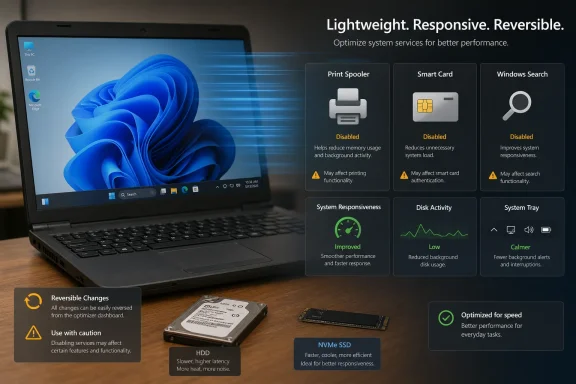 Windows Still Boots for Users You Are Not
Windows is not built only for the person sitting in front of a laptop at home. It is built for offices with shared printers, hospitals with badge-based authentication, schools with locked-down fleets, developers indexing enormous project folders, and governments that still treat smart cards as everyday infrastructure. That breadth is a strength, but it also means every installation carries traces of someone else’s needs.The modern Windows services list is the bargain Microsoft has made for decades: keep the system ready for almost anything, then let administrators and power users trim the edges. Most users never open
services.msc, and Microsoft would probably prefer that they did not. Services are plumbing, and plumbing is supposed to be invisible until it leaks.That is why claims about “instant speed” should be read carefully. Turning off a background service is not the same thing as installing a faster SSD or doubling memory. But on a machine already under pressure — a low-end laptop, an aging Windows 10 box, a Windows 11 system with too little RAM, or a PC with a thrashing hard drive — removing even modest background work can change how the desktop feels.
The useful framing is not “these three services are bad.” It is “these three services may be unnecessary for you.” That distinction matters, because Windows performance tuning becomes dangerous when personal anecdotes are promoted as universal doctrine.
The Print Spooler Is Small Until It Is Not
The Print Spooler is one of those old Windows components that exists because the real world refuses to become fully paperless. It queues print jobs, talks to printer drivers, and makes the act of printing a document look simple even when the printer itself is a networked, driver-dependent, firmware-haunted appliance from another era.For a home user who has not printed anything in years, the Print Spooler can look absurd. Why should a PC keep a printing pipeline available when every bill, boarding pass, tax form, and receipt now lives in email, cloud storage, or a PDF viewer? On many systems, the answer is simply inertia. Windows enables it because many people still need it, and Microsoft cannot assume otherwise.
Performance-wise, disabling the Print Spooler is unlikely to produce a dramatic gain on a healthy modern PC. The service generally sits quietly unless printing is happening or a driver is misbehaving. If the machine feels faster afterward, the cause may be less about raw resource savings and more about eliminating one more background process, one more driver interaction, or one more startup dependency.
Security gives the Print Spooler a more serious history. The 2021 PrintNightmare episode reminded administrators that printing is not a harmless convenience layer. A service that brokers printer drivers and network printing can become a privileged attack surface, particularly in enterprise environments where print servers, domain controllers, and shared printers intersect.
That does not mean every home user should rush to disable it. If you use a local printer, a network printer, print-to-PDF workflows tied to specific software, label printers, shipping tools, or accounting applications that expect print services to exist, disabling the spooler can break things immediately. But if your PC genuinely never prints, switching the service off is one of the cleaner examples of reducing both clutter and attack surface.
Smart Card Support Is Enterprise Baggage on a Consumer Desk
The Smart Card service is easier to understand because most home users have never touched the hardware it supports. Smart cards are used for identity, authentication, and secure access, often in government, defense, healthcare, and large corporate environments. They are the plastic badge side of Windows security: physical credentials plugged into readers, tied to certificates, and woven into enterprise login policy.On a personal laptop, the service may be a perfect example of Windows being ready for a world that will never arrive. If there is no smart card reader, no corporate badge, no certificate-based sign-in, and no compliance policy requiring it, the service is probably not doing anything useful for that user. Disabling it is less a performance hack than a declaration that the machine is not part of that particular enterprise story.
The risk is mostly contextual. A work-issued laptop may rely on smart cards even if the user does not fully understand the mechanism. Some environments use physical credentials for VPN access, privileged logins, remote desktop workflows, or administrative elevation. Disable the wrong identity service on a managed device and the “speed boost” may turn into a help desk ticket.
For unmanaged home PCs, Smart Card is one of the safer candidates to review because its purpose is specific. If you know you do not use smart cards and the machine is not controlled by an employer or institution, it is unlikely to be missed. That is the kind of service trimming Windows power users have performed for years: not random amputation, but removing support for hardware and authentication models absent from the system.
The performance gain will usually be tiny. But the psychological gain — knowing that fewer unused enterprise-era components are active — is real for enthusiasts who like a lean machine. Windows has always rewarded that kind of curiosity, provided it is paired with restraint.
Windows Search Is the One That Actually Changes the Feel of a PC
Windows Search is different because nearly everyone uses search, even people who complain about it. The service indexes files, metadata, email in some configurations, Start menu items, and other searchable content so results can appear quickly. It is not obscure plumbing; it is part of how modern Windows expects users to navigate the system.It is also the one service in this trio most likely to create visible performance complaints. Indexing involves scanning files, updating databases, and reacting to changes in the file system. On a fast NVMe SSD with plenty of memory, this may be barely noticeable. On an older hard drive, a low-end CPU, or a machine with massive folders of documents, photos, source code, or cloud-synced files, indexing can become the background activity users blame when the disk light never stops.
Microsoft has improved indexing behavior over time, and Windows tries not to index aggressively when the device is under heavy use. But “tries” is doing a lot of work. Search can still feel erratic, and users routinely report the worst of both worlds: indexing activity that consumes resources and search results that still fail to find the file they know exists.
That frustration explains why disabling Windows Search can feel like a real upgrade. If the indexer was touching the disk at exactly the wrong moments, stopping it may make File Explorer, app launching, and general desktop interaction feel smoother. The effect is particularly noticeable on machines still using spinning disks, where random I/O remains the enemy of responsiveness.
But turning off Windows Search is not cost-free. Start menu search can degrade. File searches may become slower. Outlook and other applications may lose fast indexed search behavior depending on configuration. Developers, students, writers, accountants, and anyone who regularly searches local files may be trading a background performance tax for daily friction.
The smarter move may be to tune Windows Search before killing it. Users can reduce indexed locations, exclude large project folders, avoid indexing generated files, or switch to specialized third-party tools for filename search while leaving Windows Search available for Start and system integration. Disabling the service outright is a blunt instrument. Sometimes blunt instruments work, but they should still be recognized as blunt.
The Real Speed Boost Comes From Fewer Surprises
PC performance is not only about benchmark numbers. It is about latency, predictability, and whether the system responds when the user asks it to do something. A service that consumes 1 percent CPU at the wrong time can feel worse than a heavy workload the user deliberately launched.That is why background services attract so much attention from Windows enthusiasts. They represent the part of the operating system that acts without asking. A user opens a browser, and the machine stutters because something else is indexing, syncing, scanning, updating, preloading, or checking hardware that is not present.
In that sense, disabling unused services can improve the shape of performance even when it barely changes total resource use. A quieter startup, fewer background wake-ups, and less disk contention can make a system feel more immediate. The user experiences that as speed, even if a synthetic benchmark would shrug.
The danger is that this becomes folklore. One user disables Print Spooler and feels a difference; another disables ten services and breaks networking, updates, authentication, or device discovery. Windows tuning culture has always lived on the border between useful craft and superstition.
A good rule is to distrust any tweak that does not explain what it breaks. Print Spooler breaks printing. Smart Card breaks smart-card authentication. Windows Search breaks or slows indexed search. If an optimization guide cannot name the downside, it is not an optimization guide; it is a ritual.
Services Are Not Startup Apps With Scarier Names
The Windows Services console tempts users because it presents a long list of things that look optional. Some are. Many are not. The interface does not always make the distinction obvious, and the descriptions can range from helpful to cryptic.Services also sit lower in the stack than normal startup apps. Disabling Teams, OneDrive, Discord, a game launcher, or an RGB utility is usually easy to reverse and rarely threatens core OS behavior. Disabling services can affect networking, updates, device installation, credentials, encryption, backup, search, printing, remote access, and security monitoring.
That is why the careful method matters more than the specific three services. Change one thing at a time. Record the original startup type. Restart. Use the machine normally. If something breaks, revert. This is boring advice, but boring advice is what keeps a performance tweak from becoming a reinstall.
The article that sparked this discussion describes a sensible pattern: inspect a service, understand its purpose, disable it, restart, and test over several days. That is a better approach than downloading a “debloat” script that applies dozens of registry changes in one pass. The former teaches the user how Windows behaves. The latter turns the operating system into a crime scene.
For IT pros, the same principle scales into policy. Disable Print Spooler on servers that never print. Do not disable it blindly on print servers, reception desks, shipping stations, or line-of-business machines. Remove unused capabilities where the role is known; avoid generic hardening that ignores how people actually work.
Microsoft’s Defaults Favor Compatibility Over Minimalism
Microsoft’s default position is understandable. A Windows installation should not require a home user to know what a spooler is before plugging in a printer. It should not require a government contractor to install identity plumbing before using a smart card. It should not make search painfully slow just because indexing was deemed optional.The result is a system that favors readiness. Windows would rather carry extra services than confront users with missing capabilities at the moment they need them. That is a rational product decision for an operating system used across consumer, commercial, industrial, and government machines.
But it also means Windows remains vulnerable to the old criticism that it feels heavier than it should. The OS is constantly negotiating with its own installed base. Every legacy workflow, every enterprise requirement, every peripheral category, and every compatibility promise leaves residue.
Apple can make more opinionated assumptions because it controls a narrower hardware and software universe. Linux distributions can be minimal because their users often expect to assemble the missing pieces. Windows sits in the middle: consumer-friendly enough for retail laptops, backward-compatible enough for old business software, and configurable enough for administrators who know where to look.
That middle position is powerful, but it creates an opportunity for Microsoft to do better. Windows could more clearly surface unused capabilities and suggest role-based trimming. A home device with no printer installed for years could offer to pause Print Spooler. A machine with no smart card reader could leave that stack dormant. Search indexing could be more transparent about what it is doing and what it costs.
The Hidden Cost of “Instantly Faster” Advice
The phrase “instantly faster” is irresistible because it promises control. No new hardware, no reinstall, no paid utility, no registry spelunking — just three toggles and a better PC. The problem is that Windows performance rarely works that cleanly.A PC may feel faster after disabling services because the user also restarted it. Or because a stalled print job vanished. Or because Windows Search happened to be indexing a large folder before the change. Or because the user expected improvement and noticed normal responsiveness more favorably afterward. None of that makes the experience fake, but it complicates the claim.
There is also a hierarchy of performance wins. Removing bloatware, reducing startup apps, updating drivers, freeing disk space, replacing a hard drive with an SSD, adding RAM, and fixing thermal throttling are often more important than disabling a handful of services. Services tuning is a second-order optimization unless a specific service is misbehaving.
Still, second-order optimizations matter to enthusiasts. WindowsForum readers know that responsiveness is often the sum of many small cuts avoided. A trimmed service list will not rescue a fundamentally underpowered machine, but it can make a decent machine feel less distracted.
The right skepticism is not dismissal. It is calibration. Print Spooler and Smart Card are plausible disable-if-unused candidates. Windows Search is a performance-versus-convenience trade. None should be presented as a universal cure.
The Safer Path Is Measurement Before Minimalism
Before disabling anything, users should open Task Manager and Resource Monitor and look for evidence. IsSearchIndexer.exe using CPU or disk? Is the disk active when nothing obvious is happening? Are print-related processes running despite no printer being installed? Is memory pressure already high enough that every background service matters?Windows also provides Event Viewer, Reliability Monitor, and Settings pages that can help separate a real culprit from a hunch. Enthusiasts do not need enterprise telemetry to make better decisions. They need to stop treating the Services console as a performance wishing well.
For Windows Search, the better first step may be checking indexing options. If Windows is indexing a huge downloads folder, a source-code tree, virtual machine images, game directories, or cloud-sync caches, excluding those locations may preserve the usefulness of search while reducing churn. That is more nuanced than disabling the service and later wondering why Start search feels worse.
For Print Spooler, the test is simpler. If you never print, stop the service and see whether anything complains. If a PDF tool, label app, or office suite breaks, you have learned something useful about a hidden dependency. Re-enable it and move on.
For Smart Card, the key question is ownership. If the PC belongs to an employer, school, agency, or managed tenant, leave identity-related services alone unless policy says otherwise. On a personal gaming desktop with no reader and no enterprise login, it is a far more reasonable candidate.
Security and Performance Finally Point in the Same Direction
For years, Windows hardening and Windows performance tuning were treated as separate disciplines. Security teams wanted fewer services and smaller attack surfaces; users wanted fewer slowdowns and less background noise. With components like Print Spooler, those goals overlap.Disabling unused services is one of the rare optimizations that can reduce both complexity and exposure. A service that is not running cannot consume resources, and it also cannot be exploited in the same way. That does not make service trimming a substitute for patching, but it does make it part of a mature Windows posture.
The enterprise version of this lesson is role-based configuration. A domain controller should not run unnecessary print services. A kiosk should not expose capabilities irrelevant to its job. A developer workstation may need search tuned differently from a call-center terminal. The default Windows image is only the starting point.
Home users can borrow that thinking without pretending to be sysadmins. What role does this PC serve? Gaming machine, writing laptop, family browser, media center, lab box, work device, school machine? Once the role is clear, unnecessary services become easier to identify.
The mistake is chasing minimalism for its own sake. A stripped system that breaks useful features is not elegant; it is brittle. The goal is not the fewest services. The goal is the fewest services consistent with how the machine is actually used.
Three Switches Reveal the Bigger Windows Bargain
These three settings are interesting because they map to three different kinds of Windows baggage. Print Spooler represents legacy hardware and office workflows. Smart Card represents enterprise identity infrastructure. Windows Search represents modern convenience that sometimes taxes the machine it is meant to help.Together, they show why Windows can feel both impressively capable and unnecessarily busy. The same installation is prepared to print to a network copier, authenticate with a government badge, and index a decade of local files. That is useful if you need those things. It is waste if you do not.
For the average home user, disabling Smart Card is unlikely to be noticed. Disabling Print Spooler is reasonable only if printing is truly absent from the workflow. Disabling Windows Search is the serious choice, because it changes an everyday feature and may push the user toward third-party search tools or slower manual file hunting.
The more honest headline would be less viral but more useful: “Three Windows services worth reviewing if your PC feels sluggish.” That framing preserves the agency without overselling the result. It tells users to investigate, not imitate.
Windows power users have always lived in that space between default and bespoke. The operating system gives them enough rope to build a cleaner setup or hang a working one. The difference is knowing why a service exists before deciding it does not belong.
The Practical Verdict for This Particular Tweak
The value of this tweak depends on matching the service to the machine, not blindly copying someone else’s configuration. On a personal PC with no printer, no smart card reader, and a third-party file search tool, all three changes may be defensible. On a work laptop, a family PC, or a machine used for documents and scanning, the same changes may be annoying or disruptive.Here is the concrete read:
- Disabling Print Spooler makes sense on a PC that never prints and does not rely on print-related software, but it should be reversed before adding a printer or troubleshooting missing print options.
- Disabling Smart Card is usually safe on an unmanaged home PC with no smart card reader, but it is a bad gamble on corporate, government, healthcare, or school-managed devices.
- Disabling Windows Search can improve responsiveness on older or disk-bound machines, but it may make Start menu search, File Explorer search, and some app searches slower or less useful.
- Testing one change at a time is more important than the specific services chosen, because Windows dependencies are often discovered only after something stops working.
- The biggest lesson is that Windows performance tuning works best when it removes unused capabilities, not when it treats every background service as suspicious.
services.msc and guessing which parts of the operating system belong to them. Microsoft has enough telemetry, hardware awareness, and setup intelligence to make Windows more role-aware without abandoning compatibility. Until that happens, the best Windows tuning remains cautious, reversible, and personal: trim what you understand, measure what changes, and remember that a faster-feeling PC is often just a quieter one.References
- Primary source: digit.in
Published: 2026-06-21T06:10:08.231459
Disabling these 3 hidden Windows settings made my PC instantly faster: Here’s how
Learn how disabling three unused Windows services, including Print Spooler and Windows Search, helped improve PC responsiveness and reduce background activity.www.digit.in - Official source: learn.microsoft.com
Smart Cards for Windows Service | Microsoft Learn
This topic for the IT professional and smart card developers describes how the Smart Cards for Windows service manages readers and application interactions.learn.microsoft.com - Official source: support.microsoft.com
Search indexing in Windows - Microsoft Support
Learn more about how indexing affects searches in Windows.support.microsoft.com - Official source: answers.microsoft.com
Windows Search Indexer High CPU and Disk usage + White File icons - Microsoft Q&A
Hello, For the past few weeks, I've been experiencing file explorer freezes in Windows 11, with white icons appearing on some files and directories. Checking the processes, I see Windows Search Indexer consuming 15 to 20% of the CPU and especially 500…answers.microsoft.com - Related coverage: tenable.com
CVE-2021-34527: Microsoft Releases Out-of-Band Patch for PrintNightmare Vulnerability in Windows Print Spooler
Microsoft issues an out-of-band patch for critical ‘PrintNightmare’ vulnerability following reports of in-the-wild exploitation and publication of multiple proof-of-concept exploit scripts Update July 9, 2021: The Solution section has been updated to clarify the vulnerable configurations as well...www.tenable.com - Related coverage: crn.com
Microsoft Patches ‘PrintNightmare’ Vulnerability In Windows, Urges Immediate Install | CRN
The ‘PrintNightmare’ vulnerability, also called CVE-2021-34527, in Windows Print Spooler has been patched by Microsoft.www.crn.com
