

Windows and Linux users have been trading myths, half-truths, and sermon-like lectures for decades — and the latest round of “just use Linux” sermons misses important nuance: Windows today is neither defenseless nor hopelessly obsolete, but it also isn’t flawless. This feature untangles five common Windows myths Linux evangelists love to repeat, verifies the key technical claims, and gives practical context for users deciding whether to tweak Windows, switch, or run both side-by-side.
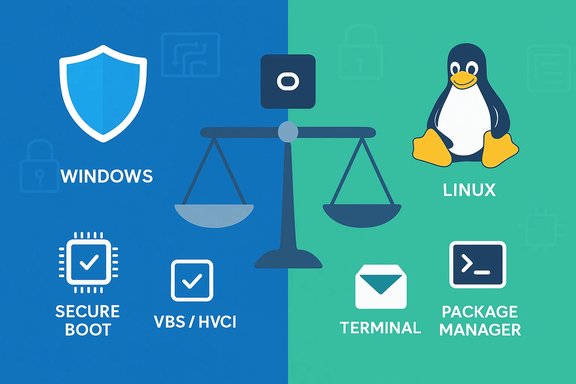
The debate between Windows and Linux has always mixed technical reality with preference-driven rhetoric. Linux enjoys clear advantages in servers, embedded systems, and parts of developer tooling; Windows still dominates the general desktop and gaming ecosystems. Recent data shows Windows holding the majority of desktop installs worldwide while Linux’s desktop share — though growing — remains a small fraction of total usage. These market figures and the technical feature sets that underpin them are important to ground the myths that follow. Windows 11 in particular has been a focal point of this argument. Microsoft has leaned into hardware-rooted defenses (TPM, Secure Boot), virtualization-based mitigations (VBS / HVCI), and cloud/tight integration with Defender features. Meanwhile, Linux advocates point to smaller attack surface, powerful package managers, and customization as counters. Both sides contain truths — and both sides sometimes weaponize partial truths into sweeping myths. This article examines five of those myths, verifies the facts with up-to-date technical references, and rates the risks and trade-offs for each.
Microsoft turned virtualization-based protections such as Virtualization‑Based Security (VBS) and Hypervisor‑Protected Code Integrity (HVCI / memory integrity) into first-class defenses for Windows 11. These features isolate kernel-critical checks in a protected environment, mitigating whole classes of kernel‑level attacks. Microsoft’s own documentation explains that memory integrity / HVCI runs kernel code integrity inside an isolated runtime and that VBS is designed to reduce the impact of kernel compromises. Those protections are enabled by default on many modern systems. Windows also ships with Microsoft Defender (antivirus, behavioral protections), SmartScreen (phishing / malicious URL/file blocking), network protections, tamper protection, and integration with cloud telemetry and Microsoft Defender for Endpoint for enterprises. These components combine signature, ML-driven, and reputation-based defenses that are effective at reducing widespread commodity malware. Microsoft documents SmartScreen’s role in blocking malicious downloads and phishing vectors and explains Defender’s integrated protections.
Linux distributions can be minimal, but a practical desktop setup with productivity apps, drivers, codecs, and user-level services quickly fills the footprint that critics say only Windows introduces. The real difference is not size alone; it’s the philosophy: Windows ships with many conveniences enabled by default, while many Linux distros ship with a minimalist default and expect users to add what they need. Forum archives and user threads reflect that perception-driven contrast between “bloat” and “convenience.”
WSL has been transformative for developers who need Linux tooling but want a Windows desktop. Microsoft’s WSL project has been moving towards deeper integration, and Microsoft even open‑sourced WSL to accelerate community contributions and transparency — a signal that Windows is serious about developer workflows.
StatCounter and other market monitors show Windows with a large global share, while Linux — though growing — lives in single-digit percentages in most market reports. The surge in Linux usage on certain platforms (US desktop, gaming consoles like Steam Deck) is real, but it’s a far cry from wholesale desktop replacement.
Source: MakeUseOf 5 Windows myths Linux users love to lecture you about
 Background
The debate between Windows and Linux has always mixed technical reality with preference-driven rhetoric. Linux enjoys clear advantages in servers, embedded systems, and parts of developer tooling; Windows still dominates the general desktop and gaming ecosystems. Recent data shows Windows holding the majority of desktop installs worldwide while Linux’s desktop share — though growing — remains a small fraction of total usage. These market figures and the technical feature sets that underpin them are important to ground the myths that follow. Windows 11 in particular has been a focal point of this argument. Microsoft has leaned into hardware-rooted defenses (TPM, Secure Boot), virtualization-based mitigations (VBS / HVCI), and cloud/tight integration with Defender features. Meanwhile, Linux advocates point to smaller attack surface, powerful package managers, and customization as counters. Both sides contain truths — and both sides sometimes weaponize partial truths into sweeping myths. This article examines five of those myths, verifies the facts with up-to-date technical references, and rates the risks and trade-offs for each.Myth 1 — “Windows has zero security; it’s malware-infested and hopeless”
The claim and the reality
The shorthand claim — “Windows is insecure; use Linux” — has a grain of truth historically: Windows’ market share and legacy architecture made it the primary target for consumer malware for decades. But calling Windows “zero security” is inaccurate today. Windows 11 and modern Windows servicing include multiple, layered protections built into the OS, many of which are turned on automatically for supported hardware.Microsoft turned virtualization-based protections such as Virtualization‑Based Security (VBS) and Hypervisor‑Protected Code Integrity (HVCI / memory integrity) into first-class defenses for Windows 11. These features isolate kernel-critical checks in a protected environment, mitigating whole classes of kernel‑level attacks. Microsoft’s own documentation explains that memory integrity / HVCI runs kernel code integrity inside an isolated runtime and that VBS is designed to reduce the impact of kernel compromises. Those protections are enabled by default on many modern systems. Windows also ships with Microsoft Defender (antivirus, behavioral protections), SmartScreen (phishing / malicious URL/file blocking), network protections, tamper protection, and integration with cloud telemetry and Microsoft Defender for Endpoint for enterprises. These components combine signature, ML-driven, and reputation-based defenses that are effective at reducing widespread commodity malware. Microsoft documents SmartScreen’s role in blocking malicious downloads and phishing vectors and explains Defender’s integrated protections.
Two independent verifications
- Microsoft’s technical docs describe VBS/HVCI, how memory integrity works, and the conditions under which it’s auto-enabled on modern Windows 11 installs.
- Independent reporting shows real-world trade-offs: aggressive Secure Boot policies and vendor patches have occasionally interfered with dual‑boot setups and Linux bootloaders, highlighting the operational reality of hardware-rooted protections. This underscores that a “more secure” posture can create compatibility friction.
Analysis: strengths, limitations, and user risk
- Strengths: Windows now has several hardened primitives (VBS, HVCI, Secure Boot, Defender features) that elevate baseline security for non-expert users. These capabilities dramatically reduce the attack surface for kernel‑level exploits and improve phishing and malware detection for everyday browsing and downloads.
- Limitations: Security is about trade-offs: some protections require recent hardware (TPM, recent CPU families), and enabling them may break unsupported drivers or cause headaches for dual‑booters. Microsoft’s enforcement policies (for example, Secure Boot updates) have in rare cases prevented Linux boot or required workarounds. These are real operational costs that some users weigh against the security benefits.
- Bottom line: Saying “Windows has zero security” is false. Saying “Windows is more targeted due to market share” is true. For most users, Windows 11’s default protections materially raise the security baseline — but advanced or niche use cases should evaluate compatibility before enabling certain features.
Myth 2 — “Windows is just unnecessary bloatware from top to bottom”
The claim and the reality
Critics call out preinstalled apps, background services, and bundled Microsoft services as “bloat” that slow systems and push telemetry. That criticism is valid in the sense that modern Windows ships with many features that casual users never touch. However, lumping everything as “useless bloat” ignores that much of what’s installed serves real user needs, and many unwanted components can be removed or disabled without reinstalling the OS.Linux distributions can be minimal, but a practical desktop setup with productivity apps, drivers, codecs, and user-level services quickly fills the footprint that critics say only Windows introduces. The real difference is not size alone; it’s the philosophy: Windows ships with many conveniences enabled by default, while many Linux distros ship with a minimalist default and expect users to add what they need. Forum archives and user threads reflect that perception-driven contrast between “bloat” and “convenience.”
How to quantify and address bloat
- Modern storage is cheap; a few extra GBs of preinstalled apps won’t matter on new machines. But on budget or older hardware, background services and telemetry processes can push resource usage into noticeable territory.
- You can debloat sensibly: use Group Policy (Pro/Enterprise), Settings, Task Manager, or curated debloating utilities to remove unwanted apps, disable unnecessary background services, and reclaim resources.
- For power users who prefer a lean environment, Windows offers options: clean installs with minimal OEM software, disabling background features, or using tools that produce pared-down images.
Analysis: strengths, limitations, and user risk
- Strengths: Out-of-the-box compatibility, driver support, and the “it just works” approach reduces friction for mainstream users. For many organizations and consumers, that trade-off is deliberate and valuable.
- Limitations: Windows’ default inclusions and promotional apps can annoy privacy‑conscious users and degrade performance on aging hardware. Linux’s modularity can make it smaller by default, but achieving parity in ease-of-use (office suites, multimedia, drivers, gaming) often requires additional setup.
- Bottom line: Call it “bloat” if you want a minimalist desk; call it “complete by default” if you value turnkey functionality. Both views are valid — and both have solutions.
Myth 3 — “Power users and developers can’t use Windows for serious work”
The claim and the reality
The criticism: Windows is a consumer platform; serious terminal‑centric work belongs on Linux. That was more defensible years ago, but it’s not true today. Windows has evolved to meet professional workflows: robust PowerShell, native OpenSSH, Windows Subsystem for Linux (WSL) (including GUI support in recent WSLg releases), and enterprise-grade remote management (RDP, PowerShell remoting, Intune / Endpoint Manager integrations).WSL has been transformative for developers who need Linux tooling but want a Windows desktop. Microsoft’s WSL project has been moving towards deeper integration, and Microsoft even open‑sourced WSL to accelerate community contributions and transparency — a signal that Windows is serious about developer workflows.
Real-world capabilities
- Remote management: Windows’ Remote Desktop Protocol (RDP) and PowerShell remoting are mature, widely deployed solutions for enterprise remote administration.
- Dev tooling: Visual Studio, Visual Studio Code, Docker Desktop (with WSL2 backend), and native WSL integration make a Windows desktop a first-class developer environment for many languages and stacks.
- Interoperability: WSL allows running Linux CLI tools alongside Windows apps, and modern Windows includes OpenSSH and better scripting support.
Analysis: strengths, limitations, and user risk
- Strengths: Windows provides a broad toolkit for developers who need both Windows and Linux ecosystems. Running GUI apps, Windows-only software (Adobe suite, certain IDEs), and Linux command-line tools on the same machine is now practical and productive.
- Limitations: Some server/admin tasks are still more natural on Linux (container orchestration, small-footprint server nodes), and some devs prefer the Linux native toolchain. Also, low-level system customization and kernel hacking are obviously more accessible on Linux.
- Bottom line: Windows is capable of professional and power‑user workflows; the “Windows = consumer-only” trope is outdated.
Myth 4 — “Windows can’t match Linux performance — Linux is always faster”
The claim and the reality
A common talking point: Linux always outperforms Windows. The reality is nuanced. For certain server workloads and on older hardware, Linux frequently delivers better performance-per-watt and lower overhead. But performance depends on the workload: gaming, GPU-accelerated creative work, and many desktop applications remain better optimized on Windows because of driver maturity and vendor tooling.- Gaming: Windows still dominates the gaming landscape. Steam and most game vendors prioritize Windows drivers and tooling, and while Proton/Steam Play has closed ground significantly, compatibility and anti-cheat support still hamper parity for some titles. Steam Hardware Survey and market reports show Windows powering the vast majority of gaming PCs; Linux’s share on Steam — while growing — remains small.
- Creative and professional tools: Many content‑creation suites (native Adobe Premiere/Photoshop, industry-standard drivers for GPU acceleration) are optimized for Windows; that yields better out-of-the-box performance for many creative workloads.
- Benchmarks: Different benchmark suites tell different stories. Synthetic CPU/IO tests may favor Linux in some microbenchmarks; real-world, end-to-end workflows (game play, large rendering jobs, editing with vendor-optimized GPU pipelines) often show competitive or superior Windows results depending on driver optimizations.
Two independent checks
- Phoronix (and similar Linux benchmarking outlets) has repeatedly shown Linux outperforming Windows in certain CPU and IO tasks — especially on tuned server kernels.
- Gaming and driver-oriented reporting (Tom’s Hardware, Steam survey summaries) show Windows’ persistent edge in broad game compatibility and driver support, while Proton and Vulkan translation layers continue to improve. Recent vkd3d‑proton (and its support for technologies like AMD FSR) shows the pace of Linux gaming improvements.
Analysis: strengths, limitations, and user risk
- Strengths: Linux wins for lean server workloads, custom kernel tuning, and many CPU-bound tasks. Windows wins for GPU-accelerated workloads with mature driver stacks and widespread developer attention (gaming, content creation).
- Limitations: “Universal speed” claims are oversimplified. Performance is workload-specific; the right OS for raw benchmarks may be the wrong OS for your daily productivity.
- Bottom line: If performance is the sole criterion, profile the real workload you care about. For general consumers and gamers, Windows remains extremely competitive; for specialized workloads or low-power servers, Linux often leads.
Myth 5 — “Linux is the future of desktop; Windows is dying”
The claim and the reality
This is the most aspirational myth from Linux supporters: the desktop will migrate to Linux and Windows will disappear. The data tells a different story. Windows remains the dominant desktop OS worldwide; Linux is growing in niche pockets (developer machines, Steam Deck/SteamOS, privacy-focused users) but is still far from replacing Windows for the mainstream consumer and enterprise desktop.StatCounter and other market monitors show Windows with a large global share, while Linux — though growing — lives in single-digit percentages in most market reports. The surge in Linux usage on certain platforms (US desktop, gaming consoles like Steam Deck) is real, but it’s a far cry from wholesale desktop replacement.
Adoption vectors favoring Linux, and why they don’t flip the market overnight
- Windows 10 end-of-life and Windows 11 hardware requirements have pushed some users to evaluate alternatives, which temporarily boosts Linux migrations for legacy hardware.
- Gaming hardware (Steam Deck) and Proton improvements have raised Linux’s profile with gamers, but anti‑cheat support and niche driver features still block many titles.
- Enterprise inertia, software vendor lock‑in (specialized vertical apps), and the sheer install base will keep Windows relevant for a long time.
Analysis: strengths, limitations, and risk
- Strengths for Linux: openness, customizability, a more privacy-oriented default posture, and strong niches (servers, embedded devices, developer machines).
- Limitations for Linux: distribution fragmentation, some gaps in vendor support, and lower mass-market vendor and OEM backing for consumer desktops.
- Bottom line: Linux is important and growing, but the evidence doesn’t support an imminent wholesale replacement of Windows on the desktop.
Practical takeaways and recommendations
For Windows users who get the “just use Linux” lecture
- Keep perspective: both OS families have strengths. Acknowledge valid Linux advantages (package management, minimal installs, server performance) without conceding false absolutes.
- Harden Windows if you want better security: enable BitLocker (if available), turn on memory integrity / VBS where hardware supports it, keep Defender/SmartScreen and automatic updates enabled, and use standard safe-browsing hygiene. Microsoft docs describe how VBS/HVCI protect kernel memory and when they are auto-enabled.
- Debloat safely: use Group Policy / Settings to remove telemetry or preinstalled apps; for wider cleanups, prefer curated community tools or manual uninstalls. Community discussions show many users prefer debloating while keeping key features.
- For developers: adopt WSL and winget if you need Linux tooling and unified package management on Windows. Microsoft’s WSL strategy and open-sourcing work shows the platform is committed to developer workflows.
- If you care deeply about privacy, minimalism, or control: consider dual-booting, virtual machines, or a dedicated Linux install for tasks that benefit from that environment.
For those considering a switch to Linux
- Evaluate real needs: gaming compatibility (check ProtonDB and current anti-cheat status), professional software availability, and hardware drivers before committing.
- Consider dual-boot or virtualized test runs (live USB or VM) before wiping a Windows install.
- Be prepared for a learning curve around software packaging, driver quirks, and distribution-specific choices; community forums and modern distros have made this much easier than it was a decade ago.
Conclusion
The “just use Linux” lectures are excellent at highlighting real Windows shortcomings: telemetry noise, preinstalled convenience features users don’t want, and historical security problems. But they misrepresent the modern balance of power when they claim Windows is security‑free, unusable for professionals, universally bloated, uniformly slower, or doomed. Windows 11 delivers meaningful, hardware-assisted security improvements, robust developer tooling (including WSL), and a dominant software and gaming ecosystem. Linux offers compelling advantages in customization, server workloads, and privacy-first use cases — and its growth is real, measurable, and worth celebrating — but it is not (yet) the universal desktop replacement some advocates paint it to be. Both Windows and Linux will continue to evolve, and the best choice is the one that matches your workflows, priorities, and tolerance for tinkering. For many users, the practical path is hybrid: use Windows where vendor support and applications demand it, use Linux where minimalism, privacy, or server-grade performance matters, and keep an open mind about the other camp’s strengths. The debate should be about trade-offs, not absolutes.Source: MakeUseOf 5 Windows myths Linux users love to lecture you about
