

Installing a SteamOS-style build like Bazzite alongside Windows on an Xbox Ally (and other Windows handhelds) gives you the best of both worlds: a controller-first, console-like Linux environment for everyday handheld play, and a fully functional Windows partition when you need Game Pass, anti-cheat-supported titles, or specific Windows-only software. This guide explains the why, the what, and the how—step by step—so you can set up a reliable dual-boot system that minimizes risk and keeps both operating systems working as intended. The procedure below consolidates tested community practices and the Windows Central walkthrough while cross-checking official guidance from Bazzite and Microsoft for the crucial system and safety steps. ttps://docs.bazzite.gg/General/Installation_Guide/Installing_Bazzite_for_Desktop_or_Laptop_Hardware/)
Running Bazzite (a SteamOS-style Linux distribution) on a handheld can make the device feel more like a dedicated gaming console: fast startup into a controller-first UI, lightweight background services, and in some user reports, smoother input-to-frame responsiveness for Linux-native or Proton-compatible titles. But Bazzite is a Linux distribution that is not affiliated with Valve, and it trades Windows compatibility for that streamlined experience. That trade-off matters because certain titles and services—particularly those thnti-cheat or the Xbox Game Pass PC app—require native Windows to run reliably.
Dual-booting solves this tension: you can boot Bazzite for a console-like daily experience and boot Windows when you need Game Pass, Windows anti-cheat support, or vendor utilities. The process requires planning, extra storage, and attention to bootloader configuration—but when done carefully it’s repeatable and reversible.
powercfg.exe /hibernate off
Run that from an elevated Command Prompt. Microsoft documents this approach and warns that disabling hibernation affects hybrid sleep.
powoff
This removes the hiberfil.sys file and ensures Windows will fully unmount the filesystem on shutdown. Microsoft documents that disabling hibernation removes hybrid sleep support and how to re-enable later if needed.
Partition layout recommended (inside the unallocated space):
If you prefer a more guided, visual walkthrough for the final step of creating persistent boot shortcuts and avoiding repeated BIOS changes, the Windows Central walkthrough provides a user-facing step-by-step example tailored to the Xbox Ally and other handhelds—use it alongside the Bazzite docs to ensure a smooth experience.
Good luck—take your time, keep backups, and enjoy having both a console-like Bazzite environment and a fully functional Windows partition on the same handheld.
Source: Windows Central https://www.windowscentral.com/hard...ows-on-xbox-ally-and-other-windows-handhelds/
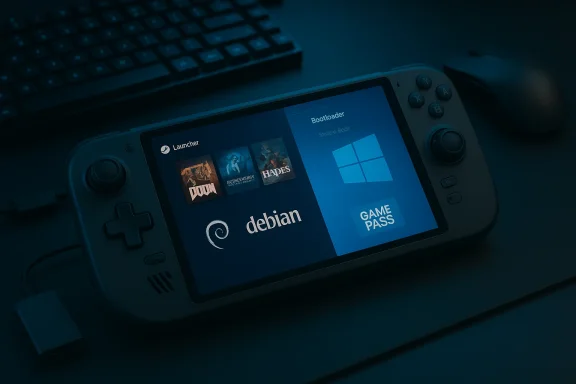 Background and why dual-boot Bazzite with Windows
Running Bazzite (a SteamOS-style Linux distribution) on a handheld can make the device feel more like a dedicated gaming console: fast startup into a controller-first UI, lightweight background services, and in some user reports, smoother input-to-frame responsiveness for Linux-native or Proton-compatible titles. But Bazzite is a Linux distribution that is not affiliated with Valve, and it trades Windows compatibility for that streamlined experience. That trade-off matters because certain titles and services—particularly those thnti-cheat or the Xbox Game Pass PC app—require native Windows to run reliably.Dual-booting solves this tension: you can boot Bazzite for a console-like daily experience and boot Windows when you need Game Pass, Windows anti-cheat support, or vendor utilities. The process requires planning, extra storage, and attention to bootloader configuration—but when done carefully it’s repeatable and reversible.
What you’ll need before you start
Plan and gather the following items before you touch partitions or firmware:- A handheld with UEFI firmware (most modern Windows handhelds including the Xbox Ally use UEFI). Bazzite’s installer requires UEFI; legacy/CSM mode is unsupported.
- At least 64 GB free on the internal SSD as a minimum for Bazzite, but aim for a larger split (128 GB or more is more comfortable if you plan to install many games). Bazzite’s documentation lists 64 GB as the minimum free storage for internal installs. USB flash drive for the Bazzite installer. The installer will overwrite the drive.
- A USB-C hub (with support for multiple devices) and at least one USB keyboard and mouse. Many handhelds have a single USB-C port and you’ll need simultaneous USB media and input devices.
- Time: partitioning, writing images, and decrypting/defragging can take a while—plan for 60–120 minutes plus time for downloads and driver installs.
- Backups: full-image backup or at least copies of critical data, game saves, and your Windows BitLocker recovery key if BitLocker is enabled. Do not skip backups.
Key safety checks (do these first)
Before creating partitions or flashing installers, perform three safety-critical checks to avoid bricking or losing access to Windows:1) Confirm Bazzite system requirements and UEFI-only installer
Bazzite’s official docs confirm the installer expects UEFI and lists the minimum hardware requirements (64 GB storage, 8 GB RAM, Vulkan-capable GPU, x86_64 CPU). Confirm that your handheld meets these requirements before proceeding.2) Disable Fast Startup and Hibernation
Windows’ Fast Startup and hibernation features leave portions of the filesystem in a suspended state that can confuse Linux installers and lead to corruption when both OSes access the same drive. The authoritative Microsoft method to disable hibernation is the command:powercfg.exe /hibernate off
Run that from an elevated Command Prompt. Microsoft documents this approach and warns that disabling hibernation affects hybrid sleep.
3) Temporaypt BitLocker
If BitLocker is enabled on your Windows drive, you will likely be prompted for a recovery key during reboots and firmware changes. The practical route for installation is tothe drive (turn off BitLocker) and allow the device to finish decryption before repartitioning. Microsoft’s BitLocker guidaccess BitLocker settings via Control Panel and how the decryption process runs in the background.High-level workflow
- Back up important data and note your BitLocker recovery key.
- Download Bazzite ISO targeted for your handhelle USB installer.
- Create free (unallocated) space on the internal SSD by shrinking the Windows partition. 64 GB minimum; a 50/50 split is recommended for a comfortable dual-boot.
- Boot into UEFI/BIOS, disable Secure Boot (if required by the distribution), and boot the Bazzite installer from USB.
- Use the installer’s advanced partitioning (Blivet-GUI) to create an EFI system partition and BTRFS root/var/home subvolumes as recommended by the installer steps.
- Finish the install, then configure a reliable switch between Windows and Bazzite using a dedicated boot shortcut or small boot manager configuration adjustments to avoid repeatedly re-entering BIOS.
Step-by-step: Downloading and creating installer media
Follow these steps to prepare Bazzite and Windows installer media and imaging tools.Choose the right Bazzite ISO
- On the Bazzite site you’ll select your hardware target (e.g., Xbox Ally) and pick a desktop environment; KDE is closest to the SteamOS feel. If you want the older compatibility route, choose the “bazzite-deck Legacy ISO” option. Bazzite’s docs list this method and the minimum installer requirements.
Writing the ISO to USB: recommended tools
- Use balenaEtcher for a simple cross-platform write process; it verifies data post-write and is user-friendly across Windows/macOS/Linux. Documentation and platform overviews list balenaEtcher as a supported imaging tool for USB installers.
- Rufus is an alternative on Windows that offers advanced control over partition scheme, target system, and special Windows options; it’s commonly recommended for Windows installer creation (and is useful if you need to create Windows install media later). Tom’s Hardware and other hands-on guides include Rufus in their recommended toolkit.
- Download the Bazzite ISO chosen for your device.
- Insert a 16 GB (or larger) USB drive. Everything on it will be erased.
- Open balenaEtcher, select the ISO, choose the USB target, and flash. Wait for verification to finish.
Step-by-step: Preparing Windows (shrink, defrag, and safety)
Partitioning is the riskiest part. Follow these pre-partition steps carefully.1) Back up and note the BitLocker key
If BitLocker is enabled, save your recovery key to another device or write it down. You cker in Control Panel under “Manage BitLocker.” Microsoft explicitly documents these steps and the options for key backup.2) Temporarily disable BitLocker (recommended)
Turn off BitLocker to avoid recovery prompts during frequent reboots. Use the Control Panel option “Turn off BitLocker” and allow decryption to complete in the background. Microsoft documents manage-bde and GUI methods for decryption.3) Disable hibernation (and Fast Startup)
Run an elevated Command Prompt and execute:powoff
This removes the hiberfil.sys file and ensures Windows will fully unmount the filesystem on shutdown. Microsoft documents that disabling hibernation removes hybrid sleep support and how to re-enable later if needed.
4) Free locked files so Windows can shrink
If Windows refuses to shrink the partition to the size you expect, system files (pagefile.sys, shadow copies, or System Restore points) may be blocking the operation. The common remedial steps:- Temporarily disable the page file (Virtual Memory) via System Properties → Performance → Advanced → Virtual memory → “No paging file”, then reboot.
- Temporarily disable System Restore (System Protection) for the C: drive.
- Run an administrative defrag / consolidation with:
defrag C: /X
After these steps, re Shrink Volume. These are standard, repeatable tricks used in community guides to create unallocated space for another OS.
5) How much to allocate?
- Minimum: 64 GB for Bazzite (installer doc). Practical: 128 GB or larger for a comfortable library and OS updates. If you plan to retain many Windows games, consider a 50/50 split or using an external NVMe for one OS.
Step-by-step: UEFI, Secure Boot, and booting the installer
Correct firmware settings avoid a lot of pain.Enter UEFI/BIOS and change only what’s necessary
- Power off your device and power on while holding the handheld-specific BIOthis is Volume Down at boot or the documented method on your device). In BIOS, switch to Advanced if needed, then locate Secure Boot and set it to Disabled if the distribution requires it. Confirm UEFI mode is active (most handheld firmware defaults to UEFI). Save and exit.
Boot the Bazzite USB
- Use the device’s boot menu (Command Centre or equivalent) to select your USB installer. You should boot into the Bazzite live installer environment.
Step-by-step: Installing Bazzite (advanced partitioning, Blivet-GUI)
The Blivet-GUI partitioner (available in the Bazzite installer) gives you control. Follow these rules to avoid wiping Windows partitions.Create partitions inside the unallocated space only
Important: Do not delete or modify existing Windows partitions.Partition layout recommended (inside the unallocated space):
- EFI System Partition (ESP)
- Size: 300 MiB
- Filesystem type: EFI System Partition
- Mount point: /boot/efi
- PurpEFI boot entry and kernels. Use 300 MiB to be safe on modern systems.
- /boot partition
- Size: ~1.0 GiB
- Filesystem: ext4
- Mount point: /boot
- Purpose: kernel, initramfs, and early boot files.
- BTRFS partition (use remaining space)
- Filesystem: BTRFS
- No top-level mount yet; use BTRFS subvolumes for root (/), /var, and /var/home.
- Purpose: BTRFS improves snapshot and subvolume management and is common in SteamOS-like installer defaults.
- Subvolumolume for /var
- Subvolume for /var/home
Post-installation: first boot and what to expect
After the installer finishes:- Reboot and remove USB installer when prompted.
- Select Bazzite from the boot menu; the first boot will run setup (language, network, user creation) and may require a short wait for services to start.
- Sign into Steam in Desktop Mode and test basic functionality.
Switching between Windows and Bazzite without rebooting into BIOS
Repeatedly entering the BIOS to change boot devices is tedious. The community has converged on two reliable patterns:- Create a Windows-side boot shortcut that points to the Bazzite EFI entry,-side boot option (or use rEFInd / a small shim) that shows Windows as an option. This lets you choose the OS from a menu rather than the firmware. Windows Central and community videos walk through these steps for common handhelds.
Drivers, anti-cheat, and Game Pass: what will (and won’t) work in Bazzite
- Native Xbox Game Pass PC app does not run natively on Linux; running Game Pass titles frequently requires Windows. For titles that rely on kernel-based anti-cheat, Linux (including Proton) may not be a viable option. The practical solution is to keep Windows for those titles and use Bazzite for everything else.
- Controller mappings, Vulkan drivers, and GPU drivers: Bazzite installers attempt to ship or select drivers for common handheld GPUs, but vendor-specific utilities and certain Windows-only firmware flasher tools will remain Windows-only. Confirm device-specific driver compatibility in Bazzite’s hardware notes before committing. ([docs.bcs.bazzite.gg/General/Installation_Guide/Installing_Bazzite_for_Desktop_or_Laptop_Hardware/)
Re-enabling Windows conveniences after installation (optional)
After Bazzite is working and you’ve validated boot switching:- If you temporarily disabled the pagefile, System Restore, or hibernation, re-enable them if you rely on those features in Windows—but only after verifying your boot setup is rock-solid.
- If you turned off BitLocker, consider re-enabling it once your dual-boot setup is stable; just back up the recovery key to an external location. Microsoft documents the BitLocker re-enablement flow and key management.
Troubleshooting common problems
- Windows refuses to shrink: ensure pagefile, hibernation, and System Restore are disabled; run defrag and try again.
- Installer boots but installer GUI doesn’t detect the target drive: confirm UEFI mode, confirm Secure Boot is disabled (if required by the ISO), and verify the drive status in the live environment.
- Repeated BitLocker recovery prompts: you can decrypt the drive before partitioning or ensure BitLocker keys are accessible externally. Microsoft documents both GUI and manage-bde command-line methods.
- USB media imaging tools write the image in a way certain firmware expects; try writing the ISO with balenaEtcher or Rufus depending on your host OS. Documentation and hands-on guides advise these tools for reliable USB creation.
Practical tips and final recommendations
- Keep a recovery USB for your original Windows installer and a fully-charged device before you start.
- If you’re unsure, practice on an external NVMe or a secondary device first—installing Windows or Linux to a spare external drive lets you rehearse the process without touching the internal SSD layout.
- Keep a typed copy of your BitLocker recovery key and any firmware passwords off the device (paper or another cloud account). BitLocker recovery prompts can be time-consuming to resolve mid-install.
- Use balenaEtcher for the Bazzite image and Rufus for Windows installer creation if you’re on Windows; both tools are well-documented in community and vendor guides.
Conclusion
Dual-booting Bazzite and Windows on an Xbox Ally or similar handheld gives you a powerful, flexible device that can behave like a console or a full PC on demand. The most important parts of the process are planning, creating safe backups, respecting UEFI/EFI constraints, and performing partitioning carefully inside unallocated space. Follow the installer’s recommendations for partitions (EFI, /boot, BTRFS with subvolumes), use reliable imaging tools for USB creation, and temporarily disable Windows features (hibernation and BitLocker) that can interfere with the installer. Cross-check Bazzite’s official system requirements and Windows’ hibernation and BitLocker documentation before you begin to prevent common pitfalls.If you prefer a more guided, visual walkthrough for the final step of creating persistent boot shortcuts and avoiding repeated BIOS changes, the Windows Central walkthrough provides a user-facing step-by-step example tailored to the Xbox Ally and other handhelds—use it alongside the Bazzite docs to ensure a smooth experience.
Good luck—take your time, keep backups, and enjoy having both a console-like Bazzite environment and a fully functional Windows partition on the same handheld.
Source: Windows Central https://www.windowscentral.com/hard...ows-on-xbox-ally-and-other-windows-handhelds/
