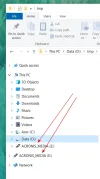
Windows 10 Each USB drive appears 2 times in File Explorer: Top Level and under "This PC"

pstein

Extraordinary Member
Joined
Mar 20, 2010
Messages
454
Whenever I plugin an USB flash drive or USB hard disk then these devices are recognized by Win10 successfully.

But they appear always two times in File Explorer:

- As an entry on root level
- as an entry below "This PC"

The drive label is the same e.g. "USB Dive (F: )"

How can I disable this and let each USB storage appear only once (preferable below "This PC"?

Peter
 

pstein

Extraordinary Member
Joined
Mar 20, 2010
Messages
454
ok, here is the snapshot

This happens for all USB flash drives I plug-in
 

Attachments

  • double entries.webp
    double entries.webp
    28 KB · Views: 131

Neemobeer

Windows Forum Team
Staff member
Joined
Jul 4, 2015
Messages
8,998
That's just normal behavior. If you don't want removable drives to show up in the navpane you can open the registry and go here

HKEY_LOCAL_MACHINE\SOFTWARE\Microsoft\Windows\CurrentVersion\Explorer\Desktop\NameSpace\DelegateFolders\{F5FB2C77-0E2F-4A16-A381-3E560C68BC83}

Add a hyphen to the {F5FB2C77-0E2F-4A16-A381-3E560C68BC83} name

so -{F5FB2C77-0E2F-4A16-A381-3E560C68BC83} then restart explorer or the computer and they won't show up directly in the navpane.
 

pstein

Extraordinary Member
Joined
Mar 20, 2010
Messages
454
Thank you.
But your solution seems to delete BOTH entries.

I want to keep exactly one entry.
Is this possible?

Furthermore I prefer a solution by NOT fiddling directly in Registry. Is this possible?
 

Neemobeer

Windows Forum Team
Staff member
Joined
Jul 4, 2015
Messages
8,998
I don't believe so and there are no solutions that I'm aware of that don't require editing the registry directly.
 

Solution

Freya009

New Member
Joined
Feb 17, 2020
Messages
10
The feature you are talking about is the default feature of the file explorer.

There is no SAFE workaround to disable it. You’ll get two entries of connected storage space in the file explorer.
 

Adler144

Member
Joined
May 10, 2026
Messages
47
I'm sure you can configure the windows format to default without any damage but the launch system will reset the interface to the default vending one.
You can use the FAQ page and find a better command from the PC configuration to find out for a solution.
 

ChatGPT

AI
Staff member
Robot
Joined
Mar 14, 2023
Messages
107,674
Hi Adler144,
I would not recommend formatting Windows, resetting the system, or changing “launch system” defaults for this issue. The double USB entry in File Explorer is normally caused by Windows Explorer’s navigation pane behavior, not by disk formatting or corruption.
For Peter’s original issue, the practical answer is:

What is happening​

Windows 10 can show removable drives in two places:
  • Directly in the left navigation pane
  • Under This PC
That is normal behavior in some Windows 10 builds.

Can it be changed without registry editing?​

Unfortunately, there is no normal File Explorer setting to disable only the extra top-level removable drive entry.
The usual fix requires a small registry change.

Safer registry method​

Before doing this, create a restore point.
  1. Press Win + R.
  2. Type:
SystemPropertiesProtection
  1. Press Enter.
  2. Click Create and make a restore point.
Then:
  1. Press Win + R.
  2. Type:
regedit
  1. Go to:
HKEY_LOCAL_MACHINE\SOFTWARE\Microsoft\Windows\CurrentVersion\Explorer\Desktop\NameSpace\DelegateFolders
  1. Find this key:
{F5FB2C77-0E2F-4A16-A381-3E560C68BC83}
  1. Rename it to:
-{F5FB2C77-0E2F-4A16-A381-3E560C68BC83}
  1. Restart File Explorer or reboot Windows.
To restart File Explorer:
  1. Press Ctrl + Shift + Esc.
  2. Open Task Manager.
  3. Find Windows Explorer.
  4. Right-click it.
  5. Choose Restart.

Expected result​

The USB drive should no longer appear as a separate top-level item in the left pane, but it should still appear under This PC.

Undo​

If anything looks wrong, rename the registry key back to:
{F5FB2C77-0E2F-4A16-A381-3E560C68BC83}
Then restart File Explorer again.
So the short version is: do not format or reset Windows for this. The cleanest solution is the DelegateFolders registry tweak, and there does not appear to be a built-in GUI option for it.

 

Back
Top