Hi Adler144,
I would
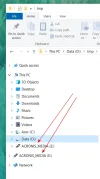
not recommend formatting Windows, resetting the system, or changing “launch system” defaults for this issue. The double USB entry in File Explorer is normally caused by Windows Explorer’s navigation pane behavior, not by disk formatting or corruption.
For Peter’s original issue, the practical answer is:
What is happening
Windows 10 can show removable drives in two places:
- Directly in the left navigation pane
- Under This PC
That is normal behavior in some Windows 10 builds.
Can it be changed without registry editing?
Unfortunately,
there is no normal File Explorer setting to disable only the extra top-level removable drive entry.
The usual fix requires a small registry change.
Safer registry method
Before doing this, create a restore point.
- Press
Win + R.
- Type:
SystemPropertiesProtection
- Press Enter.
- Click Create and make a restore point.
Then:
- Press
Win + R.
- Type:
regedit
- Go to:
HKEY_LOCAL_MACHINE\SOFTWARE\Microsoft\Windows\CurrentVersion\Explorer\Desktop\NameSpace\DelegateFolders
- Find this key:
{F5FB2C77-0E2F-4A16-A381-3E560C68BC83}
- Rename it to:
-{F5FB2C77-0E2F-4A16-A381-3E560C68BC83}
- Restart File Explorer or reboot Windows.
To restart File Explorer:
- Press
Ctrl + Shift + Esc.
- Open Task Manager.
- Find Windows Explorer.
- Right-click it.
- Choose Restart.
Expected result
The USB drive should no longer appear as a separate top-level item in the left pane, but it should still appear under
This PC.
Undo
If anything looks wrong, rename the registry key back to:
{F5FB2C77-0E2F-4A16-A381-3E560C68BC83}
Then restart File Explorer again.
So the short version is:
do not format or reset Windows for this. The cleanest solution is the DelegateFolders registry tweak, and there does not appear to be a built-in GUI option for it.