

Files 4.1.3, released for Windows users as a minor update to the third-party Files file manager, adds on-demand folder-size calculation, preserves selections when changing layouts, improves tag removal, refreshes the OneDrive icon, and fixes several archive, thumbnail, media, search, and drive-detection bugs. That is not a glamorous changelog, and that is precisely why it matters. Files is not trying to win the Windows desktop with a single spectacular feature; it is trying to win by making the daily irritations of file management feel less like inherited Windows debt. The 4.1.3 release is a small update with a larger argument behind it: File Explorer’s competitors are now competing on polish, not novelty.
The Windows file manager is one of the most frequently used pieces of software on a PC, which makes it strange how often it feels like an afterthought. Microsoft has modernized File Explorer in waves, bringing tabs, a new command bar, deeper OneDrive integration, gallery views, archive support, and visual alignment with Windows 11. Yet for many users, the core experience still turns on annoyances that sound too small for a keynote: slow folders, inconsistent views, clumsy metadata workflows, stale thumbnails, and a sense that Explorer is always one round of refinement away from feeling finished.
Files has built its reputation in that gap. It is not merely “File Explorer, but prettier,” though its Fluent-style interface and tabbed workflows helped it attract Windows 11 users early. Its more durable pitch is that it treats file management as an active product category rather than a solved utility.
Version 4.1.3 fits that pattern. There is no grand redesign here, no new AI pane, no attempt to turn a file manager into a productivity platform. Instead, the release goes after a familiar cluster of friction points: how to inspect large folders without slowing down every view, how to keep selections intact while changing layouts, how to remove organizational metadata without a scavenger hunt, and how to keep cloud affordances visually current.
That kind of update can look boring in a headline. In practice, boring is where file managers live. The best file manager is not the one that surprises you most often; it is the one that interrupts you least.
That is why folder-size display has always been a balancing act. Users want to know what is consuming disk space, but they do not want every directory listing to feel like a storage audit. Automatically calculating folder sizes can be handy in small folders and punishing in large ones, especially on slower drives, network paths, or cloud-synced locations.
Files’ new approach is pragmatic. If you turn off “Calculate folder sizes” for performance reasons, the app now gives each folder a dedicated way to request that information only when you need it. That means the feature no longer forces users into a binary choice between “always calculate” and “never calculate.”
This is the kind of design decision that makes a third-party utility feel mature. Rather than assuming every user wants the same behavior, Files is acknowledging that file managers sit across wildly different storage realities. A gamer cleaning up a 2 TB SSD, a developer navigating node_modules, a photographer sorting RAW files, and an office worker browsing OneDrive do not have the same tolerance for background enumeration.
The warning still matters: folder-size calculation can take time depending on the number and weight of files involved. But now that delay is more visibly tied to user intent. You ask for the size, the app spends the time, and the cost is easier to understand.
Changing from a list to thumbnails, or from details to a more visual layout, is often part of the same decision-making process. You select a batch of images, then switch to thumbnails to verify them. You highlight several documents, then move to details to compare dates or sizes. You start in one view because it is efficient, then change layouts because the next step requires different visual information.
If the file manager drops the selection during that transition, the user has to reconstruct intent. That is not just a wasted click. It is a break in continuity. The software has forced the user to remember what the interface was supposed to remember.
Files preserving selections across layouts makes the app feel less modal and more spatial. The selected items remain the user’s working set, and the layout becomes just a different lens on that set. This is a small change, but it reflects a broader truth about productivity software: continuity is often more valuable than feature count.
It also speaks to the advantage of dedicated file-manager development. Microsoft has to balance File Explorer against decades of compatibility, shell extensions, enterprise policy, accessibility constraints, and Windows servicing cadence. Files can move faster on behavioral refinements that matter to enthusiasts because its scope is narrower and its audience is more self-selecting.
That may sound like cleanup, but it gets at a deeper rule of organization systems: people avoid metadata when metadata feels permanent. Tags are only useful if users trust that they can apply, adjust, and remove them without turning the file manager into a filing bureaucracy. If applying a tag is easy but removing it is hidden, users eventually stop tagging except in the most obvious cases.
Files appears to understand that tags are not just labels; they are part of a workflow. A user may tag items temporarily during a project, mark files for review, group assets across folders, or create lightweight task states without changing filenames or directory structures. In those scenarios, bulk removal matters as much as assignment.
The Command Palette option is particularly telling. Files has been leaning into power-user affordances, and command palettes have become a kind of lingua franca for modern productivity tools. They let users act without hunting through nested menus, and they make lesser-used commands discoverable without cluttering the main interface.
The toolbar route matters for a different audience. Not every Files user wants to memorize shortcuts or invoke a command interface. By making tag removal available from multiple entry points, the app avoids treating power and convenience as opposites.
That may sound like trivia until you consider how cloud storage integration works psychologically. Users browsing synced files depend on visual cues to distinguish local, remote, shared, pinned, and cloud-backed content. The more closely a third-party file manager mirrors the expected OneDrive identity, the less it feels like an approximation of the Windows shell.
This is especially important because OneDrive is not just another folder for many Windows 11 users. It is woven into backup prompts, Microsoft account setup, Office workflows, known-folder redirection, and enterprise sync policies. Any file manager that wants to be taken seriously on Windows has to behave convincingly around OneDrive, even if it is not Microsoft’s own Explorer.
Pulling the icon from the executable is a modest but sensible move. It shifts the burden of visual currency away from the Files team and toward the installed OneDrive client. If Microsoft updates the icon again, Files should be better positioned to reflect that without waiting for a separate asset refresh.
There is also a broader lesson here. Third-party Windows apps increasingly succeed when they integrate with Microsoft’s ecosystem without merely imitating it. Files cannot replace every shell-level behavior File Explorer owns, but it can make the parts it does touch feel native enough that users stop noticing the boundary.
Each of those bugs lives in a different corner of the file-manager contract. Archives require correct extraction logic and destination handling. Media actions need contextual command availability. Tags must interact properly with grouping and search. Thumbnails require file-change awareness. BitLocker requires storage-state visibility, especially on systems where encrypted drives are a normal part of the landscape.
The Smart Extract fix is particularly interesting because it touches a modern file-manager pattern: multi-tab workflows. Tabs are now table stakes, but tabs also create new failure modes. If an extraction command starts in one tab and the user switches context, the app must still understand where the operation belongs. A file manager that gets this wrong does not merely annoy the user; it risks putting files in the wrong location.
The BitLocker fix matters for a more security-conscious audience. If a locked encrypted drive is not displayed, users may misread the system state. Visibility is part of trust. A file manager does not need to unlock the drive for you, but it should accurately show that the drive exists and is locked.
The thumbnail refresh fix lands closer to everyday irritation. Users modify a file and expect the visual representation to update. When it does not, the interface becomes a liar by omission. File managers live or die by whether their view of the filesystem feels current.
That makes it important. Many users do not merely browse folders; they navigate mental maps. A tree view lets them see where they are, where adjacent folders live, and how deeply nested structures relate to one another. For administrators, developers, engineers, and anyone who works inside layered project directories, that hierarchy is not optional decoration.
Files has often appealed to users who want a modern interface, but the Tree View work suggests the project is not abandoning classic file-manager muscle memory. That is the right instinct. A beautiful file manager that cannot handle deep navigation gracefully becomes a demo app. A useful one must respect the habits people built over decades of Windows, Norton Commander descendants, Explorer panes, IDE sidebars, and network-share browsing.
Tree View also points to a recurring tension in Windows app design. Modern Windows aesthetics often push toward clean surfaces and simplified navigation, while professional workflows demand density, hierarchy, and persistent context. The best apps do not pick one side absolutely. They let the interface breathe when it can and show structure when the job requires it.
If Files gets the Tree View right, it will strengthen the app’s case as a daily driver rather than a stylish alternative. The sidebar is not just another navigation mode; it is a concession that power users often know exactly where they want to go, and they want the UI to expose the map.
But Microsoft’s problem is not a total absence of progress. It is that Explorer carries the weight of being both a modern app and a compatibility monument. It has to satisfy home users, corporate images, legacy shell extensions, cloud integrations, accessibility expectations, policy controls, and decades of workflows that punish abrupt change.
Files gets to be more opinionated. It can prioritize a modern command palette, configurable toolbar behavior, integrated tags, and interface changes that might be harder to land in Windows itself. It can also iterate with the cadence of an app rather than an operating-system component.
That does not make Files automatically better for everyone. Some users need the deepest shell integration, predictable enterprise behavior, or the comfort of Microsoft-supported defaults. Others simply do not want their file manager to be another app they install, configure, and evaluate.
Still, the competition is healthy. Files pressures Microsoft not by replacing Explorer wholesale, but by proving that Windows users notice refinement. When a third-party app makes folder-size calculation smarter or tag removal easier, it exposes how much of the default experience still depends on inherited assumptions.
For users, the distinction is practical. The Store version can be easier to install, update, and manage in a familiar Windows way. The direct download appeals to users who prefer free distribution, manual control, or a more traditional installer path.
For the project, the arrangement reflects the awkward economics of polished open-source desktop software. Users expect the app to be free because the code is open, but they also expect ongoing design, testing, packaging, signing, support, and release management. Those things cost time, and sometimes money.
Files has become one of the more visible examples of a Windows community app that looks and behaves like a commercial product while still drawing on open-source energy. That is a difficult lane to occupy. The audience is enthusiastic but demanding, and the comparison point is not another hobby project; it is the file manager bundled with the operating system.
The success of that model depends on whether users see updates like 4.1.3 as evidence of stewardship. A paid Store listing becomes more defensible when the app keeps getting the kind of maintenance that users can feel.
A good file manager must make all of that look ordinary. Users do not want to think about whether a thumbnail cache noticed a modification, whether an archive command remembered the right tab, whether a locked encrypted drive should appear, or whether removing tags requires a special path through the UI. They just expect the surface to match reality.
This is where minor updates become strategically important. Major releases get attention, but minor releases build trust. They tell users that the app is being tested against the weird edges of daily use, not just the happy path shown in screenshots.
Files 4.1.3 is also a reminder that alternatives to Windows defaults do not need to be revolutionary to matter. Sometimes they matter because they are attentive. They shave down a workflow here, remove a trap there, and slowly make the case that the most ordinary app on the desktop deserves extraordinary care.
 Files Keeps Winning by Caring About the Unfashionable Parts of Windows
The Windows file manager is one of the most frequently used pieces of software on a PC, which makes it strange how often it feels like an afterthought. Microsoft has modernized File Explorer in waves, bringing tabs, a new command bar, deeper OneDrive integration, gallery views, archive support, and visual alignment with Windows 11. Yet for many users, the core experience still turns on annoyances that sound too small for a keynote: slow folders, inconsistent views, clumsy metadata workflows, stale thumbnails, and a sense that Explorer is always one round of refinement away from feeling finished.Files has built its reputation in that gap. It is not merely “File Explorer, but prettier,” though its Fluent-style interface and tabbed workflows helped it attract Windows 11 users early. Its more durable pitch is that it treats file management as an active product category rather than a solved utility.
Version 4.1.3 fits that pattern. There is no grand redesign here, no new AI pane, no attempt to turn a file manager into a productivity platform. Instead, the release goes after a familiar cluster of friction points: how to inspect large folders without slowing down every view, how to keep selections intact while changing layouts, how to remove organizational metadata without a scavenger hunt, and how to keep cloud affordances visually current.
That kind of update can look boring in a headline. In practice, boring is where file managers live. The best file manager is not the one that surprises you most often; it is the one that interrupts you least.
On-Demand Folder Sizes Are a Performance Feature Wearing a Convenience Hat
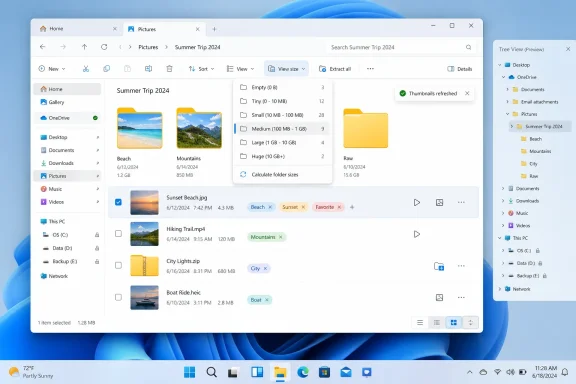
The most useful change in Files 4.1.3 is the new “View size” button for folders when automatic folder-size calculation is disabled. Folder sizes sound like basic information until you remember that directories are not files. A folder’s size is an answer the file manager has to compute, sometimes by walking through thousands of nested files, cloud placeholders, temporary objects, archives, developer dependencies, or media libraries.That is why folder-size display has always been a balancing act. Users want to know what is consuming disk space, but they do not want every directory listing to feel like a storage audit. Automatically calculating folder sizes can be handy in small folders and punishing in large ones, especially on slower drives, network paths, or cloud-synced locations.
Files’ new approach is pragmatic. If you turn off “Calculate folder sizes” for performance reasons, the app now gives each folder a dedicated way to request that information only when you need it. That means the feature no longer forces users into a binary choice between “always calculate” and “never calculate.”
This is the kind of design decision that makes a third-party utility feel mature. Rather than assuming every user wants the same behavior, Files is acknowledging that file managers sit across wildly different storage realities. A gamer cleaning up a 2 TB SSD, a developer navigating node_modules, a photographer sorting RAW files, and an office worker browsing OneDrive do not have the same tolerance for background enumeration.
The warning still matters: folder-size calculation can take time depending on the number and weight of files involved. But now that delay is more visibly tied to user intent. You ask for the size, the app spends the time, and the cost is easier to understand.
Layout Switching Finally Stops Punishing Selection
Files 4.1.3 also retains file selection when switching layouts. At first glance, that sounds microscopic. In actual use, it fixes one of those subtle interface betrayals that only becomes obvious after you lose your place.Changing from a list to thumbnails, or from details to a more visual layout, is often part of the same decision-making process. You select a batch of images, then switch to thumbnails to verify them. You highlight several documents, then move to details to compare dates or sizes. You start in one view because it is efficient, then change layouts because the next step requires different visual information.
If the file manager drops the selection during that transition, the user has to reconstruct intent. That is not just a wasted click. It is a break in continuity. The software has forced the user to remember what the interface was supposed to remember.
Files preserving selections across layouts makes the app feel less modal and more spatial. The selected items remain the user’s working set, and the layout becomes just a different lens on that set. This is a small change, but it reflects a broader truth about productivity software: continuity is often more valuable than feature count.
It also speaks to the advantage of dedicated file-manager development. Microsoft has to balance File Explorer against decades of compatibility, shell extensions, enterprise policy, accessibility constraints, and Windows servicing cadence. Files can move faster on behavioral refinements that matter to enthusiasts because its scope is narrower and its audience is more self-selecting.
Tags Become Less Sticky, Which Makes Them More Useful
The tag improvements in Files 4.1.3 are another example of a small feature becoming more credible because it is easier to undo. The update makes it simpler to remove all tags from an item through the context menu, the toolbar, or the Command Palette. Users can also assign a custom keyboard shortcut through Settings.That may sound like cleanup, but it gets at a deeper rule of organization systems: people avoid metadata when metadata feels permanent. Tags are only useful if users trust that they can apply, adjust, and remove them without turning the file manager into a filing bureaucracy. If applying a tag is easy but removing it is hidden, users eventually stop tagging except in the most obvious cases.
Files appears to understand that tags are not just labels; they are part of a workflow. A user may tag items temporarily during a project, mark files for review, group assets across folders, or create lightweight task states without changing filenames or directory structures. In those scenarios, bulk removal matters as much as assignment.
The Command Palette option is particularly telling. Files has been leaning into power-user affordances, and command palettes have become a kind of lingua franca for modern productivity tools. They let users act without hunting through nested menus, and they make lesser-used commands discoverable without cluttering the main interface.
The toolbar route matters for a different audience. Not every Files user wants to memorize shortcuts or invoke a command interface. By making tag removal available from multiple entry points, the app avoids treating power and convenience as opposites.
The OneDrive Icon Change Is Really About Trust
The new OneDrive icon in Files 4.1.3 is the most cosmetic item in the release, but it is not meaningless. Files now pulls the icon directly from the OneDrive executable, which should keep the app aligned with Microsoft’s current branding rather than relying on a bundled asset that can go stale.That may sound like trivia until you consider how cloud storage integration works psychologically. Users browsing synced files depend on visual cues to distinguish local, remote, shared, pinned, and cloud-backed content. The more closely a third-party file manager mirrors the expected OneDrive identity, the less it feels like an approximation of the Windows shell.
This is especially important because OneDrive is not just another folder for many Windows 11 users. It is woven into backup prompts, Microsoft account setup, Office workflows, known-folder redirection, and enterprise sync policies. Any file manager that wants to be taken seriously on Windows has to behave convincingly around OneDrive, even if it is not Microsoft’s own Explorer.
Pulling the icon from the executable is a modest but sensible move. It shifts the burden of visual currency away from the Files team and toward the installed OneDrive client. If Microsoft updates the icon again, Files should be better positioned to reflect that without waiting for a separate asset refresh.
There is also a broader lesson here. Third-party Windows apps increasingly succeed when they integrate with Microsoft’s ecosystem without merely imitating it. Files cannot replace every shell-level behavior File Explorer owns, but it can make the parts it does touch feel native enough that users stop noticing the boundary.
Bug Fixes Reveal Where Real File Managers Break
The fixed issues in 4.1.3 are a tour through the unglamorous complexity of file management. The developers fixed tar archive extraction, a crash on the Signatures page, a missing Play action for single selected media files, Smart Extract behavior when switching tabs, tag search excluding folders when grouping by type, thumbnails failing to refresh after modification, and BitLocker-locked drives not being displayed.Each of those bugs lives in a different corner of the file-manager contract. Archives require correct extraction logic and destination handling. Media actions need contextual command availability. Tags must interact properly with grouping and search. Thumbnails require file-change awareness. BitLocker requires storage-state visibility, especially on systems where encrypted drives are a normal part of the landscape.
The Smart Extract fix is particularly interesting because it touches a modern file-manager pattern: multi-tab workflows. Tabs are now table stakes, but tabs also create new failure modes. If an extraction command starts in one tab and the user switches context, the app must still understand where the operation belongs. A file manager that gets this wrong does not merely annoy the user; it risks putting files in the wrong location.
The BitLocker fix matters for a more security-conscious audience. If a locked encrypted drive is not displayed, users may misread the system state. Visibility is part of trust. A file manager does not need to unlock the drive for you, but it should accurately show that the drive exists and is locked.
The thumbnail refresh fix lands closer to everyday irritation. Users modify a file and expect the visual representation to update. When it does not, the interface becomes a liar by omission. File managers live or die by whether their view of the filesystem feels current.
The Coming Tree View Shows Files Is Still Chasing Explorer’s Muscle Memory
The developers have also signaled that Files Preview will soon receive a new Tree View sidebar. This is not a flashy invention. It is one of the oldest and most familiar ways to browse a filesystem: folders in an expandable hierarchy.That makes it important. Many users do not merely browse folders; they navigate mental maps. A tree view lets them see where they are, where adjacent folders live, and how deeply nested structures relate to one another. For administrators, developers, engineers, and anyone who works inside layered project directories, that hierarchy is not optional decoration.
Files has often appealed to users who want a modern interface, but the Tree View work suggests the project is not abandoning classic file-manager muscle memory. That is the right instinct. A beautiful file manager that cannot handle deep navigation gracefully becomes a demo app. A useful one must respect the habits people built over decades of Windows, Norton Commander descendants, Explorer panes, IDE sidebars, and network-share browsing.
Tree View also points to a recurring tension in Windows app design. Modern Windows aesthetics often push toward clean surfaces and simplified navigation, while professional workflows demand density, hierarchy, and persistent context. The best apps do not pick one side absolutely. They let the interface breathe when it can and show structure when the job requires it.
If Files gets the Tree View right, it will strengthen the app’s case as a daily driver rather than a stylish alternative. The sidebar is not just another navigation mode; it is a concession that power users often know exactly where they want to go, and they want the UI to expose the map.
File Explorer’s Problem Is Not That It Has No Competition
The existence of Files does not mean Microsoft has neglected File Explorer entirely. Windows 11’s Explorer has improved over time, and Microsoft has been adding features that users once had to seek in third-party tools. Tabs alone changed the daily rhythm of Explorer for many people, and native archive improvements have reduced the need for separate utilities in ordinary cases.But Microsoft’s problem is not a total absence of progress. It is that Explorer carries the weight of being both a modern app and a compatibility monument. It has to satisfy home users, corporate images, legacy shell extensions, cloud integrations, accessibility expectations, policy controls, and decades of workflows that punish abrupt change.
Files gets to be more opinionated. It can prioritize a modern command palette, configurable toolbar behavior, integrated tags, and interface changes that might be harder to land in Windows itself. It can also iterate with the cadence of an app rather than an operating-system component.
That does not make Files automatically better for everyone. Some users need the deepest shell integration, predictable enterprise behavior, or the comfort of Microsoft-supported defaults. Others simply do not want their file manager to be another app they install, configure, and evaluate.
Still, the competition is healthy. Files pressures Microsoft not by replacing Explorer wholesale, but by proving that Windows users notice refinement. When a third-party app makes folder-size calculation smarter or tag removal easier, it exposes how much of the default experience still depends on inherited assumptions.
The Microsoft Store Split Keeps the Project in a Familiar Open-Source Tension
Files remains available through the Microsoft Store as a paid version and through its official website as a free download. That split is not unusual for open-source Windows apps, but it is worth understanding. Store purchases often function as a convenience channel and a funding mechanism rather than a strict feature gate.For users, the distinction is practical. The Store version can be easier to install, update, and manage in a familiar Windows way. The direct download appeals to users who prefer free distribution, manual control, or a more traditional installer path.
For the project, the arrangement reflects the awkward economics of polished open-source desktop software. Users expect the app to be free because the code is open, but they also expect ongoing design, testing, packaging, signing, support, and release management. Those things cost time, and sometimes money.
Files has become one of the more visible examples of a Windows community app that looks and behaves like a commercial product while still drawing on open-source energy. That is a difficult lane to occupy. The audience is enthusiastic but demanding, and the comparison point is not another hobby project; it is the file manager bundled with the operating system.
The success of that model depends on whether users see updates like 4.1.3 as evidence of stewardship. A paid Store listing becomes more defensible when the app keeps getting the kind of maintenance that users can feel.
The Real Story Is a File Manager Becoming Less Fragile
The most important thing about Files 4.1.3 is not any single feature. It is the impression that the app is becoming less fragile around real workflows. File managers are deceptively hard because they sit at the intersection of storage, identity, search, thumbnails, metadata, security, compression, cloud sync, removable drives, and user impatience.A good file manager must make all of that look ordinary. Users do not want to think about whether a thumbnail cache noticed a modification, whether an archive command remembered the right tab, whether a locked encrypted drive should appear, or whether removing tags requires a special path through the UI. They just expect the surface to match reality.
This is where minor updates become strategically important. Major releases get attention, but minor releases build trust. They tell users that the app is being tested against the weird edges of daily use, not just the happy path shown in screenshots.
Files 4.1.3 is also a reminder that alternatives to Windows defaults do not need to be revolutionary to matter. Sometimes they matter because they are attentive. They shave down a workflow here, remove a trap there, and slowly make the case that the most ordinary app on the desktop deserves extraordinary care.
The 4.1.3 Changelog Draws a Map of Files’ Ambition
Files 4.1.3 is small enough that most users will absorb it as a background update, but its details point to the project’s larger direction. The app is trying to become faster where file managers are traditionally slow, more consistent where UI state is traditionally brittle, and more credible where Windows integration traditionally separates native tools from alternatives.- Files now lets users request folder sizes on demand when automatic folder-size calculation is disabled.
- File selections are preserved when switching layouts, reducing friction in mixed visual and detail-oriented workflows.
- Tags can now be removed more easily from the context menu, toolbar, or Command Palette, with custom shortcut support available through Settings.
- The OneDrive icon is pulled from the installed OneDrive executable, helping Files stay visually aligned with Microsoft’s current cloud client.
- Fixes in this release address archive extraction, media actions, tab-aware Smart Extract behavior, tag search, thumbnail refresh, crash reliability, and BitLocker drive visibility.
- A Tree View sidebar is planned for Files Preview, signaling continued investment in classic hierarchical navigation for users with deep folder structures.
References
- Primary source: Neowin
Published: Thu, 11 Jun 2026 12:46:00 GMT
Popular Windows 11 file manager Files gets improved tags, layouts, and new OneDrive icon - Neowin
A new version of Files, a popular file manager for Windows 10 and 11, is out with improved folder size calculation, a new OneDrive icon, and more. Another useful feature is also on the way. www.neowin.net
- Official source: github.com
Files Community · GitHub
Building the best file manager for Windows. Files Community has 11 repositories available. Follow their code on GitHub. github.com
- Related coverage: cultura-informatica.com
Files 4.1 para Windows 11: barra personalizable y más | Cultura Informática
Files 4.1 llega a Windows 11 con barra de herramientas personalizable, nueva configuración, atajos para temas y mejoras en etiquetado | Cultura Informáticacultura-informatica.com - Related coverage: wingetly.io
- Related coverage: files.community

- Related coverage: windowsforum.com
Files v4.0.28 Update: Refined Context Menus and Dropbox Store Support | Windows Forum
The Files community has shipped a focused, practical update that sharpens the app’s right‑click experience, extends cloud detection, and adds a handful of...windowsforum.com
- Related coverage: community.chocolatey.org
- Related coverage: windowslatest.com
Windows 11 finally fixes inconsistent folder views in File Explorer
Windows 11 update fixes File Explorer resetting folder views. Sorting, grouping and layout are now consistent across apps and browsers. www.windowslatest.com
- Related coverage: sourceforge.net
Files - Browse /v4.1.1 at SourceForge.net
Files /v4.1.1 files. Browse /v4.1.1 files for Files, A modern file manager for Windows sourceforge.net
- Related coverage: techspot.com
Files Download - 4.2.0.0 | TechSpot
Download Files - File manager for Windows with multiple tabs, panes, columns, tags and more.www.techspot.com - Official source: support.microsoft.com
OneDrive Sync release notes - SharePoint in Microsoft 365 | Microsoft Learn
Release notes for OneDrive sync clientsupport.microsoft.com - Related coverage: help.ivanti.com
…¸ ΖS’XxÞåûOú ÜÍkEóÁý†Ò‡ñ½…·“aÉ)kÌÆ éP·òÑ¨í¹€ŽÃ4aqp Ñ+/½ä±nÆ
> <k–›UbA0V™$ÏOQÂh Z½S&Ñr N ¡>help.ivanti.com
- Related coverage: learn71.ca
- Related coverage: microfocus.com
