

ZDNET’s short, pragmatic roundup of “five apps I always install on new Windows PCs” has become one of those compact how‑to pieces that quietly shape many users’ day‑one checklists: the picks — PDFgear, HWMonitor, VLC Media Player, Steam, and Microsoft PowerToys — are small, free utilities that target the five most common pain points after a fresh Windows install, and they’re worth understanding on their own terms before you click Install.
Setting up a new Windows machine is repetitive work: after Windows finishes its out‑of‑box experience you usually want a reliable way to handle PDFs, peek at hardware sensors, play weird media files, restore your game library, and get a few power‑user conveniences back. ZDNET’s five‑app list intentionally keeps the day‑one toolkit small and practical — each app addresses a recurring friction point that Windows’ defaults still don’t fully solve for many users.
This article verifies the core claims behind each pick, evaluates why each app is uniquely powerful for day‑one installs, flags privacy and security considerations, and offers installation tips and alternatives so you can reproduce a fast, safe setup across machines.
Practical takeaway
Source: ZDNET 5 essential Windows apps I always install on new PCs (and how they're uniquely powerful)
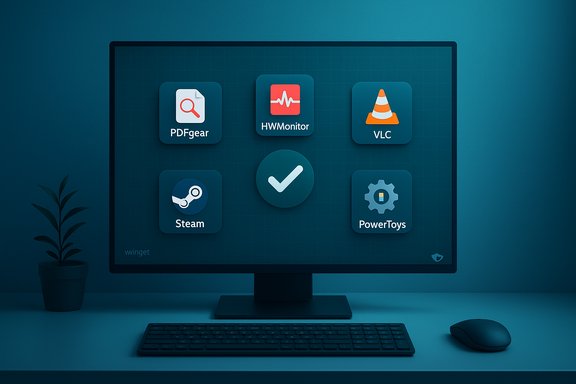 Background / Overview
Setting up a new Windows machine is repetitive work: after Windows finishes its out‑of‑box experience you usually want a reliable way to handle PDFs, peek at hardware sensors, play weird media files, restore your game library, and get a few power‑user conveniences back. ZDNET’s five‑app list intentionally keeps the day‑one toolkit small and practical — each app addresses a recurring friction point that Windows’ defaults still don’t fully solve for many users.This article verifies the core claims behind each pick, evaluates why each app is uniquely powerful for day‑one installs, flags privacy and security considerations, and offers installation tips and alternatives so you can reproduce a fast, safe setup across machines.
How I verified the choices
- I compared vendor documentation and project repositories for functional claims (OCR, sensor reading, codec support, PowerToys modules).
- I cross‑checked platform and usage claims (Steam user counts, VLC project activity) against independent reporting and industry statistics.
- Where vendor pages made strong marketing claims that are difficult to independently prove (for example, “100% accurate OCR” or unspecified telemetry practices), those claims are flagged and treated with caution.
- The original roundup and community commentary were also used to understand practical day‑one patterns.
The five apps and why they matter
1) PDFgear — a surprisingly full PDF toolkit (with OCR)
What it does- PDFgear is a multi‑platform PDF editor and reader that bundles editing, conversion, annotation, signing, compression and an OCR engine into a single free desktop app. The vendor presents OCR as a core capability for turning scanned documents into selectable and editable text.
- Many new‑PC workflows begin with receipts, warranty scans, or one‑off PDFs you need to edit or compress. Instead of juggling web converters or trial subscriptions, a lightweight local tool that can extract text from scans and convert files to Word or TXT saves time and avoids uploading sensitive documents to unknown services. ZDNET highlights precisely this kind of day‑one payoff.
- The PDFgear website documents offline OCR and multi‑language support, plus conversion workflows and a batch OCR mode. That confirms the product provides local OCR features on desktop builds.
- Independent, long‑term reviews are still limited compared with incumbents such as Adobe Acrobat or ABBYY. Community reports show mixed experiences across platforms and versions — some users have praised PDFgear’s functionality while others reported timing and language quirks in mobile builds. Treat headline claims of “perfect OCR” with caution and test with representative sample documents before relying on it for business‑critical workflows.
- Broad feature set in a single free package (edit, convert, compress, sign, OCR).
- Local desktop app reduces reliance on web uploads for sensitive documents.
- Cross‑platform availability for Windows, macOS and mobile improves continuity.
- OCR accuracy varies with scan quality and fonts — always verify converted text and preserve original scans.
- For highly sensitive documents, confirm the app’s local processing and read their security/legal statement; if necessary, test in an isolated VM.
- Adobe Acrobat Pro (paid, industry standard), ABBYY FineReader (paid, excellent OCR), Microsoft OneNote (basic OCR), and open‑source Tesseract (command line) depending on needs and budget.
2) HWMonitor — instant hardware visibility
What it does- HWMonitor is a lightweight hardware sensor reader that reports CPU and GPU temperatures, voltages, fan speeds, battery sensors and S.M.A.R.T. drive temps. It supports vendor sensor chips and modern CPU on‑die thermal sensors.
- On a new machine you often want to confirm basic thermal behavior (is the CPU idling hot?, verify charging and battery behavior, or spot a rogue fan curve. A simple viewer that shows sensor readings at a glance is invaluable for initial diagnostics and before running stress tests or gaming sessions. ZDNET points to HWMonitor as a day‑one diagnostic tool for precisely these reasons.
- The CPUID page for HWMonitor enumerates supported chips and sensors and indicates a maintained classic edition plus a Pro variant; the project routinely updates to add support for new silicon. That matches the vendor claim of broad sensor support.
- HWMonitor provides data only; it does not alter settings. If you need logging, graphing, or alerting you might pair it with other tools or consider HWMonitor Pro/alternative utilities.
- Extremely small, fast and focused on sensor data rather than heavy telemetry.
- Good first‑line tool to validate cooling and battery behavior without complex setup.
- Because HWMonitor reads low‑level chips, you must download it from official vendor pages to avoid counterfeit builds. Verify signatures and download from the CPUID site.
- Open Hardware Monitor, HWiNFO (more detailed and with logging), manufacturer utilities (MSI Afterburner, ASUS AI Suite) depending on depth of monitoring required.
3) VLC Media Player — the “plays anything” fallback
What it does- VLC is an open‑source, cross‑platform media player that supports an enormous range of codecs, containers and streaming protocols. It includes transcoding, streaming, subtitle handling and a modular plugin system.
- If you receive a video file that Windows’ default player can’t handle, VLC will usually play it without additional codec packs. That reduces the friction of troubleshooting playback issues and keeps you productive when you just need to view a clip or test a recorded file. ZDNET’s recommendation reflects VLC’s long‑standing role as the universal media fallback.
- VideoLAN’s release history and documentation show steady updates for codec support and cross‑platform maintenance. VLC continues to be actively developed. Recently, VLC demonstrated an AI‑powered, local, real‑time subtitling/translation demo that underscores ongoing innovation in the project and suggests more advanced offline capabilities in the pipeline. That demo was presented publicly in early 2025.
- Plays nearly any media file without extra codecs.
- No ads, active open‑source community and wide platform support.
- Useful extras (conversion, streaming, capture) beyond simple playback.
- VLC’s UI is utilitarian; if you want polished library management use a different front end.
- Always use the official VideoLAN downloads to avoid repackaged binaries.
- mpv for scriptability and a minimalist interface, PotPlayer for Windows‑centric features, and platform‑specific apps for media library management.
4) Steam — the practical gaming and compatibility launcher
What it does- Steam is Valve’s digital distribution platform and launcher that manages game purchases, updates, DRM, cloud saves and social features. For gamers it’s the primary hub for installing and testing games and drivers.
- For anyone who games or needs to sanity‑check GPU/driver behavior with a real workload, Steam is the fastest way to access a familiar library and validate performance. ZDNET’s list includes Steam for that practical, day‑one convenience.
- Steam remains one of the largest PC gaming platforms; industry reporting in 2025 puts peak concurrent user counts above 40 million and millions in‑game simultaneously during major events. Statista and gaming outlets documented Steam’s continued scale and market dominance in recent years. These figures reinforce why Steam is a practical default for gaming workflows and compatibility checks.
- Massive catalog, strong launcher and social integration, and a simple way to verify that graphics and drivers behave under load.
- Convenient for validating that a fresh Windows image can run games you own.
- Steam installs background services and may auto‑launch. Trim startup behavior and review privacy settings after sign‑in.
- For privacy‑conscious users, audit in‑client telemetry settings and opt out where available.
- Epic Games Store, GOG Galaxy (DRM‑free options), or platform‑specific launchers depending on where your games are purchased.
5) Microsoft PowerToys — modular power‑user utilities
What it does- Microsoft PowerToys is an official, open‑source suite of small utilities that restore and extend productivity features in Windows: FancyZones (window layouts), PowerRename, Image Resizer, Keyboard Manager, and the Command Palette among others. The project is maintained on GitHub and ships frequent updates.
- PowerToys gives immediate, repeatable productivity wins without cost. FancyZones makes multi‑monitor and tiling workflows far more efficient; the Command Palette speeds launching and quick actions; Image Resizer and PowerRename save repeated context‑menu workflows. ZDNET includes PowerToys because small utilities like these produce outsized day‑one gains.
- The PowerToys GitHub shows frequent releases and new features (including Command Palette improvements and module enhancements), which confirms active development by Microsoft and the community.
- Official Microsoft backing, modular design (enable only what you need), and repeatable improvements for typical desktop tasks.
- Enable only the modules you use to avoid unnecessary background footprint. Review module permissions (for example, hooking the keyboard) in organizational contexts where policies require signed binaries or restricted installs.
- Third‑party tools such as FancyZones alternatives, third‑party launchers (Flow Launcher), and specialized utilities (Clipboard managers like Ditto) depending on the workflow.
Privacy, security and enterprise considerations
- Use official channels: For all five apps, download from official vendor pages, GitHub releases or the Microsoft Store when available. This reduces the risk of repackaged malware. ZDNET and community checklists emphasize verifying download sources.
- Telemetry and data collection: Apps like PowerToys and Steam may include optional telemetry. PDF apps can potentially process sensitive text — verify that OCR is performed locally and that the vendor’s privacy/legal documentation aligns with your data handling requirements. Where vendor pages are silent or vague, treat claims cautiously.
- Startup and background services: Steam and some utilities add background processes; review autorun and service entries and trim them for battery/CPU‑sensitive laptops.
- Corporate policy: On managed enterprise devices, consult IT. Many corporates restrict non‑store installs or require signed packages and inventory checks before installing additional tools.
Installation & reproducibility: making this a repeatable day‑one kit
A reproducible approach saves time and reduces errors when setting up many machines.- Quick (consumer) option — Ninite: Build a custom Ninite installer to run an unattended, “no extra offers” install for common apps where available. This is the simplest route for a handful of consumer apps.
- Scriptable / power‑user option — winget: Use winget or a winget GUI generator like Winstall to create a scriptable manifest you can run in PowerShell for exact package IDs and to enable version pinning. This is preferable for repeatable, auditable deployments.
- Manual checks after install:
- Run Windows Update and enable device encryption (BitLocker or device encryption).
- Install the five apps and launch each once to accept license prompts and sign in where needed.
- Review startup items and disable unwanted autorun entries.
- Create a system restore point or image before heavy customization.
Short, practical recommendations for each app
- PDFgear: Test OCR on representative scans, check local processing and back up originals before bulk conversions.
- HWMonitor: Use it to validate idle and loaded temps on first boot; if temperatures are unexpectedly high, check drivers and cooling profiles.
- VLC: Keep a small, curated folder of sample clips to confirm playback and subtitle behavior; consider mpv if you want scripting and hotkey customization.
- Steam: Disable auto‑startup and auto‑update if you prefer to control background activity; use it to run a brief title to validate GPU/driver stability.
- PowerToys: Enable FancyZones and Command Palette first — they deliver immediate ergonomic wins with minimal configuration. Disable modules you don’t use.
Notable strengths of ZDNET’s short list — and what it leaves out
Strengths- Focused, minimal toolkit that addresses recurring day‑one workflow gaps: document handling, hardware visibility, media compatibility, gaming/compatibility testing, and small productivity boosters. This makes the list practical for a broad audience and easy to reproduce.
- Security and backup tools (full disk backup, password managers) — many users will want Bitwarden/1Password and a backup tool on day one as well.
- Specialist replacements — pro content creators or enterprise users commonly substitute tools more tailored to their workflows (DaVinci Resolve, Adobe Acrobat Pro, enterprise monitoring suites). ZDNET’s goal is a compact consumer‑friendly kit rather than a comprehensive enterprise image.
Final assessment — when this list is the right starting point
ZDNET’s five‑app pick is a practical, defensible starting point for general users, tech enthusiasts, and reviewers who want to convert a clean Windows install into a productive workstation with minimal fuss. Each app addresses a concrete, high‑frequency friction point and is free or low‑cost. The picks are not prescriptive — they’re a template to adapt: swap in different browsers, or choose GOG over Steam if you prefer DRM‑free games — but as a short day‑one toolkit they work.Practical takeaway
- Install the five apps for immediate friction reduction: use a batch installer or winget manifest to save time, verify OCR and sensor readings before trusting them for business workflows, and always download official releases to minimize supply‑chain risk.
Conclusion
A fresh Windows desktop is a blank canvas — and a small, well‑chosen toolkit gets you productive faster. ZDNET’s compact recommendation — PDFgear, HWMonitor, VLC, Steam, and PowerToys — focuses on the practical, repeatable wins: document handling, hardware visibility, universal playback, game‑library access and lightweight productivity tools. Each pick is supported by official documentation or active project pages, though a few vendor claims (notably around OCR perfection) merit cautious testing before you rely on them for sensitive, high‑volume workflows. Use official downloads, script and document your day‑one process (winget or Ninite), and adapt the list to your privacy and professional needs — and you’ll turn that blank desktop into a dependable workstation in minutes rather than hours.Source: ZDNET 5 essential Windows apps I always install on new PCs (and how they're uniquely powerful)
