

Bluetooth failures on Windows 11 in 2026 are usually fixed by checking the radio toggle, disabling Airplane mode, running Microsoft’s Bluetooth troubleshooter, re-pairing the device, restarting Bluetooth services, or repairing the adapter driver through Device Manager and Windows Update. The trick is not to start with the most dramatic repair. The trick is to treat Bluetooth as a chain of small dependencies, any one of which can silently break the experience.
That matters because Bluetooth has become one of the least visible pieces of Windows plumbing until it fails. Headsets, mice, keyboards, game controllers, earbuds, hearing devices, conference-room gear, and phone-link workflows all rely on a radio stack that users rarely think about. When it breaks, Windows does not always tell you whether the problem is the accessory, the radio, the driver, a power policy, or the operating system itself.
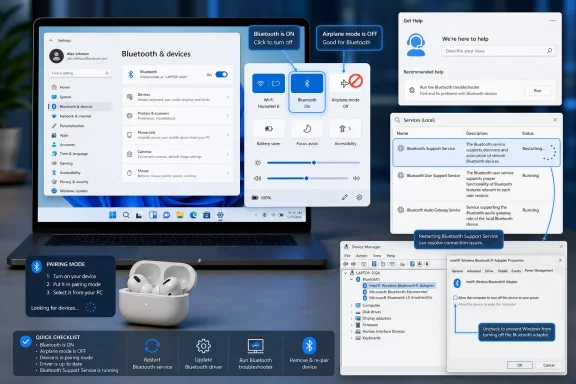
The most useful advice for Windows Bluetooth problems is also the least glamorous: start with the switch. On Windows 11, the Bluetooth tile lives in Quick Settings, reached from the cluster of Network, Sound, and Battery icons on the right side of the taskbar. If Bluetooth is off, Windows may simply behave as if your headphones, mouse, or speaker has vanished.
Airplane mode deserves the same early check. It is easy to toggle accidentally on a laptop, especially on machines with keyboard shortcuts or vendor utilities, and it can disable wireless radios in ways that look like a deeper hardware failure. Before uninstalling drivers or blaming Windows Update, make sure Airplane mode is off and Bluetooth is on.
The same check exists inside Settings. On Windows 11, go to Start > Settings > Bluetooth & devices and confirm that Bluetooth is enabled. On Windows 10, the equivalent path is Start > Settings > Devices, though Windows 10 is now a legacy target for most troubleshooting advice after Microsoft ended general support on October 14, 2025.
That date changes the editorial center of gravity. Plenty of Windows 10 PCs remain in use, and many of these fixes still apply, but Windows 11 is where the supported consumer Windows platform now lives. If the same Bluetooth problem appears on both operating systems, Windows 11 should be treated as the primary baseline for current fixes.
The path is Start > Settings > System > Troubleshoot > Other troubleshooters. Find Bluetooth, select Run, and let Windows work through its checks. If the issue is a stuck configuration, a service-level problem, or a common radio state error, the troubleshooter may fix it without touching Device Manager.
This is where Windows troubleshooting has matured, even if it still irritates power users. The old instinct was to skip straight to drivers, because drivers were the obvious villain. But on a modern Windows 11 system, the failure may be as mundane as a service that needs restarting, a permission state, or a radio stack that needs to be nudged back into a known-good condition.
Windows 10 users can still try the equivalent route through Start > Settings > Update & Security > Troubleshoot, but the long-term maintenance story is different. If a Windows 10 PC is not enrolled in an extended update program, the operating system is no longer receiving the same mainstream servicing attention as Windows 11.
Power is another boring but frequent culprit. A mouse can report a usable battery level and still stutter under load. A headset can have enough charge to announce itself but not enough to sustain a stable connection. Before Windows is blamed, the device should be charged, restarted if possible, and moved close to the PC.
Pairing mode matters because Windows cannot pair with a device that is merely turned on. The exact method varies wildly by product: some require holding a power button, others use a dedicated pairing button, and earbuds often require a case-button sequence. If Windows cannot see the device at all, the first question is whether the device is actually discoverable.
Range and interference also deserve more respect than they get. Bluetooth is short-range radio, not a promise. A desk full of USB 3.0 devices, docks, metal cases, crowded 2.4 GHz networks, and cheap adapters can make a “Windows problem” look much worse than it is.
On Windows 11, open Start > Settings > Bluetooth & devices > Devices. Find the accessory, select the three-dot menu, choose Remove device, and confirm. Then select Add device and pair it again from scratch.
On Windows 10, the route is Start > Settings > Devices > Bluetooth & other devices. Select the device, remove it, and then use Add Bluetooth or other device to rebuild the pairing. The wording differs, but the principle is the same: delete the old trust relationship and force both sides to negotiate a fresh one.
This is especially useful for headphones and earbuds. Audio devices often expose multiple profiles for calls, stereo playback, and control commands, and Windows can sometimes get stuck using the wrong one after a failed session. Re-pairing gives Windows a clean chance to identify the device and rebuild its available services.
Press Windows key + R, type services.msc, and press Enter. In the Services console, find Bluetooth Support Service, right-click it, and choose Restart. Then test the device again before changing anything else.
This step is safe because it does not remove drivers, change hardware configuration, or delete pairings. It simply restarts the background service responsible for supporting Bluetooth discovery and association. For users who do not want to reboot in the middle of work, it is a useful halfway measure.
A full restart still has value, particularly after updates or driver changes. Windows sleep and fast startup states can preserve broken conditions longer than users expect. If a service restart helps temporarily but the problem returns, that is a clue that the issue may be deeper than a single hung service.
Device Manager exposes the most direct fix. Open Device Manager, expand Bluetooth, right-click the Bluetooth adapter, choose Properties, and look for the Power Management tab. If the option “Allow the computer to turn off this device to save power” appears, uncheck it and save the change.
Not every adapter exposes this setting in the same way, and some modern systems hide or manage these controls through firmware or vendor utilities. But when the option is present, disabling it can make a real difference. It tells Windows to stop treating the Bluetooth radio as a disposable power-saving target.
Energy Saver can add another layer of confusion. On Windows 11, the Battery icon can reveal whether Energy Saver is active; on Windows 10, the older Battery Saver name appears. If Bluetooth only fails when unplugged, low on battery, or after the laptop has been idle, power saving should move high on the suspect list.
The first driver step is updating. Open Device Manager, expand Bluetooth, right-click the adapter, and choose Update driver. Select the option to search automatically for drivers, then restart if Windows installs anything.
Windows Update is the other route. Go to Start > Settings > Windows Update and check for updates, including optional driver updates if they are offered. PC makers and adapter vendors may also provide newer Bluetooth packages through their own support tools, especially for laptops using Intel, Qualcomm, MediaTek, or Realtek wireless hardware.
There is a catch, though: the newest driver is not always the best driver for your specific machine. Laptop wireless modules often depend on firmware, chipset drivers, BIOS behavior, and vendor customization. If Bluetooth broke immediately after a driver update, the update itself is a prime suspect.
In Device Manager, expand Bluetooth, right-click the adapter, choose Properties, and open the Driver tab. If Roll Back Driver is available, select it and follow the prompts. If the button is greyed out, Windows does not have an older driver stored for that device.
That greyed-out button is not an error. It simply means there is nothing for Windows to restore. In that case, the next practical move is either to install a driver from the PC maker’s support page or reinstall the adapter so Windows can rebuild the driver state.
Rollback is particularly useful in managed environments. If multiple users report Bluetooth issues after the same driver package lands, IT can treat the rollback as evidence rather than superstition. A reproducible before-and-after driver failure is the sort of pattern administrators can act on.
Open Device Manager, expand Bluetooth, right-click the adapter, and choose Uninstall device. Restart the PC afterward. Once Windows boots, it should reinstall the Bluetooth adapter and rebuild the relevant driver state.
This is a clean-slate step for software corruption. It can clear damaged device entries, broken driver bindings, and configuration weirdness that survives ordinary restarts. It is also a useful dividing line: if the adapter still does not appear or function after reinstalling, the issue may involve firmware, hardware, BIOS settings, or a vendor-specific driver package.
USB Bluetooth dongles add one more wrinkle. If you use a removable adapter, try a different USB port, preferably one directly on the PC rather than a hub or dock. A flaky hub can make Bluetooth look defective when the real failure is upstream on the USB bus.
On Windows 11, go to Start > Settings > Windows Update, select Check for updates, and install what is offered. Restart afterward, even if Windows does not demand it. Bluetooth failures that follow sleep, docking, headset switching, or audio profile changes can be tied to components outside the obvious Bluetooth entry in Device Manager.
For Windows 10, the path is Start > Settings > Update & Security > Windows Update. But again, the support status matters. After October 14, 2025, unsupported Windows 10 machines are not in the same place as Windows 11 machines receiving normal maintenance.
This is not merely Microsoft marketing. Wireless stacks are security-sensitive, driver-sensitive, and firmware-sensitive. A PC that is no longer receiving regular fixes is a weaker foundation for any troubleshooting workflow, even if the immediate Bluetooth symptom looks mundane.
A better order is simple: confirm the radio, confirm the device, rebuild the pairing, restart the service, inspect power management, then move to drivers and updates. Each step either fixes the problem or narrows the suspect list. That is how professionals troubleshoot: not by guessing harder, but by reducing the number of possible failures.
This matters for home users, but it matters even more for small offices and IT teams. Bluetooth peripherals are no longer luxuries. They are conference headsets, accessibility devices, input devices, and authentication-adjacent accessories in some workflows. A repeatable troubleshooting path is the difference between a one-off annoyance and a support burden.
The same logic applies when documenting fixes for users. “Update your drivers” is technically true but operationally lazy. “Check Airplane mode, run the troubleshooter, remove and re-pair the device, restart Bluetooth Support Service, then update or roll back the adapter driver” gives a user a path they can actually follow.
That matters because Bluetooth has become one of the least visible pieces of Windows plumbing until it fails. Headsets, mice, keyboards, game controllers, earbuds, hearing devices, conference-room gear, and phone-link workflows all rely on a radio stack that users rarely think about. When it breaks, Windows does not always tell you whether the problem is the accessory, the radio, the driver, a power policy, or the operating system itself.
 The Bluetooth Fix Is Usually Boring, Which Is Good News
The most useful advice for Windows Bluetooth problems is also the least glamorous: start with the switch. On Windows 11, the Bluetooth tile lives in Quick Settings, reached from the cluster of Network, Sound, and Battery icons on the right side of the taskbar. If Bluetooth is off, Windows may simply behave as if your headphones, mouse, or speaker has vanished.Airplane mode deserves the same early check. It is easy to toggle accidentally on a laptop, especially on machines with keyboard shortcuts or vendor utilities, and it can disable wireless radios in ways that look like a deeper hardware failure. Before uninstalling drivers or blaming Windows Update, make sure Airplane mode is off and Bluetooth is on.
The same check exists inside Settings. On Windows 11, go to Start > Settings > Bluetooth & devices and confirm that Bluetooth is enabled. On Windows 10, the equivalent path is Start > Settings > Devices, though Windows 10 is now a legacy target for most troubleshooting advice after Microsoft ended general support on October 14, 2025.
That date changes the editorial center of gravity. Plenty of Windows 10 PCs remain in use, and many of these fixes still apply, but Windows 11 is where the supported consumer Windows platform now lives. If the same Bluetooth problem appears on both operating systems, Windows 11 should be treated as the primary baseline for current fixes.
Microsoft’s Troubleshooter Is No Longer Just a Courtesy Button
The next stop should be the built-in Bluetooth troubleshooter. In Windows 11, Microsoft routes this through the Get Help app, which can run automated diagnostics and attempt repairs before the user starts making manual changes. It is not magic, but it is a low-risk first pass.The path is Start > Settings > System > Troubleshoot > Other troubleshooters. Find Bluetooth, select Run, and let Windows work through its checks. If the issue is a stuck configuration, a service-level problem, or a common radio state error, the troubleshooter may fix it without touching Device Manager.
This is where Windows troubleshooting has matured, even if it still irritates power users. The old instinct was to skip straight to drivers, because drivers were the obvious villain. But on a modern Windows 11 system, the failure may be as mundane as a service that needs restarting, a permission state, or a radio stack that needs to be nudged back into a known-good condition.
Windows 10 users can still try the equivalent route through Start > Settings > Update & Security > Troubleshoot, but the long-term maintenance story is different. If a Windows 10 PC is not enrolled in an extended update program, the operating system is no longer receiving the same mainstream servicing attention as Windows 11.
The Accessory Is Often the Guilty Party
A Bluetooth accessory that works on a phone but not on a PC can still be the source of the problem. Many devices can remember several hosts but actively connect to only one or two at a time. Earbuds that automatically latch onto a phone, tablet, or TV may never become available to Windows until they are put back into pairing mode.Power is another boring but frequent culprit. A mouse can report a usable battery level and still stutter under load. A headset can have enough charge to announce itself but not enough to sustain a stable connection. Before Windows is blamed, the device should be charged, restarted if possible, and moved close to the PC.
Pairing mode matters because Windows cannot pair with a device that is merely turned on. The exact method varies wildly by product: some require holding a power button, others use a dedicated pairing button, and earbuds often require a case-button sequence. If Windows cannot see the device at all, the first question is whether the device is actually discoverable.
Range and interference also deserve more respect than they get. Bluetooth is short-range radio, not a promise. A desk full of USB 3.0 devices, docks, metal cases, crowded 2.4 GHz networks, and cheap adapters can make a “Windows problem” look much worse than it is.
A Stale Pairing Can Masquerade as a Broken Radio
When a device used to work and then suddenly refuses to connect, removing and re-pairing it is one of the most effective fixes. Bluetooth pairing is not just a name in a list; it is a trust relationship, and that relationship can become stale after firmware updates, driver changes, OS updates, or failed connection attempts.On Windows 11, open Start > Settings > Bluetooth & devices > Devices. Find the accessory, select the three-dot menu, choose Remove device, and confirm. Then select Add device and pair it again from scratch.
On Windows 10, the route is Start > Settings > Devices > Bluetooth & other devices. Select the device, remove it, and then use Add Bluetooth or other device to rebuild the pairing. The wording differs, but the principle is the same: delete the old trust relationship and force both sides to negotiate a fresh one.
This is especially useful for headphones and earbuds. Audio devices often expose multiple profiles for calls, stereo playback, and control commands, and Windows can sometimes get stuck using the wrong one after a failed session. Re-pairing gives Windows a clean chance to identify the device and rebuild its available services.
The Service Layer Is Where “On” Does Not Always Mean Working
Windows can show Bluetooth as enabled while the underlying service is misbehaving. That is why restarting the Bluetooth Support Service remains a practical fix. It is not as visible as the Settings toggle, but it sits closer to the machinery that lets Windows discover and communicate with Bluetooth devices.Press Windows key + R, type services.msc, and press Enter. In the Services console, find Bluetooth Support Service, right-click it, and choose Restart. Then test the device again before changing anything else.
This step is safe because it does not remove drivers, change hardware configuration, or delete pairings. It simply restarts the background service responsible for supporting Bluetooth discovery and association. For users who do not want to reboot in the middle of work, it is a useful halfway measure.
A full restart still has value, particularly after updates or driver changes. Windows sleep and fast startup states can preserve broken conditions longer than users expect. If a service restart helps temporarily but the problem returns, that is a clue that the issue may be deeper than a single hung service.
Power Saving Is the Hidden Enemy of Stable Peripherals
Random Bluetooth disconnects often point to power management. Windows tries to conserve energy by powering down devices it thinks are idle, and on laptops that behavior can collide with real-world use. A mouse that pauses, a headset that drops mid-call, or a controller that disconnects after a few minutes may be suffering from an overly aggressive power policy.Device Manager exposes the most direct fix. Open Device Manager, expand Bluetooth, right-click the Bluetooth adapter, choose Properties, and look for the Power Management tab. If the option “Allow the computer to turn off this device to save power” appears, uncheck it and save the change.
Not every adapter exposes this setting in the same way, and some modern systems hide or manage these controls through firmware or vendor utilities. But when the option is present, disabling it can make a real difference. It tells Windows to stop treating the Bluetooth radio as a disposable power-saving target.
Energy Saver can add another layer of confusion. On Windows 11, the Battery icon can reveal whether Energy Saver is active; on Windows 10, the older Battery Saver name appears. If Bluetooth only fails when unplugged, low on battery, or after the laptop has been idle, power saving should move high on the suspect list.
Drivers Are the Big Hammer, Not the First Hammer
Drivers still matter. An outdated, corrupted, or buggy Bluetooth driver can produce almost any symptom: missing devices, failed pairing, unstable audio, disappearing adapters, or peripherals that work only after a reboot. But driver work should come after the quick checks, not before them.The first driver step is updating. Open Device Manager, expand Bluetooth, right-click the adapter, and choose Update driver. Select the option to search automatically for drivers, then restart if Windows installs anything.
Windows Update is the other route. Go to Start > Settings > Windows Update and check for updates, including optional driver updates if they are offered. PC makers and adapter vendors may also provide newer Bluetooth packages through their own support tools, especially for laptops using Intel, Qualcomm, MediaTek, or Realtek wireless hardware.
There is a catch, though: the newest driver is not always the best driver for your specific machine. Laptop wireless modules often depend on firmware, chipset drivers, BIOS behavior, and vendor customization. If Bluetooth broke immediately after a driver update, the update itself is a prime suspect.
Rolling Back a Driver Is Not Defeat
Windows includes a Roll Back Driver option for exactly this scenario. If Bluetooth worked yesterday and failed after an update, rolling back is more precise than reinstalling everything. It is a way of undoing one likely cause rather than thrashing the whole system.In Device Manager, expand Bluetooth, right-click the adapter, choose Properties, and open the Driver tab. If Roll Back Driver is available, select it and follow the prompts. If the button is greyed out, Windows does not have an older driver stored for that device.
That greyed-out button is not an error. It simply means there is nothing for Windows to restore. In that case, the next practical move is either to install a driver from the PC maker’s support page or reinstall the adapter so Windows can rebuild the driver state.
Rollback is particularly useful in managed environments. If multiple users report Bluetooth issues after the same driver package lands, IT can treat the rollback as evidence rather than superstition. A reproducible before-and-after driver failure is the sort of pattern administrators can act on.
Reinstalling the Adapter Is the Clean Slate Before Hardware Blame
If updating and rolling back do not solve the problem, uninstalling the Bluetooth adapter from Device Manager can force Windows to rebuild the device configuration. This sounds more dangerous than it usually is. In most cases, Windows redetects the adapter at the next boot and reinstalls the driver automatically.Open Device Manager, expand Bluetooth, right-click the adapter, and choose Uninstall device. Restart the PC afterward. Once Windows boots, it should reinstall the Bluetooth adapter and rebuild the relevant driver state.
This is a clean-slate step for software corruption. It can clear damaged device entries, broken driver bindings, and configuration weirdness that survives ordinary restarts. It is also a useful dividing line: if the adapter still does not appear or function after reinstalling, the issue may involve firmware, hardware, BIOS settings, or a vendor-specific driver package.
USB Bluetooth dongles add one more wrinkle. If you use a removable adapter, try a different USB port, preferably one directly on the PC rather than a hub or dock. A flaky hub can make Bluetooth look defective when the real failure is upstream on the USB bus.
Windows Update Is Part of the Bluetooth Stack Now
A modern Bluetooth fix is not only about the Bluetooth driver. Windows Update can deliver cumulative OS fixes, servicing stack changes, firmware updates, chipset drivers, and optional hardware packages. That makes updating Windows a legitimate troubleshooting step, not just a generic support script.On Windows 11, go to Start > Settings > Windows Update, select Check for updates, and install what is offered. Restart afterward, even if Windows does not demand it. Bluetooth failures that follow sleep, docking, headset switching, or audio profile changes can be tied to components outside the obvious Bluetooth entry in Device Manager.
For Windows 10, the path is Start > Settings > Update & Security > Windows Update. But again, the support status matters. After October 14, 2025, unsupported Windows 10 machines are not in the same place as Windows 11 machines receiving normal maintenance.
This is not merely Microsoft marketing. Wireless stacks are security-sensitive, driver-sensitive, and firmware-sensitive. A PC that is no longer receiving regular fixes is a weaker foundation for any troubleshooting workflow, even if the immediate Bluetooth symptom looks mundane.
The Order of Operations Saves Time and Prevents Damage
The most common mistake in Bluetooth troubleshooting is starting at the bottom of the stack. Users uninstall adapters, download random driver packages, reset Windows, or blame the headset before checking whether the radio is enabled. That approach turns a five-minute fix into an afternoon of uncertainty.A better order is simple: confirm the radio, confirm the device, rebuild the pairing, restart the service, inspect power management, then move to drivers and updates. Each step either fixes the problem or narrows the suspect list. That is how professionals troubleshoot: not by guessing harder, but by reducing the number of possible failures.
This matters for home users, but it matters even more for small offices and IT teams. Bluetooth peripherals are no longer luxuries. They are conference headsets, accessibility devices, input devices, and authentication-adjacent accessories in some workflows. A repeatable troubleshooting path is the difference between a one-off annoyance and a support burden.
The same logic applies when documenting fixes for users. “Update your drivers” is technically true but operationally lazy. “Check Airplane mode, run the troubleshooter, remove and re-pair the device, restart Bluetooth Support Service, then update or roll back the adapter driver” gives a user a path they can actually follow.
The Practical Order Windows Users Should Remember
By the time Bluetooth troubleshooting reaches Device Manager, the problem has already survived several easier tests. That does not mean the deeper fixes are rare; it means they should be earned. A sensible workflow protects users from unnecessary changes while still reaching the driver layer when the evidence points there.- Confirm that Bluetooth is enabled and Airplane mode is disabled before changing drivers or removing devices.
- Run the Windows 11 Bluetooth troubleshooter through Settings and Get Help because it can repair common faults with little risk.
- Put the accessory in pairing mode, charge it, move it close to the PC, and make sure it is not already connected to another device.
- Remove and re-pair stale Bluetooth devices when they used to work but now fail to connect reliably.
- Restart Bluetooth Support Service and disable adapter power-down behavior if the radio is visible but unstable.
- Update, roll back, or reinstall the Bluetooth adapter driver only after the simpler checks have failed.
References
- Primary source: Technobezz
Published: 2026-06-02T13:10:10.948464
Bluetooth Not Working on Windows 11? 11 Ways to Fix It (2026) | Technobezz
Your wireless headphones connect everywhere except the one machine you actually need them on, or your mouse stutters across the screen like the battery .www.technobezz.com - Related coverage: windowscentral.com
HP’s Windows 10 holdouts show just how hard Microsoft’s Windows 11 upgrade push really is | Windows Central
Three out of ten HP PCs are still running Windows 10.www.windowscentral.com - Official source: support.microsoft.com
Windows 10 support has ended on October 14, 2025 | Microsoft Support
Windows 10 support ends on October 14, 2025. Upgrade to Windows 11 now to ensure continued security and feature updates. Learn more about the transition.support.microsoft.com - Official source: learn.microsoft.com
Windows 10 Home and Pro - Microsoft Lifecycle | Microsoft Learn
Windows 10 Home and Pro follows the Modern Lifecycle Policy.learn.microsoft.com - Related coverage: tomsguide.com
Windows 10 End of Life: Microsoft releases final update — everything you need to know | Tom's Guide
So long, Windows 10www.tomsguide.com - Related coverage: tomshardware.com
Windows 10 support ends today — here's who's affected and what you need to do | Tom's Hardware
Update if you can, upgrade if you can't, or at least get the extended support license.www.tomshardware.com
- Official source: techcommunity.microsoft.com
Windows Hardware Compatibility Program - Windows 10 Certification Deprecation Plan | Microsoft Community Hub
As part of our ongoing commitment to transparency and ecosystem readiness, we are sharing the Windows Hardware Compatibility Program (WHCP) and Hardware Lab... techcommunity.microsoft.com
- Related coverage: atomicdata.com
- Related coverage: transparity.com
