

On June 6, 2026, Appuals published a Windows troubleshooting guide for PCs where Bluetooth disappears from Device Manager, arguing that users must first determine whether Windows still detects the real Bluetooth radio before reinstalling drivers or buying replacement hardware. That framing is more useful than the usual “toggle Bluetooth off and on again” advice because the missing toggle is often a symptom, not the failure itself. The hard line is between a broken software path and a radio that Windows can no longer see. Once that distinction is made, the repair becomes less mystical and much less likely to make the system worse.
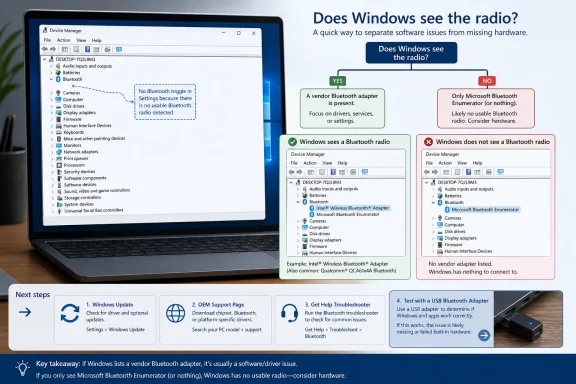
Bluetooth failures on Windows tend to arrive wearing the same costume: the Quick Settings tile vanishes, the Settings page loses its Bluetooth switch, and Device Manager either looks strangely empty or strangely populated with entries that sound important. That last part is where many users go wrong. “Microsoft Bluetooth Enumerator” looks like Bluetooth, but it is not the physical adapter.
The adapter that matters usually carries a vendor name: Intel, Realtek, MediaTek, Qualcomm, Broadcom, or the OEM’s own packaging of one of those radios. If Device Manager still shows that device, Windows has a driver problem or a stack problem. If it does not, the machine may have slipped into a deeper state where firmware, power management, BIOS exposure, or failed hardware is now part of the investigation.
That difference matters because Windows is perfectly capable of showing Bluetooth-related plumbing while the actual radio is absent. The enumerators are part of how Windows handles devices and profiles after the radio exists. Treating them as the adapter is like troubleshooting a missing network card by staring at TCP/IP entries.
The more disciplined approach is to ask one question first: can Windows see the radio? Everything else follows from that.
If the Bluetooth category has vanished entirely, the next stop is “Other devices.” A failed or missing driver can leave the radio stranded there as an unknown device, sometimes with a generic name and sometimes with a warning icon. That is still better news than no trace at all, because Windows is at least detecting something on the bus.
There is also a mundane layer to clear before treating the issue as driver corruption. Airplane mode should be off, and laptops with physical wireless switches or function-key radios should be checked. These controls feel old-fashioned until they are the exact reason Windows appears to have lost a radio.
The point is not that every Bluetooth failure is simple. It is that early misclassification wastes time. If Windows can see the radio, repair the driver path. If Windows cannot see the radio anywhere, do not pretend that uninstalling enumerators is going to resurrect silicon.
The Bluetooth troubleshooter can reset services, apply known fixes, and push Windows through checks that are easy to skip by hand. It will not solder a bad module back to a motherboard, and it will not always solve driver-package mismatches. But after sleep-state weirdness, a routine update, or a transient service failure, it is a low-risk first pass.
The restart after that pass is not ceremonial. Bluetooth adapters are often bound up with power management, USB internals, PCIe devices, or combo Wi-Fi cards. A repair that changes service state or driver binding may not fully matter until the machine boots cleanly.
That is why the sequence matters: run the supported troubleshooter, accept any fix, restart, then inspect Device Manager again. If the manufacturer-named radio returns, the system was stuck in a recoverable Windows state. If it does not, the repair moves down the stack.
But Bluetooth is not just a generic Windows feature. On modern laptops, the Bluetooth radio is frequently part of a combo wireless module, and its behavior can depend on OEM packaging, firmware, power states, and platform-specific wiring. That is where the PC maker’s support page becomes more important than a generic driver site.
The correct driver is the one matched to the exact model, not just the chip family. A Dell, Lenovo, HP, ASUS, Acer, MSI, or Microsoft device may use a familiar Intel or Realtek component, but the OEM package can include assumptions about firmware, power management, and supported Windows builds. Installing the wrong package may do nothing, or worse, it may leave the device in an even stranger state.
The cleanest order is therefore conservative. Check Windows Update, install what it offers, restart, and inspect Device Manager. If the radio is still gone, go to the manufacturer’s support page, enter the exact model or service tag, download the current Bluetooth package for the installed Windows version, install it, and restart again.
This is also where users should resist the lure of driver updater utilities. Bluetooth disappearing from Device Manager is already a visibility problem. Adding a third-party tool that guesses at device identity is an unnecessary variable.
Once a real adapter reappears, uninstalling it from Device Manager can clear a broken binding or stale driver state. The important part is selecting the actual vendor-named radio, not the support entries beneath it. Removing the wrong item may make the list look cleaner without addressing the missing hardware.
A full shutdown is more persuasive than an ordinary restart in this scenario. Some Bluetooth failures appear tied to power states that survive a soft reboot, especially on laptops and compact desktops where wireless modules sit behind internal USB or low-power buses. Shutting down, waiting a few seconds, and powering back on gives the device a better chance to reinitialize.
If Windows does not automatically rebuild the Bluetooth category after startup, Device Manager’s “Scan for hardware changes” is the next nudge. If the radio returns and stays returned, the system was likely trapped in a bad driver state. If it disappears again, the remaining problem is no longer just a missing Settings toggle.
This is especially true on laptops where Bluetooth and Wi-Fi are part of the same internal module. A Wi-Fi connection that still works does not absolutely prove the Bluetooth side is healthy, because the two functions can expose differently to Windows. A combo card can fail partially, be disabled partially, or enter a bad state where one function survives and the other does not.
The BIOS or UEFI setup may include wireless controls, though many consumer machines hide them or expose only broad toggles. Business laptops are more likely to offer explicit wireless-device enablement. Firmware updates from the OEM can also matter, particularly when a Windows update has exposed an existing platform bug rather than directly “breaking Bluetooth.”
At that stage, a USB Bluetooth adapter becomes more than a workaround. It is a diagnostic tool. If a known-good USB adapter appears immediately and Bluetooth settings return, Windows’ Bluetooth stack is functioning. The internal radio, its firmware exposure, or its driver path is the suspect.
For desktop users, the answer may simply be that the machine never had Bluetooth in the first place. Many motherboards ship in Wi-Fi and non-Wi-Fi variants with nearly identical names, and some prebuilt PCs omit Bluetooth even when the case branding implies modern wireless support. Checking the exact model specification is not busywork; it prevents a long hunt for hardware that was never installed.
The practical response is not to build a complicated script that deletes every Bluetooth device on every laptop. It is to know the fleet. Which models use which wireless modules? Which driver packages are approved? Which BIOS versions have known wireless fixes? Which machines rely on Bluetooth peripherals for daily work?
That inventory turns a vague ticket into a decision tree. If ten machines of the same model lose Bluetooth after a firmware revision, the answer is not individual tinkering. If one user’s device vanishes after a failed driver install, the answer is probably a local repair. If a USB adapter works while the internal radio remains invisible, replacement or OEM escalation becomes easier to justify.
Windows administrators should also separate pairing problems from radio-detection problems. A headset that will not connect is not the same incident as Device Manager losing the adapter. Collapsing both into “Bluetooth broken” makes support slower and noisier.
A better theory is simple: prove the radio exists, repair the driver path if it does, and stop treating software as the answer if it does not. That may sound obvious, but it is exactly where many troubleshooting guides become counterproductive. They mix pairing fixes, icon fixes, service restarts, and hardware replacement into one long ritual.
The distinction also protects users from uninstalling the wrong devices. Microsoft enumerators, paired peripherals, and profile entries are not the same thing as the physical Bluetooth adapter. Removing them may be harmless in some cases, but it is not a substitute for restoring the radio.
The most concrete guidance is short, but it changes the order of operations:
 The Missing Toggle Is Only the Surface Failure
Bluetooth failures on Windows tend to arrive wearing the same costume: the Quick Settings tile vanishes, the Settings page loses its Bluetooth switch, and Device Manager either looks strangely empty or strangely populated with entries that sound important. That last part is where many users go wrong. “Microsoft Bluetooth Enumerator” looks like Bluetooth, but it is not the physical adapter.The adapter that matters usually carries a vendor name: Intel, Realtek, MediaTek, Qualcomm, Broadcom, or the OEM’s own packaging of one of those radios. If Device Manager still shows that device, Windows has a driver problem or a stack problem. If it does not, the machine may have slipped into a deeper state where firmware, power management, BIOS exposure, or failed hardware is now part of the investigation.
That difference matters because Windows is perfectly capable of showing Bluetooth-related plumbing while the actual radio is absent. The enumerators are part of how Windows handles devices and profiles after the radio exists. Treating them as the adapter is like troubleshooting a missing network card by staring at TCP/IP entries.
The more disciplined approach is to ask one question first: can Windows see the radio? Everything else follows from that.
Device Manager Tells a Story, but Only If You Read the Right Line
The most useful first move is not downloading a random driver package or running a registry cleaner. It is opening Device Manager and looking for the real hardware. Expand Bluetooth if the category exists, then look for a manufacturer-named adapter rather than Microsoft’s enumerator entries.If the Bluetooth category has vanished entirely, the next stop is “Other devices.” A failed or missing driver can leave the radio stranded there as an unknown device, sometimes with a generic name and sometimes with a warning icon. That is still better news than no trace at all, because Windows is at least detecting something on the bus.
There is also a mundane layer to clear before treating the issue as driver corruption. Airplane mode should be off, and laptops with physical wireless switches or function-key radios should be checked. These controls feel old-fashioned until they are the exact reason Windows appears to have lost a radio.
The point is not that every Bluetooth failure is simple. It is that early misclassification wastes time. If Windows can see the radio, repair the driver path. If Windows cannot see the radio anywhere, do not pretend that uninstalling enumerators is going to resurrect silicon.
Get Help Is Now Part of the Repair Path, Whether Power Users Like It or Not
Microsoft has moved more consumer troubleshooting into the Get Help app, and Bluetooth is one of the areas where that shift now matters. Old-school Windows users may prefer Control Panel applets and Device Manager rituals, but the current automated route is increasingly where Microsoft puts basic repair logic. Running it before manual surgery is not surrender; it is triage.The Bluetooth troubleshooter can reset services, apply known fixes, and push Windows through checks that are easy to skip by hand. It will not solder a bad module back to a motherboard, and it will not always solve driver-package mismatches. But after sleep-state weirdness, a routine update, or a transient service failure, it is a low-risk first pass.
The restart after that pass is not ceremonial. Bluetooth adapters are often bound up with power management, USB internals, PCIe devices, or combo Wi-Fi cards. A repair that changes service state or driver binding may not fully matter until the machine boots cleanly.
That is why the sequence matters: run the supported troubleshooter, accept any fix, restart, then inspect Device Manager again. If the manufacturer-named radio returns, the system was stuck in a recoverable Windows state. If it does not, the repair moves down the stack.
Windows Update Is the Front Door; the OEM Driver Is Often the Key
Windows Update deserves the first look because Microsoft’s driver distribution channel can restore missing Bluetooth components automatically. It is also the path most users can take without misidentifying hardware. For common adapters, especially in mainstream laptops, Windows may already have a compatible driver waiting.But Bluetooth is not just a generic Windows feature. On modern laptops, the Bluetooth radio is frequently part of a combo wireless module, and its behavior can depend on OEM packaging, firmware, power states, and platform-specific wiring. That is where the PC maker’s support page becomes more important than a generic driver site.
The correct driver is the one matched to the exact model, not just the chip family. A Dell, Lenovo, HP, ASUS, Acer, MSI, or Microsoft device may use a familiar Intel or Realtek component, but the OEM package can include assumptions about firmware, power management, and supported Windows builds. Installing the wrong package may do nothing, or worse, it may leave the device in an even stranger state.
The cleanest order is therefore conservative. Check Windows Update, install what it offers, restart, and inspect Device Manager. If the radio is still gone, go to the manufacturer’s support page, enter the exact model or service tag, download the current Bluetooth package for the installed Windows version, install it, and restart again.
This is also where users should resist the lure of driver updater utilities. Bluetooth disappearing from Device Manager is already a visibility problem. Adding a third-party tool that guesses at device identity is an unnecessary variable.
Rebuilding the Adapter Works Only After the Adapter Exists
There is a common Windows repair move that is both useful and often misapplied: uninstall the device and let Windows rediscover it. For Bluetooth, that can work well when Device Manager shows the real adapter. It is much less meaningful when all that remains are Microsoft enumerators or unknown fragments.Once a real adapter reappears, uninstalling it from Device Manager can clear a broken binding or stale driver state. The important part is selecting the actual vendor-named radio, not the support entries beneath it. Removing the wrong item may make the list look cleaner without addressing the missing hardware.
A full shutdown is more persuasive than an ordinary restart in this scenario. Some Bluetooth failures appear tied to power states that survive a soft reboot, especially on laptops and compact desktops where wireless modules sit behind internal USB or low-power buses. Shutting down, waiting a few seconds, and powering back on gives the device a better chance to reinitialize.
If Windows does not automatically rebuild the Bluetooth category after startup, Device Manager’s “Scan for hardware changes” is the next nudge. If the radio returns and stays returned, the system was likely trapped in a bad driver state. If it disappears again, the remaining problem is no longer just a missing Settings toggle.
When the Radio Does Not Exist to Windows, the Problem Leaves Windows
The hardest moment in Bluetooth troubleshooting is accepting that a Windows fix may no longer be the fix. If Windows Update, the OEM Bluetooth driver, and a clean rebuild do not produce a real adapter in Device Manager, the operating system may not be receiving a usable device from the platform. That moves the investigation toward firmware, BIOS settings, embedded controller state, or hardware failure.This is especially true on laptops where Bluetooth and Wi-Fi are part of the same internal module. A Wi-Fi connection that still works does not absolutely prove the Bluetooth side is healthy, because the two functions can expose differently to Windows. A combo card can fail partially, be disabled partially, or enter a bad state where one function survives and the other does not.
The BIOS or UEFI setup may include wireless controls, though many consumer machines hide them or expose only broad toggles. Business laptops are more likely to offer explicit wireless-device enablement. Firmware updates from the OEM can also matter, particularly when a Windows update has exposed an existing platform bug rather than directly “breaking Bluetooth.”
At that stage, a USB Bluetooth adapter becomes more than a workaround. It is a diagnostic tool. If a known-good USB adapter appears immediately and Bluetooth settings return, Windows’ Bluetooth stack is functioning. The internal radio, its firmware exposure, or its driver path is the suspect.
For desktop users, the answer may simply be that the machine never had Bluetooth in the first place. Many motherboards ship in Wi-Fi and non-Wi-Fi variants with nearly identical names, and some prebuilt PCs omit Bluetooth even when the case branding implies modern wireless support. Checking the exact model specification is not busywork; it prevents a long hunt for hardware that was never installed.
The Enterprise Lesson Is Inventory, Not Heroics
For home users, one missing Bluetooth adapter is an annoyance. For IT shops, it is a reminder that peripheral radios are part of endpoint reliability, not a lifestyle feature. Keyboards, mice, headsets, hearing devices, point-of-sale peripherals, conference-room gear, and authentication accessories can all depend on Bluetooth staying visible.The practical response is not to build a complicated script that deletes every Bluetooth device on every laptop. It is to know the fleet. Which models use which wireless modules? Which driver packages are approved? Which BIOS versions have known wireless fixes? Which machines rely on Bluetooth peripherals for daily work?
That inventory turns a vague ticket into a decision tree. If ten machines of the same model lose Bluetooth after a firmware revision, the answer is not individual tinkering. If one user’s device vanishes after a failed driver install, the answer is probably a local repair. If a USB adapter works while the internal radio remains invisible, replacement or OEM escalation becomes easier to justify.
Windows administrators should also separate pairing problems from radio-detection problems. A headset that will not connect is not the same incident as Device Manager losing the adapter. Collapsing both into “Bluetooth broken” makes support slower and noisier.
The Repair Path Is Narrower Than the Panic Suggests
The useful thing about the Appuals sequence is not that it reveals a secret command. It narrows the problem. Bluetooth disappearance looks chaotic because Windows exposes several layers of the stack in different places, and users tend to bounce between Settings, Device Manager, Windows Update, and random downloads without a theory.A better theory is simple: prove the radio exists, repair the driver path if it does, and stop treating software as the answer if it does not. That may sound obvious, but it is exactly where many troubleshooting guides become counterproductive. They mix pairing fixes, icon fixes, service restarts, and hardware replacement into one long ritual.
The distinction also protects users from uninstalling the wrong devices. Microsoft enumerators, paired peripherals, and profile entries are not the same thing as the physical Bluetooth adapter. Removing them may be harmless in some cases, but it is not a substitute for restoring the radio.
The most concrete guidance is short, but it changes the order of operations:
- A manufacturer-named Bluetooth adapter in Device Manager means Windows still sees the radio and the repair should focus on drivers, services, and rebuilding the device.
- Microsoft Bluetooth Enumerator entries alone do not prove the physical Bluetooth radio is present.
- Windows Update is the safest first driver source, but the OEM support page is often necessary for laptops and model-specific wireless modules.
- Uninstalling and rebuilding the Bluetooth adapter is useful only after the real adapter is visible again.
- A known-good USB Bluetooth adapter can distinguish a working Windows Bluetooth stack from a failed or hidden internal radio.
- If the internal radio never returns after OEM drivers and firmware checks, the remaining path is hardware support, BIOS review, or replacement.
References
- Primary source: Appuals
Published: 2026-06-07T00:22:33.672249
Fix: Bluetooth Disappeared from Device Manager
Bluetooth can disappear from Device Manager on Windows even when the problem started as a missing toggle in Settings. In some cases, the Bluetoothappuals.com
