
Owners of the Bose QuietComfort 35 II who rely on the headset’s built‑in microphone have increasingly reported a puzzling and persistent problem: the QC35 II either loses its microphone entirely after newer Windows 10 updates, or Windows sees the device but captures no audio (microphone level stuck at 0% or the “Format” field blank). This problem has been visible in community threads and independent reproductions, and appears to be rooted in the interaction between Windows’ Bluetooth audio stack, device driver/firmware compatibility, and how Windows selects Bluetooth audio profiles.
For now, follow the prioritized troubleshooting checklist, apply Bose’s firmware updates if available, and document failures thoroughly when escalating to Bose or your PC vendor. Users who need guaranteed, trouble‑free microphone performance should consider a wired or dedicated USB microphone as the most reliable fallback until both headset firmware and Windows drivers converge on a consistent, modern Bluetooth audio standard.
Source: Born2Invest https://born2invest.com/?b=style-311307112/
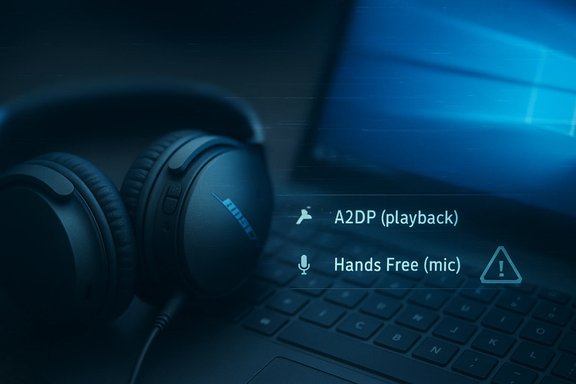 Background
How Bluetooth headsets expose audio to Windows
Bluetooth headsets present two fundamentally different audio endpoints to Windows:- A2DP (Advanced Audio Distribution Profile) — used for high‑fidelity stereo playback (music). This profile does not support the headset microphone.
- HFP / HSP (Hands‑Free Profile / Headset Profile) — used for call audio and microphone input. Historically this profile uses narrowband or low‑sample‑rate codecs and offers significantly lower playback fidelity.
Why QC35 II owners are seeing regression on Windows 10
Multiple threads and investigations show a pattern: the Bose QC35 II microphone worked on older Windows 10 builds (for some users), then after a Windows 10 feature or driver update the headset still connects for playback but either:- the hands‑free / HFP audio service never appears or connects, or
- Windows shows the headset’s microphone endpoint but the input volume is stuck at 0% and apps receive no signal.
Symptoms and how to confirm them
If the QC35 II microphone has stopped working on your Windows 10 PC, you will typically see one or more of these symptoms:- Windows reports the headphones as connected for media playback, but the microphone endpoint either does not appear under Sound → Recording, or it appears with a volume meter that never moves.
- The microphone input shows a format dropdown that’s blank or greyed out and the input level stuck at 0%. Apps (Teams, Zoom, Discord) report no microphone detected or transmit silence.
- In Devices and Printers (or Device Manager), the “Hands‑Free Telephony” service may be unchecked, or the Bluetooth audio endpoint lists only the stereo profile, not the headset profile.
- Re‑pairing sometimes helps temporarily; other times the headset must be reset or paired via an alternate procedure (connect LE/low‑energy entry first) to get the headset to expose the correct endpoints. Community reproductions document both full failures and intermittent success with resets and re‑pairing.
- Open Settings → System → Sound → Input and check whether “Bose QC35 II (Hands‑Free)” or similar is listed — watch for the input meter while speaking.
- Open Control Panel → Sound → Recording tab and inspect disabled devices; enable stereo mix only for testing if needed.
- Test the headset on another host (phone or another PC) to see whether the mic works there — if it does, the issue is likely the Windows Bluetooth stack or the PC’s Bluetooth driver; if not, suspect headset firmware or a hardware fault.
Step‑by‑step troubleshooting (practical first‑aid)
The following sequence is designed to move from the least‑invasive checks to the more advanced measures. Each step clarifies whether the problem is the headset, Windows, or the machine’s Bluetooth driver.Quick checks (5–10 minutes)
- Hardware mute / inline controls: Confirm the QC35 II side‑controls are not muting voice or placed in a phone‑only mode.
- App and Windows privacy: Windows 10 Privacy → Microphone — ensure “Allow apps to access your microphone” and “Allow desktop apps to access your microphone” are turned on. Then restart the app you’re testing so it re‑reads permissions.
- Choose the correct device: In Windows Sound settings and in the conferencing app, explicitly select the QC35 II headset (as both input and output) and test using the app’s mic test function. Windows sometimes defaults to a different endpoint.
Re‑pair and reset sequence (10–20 minutes)
- Remove the device from Settings → Bluetooth & devices → Remove device.
- Power‑cycle the headset and perform a factory reset per Bose instructions (Bose Connect app or Bose Updater workflow). Firmware or a stale pairing record can block HFP connection.
- Pair the headset again and check whether two audio endpoints appear (Headphones and Hands‑Free). If Windows lists only a single playback device, try the “Add Bluetooth or other device” flow again and pair carefully; some users report first connecting the LE/low‑energy endpoint and then the headset endpoint produces better results.
Device Manager, drivers and services (15–30 minutes)
- Bluetooth adapter driver: Update the Bluetooth adapter driver from the PC OEM (Dell/Lenovo/HP) or the chipset vendor (Intel/Broadcom) rather than using Windows’ generic driver. Many compatibility issues arise from mismatched Bluetooth stack implementations. If a recent Windows update caused the problem, consider rolling back the Bluetooth driver to a previously stable version or reinstalling the OEM driver.
- Remove problematic services: In Devices and Printers → Right‑click the QC35 II → Services tab, try toggling Hands‑free telephony off/on to see if it alters behavior. Unchecking it will make Windows treat the device as headphones (no mic), which is a workaround when the microphone pathway causes noise or hissing — but it’s not a fix if you need the mic. Community posts note this as a trade‑off for sound quality versus mic function.
- Windows audio services: Restart Windows Audio and Windows Audio Endpoint Builder in services.msc; sometimes those services hang after updates causing devices to report but not actually route audio.
Advanced fixes (30–90+ minutes)
- Uninstall and reinstall audio device entries: In Device Manager remove entries under “Audio inputs and outputs” and “Sound, video and game controllers”; reboot so Windows redetects. If you see options to “Delete driver software for this device” only do that if you have the OEM driver available offline.
- Disable exclusive mode & enhancements: In Control Panel → Sound → Recording → Properties → Advanced, uncheck “Allow applications to take exclusive control of this device” and in Enhancements check “Disable all enhancements.” This avoids one app hijacking the mic.
- Use another Bluetooth radio: Consumer‑grade internal Bluetooth radios can behave unpredictably with HFP. A known workaround is to use a modern USB Bluetooth dongle with updated chipset/drivers (some Jabra/Bluetooth LE dongles are recommended by users) — this can restore the correct HFP handling on Windows. Community reports indicate this can be a reliable fix where onboard radios fail.
When firmware and device vendor action is required
Bose shipped the QC35 II before Bluetooth LE Audio and the broader Windows 11 “super wideband” improvements existed. Over time, as Windows changed internal handling of Bluetooth audio and profile negotiation, older headset firmware or vendor drivers can become incompatible with newer host behaviors.- Firmware updates: Bose distributes firmware updates through the Bose Connect app and Bose Updater for PC. Applying the latest firmware is always recommended — SoundGuys and others maintain guidance on the firmware update flow. If the headset firmware is stale, it can fail to expose the Hands‑Free profile correctly.
- Vendor/driver patches: Some community reports call for Bose to release updated Bluetooth handling or driver support to keep older hardware compatible with new Windows builds. The absence of an official driver/stack update leaves users in a “works on phone but not PC” limbo in many cases. Community repros and Microsoft forum posts document this complaint.
Root causes: what’s actually breaking?
Based on community reproductions and the known architecture of Windows Bluetooth audio, a likely root cause vector is this:- Windows feature updates change the order or timing of profile negotiation or the host’s Bluetooth stack expectations.
- Bose firmware — written to the specification of earlier Windows Bluetooth stacks and phone stacks — does not fully handle the newer negotiation or the newer host‑side driver quirks, so the headset either never advertises or never connects the HFP endpoint properly.
- Windows then either:
- only exposes the high‑fidelity playback endpoint (A2DP) and never exposes HFP, or
- exposes HFP but leaves the microphone endpoint in a broken state (0% volume / no format), possibly because the expected codec/channel negotiation failed.
Longer‑term fix: LE Audio and Windows 11 improvements (and why they may not help everyone)
Microsoft has begun integrating LE Audio and a “super wideband stereo” mode into Windows 11 that allows Bluetooth headsets to maintain stereo playback while using the microphone — eliminating the old A2DP vs HFP compromise. These improvements, however, require:- headset firmware that supports LE Audio (LC3 codec),
- a Bluetooth radio and driver that expose LE Audio features, and
- a Windows build with the LE Audio stack (Windows 11 24H2 and later have the broadest support).
Practical recommendations and prioritized checklist
For individual users and IT admins trying to resolve or mitigate the QC35 II microphone failure, follow this prioritized list:- Quick test — verify mic works on a phone or another PC. If it fails everywhere, suspect headset hardware or firmware; use Bose Updater.
- Privacy & app settings — confirm Windows microphone privacy and app permissions are correct. Reopen apps after toggling.
- Remove & reset — unpair completely, perform Bose factory reset, then re‑pair. Many users report success after a clean pairing flow.
- Update drivers — install the OEM Bluetooth and audio drivers from the laptop/PC vendor or chipset vendor. Prefer vendor drivers over Windows Update for Bluetooth.
- Test with a USB Bluetooth dongle — try a modern dongle (some USB receivers from headset vendors work well) to isolate internal radio issues.
- Use a wired fallback — if you must reliably use the mic, use a wired 3.5mm cable with inline mic or a USB microphone while troubleshooting.
- Document and escalate — if the headset still fails, collect system logs, Windows build numbers, Bluetooth driver versions and open support tickets with Bose (firmware) and the PC vendor (Bluetooth driver).
Risks, trade‑offs and enterprise considerations
- Privacy and permissions: Changing microphone settings requires careful permission handling (don’t enable mic access for untrusted apps). Document any changes you make for security review.
- Driver rollbacks: Rolling back Windows updates or drivers can restore function but introduces security and stability trade‑offs. Always weigh the urgency of mic functionality against the risk of running older drivers or updates.
- Workarounds reduce functionality: Disabling Hands‑Free telephony or forcing the device into headphones mode removes microphone capability. This may be acceptable for audio‑only listening but not for meetings.
- Hardware purchases: Buying a dongle (USB Bluetooth receiver or vendor USB adapter) is a pragmatic but non‑elegant solution that has cost implications for users and organizations.
- Long‑term compatibility: Relying on vendor firmware updates may be unrealistic for older devices. Enterprise procurement should account for modern LE Audio support if Bluetooth headset mic reliability is a priority.
What Bose and Microsoft could — and should — do
- Bose: publish clear guidance, firmware updates (if feasible) and an official statement acknowledging compatibility issues on modern Windows builds. Offer a tested pairing procedure for Windows 10/11, and clarify whether legacy products will receive LE Audio or other compatibility updates. Community pressure and bug reports (including posted reproductions) make this a reasonable ask.
- Microsoft / PC OEMs: continue improving the Bluetooth stack and work with headset vendors on certification for HFP, HSP and LE Audio. Distribute clearer guidance about which Bluetooth chipset/driver versions are certified for headset voice use to reduce vendor fragmentation. The Windows 11 LE Audio work is a step forward but isn’t a retroactive fix for many Windows 10 users.
Conclusion
The QC35 II microphone failures on newer Windows 10 builds are a real and reproducible headache for many users. The failure mode — playback working but mic missing or stuck at 0% — points to a profile negotiation / driver compatibility regression rather than universal hardware failure. Short‑term remedies include resets, driver updates, pairing workarounds, and USB dongles; long‑term resolution requires vendor firmware and driver cooperation or migration to platforms and devices that support LE Audio and the modern Windows Bluetooth stack.For now, follow the prioritized troubleshooting checklist, apply Bose’s firmware updates if available, and document failures thoroughly when escalating to Bose or your PC vendor. Users who need guaranteed, trouble‑free microphone performance should consider a wired or dedicated USB microphone as the most reliable fallback until both headset firmware and Windows drivers converge on a consistent, modern Bluetooth audio standard.
Source: Born2Invest https://born2invest.com/?b=style-311307112/
