

Microsoft Edge 149, released to the Stable channel in early June 2026, is drawing fresh attention because some Windows 11 users are seeing “Location is turned off in system settings” even when Edge, Windows location services, or both appear to be configured correctly. The fix is not one magic switch. It is a tour through the increasingly layered permission stack that now sits between a website and a device’s physical position. The larger story is that browser location has become a three-party negotiation among Edge, Windows, and enterprise policy — and when any one of them disagrees, the user gets a cryptic error instead of a clear answer.
The immediate symptom is familiar enough: a site asks for location, Edge fails to provide it, and the browser reports that location is disabled at the system level. That wording matters because it points users away from the website and toward Windows itself. On a personal PC, that may mean a trip to Settings. On a managed machine, it may mean a help desk ticket, a Group Policy audit, or a confused exchange about whether the user is even allowed to change the setting.
Guiding Tech’s walkthrough treats the issue as a practical troubleshooting problem, which is the right starting point. Check site permissions. Check Edge policies. Disable extensions. Verify Windows 11’s location toggles. Restart the Geolocation Service. Those steps are not glamorous, but they map the actual failure path better than the error message does.
The more interesting part is that none of those fixes belongs exclusively to Edge. A Chromium browser can ask for location, but Windows still governs whether precise device location is available. Edge can remember that a site is allowed, but a policy can override that memory. A user can toggle a browser permission, but an extension or managed policy can still interfere.
That makes this less a story about one broken feature than about Microsoft’s modern Windows stack becoming harder to reason about. A browser error now might be a Windows privacy setting, a registry-backed enterprise policy, a WebView2 configuration, a disabled service, or a third-party extension. The browser is the messenger, but the message is rarely specific enough.
Edge’s own location controls live inside site permissions, where users can decide whether sites may ask before accessing location. Individual sites can be allowed or blocked, and the browser maintains those per-site decisions. If a mapping site, delivery service, weather page, or enterprise web app sits on the blocked list, Edge may behave exactly as configured while still feeling broken to the user.
But that browser-level prompt is only one layer. Windows 11 has its own location master switch under Privacy & security, and that setting determines whether apps can use the platform’s location services. Edge, as a desktop app, also depends on the operating system’s broader willingness to expose location data. If Windows says no, Edge cannot simply overrule it because a website asked nicely.
That is the first practical lesson: the permission prompt is not the permission system. It is the most visible part of a chain that includes the browser, the operating system, services running in the background, and sometimes policy objects set by someone the user has never met.
The key policy in this case is
This is where the “system settings” language becomes slippery. A user may interpret it as “open Windows Settings.” An administrator may interpret it as “check Group Policy or Intune.” Both may be right. Edge’s policy layer is part of the system from the browser’s perspective, even if it is not the same thing as the Windows 11 Location page.
That distinction matters in organizations that harden endpoints by default. Blocking geolocation is a reasonable privacy and security posture, especially where location data is unnecessary for core work. But many business workflows now depend on location indirectly: field service apps, real estate platforms, logistics dashboards, attendance systems, mapping tools, compliance portals, and regional content controls. A blanket block may look tidy in a baseline and messy in production.
That is why the Windows 11 Location page deserves attention even when Edge is the only visible app complaining. If the master Location services toggle is off, Edge’s per-site setting cannot restore access. If desktop apps are not permitted to use location, a user can approve a site all day and still see failure. If location has been disabled by policy, the user may not be able to change the relevant toggle at all.
The Geolocation Service adds another failure point. If that service is stopped, disabled, or stuck, Windows may not broker location data correctly even when the privacy toggles appear permissive. Restarting it from the Services console is an old-school Windows fix, but in this case it is not cargo cult troubleshooting. It directly targets the component Edge depends on when asking Windows for location.
The frustrating part is discoverability. Windows is good at presenting privacy controls as user-friendly switches. It is less good at explaining when those switches are subordinate to service state, device capability, enterprise policy, or app category. The result is a familiar Windows paradox: the setting looks simple until it does not work.
The standard test is still the best one: disable extensions, retry the site, and re-enable them one at a time. It is tedious, but it isolates the problem without requiring registry edits or policy archaeology. Privacy extensions, script blockers, VPN companions, shopping add-ons, and security tools are all plausible suspects when location requests fail in ways that do not match the visible settings.
This is also where Edge’s Chromium inheritance shows. Many location problems are not uniquely Edge problems. Chrome, Edge, and other Chromium-based browsers share enough plumbing that a behavior can appear across browsers or move from one to another as the underlying engine changes. Edge adds Microsoft policy integration and Windows-specific behavior, but it does not live outside the broader Chromium ecosystem.
That makes “Edge 149 broke location” a useful shorthand, not necessarily a complete diagnosis. The timing of an update can reveal a bug, but it can also reveal a stale policy, an extension incompatibility, or a Windows configuration that had not been tested against the new browser build. Good troubleshooting keeps all of those possibilities alive until the evidence narrows them.
That ambiguity is the real product failure. Users do not need every internal detail, but they do need direction. “Windows location services are off” is different from “this site is blocked in Edge” and different again from “your organization blocks browser geolocation.” Lumping those states together makes the problem feel random.
Microsoft has spent years moving Windows and Edge toward more explicit privacy controls. That is the correct direction. Location data is sensitive, and browsers should not expose it casually. But privacy prompts only build trust when denials are intelligible. If users cannot tell whether they made a choice, Windows made a choice, or their administrator made a choice, the control surface becomes theater.
For IT departments, vague errors also raise support costs. A help desk script that begins with “turn Location services on” will fail on machines where policy blocks it. A browser reset will fail where Windows services are disabled. A Group Policy change will fail where the culprit is a rogue extension. The error message pushes everyone into a maze and then withholds the map.
A location regression is not as dramatic as a browser crash or a security bypass. But for affected workflows, it can be a hard stop. If a real estate portal, dispatching system, fleet tool, or compliance app depends on geolocation, a broken browser permission is not cosmetic. It becomes a productivity incident with a privacy label.
The enterprise answer is supposed to be channel management, policy control, and staged rollout. Those tools help, but they also create their own complexity. Extended Stable channels, update rings, pilot groups, and configuration profiles only work when organizations have the staffing and discipline to use them. Many small and midsize businesses are effectively running consumer-speed browsers inside enterprise-like workflows.
That gap is where issues like this hurt most. Microsoft can say, correctly, that Edge provides policy controls and release options. Users can say, also correctly, that their browser updated and now a basic website feature is broken. The truth lives between those statements, in the operational burden of keeping modern browsers patched without letting every update become a scavenger hunt.
Weather sites and maps are obvious. Less obvious are authentication systems that use location as one risk signal, business apps that confirm a worker is on site, delivery tools that sort jobs by proximity, and local services that tailor availability by region. Even Microsoft Office and WebView2-based experiences can surface location-related messages when embedded web components encounter policy or system-level restrictions.
This is why administrators should resist both extremes. Automatically enabling location everywhere is a privacy mistake. Blocking it everywhere without exception is an operational mistake. The better posture is intentionality: decide which apps and sites have a legitimate need, document that decision, and make sure policies match the real workflow rather than an abstract baseline.
Home users face a simpler version of the same trade-off. A browser should ask before sharing precise location, and most sites do not need it. But if a trusted site does need it, the fix should not require guessing which of five permission layers has vetoed the request. The privacy model should be strict by default and understandable when overridden.
That scope-first approach prevents random toggling. Too many troubleshooting guides treat settings pages as a checklist to click through. The better method is to ask what layer the evidence implicates. A single blocked site is not fixed by restarting a Windows service. A disabled Geolocation Service is not fixed by clearing browser permissions. A policy-enforced block is not fixed by pleading with the user interface.
Edge’s
For unmanaged PCs, the likely path is more mundane. Confirm Edge is set to ask before location access. Remove the affected site from the blocked list. Check Windows 11’s Location services toggle. Make sure desktop apps are allowed to use location. Restart the Geolocation Service if the settings look right but behavior remains wrong. Then test with extensions disabled.
The problem is that the architecture is easier to document than to experience. Documentation assumes a motivated reader who knows what a policy is, can open internal browser pages, and understands how Windows services relate to app permissions. The user encountering the error is often just trying to use a map.
That gap between documented complexity and user-facing simplicity is one of Windows’ longest-running tensions. Microsoft builds powerful management surfaces because enterprise customers demand them. It then wraps consumer-friendly toggles around the same machinery. When everything works, the result feels seamless. When it fails, the seam is exactly where the user trips.
Edge 149’s location complaints are therefore a reminder that manageability and usability are not automatically aligned. A setting that is easy to enforce can still be hard to explain. A privacy control that is technically correct can still feel broken if the product does not say which layer made the decision.
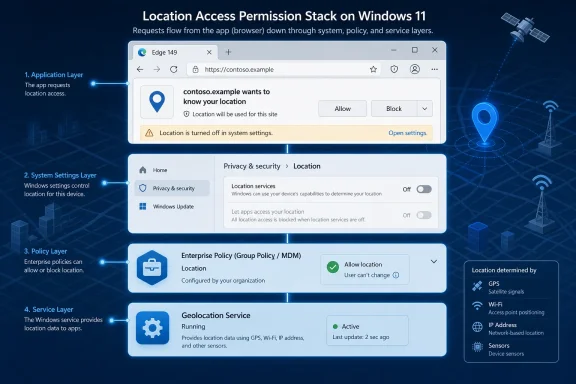 Edge 149 Turns a Small Permission Error Into a Windows Trust Problem
The immediate symptom is familiar enough: a site asks for location, Edge fails to provide it, and the browser reports that location is disabled at the system level. That wording matters because it points users away from the website and toward Windows itself. On a personal PC, that may mean a trip to Settings. On a managed machine, it may mean a help desk ticket, a Group Policy audit, or a confused exchange about whether the user is even allowed to change the setting.Guiding Tech’s walkthrough treats the issue as a practical troubleshooting problem, which is the right starting point. Check site permissions. Check Edge policies. Disable extensions. Verify Windows 11’s location toggles. Restart the Geolocation Service. Those steps are not glamorous, but they map the actual failure path better than the error message does.
The more interesting part is that none of those fixes belongs exclusively to Edge. A Chromium browser can ask for location, but Windows still governs whether precise device location is available. Edge can remember that a site is allowed, but a policy can override that memory. A user can toggle a browser permission, but an extension or managed policy can still interfere.
That makes this less a story about one broken feature than about Microsoft’s modern Windows stack becoming harder to reason about. A browser error now might be a Windows privacy setting, a registry-backed enterprise policy, a WebView2 configuration, a disabled service, or a third-party extension. The browser is the messenger, but the message is rarely specific enough.
The Browser Permission Model Was Supposed to Simplify This
In the idealized version of web permissions, a website asks for access, the browser shows a prompt, and the user makes a decision. If the user says yes, the site gets access. If the user says no, it does not. That model is clean enough for a classroom diagram and almost useless for diagnosing a real Windows 11 PC.Edge’s own location controls live inside site permissions, where users can decide whether sites may ask before accessing location. Individual sites can be allowed or blocked, and the browser maintains those per-site decisions. If a mapping site, delivery service, weather page, or enterprise web app sits on the blocked list, Edge may behave exactly as configured while still feeling broken to the user.
But that browser-level prompt is only one layer. Windows 11 has its own location master switch under Privacy & security, and that setting determines whether apps can use the platform’s location services. Edge, as a desktop app, also depends on the operating system’s broader willingness to expose location data. If Windows says no, Edge cannot simply overrule it because a website asked nicely.
That is the first practical lesson: the permission prompt is not the permission system. It is the most visible part of a chain that includes the browser, the operating system, services running in the background, and sometimes policy objects set by someone the user has never met.
Policies Are Where the Real Answers Often Hide
For home users, the next stop after Edge settings and Windows Settings is usually extensions. For IT pros, the next stop is policy. Edge exposes active policy state throughedge://policy, and that page can quickly reveal whether the browser is obeying a configuration that the user interface does not make obvious.The key policy in this case is
DefaultGeolocationSetting. If it is set to block geolocation, Edge will not ask the user for permission because the decision has already been made above the user’s head. Other policies can block location access for specific URLs or allow precise geolocation for approved sites, which is useful in managed environments but confusing when inherited rules outlive their original purpose.This is where the “system settings” language becomes slippery. A user may interpret it as “open Windows Settings.” An administrator may interpret it as “check Group Policy or Intune.” Both may be right. Edge’s policy layer is part of the system from the browser’s perspective, even if it is not the same thing as the Windows 11 Location page.
That distinction matters in organizations that harden endpoints by default. Blocking geolocation is a reasonable privacy and security posture, especially where location data is unnecessary for core work. But many business workflows now depend on location indirectly: field service apps, real estate platforms, logistics dashboards, attendance systems, mapping tools, compliance portals, and regional content controls. A blanket block may look tidy in a baseline and messy in production.
Windows 11 Is Not Just a Passive Bystander
Windows location services are also more complicated than a single on/off switch. The operating system can use GPS, Wi-Fi data, nearby access points, cellular information, IP-derived location, and a configured default location depending on the hardware and environment. On many desktops, there is no GPS sensor at all, so the “location” a browser receives is already an approximation built from several signals.That is why the Windows 11 Location page deserves attention even when Edge is the only visible app complaining. If the master Location services toggle is off, Edge’s per-site setting cannot restore access. If desktop apps are not permitted to use location, a user can approve a site all day and still see failure. If location has been disabled by policy, the user may not be able to change the relevant toggle at all.
The Geolocation Service adds another failure point. If that service is stopped, disabled, or stuck, Windows may not broker location data correctly even when the privacy toggles appear permissive. Restarting it from the Services console is an old-school Windows fix, but in this case it is not cargo cult troubleshooting. It directly targets the component Edge depends on when asking Windows for location.
The frustrating part is discoverability. Windows is good at presenting privacy controls as user-friendly switches. It is less good at explaining when those switches are subordinate to service state, device capability, enterprise policy, or app category. The result is a familiar Windows paradox: the setting looks simple until it does not work.
Extensions Remain the Wild Card Users Forget to Suspect
Third-party extensions are the least enterprise-sounding part of this problem, but they should not be dismissed. Extensions can alter page behavior, block scripts, modify headers, inject privacy protections, or interfere with APIs that websites use to request location. After a browser update, an extension that previously behaved well can become the newly exposed weak link.The standard test is still the best one: disable extensions, retry the site, and re-enable them one at a time. It is tedious, but it isolates the problem without requiring registry edits or policy archaeology. Privacy extensions, script blockers, VPN companions, shopping add-ons, and security tools are all plausible suspects when location requests fail in ways that do not match the visible settings.
This is also where Edge’s Chromium inheritance shows. Many location problems are not uniquely Edge problems. Chrome, Edge, and other Chromium-based browsers share enough plumbing that a behavior can appear across browsers or move from one to another as the underlying engine changes. Edge adds Microsoft policy integration and Windows-specific behavior, but it does not live outside the broader Chromium ecosystem.
That makes “Edge 149 broke location” a useful shorthand, not necessarily a complete diagnosis. The timing of an update can reveal a bug, but it can also reveal a stale policy, an extension incompatibility, or a Windows configuration that had not been tested against the new browser build. Good troubleshooting keeps all of those possibilities alive until the evidence narrows them.
The Error Message Is Doing Too Much Work
The phrase “Location is turned off in system settings” sounds definitive. It is not. It can mean location is truly disabled in Windows. It can mean Edge is blocked by policy. It can mean the site is blocked. It can mean the Geolocation Service is unavailable. It can mean a managed configuration is suppressing the browser prompt.That ambiguity is the real product failure. Users do not need every internal detail, but they do need direction. “Windows location services are off” is different from “this site is blocked in Edge” and different again from “your organization blocks browser geolocation.” Lumping those states together makes the problem feel random.
Microsoft has spent years moving Windows and Edge toward more explicit privacy controls. That is the correct direction. Location data is sensitive, and browsers should not expose it casually. But privacy prompts only build trust when denials are intelligible. If users cannot tell whether they made a choice, Windows made a choice, or their administrator made a choice, the control surface becomes theater.
For IT departments, vague errors also raise support costs. A help desk script that begins with “turn Location services on” will fail on machines where policy blocks it. A browser reset will fail where Windows services are disabled. A Group Policy change will fail where the culprit is a rogue extension. The error message pushes everyone into a maze and then withholds the map.
Edge’s Faster Cadence Raises the Cost of Small Regressions
Edge 149 also lands at an awkward moment for change management. Microsoft’s Edge release schedule has been moving in lockstep with a browser market that increasingly values faster delivery, smaller increments, and tighter Chromium alignment. For consumers, that means fixes and features arrive quickly. For administrators, it means validation windows keep shrinking.A location regression is not as dramatic as a browser crash or a security bypass. But for affected workflows, it can be a hard stop. If a real estate portal, dispatching system, fleet tool, or compliance app depends on geolocation, a broken browser permission is not cosmetic. It becomes a productivity incident with a privacy label.
The enterprise answer is supposed to be channel management, policy control, and staged rollout. Those tools help, but they also create their own complexity. Extended Stable channels, update rings, pilot groups, and configuration profiles only work when organizations have the staffing and discipline to use them. Many small and midsize businesses are effectively running consumer-speed browsers inside enterprise-like workflows.
That gap is where issues like this hurt most. Microsoft can say, correctly, that Edge provides policy controls and release options. Users can say, also correctly, that their browser updated and now a basic website feature is broken. The truth lives between those statements, in the operational burden of keeping modern browsers patched without letting every update become a scavenger hunt.
Privacy Controls Are Becoming Operational Dependencies
Location access used to be easy to categorize as a privacy feature. Either a user wanted a site to know where they were, or they did not. That framing still matters, but it is incomplete in 2026. Location is now an operational dependency for a surprising number of ordinary workflows.Weather sites and maps are obvious. Less obvious are authentication systems that use location as one risk signal, business apps that confirm a worker is on site, delivery tools that sort jobs by proximity, and local services that tailor availability by region. Even Microsoft Office and WebView2-based experiences can surface location-related messages when embedded web components encounter policy or system-level restrictions.
This is why administrators should resist both extremes. Automatically enabling location everywhere is a privacy mistake. Blocking it everywhere without exception is an operational mistake. The better posture is intentionality: decide which apps and sites have a legitimate need, document that decision, and make sure policies match the real workflow rather than an abstract baseline.
Home users face a simpler version of the same trade-off. A browser should ask before sharing precise location, and most sites do not need it. But if a trusted site does need it, the fix should not require guessing which of five permission layers has vetoed the request. The privacy model should be strict by default and understandable when overridden.
The Practical Fix Starts With Scope
The fastest way to troubleshoot this Edge 149 location error is to determine whether the failure is local to one site, local to Edge, or system-wide. If only one website fails, inspect Edge’s site permissions and remove any stale block for that domain. If every website fails in Edge but other browsers work, Edge settings, policies, or extensions become the likely suspects. If other browsers and Windows apps fail too, the problem probably sits in Windows location services or policy.That scope-first approach prevents random toggling. Too many troubleshooting guides treat settings pages as a checklist to click through. The better method is to ask what layer the evidence implicates. A single blocked site is not fixed by restarting a Windows service. A disabled Geolocation Service is not fixed by clearing browser permissions. A policy-enforced block is not fixed by pleading with the user interface.
Edge’s
edge://policy page is especially valuable because it removes guesswork. If a geolocation policy is present and blocking access, the browser is not malfunctioning; it is obeying orders. The fix then belongs in Group Policy, Intune, registry-backed policy, or whatever management plane deployed the setting.For unmanaged PCs, the likely path is more mundane. Confirm Edge is set to ask before location access. Remove the affected site from the blocked list. Check Windows 11’s Location services toggle. Make sure desktop apps are allowed to use location. Restart the Geolocation Service if the settings look right but behavior remains wrong. Then test with extensions disabled.
Microsoft’s Documentation Points to a Broader Pattern
Microsoft’s own troubleshooting guidance for Edge geolocation problems follows a similar ladder: website-level permissions, Windows privacy settings, service status, Group Policy, and Edge policies. That is reassuring, because it confirms this is not just folk wisdom from forum posts and how-to sites. It is the actual architecture showing through.The problem is that the architecture is easier to document than to experience. Documentation assumes a motivated reader who knows what a policy is, can open internal browser pages, and understands how Windows services relate to app permissions. The user encountering the error is often just trying to use a map.
That gap between documented complexity and user-facing simplicity is one of Windows’ longest-running tensions. Microsoft builds powerful management surfaces because enterprise customers demand them. It then wraps consumer-friendly toggles around the same machinery. When everything works, the result feels seamless. When it fails, the seam is exactly where the user trips.
Edge 149’s location complaints are therefore a reminder that manageability and usability are not automatically aligned. A setting that is easy to enforce can still be hard to explain. A privacy control that is technically correct can still feel broken if the product does not say which layer made the decision.
The Edge 149 Location Error Leaves a Trail Administrators Can Actually Follow
The useful news is that this problem is diagnosable. It may be annoying, but it is not mystical. The article’s practical fixes form a sensible escalation path, and IT teams can turn them into a repeatable support playbook rather than treating each report as a one-off browser mystery.- Users should first verify whether the affected site is blocked under Edge’s location permissions and restore the browser’s prompt behavior if it has been disabled.
- Administrators should check
edge://policybefore reinstalling Edge, becauseDefaultGeolocationSettingor URL-specific geolocation policies can override user choices. - Windows 11 location settings still matter, because Edge depends on the operating system’s location services and desktop-app access rules.
- Restarting the Windows Geolocation Service is a legitimate troubleshooting step when settings appear correct but location requests still fail.
- Extensions should be tested by disabling them temporarily, because privacy and script-control add-ons can interfere with browser APIs after an update.
- Managed environments should treat geolocation as a scoped permission, not a binary moral choice between allowing everything and blocking everything.
References
- Primary source: Guiding Tech
Published: Thu, 18 Jun 2026 16:18:35 GMT
“Location is turned off in system settings” in Edge Version 149 - Guiding Tech
Fix the “Location is turned off in system settings” error Edge users may encounter after updating to version 149 with these simple troubleshooting tips.www.guidingtech.com
- Related coverage: windowscentral.com
Major Microsoft Edge versions will now ship every two weeks: Microsoft confirms plans to ship new Edge features and changes twice a month | Windows Central
Microsoft has announced that Edge will be moving to a two-week release cycle for major versions of the browser, matching Chrome.www.windowscentral.com - Official source: learn.microsoft.com
Microsoft Edge release schedule | Microsoft Learn
Microsoft Edge release schedulelearn.microsoft.com - Official source: support.microsoft.com
- Related coverage: deskmodder.de
Microsoft Edge 149 (149.0.4022.52) startet mit neuen Funktionen und über 400 Sicherheitskorrekturen - Deskmodder.de
Microsoft hat den Edge in der Version 149 (149.0.4022.52) freigegeben. Mit dabei sind wohl fast alle Sicherheitskorrekturen aus dem Chrome. Denn hier wurden 429 Sicherheitskorrekturen vorgenommen. 22 davon alleine mit „Kritisch“ deklariert. Microsoft will diese erst später...www.deskmodder.de - Related coverage: reseau.uquebec.ca

- Official source: download.microsoft.com
