

If your Logitech C270 webcam shows a black screen on Windows 10, you’re not alone — this is a common, solvable problem that ranges from simple settings and driver hiccups to deeper interactions between Windows’ media stack and third‑party software. This feature walks through what the C270 is, why black‑screen problems occur on Windows 10, a prioritized, battle‑tested troubleshooting checklist, advanced diagnostics and mitigations (including safe registry and driver fallbacks), buying and compatibility guidance, and the privacy and stability risks to weigh before applying fixes.
The Logitech C270 is an entry‑level USB webcam that delivers HD 720p video at up to 30 fps and includes a mono noise‑reducing mic. It is small, inexpensive and widely used for video calls and basic streaming; Logitech’s product documentation lists 720p/30fps, a fixed focus lens, a ~55–60° field of view and USB‑A 2.0 connectivity as the key specs. These hardware specifications and system requirements are documented by Logitech and corroborated by retail and reseller product listings. Because the C270 uses the standard USB Video Class (UVC) interface, it normally works with the in‑box Windows “USB Video Device” driver; for many users this means plug‑and‑play compatibility on Windows 10. However, the ubiquity of the UVC standard does not make the stack immune to interoperability issues: OS updates, GPU/display driver changes, third‑party capture utilities, endpoint security agents, and Windows’ own Media Foundation Frame Server can each interfere with camera operation and produce symptoms such as a complete black image, flicker, grayscale output, error codes (0xA00F429E / 0xA00F4244), or “camera in use” errors. Practical community and enterprise troubleshooting reports confirm these root causes and the corresponding remedies used in the field.
If the camera remains black after working through this guide, collect the diagnostic outputs (PnP device dump, installed update list, and event log snippets) and escalate to Logitech or Microsoft support with those logs; they accelerate root‑cause identification and can point to update‑specific mitigations or driver packages tailored to your hardware and Windows build. Conclusion: The Logitech C270 is broadly compatible with Windows 10 but lives inside a complex software stack; start with the simple fixes (permissions, UVC driver, ports), escalate with clean‑boot and power‑management tests, and reserve registry and driver surgery for carefully tested diagnostics. These steps restore the camera for most users while preserving system stability and privacy.
Source: Born2Invest https://born2invest.com/?b=style-247078712/
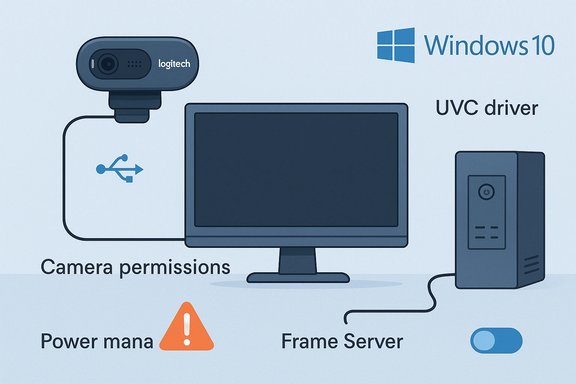 Background / Overview
The Logitech C270 is an entry‑level USB webcam that delivers HD 720p video at up to 30 fps and includes a mono noise‑reducing mic. It is small, inexpensive and widely used for video calls and basic streaming; Logitech’s product documentation lists 720p/30fps, a fixed focus lens, a ~55–60° field of view and USB‑A 2.0 connectivity as the key specs. These hardware specifications and system requirements are documented by Logitech and corroborated by retail and reseller product listings. Because the C270 uses the standard USB Video Class (UVC) interface, it normally works with the in‑box Windows “USB Video Device” driver; for many users this means plug‑and‑play compatibility on Windows 10. However, the ubiquity of the UVC standard does not make the stack immune to interoperability issues: OS updates, GPU/display driver changes, third‑party capture utilities, endpoint security agents, and Windows’ own Media Foundation Frame Server can each interfere with camera operation and produce symptoms such as a complete black image, flicker, grayscale output, error codes (0xA00F429E / 0xA00F4244), or “camera in use” errors. Practical community and enterprise troubleshooting reports confirm these root causes and the corresponding remedies used in the field.Why a Logitech C270 Shows a Black Screen on Windows 10
Common root causes
- Driver mismatch or corruption. Windows can be using a generic UVC driver or an OEM/Logitech driver; either can become corrupted or incompatible after an update. Switching between the vendor driver and the in‑box UVC driver is a common and effective test.
- Frame Server / Media Foundation interactions. Windows’ Frame Server (the Camera Frame Server service and the Media Foundation pipeline) sometimes interferes with applications’ ability to access camera frames, especially after driver or Windows updates. Community and Microsoft forum guidance point to creating or toggling the registry DWORD EnableFrameServerMode as a diagnostic workaround. This is not an official “fix” from Logitech but is widely used where Frame Server conflicts are suspected. Use caution: registry changes should be made with backups and a restore point.
- App conflicts: another app is holding the camera. Video conferencing apps, browser tabs, or background utilities (including vendor utilities like Logitech Options/Logi Tune, capture tools like OBS, or older QuickCam services) may hold exclusive access or apply filters that result in a black or grayscale preview. Clean‑boot testing and closing suspected apps are fast first steps.
- Power management or USB bus problems. Internal webcams or USB webcams connected via internal hubs may be suspended by USB power saving, causing intermittent black screen, disconnections or flickering. Disabling “Allow the computer to turn off this device to save power” for USB Root Hubs and the camera device often stabilizes behavior.
- Privacy/permissions or OEM privacy guards. Windows privacy toggles, BIOS/OEM privacy settings, or a physical privacy shutter can prevent video capture or present a black preview. Check Settings → Privacy & security → Camera and any OEM utilities (e.g., Lenovo Vantage’s Camera Privacy Guard).
- Hardware failure. Less commonly, the C270 (or the USB port it’s plugged into) is defective. Test the webcam on a second PC to rule out hardware.
Quick, Prioritized Checklist (start here — low risk, high yield)
The following flow is ordered from fastest/least invasive to more advanced:- Close every app that might touch the camera (Teams, Zoom, Skype, browser tabs with Meet/Meet, OBS, Logitech utilities). Wait 10 seconds, then open the Windows Camera app to test.
- Check Windows Camera permissions: Settings → Privacy & security → Camera → ensure Camera access for this device is On and desktop apps are allowed.
- Try a different USB port (preferably a USB‑A 2.0 port, avoid hubs) and a different cable/adapter if applicable.
- Open Device Manager → Cameras / Imaging devices:
- Right‑click device → Properties → Driver tab → choose Roll Back Driver if available.
- If no rollback: Update driver → Browse my computer → Let me pick from a list → choose USB Video Device (the in‑box UVC driver) and complete the update. Reboot and retest. Microsoft and OEM guidance explicitly recommend this UVC fallback as a troubleshooting step.
- Run Windows’ Camera troubleshooter: Settings → System → Troubleshoot → Other troubleshooters → Camera. Let the built‑in tool run its checks.
- Test on another PC (or a phone via USB‑A/USB‑C adapter if available) to confirm whether the camera hardware itself is functional.
Step‑by‑step Advanced Troubleshooting (ordered and annotated)
1) Clean boot to find app/driver conflicts
- Create a Clean Boot (msconfig → Services → Hide all Microsoft services → disable the rest; Startup via Task Manager → disable startup items). Reboot and test the Camera app. If the black screen disappears, re‑enable services/startup items in small groups to isolate the culprit. This approach is recommended in enterprise troubleshooting cycles.
2) Power management and USB hub settings
- In Device Manager, for the camera device and for each USB Root Hub:
- Properties → Power Management → uncheck “Allow the computer to turn off this device to save power.”
- Also disable USB selective suspend in Power Options (Control Panel → Power Options → Change plan settings → Change advanced power settings → USB settings → USB selective suspend setting → Disabled). Many diagnostics in forums show this solves intermittent black/flicker symptoms.
3) Switch to the Microsoft UVC (USB Video Device) driver
- Why: The in‑box driver is a simple, widely compatible fallback that strips vendor‑specific extensions and often restores basic video when vendor drivers misbehave.
- Steps: Device Manager → Right‑click the webcam → Update driver → Browse my computer → Let me pick from a list → select USB Video Device → Next → Reboot. Microsoft’s support documentation and OEM support pages describe this exact step.
4) Reinstall or update Logitech drivers and software
- If you prefer Logitech features, download the latest drivers/firmware or Logi Options / Logi Tune from Logitech’s product support pages and reinstall. If vendor drivers reintroduce the problem, switch back to the UVC driver and keep the in‑box driver. Logitech’s product pages confirm there are no special downloads for some older models and advise using the UVC driver where suitable.
5) Frame Server (EnableFrameServerMode) registry toggle — diagnostic only
- Background: The Windows Camera Frame Server can mediate access to camera frames and, in certain OS/driver update interactions, prevent apps from getting a proper image. Community and Microsoft forum threads reference setting the DWORD EnableFrameServerMode = 0 under:
- HKEY_LOCAL_MACHINE\SOFTWARE\Microsoft\Windows Media Foundation\Platform
- and for 64‑bit Windows also under HKEY_LOCAL_MACHINE\SOFTWARE\WOW6432Node\Microsoft\Windows Media Foundation\Platform
- Procedure (caution):
- Back up the registry and create a system restore point.
- Open regedit.exe, navigate to the Platform key above.
- Create a new DWORD (32‑bit) Value named EnableFrameServerMode and set it to 0.
- Reboot and test.
- Caveats: This is a widely used workaround and is documented in Microsoft Q&A threads and many community guides, but it’s not a direct Logitech endorsement and may have side effects for applications expecting the Frame Server. Treat it as a diagnostic step and revert if it doesn't help.
6) Check for processes holding camera handles
- Use Process Explorer or Handle.exe (Sysinternals) to search for handles to camera devices or Media Foundation objects. If a background process holds a camera handle, killing or updating that process can restore camera preview. This technique is suggested in forum diagnostic workflows for repeatable camera capture issues.
7) Reinstall or reset the Camera app
- Settings → Apps → Installed apps → Camera → Advanced options → Repair; if that fails, Reset and (if needed) uninstall and reinstall from the Microsoft Store. The Camera app can be corrupted independently of drivers.
8) Roll back recent Windows updates (enterprise/last‑resort)
- If the black screen started immediately after a specific Windows update, test uninstalling the suspected KB on a pilot machine (collect Get‑HotFix or InstalledUpdates list first). This is an enterprise‑grade step and should be paired with vendor escalation if multiple devices are affected. Several community threads report update‑timed regressions causing camera failures.
Diagnostics to capture before escalation (collect evidence)
If you need to escalate to vendor or Microsoft support, gather:- Output of Get‑PnpDevice -Class Camera > Camera_PnP.txt
- Filtered Event Log entries around the failure (PowerShell script included in advanced threads)
- Get‑HotFix (Installed_Updates.txt) to show the timing of updates
- PnP driver/instance details (pnputil /enum‑devices /connected)
Collecting these logs enables targeted remediation rather than guesswork. Enterprise community guides provide scripts and a standard evidence set for support escalation.
Buying, Compatibility and Practical Advice
- The Logitech C270 remains widely compatible with Windows 10; retailers and the Logitech product page confirm Windows 10 support and the device’s UVC nature. If you need only basic video calls, the C270 is still a budget‑friendly choice. Verify the model number (960‑000694 or similar part numbers) when buying to avoid region/model variants.
- If you rely on vendor‑specific features (high dynamic range, software effects, advanced autofocus), consider investing in a newer Logitech model that explicitly supports current driver ecosystems (C920/C922/Brio family), because the C270 is basic and lacks advanced hardware features. Retail listings and product pages are clear about the C270’s entry‑level feature set.
- When purchasing from marketplaces (e.g., Amazon), verify return policy and warranty. If you encounter persistent black‑screen problems after purchase, return/exchange is often the fastest resolution if hardware is faulty.
Risks, Trade‑offs and Safety Notes
- Registry edits and Frame Server toggles are diagnostic, not guaranteed fixes. Changing EnableFrameServerMode to 0 is a community‑used workaround for Frame Server issues, but it is a system‑level change that can affect how multiple apps access camera frames. Always back up the registry and create a restore point before modifying keys.
- Switching to the in‑box UVC driver can disable vendor features. The Microsoft UVC driver is intentionally minimal; advanced Logitech features (where present) may stop working. Use the UVC fallback to restore a usable camera, then decide if you need vendor software back for special features. Microsoft and OEM documentation explicitly warn about these feature trade‑offs.
- Disabling services or uninstalling vendor software may remove enhancements. Some legacy Logitech services once caused stability issues (historical community reports around Process Monitor or LVPrcS64). Removing or disabling such services can improve reliability but may remove visual effects. Work conservatively and document changes.
- Endpoint security/EDR interference. In corporate environments, EDR/AV agents commonly restrict camera access or inject code that breaks privileged device paths. Coordinate with IT before disabling agents; testing on a controlled pilot device is recommended. Forum guidance includes collecting EDR details during diagnostics.
Quick reference: Safe sequence to try right now
- Close all apps, open Camera app.
- Check Privacy settings → Camera access.
- Unplug → plug into another USB port.
- Device Manager → Update driver → choose USB Video Device (UVC). Reboot.
- If still black: Clean boot and test.
- If intermittent: disable USB power management on root hubs.
- Last diagnostics before escalation: collect Get‑PnpDevice & InstalledUpdates, try camera on alternate host.
When to escalate and what to tell support
If you’ve worked through the checklist and the camera still shows black on that PC but works elsewhere, gather the evidence above and open a support case with:- Exact Windows build (run winver) and driver instance details
- Steps you’ve already tried (UVC fallback, clean boot, Frame Server toggle if attempted)
- System logs (Event Viewer snippets around the failure time)
- Whether the problem is app‑specific (only Teams/Zoom) or system‑wide
Providing this evidence dramatically accelerates vendor and Microsoft troubleshooting. Enterprise troubleshooting threads explicitly request this collection to pinpoint regressions and isolate update‑related root causes.
Final analysis and recommendation
- For most home users, the fastest path to recovery is: verify camera permissions, switch to the Microsoft USB Video Device driver (UVC), and test in the Windows Camera app. This combination resolves a majority of Logitech C270 black‑screen complaints and is the lowest‑risk remedial action.
- If you are comfortable with advanced housekeeping, disable USB selective suspend, run a clean boot, and use tools like Process Explorer to identify processes holding camera handles. These steps address many intermittent and app‑conflict cases reported in community forums.
- Use the Frame Server registry toggle only as a diagnostic workaround if you have ruled out simpler causes and you have a restore point. It has helped numerous users but should be treated as a measured, reversible change.
- If the C270 is mission‑critical for professional streaming or you need advanced features, upgrade to a current, actively supported Logitech model that provides modern driver support and vendor software. For casual calls, the C270 remains an economical and workable webcam on Windows 10 when paired with the UVC driver.
If the camera remains black after working through this guide, collect the diagnostic outputs (PnP device dump, installed update list, and event log snippets) and escalate to Logitech or Microsoft support with those logs; they accelerate root‑cause identification and can point to update‑specific mitigations or driver packages tailored to your hardware and Windows build. Conclusion: The Logitech C270 is broadly compatible with Windows 10 but lives inside a complex software stack; start with the simple fixes (permissions, UVC driver, ports), escalate with clean‑boot and power‑management tests, and reserve registry and driver surgery for carefully tested diagnostics. These steps restore the camera for most users while preserving system stability and privacy.
Source: Born2Invest https://born2invest.com/?b=style-247078712/
