

Technobezz has published an updated Bluetooth pairing and troubleshooting guide aimed at the familiar problem of an accessory that is visible but will not connect—or drops its connection after it does. The July 14 guide covers phones, tablets, TVs and PCs, but its Windows advice broadly matches Microsoft’s current Windows 11 support guidance: use Settings and Quick Settings first, then remove and re-add a stubborn device before escalating to drivers or resets.
For a conventional pairing attempt, Windows 11 users should go to Start > Settings > Bluetooth & devices > Devices > Add device > Bluetooth, then put the accessory into its manufacturer-specific pairing mode and select it when it appears.
The faster route is available from Quick Settings: select the Network, Sound, or Battery area on the taskbar, open the Bluetooth device-management control, and choose the accessory from the list of new devices. Microsoft’s Swift Pair prompt can shorten that process for compatible peripherals, although it is not universal and still requires the device to be discoverable.
Technobezz correctly advises against treating legacy Control Panel instructions as the primary route. They may still surface in older guides and niche device documentation, but they are no longer the main Windows 11 pairing workflow.
That is also Microsoft’s recommended response for a device that shows in the Bluetooth list but refuses to connect. Before digging into Device Manager, check the basics that cause a surprising share of failures: the accessory has power, is actually in pairing mode, is near the PC, and is not already connected to another phone, tablet, or computer.
Microsoft also notes that nearby unshielded USB 3.0 hardware can interfere with Bluetooth. If a dongle, external SSD, or cable is pressed against the PC’s Bluetooth adapter, moving it away is worth trying.
Driver work is a later step, not the opening move. In Device Manager, users can update the Bluetooth adapter driver, or uninstall the adapter and restart Windows to trigger reinstallation. If trouble began immediately after a driver or Windows update, Microsoft also documents rolling the driver back where that option is available.
For recurring disconnects rather than failed pairing, Microsoft recommends checking Energy Saver and the Bluetooth adapter’s Power Management settings, since Windows may be allowed to power down the radio to save energy.
The guide’s central point is sound: pairing mode, a clean pairing record, and the current Settings interface should be exhausted before resetting network settings or reinstalling drivers.
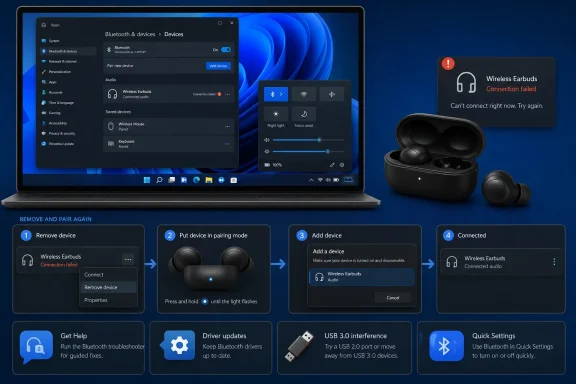 Windows 11 pairing path
For a conventional pairing attempt, Windows 11 users should go to Start > Settings > Bluetooth & devices > Devices > Add device > Bluetooth, then put the accessory into its manufacturer-specific pairing mode and select it when it appears.The faster route is available from Quick Settings: select the Network, Sound, or Battery area on the taskbar, open the Bluetooth device-management control, and choose the accessory from the list of new devices. Microsoft’s Swift Pair prompt can shorten that process for compatible peripherals, although it is not universal and still requires the device to be discoverable.
Technobezz correctly advises against treating legacy Control Panel instructions as the primary route. They may still surface in older guides and niche device documentation, but they are no longer the main Windows 11 pairing workflow.
When a device appears but will not connect
The practical fix remains simple: delete the saved pairing relationship and create it again. In Windows 11, open Settings > Bluetooth & devices > Devices, find the device, select its three-dot menu, choose Remove device, then return to Add device and pair it afresh.That is also Microsoft’s recommended response for a device that shows in the Bluetooth list but refuses to connect. Before digging into Device Manager, check the basics that cause a surprising share of failures: the accessory has power, is actually in pairing mode, is near the PC, and is not already connected to another phone, tablet, or computer.
Microsoft also notes that nearby unshielded USB 3.0 hardware can interfere with Bluetooth. If a dongle, external SSD, or cable is pressed against the PC’s Bluetooth adapter, moving it away is worth trying.
Escalate carefully
For Windows 11 systems, Microsoft now points users first to the automated Bluetooth troubleshooter in the Get Help app. If that does not resolve the issue, turn Bluetooth off for several seconds and back on, restart the PC, and install pending Windows updates.Driver work is a later step, not the opening move. In Device Manager, users can update the Bluetooth adapter driver, or uninstall the adapter and restart Windows to trigger reinstallation. If trouble began immediately after a driver or Windows update, Microsoft also documents rolling the driver back where that option is available.
For recurring disconnects rather than failed pairing, Microsoft recommends checking Energy Saver and the Bluetooth adapter’s Power Management settings, since Windows may be allowed to power down the radio to save energy.
The guide’s central point is sound: pairing mode, a clean pairing record, and the current Settings interface should be exhausted before resetting network settings or reinstalling drivers.
References
- Primary source: Technobezz
Published: 2026-07-14T17:29:54.563000+00:00
Pairing Bluetooth Devices? How to Connect and Fix Problems (2026) | Technobezz
Pairing Bluetooth devices on phones, PCs, TVs, Macs, and Chromebooks, plus current fixes when a device will not connect.www.technobezz.com - Official source: support.microsoft.com
Fix Bluetooth problems in Windows | Microsoft Support
Learn how to troubleshoot Bluetooth problems in Windows. Resolve issues connecting a Bluetooth device or accessory.support.microsoft.com
