

Microsoft’s April 14, 2026 Windows 11 security update KB5083769 is reportedly leaving some Windows 11 24H2 and 25H2 PCs trapped in a boot loop marked by distorted graphics, blue screens, failed automatic repair, and in some cases BitLocker recovery prompts. The practical fix is not to wait for Windows to heal itself. Users need to get into the Windows Recovery Environment, remove the latest quality update, and then hold updates long enough for Microsoft’s follow-up fixes and driver updates to catch up. The episode is another reminder that Windows Update’s most dangerous failures are not the ones that refuse to install, but the ones that install cleanly and fail at the next reboot.
KB5083769 arrived as a normal Patch Tuesday cumulative update, not as an optional experiment or preview channel oddity. For Windows 11 version 24H2 and 25H2 systems, it carried the usual mix of security fixes, servicing-stack changes, and quality improvements that Microsoft increasingly bundles into a single monthly payload. On paper, this is the update model Microsoft wants: one predictable release, one broad deployment path, one security baseline.
The trouble is that a cumulative update’s success is often judged too early. Windows Update can download the package, stage it, report success, and still leave the machine in a state where the first post-install boot becomes the real test. That appears to be the shape of the KB5083769 problem described by affected users and repeated by troubleshooting guides: the update does not necessarily fail during installation, but the system fails when it tries to come back.
That distinction matters for home users and administrators alike. A failed installation is annoying but usually recoverable from the desktop. A boot loop moves the problem below the comfort layer of Settings, Device Manager, and vendor utilities, forcing users into recovery menus, offline servicing, or in the worst case a reset.
The visible symptom has made this one especially unnerving. Reports describe pixelated or mosaic-like graphics before a blue screen, followed by Windows Automatic Repair entering the scene and accomplishing very little. It looks like a hardware failure, especially to anyone who has seen a dying GPU or unstable video memory, but in many cases the timing points back to the update and the software stack Windows loads at boot.
That is why the advice to “let repair finish” can become a trap. If the machine repeatedly shows distorted graphics, blue-screens, enters repair, reboots, and then repeats the same sequence, the repair loop is no longer a diagnostic phase. It is the failure mode.
The first useful target is the Windows Recovery Environment, or WinRE. If Windows reaches WinRE on its own after several failed boot attempts, users should stop trying the same repair again and move directly to update removal. If it does not, the old forced-interruption method remains the practical route: power on, interrupt startup by holding the power button, and repeat until Windows offers the blue “Choose an option” recovery screen.
For machines that refuse even that path, a Windows 11 installation or recovery USB becomes the lifeline. The key move is choosing “Repair your computer,” not reinstalling Windows from the first setup screen. That brings the user into the same recovery toolset without asking the broken local installation to boot.
If the uninstall succeeds, the next reboot should return the machine to the sign-in screen. At that point, the user has not solved the larger Windows servicing problem; they have simply regained control of the PC. That is still the decisive step, because it allows the machine to be patched on the user’s terms rather than immediately falling back into the same failure.
There is a wrinkle here that IT pros will recognize. Microsoft’s newer cumulative update packages combine components in ways that can make command-line removal less straightforward than it was in older Windows servicing eras. The support documentation for KB5083769 notes that removing the LCU after installing the combined SSU and LCU package requires DISM with the LCU package name, while the standalone installer uninstall switch is not the right tool for the combined package.
For most users, the WinRE button is preferable to manual DISM surgery. For administrators, however, the detail is important because it defines the difference between a user-facing recovery action and an offline servicing procedure. If you are managing a fleet, you do not want every technician improvising package names at a blue recovery screen.
Pausing updates is therefore not an evasion of security hygiene. It is a controlled delay while the update ecosystem catches up. For a home user, the practical move is to open Windows Update and pause updates for the longest available window, often up to five weeks depending on edition and policy state. For managed environments, the equivalent is a deferral or safeguard policy decision rather than a frantic machine-by-machine pause.
The hard part is messaging. Microsoft has trained users, correctly, that security updates should not be ignored. But a device that cannot boot is not more secure in any meaningful operational sense. Availability is part of security, and a bricked or inaccessible endpoint is a failure of both.
That does not mean KB5083769 should be treated as permanently radioactive. It means the affected machine should be held back until a later cumulative update, known issue rollback, vendor driver update, or documented workaround changes the risk profile. The goal is not to leave the PC unpatched forever; it is to avoid replaying the same crash before the cause is understood.
But the most important word is suggests. The visual artifact does not prove the GPU is dead, and it does not prove Nvidia, AMD, or Intel alone caused the failure. A Windows cumulative update can change kernel behavior, driver blocklists, security policy, boot components, or timing in ways that expose an existing fragile driver state. The update may be the trigger even when the driver is the weak link.
That is why reinstalling or updating the graphics driver is a second-stage fix, not the first move while trapped in the loop. Users need to boot first. Once Windows is accessible again, updating through Nvidia’s app, AMD Adrenalin, Intel’s driver tools, or the PC maker’s support channel is sensible, particularly if the affected system is older, uses a legacy GPU, or has been carrying a stale display driver across multiple Windows feature updates.
The more cautious approach is to prefer OEM-certified drivers on business laptops and workstation fleets, at least until the failure pattern is better understood. Enthusiast desktops can often tolerate the latest GPU package. Enterprise endpoints need repeatability more than novelty.
That is a mouthful, but the administrative meaning is simpler. Some organizations have pinned BitLocker’s expectations to a boot measurement profile that does not play nicely with the Secure Boot transition Microsoft is pushing ahead of certificate expirations beginning in June 2026. When the boot chain changes, BitLocker does what it is designed to do: it asks whether the system it is seeing is still the system it is supposed to trust.
For personal devices, Microsoft says this configuration is unlikely. For managed PCs, especially those with long-lived images and inherited security baselines, it is plausible enough to deserve attention. If a fleet sees BitLocker recovery after KB5083769, that is not necessarily the same failure as the mosaic-graphics boot loop, but it may arrive in the same operational window and create the same help-desk panic.
Microsoft’s follow-up guidance points administrators toward removing the explicit Group Policy configuration or temporarily suspending and resuming BitLocker so the bindings can be refreshed. Later servicing work also addressed parts of the issue by preventing the newer boot manager from being applied on incompatible configurations. The larger lesson is that Secure Boot modernization is no longer abstract housekeeping; it is now touching real boot paths on real machines.
The cost is compatibility. Microsoft’s documentation acknowledges that backup applications relying on blocked drivers may fail when mounting or managing disk images, with VSS-related errors among the possible symptoms. That is not the same as a boot loop, but it belongs to the same family of update friction: security hardening changes assumptions that older software quietly depended on.
For administrators, this is where Patch Tuesday becomes less like installing a patch and more like changing a platform contract. Backup agents, disk imaging tools, endpoint security software, VPN clients, encryption tools, and storage utilities often live close to the kernel. When Microsoft tightens the rules down there, something old and privileged may break.
The right answer is not to abandon the blocklist. The right answer is to inventory tools that depend on kernel drivers and demand updated, compliant versions from vendors. But in the middle of a broken April update cycle, that long-term answer does not make the morning any easier.
An enterprise administrator has a different problem. The goal is not simply to revive one machine but to prevent a hundred nearly identical machines from failing in a staggered rollout. That requires rings, telemetry, and a willingness to halt deployment when a small pilot produces a boot symptom rather than a minor application regression.
The boot-loop reports also reinforce the value of recovery readiness. BitLocker recovery keys must be escrowed. WinRE must not be broken or stripped from corporate images. USB recovery media should exist before it is needed. Remote support workflows should account for the fact that a machine in a pre-boot loop cannot run the agent the help desk normally depends on.
There is a cultural issue here too. Many organizations have spent years optimizing for rapid compliance percentages after Patch Tuesday. That is understandable in a threat environment where delayed patching can be dangerous. But fast patching without fast rollback is not maturity; it is just speed with a blindfold.
That matters in cases like KB5083769. If uninstalling the latest quality update fails or is unavailable, a restore point from before April 14, 2026 could be the difference between a short recovery session and a reset. But that option only exists if Windows or the user created the restore point beforehand.
Microsoft has leaned heavily into Reset this PC as the modern recovery answer, and the feature is genuinely useful. Keeping personal files while reinstalling Windows is a less terrifying proposition than a bare-metal reinstall. Still, a reset is disruptive. Applications may need to be reinstalled, settings rebuilt, corporate enrollment repaired, and user trust restored.
For enthusiasts and IT pros, the lesson is obvious: if you maintain machines where uptime matters, do not discover your recovery posture during the failure. Restore points, image backups, BitLocker key escrow, and bootable media are boring until the first failed reboot after Patch Tuesday.
But compulsion raises the bar for recovery. If the operating system insists on applying security updates, it also needs a user-visible, reliable, and well-documented way to back out when the update breaks boot. That escape hatch exists in WinRE, but it is still too hidden for ordinary users and too dependent on recovery components being intact.
There is also a transparency gap. Microsoft’s official known-issues documentation is stronger than it used to be, but not every reported symptom receives immediate acknowledgment, and community reports often fill the vacuum. Users see a mosaic screen and a blue screen; Microsoft documents a BitLocker policy edge case and a Remote Desktop warning display issue. Both can be true, but the mismatch leaves affected users wondering whether their failure is recognized at all.
That is where publications, forums, and admin communities become part of the operating system’s informal support layer. They correlate symptoms before vendors do. They distinguish “my PC is broken” from “this update has a pattern.” They also sometimes overstate causality, which is why the careful phrasing matters: reportedly, on some systems, under specific conditions.
For anyone facing the KB5083769 loop now, the safest assumption is that Windows itself needs to be backed out before drivers and firmware are blamed. For administrators, the safest assumption is that one visible boot-loop report is enough to pause broad deployment while pilot-ring data, vendor advisories, and Microsoft’s release health notes are reviewed.
The practical takeaways are narrow enough to be useful:
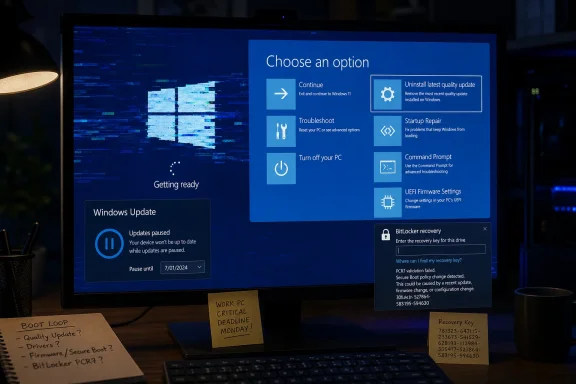 The Update Did Its Job Until the Reboot Proved Otherwise
KB5083769 arrived as a normal Patch Tuesday cumulative update, not as an optional experiment or preview channel oddity. For Windows 11 version 24H2 and 25H2 systems, it carried the usual mix of security fixes, servicing-stack changes, and quality improvements that Microsoft increasingly bundles into a single monthly payload. On paper, this is the update model Microsoft wants: one predictable release, one broad deployment path, one security baseline.The trouble is that a cumulative update’s success is often judged too early. Windows Update can download the package, stage it, report success, and still leave the machine in a state where the first post-install boot becomes the real test. That appears to be the shape of the KB5083769 problem described by affected users and repeated by troubleshooting guides: the update does not necessarily fail during installation, but the system fails when it tries to come back.
That distinction matters for home users and administrators alike. A failed installation is annoying but usually recoverable from the desktop. A boot loop moves the problem below the comfort layer of Settings, Device Manager, and vendor utilities, forcing users into recovery menus, offline servicing, or in the worst case a reset.
The visible symptom has made this one especially unnerving. Reports describe pixelated or mosaic-like graphics before a blue screen, followed by Windows Automatic Repair entering the scene and accomplishing very little. It looks like a hardware failure, especially to anyone who has seen a dying GPU or unstable video memory, but in many cases the timing points back to the update and the software stack Windows loads at boot.
Automatic Repair Is a Comfort Blanket, Not a Recovery Plan
Windows Automatic Repair has a calming name and a frustrating habit: it often appears precisely when Windows no longer has enough context to repair itself. The feature is useful when a boot configuration has gone wrong or when a rollback can be triggered cleanly. It is much less magical when a newly installed cumulative update, driver interaction, BitLocker policy state, or boot-chain change leaves the machine crashing before the normal environment can stabilize.That is why the advice to “let repair finish” can become a trap. If the machine repeatedly shows distorted graphics, blue-screens, enters repair, reboots, and then repeats the same sequence, the repair loop is no longer a diagnostic phase. It is the failure mode.
The first useful target is the Windows Recovery Environment, or WinRE. If Windows reaches WinRE on its own after several failed boot attempts, users should stop trying the same repair again and move directly to update removal. If it does not, the old forced-interruption method remains the practical route: power on, interrupt startup by holding the power button, and repeat until Windows offers the blue “Choose an option” recovery screen.
For machines that refuse even that path, a Windows 11 installation or recovery USB becomes the lifeline. The key move is choosing “Repair your computer,” not reinstalling Windows from the first setup screen. That brings the user into the same recovery toolset without asking the broken local installation to boot.
The Fastest Exit Is Removing the Latest Quality Update
The cleanest fix for a KB5083769 boot loop is also the most conservative: remove the latest quality update from WinRE. In the recovery menu, that path runs through Troubleshoot, Advanced options, and Uninstall Updates. From there, “Uninstall latest quality update” is the option that targets the monthly cumulative update rather than a feature upgrade.If the uninstall succeeds, the next reboot should return the machine to the sign-in screen. At that point, the user has not solved the larger Windows servicing problem; they have simply regained control of the PC. That is still the decisive step, because it allows the machine to be patched on the user’s terms rather than immediately falling back into the same failure.
There is a wrinkle here that IT pros will recognize. Microsoft’s newer cumulative update packages combine components in ways that can make command-line removal less straightforward than it was in older Windows servicing eras. The support documentation for KB5083769 notes that removing the LCU after installing the combined SSU and LCU package requires DISM with the LCU package name, while the standalone installer uninstall switch is not the right tool for the combined package.
For most users, the WinRE button is preferable to manual DISM surgery. For administrators, however, the detail is important because it defines the difference between a user-facing recovery action and an offline servicing procedure. If you are managing a fleet, you do not want every technician improvising package names at a blue recovery screen.
Pausing Updates Is Not Cowardice When the Update Is the Crash
Once the machine boots again, Windows Update becomes both necessary and dangerous. KB5083769 is a security update, which means Windows is designed to treat it as something the device should have. If left alone, Windows may attempt to reinstall it, putting the user back where they started.Pausing updates is therefore not an evasion of security hygiene. It is a controlled delay while the update ecosystem catches up. For a home user, the practical move is to open Windows Update and pause updates for the longest available window, often up to five weeks depending on edition and policy state. For managed environments, the equivalent is a deferral or safeguard policy decision rather than a frantic machine-by-machine pause.
The hard part is messaging. Microsoft has trained users, correctly, that security updates should not be ignored. But a device that cannot boot is not more secure in any meaningful operational sense. Availability is part of security, and a bricked or inaccessible endpoint is a failure of both.
That does not mean KB5083769 should be treated as permanently radioactive. It means the affected machine should be held back until a later cumulative update, known issue rollback, vendor driver update, or documented workaround changes the risk profile. The goal is not to leave the PC unpatched forever; it is to avoid replaying the same crash before the cause is understood.
The Graphics Glitch May Be a Driver Clue, Not the Whole Crime Scene
The mosaic-screen reports have naturally pulled attention toward graphics drivers. That is reasonable. A crash that displays corrupted pixels before a blue screen often suggests the handoff between firmware, boot graphics, kernel display components, and vendor drivers is going badly.But the most important word is suggests. The visual artifact does not prove the GPU is dead, and it does not prove Nvidia, AMD, or Intel alone caused the failure. A Windows cumulative update can change kernel behavior, driver blocklists, security policy, boot components, or timing in ways that expose an existing fragile driver state. The update may be the trigger even when the driver is the weak link.
That is why reinstalling or updating the graphics driver is a second-stage fix, not the first move while trapped in the loop. Users need to boot first. Once Windows is accessible again, updating through Nvidia’s app, AMD Adrenalin, Intel’s driver tools, or the PC maker’s support channel is sensible, particularly if the affected system is older, uses a legacy GPU, or has been carrying a stale display driver across multiple Windows feature updates.
The more cautious approach is to prefer OEM-certified drivers on business laptops and workstation fleets, at least until the failure pattern is better understood. Enthusiast desktops can often tolerate the latest GPU package. Enterprise endpoints need repeatability more than novelty.
BitLocker Turned a Bad Reboot Into a Policy Audit
KB5083769 also intersects with a separate but related headache: BitLocker recovery prompts on some systems with a specific, unrecommended Group Policy configuration. Microsoft’s documentation narrows that issue to devices where BitLocker is enabled on the OS drive, PCR7 is explicitly included in the TPM platform validation profile, Secure Boot state reports PCR7 binding as not possible, and the device is eligible for newer Secure Boot boot-manager changes but is not already running the 2023-signed Windows Boot Manager.That is a mouthful, but the administrative meaning is simpler. Some organizations have pinned BitLocker’s expectations to a boot measurement profile that does not play nicely with the Secure Boot transition Microsoft is pushing ahead of certificate expirations beginning in June 2026. When the boot chain changes, BitLocker does what it is designed to do: it asks whether the system it is seeing is still the system it is supposed to trust.
For personal devices, Microsoft says this configuration is unlikely. For managed PCs, especially those with long-lived images and inherited security baselines, it is plausible enough to deserve attention. If a fleet sees BitLocker recovery after KB5083769, that is not necessarily the same failure as the mosaic-graphics boot loop, but it may arrive in the same operational window and create the same help-desk panic.
Microsoft’s follow-up guidance points administrators toward removing the explicit Group Policy configuration or temporarily suspending and resuming BitLocker so the bindings can be refreshed. Later servicing work also addressed parts of the issue by preventing the newer boot manager from being applied on incompatible configurations. The larger lesson is that Secure Boot modernization is no longer abstract housekeeping; it is now touching real boot paths on real machines.
The Driver Blocklist Shows Security Hardening Has Side Effects
KB5083769 also brought attention to Microsoft’s vulnerable driver blocklist, which is intended to stop known-abusable kernel drivers from being loaded. This is good security engineering in the abstract. Attackers have repeatedly abused signed but vulnerable drivers to gain kernel-level access, disable protections, or tamper with systems below the usual endpoint-defense line.The cost is compatibility. Microsoft’s documentation acknowledges that backup applications relying on blocked drivers may fail when mounting or managing disk images, with VSS-related errors among the possible symptoms. That is not the same as a boot loop, but it belongs to the same family of update friction: security hardening changes assumptions that older software quietly depended on.
For administrators, this is where Patch Tuesday becomes less like installing a patch and more like changing a platform contract. Backup agents, disk imaging tools, endpoint security software, VPN clients, encryption tools, and storage utilities often live close to the kernel. When Microsoft tightens the rules down there, something old and privileged may break.
The right answer is not to abandon the blocklist. The right answer is to inventory tools that depend on kernel drivers and demand updated, compliant versions from vendors. But in the middle of a broken April update cycle, that long-term answer does not make the morning any easier.
The Consumer Fix and the Enterprise Fix Are Not the Same Playbook
A home user stuck in the KB5083769 loop has a brutal but clear sequence: reach WinRE, uninstall the latest quality update, pause updates, update graphics drivers, and wait for a safer cumulative update. If that fails, System Restore may work if restore points exist, and Reset this PC with “Keep my files” becomes the fallback before a full clean install.An enterprise administrator has a different problem. The goal is not simply to revive one machine but to prevent a hundred nearly identical machines from failing in a staggered rollout. That requires rings, telemetry, and a willingness to halt deployment when a small pilot produces a boot symptom rather than a minor application regression.
The boot-loop reports also reinforce the value of recovery readiness. BitLocker recovery keys must be escrowed. WinRE must not be broken or stripped from corporate images. USB recovery media should exist before it is needed. Remote support workflows should account for the fact that a machine in a pre-boot loop cannot run the agent the help desk normally depends on.
There is a cultural issue here too. Many organizations have spent years optimizing for rapid compliance percentages after Patch Tuesday. That is understandable in a threat environment where delayed patching can be dangerous. But fast patching without fast rollback is not maturity; it is just speed with a blindfold.
System Restore Is Still Useful, Which Makes Its Default Absence Awkward
System Restore sits in an odd place in modern Windows. It remains one of the easiest conceptual recovery tools for users to understand: roll the system state back to a previous point without deliberately wiping personal files. Yet on many Windows 11 systems, it is not enabled by default in the way longtime Windows users might assume.That matters in cases like KB5083769. If uninstalling the latest quality update fails or is unavailable, a restore point from before April 14, 2026 could be the difference between a short recovery session and a reset. But that option only exists if Windows or the user created the restore point beforehand.
Microsoft has leaned heavily into Reset this PC as the modern recovery answer, and the feature is genuinely useful. Keeping personal files while reinstalling Windows is a less terrifying proposition than a bare-metal reinstall. Still, a reset is disruptive. Applications may need to be reinstalled, settings rebuilt, corporate enrollment repaired, and user trust restored.
For enthusiasts and IT pros, the lesson is obvious: if you maintain machines where uptime matters, do not discover your recovery posture during the failure. Restore points, image backups, BitLocker key escrow, and bootable media are boring until the first failed reboot after Patch Tuesday.
Microsoft’s Mandatory Update Model Needs More Visible Escape Hatches
The KB5083769 story lands awkwardly because Microsoft is not wrong to make security updates hard to ignore. The Windows ecosystem is too large, too targeted, and too historically underpatched for a purely voluntary model to work. Mandatory cumulative updates are part of how Microsoft keeps the baseline from fragmenting into millions of vulnerable snowflakes.But compulsion raises the bar for recovery. If the operating system insists on applying security updates, it also needs a user-visible, reliable, and well-documented way to back out when the update breaks boot. That escape hatch exists in WinRE, but it is still too hidden for ordinary users and too dependent on recovery components being intact.
There is also a transparency gap. Microsoft’s official known-issues documentation is stronger than it used to be, but not every reported symptom receives immediate acknowledgment, and community reports often fill the vacuum. Users see a mosaic screen and a blue screen; Microsoft documents a BitLocker policy edge case and a Remote Desktop warning display issue. Both can be true, but the mismatch leaves affected users wondering whether their failure is recognized at all.
That is where publications, forums, and admin communities become part of the operating system’s informal support layer. They correlate symptoms before vendors do. They distinguish “my PC is broken” from “this update has a pattern.” They also sometimes overstate causality, which is why the careful phrasing matters: reportedly, on some systems, under specific conditions.
The Real Fix Is Discipline Before the Next Patch Tuesday
The concrete recovery path is not complicated, but it is time-sensitive. The longer a user retries automatic repair, hard-powers the system, or attempts random BIOS changes, the more likely they are to add new variables to a problem that may have had a clean rollback path.For anyone facing the KB5083769 loop now, the safest assumption is that Windows itself needs to be backed out before drivers and firmware are blamed. For administrators, the safest assumption is that one visible boot-loop report is enough to pause broad deployment while pilot-ring data, vendor advisories, and Microsoft’s release health notes are reviewed.
The practical takeaways are narrow enough to be useful:
- A system that loops through distorted graphics, a blue screen, and failed Automatic Repair after KB5083769 should be treated as a recovery problem, not as a normal Windows Update installation error.
- The first recovery attempt should be uninstalling the latest quality update from the Windows Recovery Environment.
- Updates should be paused or deferred after recovery so the same cumulative update does not immediately reinstall and repeat the failure.
- Graphics drivers should be updated only after the machine can boot, because the driver may be part of the trigger without being the only cause.
- BitLocker recovery prompts after this update should push administrators to audit PCR7-related policy choices and confirm recovery keys are escrowed.
- Organizations should treat this incident as a test of rollback readiness, not merely as another bad Patch Tuesday anecdote.
References
- Primary source: Guiding Tech
Published: Fri, 29 May 2026 07:06:50 GMT
What to Do if Stuck in a Boot Loop With Windows 11 KB5083769 - Guiding Tech
Windows KB5083769 boot loop can trap Windows 11 in a repair cycle, but you can fix it using Windows Recovery Environment to remove the update.www.guidingtech.com
- Related coverage: notebookcheck.net
Windows 11 KB5083769 April 2026 update triggers death loops and BSODs - Notebookcheck News
Microsoft’s Windows 11 KB5083769 April 2026 update causes critical boot failures, pixelated BSODs, and BitLocker recovery loops on Windows 11 24H2 and 25H2 PCs. www.notebookcheck.net
- Related coverage: gizmochina.com
Windows 11 KB5083769 causing a death loop on 24H2 and 25H2 systems - Gizmochina
The update in question, KB5083769, is reportedly triggering serious boot issues on systems running Windows 11 24H2 and 25H2. www.gizmochina.com
- Related coverage: windowscentral.com
Windows 11 KB5083769 update triggers BitLocker recovery | Windows Central
A faulty BitLocker configuration is forcing some PCs into BitLocker recovery mode after the April 2026 update, but there's a workaround to resolve this issue.www.windowscentral.com - Related coverage: pcworld.com
April's Windows 11 update is trapping some PCs in a boot loop | PCWorld
Some HP and Dell PCs are stuck in boot loops after installing KB5083769. Microsoft's AI support suggests a few solutions.www.pcworld.com - Related coverage: allthings.how
Windows 11 KB5083769 Boot Loop: What’s Happening and How to Recover
The April 2026 Patch Tuesday update is leaving some PCs stuck in pixelated crashes and endless recovery cycles.allthings.how
- Related coverage: notebookcheck.com
Windows 11 April 2026 Update KB5083769 verursacht Boot-Schleifen und Bluescreens - Notebookcheck News
Beim Microsoft Windows 11-Update KB5083769 vom April 2026 treten auf Windows-11-24H2- und 25H2-PCs kritische Startfehler, pixelige Bluescreens sowie BitLocker-Wiederherstellungsschleifen auf. www.notebookcheck.com
- Related coverage: windowslatest.com
Windows 11 KB5083769 out with improved /scannow, direct download links for offline installers (.msu)
Windows 11 KB5083769 is now rolling out, and it’s not a big release, at least not on the scale of the previous updates. It does have some handy features, including the ability to turn off Smart App Control, which is rolling out gradually. In addition to Windows Update, Microsoft has posted... www.windowslatest.com
- Related coverage: windows.gadgethacks.com
Windows 11 April 2026 Update BitLocker Recovery: KB5083769 Bug Explained << Windows Tips :: Gadget Hacks
Windows 11 April 2026 Update BitLocker Recovery: KB5083769 Bug Explained Microsoft's April 14 cumulative update for Windows 11, KB5083769, shipped with a... windows.gadgethacks.com
- Related coverage: allblogthings.com
Windows 11 KB5083769 is sending some PCs into BitLocker recovery and boot loops, users report
Microsoft’s April Windows 11 security update, KB5083769, is drawing complaints from users who say their PCs are getting stuck in recovery screens, rebwww.allblogthings.com
- Related coverage: pureinfotech.com
KB5083769 (build 26200.8246) for Windows 11 drops as part of the April 2026 update - Pureinfotech
KB5083769 (build 26200.8286) for Windows 11 rolls out as an optional install with Smart App Control changes, Copilot-powered Narrator, File Explorer fixes, and system improvements. pureinfotech.com
- Related coverage: ninjaone.com
KB5083769 - Details, Issues, & Feedback - NinjaOne
Community reception of KB5083769 has been decidedly mixed, reflecting a pattern of legitimate concerns tempered by recognition of security necessity. IT prwww.ninjaone.com - Related coverage: pcgamer.com
April's Windows 11 update reportedly causes blue screens and boot loops on HP and Dell PCs | PC Gamer
I'd find it easier to stay on top of OS updates, were it not for all the issues caused by said updates.www.pcgamer.com - Related coverage: cceboston.org
