

If your Windows Security app reports that the Windows Security Center service is turned off or missing, Windows will not reliably show your protection status — even when Microsoft Defender or another antivirus is actually running — and that mismatch can hide real problems and leave you exposed. This piece walks through the causes, step‑by‑step fixes (from safe, low‑risk options to deeper repairs), and a layered troubleshooting plan you can follow whether you’re fixing one PC or drafting guidance for multiple users, with practical checks, commands, and cautions for registry and policy changes.
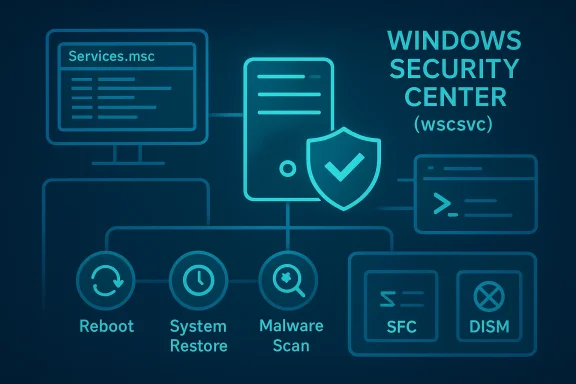
The Windows Security Center service (wscsvc) is the small but critical Windows service that collects status from antivirus, firewall, and related protection components and reports them to the Windows Security (and Action Center) UI. If wscsvc is stopped, misconfigured, blocked by policy, or its files/registry entries are damaged, the OS will often display the “Security Center turned off” message even though actual protection (for example Microsoft Defender’s real‑time engine) may still be running in the background.
Community troubleshooting and long‑running forums show three recurring themes: (1) malware or aggressive debloat/privacy tools intentionally disable or remove service entries, (2) corrupted system files after interrupted updates or disk issues break the service, and (3) Group Policy, tamper protection, or third‑party security products can mask or change the expected behavior. Multiple user reports and repair discussions recommend a staged, conservative approach before making heavy system changes.
Run these steps from an elevated command prompt:
Community threads show repeated success using SFC/DISM to repair service‑related issues. If SFC cannot run or returns errors like “could not start the repair service,” that signals deeper corruption or a blocked component and you should capture logs for escalation.
This sequence often fixes UI problems without touching services, and it’s safer than reinstalling the OS. If the UI remains blank and you need to run scans, use a third‑party AV or a command‑line scanner until the UI is restored.
When documenting an incident for escalation, include:
In short: start with a reboot and status checks, recover to a known good state with System Restore if you can, repair system files with SFC/DISM, re‑register or repair the Windows Security app UI if needed, and treat unexplained toggles as potential malware or policy actions. Keep careful backups, collect logs before making risky changes, and escalate to Reset or reinstall only after other, less disruptive steps have been tried. Community experience and troubleshooting archives consistently show this staged approach yields the highest success rate while minimizing data loss and unnecessary reinstallation.
Source: Appuals Fix: The Windows Security Center Service is Turned Off
 Background
The Windows Security Center service (wscsvc) is the small but critical Windows service that collects status from antivirus, firewall, and related protection components and reports them to the Windows Security (and Action Center) UI. If wscsvc is stopped, misconfigured, blocked by policy, or its files/registry entries are damaged, the OS will often display the “Security Center turned off” message even though actual protection (for example Microsoft Defender’s real‑time engine) may still be running in the background.Community troubleshooting and long‑running forums show three recurring themes: (1) malware or aggressive debloat/privacy tools intentionally disable or remove service entries, (2) corrupted system files after interrupted updates or disk issues break the service, and (3) Group Policy, tamper protection, or third‑party security products can mask or change the expected behavior. Multiple user reports and repair discussions recommend a staged, conservative approach before making heavy system changes.
Overview: A staged troubleshooting philosophy
Triage quickly, then escalate. Start with the least risky operations that frequently resolve transient or simple configuration issues, and only progress to registry edits, major system resets, or clean installations if earlier steps fail.- Quick checks and reboots first — they resolve stuck services more often than you might expect.
- Validate whether third‑party antivirus is installed; coexistence rules mean Defender may be shown as “off” intentionally.
- Use System Restore if the problem began recently.
- Run system file repairs (SFC then DISM) to restore missing or corrupted components.
- Repair or re‑register the Windows Security app UI if the app itself is broken.
- Investigate malware aggressively if the service repeatedly turns off by itself.
- If repair fails, consider Reset or a clean install as a last resort.
Quick preflight checks (do these before anything else)
- Restart the PC. A single reboot often clears stuck services and transient errors.
- Confirm installed antivirus: If you run a third‑party antivirus, open it and confirm it is installed, updated, and running. Windows will often show Defender as “off” when another registered AV is active — this is expected behavior.
- Undo recent debloat/privacy tool changes if you used them and they provide a rollback.
- Note exact error behavior: Is Security Center missing from Services.msc entirely, present but stopped, or present but greyed out? Each situation points to different root causes. Community threads show all three presentations and different resolutions for each.
1) Restore with System Restore — fastest reliable fix for recent breakage
If the service stopped working after a recent change (update, driver install, tool, or suspected malware cleanup), System Restore is the best first option because it rolls back system files and registry settings without touching personal files.- Open Run → rstrui and follow the wizard.
- Choose a restore point dated before the issue began. If System Protection was disabled or no restore points exist, skip this step.
2) Update Windows
Windows updates replace missing or corrupted components and can resolve service-related errors. This is low risk and should be done before deeper repairs.- Open Settings → Windows Update and select Check for updates.
- Install available updates and reboot.
3) Repair system files: SFC then DISM (recommended sequence)
When the Security Center service is present but will not start, corrupted system files are a common root cause. Use System File Checker (SFC) first and then DISM if SFC cannot repair everything.Run these steps from an elevated command prompt:
- sfc /scannow
- Wait for it to reach 100%. If it reports “Windows Resource Protection did not find any integrity violations,” move on to checking services and dependencies.
- If it reports it could not repair some files, proceed to DISM.
- DISM /Online /Cleanup-Image /CheckHealth
- DISM /Online /Cleanup-Image /ScanHealth
- DISM /Online /Cleanup-Image /RestoreHealth
Community threads show repeated success using SFC/DISM to repair service‑related issues. If SFC cannot run or returns errors like “could not start the repair service,” that signals deeper corruption or a blocked component and you should capture logs for escalation.
4) Reset or re-register the Windows Security app (UI repair)
If Windows Security opens blank or UI sections never load, the app package might be corrupted even if wscsvc itself exists. Try the Settings‑based Repair first, then re‑register via PowerShell if required.- Settings → Apps → Windows Security → Advanced options → Repair. If that fails, click Reset.
- If the UI is still broken, open PowerShell as Administrator and run:
$manifest = (Get-AppxPackage Microsoft.Windows.SecHealthUI).InstallLocation + '\AppxManifest.xml'
Add-AppxPackage -DisableDevelopmentMode -Register $manifest
This sequence often fixes UI problems without touching services, and it’s safer than reinstalling the OS. If the UI remains blank and you need to run scans, use a third‑party AV or a command‑line scanner until the UI is restored.
5) Check Services, dependencies, and startup settings
Once basic repairs are applied, confirm wscsvc and its dependencies are present, enabled, and set to correct startup types.- Open services.msc and find Security Center (wscsvc). Recommended Startup type: Automatic (Delayed Start). If Automatic (Delayed Start) isn’t available, set to Automatic.
- Check the Dependencies tab. Important related services often include:
- Remote Procedure Call (RPC)
- Windows Management Instrumentation (Winmgmt)
- Security Accounts Manager (SamSs)
- Base Filtering Engine (BFE) and Windows Firewall in some scenarios
6) Run a thorough malware scan (this is critical if the service toggles off)
If wscsvc repeatedly turns off without user action, treat this as a potential malware indicator. Malware commonly tries to disable security reporting and the UI to stay hidden.- If Windows Security UI is usable: run a Full scan and then run Microsoft Defender Offline (which boots and scans before Windows loads).
- If UI is unusable: update and run your third‑party AV’s full/offline scanner, or run reputable bootable/USB AV rescue tools.
- After removing malware, run SFC/DISM again and then re‑enable Security Center.
7) When Services.msc is broken, or Start remains greyed out — policy/registry checks
If you cannot change the Security Center startup or the service entry is absent, the problem could be Group Policy (on domain PCs), local security hardening tools, registry damage, or aggressive debloaters.- On domain-joined or corporate devices, check with IT for Group Policy settings that manage Windows Security reporting.
- Look for registry entries under HKLM\SYSTEM\CurrentControlSet\Services\wscsvc and validate the ImagePath and service type values — but be careful: editing the registry is risky. Back up before changes.
- If registry keys are missing and you’re comfortable and have backups, you can re-create the service entry — but only follow documented Microsoft steps or trusted vendor instructions. If uncertain, escalate to IT or reinstall as needed.
Advanced troubleshooting (for experienced users and admins)
If the usual steps fail, try these more advanced checks and repairs. These carry more risk — document and back up first.- Use sc.exe to inspect the service:
- sc query wscsvc
- sc qc wscsvc
- sc start wscsvc
- Check Event Viewer under Windows Logs → System for errors related to wscsvc, Rpc, Winmgmt, or service dependency failures. Event IDs and error text are essential for targeted fixes.
- Ensure the Local System account or correct service account is set for wscsvc (this should normally be Local System).
- Repair WMI if Winmgmt is corrupted: rebuild WMI repository (this is an advanced step and should be done with caution).
- Verify file system integrity: run chkdsk /f on the system drive if disk errors are suspected after unexpected shutdowns or interrupted updates.
- If BFE or Firewall services are broken, restore their registry permissions and service entries; these are sensitive changes — consult vendor guidance and community troubleshooting threads before edits.
When to reset or reinstall Windows
If repeated repair attempts fail or malware has deeply corrupted the system, a Reset (Keep my files) or clean install is the most reliable path to restore system integrity.- Use the Windows Reset feature and choose Keep my files to preserve personal data while removing apps and resetting system settings.
- If you must preserve installed apps and custom settings, consider a repair install (in‑place upgrade) — but if core services and store apps are unstable, a full reset is cleaner and faster overall.
Special considerations for enterprise and managed devices
On work or school PCs, Group Policy, endpoint management tools (SCCM/Intune), or corporate tamper protection policies may intentionally control Security Center behavior. Before making changes:- Check with IT: altering service startup types on domain systems can conflict with policy enforcement.
- If you are IT staff, use Group Policy and MDM to enforce the correct service startup and app‑registration state rather than changing registry entries manually.
- Document changes and create a rollback path; automatic remediation scripts from management consoles are preferred over ad hoc registry edits.
Practical checklist you can use (quick copy)
- Reboot the PC.
- Confirm installed AV and whether Defender is expected to be “off.”
- Try System Restore to a pre‑fault point.
- Update Windows.
- Run sfc /scannow; if issues remain run DISM restorehealth.
- Repair or Reset Windows Security app via Settings → Apps or re‑register with PowerShell.
- In services.msc set Security Center to Automatic (Delayed Start), start the service, and check dependencies.
- Run offline/bootable malware scans if the service repeatedly turns off.
- If necessary, escalate to registry, WMI, or BFE diagnostics — only after backing up and documenting changes.
- If everything else fails, perform Windows Reset (Keep my files) or clean install.
Risks, traps, and best practices
- Don’t edit the registry blind. Many fixes online show registry keys to delete or set — without backups, you risk making the system unbootable.
- Beware aggressive debloaters and registry cleaners. They can remove service entries that Windows depends on; always create a restore point before running them.
- Single antivirus at a time. Running two real‑time AVs can cause conflicts and confusing status reports.
- Policy vs. malware. If changes are enforced by Group Policy, local repairs are temporary; confirm policy first.
- Capture logs before heavy changes. Event Viewer, SFC logs (%windir%\Logs\CBS\CBS.log), and DISM logs are invaluable for escalations and help desks.
Final thoughts and recommended escalation path for support teams
For home users, follow the staged plan above and treat registry edits and advanced WMI repairs as last resorts. For help desk and IT teams, capture event logs and SFC/DISM outputs early, check management policy, and consider an in‑place repair before a full reinstall if preserving user state is important.When documenting an incident for escalation, include:
- Exact Windows build and edition
- The output of sc qc wscsvc and sc query wscsvc
- Event Viewer entries timestamped at problem occurrence
- SFC/DISM logs and malware scan results
In short: start with a reboot and status checks, recover to a known good state with System Restore if you can, repair system files with SFC/DISM, re‑register or repair the Windows Security app UI if needed, and treat unexplained toggles as potential malware or policy actions. Keep careful backups, collect logs before making risky changes, and escalate to Reset or reinstall only after other, less disruptive steps have been tried. Community experience and troubleshooting archives consistently show this staged approach yields the highest success rate while minimizing data loss and unnecessary reinstallation.
Source: Appuals Fix: The Windows Security Center Service is Turned Off
