

Windows Update’s “service not running” failure usually means Windows cannot start or coordinate the background components that scan, download, verify, and stage updates on Windows 10 or Windows 11, and in 2026 the practical fix path still begins with Microsoft’s built-in troubleshooter before moving to service checks, system-file repair, cache resets, and WinRE partition work. The error looks like a single broken switch, but it is really the symptom of a pipeline that depends on several services, folders, and repair mechanisms staying in sync. Treat it like a recovery ladder, not a scavenger hunt: start with the safest repairs, then escalate only when Windows gives you no choice.
The frustrating part of a Windows Update service error is that it rarely tells the whole truth. Settings may say the service is not running, the spinner may sit forever at “checking,” or the system may throw a generic update error that sounds more final than it really is. Underneath that message, Windows may be dealing with a stopped service, a damaged download cache, a half-applied update, a full disk, or a recovery partition that cannot fit a security fix.
That ambiguity is why the order of operations matters. Many users jump straight to deleting folders or copying command blocks from forums, but Microsoft’s own recovery path starts more conservatively: run the troubleshooter, restart, check space, verify services, repair the system image, and only then reset update components. The sequence is not glamorous, but it avoids turning a routine update stall into a self-inflicted maintenance window.
There is also a security reason not to ignore the problem. A PC that cannot update is not merely missing cosmetic fixes; it may be missing cumulative security patches, servicing stack changes, driver fixes, and recovery environment updates. For home users, that means avoidable exposure. For administrators, it means drift: machines falling out of patch compliance because one component in the chain stopped behaving.
On Windows 10, the path is slightly different: open Settings > Update & Security > Troubleshoot > Additional troubleshooters, then choose Windows Update and run it. When it finishes, restart the device even if the tool claims it fixed the issue immediately. Windows Update often stages repairs that only become meaningful after services restart cleanly.
The troubleshooter is not magic, and seasoned Windows users have good reasons to be skeptical of it. But it is safe, reversible, and targeted. It can reset pieces of the update stack without asking a user to manually stop services, delete caches, or rename system folders.
That safety matters because “Windows Update service not running” is sometimes a coordination failure rather than a broken service. If the update client, Background Intelligent Transfer Service, cryptographic validation, and orchestration layers are out of step, a diagnostic pass can be enough to put the pieces back in order. If it fails, you have at least established that the easy repair path is exhausted.
This matters because Windows Update frequently fails in the middle, not at the beginning. An update may already be downloaded but waiting for a reboot. A servicing task may be pending. A third-party utility may have locked a file that the update process expected to own. A restart clears enough of that temporary state to make the next scan meaningful.
Before checking again, make sure the system has real free space. A nearly full system drive can block downloads, decompression, staging, and rollback preparation. Windows updates do not merely need room for the final installed files; they need working space to unpack, compare, replace, and preserve enough state to recover if something goes wrong.
After the restart, go back to Settings > Windows Update on Windows 11 or Settings > Update & Security > Windows Update on Windows 10 and click Check for updates. If Windows gets past the point where it previously froze or errored, stop there. The point is to repair the update path, not to keep performing surgery after the patient has walked out.
The Windows Update service is the obvious one, but it is not the whole story. Modern Windows update behavior is coordinated by orchestration components that decide when scans happen, when downloads occur, and when restarts are scheduled. If orchestration is stalled, Settings can look broken even when the core update service is not permanently damaged.
If either service is stopped, start it from the Services console and then retry Windows Update. If the service starts and immediately stops again, that is a clue that something else is failing downstream: the cache may be corrupt, cryptographic validation may be blocked, or system files may need repair. A stopped service is useful evidence, but it is not always the root cause.
Administrators should also remember that managed devices may have policy constraints in play. Group Policy, mobile device management, WSUS, Windows Update for Business, and third-party patching tools can all change how scans behave. On a domain-joined or Intune-managed PC, a “service not running” message may coexist with policy-driven behavior that a home-PC fix guide will not fully explain.
The order matters. DISM repairs the Windows component store, which is the source Windows uses when restoring protected files. SFC then checks protected system files and replaces damaged copies. Running SFC first is not catastrophic, but if the component store itself is unhealthy, SFC may be trying to repair Windows from a bad shelf.
These commands can take time, and they may appear to pause. Let them finish. Interrupting servicing tools because the percentage display looks stuck is one of those classic Windows rituals that creates more uncertainty than it removes.
After both commands complete, restart and check for updates again. If Windows Update starts working, the failure was likely not “the update service” in isolation. It was the operating system’s servicing infrastructure complaining through the most visible error message it had.
The quick reset is straightforward but should still be done from an elevated Command Prompt. Stop the Windows Update service with
That command sequence is common because it attacks the download cache directly. It does not uninstall Windows, it does not remove your documents, and it does not erase installed applications. It clears update working data so the next scan and download can begin from a cleaner baseline.
If that is not enough, use the broader reset: stop BITS, Windows Update, and Cryptographic Services; rename the cache folders; then restart the services. The safer version renames folders rather than deleting them, using
The typical elevated-command sequence stops the services with
This is the first point in the fix ladder where caution should rise. The commands are well known, but they are still administrative operations against Windows servicing state. Type them carefully, run them in order, and avoid improvising with random registry edits or third-party “repair” utilities unless you have a backup and a reason.
That distinction matters because resetting SoftwareDistribution will not make a too-small recovery partition larger. Running the troubleshooter again will not create more room inside WinRE. DISM and SFC may report success while the same update continues to fail, because the operating system image is fine and the target partition is not.
Microsoft’s documented guidance for affected WinRE updates centers on having enough free space in the recovery partition and, where necessary, manually resizing it. The often-cited threshold is 250 MB of free space in the recovery partition for the relevant WinRE update to install. If the partition lacks that room, the update may fail repeatedly or may not be offered in the expected way.
Before touching partitions, check WinRE status with
Partition work is the point where casual troubleshooting should give way to deliberate maintenance. Back up important data first. Follow Microsoft’s documented steps exactly if you need to resize the recovery partition. If the machine is managed, encrypted with BitLocker, or part of a fleet, do not treat this as a one-off desktop tweak; it belongs in a planned remediation process.
That architecture is why the error message can feel so unsatisfying. “The service is not running” may mean the service stopped. It may also mean an orchestrator cannot complete a scan, a cache folder contains bad state, a system file is damaged, or a recovery update cannot fit where Microsoft wants to place it. The user sees one failure; Windows is juggling several.
For home users, the lesson is to resist the urge to start with the most aggressive fix. For IT pros, the lesson is to collect symptoms before flattening the stack. Error codes, update history, service state, free disk space, WinRE configuration, and management policy all narrow the field.
This is also where third-party advice gets risky. Many guides collapse Windows Update repair into a universal script that stops services, deletes folders, resets network stacks, and re-registers components whether the machine needs it or not. That may work, but it erases evidence and can mask the actual cause. A careful sequence produces a better repair and a better postmortem.
Windows Update will probably never feel elegant, because it is doing messy work on a live operating system that users expect to keep running while it repairs itself. But the “service not running” error is rarely the dead end it appears to be. In 2026, the winning strategy is still disciplined escalation: let Windows try to heal itself, verify the services, repair the image, rebuild the cache, and only then confront the partition-level edge cases that make modern servicing so much more complicated than a button labeled “Check for updates” suggests.
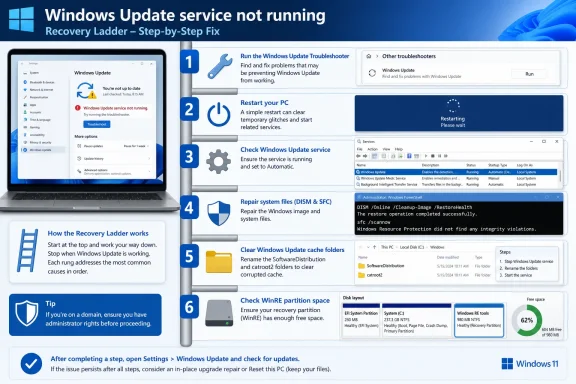 Windows Update Fails Loudly When Its Plumbing Fails Quietly
The frustrating part of a Windows Update service error is that it rarely tells the whole truth. Settings may say the service is not running, the spinner may sit forever at “checking,” or the system may throw a generic update error that sounds more final than it really is. Underneath that message, Windows may be dealing with a stopped service, a damaged download cache, a half-applied update, a full disk, or a recovery partition that cannot fit a security fix.That ambiguity is why the order of operations matters. Many users jump straight to deleting folders or copying command blocks from forums, but Microsoft’s own recovery path starts more conservatively: run the troubleshooter, restart, check space, verify services, repair the system image, and only then reset update components. The sequence is not glamorous, but it avoids turning a routine update stall into a self-inflicted maintenance window.
There is also a security reason not to ignore the problem. A PC that cannot update is not merely missing cosmetic fixes; it may be missing cumulative security patches, servicing stack changes, driver fixes, and recovery environment updates. For home users, that means avoidable exposure. For administrators, it means drift: machines falling out of patch compliance because one component in the chain stopped behaving.
The Troubleshooter Is Still the Least Dangerous First Move
The first fix is the least dramatic one: let Windows diagnose itself. On Windows 11, open Settings > System > Troubleshoot > Other troubleshooters, then run the Windows Update troubleshooter. Microsoft has also pushed more Windows 11 diagnostics through the Get Help app, which can run automated checks and attempt repairs without requiring users to know which service or folder is misbehaving.On Windows 10, the path is slightly different: open Settings > Update & Security > Troubleshoot > Additional troubleshooters, then choose Windows Update and run it. When it finishes, restart the device even if the tool claims it fixed the issue immediately. Windows Update often stages repairs that only become meaningful after services restart cleanly.
The troubleshooter is not magic, and seasoned Windows users have good reasons to be skeptical of it. But it is safe, reversible, and targeted. It can reset pieces of the update stack without asking a user to manually stop services, delete caches, or rename system folders.
That safety matters because “Windows Update service not running” is sometimes a coordination failure rather than a broken service. If the update client, Background Intelligent Transfer Service, cryptographic validation, and orchestration layers are out of step, a diagnostic pass can be enough to put the pieces back in order. If it fails, you have at least established that the easy repair path is exhausted.
A Restart Still Fixes More Than It Deserves To
The second fix sounds insulting until it works: restart the PC. Not shut down and power on later, not close the lid, not hibernate — restart. Windows can hold update-related state across fast startup and sleep cycles, and a clean reboot forces services, pending operations, and staged updates to reinitialize.This matters because Windows Update frequently fails in the middle, not at the beginning. An update may already be downloaded but waiting for a reboot. A servicing task may be pending. A third-party utility may have locked a file that the update process expected to own. A restart clears enough of that temporary state to make the next scan meaningful.
Before checking again, make sure the system has real free space. A nearly full system drive can block downloads, decompression, staging, and rollback preparation. Windows updates do not merely need room for the final installed files; they need working space to unpack, compare, replace, and preserve enough state to recover if something goes wrong.
After the restart, go back to Settings > Windows Update on Windows 11 or Settings > Update & Security > Windows Update on Windows 10 and click Check for updates. If Windows gets past the point where it previously froze or errored, stop there. The point is to repair the update path, not to keep performing surgery after the patient has walked out.
The Service Console Separates a Broken Update From a Sleeping One
If Windows still insists the update service is not running, the next move is to check whether the relevant services are actually alive. Press Win+R, typeservices.msc, and press Enter. In the Services console, look for Windows Update and Update Orchestrator Service or similarly named update orchestration entries, depending on the Windows version and build.The Windows Update service is the obvious one, but it is not the whole story. Modern Windows update behavior is coordinated by orchestration components that decide when scans happen, when downloads occur, and when restarts are scheduled. If orchestration is stalled, Settings can look broken even when the core update service is not permanently damaged.
If either service is stopped, start it from the Services console and then retry Windows Update. If the service starts and immediately stops again, that is a clue that something else is failing downstream: the cache may be corrupt, cryptographic validation may be blocked, or system files may need repair. A stopped service is useful evidence, but it is not always the root cause.
Administrators should also remember that managed devices may have policy constraints in play. Group Policy, mobile device management, WSUS, Windows Update for Business, and third-party patching tools can all change how scans behave. On a domain-joined or Intune-managed PC, a “service not running” message may coexist with policy-driven behavior that a home-PC fix guide will not fully explain.
DISM and SFC Are Boring Because They Are Foundational
When services exist but updates still fail, the system itself may need repair. The standard pair of tools remains DISM followed by SFC, run from an elevated Command Prompt or Windows Terminal. Open the terminal as administrator and runDISM.exe /Online /Cleanup-image /Restorehealth, then run sfc /scannow after DISM completes.The order matters. DISM repairs the Windows component store, which is the source Windows uses when restoring protected files. SFC then checks protected system files and replaces damaged copies. Running SFC first is not catastrophic, but if the component store itself is unhealthy, SFC may be trying to repair Windows from a bad shelf.
These commands can take time, and they may appear to pause. Let them finish. Interrupting servicing tools because the percentage display looks stuck is one of those classic Windows rituals that creates more uncertainty than it removes.
After both commands complete, restart and check for updates again. If Windows Update starts working, the failure was likely not “the update service” in isolation. It was the operating system’s servicing infrastructure complaining through the most visible error message it had.
Resetting the Update Cache Is the Moment to Slow Down
If the troubleshooter, reboot, service check, and system-file repair do not work, the update cache becomes the next suspect. Windows stores downloaded update payloads and scan data in the SoftwareDistribution folder, while cryptographic catalog state is tied to catroot2. When those stores become inconsistent, Windows may keep trying to reuse bad state instead of starting cleanly.The quick reset is straightforward but should still be done from an elevated Command Prompt. Stop the Windows Update service with
net stop wuauserv, remove the SoftwareDistribution folder with rd /s /q %systemroot%\SoftwareDistribution, then start the service again with net start wuauserv. Windows will recreate the folder as needed.That command sequence is common because it attacks the download cache directly. It does not uninstall Windows, it does not remove your documents, and it does not erase installed applications. It clears update working data so the next scan and download can begin from a cleaner baseline.
If that is not enough, use the broader reset: stop BITS, Windows Update, and Cryptographic Services; rename the cache folders; then restart the services. The safer version renames folders rather than deleting them, using
.bak copies as a fallback. That is especially sensible on business systems where auditability and rollback matter.The typical elevated-command sequence stops the services with
net stop bits, net stop wuauserv, and net stop cryptsvc. Then it renames the relevant folders, such as Ren %Systemroot%\SoftwareDistribution\DataStore DataStore.bak, Ren %Systemroot%\SoftwareDistribution\Download Download.bak, and Ren %Systemroot%\System32\catroot2 catroot2.bak. Finally, it restarts the services with net start bits, net start wuauserv, and net start cryptsvc.This is the first point in the fix ladder where caution should rise. The commands are well known, but they are still administrative operations against Windows servicing state. Type them carefully, run them in order, and avoid improvising with random registry edits or third-party “repair” utilities unless you have a backup and a reason.
The WinRE Partition Problem Is Not Really a Windows Update Problem
One of the more misleading Windows Update failures of the past few years involves Windows Recovery Environment updates, especially the KB5034441-era mess on Windows 10 and related WinRE servicing updates. In those cases, the update failure can look like another broken Windows Update incident, but the root cause may be brutally specific: the recovery partition does not have enough free space.That distinction matters because resetting SoftwareDistribution will not make a too-small recovery partition larger. Running the troubleshooter again will not create more room inside WinRE. DISM and SFC may report success while the same update continues to fail, because the operating system image is fine and the target partition is not.
Microsoft’s documented guidance for affected WinRE updates centers on having enough free space in the recovery partition and, where necessary, manually resizing it. The often-cited threshold is 250 MB of free space in the recovery partition for the relevant WinRE update to install. If the partition lacks that room, the update may fail repeatedly or may not be offered in the expected way.
Before touching partitions, check WinRE status with
reagentc /info from an elevated Command Prompt. That tells you whether Windows Recovery Environment is enabled and where it is configured. It does not, by itself, resize anything; it simply gives you a clearer view of what Windows thinks its recovery environment looks like.Partition work is the point where casual troubleshooting should give way to deliberate maintenance. Back up important data first. Follow Microsoft’s documented steps exactly if you need to resize the recovery partition. If the machine is managed, encrypted with BitLocker, or part of a fleet, do not treat this as a one-off desktop tweak; it belongs in a planned remediation process.
The 2026 Reality Is That Windows Update Is a Small Distributed System
The reason these fixes still matter in 2026 is that Windows Update is no longer a simple download button. It is a distributed local system made of services, scheduled tasks, component stores, cryptographic validation, driver handling, rollback planning, policy evaluation, and recovery environment servicing. The Settings page is just the front desk.That architecture is why the error message can feel so unsatisfying. “The service is not running” may mean the service stopped. It may also mean an orchestrator cannot complete a scan, a cache folder contains bad state, a system file is damaged, or a recovery update cannot fit where Microsoft wants to place it. The user sees one failure; Windows is juggling several.
For home users, the lesson is to resist the urge to start with the most aggressive fix. For IT pros, the lesson is to collect symptoms before flattening the stack. Error codes, update history, service state, free disk space, WinRE configuration, and management policy all narrow the field.
This is also where third-party advice gets risky. Many guides collapse Windows Update repair into a universal script that stops services, deletes folders, resets network stacks, and re-registers components whether the machine needs it or not. That may work, but it erases evidence and can mask the actual cause. A careful sequence produces a better repair and a better postmortem.
The Fix Order Matters More Than the Fixes Themselves
There are six practical moves that solve most “Windows Update service not running” cases, but their value comes from escalation. Start with the steps that preserve state, then move toward the ones that rebuild it. By the time you reach partition resizing, you should already know you are not dealing with an ordinary stalled scan.- Run the Windows Update troubleshooter first, because it is the safest automated repair and may reset only the components that need attention.
- Restart the PC and confirm free disk space before assuming the update stack is broken.
- Check the Windows Update and orchestration services in
services.mscwhen Settings reports that update services are not running. - Run DISM and then SFC from an elevated terminal to repair the Windows image and protected system files.
- Reset the SoftwareDistribution and catroot2 update caches only after simpler repairs fail.
- Treat WinRE update failures such as KB5034441-style errors as a possible recovery partition space problem, not merely a Windows Update cache problem.
Windows Update will probably never feel elegant, because it is doing messy work on a live operating system that users expect to keep running while it repairs itself. But the “service not running” error is rarely the dead end it appears to be. In 2026, the winning strategy is still disciplined escalation: let Windows try to heal itself, verify the services, repair the image, rebuild the cache, and only then confront the partition-level edge cases that make modern servicing so much more complicated than a button labeled “Check for updates” suggests.
References
- Primary source: Technobezz
Published: 2026-06-02T14:20:13.112477
Windows Update Service Not Running? 6 Ways to Fix It (2026) | Technobezz
You open Settings, click Check for updates, and nothing happens; the spinner sits there, or you get a flat error telling you the Windows Update service .www.technobezz.com - Official source: support.microsoft.com
Windows Update Troubleshooter - Microsoft Support
Learn how to run Windows Update Troubleshooter to resolve errors downloading or installing Windows updates.support.microsoft.com - Official source: learn.microsoft.com
Windows Update: One of the update services is not running properly, troubleshooter doesn't work. - Microsoft Q&A
My windows 11 update is not working. It said: "Error encountered. One of the update services is not running properly, but you can try to run a troubleshooter to fix the problem. Go to Start button > Settings > Update & Security >…learn.microsoft.com - Related coverage: windowscentral.com
How to fix Windows 11 problems without the Recovery Assistant | Windows Central
If you previously used SaRA for automated troubleshooting, we show you how to start using Microsoft's "Get Help" command-line toolwww.windowscentral.com - Related coverage: automox.com
Fix Windows Update Issues by Resetting Components
Fix Windows Update failures by resetting wuauserv, BITS, appidsvc, and cryptsvc, renaming SoftwareDistribution and catroot2, then forcing a fresh scan.www.automox.com
- Related coverage: makeuseof.com
How to Reset the SoftwareDistribution and Catroot2 Folders on a Windows 11 PC
Got an issue with Windows updates? Try resetting the SoftwareDistribution and Catroot2 folders and see if it helps. www.makeuseof.com
- Related coverage: howtogeek.com
How to Fix Windows Update When It Gets Stuck or Frozen
Windows Update is great for keeping Windows up to date, but what happens if it breaks? www.howtogeek.com
- Related coverage: techyorker.com
Windows Update Troubleshooter not working - TechYorker
×AIChipps - Easy Way to Repair your PC Issues + AI AssistantFix My PC with AI →⚙️PC Running Slow or... techyorker.com
- Related coverage: windowsdigitals.com
Windows Update Troubleshooter Not Working Windows 10/11
If the Windows Update Troubleshooter is not working or stuck in Windows 11/10, learn how to fix it in this guide.www.windowsdigitals.com - Related coverage: drivereasy.com
Windows Update Service Not Running on Windows 10/11 [SOLVED] - Driver Easy
If you're getting an error Windows Update cannot currently check for updates, because the service is not running, you're not alone. Discover how to fix the Windows Update service not running error.www.drivereasy.com
