

Xbox Remote Play not working is usually fixed by using the current browser-based Remote Play page, confirming that your Xbox Series X|S or Xbox One is configured for remote features and Sleep mode, then correcting the account, network, or device issue identified by the console test. These steps apply to Xbox Series X|S and Xbox One consoles, Windows 11 and supported Windows 10 PCs, Android phones and tablets, and iPhone or iPad devices.
Remote Play is now launched through the Xbox web experience on supported devices. If an older guide tells you to find a Remote Play button in the Xbox mobile app, use the browser method instead.
If the page only shows cloud gaming, verify the signed-in account before changing console settings. Cloud gaming and Remote Play are different services: Remote Play streams from your own Xbox console, while cloud gaming streams from Microsoft servers.
If the console is missing from the Xbox app on Windows, open the app, select your profile picture, choose View profile, and look under Where I play for the option to add or manage a console.
This is a configuration change, not a reset. It does not delete games or remove accounts.
After changing the setting, put the console into Sleep normally, rather than unplugging it or using a full shutdown. Then attempt Remote Play from another device. A successful connection should wake the console and display its dashboard or the currently running game.
Use these changes in order:
If UPnP Not Successful appears in Xbox Network settings, update the router firmware if an update is available, restart the router and console, and test again. If the console reports Strict NAT, consult the router manufacturer’s documentation or your internet provider before changing advanced network settings.
Warning: Port forwarding changes how inbound traffic reaches your home network. Do not add random ports from third-party guides. If Xbox support specifically directs you to do so for a confirmed Remote Play NAT problem, Remote Play may require UDP port 9002. Record the existing router configuration before changing it so you can remove the forwarding rule if it does not help.
For homes with multiple Xbox consoles, use Network settings > Advanced settings > Alternate port selection rather than assigning the same port configuration to every console.
If Remote Play works in a browser but the Xbox app on Windows is broken, repair the app before resetting it.
On Windows 11:
Also open Microsoft Store > Library and install available updates for the Xbox app. If the Xbox app identifies a Gaming Services problem, use its built-in Gaming Services Repair Tool from the app’s support area.
For a child or teen profile, review the Xbox privacy and online-safety settings:
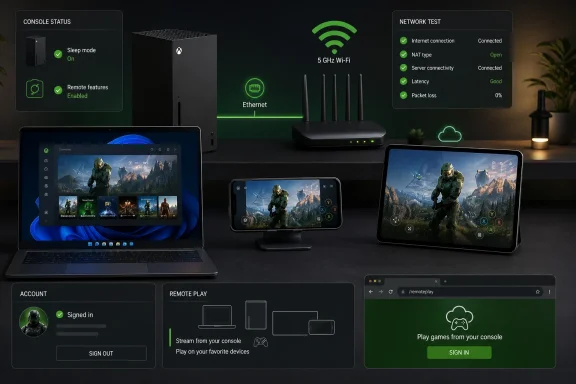 1. Start Remote Play from the current Xbox web page
Remote Play is now launched through the Xbox web experience on supported devices. If an older guide tells you to find a Remote Play button in the Xbox mobile app, use the browser method instead.- On the device you want to play on, open Microsoft Edge or Google Chrome.
- Go to
xbox.com/remoteplay. - Sign in with the Microsoft account that you use on the Xbox console.
- Select your console when it appears.
- Select Remote play on this device.
xbox.com/play, open the menu, and switch from cloud gaming to Remote Play.If the page only shows cloud gaming, verify the signed-in account before changing console settings. Cloud gaming and Remote Play are different services: Remote Play streams from your own Xbox console, while cloud gaming streams from Microsoft servers.
2. Check Xbox service status and restart both ends
When Remote Play stopped working suddenly on every client device, do not start changing router settings first. A service incident, sign-in problem, or console service issue can block connections.- Open the official Xbox Status page in a browser.
- Look for an alert affecting Cloud gaming & remote play, account services, or sign-in.
- If an outage or limited-service alert is listed, wait for Xbox to clear it before troubleshooting your home network.
- On the console, press and hold the Xbox button on the controller.
- Select Restart console.
- Select Restart to confirm.
- Restart the phone, tablet, PC, TV, or other device used for Remote Play.
- Return to
xbox.com/remoteplayand try again.
3. Confirm that the same Microsoft account is in use
Remote Play needs a Microsoft account with an Xbox profile. The account signed in to the web page must match the Xbox profile authorized to use the console.- On the Xbox, press the Xbox button.
- Confirm the profile shown at the top of the guide is the profile you expect to use.
- On the Remote Play device, sign out of the Xbox site if necessary.
- Sign back in with that same Microsoft account.
- Refresh the Remote Play page and check whether the console appears.
If the console is missing from the Xbox app on Windows, open the app, select your profile picture, choose View profile, and look under Where I play for the option to add or manage a console.
4. Enable Remote features on the Xbox console
The console cannot accept a Remote Play connection until Remote features are enabled.- Press the Xbox button.
- Go to Profile & system > Settings.
- Select Devices & connections > Remote features.
- Select Enable remote features so that it is checked.
- Stay on this page for the next steps.
This is a configuration change, not a reset. It does not delete games or remove accounts.
5. Set the console power option to Sleep
Remote Play can wake a compatible Xbox from Sleep. It cannot wake a console that has been fully shut down.- On the Xbox, open Profile & system > Settings.
- Select Devices & connections > Remote features.
- Under Power options, select Sleep.
- Profile & system > Settings.
- General > Power options.
- Select Sleep.
After changing the setting, put the console into Sleep normally, rather than unplugging it or using a full shutdown. Then attempt Remote Play from another device. A successful connection should wake the console and display its dashboard or the currently running game.
6. Run Test remote play and fix the reported failure
The built-in Remote Play test is the best place to start when the console is found but the connection fails.- Press the Xbox button.
- Go to Profile & system > Settings.
- Select Devices & connections > Remote features.
- Select Test remote play.
- Wait for the test to complete.
- Read the failed or warning item rather than guessing.
- Power setting failure: Return to Power options and select Sleep.
- Upload-speed warning or failure: Xbox requires at least 4.75 Mbps upstream bandwidth from the console’s home connection. An upload speed of 9 Mbps or more is preferable.
- NAT or network-type issue: Open Profile & system > Settings > General > Network settings and correct the issue shown there.
- Latency warning: Use a wired connection for the Xbox where possible, reduce Wi-Fi congestion, and stop large uploads, downloads, backups, or game updates while streaming.
- Console setting failure: Recheck Enable remote features and run the test again.
7. Improve the Xbox and client network connection
Remote Play sends video from your home Xbox to the device you are using. A fast download speed at the client device does not compensate for weak upload speed, strict NAT, or unstable Wi-Fi at home.Use these changes in order:
- Connect the Xbox directly to the router with Ethernet if possible.
- If Ethernet is not practical, connect the console and client device to 5 GHz Wi-Fi.
- Move the client device closer to the router.
- Avoid using Wi-Fi extenders or weak mesh nodes for the Xbox if they introduce lag or disconnects.
- Pause downloads, cloud backups, video uploads, and other heavy network activity.
- Restart the router, then restart the Xbox.
- Run Test remote play again.
If UPnP Not Successful appears in Xbox Network settings, update the router firmware if an update is available, restart the router and console, and test again. If the console reports Strict NAT, consult the router manufacturer’s documentation or your internet provider before changing advanced network settings.
Warning: Port forwarding changes how inbound traffic reaches your home network. Do not add random ports from third-party guides. If Xbox support specifically directs you to do so for a confirmed Remote Play NAT problem, Remote Play may require UDP port 9002. Record the existing router configuration before changing it so you can remove the forwarding rule if it does not help.
For homes with multiple Xbox consoles, use Network settings > Advanced settings > Alternate port selection rather than assigning the same port configuration to every console.
8. Use a supported browser and repair the Windows Xbox app when needed
For browser-based Remote Play on a PC, use an updated Microsoft Edge or Google Chrome installation. Xbox lists Windows 10 or Windows 11 version 22H2 or later for supported PC Remote Play devices. Windows 10 reached end of support on October 14, 2025, so Windows 11 is the better long-term choice for a supported and secure client PC.If Remote Play works in a browser but the Xbox app on Windows is broken, repair the app before resetting it.
On Windows 11:
- Open Start > Settings > Apps > Installed apps.
- Find Xbox.
- Select the three-dot button beside it.
- Select Advanced options.
- Select Repair.
- Restart the Xbox app and test again.
- Open Start > Settings > Apps > Apps & features.
- Select Xbox.
- Select Advanced options.
- Select Repair.
Also open Microsoft Store > Library and install available updates for the Xbox app. If the Xbox app identifies a Gaming Services problem, use its built-in Gaming Services Repair Tool from the app’s support area.
9. Fix controller, privacy, and unsupported-app issues
If Remote Play connects but you cannot control the console, separate the stream problem from the controller problem.- On the Xbox, open Profile & system > Settings > Devices & connections > Controllers & headsets.
- Select the controller.
- Install a controller update if prompted.
- On the client device, remove and pair the Bluetooth controller again if input still fails.
For a child or teen profile, review the Xbox privacy and online-safety settings:
- Open Profile & system > Settings > Account.
- Select Privacy & online safety > Xbox privacy.
- Choose the appropriate profile level or select View details & customize.
References
- Primary source: Technobezz
Published: 2026-07-16T17:06:59.792000+00:00
Xbox Remote Play Not Working? 9 Fixes That Actually Work | Technobezz
Xbox Remote Play not working? Fix the web setup, Sleep mode, console test, network, Xbox app, and controller issues.www.technobezz.com - Official source: answers.microsoft.com
Xbox Support
 answers.microsoft.com
- Related coverage: xbox.com
XBOX Remote Play | XBOX
Play games from your console straight to your PC, phone or tablet over the internet with XBOX Remote Play. Find and install new games even if you’re not at home.www.xbox.com - Related coverage: digitaltrends.com
Loading…
www.digitaltrends.com - Related coverage: statusgator.com
Xbox Live Remote play Status. Check if Xbox Live Remote play is down or having an outage. | StatusGator
Xbox Live Remote play down? Check the current Xbox Live Remote play status right now, learn about outages, downtime, incidents, and issues.statusgator.com - Related coverage: checkout.eloesports.com
Xbox Remote Play Setup Guide: How to Stream Your Xbox Anywhere (2026) – ELO
Learn how to set up Xbox Remote Play on iOS, Android, and PC. Step-by-step guide, device requirements, network tips, and troubleshooting. checkout.eloesports.com
