

PCMag Australia’s latest Windows 11 upgrade guide explains how Windows 10 users can move to Windows 11 for free using Microsoft’s official tools, and how unsupported PCs can bypass hardware checks with Rufus-created installation media. The practical advice is familiar, but the timing is what makes it sharper: Windows 10 is already past its October 14, 2025 end-of-support date, and Microsoft’s one-year consumer Extended Security Updates bridge runs only through October 13, 2026. The result is a migration story that is no longer about curiosity or aesthetics. It is about whether perfectly usable PCs should be upgraded, extended, replaced, or deliberately left behind.
For years, the Windows 11 upgrade sat in Windows Update like an optional renovation. Users could ignore the centered Start menu, the redesigned Settings app, and the tighter security model because Windows 10 still felt current enough. That posture is harder to sustain now that Windows 10 has exited mainstream consumer support.
Microsoft still offers Windows 11 as a free upgrade from Windows 10 for eligible PCs. The route is straightforward: Windows Update if the machine is approved, the Windows 11 Installation Assistant if the update has not appeared, or the Media Creation Tool and ISO download for users who want installation media. Nothing about the price has changed; the urgency has.
The catch is that Windows 11 is not merely a software update in Microsoft’s eyes. It is a hardware line in the sand. The operating system’s requirements — TPM 2.0, Secure Boot capability, UEFI firmware, supported CPUs, and minimum memory and storage thresholds — exclude many PCs that still run Windows 10 well enough for office work, browsing, media, and light development.
That is why a guide about “upgrading for free” quickly becomes a guide about who gets to upgrade at all. Microsoft’s official answer is: compatible PCs. The enthusiast answer is: many more PCs, if you are willing to bypass the gatekeeper.
That distinction matters because users often read “incompatible” as “incapable.” In many cases, it means “not supported under Microsoft’s Windows 11 servicing policy.” The difference is not semantic. An unsupported installation may run, but Microsoft is not promising the same experience, lifecycle, or troubleshooting path it gives to approved hardware.
TPM 2.0 and Secure Boot are not decorative requirements. They support a security model built around measured boot, credential protection, device encryption, and resistance to certain pre-OS attacks. Microsoft has spent the Windows 11 era arguing that baseline hardware security must become normal rather than optional.
The problem is that baseline security and hardware retirement are now tangled together. A five- or seven-year-old laptop may be functionally adequate, but if it misses the CPU list or lacks the right firmware configuration, the official migration path closes. That is where tools like Rufus step into the gap Microsoft created.
The Installation Assistant is the next step when Windows Update does not offer the upgrade but the device is otherwise eligible. It downloads Windows 11, runs the upgrade, and restarts into the new system after setup. For a single home PC, this is often the simplest manual route.
The Media Creation Tool is more flexible. It can create a bootable USB drive or generate an ISO file, making it useful for administrators, repair benches, family tech support, and anyone upgrading more than one machine. It also gives users more control over whether they keep apps and files or perform a cleaner installation.
The direct ISO download is the most traditional route. Mount the ISO, run setup, and proceed through the Windows 11 installer. It is not glamorous, but it remains valuable because ISO-based installs are predictable, portable, and easier to archive for later recovery work.
Microsoft’s official tools all share the same premise: the machine should meet the Windows 11 requirements. Once it does, the upgrade is mostly a matter of choosing the right installer. Once it does not, the conversation leaves Microsoft’s comfort zone.
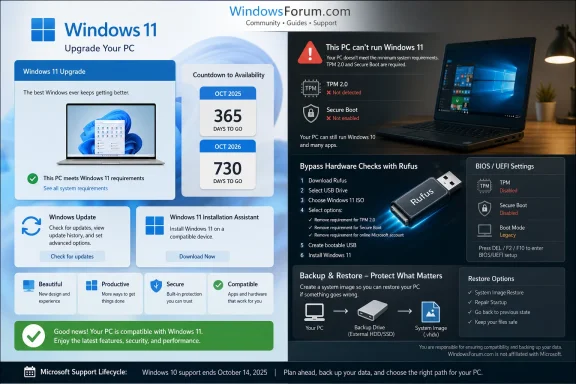
PCMag’s walkthrough captures the essential process: download or create a Windows 11 ISO, open Rufus, select a USB drive, choose the ISO, and enable the options that remove Windows 11’s hardware checks. The USB drive is then used to launch setup on the target Windows 10 PC. If the user chooses to keep personal files and apps, the result can look like an ordinary in-place upgrade.
That convenience should not be confused with official support. Rufus is not making the hardware compliant. It is changing the installer’s behavior. The PC does not suddenly gain a supported CPU, modern firmware, or a TPM 2.0 security boundary because setup was persuaded to continue.
For many readers of WindowsForum.com, that distinction is obvious. For normal users, it is the entire risk. The unsupported path can be technically successful and still leave the owner in a gray zone where future feature updates, driver behavior, vendor support, and troubleshooting expectations are less certain.
Still, the security argument deserves more credit than some critics give it. TPM 2.0, Secure Boot, virtualization-based security, and modern CPU features are not marketing decals. They are part of a broader shift toward assuming that malware, credential theft, and firmware-level attacks are normal operating conditions.
The hard part is that Microsoft drew the line in a way that stranded a large pool of working Windows 10 systems. A strict compatibility list is easy to message and service. It is much harder to defend to someone whose 2018-era PC still feels fast, has an SSD, runs current applications, and only fails because of a policy boundary.
That is why the unsupported upgrade scene exists. It is not just rebellion for rebellion’s sake. It is a market signal from users who accept the value of stronger security but reject the idea that every unsupported PC is e-waste.
That extra year matters for households, small offices, schools, nonprofits, and hobbyists who cannot replace hardware on Microsoft’s preferred schedule. It also gives administrators more time to audit fleets, test application compatibility, and decide which devices deserve upgrades, replacement, Linux conversion, or retirement. Panic is expensive; a year of runway reduces waste.
But ESU also narrows the window for indecision. A Windows 10 PC enrolled in consumer ESU is still on a platform whose consumer runway ends in 2026. It will not get a new mainstream life. It will get security fixes for a defined period while the owner makes another plan.
That makes the “I’m not ready to upgrade” section of PCMag’s guide more important than it first appears. For some users, the right answer is not Rufus today. It is ESU now, a full backup, a hardware inventory, and a deliberate decision before the next deadline arrives.
The risks are less immediate and therefore easier to discount. A future Windows 11 feature update may refuse to install without additional work. A driver issue may be harder to diagnose because the configuration is outside the support matrix. A vendor support representative may stop at the word “unsupported.” A security feature that depends on missing hardware may simply not be available.
There is also a subtler problem: unsupported upgrades can create false confidence. A user may think, “Windows 11 installed, therefore my PC is now secure in the Windows 11 sense.” That is not necessarily true. Running the operating system and meeting the security assumptions behind the operating system are not the same thing.
For enthusiasts, that trade-off may be acceptable. They can image the disk, test restore media, monitor update behavior, and recover from trouble. For a relative’s only PC, a small business point-of-sale machine, or a device used for sensitive work, the unsupported path deserves much more caution.
A good backup is not just OneDrive sync. Cloud sync is useful, but it can replicate deletions, omit local application data, or fail to include folders the user forgot existed. A proper migration plan includes personal files, browser profiles if needed, license keys, installer downloads, BitLocker recovery keys, and a known-good way to reinstall or roll back.
System imaging remains underrated in this context. If a Windows 10 machine is stable, imaging the drive before an unsupported Windows 11 attempt gives the owner a real escape route. Without that, a failed upgrade can become a weekend of improvisation.
This is where the enthusiast and sysadmin view diverges from the consumer-magazine walkthrough. The steps to start setup are easy. The discipline to recover from a bad outcome is the part that separates a smart experiment from an avoidable disaster.
For a compatible personal PC, the answer is simple: use Windows Update or Microsoft’s Installation Assistant and move on. There is little reason to cling to Windows 10 unless a specific application, peripheral, or workflow breaks under Windows 11. Even then, testing and mitigation should be the plan, not indefinite delay.
For an incompatible but noncritical PC, Rufus can be a reasonable experiment if the owner understands the support trade-off. A spare laptop, workshop machine, media PC, or travel system is a good candidate precisely because the blast radius is small. If updates become awkward later, the user can reassess.
For business and security-sensitive systems, unsupported Windows 11 should be treated as an exception requiring justification, not a standard migration method. If the machine handles regulated data, business continuity, remote access, or shared credentials, the official support boundary matters. In those cases, ESU, replacement, or a supported platform migration is the more defensible route.
But the real costs are elsewhere. There is the time cost of checking compatibility, changing firmware settings, creating media, and recovering from failed installs. There is the hardware cost when a machine cannot be made compliant. There is the privacy and account cost for users who dislike tying Windows recovery and ESU enrollment to Microsoft cloud services.
There is also the risk cost. An unsupported Windows 11 install might be the cheapest way to keep a PC on a patched modern OS. It might also create a maintenance burden that appears months later, when a feature update or driver change arrives. Free installation does not mean free ownership.
Microsoft knows this. Its strategy pushes users toward Windows 11 and, where necessary, new PCs. The community response pushes back by extending the useful life of machines that still have value. The tension between those two forces now defines the late Windows 10 era.
Microsoft wanted Windows 11 to normalize a higher hardware security floor, and over time that goal will probably look less controversial than it did at launch. But the transition has exposed the cost of enforcing tomorrow’s baseline on yesterday’s still-useful PCs. Between official installers, ESU, and Rufus, users have more choices than Microsoft’s marketing implies — yet every one of those choices carries a deadline, a trade-off, or a support boundary. The next year will not be about whether Windows 11 can be installed for free; it will be about whether users can make that free upgrade without pretending it is free of consequences.
Source: PCMag Australia How to Upgrade Your PC to Windows 11 for Free, Even If It's Incompatible
 Microsoft’s Free Upgrade Has Become a Deadline With a Download Button
For years, the Windows 11 upgrade sat in Windows Update like an optional renovation. Users could ignore the centered Start menu, the redesigned Settings app, and the tighter security model because Windows 10 still felt current enough. That posture is harder to sustain now that Windows 10 has exited mainstream consumer support.Microsoft still offers Windows 11 as a free upgrade from Windows 10 for eligible PCs. The route is straightforward: Windows Update if the machine is approved, the Windows 11 Installation Assistant if the update has not appeared, or the Media Creation Tool and ISO download for users who want installation media. Nothing about the price has changed; the urgency has.
The catch is that Windows 11 is not merely a software update in Microsoft’s eyes. It is a hardware line in the sand. The operating system’s requirements — TPM 2.0, Secure Boot capability, UEFI firmware, supported CPUs, and minimum memory and storage thresholds — exclude many PCs that still run Windows 10 well enough for office work, browsing, media, and light development.
That is why a guide about “upgrading for free” quickly becomes a guide about who gets to upgrade at all. Microsoft’s official answer is: compatible PCs. The enthusiast answer is: many more PCs, if you are willing to bypass the gatekeeper.
The Compatibility Check Is Really a Policy Check
Microsoft’s PC Health Check app presents compatibility as a simple pass-fail test, but the decision underneath is more complicated than a benchmark. A system can be fast enough for Windows 11 and still fail because its processor is not on Microsoft’s supported list. Another machine may have TPM hardware present but disabled in firmware, making it look ineligible until the owner digs into BIOS or UEFI settings.That distinction matters because users often read “incompatible” as “incapable.” In many cases, it means “not supported under Microsoft’s Windows 11 servicing policy.” The difference is not semantic. An unsupported installation may run, but Microsoft is not promising the same experience, lifecycle, or troubleshooting path it gives to approved hardware.
TPM 2.0 and Secure Boot are not decorative requirements. They support a security model built around measured boot, credential protection, device encryption, and resistance to certain pre-OS attacks. Microsoft has spent the Windows 11 era arguing that baseline hardware security must become normal rather than optional.
The problem is that baseline security and hardware retirement are now tangled together. A five- or seven-year-old laptop may be functionally adequate, but if it misses the CPU list or lacks the right firmware configuration, the official migration path closes. That is where tools like Rufus step into the gap Microsoft created.
The Official Upgrade Paths Are Boring by Design
For supported PCs, the cleanest Windows 11 upgrade path remains Windows Update. If the PC qualifies, Windows 10 users can open Settings, check for updates, and install Windows 11 as an in-place upgrade. It is the least dramatic route because it preserves apps and files while keeping the process within Microsoft’s servicing rails.The Installation Assistant is the next step when Windows Update does not offer the upgrade but the device is otherwise eligible. It downloads Windows 11, runs the upgrade, and restarts into the new system after setup. For a single home PC, this is often the simplest manual route.
The Media Creation Tool is more flexible. It can create a bootable USB drive or generate an ISO file, making it useful for administrators, repair benches, family tech support, and anyone upgrading more than one machine. It also gives users more control over whether they keep apps and files or perform a cleaner installation.
The direct ISO download is the most traditional route. Mount the ISO, run setup, and proceed through the Windows 11 installer. It is not glamorous, but it remains valuable because ISO-based installs are predictable, portable, and easier to archive for later recovery work.
Microsoft’s official tools all share the same premise: the machine should meet the Windows 11 requirements. Once it does, the upgrade is mostly a matter of choosing the right installer. Once it does not, the conversation leaves Microsoft’s comfort zone.
Rufus Turns a Hardware Wall Into a User Decision
Rufus has become the practical symbol of the unsupported Windows 11 upgrade. The tool can take a Windows 11 ISO and create USB installation media that removes checks for TPM 2.0, Secure Boot, RAM, and other setup requirements. For enthusiasts, it is the difference between recycling a perfectly usable machine and giving it a second life.PCMag’s walkthrough captures the essential process: download or create a Windows 11 ISO, open Rufus, select a USB drive, choose the ISO, and enable the options that remove Windows 11’s hardware checks. The USB drive is then used to launch setup on the target Windows 10 PC. If the user chooses to keep personal files and apps, the result can look like an ordinary in-place upgrade.
That convenience should not be confused with official support. Rufus is not making the hardware compliant. It is changing the installer’s behavior. The PC does not suddenly gain a supported CPU, modern firmware, or a TPM 2.0 security boundary because setup was persuaded to continue.
For many readers of WindowsForum.com, that distinction is obvious. For normal users, it is the entire risk. The unsupported path can be technically successful and still leave the owner in a gray zone where future feature updates, driver behavior, vendor support, and troubleshooting expectations are less certain.
Microsoft’s Security Argument Is Stronger Than Its Sales Pitch
Microsoft has often undermined its own Windows 11 case by pairing security arguments with aggressive new-PC messaging. When a company says older PCs are not ideal for the new OS and also happens to sell an ecosystem that benefits from hardware refreshes, users become skeptical. That skepticism is not paranoia; it is the natural response to a vendor whose security baseline also drives replacement cycles.Still, the security argument deserves more credit than some critics give it. TPM 2.0, Secure Boot, virtualization-based security, and modern CPU features are not marketing decals. They are part of a broader shift toward assuming that malware, credential theft, and firmware-level attacks are normal operating conditions.
The hard part is that Microsoft drew the line in a way that stranded a large pool of working Windows 10 systems. A strict compatibility list is easy to message and service. It is much harder to defend to someone whose 2018-era PC still feels fast, has an SSD, runs current applications, and only fails because of a policy boundary.
That is why the unsupported upgrade scene exists. It is not just rebellion for rebellion’s sake. It is a market signal from users who accept the value of stronger security but reject the idea that every unsupported PC is e-waste.
The Windows 10 Escape Hatch Buys Time, Not a Future
Microsoft’s consumer Extended Security Updates program for Windows 10 changes the calculus, but only temporarily. Consumers can receive security updates through October 13, 2026 by enrolling through one of Microsoft’s supported methods, including a paid option, Microsoft Rewards points, or a free path tied to Windows Backup and a Microsoft account. It is a reprieve, not a rescue.That extra year matters for households, small offices, schools, nonprofits, and hobbyists who cannot replace hardware on Microsoft’s preferred schedule. It also gives administrators more time to audit fleets, test application compatibility, and decide which devices deserve upgrades, replacement, Linux conversion, or retirement. Panic is expensive; a year of runway reduces waste.
But ESU also narrows the window for indecision. A Windows 10 PC enrolled in consumer ESU is still on a platform whose consumer runway ends in 2026. It will not get a new mainstream life. It will get security fixes for a defined period while the owner makes another plan.
That makes the “I’m not ready to upgrade” section of PCMag’s guide more important than it first appears. For some users, the right answer is not Rufus today. It is ESU now, a full backup, a hardware inventory, and a deliberate decision before the next deadline arrives.
Unsupported Windows 11 Is a Bet on Your Own Tolerance for Friction
The unsupported upgrade path is attractive because it feels like a loophole with immediate rewards. The desktop modernizes, Windows 10’s end-of-support warning recedes, and the PC remains useful. For many machines, Windows 11 will run acceptably, especially with an SSD and enough memory.The risks are less immediate and therefore easier to discount. A future Windows 11 feature update may refuse to install without additional work. A driver issue may be harder to diagnose because the configuration is outside the support matrix. A vendor support representative may stop at the word “unsupported.” A security feature that depends on missing hardware may simply not be available.
There is also a subtler problem: unsupported upgrades can create false confidence. A user may think, “Windows 11 installed, therefore my PC is now secure in the Windows 11 sense.” That is not necessarily true. Running the operating system and meeting the security assumptions behind the operating system are not the same thing.
For enthusiasts, that trade-off may be acceptable. They can image the disk, test restore media, monitor update behavior, and recover from trouble. For a relative’s only PC, a small business point-of-sale machine, or a device used for sensitive work, the unsupported path deserves much more caution.
Backups Are the Real Upgrade Requirement
Every Windows 11 upgrade guide should treat backup as the first step, not a footnote. In-place upgrades usually work, but “usually” is not a recovery plan. Before using Windows Update, the Installation Assistant, an ISO, the Media Creation Tool, or Rufus, users should have a copy of their files that is not dependent on the success of the upgrade.A good backup is not just OneDrive sync. Cloud sync is useful, but it can replicate deletions, omit local application data, or fail to include folders the user forgot existed. A proper migration plan includes personal files, browser profiles if needed, license keys, installer downloads, BitLocker recovery keys, and a known-good way to reinstall or roll back.
System imaging remains underrated in this context. If a Windows 10 machine is stable, imaging the drive before an unsupported Windows 11 attempt gives the owner a real escape route. Without that, a failed upgrade can become a weekend of improvisation.
This is where the enthusiast and sysadmin view diverges from the consumer-magazine walkthrough. The steps to start setup are easy. The discipline to recover from a bad outcome is the part that separates a smart experiment from an avoidable disaster.
The Best Upgrade Path Depends on the Machine’s Job
A gaming desktop, a family laptop, a domain-joined workstation, and a garage PC do not deserve the same answer. Windows 11 compatibility is a technical question, but upgrade advice is operational. The right move depends on what the system does, who depends on it, and how painful failure would be.For a compatible personal PC, the answer is simple: use Windows Update or Microsoft’s Installation Assistant and move on. There is little reason to cling to Windows 10 unless a specific application, peripheral, or workflow breaks under Windows 11. Even then, testing and mitigation should be the plan, not indefinite delay.
For an incompatible but noncritical PC, Rufus can be a reasonable experiment if the owner understands the support trade-off. A spare laptop, workshop machine, media PC, or travel system is a good candidate precisely because the blast radius is small. If updates become awkward later, the user can reassess.
For business and security-sensitive systems, unsupported Windows 11 should be treated as an exception requiring justification, not a standard migration method. If the machine handles regulated data, business continuity, remote access, or shared credentials, the official support boundary matters. In those cases, ESU, replacement, or a supported platform migration is the more defensible route.
The Calendar Has Made “Free” More Complicated
The word “free” does a lot of work in Windows upgrade stories. Windows 11 does not require most Windows 10 users to buy a new software license. Microsoft’s download tools are free. Rufus is free. The consumer ESU program even has no-cash paths for users willing to meet Microsoft’s account and backup conditions.But the real costs are elsewhere. There is the time cost of checking compatibility, changing firmware settings, creating media, and recovering from failed installs. There is the hardware cost when a machine cannot be made compliant. There is the privacy and account cost for users who dislike tying Windows recovery and ESU enrollment to Microsoft cloud services.
There is also the risk cost. An unsupported Windows 11 install might be the cheapest way to keep a PC on a patched modern OS. It might also create a maintenance burden that appears months later, when a feature update or driver change arrives. Free installation does not mean free ownership.
Microsoft knows this. Its strategy pushes users toward Windows 11 and, where necessary, new PCs. The community response pushes back by extending the useful life of machines that still have value. The tension between those two forces now defines the late Windows 10 era.
The Upgrade Choice Is Now a Security Posture
The most concrete way to read PCMag’s guide is not as a trick for sneaking Windows 11 onto old hardware. It is as a menu of risk profiles. Each path says something about what the user values: official support, hardware longevity, security baseline, convenience, cost, or control.- A compatible Windows 10 PC should generally move to Windows 11 through Windows Update or Microsoft’s Installation Assistant rather than waiting for no practical benefit.
- Microsoft’s Media Creation Tool and ISO downloads remain the best options for users who want reusable installation media or more control over the upgrade process.
- Rufus can bypass Windows 11 setup checks on unsupported PCs, but it does not make the hardware officially supported or guarantee a frictionless future.
- Windows 10 consumer Extended Security Updates provide a temporary safety net through October 13, 2026, not a long-term alternative to migration.
- Any unsupported upgrade should begin with a verified backup and a rollback plan, because the risk is not merely whether setup completes.
- Organizations and users handling sensitive work should treat unsupported Windows 11 as a last resort, not a fleet strategy.
Microsoft wanted Windows 11 to normalize a higher hardware security floor, and over time that goal will probably look less controversial than it did at launch. But the transition has exposed the cost of enforcing tomorrow’s baseline on yesterday’s still-useful PCs. Between official installers, ESU, and Rufus, users have more choices than Microsoft’s marketing implies — yet every one of those choices carries a deadline, a trade-off, or a support boundary. The next year will not be about whether Windows 11 can be installed for free; it will be about whether users can make that free upgrade without pretending it is free of consequences.
Source: PCMag Australia How to Upgrade Your PC to Windows 11 for Free, Even If It's Incompatible
