

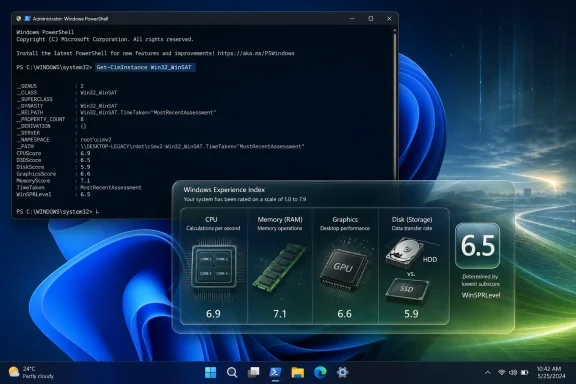
Windows 11 still includes Microsoft’s old Windows System Assessment Tool, and a user can surface its Windows Experience Index-style hardware grades today by running
The Windows Experience Index arrived in the Vista era as a kind of consumer translation layer for PC performance. Instead of asking normal people to parse CPU generations, memory channels, GPU tiers, and disk throughput, Windows produced a simple set of component scores and then reduced the whole machine to a base score. It was crude, but it was legible.
That mattered in 2006 and 2007 because Windows Vista itself made hardware feel political. Aero Glass, desktop compositing, bigger memory appetites, and a new driver model all turned the question “Can my PC run Windows?” into something more emotionally loaded: “Did I buy the wrong PC?” The Experience Index gave Microsoft, OEMs, retailers, and users a common shorthand.
The shorthand was always controversial. A single low number could make an otherwise capable system look weak, and a base score based on the lowest component was easy to misunderstand as a holistic grade. But that was also the point: Windows was not trying to crown a winner in a synthetic benchmark contest. It was trying to identify the bottleneck most likely to shape the user’s experience.
That design still survives in the modern
Run from an elevated PowerShell session, it asks Windows Management Instrumentation for the most recent WinSAT summary. If the system has existing assessment data, PowerShell returns familiar-looking values such as
If the result is blank, stale, or obviously wrong, the usual fix is to run a formal assessment first:
That command must be executed from an elevated Command Prompt or terminal session. WinSAT then runs its predefined tests and stores the resulting assessment data under the Windows performance datastore, historically in XML form. After that, the PowerShell query has something current to retrieve.
There is nothing especially “secret” about this in the spy-movie sense. Microsoft documents the WinSAT interfaces, and the command-line tool has been known to enthusiasts for years. But it is secret in the way many Windows features become secret: the interface disappeared, the habit faded, and only the plumbing remained.
That distinction matters. Windows is full of infrastructure that outlives the consumer-facing UI built on top of it. Control Panel applets vanish, Settings pages get redesigned, management consoles become optional, and old commands keep working because enterprises, scripts, diagnostics, or internal components still depend on them.
The scale itself encouraged overinterpretation. A jump from 5.9 to 6.9 felt like an achievement even when the real-world difference might be narrow, workload-specific, or invisible to the user. The decimal made the number look more scientific than it really was.
The base score, now surfaced as
That lowest-link logic was defensible in the Vista and Windows 7 years. A slow hard drive could make a fast processor feel ordinary, and weak graphics hardware could limit desktop effects or games regardless of CPU speed. The score’s job was to say, “This is where you should look first.”
For modern users, that same logic remains useful only if handled with skepticism. A low disk score on a machine still booting from a mechanical hard drive tells a clear story. A graphics score on a current laptop with hybrid graphics, power management, and driver-specific behavior tells a murkier one.
Windows 8.1 removed the graphical presentation of the Windows Experience Index, even though the command-line assessment machinery remained. That was a revealing compromise. Microsoft no longer wanted ordinary users staring at a base score in Control Panel, but it did not want to rip out the assessment stack entirely.
There was also a deeper shift underway. The PC industry was moving away from a single performance ladder. Ultrabooks, convertibles, tablets, gaming desktops, workstations, and cheap laptops were not all trying to win the same contest. Battery life, thermals, portability, security, manageability, and display quality were becoming as important as raw benchmark output.
A visible Experience Index flattened all of that complexity into a number. That made sense when Microsoft wanted to reassure or guide buyers through Vista-era requirements. It made less sense when Windows was trying to be everywhere from Atom tablets to Xeon workstations.
The irony is that enthusiasts still like flattened complexity. We know a score is reductive, but we also know it is fast. The MakeUseOf piece lands because it revives a tiny ritual: ask Windows what it thinks of your PC, then argue with the answer.
That is especially true for older PCs dragged forward through Windows 10 and, unofficially or otherwise, into Windows 11. Many of those machines have processors and memory configurations that remain tolerable for browsing, office work, and light multitasking. Their real misery is often a tired hard disk trying to service a modern OS, a browser with too many tabs, antivirus scanning, cloud sync, and Windows Update at the same time.
WinSAT’s lowest-link model can be bluntly helpful there. If the CPU and memory scores look respectable but the disk score trails badly, the upgrade path is obvious. Replacing spinning storage with an SSD is still one of the most dramatic improvements a user can make to an aging PC.
But even here, the score should start the conversation rather than end it. A disk benchmark does not know whether your drive is nearly full, whether firmware is misbehaving, whether BitLocker overhead matters in your workload, or whether background services are distorting the test. It can point toward storage as a suspect; it cannot complete the investigation.
For IT pros, that is the right mental model. Treat WinSAT as a triage signal, not a performance report. It is the smoke alarm, not the fire investigation.
Microsoft’s own documentation warns that after Windows 8.1, WinSAT no longer assesses three-dimensional gaming capabilities in the same way. That caveat is not a footnote for gamers; it is central to interpreting the score. If you want to know how a system will behave in a current game, a GPU compute workload, a CAD application, or a video-editing timeline, WinSAT is the wrong instrument.
This is where dedicated tools still matter. Cinebench can tell you something meaningful about CPU rendering behavior. 3DMark can situate a graphics card against a large body of comparable gaming-oriented results. FurMark can expose thermal and stability problems under punishing GPU load, though it should be used with an understanding of how aggressive it is.
WinSAT’s graphics score, by contrast, is more of a Windows-era compatibility echo. It can tell you that the machine has a weak graphics path in broad terms. It cannot tell you whether a laptop will sustain performance after 20 minutes of gaming, whether a driver update regressed frame pacing, or whether a creator app will benefit from GPU acceleration.
That limitation is not a reason to dismiss the tool entirely. It is a reason to stop pretending all benchmark numbers answer the same question.
That is also why it can mislead. Low-friction diagnostics invite casual conclusions. A user with poor gaming performance may see a mediocre graphics score and assume the GPU is the culprit, when the real issue is thermal throttling, a game running on integrated graphics, an outdated driver, insufficient VRAM, shader compilation stutter, or a CPU bottleneck.
The better approach is to begin with the complaint. If the PC feels slow to boot, look at storage health, startup apps, Windows Update behavior, and disk activity. If games run badly, use game-specific benchmarks, GPU monitoring, frame-time graphs, driver checks, and thermal readings. If video exports take forever, test the actual encoder path and whether hardware acceleration is being used.
WinSAT belongs at the top of that diagnostic funnel. It gives you a quick sketch of the hardware landscape. It does not replace the focused tools that explain why a particular workload is failing.
This is the habit that separates useful benchmarking from number collecting. A benchmark is only meaningful when it is tied to a decision. If the decision is “Should I replace this hard drive?” WinSAT may help. If the decision is “Which GPU should I buy for 1440p gaming for the next three years?” it emphatically will not.
In practice, that usefulness depends on whether the assessment data exists, whether it is current, and whether running a formal assessment is appropriate. A benchmark that consumes resources, wakes fans, and writes results locally is not something to fire casually across production laptops during business hours. On battery-powered systems, power state and thermal conditions can also distort what the assessment reports.
There is also the problem of fleet diversity. A low score on a kiosk, shared task station, or single-purpose endpoint may not matter. A similar score on a developer workstation, accounting machine, or executive laptop may be a ticket generator waiting to happen. Hardware grades need business context.
Still, the persistence of WinSAT is useful for one administrative reason: it is built in. In locked-down environments where third-party tools require approval, procurement, packaging, or security review, native Windows signals can be valuable. They may not be the best signals, but they are available signals.
The responsible version of this is not “rank every employee’s PC.” It is “use native assessment data as one weak input among stronger ones,” including telemetry from Endpoint analytics, help-desk history, device age, warranty status, storage health, memory pressure, and user role.
Vista and Windows 7 were not perfect models of transparency, but the Experience Index embodied a certain design confidence. Windows looked at your PC and told you, in a number, where it thought the ceiling was. You could disagree, but you understood the claim.
Windows 11 is a different creature. It has richer telemetry, better security baselines, more sophisticated graphics stacks, more complicated update logic, and deeper cloud integration. But much of that sophistication is either hidden, fragmented across Settings and legacy tools, or presented in language designed for reassurance rather than diagnosis.
That is why a PowerShell one-liner feels refreshing. It is not because the score is so good. It is because the exchange is so direct. Run command, get answer.
There is a lesson here for Microsoft. Users do not need every internal metric exposed in a friendly dashboard. But Windows would benefit from more honest, local, plain-English diagnostics that explain performance constraints without forcing people into Event Viewer, Performance Monitor, vendor utilities, or internet folklore.
That makes it perfect for curiosity and imperfect for decision-making. If you are comparing two family PCs, checking whether an upgrade changed anything, or trying to spot the weakest obvious component, it is a neat built-in shortcut. If you are validating a workstation purchase, diagnosing random stutter, testing a gaming laptop, or investigating thermal collapse under load, it is too shallow.
The score range also creates a false sense of finality. A 9.2 looks better than an 8.7, but without knowing the workload, the test conditions, and the margin of relevance, that difference may not matter. Numbers can be precise without being important.
This is the trap of every simplified benchmark. It compresses reality to make action easier. Then users mistake the compression for reality itself.
The right reaction is not cynicism. It is calibration. Use the hidden score for what it is good at, then graduate to better tools when the stakes rise.
Get-CimInstance Win32_WinSAT in an elevated PowerShell window after a formal WinSAT assessment has been generated. That is the practical answer behind the resurfaced MakeUseOf tip, but the more interesting story is why the tool feels both useful and faintly absurd in 2026. Microsoft buried the scorecard, not the machinery, and that decision says a lot about how Windows moved from explaining PCs to abstracting them away. The hidden grade is not a benchmark you should trust blindly; it is a fossil that still happens to tell you something.
 Microsoft Hid the Score, Not the Judgment
The Windows Experience Index arrived in the Vista era as a kind of consumer translation layer for PC performance. Instead of asking normal people to parse CPU generations, memory channels, GPU tiers, and disk throughput, Windows produced a simple set of component scores and then reduced the whole machine to a base score. It was crude, but it was legible.That mattered in 2006 and 2007 because Windows Vista itself made hardware feel political. Aero Glass, desktop compositing, bigger memory appetites, and a new driver model all turned the question “Can my PC run Windows?” into something more emotionally loaded: “Did I buy the wrong PC?” The Experience Index gave Microsoft, OEMs, retailers, and users a common shorthand.
The shorthand was always controversial. A single low number could make an otherwise capable system look weak, and a base score based on the lowest component was easy to misunderstand as a holistic grade. But that was also the point: Windows was not trying to crown a winner in a synthetic benchmark contest. It was trying to identify the bottleneck most likely to shape the user’s experience.
That design still survives in the modern
Win32_WinSAT class. PowerShell can query the most recent formal assessment and return scores for CPU, memory, graphics, disk, and a WinSPRLevel value. The ghost of Vista is still there, quietly waiting for someone to ask.The PowerShell Trick Works Because WinSAT Never Really Left
The command making the rounds is simple:Get-CimInstance Win32_WinSATRun from an elevated PowerShell session, it asks Windows Management Instrumentation for the most recent WinSAT summary. If the system has existing assessment data, PowerShell returns familiar-looking values such as
CPUScore, MemoryScore, GraphicsScore, DiskScore, and WinSPRLevel.If the result is blank, stale, or obviously wrong, the usual fix is to run a formal assessment first:
winsat formalThat command must be executed from an elevated Command Prompt or terminal session. WinSAT then runs its predefined tests and stores the resulting assessment data under the Windows performance datastore, historically in XML form. After that, the PowerShell query has something current to retrieve.
There is nothing especially “secret” about this in the spy-movie sense. Microsoft documents the WinSAT interfaces, and the command-line tool has been known to enthusiasts for years. But it is secret in the way many Windows features become secret: the interface disappeared, the habit faded, and only the plumbing remained.
That distinction matters. Windows is full of infrastructure that outlives the consumer-facing UI built on top of it. Control Panel applets vanish, Settings pages get redesigned, management consoles become optional, and old commands keep working because enterprises, scripts, diagnostics, or internal components still depend on them.
A 1.0-to-9.9 Score Was Never Meant to Be a Trophy
The old Windows Experience Index score is often remembered as if it were a gaming benchmark. It was not. Its scores were designed to summarize whether a PC’s hardware was adequate for Windows features and common workloads, not to rank enthusiasts’ rigs with laboratory precision.The scale itself encouraged overinterpretation. A jump from 5.9 to 6.9 felt like an achievement even when the real-world difference might be narrow, workload-specific, or invisible to the user. The decimal made the number look more scientific than it really was.
The base score, now surfaced as
WinSPRLevel, is especially easy to misread. It is not an average. It is the lowest relevant subscore, which means a PC with an excellent processor and plenty of RAM can still receive a modest final score because its storage device lags behind.That lowest-link logic was defensible in the Vista and Windows 7 years. A slow hard drive could make a fast processor feel ordinary, and weak graphics hardware could limit desktop effects or games regardless of CPU speed. The score’s job was to say, “This is where you should look first.”
For modern users, that same logic remains useful only if handled with skepticism. A low disk score on a machine still booting from a mechanical hard drive tells a clear story. A graphics score on a current laptop with hybrid graphics, power management, and driver-specific behavior tells a murkier one.
Windows 8.1 Changed the Politics of PC Performance
The Experience Index’s disappearance from the visible Windows interface was not just a cleanup exercise. By Windows 8 and 8.1, Microsoft was trying to reposition Windows around tablets, low-power devices, touch-first hardware, and a broader range of form factors. A prominent built-in scorecard that told users their device was “low” or “weak” no longer fit the marketing mood.Windows 8.1 removed the graphical presentation of the Windows Experience Index, even though the command-line assessment machinery remained. That was a revealing compromise. Microsoft no longer wanted ordinary users staring at a base score in Control Panel, but it did not want to rip out the assessment stack entirely.
There was also a deeper shift underway. The PC industry was moving away from a single performance ladder. Ultrabooks, convertibles, tablets, gaming desktops, workstations, and cheap laptops were not all trying to win the same contest. Battery life, thermals, portability, security, manageability, and display quality were becoming as important as raw benchmark output.
A visible Experience Index flattened all of that complexity into a number. That made sense when Microsoft wanted to reassure or guide buyers through Vista-era requirements. It made less sense when Windows was trying to be everywhere from Atom tablets to Xeon workstations.
The irony is that enthusiasts still like flattened complexity. We know a score is reductive, but we also know it is fast. The MakeUseOf piece lands because it revives a tiny ritual: ask Windows what it thinks of your PC, then argue with the answer.
The Storage Score May Be the Most Honest Part Left
If WinSAT tells a useful story on Windows 11, it is often through storage. The practical gulf between a mechanical hard drive, a SATA SSD, and a modern NVMe drive is obvious in boot times, app launches, paging behavior, game loading, and update installation. A simple disk score can still point ordinary users toward the upgrade that changes daily life the most.That is especially true for older PCs dragged forward through Windows 10 and, unofficially or otherwise, into Windows 11. Many of those machines have processors and memory configurations that remain tolerable for browsing, office work, and light multitasking. Their real misery is often a tired hard disk trying to service a modern OS, a browser with too many tabs, antivirus scanning, cloud sync, and Windows Update at the same time.
WinSAT’s lowest-link model can be bluntly helpful there. If the CPU and memory scores look respectable but the disk score trails badly, the upgrade path is obvious. Replacing spinning storage with an SSD is still one of the most dramatic improvements a user can make to an aging PC.
But even here, the score should start the conversation rather than end it. A disk benchmark does not know whether your drive is nearly full, whether firmware is misbehaving, whether BitLocker overhead matters in your workload, or whether background services are distorting the test. It can point toward storage as a suspect; it cannot complete the investigation.
For IT pros, that is the right mental model. Treat WinSAT as a triage signal, not a performance report. It is the smoke alarm, not the fire investigation.
Graphics Scores Aged Worse Than the Rest
The graphics side of WinSAT is where the old Experience Index feels most like a museum exhibit. Modern graphics performance is not a single stable property of a PC. It is a negotiation among integrated and discrete GPUs, driver versions, DirectX feature levels, firmware, power profiles, thermal limits, display configuration, and application behavior.Microsoft’s own documentation warns that after Windows 8.1, WinSAT no longer assesses three-dimensional gaming capabilities in the same way. That caveat is not a footnote for gamers; it is central to interpreting the score. If you want to know how a system will behave in a current game, a GPU compute workload, a CAD application, or a video-editing timeline, WinSAT is the wrong instrument.
This is where dedicated tools still matter. Cinebench can tell you something meaningful about CPU rendering behavior. 3DMark can situate a graphics card against a large body of comparable gaming-oriented results. FurMark can expose thermal and stability problems under punishing GPU load, though it should be used with an understanding of how aggressive it is.
WinSAT’s graphics score, by contrast, is more of a Windows-era compatibility echo. It can tell you that the machine has a weak graphics path in broad terms. It cannot tell you whether a laptop will sustain performance after 20 minutes of gaming, whether a driver update regressed frame pacing, or whether a creator app will benefit from GPU acceleration.
That limitation is not a reason to dismiss the tool entirely. It is a reason to stop pretending all benchmark numbers answer the same question.
The Best Benchmark Is the One That Matches the Complaint
The rediscovered PowerShell command is fun because it is frictionless. There is no installer, no account, no leaderboard, no splash screen, and no vendor bundle. You ask Windows for a score, and Windows answers.That is also why it can mislead. Low-friction diagnostics invite casual conclusions. A user with poor gaming performance may see a mediocre graphics score and assume the GPU is the culprit, when the real issue is thermal throttling, a game running on integrated graphics, an outdated driver, insufficient VRAM, shader compilation stutter, or a CPU bottleneck.
The better approach is to begin with the complaint. If the PC feels slow to boot, look at storage health, startup apps, Windows Update behavior, and disk activity. If games run badly, use game-specific benchmarks, GPU monitoring, frame-time graphs, driver checks, and thermal readings. If video exports take forever, test the actual encoder path and whether hardware acceleration is being used.
WinSAT belongs at the top of that diagnostic funnel. It gives you a quick sketch of the hardware landscape. It does not replace the focused tools that explain why a particular workload is failing.
This is the habit that separates useful benchmarking from number collecting. A benchmark is only meaningful when it is tied to a decision. If the decision is “Should I replace this hard drive?” WinSAT may help. If the decision is “Which GPU should I buy for 1440p gaming for the next three years?” it emphatically will not.
For Administrators, the Old Score Is a Convenience With Caveats
The PowerShell angle is more than nostalgia for sysadmins.Get-CimInstance fits naturally into remote inventory, reporting, and scripting workflows. In theory, an administrator could query WinSAT data across a fleet and identify systems where storage, memory, or CPU scores suggest obvious underprovisioning.In practice, that usefulness depends on whether the assessment data exists, whether it is current, and whether running a formal assessment is appropriate. A benchmark that consumes resources, wakes fans, and writes results locally is not something to fire casually across production laptops during business hours. On battery-powered systems, power state and thermal conditions can also distort what the assessment reports.
There is also the problem of fleet diversity. A low score on a kiosk, shared task station, or single-purpose endpoint may not matter. A similar score on a developer workstation, accounting machine, or executive laptop may be a ticket generator waiting to happen. Hardware grades need business context.
Still, the persistence of WinSAT is useful for one administrative reason: it is built in. In locked-down environments where third-party tools require approval, procurement, packaging, or security review, native Windows signals can be valuable. They may not be the best signals, but they are available signals.
The responsible version of this is not “rank every employee’s PC.” It is “use native assessment data as one weak input among stronger ones,” including telemetry from Endpoint analytics, help-desk history, device age, warranty status, storage health, memory pressure, and user role.
The Nostalgia Works Because Windows Has Become Less Legible
The MakeUseOf story resonates because it reveals a hidden continuity between old Windows and new Windows. But it also pokes at a frustration many enthusiasts feel: modern Windows exposes less of itself in plain language. It is more capable than ever, yet often less straightforward about what it is doing.Vista and Windows 7 were not perfect models of transparency, but the Experience Index embodied a certain design confidence. Windows looked at your PC and told you, in a number, where it thought the ceiling was. You could disagree, but you understood the claim.
Windows 11 is a different creature. It has richer telemetry, better security baselines, more sophisticated graphics stacks, more complicated update logic, and deeper cloud integration. But much of that sophistication is either hidden, fragmented across Settings and legacy tools, or presented in language designed for reassurance rather than diagnosis.
That is why a PowerShell one-liner feels refreshing. It is not because the score is so good. It is because the exchange is so direct. Run command, get answer.
There is a lesson here for Microsoft. Users do not need every internal metric exposed in a friendly dashboard. But Windows would benefit from more honest, local, plain-English diagnostics that explain performance constraints without forcing people into Event Viewer, Performance Monitor, vendor utilities, or internet folklore.
The “Secret Command” Is Also a Reminder to Distrust Simple Answers
The headline version of this trick makes it sound like Windows has a hidden report card that reveals the truth about your PC. The truth is less magical and more useful. WinSAT gives you a quick, old-fashioned, component-level estimate generated by a tool whose public role has diminished over time.That makes it perfect for curiosity and imperfect for decision-making. If you are comparing two family PCs, checking whether an upgrade changed anything, or trying to spot the weakest obvious component, it is a neat built-in shortcut. If you are validating a workstation purchase, diagnosing random stutter, testing a gaming laptop, or investigating thermal collapse under load, it is too shallow.
The score range also creates a false sense of finality. A 9.2 looks better than an 8.7, but without knowing the workload, the test conditions, and the margin of relevance, that difference may not matter. Numbers can be precise without being important.
This is the trap of every simplified benchmark. It compresses reality to make action easier. Then users mistake the compression for reality itself.
The right reaction is not cynicism. It is calibration. Use the hidden score for what it is good at, then graduate to better tools when the stakes rise.
The Vista-Era Report Card Still Has a Job
The practical appeal of WinSAT in 2026 is that it gives Windows users a fast first read without requiring a download or a benchmarking hobby. That modest value is real, provided we keep the old score in its proper place.- The PowerShell command
Get-CimInstance Win32_WinSATsurfaces the most recent Windows System Assessment Tool results if assessment data already exists on the machine. - The command
winsat formalgenerates a fresh formal assessment and stores the results locally, which can resolve blank or outdated score output. - The
WinSPRLevelvalue is best understood as the lowest major subscore, not as an average or a complete judgment of the PC. - A weak storage score is often the most actionable result, especially on older systems still using mechanical hard drives.
- Graphics and gaming conclusions require modern workload-specific tools because WinSAT’s legacy graphics assessment does not capture today’s GPU reality.
- Administrators can treat WinSAT data as a lightweight inventory clue, but not as a replacement for telemetry, help-desk evidence, or role-based hardware planning.
References
- Primary source: MakeUseOf
Published: Mon, 22 Jun 2026 16:00:57 GMT
Windows has a secret PowerShell command that grades your PC— this is what it means
Let Windows rate your hardware. www.makeuseof.com
- Official source: learn.microsoft.com
Win32_WinSAT class - Win32 apps | Microsoft Learn
Defines summary assessment information for the most recent formal assessment.learn.microsoft.com - Related coverage: howtogeek.com
- Official source: microsoft.github.io

IAccessibleWinSAT in windows::Win32::System::AssessmentTool - Rust
API documentation for the Rust `IAccessibleWinSAT` struct in crate `windows`.
microsoft.github.io
- Related coverage: powershell.one
Win32_WinSAT - powershell.one
Defines summary assessment information for the most recent formal assessment.powershell.one - Related coverage: tomshw.it

- Related coverage: brunocunha.com
Experience Index in Windows 8.1
Essa dica é para os NERDS de plantão que sentiram falta do Índice de Experiência no Windows 8.1. Este índice foi introduzido pela Microsoft no Windows Vista e perdurou até o Windows 8, mas não sei porque, foi “removido” no Windows 8.1. Este post mostrará que o Índice de Experiência não foi...www.brunocunha.com - Official source: devblogs.microsoft.com
Performance Counters and Windows System Assessment Report - Scripting Blog [archived]
Summary: Microsoft PowerShell MVP, Richard Siddaway, talks about using Windows PowerShell and WMI to work with performance counters and Windows assessment. Microsoft Scripting Guy, Ed Wilson, is here. This week we will not have our usual PowerTip. Instead we have excerpts from seven books from...devblogs.microsoft.com - Related coverage: thewindowsclub.com
Windows System Assessment Tool (WinSAT) Benchmarking tool
Windows System Assessment Tool or WinSAT.exe is a built-in performance benchmarking tool. Command line switches, arguments, syntax, options, etc, here.www.thewindowsclub.com - Official source: microsoft.com
