

You no longer have to trust random .exe downloads and hope the installer you clicked isn’t a trojan in disguise — modern Windows package managers give you a repeatable, auditable, and substantially safer way to install and update software.
Package managers centralize and automate software installation, updates, and removal. Think of them as an app store for power users that runs in the terminal: you tell the manager what you want, and it pulls the verified installer, checks it, and installs it with minimal or no interaction. Windows has historically relied on manual browser downloads and installer wizards, but that model is fragile — it’s easy to hit a fake mirror or a bundler that slips in unwanted toolbars. Package managers reduce those risks by enforcing stronger provenance checks and standard workflows.
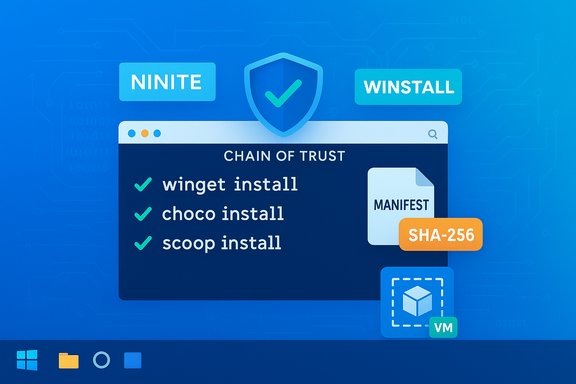
Microsoft’s Windows Package Manager (winget) is now distributed with modern Windows builds via the App Installer component, and community-driven alternatives such as Chocolatey and Scoop have mature ecosystems of their own. GUI-friendly middle roads like Ninite and Winstall combine convenience with safer sourcing. These tools are not identical, and choosing the right one depends on your needs — but the security case for using any of them instead of hunting down random .exe files is strong.
Adopting a package manager doesn’t eliminate risk entirely — governance, private repositories, and validation practices remain crucial for high-security contexts — but for the majority of users and administrators, switching from manual .exe hunts to a package-manager-driven workflow is one of the highest-impact, lowest-effort ways to harden Windows installations and make provisioning predictable and auditable.
Source: How-To Geek Stop downloading random .exe files, this is the safer way to install apps on Windows
 Background
Package managers centralize and automate software installation, updates, and removal. Think of them as an app store for power users that runs in the terminal: you tell the manager what you want, and it pulls the verified installer, checks it, and installs it with minimal or no interaction. Windows has historically relied on manual browser downloads and installer wizards, but that model is fragile — it’s easy to hit a fake mirror or a bundler that slips in unwanted toolbars. Package managers reduce those risks by enforcing stronger provenance checks and standard workflows.Microsoft’s Windows Package Manager (winget) is now distributed with modern Windows builds via the App Installer component, and community-driven alternatives such as Chocolatey and Scoop have mature ecosystems of their own. GUI-friendly middle roads like Ninite and Winstall combine convenience with safer sourcing. These tools are not identical, and choosing the right one depends on your needs — but the security case for using any of them instead of hunting down random .exe files is strong.
What Windows package managers do — the essentials
- Centralized repositories: Packages come from curated sources (Microsoft Store, community repositories, or enterprise feeds) rather than random web mirrors.
- Manifest-driven installs: Each package includes a manifest: metadata that records the expected download URL, installer switches, and a cryptographic hash. The manager uses that manifest to verify integrity before running an installer.
- Hash verification (chain of trust): Managers compute the downloaded file’s SHA‑256 (or stronger) hash and compare it to the value in the manifest; mismatches abort the install. This mathematical check protects against tampering and accidental corruption.
- Silent and scripted installs: Many packages support unattended installation flags, letting you provision machines at scale without clicking through dialogs.
- Bulk updates and inventory: One command (for example, winget upgrade --all) can update every package the manager controls; winget export/import creates a reproducible manifest for entire systems.
Major players and how they differ
Winget (Windows Package Manager)
- Microsoft-backed, open-source client that ships via App Installer on modern Windows 10 and Windows 11 builds. It uses a community manifest repository plus the Microsoft Store as default sources. Winget is designed for automation and governance: manifest validation, exact-ID installs, and private sources are supported for enterprise use.
Chocolatey
- A long-standing community-driven package manager with an extensive repository and strong scripting capabilities. Favored by administrators who need granular automation and package customization. Chocolatey’s enterprise features and wide package catalog make it useful for Windows fleets with complex needs.
Scoop
- Focused on developers and portable apps. Scoop installs many apps without requiring admin rights and avoids registry pollution by keeping packages contained. It’s a good choice for developer toolchains and portable workflows.
Ninite and Winstall (GUI-oriented helpers)
- Ninite provides a single, silent installer that fetches official publisher installers at runtime with a no-offers policy; it’s great for quick bulk installs with minimal technical overhead. Winstall is a web GUI that generates winget scripts — a friendly bridge between point-and-click convenience and reproducible winget automation. Use these when you want convenience without returning to risky web hunts.
Why package managers are more secure: a technical analysis
- Provenance and manifest validation
Each package manifest names the exact file and records a cryptographic hash (usually SHA‑256). When the manager downloads the installer, it recomputes the hash and compares it to the manifest. Any difference — even a single byte — breaks the match and stops the install. That chain-of-trust approach is vastly safer than trusting the visible download URL or heuristics alone. - Automated, rapid patching
Many security breaches exploit outdated software. Package managers make it easy to run a single update command across the whole machine, dramatically lowering the effort required to apply security patches. This reduces the window of opportunity for attackers. - Reduced exposure to fake mirrors and bundleware
By centralizing sources and automating integrity checks, package managers remove the “which download link is legitimate?” decision from the user. Middle-ground services (Ninite) download directly from publisher endpoints but perform validation and eliminate bundled offers that unskilled installers sometimes slip in. - Reproducibility and audit trails
Exporting manifests and storing them in source control creates a verifiable record of what was installed and why. This is essential for audits, incident investigation, and consistent provisioning across machines. Winget’s export/import flow is built for this use case.
Practical, step-by-step workflows
For average users (3–5 minutes)
- Prefer the Microsoft Store when available. Use the Store’s multi-app web grid or search the Store for the app. This is the lowest friction, store-signed path.
- If an app is not in the Store, use Ninite for common utilities or Winstall to generate a winget script you can run after reviewing it. These options avoid clicking back through installer pages and accidentally accepting toolbars.
For power users / technicians (repeatable provisioning)
- Verify winget: winget --version. If absent, enable App Installer or install the winget client.
- Build a manifest: winget export -o my‑apps.json. Store it in your dotfiles or repository.
- Recreate a machine: winget import -i my‑apps.json --accept-package-agreements. Use --disable-interactivity for unattended scripts.
- Periodic updates: schedule winget upgrade --all weekly via Task Scheduler, or integrate it into your configuration management (Intune, SCCM).
For enterprise fleets
- Use private package sources and internal manifests that are signed and reviewed by your security team. That moves the trust boundary from an external community repo to your internal governance — which is desirable if your IT ops are disciplined. Winget supports adding and managing sources.
Verifying installers and manual checks (when you must download an .exe)
Sometimes a package manager won’t have an app you need. In those cases, follow a strict verification checklist:- Confirm the URL domain and prefer official vendor pages or verified GitHub releases.
- Check cryptographic hashes: compute SHA‑256 locally and compare to the publisher’s published value. PowerShell example: Get-FileHash -Path .\file.exe -Algorithm SHA256. CertUtil is an alternative. Using SHA‑256 is current best practice; MD5 and SHA‑1 are deprecated.
- Verify the Authenticode digital signature: use SignTool verify /pa filename.exe, or inspect via File Explorer → Properties → Digital Signatures tab. A valid signature means the binary was signed by the claimed publisher and has not been altered since signing — but it is not a complete guarantee of safety.
- Use multi‑engine scanning for triage (VirusTotal), but treat results as advisory rather than definitive. One or two detections can be false positives; investigate further.
- Test in isolation: run the installer in a disposable VM or Windows Sandbox to observe behavior before deploying to production.
Commands you’ll actually use (copy‑ready)
- Check winget version: winget --version.
- Search for package: winget search <name>.
- Install by ID (deterministic): winget install --id Microsoft.VisualStudioCode -e.
- Export installed apps: winget export -o installed‑apps.json.
- Import manifest: winget import -i installed‑apps.json --accept-package-agreements --disable-interactivity.
- Bulk update: winget upgrade --all.
Limitations, blind spots and risks to watch
- Not every app is covered. Some niche, closed-source, or proprietary apps won’t be in public repos; you’ll still need to handle those with manual verification.
- Manifest and repo attacks. If a malicious manifest gets merged or a legitimate vendor’s download server is compromised, package managers can still deliver bad installers. This is why enterprise private sources and strict CI processes are recommended for sensitive environments.
- Silent install pitfalls. Silent flags depend on the vendor’s installer behavior. Some EXEs have multi-stage installers or web-based updaters that bypass silent options, producing surprises. Always test unattended flows in a VM first.
- Over-reliance on automation. Automatic upgrades are great for security but can break workflows if a new release introduces regressions. Use version pinning or staged rollouts for critical systems. Winget supports installing specific versions when available.
Advanced tips for power users and admins
- Pin versions in manifests or use CI to vet new package versions before rolling them into production.
- Run a weekly audit: export your inventory, check for unmanaged installs, and compare against a baseline.
- Use a defensive network posture: for sensitive installs, block outbound traffic for new apps until they’ve been vetted, and use endpoint controls to limit unexpected persistence.
- Integrate winget with Intune or your deployment pipeline for controlled, logged provisioning. Winget’s manifest model and private sources make it suitable for enterprise-scale automation.
A recommended starting checklist
- Confirm winget is available: run winget --version.
- If you prefer GUI: try Microsoft Store multi-app packs, Ninite, or Winstall for common utilities.
- Export your current app list: winget export -o my‑pc.json (or create one from scratch).
- Use winget import to apply the manifest on a clean image and validate in a VM.
- Schedule winget upgrade --all or integrate with your patch cadence.
Conclusion
The days when installing software meant browsing random sites and clicking through unknown installers are effectively over for most users. Package managers — especially winget for Microsoft-centric workflows, Chocolatey and Scoop for specialized use cases, and GUI helpers like Ninite and Winstall for convenience — provide a much safer and more manageable installation model. They combine manifest-driven integrity checks, reproducibility, and bulk-update capabilities that materially reduce the risk of supply-chain tampering and unpatched software.Adopting a package manager doesn’t eliminate risk entirely — governance, private repositories, and validation practices remain crucial for high-security contexts — but for the majority of users and administrators, switching from manual .exe hunts to a package-manager-driven workflow is one of the highest-impact, lowest-effort ways to harden Windows installations and make provisioning predictable and auditable.
Source: How-To Geek Stop downloading random .exe files, this is the safer way to install apps on Windows
