If you’re about to hand off, sell, donate or recycle a Windows PC, the right way to wipe it matters — not just to protect your privacy, but to avoid hours of post‑sale headaches for the next user. The sensible playbook is simple: migrate what you need, make personal data irrecoverable, and deliver the machine with a clean, supported Windows installation. The choices you make along the way — BitLocker vs. overwrite utilities, Reset vs. factory image vs. bootable clean install, HDD vs. SSD sanitization — determine how secure, reliable, and future‑proof that handoff will be.
Windows offers several built‑in recovery and sanitization flows, and the ecosystem of third‑party and vendor tools fills the gaps. For many users the built‑in Reset flow (Settings > System > Recovery → Reset PC) is sufficient and convenient; for others — especially when a system still carries OEM drivers/utilities or uses solid‑state storage — a factory reimage, vendor secure‑erase, or a full clean install is preferable. Community and vendor guidance converge on three core priorities before disposal: back up data and apps, make remaining data unrecoverable, and reinstall Windows in a way that’s appropriate for the device’s next owner.
Do the prep work — backups, inventory of apps and keys, and clear documentation — then choose the appropriate sanitization method for your drive type. When in doubt, favor vendor secure‑erase or physical destruction for SSDs, and prefer a clean USB install when you want the smallest, most controlled result. Those steps protect your privacy and leave the next owner with a machine that’s ready to use without exposing your past.
Source: ZDNET There's a right way to wipe your Windows PC before getting rid of it - here's how I do it
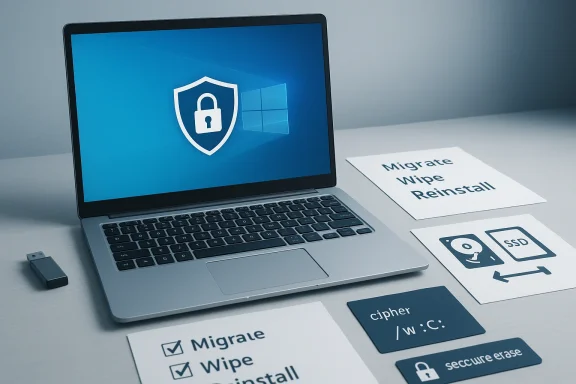 Background
Windows offers several built‑in recovery and sanitization flows, and the ecosystem of third‑party and vendor tools fills the gaps. For many users the built‑in Reset flow (Settings > System > Recovery → Reset PC) is sufficient and convenient; for others — especially when a system still carries OEM drivers/utilities or uses solid‑state storage — a factory reimage, vendor secure‑erase, or a full clean install is preferable. Community and vendor guidance converge on three core priorities before disposal: back up data and apps, make remaining data unrecoverable, and reinstall Windows in a way that’s appropriate for the device’s next owner.Overview: The three questions to answer before you start
- IST]
- Who will use the PC next? (family/employee vs. stranger/buyer/donation)
- What kind of storage does the PC use? (HDD vs. SSD)
- Do you need a provable, certified wipe? (consumer convenience vs. regulatory/compliance needs)
Step 1 — Migrate apps, licenses and files (don’t wipe first)
Before any wiping, migrate everything you’ll need: app installers, activation keys, and personal files. The costliest mistakes are the ones that destroy irreplaceable configuration or license state.What to capture first
- Microsoft account + Windows Backup: Use Windows Backup to transfer Microsoft Store apps, account settings, and OneDrive configuration to your new machine — sign the new device into the same Microsoft account during OOBE to restore settings. This saves time and preserves Microsoft Store apps and preferences.
- Inventory legacy installers & license keys: Export activation/deactivation steps and license keys for legacy desktop apps (Control Panel > Programs & Features shows installed programs). Deactivate or sign out of vendor apps that require activation to free the license.
- Full image backup (optional but wise): Create a full image of the old system to an external drive. That image contains everything — useful if you later discover something you missed. Windows has built‑in imaging tools that still work on modern Windows versions; third‑party tools are also common.
- Cloud sync: Ensure OneDrive/Google Drive/Dropbox have completed syncing. Local deletions won’t remove cloud copies; conversely, cloud sync can repopulate a wiped PC if the new owner signs into the same account. Remove device associations from your Microsoft account after the wipe if you intend to transfer ownership.
Step 2 — Make deleted data unrecoverable
Deleting files isn’t the same as destroying them. Windows normally marks storage blocks as free; until they’re overwritten or cryptographically protected, recovery tools can reconstruct deleted files. The right approach depends on storage technology.HDDs (mechanical drives)
- Best approach: secure overwrite of the entire drive using proven utilities (multi‑pass overwrites are recommended for higher confidence).
- Tools: DBAN, Sysinternals sdelete, or vendor/third‑party wipe utilities that explicitly support multi‑pass overwrites.
- Why: HDD controllers don’t remap sectors the same way SSDs do, so overwrites reliably destroy previous data when implemented correctly. For compliance or highly sensitive data, document the tool, passes, and timestamps.
SSDs (solid‑state drives)
- Don’t rely on repeated overwrites. SSD controllers, wear‑leveling and TRIM mean host‑level overwrites may not touch all physical NAND cells.
- Best approach: vendor Secure Erase or cryptographic erase (destroying encryption keys).
- Vendor utilities: Samsung Magician, Intel Memory and Storage Tool, Crucial Storage Executive, and other OEM tools include Secure Erase or PSID revert features that trigger controller‑level block erasure.
- Cryptographic erase: if the drive was fully encrypted (BitLocker or hardware FDE), destroying the keys renders remaining ciphertext unreadable. This is often the fastest and most reliable method for SSD sanitization.
- If you cannot perform a vendor secure‑erase or crypto‑erase, treat the drive as sensitive and consider replacement or certified destruction. Forum guidance strongly warns that consumer overwrite tools can leave recoverable remnants on SSDs.
Built‑in Windows options to scrub free space
- cipher /w:C: — overwrites free space on the specified volume. Useful for HDDs; limited for SSDs. Run from an elevated Command Prompt.
- sdelete (Sysinternals) — supports free‑space overwriting and can be more flexible than cipher on Windows systems. Again, more reliable on HDDs.
Physical destruction (last resort)
When legal or regulatory requirements demand absolute certainty — or when drives store the most sensitive data and cannot be reliably erased — physical destruction is the final, provable option. Use a certified drive destruction service for chain‑of‑custody and documentation.Step 3 — Reinstall Windows: choose the right reinstall path
There are three practical ways to leave the PC with a fresh Windows environment. Each has pros, cons, and a target scenario.Option 1 — Reset (the easiest, fastest, and usually sufficient for family or internal reuse)
- Path: Settings > System > Recovery > Reset PC.
- Choose Remove everything — do not select Keep my files when transferring to someone else.
- On the next screen choose Cloud download or Local reinstall:
- Cloud download pulls the latest Microsoft image (handy if local image is corrupted or you want the newest bits).
- Local reinstall uses files on the device (faster and avoids a large download if the device is healthy).
- Consider checking the Clean the drive option if you’re selling/donating to a stranger; it overwrites free space and increases the time to complete but significantly reduces recoverable leftovers.
- Simple, guided, and integrated with Windows.
- Preserves OEM recovery partitions unless you explicitly delete them.
- Good balance of safety and convenience for most consumer scenarios.
- Reset runs inside the existing partition/recovery scheme and may not be as “surgically clean” as deleting partitions and clean‑installing from USB. For absolute cleanliness, prefer Option 3.
Option 2 — Reimage with OEM factory image (best for preserving manufacturer-specific utilities and warranty support)
- Use this when the PC has hardware features that require vendor drivers/utilities (battery management, special hotkeys, RGB controls).
- Some OEMs provide an on‑PC recovery image; others offer downloadable recovery media. Reimaging restores the factory OS image and the vendor’s support stack.
- If the machine is covered by warranty or you want vendor‑specific support options preserved, restore the factory image.
- Factory images often include OEM bloatware and trial software. Consider using the vendor image only if vendor utilities are essential to the device’s function.
Option 3 — Reformat and clean install (the most thorough, best for resale or maximum control)
- Use a bootable USB created with the Media Creation Tool (or the Download Windows 11 page) to perform a clean install.
- Steps:
- Confirm Windows activation in Settings > System > Activation; fix any activation issues first.
- Create bootable USB media (Media Creation Tool).
- Boot from the USB, delete partitions (including recovery/OEM partitions if you want a truly blank drive) and format the target drive.
- Install Windows and let automatic activation occur after the new owner signs in.
- This method eliminates Windows.old and most leftover files because you remove partitions and install to unallocated space.
- Predictable, minimal base install footprint.
- Best for privacy and when you want to avoid OEM bloat.
- You must provide or know how to reinstall vendor drivers if needed.
- Take care with activation if the device used a special OEM licensing method — Windows normally reactivates on previously activated hardware, but confirm activation status before wiping.
Activation, Keys and BitLocker — specifics you should verify
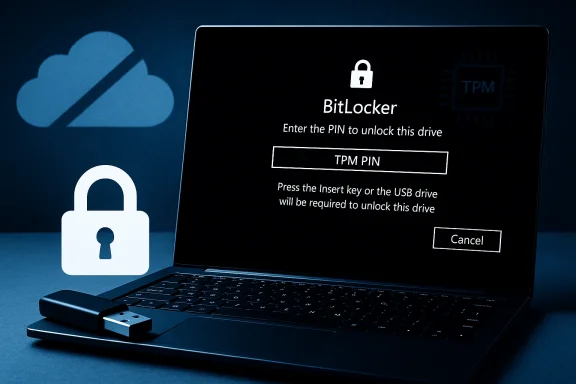
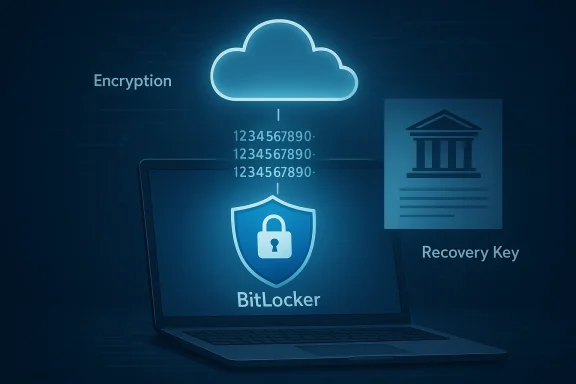
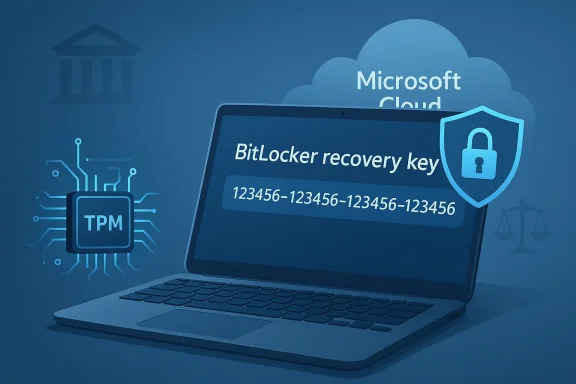
- BitLocker: If the drive was encrypted before wiping, any residual ciphertext is useless without the recovery key. For many users, enabling BitLocker before handing off is a low‑effort way to render leftover bits unrecoverable — provided you control the recovery key. Windows shows a 48‑digit recovery key format for BitLocker recovery keys in typical Microsoft guidance; verify your key and back it up in a safe place before proceeding.
- Activation: On hardware previously activated with a digital license, a fresh install typically auto‑activates after the new user signs in. Confirm that the current machine reports as activated in Settings before you wipe; resolve any activation errors in advance.
Verification: how to confirm the wipe worked
Do not assume. Validate.- Boot off clean installation or rescue media and examine the disk in the installer or a live environment. A successfully cleaned drive will show as blank/unallocated (or properly formatted partitions) and not contain the previous Windows install.
- Run a quick scan with consumer recovery tools (Recuva, test mode only) from a separate system to check for recoverable files. For SSDs, vendor tools or forensic scans may still show cryptic remnants; this is why vendor secure‑erase or crypto‑erase is preferred.
- Document the process (tool used, date/time, drive serial, wipe profile). For enterprise or regulated disposals, maintain logs and certificates; use certified third‑party services when required.
Special considerations and gotchas
OneDrive and cloud sync
Files synced to cloud services can repopulate a “clean” device if the new owner signs in with your account — unlink and remove the device from your online accounts before you hand it off. Also remember that files shared with others or stored on cloud provider servers aren’t erased by local disk wipes.Firmware and UEFI malware
Remote or firmware‑level compromises are not fixed by reinstalling the OS. Reinstalling from known good external media reduces risk, but if you have reason to suspect firmware compromise, treat the device as potentially contaminated and follow advanced remediation steps or replace the hardware.Warranty and OEM support
Some vendor recovery flows and warranty conditions can be affected by firmware changes or by replacing the drive. Check OEM guidance before using aggressive low‑level tools on systems still under manufacturer warranty.Time and convenience tradeoffs
- A Reset is fast and integrated. A full drive clean or secure erase can add hours.
- SSD vendor secure‑erase is usually quick and safe but requires the right utility and sometimes removing the drive from the system to run the tool.
Practical step‑by‑step checklists
Quick route (hand to family or internal reuse)
- Back up files & confirm cloud sync.
- Sign out and deactivate seller‑licensed apps.
- If BitLocker is in use, save your recovery key.
- Settings > System > Recovery > Reset PC → Remove everything → Local reinstall (or Cloud if you prefer a fresh image).
- When reset completes, power down and hand off.
Secure route (sell or donate to strangers)
- Complete full backups and archive license keys.
- Turn on BitLocker (Windows Pro) and encrypt entire drive if not already; save recovery key OR plan vendor secure erase.
- If HDD: use sdelete or DBAN to overwrite the drive (document passes).
- If SSD: use vendor Secure Erase, or encrypt then perform crypto‑erase (kill keys).
- Reinstall Windows via Reset with “Clean the drive” or a bootable clean install after wiping partitions.
- Verify the disk is blank from installation media. Document the process.
Maximum assurance (regulated or highly sensitive data)
- Full forensic image backup to an air‑gapped external drive.
- Use certified wipe/destruction vendor and obtain certificate of destruction OR perform a documented vendor secure erase and independent forensic validation.
- Remove or destroy the drive if required by policy.
Risks, trade‑offs and final recommendations
- SSD overwrite risk: Overwriting free space on SSDs is unreliable. Prefer vendor erasure or crypto‑erase.
- Reset vs. clean install: Reset is easier and adequate in most consumer cases; a USB clean install is the cleanest and most predictable for resale.
- Backups are indispensable: The most common regret is losing vital files after a wipe. Confirm backups before you begin.
- Documentation matters for organizations: Keep records of who performed the wipe, which tools were used, and the drive serial number. This is essential for compliance and reduces liability.
Conclusion
Wiping a Windows PC the right way is a predictable process once you match your destination (family, coworker, buyer, donor, regulated disposal) to the correct workflow. For casual, internal transfers the built‑in Reset → Remove everything flow gives a safe and easy result. For resale and donation add a drive‑clean or vendor secure‑erase step, and for enterprise or regulated contexts use certified erasure or destruction and keep the paperwork.Do the prep work — backups, inventory of apps and keys, and clear documentation — then choose the appropriate sanitization method for your drive type. When in doubt, favor vendor secure‑erase or physical destruction for SSDs, and prefer a clean USB install when you want the smallest, most controlled result. Those steps protect your privacy and leave the next owner with a machine that’s ready to use without exposing your past.
Source: ZDNET There's a right way to wipe your Windows PC before getting rid of it - here's how I do it