

ImageMagick’s command-line approach turns repetitive, batch image work from a chore into a single, reproducible command — and when you test it on hundreds of files it routinely finishes tasks far faster than point‑and‑click editors.
ImageMagick is a mature, open‑source image-processing suite that runs on Windows, macOS, and Linux and is invoked from the shell as magick (ImageMagick 7) or via legacy utilities that map into the magick tool. It’s designed for creating, converting, composing and editing raster images at scale, and is explicitly built for automation and batch processing. The project’s documentation and independent summaries show ImageMagick can read and write well over 200 image formats and exposes utilities such as magick (the v7 entry point), mogrify (batch in‑place edits), convert (legacy wrapper), identify, composite and montage. This matters because most GUI editors were designed for single‑image, visually guided work. ImageMagick trades GUI feedback for scriptability, reproducibility and minimal UI overhead — the exact characteristics that speed up repetitive workflows like resizing, format conversion, watermarking, or mass metadata changes.
magick mogrify -format jpg -resize 1024x *.png
That command is the canonical way to create JPEG copies from PNGs and run a resize for every matching file, and the ImageMagick docs show this pattern and its performance characteristics. For large job queues that would otherwise require dozens of manual steps in a GUI, command‑line execution removes both the repetitive UI interactions and the wait time for import/export dialogs.
The MakeUseOf observation that a CLI can be faster than any GUI you’ve used captures the real point: for tedious, repeatable tasks, the time saved compounds rapidly. ImageMagick isn’t a replacement for creative editing, but it’s a foundational tool for anyone who regularly wrangles large image collections — and when augmented with metadata tools like ExifTool and lightweight viewers/editors (IrfanView, PhotoDemon), it forms a fast, safe and pragmatic image‑processing workflow.
Conclusion
For Windows users who process dozens or thousands of images, learning a handful of ImageMagick commands yields outsized productivity returns: single‑line batch operations, scriptable pipelines, and reliable, repeatable results. Follow the documentation for safe installation and configuration, use the security policy to restrict risky operations when processing untrusted inputs, and combine ImageMagick with specialist tools (ExifTool for metadata, fast viewers for culling, GUI editors for creative work) to build a modern, efficient image pipeline that leaves the tedious parts to the computer and the creative parts to you.
Source: MakeUseOf This command-line tool edits images faster than any GUI I’ve used
 Background / Overview
ImageMagick is a mature, open‑source image-processing suite that runs on Windows, macOS, and Linux and is invoked from the shell as magick (ImageMagick 7) or via legacy utilities that map into the magick tool. It’s designed for creating, converting, composing and editing raster images at scale, and is explicitly built for automation and batch processing. The project’s documentation and independent summaries show ImageMagick can read and write well over 200 image formats and exposes utilities such as magick (the v7 entry point), mogrify (batch in‑place edits), convert (legacy wrapper), identify, composite and montage. This matters because most GUI editors were designed for single‑image, visually guided work. ImageMagick trades GUI feedback for scriptability, reproducibility and minimal UI overhead — the exact characteristics that speed up repetitive workflows like resizing, format conversion, watermarking, or mass metadata changes.Why ImageMagick wins for batch image processing
Speed: fewer clicks, direct execution
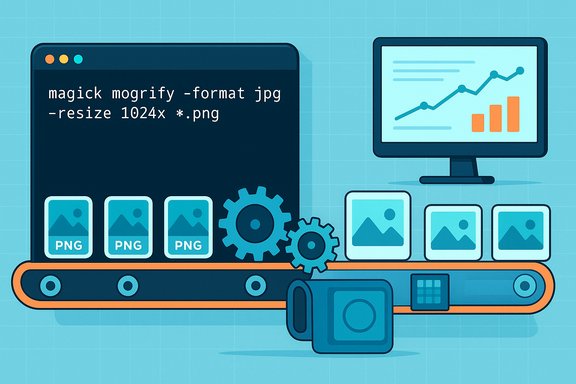
A single magick or mogrify invocation can apply the same transformation to hundreds of files in one pass. For example, resizing all PNGs in a folder and converting to JPEG can be done with one line:magick mogrify -format jpg -resize 1024x *.png
That command is the canonical way to create JPEG copies from PNGs and run a resize for every matching file, and the ImageMagick docs show this pattern and its performance characteristics. For large job queues that would otherwise require dozens of manual steps in a GUI, command‑line execution removes both the repetitive UI interactions and the wait time for import/export dialogs.
Reproducibility: scripts are precise records
When you write a CLI command or a short script, you get an exact record of the transformation. That reproducibility matters in multi‑stage pipelines (photo libraries, web asset builds, CMS ingestion) where exact parity between runs is required. A script can be committed to a repo, run by CI, or re-used months later with the same results.Resource efficiency: lean runtime, parallelism
GUI apps carry UI overhead and often spawn processes consuming large amounts of memory for previews, layer structures and interactive state. ImageMagick is designed to be run headless; it uses a pixel cache and has options to tune memory, disk, and thread usage, letting you process more images per unit of machine resource. The official docs include resource and pixel‑cache configuration guidance suitable for heavy workloads.Composability and integration
ImageMagick commands can be embedded in shell scripts, Task Scheduler jobs, CI/CD pipelines, or invoked from languages (C, Perl, Python wrappers). That makes it simple to process images as soon as they land in a folder, to attach an image pipeline to a web hook, or to include image optimization in a static site build.The core commands (what you’ll actually use)
- magick — the ImageMagick 7 entry point; runs conversions and pipelines (recommended in IMv7).
- mogrify — overwrite files in place or create new files with -format; ideal for batch resizing and format conversion. Warning: mogrify overwrites by default.
- convert — legacy command from IMv6; in IMv7 it is a compatibility wrapper (use magick instead for new scripts).
- identify — inspect image metadata and properties (dimensions, format, color space).
- composite / montage — layering and tiled composites; montage is useful for creating contact sheets or grids.
- magick input.jpg -resize 1920x1080 output.jpg
- magick mogrify -format jpg -resize 1024x *.png
Practical workflows and step‑by‑step examples
1) Photographer — bulk web export (lossy JPEG, sharpening, metadata stripping)
- Create a test folder with a small sample.
- Resize and sharpen for web, create JPEGs, strip EXIF:
magick mogrify -resize 2048x -unsharp 0x1 -strip -format jpg *.png - Verify a few outputs with identify to confirm dimensions and file size.
This pipeline handles many camera exports at once and removes metadata (useful for privacy or filesize).
2) Web developer — pipeline for thumbnails and WebP assets
- Generate thumbnails and WebP source images:
magick mogrify -path thumbnails -resize 300x -format jpg .png
magick mogrify -format webp -quality 80 .jpg - Integrate this as part of a build script so every new image in assets/ is converted automatically before deployment.
3) Archivist — check and normalize formats with a manifest
- Create a CSV manifest:
for %f in (*.tif) do magick identify -format "%f,%w,%h,%m\n" "%f" >> manifest.csv - Use that manifest to find outliers (extremely large images, odd color spaces) and batch‑process them.
When a GUI still makes sense
- Fine retouching and selection work: pixel‑level editing, advanced healing, and masking need a visual workflow (Photoshop, Affinity, GIMP). ImageMagick cannot offer interactive selection or live previews.
- Creative decisions: color grading, dodging, burning and local edits are hard to translate into deterministic CLI options and benefit from visual feedback.
- New users and quick one-offs: if you only have a handful of images and prefer a visual interface, GUI editors are faster to learn and more forgiving.
Security, risks and safe deployment
ImageMagick is powerful and — when misused — has historically been a vector for remote code execution if untrusted image input is processed without restrictions (the “ImageTragick” issues, CVE‑2016‑3714). For web services and any process that accepts third‑party images, the following mitigations are essential:- Harden policy.xml — define a security policy that restricts allowed coders, maximum memory/disk usage, thread counts and blocked protocols (HTTP/HTTPS/URL delegates) for public‑facing installs. The official docs publish example policy entries and strongly recommend tailoring them to your environment.
- Patch promptly — the original ImageTragick fixes were applied years ago, but you should keep ImageMagick updated and monitor advisories because delegate/configuration code paths can be re‑exposed by third‑party packaging errors.
- Sandbox or isolate — run ImageMagick in a container, a restricted service account, or a job with strict resource limits if it processes user uploads.
- Validate input — do not pass arbitrary URLs or unvalidated image bytes directly to delegates; disable delegates like curl/wget if not needed.
Installation tips for Windows users
- Download and verify the official Windows installer from ImageMagick’s download page and opt to add ImageMagick to your PATH during installation. The site also lists winget and Chocolatey install strings (winget install ImageMagick.Q16‑HDRI, choco install imagemagick). After install, validate with magick -version and magick identify.
- Note on convert vs magick: ImageMagick 7 uses magick as the primary tool. The convert executable can conflict with a Windows builtin program and in IMv7 convert is provided only in legacy mode — prefer magick for modern scripts. If you rely on code that expects convert.exe, either install legacy utilities during setup or update scripts to call magick.
- Packaging caveats: some package managers (winget, Chocolatey, or third‑party bundles) occasionally package ImageMagick in ways that break access to delegates or configuration files; if you encounter unexpected missing delegates, try the official installer or the self‑contained binary distribution and verify delegates.xml is accessible. Recent GitHub issues and packaging threads document these pitfalls.
Complementary and alternative tools (how ImageMagick fits in a modern toolbox)
ImageMagick is ideal for pixel operations and transforms at scale, but it’s part of a broader toolkit. Consider combining it with specialist tools:- ExifTool — command‑line powerhouse for metadata reading/writing (EXIF, IPTC, XMP). Use ExifTool to tag or sanitize metadata without touching pixels; it’s faster and safer for metadata work than re‑encoding images. Many users run ExifTool alongside ImageMagick to separate pixel edits from metadata edits.
- IrfanView — a tiny, extremely fast Windows GUI for quick single‑image edits and batch conversions. IrfanView's batch converter is simpler for beginners who prefer a minimal GUI while keeping speed. It’s a practical middle ground for many Windows users.
- PhotoDemon — an open‑source Windows editor with macro and batch processing features; useful when you need GUI-based macros and some image‑level automation. PhotoDemon’s macros can automate repetitive GUI tasks, complementing command-line pipelines.
- ImageGlass / other lightweight viewers — great for rapid culling and previewing large folders before committing a bulk operation. Use ImageGlass for fast inspection and pair it with ImageMagick for production transforms.
Common pitfalls and how to avoid them
- Accidental overwrites with mogrify: By default mogrify edits files in place. Always test on a copy or use -format to write outputs to a new extension.
- Delegates not available: If ImageMagick complains about missing delegates (SVG, PDF, certain RAW codecs), you may need to install additional libraries or use a different build (Q8 vs Q16 vs HDRI). Check magick -version and the configure/delegates list.
- Windows convert.exe conflict: Windows includes a convert.exe that renames volumes; installing legacy convert.exe without adjusting PATH may call the wrong executable. Use magick to avoid this or change the install options.
- Processing untrusted uploads: Never process untrusted images with an unrestricted ImageMagick configuration in a web service. Harden policy.xml, sandbox processes, or run conversion in isolated worker containers.
When to choose ImageMagick (short checklist)
- You have large batches (dozens to thousands) of images to process.
- Your tasks are deterministic (resize, convert, add watermark, flatten, strip metadata).
- You need repeatable scripts for CI/CD, server pipelines, or scheduled jobs.
- You want lean resource usage and headless operation.
Final verdict — a pragmatic take
ImageMagick is not a vanity tool; it’s a productivity multiplier. For any workflow that involves repetitive or high‑volume image operations, ImageMagick’s command‑line approach is almost always faster and more reliable than a manual GUI workflow. Its strengths are automation, reproducibility, format coverage and integration potential. Those gains come with tradeoffs: a learning curve, no live previews, and a duty to secure and configure the tool carefully when it processes external input.The MakeUseOf observation that a CLI can be faster than any GUI you’ve used captures the real point: for tedious, repeatable tasks, the time saved compounds rapidly. ImageMagick isn’t a replacement for creative editing, but it’s a foundational tool for anyone who regularly wrangles large image collections — and when augmented with metadata tools like ExifTool and lightweight viewers/editors (IrfanView, PhotoDemon), it forms a fast, safe and pragmatic image‑processing workflow.
Conclusion
For Windows users who process dozens or thousands of images, learning a handful of ImageMagick commands yields outsized productivity returns: single‑line batch operations, scriptable pipelines, and reliable, repeatable results. Follow the documentation for safe installation and configuration, use the security policy to restrict risky operations when processing untrusted inputs, and combine ImageMagick with specialist tools (ExifTool for metadata, fast viewers for culling, GUI editors for creative work) to build a modern, efficient image pipeline that leaves the tedious parts to the computer and the creative parts to you.
Source: MakeUseOf This command-line tool edits images faster than any GUI I’ve used
