

Cursor AI’s Windows editor is a desktop code environment for Windows 11 that can be downloaded from Cursor’s site, installed like a conventional app, connected to a Cursor account, and optionally tied into GitHub and third-party model API keys for AI-assisted coding. That sounds like a setup guide, but the more interesting story is that coding assistants have moved from browser tabs and chat windows into the editor itself. Cursor is not merely “ChatGPT beside your code”; it is a bet that the IDE is becoming the control room for software work. For Windows users, that makes installation easy — and governance, cost, and trust much more complicated.
The practical appeal of Cursor is obvious the first time you open it: it looks and feels familiar to anyone who has lived in Visual Studio Code, but it treats AI as a first-class workflow rather than an extension bolted onto the side. The editor can read the project context, generate code, explain unfamiliar files, propose changes, and help debug errors without forcing the developer to copy code into a browser prompt.
That convenience is the product. A Windows developer can download the installer, run through the usual setup prompts, sign in, and start working in a local desktop environment. The friction is low enough that a hobbyist can try it in minutes, and a professional developer can import habits from the broader VS Code ecosystem without retraining from scratch.
But low friction should not be mistaken for low consequence. Once an AI editor can see your repository, infer intent from your prompts, and sometimes make multi-file changes, it becomes part of the development process rather than a passive tool. On Windows, where many users are juggling WSL, PowerShell, GitHub Desktop, Visual Studio, corporate endpoint controls, and cloud credentials, that distinction matters.
Cursor’s pitch lands because it collapses the distance between asking for help and applying the answer. The same quality that makes it useful also makes it worth scrutinizing: the editor is increasingly where credentials, source code, model providers, and automation meet.
That simplicity is part of why tools like Cursor have spread so quickly. Developers do not need to provision a cloud workstation or configure a remote IDE just to test the product. The installation path looks like any normal Windows utility: download, run, confirm, launch.
The first-run experience is where Cursor stops being just another editor. Users are prompted to sign in or create an account, and Cursor steers them toward a setup flow that can include importing settings, connecting to repositories, enabling extensions, and configuring AI access. The product wants to become the place where the project opens, the AI sees context, and the developer stays in flow.
For Windows 11 users, that means the editor fits into the existing desktop model. It is not a browser-only service, and it is not simply a command-line agent. It is a local GUI application with cloud-backed intelligence, which is precisely why it feels natural — and why administrators will want to know what data leaves the machine.
This is the moment where a quick-start guide often becomes too cheerful. Creating an account is easy, but it also introduces policy questions. Which account owns the work? Is this a personal Cursor account being used on a company repository? Are prompts and completions subject to telemetry or retention settings? Does the organization have a paid plan with administrative controls, or is every developer improvising?
For an individual Windows user, those questions may sound like enterprise overkill. For a sysadmin, they are the whole ballgame. AI coding tools do not just generate snippets; they handle source code, error logs, stack traces, architecture notes, and sometimes secrets accidentally pasted into prompts. Account setup is therefore not a mere onboarding step. It is the boundary between local editing and cloud-mediated development.
GitHub integration adds another layer. Connecting GitHub makes the workflow smoother, especially when repositories, pull requests, and background coding agents enter the picture. It also means users should think carefully about repository access, organization permissions, and whether the tool is being authorized through a personal or managed identity.
That does not make API keys harmless. A model API key dropped into a desktop editor is a credential with real financial and operational value. If it leaks, is copied into a repository, stored insecurely, or used by the wrong workspace, the blast radius can include unexpected bills and exposure of sensitive development context.
The safer mental model is to treat AI model keys like cloud infrastructure keys. They should be scoped where possible, rotated when necessary, stored carefully, and removed from machines that no longer need them. On Windows, that also means thinking about profiles, shared devices, corporate device management, and whether the editor’s settings roam or sync.
There is also a cost-model trap. Developers often compare a subscription price against “using my own key” as if the latter were automatically cheaper. In practice, large codebases, long context windows, repeated agent runs, and premium models can burn through usage quickly. The more useful the AI becomes, the more tempting it is to ask it to do expensive things.
That design matters on Windows, where VS Code has become the default lightweight development environment for many languages and frameworks. A tool that feels adjacent to VS Code inherits a vast amount of muscle memory: command palettes, sidebars, file trees, extensions, integrated terminals, Git workflows, and keyboard shortcuts. Cursor does not need to teach users what an editor is. It only needs to persuade them that the editor should now have an AI collaborator inside it.
The distinction between an extension and an AI-native editor is more than marketing. Extensions usually live within the constraints of a host environment. Cursor can design the product around AI interactions: chat with codebase awareness, inline edits, project indexing, model selection, agentic changes, and workflows that assume the assistant is not an afterthought.
That is why the setup guide feels deceptively small. Downloading and installing Cursor is a few clicks. Adapting your coding habits around an assistant that can rewrite files, inspect context, and propose architecture is the larger shift.
Shortcuts matter because AI assistance lives in moments: explain this function, refactor this block, generate tests for this module, fix this TypeScript error, summarize this unfamiliar repository, apply this pattern across similar files. If every interaction requires hunting through menus, the assistant becomes a novelty. If it is one keystroke away, it becomes part of the loop.
Cursor’s Windows shortcuts and command palette are therefore not cosmetic. They are the difference between occasional AI use and continuous AI-assisted development. Users coming from VS Code should spend time learning which commands map to inline edits, chat, file context, terminal use, and project-wide operations.
The same applies to extensions. Cursor’s compatibility with familiar extension workflows is one reason it is approachable, but extension sprawl can also make AI behavior harder to reason about. A clean setup, a known terminal environment, and a predictable project structure often produce better results than a heavily customized editor full of conflicting tools.
Start by opening a project and letting Cursor index or understand the workspace. Ask it to explain the project structure, identify the entry point, describe tests, or summarize a confusing file. These are low-risk prompts because they reveal how well the model understands context without letting it immediately modify the code.
Then move to constrained edits. Ask for a small refactor in one file. Generate a unit test. Fix a lint error. Translate a function into a clearer form while preserving behavior. Review the diff manually, run tests, and compare the result against what you would have written yourself.
Only after that should you experiment with broader agentic changes. Multi-file edits are where these tools become powerful, but they are also where they can misunderstand architecture, invent conventions, or produce changes that look plausible while subtly breaking behavior. The workflow should remain developer-led: prompt, inspect, test, commit deliberately.
For Windows developers, GitHub integration also reduces context switching. Instead of bouncing between a browser, terminal, editor, and chat window, the developer can keep more of the workflow inside one application. This is especially useful for smaller teams that live in GitHub Issues, pull requests, and lightweight CI.
The risk is that convenience can blur responsibility. If an AI agent generates a pull request, the human reviewer still owns the review. If Cursor proposes a dependency change, someone still needs to inspect the package, license, security posture, and compatibility. If a generated patch passes tests but changes behavior, the blame will not land on the model provider.
GitHub is valuable here because it preserves review culture. Diffs, branches, commit messages, CI results, and pull request discussions are the antidote to AI opacity. The worst way to use an AI editor is to let it directly mutate important code without the normal rituals of version control.
The first administrative question is simple: who is allowed to install it? If users can freely install AI editors on managed Windows machines, the organization may already have de facto adoption without policy. Blocking the tool entirely may be unrealistic, but ignoring it is worse. Developers will use what helps them ship.
The second question is what data the tool can access. A local editor has the same file visibility as the user account running it. If the user opens a repository with proprietary code, regulated data, customer-specific configuration, or embedded secrets, the AI tool may be exposed to that context. Whether and how that context is sent to cloud services depends on product settings and plan controls, but administrators should verify rather than assume.
The third question is cost. AI coding tools have moved from simple seat pricing toward more complex usage patterns, especially as premium models and agentic workflows become common. A team that casually adopts AI-assisted coding may find that the practical cost is not just the monthly subscription, but the way developers use context-heavy prompts, autonomous agents, and repeated model calls.
None of this makes Cursor uniquely dangerous. The same concerns apply to GitHub Copilot, terminal-based agents, browser chatbots, and locally configured model tools. Cursor simply makes the issue concrete because it sits where developers already work.
Cursor can help explain code, but explanation is not verification. It can generate tests, but generated tests may encode the same misunderstanding as the generated implementation. It can suggest fixes, but a fix that satisfies an error message may not satisfy the system’s real constraints.
Security-minded users should keep a few habits close. Do not paste API keys, passwords, customer data, private certificates, or confidential incident details into prompts. Use branches. Review diffs. Run tests locally. Keep secret-scanning enabled. Treat generated code as untrusted until it has passed the same review bar as human-written code.
The irony is that AI editors can also improve security when used carefully. They can spot repetitive bugs, explain unfamiliar code paths, generate defensive tests, and help developers reason through edge cases. The tool is neither savior nor threat by itself. It is an amplifier.
That is why the Windows setup experience matters. If installing Cursor required a weekend of configuration, most curious users would abandon it. Instead, it offers a familiar desktop app, a recognizable editor surface, and quick access to AI assistance. The product reduces the switching cost enough for developers to try it before they have fully decided whether they trust it.
The deeper contest is about where AI belongs. Microsoft has an obvious interest in keeping AI assistance inside GitHub, Visual Studio, VS Code, Windows, and Azure. Cursor’s argument is that the editor itself can be rebuilt around AI, rather than waiting for incumbent tools to evolve. Developers will decide based on results, not slogans.
On Windows, that means Cursor’s adoption will be pragmatic. If it helps fix bugs faster, write tests more easily, and understand unfamiliar codebases with less pain, people will use it. If pricing becomes confusing, performance feels inconsistent, or enterprise controls lag behind expectations, teams will look elsewhere.
Cursor’s Windows editor is easy to install, but the decision to use it well is not merely an installation choice. It is a choice about where AI enters the development workflow, how much context it receives, who pays for its model calls, and what review standards remain non-negotiable. The next phase of AI coding will not be won by the tool that produces the flashiest demo; it will be won by the one that fits into disciplined software work without pretending discipline is obsolete.
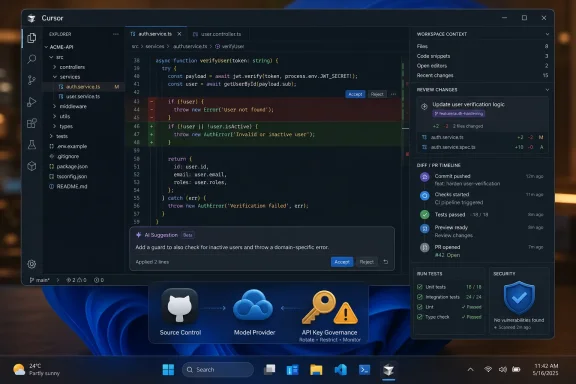 Cursor Turns the Code Editor Into the AI Front Door
The practical appeal of Cursor is obvious the first time you open it: it looks and feels familiar to anyone who has lived in Visual Studio Code, but it treats AI as a first-class workflow rather than an extension bolted onto the side. The editor can read the project context, generate code, explain unfamiliar files, propose changes, and help debug errors without forcing the developer to copy code into a browser prompt.That convenience is the product. A Windows developer can download the installer, run through the usual setup prompts, sign in, and start working in a local desktop environment. The friction is low enough that a hobbyist can try it in minutes, and a professional developer can import habits from the broader VS Code ecosystem without retraining from scratch.
But low friction should not be mistaken for low consequence. Once an AI editor can see your repository, infer intent from your prompts, and sometimes make multi-file changes, it becomes part of the development process rather than a passive tool. On Windows, where many users are juggling WSL, PowerShell, GitHub Desktop, Visual Studio, corporate endpoint controls, and cloud credentials, that distinction matters.
Cursor’s pitch lands because it collapses the distance between asking for help and applying the answer. The same quality that makes it useful also makes it worth scrutinizing: the editor is increasingly where credentials, source code, model providers, and automation meet.
The Windows Install Is the Easy Part
Installing Cursor on Windows is straightforward. You go to Cursor’s official download page, choose the Windows installer, run the downloaded file, accept the license terms, and proceed through the setup wizard. Like most Windows desktop apps, the installer may offer additional tasks before completing the installation, after which you can launch Cursor immediately.That simplicity is part of why tools like Cursor have spread so quickly. Developers do not need to provision a cloud workstation or configure a remote IDE just to test the product. The installation path looks like any normal Windows utility: download, run, confirm, launch.
The first-run experience is where Cursor stops being just another editor. Users are prompted to sign in or create an account, and Cursor steers them toward a setup flow that can include importing settings, connecting to repositories, enabling extensions, and configuring AI access. The product wants to become the place where the project opens, the AI sees context, and the developer stays in flow.
For Windows 11 users, that means the editor fits into the existing desktop model. It is not a browser-only service, and it is not simply a command-line agent. It is a local GUI application with cloud-backed intelligence, which is precisely why it feels natural — and why administrators will want to know what data leaves the machine.
Account Setup Is Where the Product Starts Making Decisions
After installation, Cursor asks the user to sign in or create an account. For casual use, the free tier is enough to experiment with the workflow, though current plan names, quotas, and pricing can change quickly in this market. The important point is not the exact number of included requests; it is that Cursor’s most valuable features depend on authenticated access to AI services.This is the moment where a quick-start guide often becomes too cheerful. Creating an account is easy, but it also introduces policy questions. Which account owns the work? Is this a personal Cursor account being used on a company repository? Are prompts and completions subject to telemetry or retention settings? Does the organization have a paid plan with administrative controls, or is every developer improvising?
For an individual Windows user, those questions may sound like enterprise overkill. For a sysadmin, they are the whole ballgame. AI coding tools do not just generate snippets; they handle source code, error logs, stack traces, architecture notes, and sometimes secrets accidentally pasted into prompts. Account setup is therefore not a mere onboarding step. It is the boundary between local editing and cloud-mediated development.
GitHub integration adds another layer. Connecting GitHub makes the workflow smoother, especially when repositories, pull requests, and background coding agents enter the picture. It also means users should think carefully about repository access, organization permissions, and whether the tool is being authorized through a personal or managed identity.
API Keys Are Power Tools, Not Setup Decorations
Cursor can use its own bundled AI access, but many developers also look for support for their own API keys. The appeal is easy to understand. If a team already has approved OpenAI, Anthropic, Azure, or other model-provider billing, bringing a key into the editor can align usage with existing budgets and compliance processes.That does not make API keys harmless. A model API key dropped into a desktop editor is a credential with real financial and operational value. If it leaks, is copied into a repository, stored insecurely, or used by the wrong workspace, the blast radius can include unexpected bills and exposure of sensitive development context.
The safer mental model is to treat AI model keys like cloud infrastructure keys. They should be scoped where possible, rotated when necessary, stored carefully, and removed from machines that no longer need them. On Windows, that also means thinking about profiles, shared devices, corporate device management, and whether the editor’s settings roam or sync.
There is also a cost-model trap. Developers often compare a subscription price against “using my own key” as if the latter were automatically cheaper. In practice, large codebases, long context windows, repeated agent runs, and premium models can burn through usage quickly. The more useful the AI becomes, the more tempting it is to ask it to do expensive things.
The Familiar Interface Is Cursor’s Strategic Advantage
Cursor’s biggest advantage is not that it can write code. Plenty of tools can do that. Its advantage is that it puts AI inside a familiar editor workflow, close enough to the files that the assistant can act on context instead of merely commenting on it.That design matters on Windows, where VS Code has become the default lightweight development environment for many languages and frameworks. A tool that feels adjacent to VS Code inherits a vast amount of muscle memory: command palettes, sidebars, file trees, extensions, integrated terminals, Git workflows, and keyboard shortcuts. Cursor does not need to teach users what an editor is. It only needs to persuade them that the editor should now have an AI collaborator inside it.
The distinction between an extension and an AI-native editor is more than marketing. Extensions usually live within the constraints of a host environment. Cursor can design the product around AI interactions: chat with codebase awareness, inline edits, project indexing, model selection, agentic changes, and workflows that assume the assistant is not an afterthought.
That is why the setup guide feels deceptively small. Downloading and installing Cursor is a few clicks. Adapting your coding habits around an assistant that can rewrite files, inspect context, and propose architecture is the larger shift.
Shortcuts Matter Because AI Coding Is Still Editing
Once Cursor is installed and signed in, the best way to use it is not to treat it like a magic compiler for English. It is still an editor, and the fastest users tend to combine ordinary keyboard-driven development with targeted AI prompts. The more precise the request, the better the tool behaves.Shortcuts matter because AI assistance lives in moments: explain this function, refactor this block, generate tests for this module, fix this TypeScript error, summarize this unfamiliar repository, apply this pattern across similar files. If every interaction requires hunting through menus, the assistant becomes a novelty. If it is one keystroke away, it becomes part of the loop.
Cursor’s Windows shortcuts and command palette are therefore not cosmetic. They are the difference between occasional AI use and continuous AI-assisted development. Users coming from VS Code should spend time learning which commands map to inline edits, chat, file context, terminal use, and project-wide operations.
The same applies to extensions. Cursor’s compatibility with familiar extension workflows is one reason it is approachable, but extension sprawl can also make AI behavior harder to reason about. A clean setup, a known terminal environment, and a predictable project structure often produce better results than a heavily customized editor full of conflicting tools.
The First Project Should Be Low Risk
The best first Cursor project on Windows is not your company’s production monorepo. It is a small personal repository, a tutorial project, a clone of a non-sensitive codebase, or a disposable branch. The goal is to learn how the assistant behaves before trusting it with consequential changes.Start by opening a project and letting Cursor index or understand the workspace. Ask it to explain the project structure, identify the entry point, describe tests, or summarize a confusing file. These are low-risk prompts because they reveal how well the model understands context without letting it immediately modify the code.
Then move to constrained edits. Ask for a small refactor in one file. Generate a unit test. Fix a lint error. Translate a function into a clearer form while preserving behavior. Review the diff manually, run tests, and compare the result against what you would have written yourself.
Only after that should you experiment with broader agentic changes. Multi-file edits are where these tools become powerful, but they are also where they can misunderstand architecture, invent conventions, or produce changes that look plausible while subtly breaking behavior. The workflow should remain developer-led: prompt, inspect, test, commit deliberately.
GitHub Integration Is Convenience With an Audit Trail
Connecting Cursor to GitHub can make the tool feel dramatically more capable. Repositories become easier to open, branch-based workflows become more natural, and AI-generated changes can fit into the same review processes teams already use. That is the right direction: AI coding needs audit trails, not private magic.For Windows developers, GitHub integration also reduces context switching. Instead of bouncing between a browser, terminal, editor, and chat window, the developer can keep more of the workflow inside one application. This is especially useful for smaller teams that live in GitHub Issues, pull requests, and lightweight CI.
The risk is that convenience can blur responsibility. If an AI agent generates a pull request, the human reviewer still owns the review. If Cursor proposes a dependency change, someone still needs to inspect the package, license, security posture, and compatibility. If a generated patch passes tests but changes behavior, the blame will not land on the model provider.
GitHub is valuable here because it preserves review culture. Diffs, branches, commit messages, CI results, and pull request discussions are the antidote to AI opacity. The worst way to use an AI editor is to let it directly mutate important code without the normal rituals of version control.
Windows Administrators Should Treat AI Editors as Developer Infrastructure
For home users, Cursor is another productivity app. For organizations, it is developer infrastructure. That means it belongs in the same conversation as endpoint management, acceptable-use policies, source-code handling, secret scanning, and software asset management.The first administrative question is simple: who is allowed to install it? If users can freely install AI editors on managed Windows machines, the organization may already have de facto adoption without policy. Blocking the tool entirely may be unrealistic, but ignoring it is worse. Developers will use what helps them ship.
The second question is what data the tool can access. A local editor has the same file visibility as the user account running it. If the user opens a repository with proprietary code, regulated data, customer-specific configuration, or embedded secrets, the AI tool may be exposed to that context. Whether and how that context is sent to cloud services depends on product settings and plan controls, but administrators should verify rather than assume.
The third question is cost. AI coding tools have moved from simple seat pricing toward more complex usage patterns, especially as premium models and agentic workflows become common. A team that casually adopts AI-assisted coding may find that the practical cost is not just the monthly subscription, but the way developers use context-heavy prompts, autonomous agents, and repeated model calls.
None of this makes Cursor uniquely dangerous. The same concerns apply to GitHub Copilot, terminal-based agents, browser chatbots, and locally configured model tools. Cursor simply makes the issue concrete because it sits where developers already work.
The Security Problem Is Mostly Human
The nightmare scenario for AI coding is not that the model becomes malicious. It is that a busy developer pastes secrets into a prompt, accepts a generated patch without review, or lets an agent modify authentication code without understanding the implications. Most failures will look like ordinary software mistakes accelerated by a helpful interface.Cursor can help explain code, but explanation is not verification. It can generate tests, but generated tests may encode the same misunderstanding as the generated implementation. It can suggest fixes, but a fix that satisfies an error message may not satisfy the system’s real constraints.
Security-minded users should keep a few habits close. Do not paste API keys, passwords, customer data, private certificates, or confidential incident details into prompts. Use branches. Review diffs. Run tests locally. Keep secret-scanning enabled. Treat generated code as untrusted until it has passed the same review bar as human-written code.
The irony is that AI editors can also improve security when used carefully. They can spot repetitive bugs, explain unfamiliar code paths, generate defensive tests, and help developers reason through edge cases. The tool is neither savior nor threat by itself. It is an amplifier.
Cursor’s Real Competition Is the Developer’s Default Workflow
Cursor competes with GitHub Copilot, Visual Studio Code extensions, JetBrains AI features, terminal agents, browser-based chat, and a rapidly shifting class of autonomous coding tools. But its toughest competitor is inertia. Developers already have workflows that are fragile, personalized, and tuned over years.That is why the Windows setup experience matters. If installing Cursor required a weekend of configuration, most curious users would abandon it. Instead, it offers a familiar desktop app, a recognizable editor surface, and quick access to AI assistance. The product reduces the switching cost enough for developers to try it before they have fully decided whether they trust it.
The deeper contest is about where AI belongs. Microsoft has an obvious interest in keeping AI assistance inside GitHub, Visual Studio, VS Code, Windows, and Azure. Cursor’s argument is that the editor itself can be rebuilt around AI, rather than waiting for incumbent tools to evolve. Developers will decide based on results, not slogans.
On Windows, that means Cursor’s adoption will be pragmatic. If it helps fix bugs faster, write tests more easily, and understand unfamiliar codebases with less pain, people will use it. If pricing becomes confusing, performance feels inconsistent, or enterprise controls lag behind expectations, teams will look elsewhere.
The Sensible Cursor Setup Is Boring on Purpose
The right way to start with Cursor on Windows is deliberately conservative. Install it from the official source, sign in with the appropriate account, connect only the services you need, and test it on code that will not create a crisis if the assistant misunderstands something. The goal is not to make AI write your application on day one. The goal is to learn where it is reliable, where it is expensive, and where it needs human supervision.- Install Cursor from the official download page rather than from third-party mirrors or repackaged installers.
- Use a free or trial-level setup first if you are evaluating the editor for personal learning or small projects.
- Connect GitHub only with the account and permissions appropriate for the repositories you plan to open.
- Add third-party API keys only if you understand the cost, security, and policy implications of doing so.
- Start with small prompts, inspect every diff, and run tests before committing AI-generated changes.
- Treat Cursor as a coding assistant inside your workflow, not as a replacement for version control, review, or judgment.
Cursor’s Windows editor is easy to install, but the decision to use it well is not merely an installation choice. It is a choice about where AI enters the development workflow, how much context it receives, who pays for its model calls, and what review standards remain non-negotiable. The next phase of AI coding will not be won by the tool that produces the flashiest demo; it will be won by the one that fits into disciplined software work without pretending discipline is obsolete.
References
- Primary source: Alphr
Published: 2026-06-04T01:27:17.300397
Quick Guide to Using AI Cursor’s Code Editor in Windows
Want to speed up your coding game? We take a look at how to download, install, and use the Cursor AI code editor on Windows 11.www.alphr.com - Related coverage: docs.cursor.com
Cursor Docs — Agent, Rules, MCP, Skills & CLI
Official Cursor documentation. Covers Agent mode, Rules, Skills, MCP servers, CLI, models, and Teams & Enterprise setup. Start building in minutes.docs.cursor.com - Related coverage: cursor.com
- Related coverage: devtoolsreview.com
Cursor Pricing (2026): Plans, Costs & Is It Worth It? | DevTools Review
Complete breakdown of Cursor's Hobby, Pro, and Business plans with exact pricing, feature comparisons, hidden costs, and honest verdict on value. devtoolsreview.com
- Related coverage: cursor.gr.com
- Official source: github.com
GitHub - cursor/cursor · GitHub
Contribute to cursor/cursor development by creating an account on GitHub. github.com
- Related coverage: cloudzero.com
Cursor AI Pricing In 2026: Every Plan, Credit System, And Cost
Cursor AI pricing spans 6 tiers from free to $200/month. Understand the credit system, compare plans, see team costs & track AI coding spend. www.cloudzero.com
- Related coverage: authorityaitools.com
Cursor Pricing Guide: Free vs Pro vs Ultra (2026) | AI Coding Tools Directory
A clear breakdown of Cursor pricing tiers in 2026: Hobby, Pro, Pro+, Ultra, and Teams so you can choose the right plan.authorityaitools.com - Related coverage: agentdeals.dev
Cursor Free Tier 2026: Limits, Pricing & What Changed | AgentDeals
Cursor free tier includes AI-powered code editor built on VS Code. Verified June 2026. Compare with 12 alternatives in AI Coding.agentdeals.dev - Related coverage: windowscentral.com
Microsoft explored buying Cursor before SpaceX lined up a $60 billion deal | Windows Central
SpaceX now holds the rights to acquire Cursor for $60 billion or pursue a $10 billion partnership. Microsoft will keep focused on GitHub Copilot.www.windowscentral.com - Related coverage: files.codeaidirectory.com
- Related coverage: allaboutai.com
