

Monet Launcher can be installed on Android TV, Google TV, and compatible Fire TV devices by downloading it from Google Play where available, or by sideloading its APK with Downloader after enabling installs from unknown sources on the streaming device. That simple answer hides the more interesting story: custom launchers have become a quiet protest against increasingly crowded TV home screens. Monet is not just another app grid; it is a bet that the biggest screen in the house should feel like a user-controlled dashboard, not a billboard. The installation process is easy, but the choice to replace a stock launcher says a lot about where streaming boxes are headed.
For years, Android TV and Fire TV devices were sold as neutral gateways to streaming apps. Plug in a dongle, sign in, install Netflix or Plex or Stremio, and the box largely got out of the way. That era is fading. The modern TV launcher is increasingly an advertising surface, a recommendation engine, and a platform owner’s negotiating table.
That is the opening Monet Launcher walks through. It offers the thing many enthusiasts have been asking for: a clean, customizable home screen that foregrounds installed apps, visual consistency, and personal organization. Instead of accepting whatever row of promoted titles the device maker wants to surface this week, users can arrange the interface around how they actually watch television.
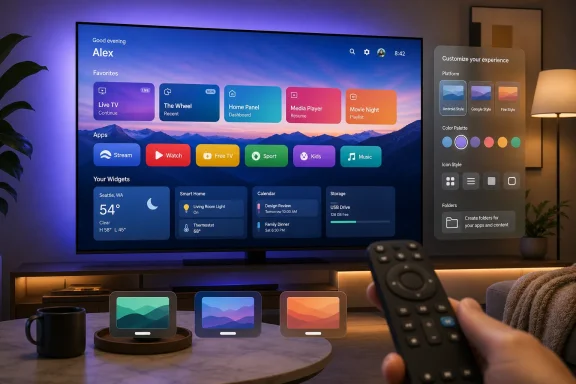
Monet’s hook is its Material You-inspired design language, especially its dynamic color system. The launcher adapts its palette to wallpapers and themes, making it feel more like a modern Android experience than the static, ad-heavy rows found on many living-room devices. It also brings home-screen widgets, app rows, wallpapers, icon customization, folders, user profiles, PIN protection, screensavers, and backup options into a category that has often been treated as an afterthought.
That matters because TV launchers are no longer cosmetic. They shape what users notice, what apps they open, and how much friction sits between the remote and the content. Monet is appealing precisely because it returns that surface to the person holding the remote.
The TROYPOINT guide takes a different route: installing through Downloader and the TROYPOINT Toolbox using code 250931. That approach is designed for users who want the latest available build even when Play Store rollout timing lags, or for devices where the app is harder to find through normal search. It is a familiar path for Android TV hobbyists, but it should be treated with the same caution as any sideloading workflow.
The basic process is straightforward. Install Downloader, grant it permission to install unknown apps, enter the Toolbox code, locate Monet Launcher, install it, and delete the installer file afterward. The cleanup step is not just housekeeping; TV boxes often have limited storage, and APK files quickly become clutter if users sideload frequently.
There is a difference between sideloading from a known developer or trusted distribution point and grabbing an APK from the first search result. Monet’s appeal should not make users careless. A launcher gets deep access to the daily interface of a device, so the source of the installer matters more than it would for a disposable utility app.
The key step is setting Monet as the default home app. On compatible Android TV and Google TV devices, Monet can direct users into system settings, where it can be selected as the default launcher. Once that is done, pressing the Home button should return to Monet rather than the stock Google TV or Android TV interface.
Some devices may also offer an accessibility permission. This can improve the launcher’s ability to intercept navigation behavior, automate home-screen handling, or integrate more deeply with system actions. It is useful, but it is also a powerful permission, so users should enable it only if they understand why they need it.
The setup flow ends at Monet’s home screen, where the difference is immediate. The top row can be turned into a favorites dock, rows can be customized, wallpapers can be changed, and the launcher can be shaped around apps rather than platform recommendations. For users who mainly live in a handful of streaming, media server, IPTV, or utility apps, the result can feel dramatically faster.
On many Fire TV models, Developer Options may be hidden until the user opens Settings, goes to My Fire TV or Device & Software, enters the About page, and clicks the device name seven times. After that, Developer Options should appear, with a setting for installing unknown apps. Newer software builds often require granting that permission per app, which means Downloader must be individually approved.
That said, Fire TV is not the open target it once was. Amazon has been tightening control around sideloading and app installation, especially on newer hardware and newer platform directions. Some devices may work smoothly, some may require extra steps, and some may not behave the way older Fire TV guides suggest.
This is where users should avoid treating all Fire TV devices as interchangeable. A Fire TV Stick 4K Max, a Fire TV Cube, an older Fire TV Stick, and newer devices running Amazon’s evolving software strategy may not expose the same controls. If sideloading is central to how you use your streamer, the specific model and Fire OS generation now matter.
The default home-app prompt is the most important part of the process. If you want Monet to behave like the main launcher rather than just another app, you need to set it as the home app where the operating system allows it. Without that step, Monet can still be launched manually, but the stock launcher may reappear whenever you press Home or wake the device.
After setup, the Favorites dock is the obvious first customization. Put your most-used apps there: streaming services, Plex, Jellyfin, Stremio, Kodi, YouTube, SmartTube, a file manager, or whatever else you actually use. The point is to reduce the launcher to muscle memory.
From there, Monet becomes less of an app and more of an editor for the living-room interface. You can tune rows, wallpapers, icon styles, folders, screensavers, and appearance settings. The best configuration is usually not the flashiest one; it is the one that makes the remote feel faster.
The launcher’s dynamic colors adapt the interface to the selected wallpaper, bringing cards, accents, and text treatments into the same visual family. That may sound superficial, but TV interfaces live and die by legibility and mood. A launcher that looks calm, readable, and consistent is easier to live with than one that changes tone every time a platform partner buys a promotional slot.
The wallpaper system is also more flexible than a static background picker. Monet supports image and video wallpapers, aerial-style visuals, Reddit-based sources, and other custom options depending on version and configuration. That puts it closer to a personal media wall than a replacement app drawer.
The risk, as always, is over-customization. Animated backgrounds, transparent icons, dense rows, and ambitious widgets can make a home screen beautiful but less usable. Monet gives users enough rope to create either a refined interface or a visual junk drawer.
The free version is still the important story. It establishes the core value proposition: a cleaner home screen, configurable rows, a favorites dock, custom wallpapers, widgets, icon controls, folders, profiles, and more direct access to installed apps. For many users, that will be enough.
Premium features in this category are best understood as a sustainability signal. If a launcher is going to survive platform changes, remote quirks, Android version differences, and bug reports from dozens of TV models, it needs an economic reason to keep improving. Enthusiasts often say they want independent alternatives, then balk when those alternatives charge less than a month of one streaming service.
The question is not whether every user needs Premium. The question is whether the launcher has enough momentum to keep up with the platforms it is trying to tame. On that front, frequent updates are a good sign, but early-stage software always deserves a little patience.
That can show up in small annoyances. The stock launcher may briefly flash during boot. The Home button may behave differently after closing recent apps. Some device settings, HDMI inputs, live TV integrations, or system panels may behave better from the vendor launcher. Accessibility-based workarounds can help, but they are still workarounds.
This is especially relevant on televisions rather than streaming boxes. A standalone Android TV box mainly launches apps. A smart TV launcher may also be the gateway to HDMI inputs, tuner functions, picture settings, manufacturer apps, and device-specific overlays. Replacing that surface can be liberating, but it can also expose assumptions baked into the TV firmware.
None of this undercuts Monet’s usefulness. It simply means users should approach it as an enthusiast-grade customization, not a guaranteed drop-in system component. If your household depends on live TV inputs, HDMI switching, or manufacturer-specific features, test those workflows before declaring the stock launcher dead.
But sideloading deserves a sober frame. It bypasses store review, update controls, and sometimes platform safety warnings. That does not make it inherently unsafe, but it shifts responsibility from the store to the user. If you install a launcher from a bad source, you are not just risking one app; you are handing a malicious package a privileged position in your daily interface.
The best practice is boring and correct. Prefer the Play Store when available. If sideloading, use a trusted source, verify you are installing the intended app, and avoid random reposted APKs. Delete installer files afterward, and keep the launcher updated.
There is also a legal and ethical distinction worth making. Customizing a home screen is legitimate device personalization. Using third-party launchers alongside lawful media apps is ordinary power-user behavior. Bundling that conversation with piracy apps and shady “free TV” claims is how platforms justify locking everything down for everyone.
Families may also appreciate profiles and app organization. A kids’ profile can be simplified. A media-server-heavy setup can foreground Plex, Jellyfin, Kodi, or local playback tools. A household that uses Stremio, Nuvio, or other streaming apps can build a home screen around those workflows instead of letting the platform’s recommendation engine dominate the first screen.
Sysadmins and IT pros will recognize the deeper appeal: Monet turns the TV home screen into a managed surface. It is not enterprise device management, but the instinct is similar. Reduce noise, control defaults, make the common path obvious, and hide what does not need to be touched.
That is also why app PIN protection, folders, backup and restore, and autostart matter. These are not just decorative options. They make a living-room device less fragile after someone else uses the remote.
For the Downloader method, install Downloader from the device’s app store first. Then enable unknown-app installation for Downloader in system settings. On Android TV or Google TV, this is typically under security or app permissions. On Fire TV, it is usually under Developer Options after that menu has been enabled.
Open Downloader and use the URL entry interface. In the TROYPOINT guide, the shortcut code is 250931, which opens the TROYPOINT Toolbox. From there, select Monet Launcher, install it, choose Done rather than immediately reopening the installer, and delete the downloaded APK when prompted.
Once Monet is installed, launch it from your app list. Follow the setup prompts, decide whether to allow location and nearby-device permissions, and use the launcher settings to make Monet the default home app where supported. Then configure favorites, rows, wallpaper, icons, folders, and screensaver behavior.
Start with the basics. Set the theme to light, dark, or dynamic. Choose a readable wallpaper. Add your most-used apps to the favorites row. Remove or hide apps you never open. Only after that should you experiment with icon packs, navigation effects, animated backgrounds, custom rows, screensavers, and advanced app settings.
The app-specific settings are particularly useful. Being able to adjust appearance, names, visibility, and parental locks makes the launcher feel like a real home-screen manager rather than a skin. On shared devices, those controls can prevent the home screen from becoming a dumping ground.
Backup and restore should not be ignored. Once you have a layout you like, save it. Streaming devices are cheap enough that users replace them often, and Android TV boxes are notorious for firmware resets, app reinstalls, and “just start over” troubleshooting. A launcher backup turns a rebuild from a Saturday project into a short chore.
That does not mean Monet will not work. It means the experience may be less predictable than on Google TV or Android TV hardware. Permissions may move. Developer Options may be hidden. Unknown-app installation may become more constrained. The stock launcher may reassert itself in places where Android TV allows a cleaner handoff.
For users buying new hardware specifically to run custom launchers, that should influence the shopping decision. An inexpensive Google TV box or Android TV device may be the better enthusiast platform than a Fire TV device if sideloading and home-screen replacement are priorities. The cheapest streamer is not always the cheapest over time if the platform fights the way you use it.
Fire TV’s advantage remains its price, app support, and mainstream polish. Monet’s advantage is control. The question is which of those you value more.
That is not a bug in the platform owner’s business model. It is the business model. The home screen is valuable because it directs attention, and attention directs revenue. Every custom launcher is therefore a small act of resistance against the idea that buying hardware only rents you the interface.
For WindowsForum readers, this should feel familiar. The same argument has played out on the Windows desktop with Start menu changes, promoted apps, search integration, widgets, browser defaults, and cloud nudges. The device maker sees a surface for engagement. The power user sees their workspace being rearranged.
Monet is not going to change the economics of streaming platforms. But it does show that there is still demand for software that treats the user’s preferences as the primary signal. That demand is not niche in spirit, even if the installation path still is.
 Monet Arrives Because the TV Home Screen Stopped Belonging to Users
For years, Android TV and Fire TV devices were sold as neutral gateways to streaming apps. Plug in a dongle, sign in, install Netflix or Plex or Stremio, and the box largely got out of the way. That era is fading. The modern TV launcher is increasingly an advertising surface, a recommendation engine, and a platform owner’s negotiating table.That is the opening Monet Launcher walks through. It offers the thing many enthusiasts have been asking for: a clean, customizable home screen that foregrounds installed apps, visual consistency, and personal organization. Instead of accepting whatever row of promoted titles the device maker wants to surface this week, users can arrange the interface around how they actually watch television.
Monet’s hook is its Material You-inspired design language, especially its dynamic color system. The launcher adapts its palette to wallpapers and themes, making it feel more like a modern Android experience than the static, ad-heavy rows found on many living-room devices. It also brings home-screen widgets, app rows, wallpapers, icon customization, folders, user profiles, PIN protection, screensavers, and backup options into a category that has often been treated as an afterthought.
That matters because TV launchers are no longer cosmetic. They shape what users notice, what apps they open, and how much friction sits between the remote and the content. Monet is appealing precisely because it returns that surface to the person holding the remote.
The Cleanest Install Is Google Play, but the Enthusiast Route Is Sideloading
On Android TV and Google TV hardware, the easiest path is to search for Monet Launcher in the Google Play Store and install it like any other app. That is the route most users should try first, because it keeps updates tied to Google Play and avoids the hazards of random APK mirrors. If the app appears for your device, the installation is no more complicated than selecting Install.The TROYPOINT guide takes a different route: installing through Downloader and the TROYPOINT Toolbox using code 250931. That approach is designed for users who want the latest available build even when Play Store rollout timing lags, or for devices where the app is harder to find through normal search. It is a familiar path for Android TV hobbyists, but it should be treated with the same caution as any sideloading workflow.
The basic process is straightforward. Install Downloader, grant it permission to install unknown apps, enter the Toolbox code, locate Monet Launcher, install it, and delete the installer file afterward. The cleanup step is not just housekeeping; TV boxes often have limited storage, and APK files quickly become clutter if users sideload frequently.
There is a difference between sideloading from a known developer or trusted distribution point and grabbing an APK from the first search result. Monet’s appeal should not make users careless. A launcher gets deep access to the daily interface of a device, so the source of the installer matters more than it would for a disposable utility app.
Android TV and Google TV Make Monet Feel Native
On a Google TV device such as the Onn 4K Pro, Nvidia Shield TV, Chromecast with Google TV, or a television running Android TV, Monet fits naturally into the platform’s existing launcher model. After installation, open Monet from the apps list and proceed through its setup prompts. The app will request permissions for integrations, location-based features if you enable them, and nearby-device access depending on the device and Android version.The key step is setting Monet as the default home app. On compatible Android TV and Google TV devices, Monet can direct users into system settings, where it can be selected as the default launcher. Once that is done, pressing the Home button should return to Monet rather than the stock Google TV or Android TV interface.
Some devices may also offer an accessibility permission. This can improve the launcher’s ability to intercept navigation behavior, automate home-screen handling, or integrate more deeply with system actions. It is useful, but it is also a powerful permission, so users should enable it only if they understand why they need it.
The setup flow ends at Monet’s home screen, where the difference is immediate. The top row can be turned into a favorites dock, rows can be customized, wallpapers can be changed, and the launcher can be shaped around apps rather than platform recommendations. For users who mainly live in a handful of streaming, media server, IPTV, or utility apps, the result can feel dramatically faster.
Fire TV Is the More Complicated Target
Fire TV support is where the story gets messier. Many Fire TV devices still allow sideloading, and Downloader remains a common way to install apps outside the Amazon Appstore. The process usually begins by enabling Developer Options, then allowing Downloader to install unknown apps, then using Downloader to fetch the APK.On many Fire TV models, Developer Options may be hidden until the user opens Settings, goes to My Fire TV or Device & Software, enters the About page, and clicks the device name seven times. After that, Developer Options should appear, with a setting for installing unknown apps. Newer software builds often require granting that permission per app, which means Downloader must be individually approved.
That said, Fire TV is not the open target it once was. Amazon has been tightening control around sideloading and app installation, especially on newer hardware and newer platform directions. Some devices may work smoothly, some may require extra steps, and some may not behave the way older Fire TV guides suggest.
This is where users should avoid treating all Fire TV devices as interchangeable. A Fire TV Stick 4K Max, a Fire TV Cube, an older Fire TV Stick, and newer devices running Amazon’s evolving software strategy may not expose the same controls. If sideloading is central to how you use your streamer, the specific model and Fire OS generation now matter.
The Real Setup Begins After the APK Installs
Installing Monet is only the first act. The launcher’s value comes from shaping the home screen around your habits. Open Monet, approve the permissions you actually need, choose whether to allow location or nearby-device access, and proceed through the initial setup wizard.The default home-app prompt is the most important part of the process. If you want Monet to behave like the main launcher rather than just another app, you need to set it as the home app where the operating system allows it. Without that step, Monet can still be launched manually, but the stock launcher may reappear whenever you press Home or wake the device.
After setup, the Favorites dock is the obvious first customization. Put your most-used apps there: streaming services, Plex, Jellyfin, Stremio, Kodi, YouTube, SmartTube, a file manager, or whatever else you actually use. The point is to reduce the launcher to muscle memory.
From there, Monet becomes less of an app and more of an editor for the living-room interface. You can tune rows, wallpapers, icon styles, folders, screensavers, and appearance settings. The best configuration is usually not the flashiest one; it is the one that makes the remote feel faster.
Dynamic Color Is More Than Decoration
Monet’s name is not accidental. Its visual pitch is tied to Android’s Monet color system, the wallpaper-aware design approach that became a signature of Material You. On phones, dynamic color helped unify widgets, settings, app surfaces, and system UI. On TV, it has a different job: making a ten-foot interface feel less like a kiosk.The launcher’s dynamic colors adapt the interface to the selected wallpaper, bringing cards, accents, and text treatments into the same visual family. That may sound superficial, but TV interfaces live and die by legibility and mood. A launcher that looks calm, readable, and consistent is easier to live with than one that changes tone every time a platform partner buys a promotional slot.
The wallpaper system is also more flexible than a static background picker. Monet supports image and video wallpapers, aerial-style visuals, Reddit-based sources, and other custom options depending on version and configuration. That puts it closer to a personal media wall than a replacement app drawer.
The risk, as always, is over-customization. Animated backgrounds, transparent icons, dense rows, and ambitious widgets can make a home screen beautiful but less usable. Monet gives users enough rope to create either a refined interface or a visual junk drawer.
Premium Features Make Sense, but the Free Version Carries the Argument
Monet offers a Premium option, currently described in the source material as a $4.99 upgrade. That is reasonable territory for a launcher if the developer continues shipping updates and maintaining compatibility across the fragmented Android TV and Fire TV landscape. A launcher is not a novelty wallpaper app; it sits between the user and nearly every action on the device.The free version is still the important story. It establishes the core value proposition: a cleaner home screen, configurable rows, a favorites dock, custom wallpapers, widgets, icon controls, folders, profiles, and more direct access to installed apps. For many users, that will be enough.
Premium features in this category are best understood as a sustainability signal. If a launcher is going to survive platform changes, remote quirks, Android version differences, and bug reports from dozens of TV models, it needs an economic reason to keep improving. Enthusiasts often say they want independent alternatives, then balk when those alternatives charge less than a month of one streaming service.
The question is not whether every user needs Premium. The question is whether the launcher has enough momentum to keep up with the platforms it is trying to tame. On that front, frequent updates are a good sign, but early-stage software always deserves a little patience.
The Stock Launcher Still Has the Platform Advantage
Custom launchers live in a hostile environment. Google, Amazon, and TV manufacturers do not design their platforms around the assumption that users will replace the front door. They tolerate it to varying degrees, but the default launcher has privileges, integrations, and business incentives that third-party launchers rarely get.That can show up in small annoyances. The stock launcher may briefly flash during boot. The Home button may behave differently after closing recent apps. Some device settings, HDMI inputs, live TV integrations, or system panels may behave better from the vendor launcher. Accessibility-based workarounds can help, but they are still workarounds.
This is especially relevant on televisions rather than streaming boxes. A standalone Android TV box mainly launches apps. A smart TV launcher may also be the gateway to HDMI inputs, tuner functions, picture settings, manufacturer apps, and device-specific overlays. Replacing that surface can be liberating, but it can also expose assumptions baked into the TV firmware.
None of this undercuts Monet’s usefulness. It simply means users should approach it as an enthusiast-grade customization, not a guaranteed drop-in system component. If your household depends on live TV inputs, HDMI switching, or manufacturer-specific features, test those workflows before declaring the stock launcher dead.
Sideloading Is Useful, but It Is Not a Personality Trait
The TROYPOINT workflow is efficient: Downloader, code 250931, Toolbox, Monet, install, delete the APK. For experienced users, it is the same muscle memory used to install media players, file managers, VPN clients, and other utilities. It is one reason Android-based TV devices became popular with hobbyists in the first place.But sideloading deserves a sober frame. It bypasses store review, update controls, and sometimes platform safety warnings. That does not make it inherently unsafe, but it shifts responsibility from the store to the user. If you install a launcher from a bad source, you are not just risking one app; you are handing a malicious package a privileged position in your daily interface.
The best practice is boring and correct. Prefer the Play Store when available. If sideloading, use a trusted source, verify you are installing the intended app, and avoid random reposted APKs. Delete installer files afterward, and keep the launcher updated.
There is also a legal and ethical distinction worth making. Customizing a home screen is legitimate device personalization. Using third-party launchers alongside lawful media apps is ordinary power-user behavior. Bundling that conversation with piracy apps and shady “free TV” claims is how platforms justify locking everything down for everyone.
Monet Is Best for People Who Know What They Want to Watch
The users who will benefit most from Monet are not necessarily the most technical ones. They are the ones with stable viewing habits. If you know the five or six apps you open every week, a launcher that puts them front and center is immediately valuable.Families may also appreciate profiles and app organization. A kids’ profile can be simplified. A media-server-heavy setup can foreground Plex, Jellyfin, Kodi, or local playback tools. A household that uses Stremio, Nuvio, or other streaming apps can build a home screen around those workflows instead of letting the platform’s recommendation engine dominate the first screen.
Sysadmins and IT pros will recognize the deeper appeal: Monet turns the TV home screen into a managed surface. It is not enterprise device management, but the instinct is similar. Reduce noise, control defaults, make the common path obvious, and hide what does not need to be touched.
That is also why app PIN protection, folders, backup and restore, and autostart matter. These are not just decorative options. They make a living-room device less fragile after someone else uses the remote.
The Installation Path That Makes the Most Sense
The most sensible installation route depends on your device. On Android TV and Google TV, start with Google Play. Search for Monet Launcher, install it, open it, grant necessary permissions, and set it as the default home app if prompted. If you cannot find it, or if you specifically want a newer build, then consider the Downloader method.For the Downloader method, install Downloader from the device’s app store first. Then enable unknown-app installation for Downloader in system settings. On Android TV or Google TV, this is typically under security or app permissions. On Fire TV, it is usually under Developer Options after that menu has been enabled.
Open Downloader and use the URL entry interface. In the TROYPOINT guide, the shortcut code is 250931, which opens the TROYPOINT Toolbox. From there, select Monet Launcher, install it, choose Done rather than immediately reopening the installer, and delete the downloaded APK when prompted.
Once Monet is installed, launch it from your app list. Follow the setup prompts, decide whether to allow location and nearby-device permissions, and use the launcher settings to make Monet the default home app where supported. Then configure favorites, rows, wallpaper, icons, folders, and screensaver behavior.
The Settings Menu Is Where Monet Wins or Loses
A launcher succeeds when users stop thinking about it. Monet’s settings menu is therefore both its strength and its danger. It gives enthusiasts enough knobs to build a highly personal interface, but it can overwhelm users who just wanted a cleaner home screen.Start with the basics. Set the theme to light, dark, or dynamic. Choose a readable wallpaper. Add your most-used apps to the favorites row. Remove or hide apps you never open. Only after that should you experiment with icon packs, navigation effects, animated backgrounds, custom rows, screensavers, and advanced app settings.
The app-specific settings are particularly useful. Being able to adjust appearance, names, visibility, and parental locks makes the launcher feel like a real home-screen manager rather than a skin. On shared devices, those controls can prevent the home screen from becoming a dumping ground.
Backup and restore should not be ignored. Once you have a layout you like, save it. Streaming devices are cheap enough that users replace them often, and Android TV boxes are notorious for firmware resets, app reinstalls, and “just start over” troubleshooting. A launcher backup turns a rebuild from a Saturday project into a short chore.
Fire TV Users Should Expect More Friction Over Time
Fire TV owners can still get value from Monet on compatible devices, but they should be realistic. Amazon’s platform incentives are not aligned with a user replacing the home screen. Fire TV’s launcher is a commercial surface, and the company has been moving toward tighter control of app installation and platform behavior.That does not mean Monet will not work. It means the experience may be less predictable than on Google TV or Android TV hardware. Permissions may move. Developer Options may be hidden. Unknown-app installation may become more constrained. The stock launcher may reassert itself in places where Android TV allows a cleaner handoff.
For users buying new hardware specifically to run custom launchers, that should influence the shopping decision. An inexpensive Google TV box or Android TV device may be the better enthusiast platform than a Fire TV device if sideloading and home-screen replacement are priorities. The cheapest streamer is not always the cheapest over time if the platform fights the way you use it.
Fire TV’s advantage remains its price, app support, and mainstream polish. Monet’s advantage is control. The question is which of those you value more.
A Launcher Tutorial Is Really a Warning About the Streaming Box Market
Monet’s rise fits a larger pattern. Users are not simply bored with stock launchers; they are reacting to a creeping loss of control. Home screens have become crowded with sponsored rows, autoplaying recommendations, subscription prompts, and content from services the user may not pay for or want.That is not a bug in the platform owner’s business model. It is the business model. The home screen is valuable because it directs attention, and attention directs revenue. Every custom launcher is therefore a small act of resistance against the idea that buying hardware only rents you the interface.
For WindowsForum readers, this should feel familiar. The same argument has played out on the Windows desktop with Start menu changes, promoted apps, search integration, widgets, browser defaults, and cloud nudges. The device maker sees a surface for engagement. The power user sees their workspace being rearranged.
Monet is not going to change the economics of streaming platforms. But it does show that there is still demand for software that treats the user’s preferences as the primary signal. That demand is not niche in spirit, even if the installation path still is.
The Monet Install in One Remote-Friendly Pass
If you are installing Monet today, the best approach is to keep the process simple and avoid turning the first setup into a science project. Install it, make it the home app if your device permits, build a clean favorites row, and live with that for a day before diving into every advanced option.- Install Monet from Google Play first if it is available for your Android TV or Google TV device.
- Use Downloader and the TROYPOINT Toolbox code 250931 only if you need to sideload or want the latest available APK outside normal store rollout timing.
- Enable unknown-app installation only for the app doing the installing, such as Downloader, and turn off unnecessary permissions when you are done.
- Set Monet as the default home app during setup if your device offers that option.
- Build the home screen around the apps you actually use before experimenting with wallpapers, widgets, folders, and icon packs.
- Fire TV users should expect more device-specific friction than Google TV users, especially on newer models and newer Fire OS builds.
References
- Primary source: TROYPOINT
Published: 2026-06-23T18:10:17.284433
How to Install Monet Launcher on Android/Google TV/Fire TV
Use the instructional tutorial below that will show you How to Install Monet Launcher on Android TV, Google TV, and Fire TV devices. Monet is a fresh 3rdtroypoint.com - Official source: play.google.com
Monet Launcher – Rakendused Google Plays
Ainus Android TV käivitaja, millel on päris Material You dünaamiline teema.play.google.com
- Related coverage: apkcombo.com
Monet Launcher APK (Android App) - Free Download
Download: Monet Launcher APK (App) - null APK - ✔ Latest Version: 1.0.16 - Updated: 2026 - com.klevico.monet - Klevico - Free - Mobile App for Androidapkcombo.com
- Related coverage: troypointinsider.com
How to Install Launcher Manager on Firestick/Android TV for Custom Launchers - Page 3 - TROYPOINT.com Posts - TROYPOINT Insider
This guide will show you how to install Launcher Manager on Firestick and Android TV devices. Launcher Manager is a free tool that allows Firestick and Android TV users to customize their device interfaces with ease. troypointinsider.com
- Related coverage: howtogeek.com
- Related coverage: androidheadlines.com
FLauncher Android TV Launcher Built On Flutter Framework Now Available
Most smart TVs come with Android TV or Google TV as their default app launcher. Although it shows most apps installed on the TV interface which are www.androidheadlines.com

- Related coverage: miui-monet-project.github.io
MIUI Monet Project | Material You Wallpaper-based Dynamic Themed Apps for MIUI
Material You Wallpaper-based Dynamic Themed Apps for MIUImiui-monet-project.github.io - Related coverage: en.androidayuda.com
The best launchers for Android TV
The best launchers for Android TV: ad-free, faster, and customizable options. Choose the perfect launcher for your TV.en.androidayuda.com - Related coverage: developer.amazon.com
Install and Run Your App (Fire TV) | Amazon Fire TV
To test and debug your Amazon Fire TV app before submitting it to the Amazon Appstore, use Android Debug Bridge (ADB) to install and run your app on your Fire TV device. Install...developer.amazon.com - Related coverage: anexplorer.io
How to Install APK on Fire TV — Sideload Apps on Fire Stick & Cube | AnExplorer
Sideload APK files on Amazon Fire TV Stick, Fire TV Cube, and Fire TV Edition TVs. Use AnExplorer's Downloader alternative for easy APK installation without a PC. anexplorer.io
- Related coverage: mefmobile.org
- Related coverage: androidcentral.com
How to sideload apps on your Amazon Fire TV | Android Central
The Amazon Fire TV family of devices is fantastic for just about everyone since it features an App Store with more than 500,000 different apps to choose from. However, you still may ...www.androidcentral.com - Related coverage: ghacks.net
Amazon hides Developer Options on Fire TV devices by default - gHacks Tech News
Find out how to unlock Developer Options on Amazon Fire TV devices, e.g., to sideload applications on these devices.www.ghacks.net - Related coverage: varodatic.vip
Developer Options Disappeared on Fire TV? Here's Why (2026) | Varodatic IPTV
Fire TV Developer Options missing after an update? We explain what happened — and whether your device can get them back. Covers Fire OS and Vega OS.www.varodatic.vip - Related coverage: community.amazondeveloper.com
Unable to install over ADB with recent update - Q&A - Amazon Developer Community
Hello! With the recent updates to FireOS I’m unable to install my application over adb for testing purposes as I’ve done many times over the years. The install unknown apps in developer tab is no longer a generic toggle… community.amazondeveloper.com
- Related coverage: t3.com
Amazon chooses nuclear option for Fire TV Sticks – no Android, no sideloading, no installing apps | T3
Future Fire TV Sticks to continue the cloud only trendwww.t3.com - Related coverage: techradar.com
'This device prevents sideloading': Amazon warns Fire TV Stick HD buyers that it can't be turned into an illegal 'Fire Stick' for free streaming | TechRadar
Stick to the official appswww.techradar.com - Related coverage: cincodias.elpais.com
Amazon ya bloquea el uso de apps para reproducir contenido ilegal en su ecosistema Fire TV | Gadgets | Smartlife | Cinco Días
Nuevo golpe a la pirateríacincodias.elpais.com
