• Thread Author
Yesterday’s November cumulative for Windows 11, shipped as KB5068861, has triggered a small but noisy set of community reports — including one detailed Reddit post alleging sudden black screens, locked brightness, and repeated driver failures after the update installed mid-game — prompting fresh questions about update reliability, rollback options, and how to diagnose whether a software patch or underlying hardware/driver fault is to blame.

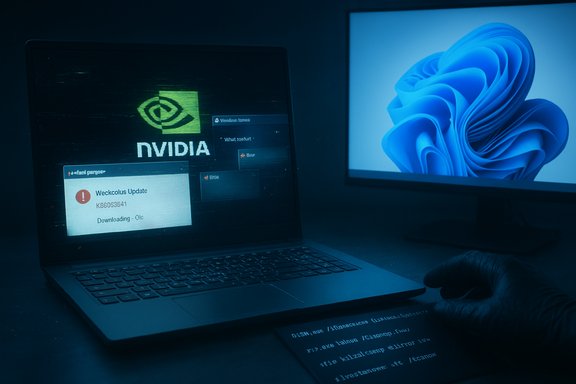
A laptop displays the NVIDIA logo with update popups, beside a monitor showing a blue Windows wallpaper.Background / Overview​

Microsoft released the November 11, 2025 cumulative update for Windows 11 (KB5068861) for both 25H2 and 24H2 builds, distributed as combined servicing-stack plus LCU packages and documented with OS build numbers 26200.7171 and 26100.7171 respectively. The official release notes list security fixes and a group of quality and reliability improvements, including gaming-related battery fixes, Task Manager shutdown corrections, and fixes to HTTP.sys parsing behavior. Microsoft’s public KB page currently states that it is not aware of any issues with this update. Community coverage and roundup posts mirrored the official details while also emphasizing the staged rollout and server-side gating Microsoft uses for certain UI features — a model that can produce inconsistent visibility of new functionality across otherwise similar machines. Independent tech outlets published concise summaries of the package and how to obtain it via Windows Update or the Microsoft Update Catalog. That’s the formal record. In practice, patch-day stories often diverge from vendor notes: isolated or low-volume regressions can appear on social platforms and support forums before a pattern is large enough to trigger an official acknowledgement and an emergency pull or hotfix. The Reddit report that started this specific discussion is one such isolated case, but it contains details that warrant investigation because the symptoms reported — blackscreens, brightness control loss, repeated driver-install prompts, and odd UI/right‑click behavior — can indicate either a software regression or a hardware/driver failure.

What the Reddit report says (and what it doesn’t)​

The claim in plain terms​

  • A Reddit user reports that while playing Warframe their laptop installed KB5068861 without warning, the screen went black, and after the crash a series of persistent problems followed: brightness control locked at maximum, NVIDIA drivers failing to install correctly, left-clicks acting like right-clicks, and repeated admin permission prompts for ordinary clicks. Uninstalling KB5068861 reportedly did not stick: the patch “loops” back after every restart.

Immediate caveats​

  • This is a single-user report on a public forum and is framed as a first-hand account — meaning it is an anecdote, not a reproducible diagnostic dataset. The core allegations (forced mid-session install, update reinstalling itself, and peculiar input behavior) are plausibly explained by software, firmware, or hardware faults, and must be treated as claims until corroborated by multiple independent reports or by Microsoft.
  • Community responders on the same thread suggested the possibility of a hardware issue (faulty GPU or a damaged display flex cable) — a reasonable alternative hypothesis when you see persistent artifacts or brightness lock. The presence of artifacts on the BIOS/UEFI screen or changes when moving the laptop lid are classic signs of hardware/display-cable failure rather than a Windows servicing regression.

What the official record and broader coverage say​

Microsoft’s KB documentation for KB5068861 lists the build numbers and the fixes included, along with the usual guidance on how to remove the LCU component using DISM if needed (because the combined SSU+LCU packaging prevents a wusa-based uninstall of the SSU). The KB notes explicitly that “Microsoft is not currently aware of any issues with this update” — the standard phrase Microsoft uses until a pattern is validated. Tech sites and Windows-focused outlets summarized the content and advised routine caution — pilot deployments for organizations and the usual rollback/rollback-plan provisions for administrators. Community discussions across multiple forum archives show that previous November/October cumulatives have occasionally introduced UI glitches or stability regressions, sometimes requiring targeted uninstalls or hotfix follow-ups; that historical pattern forms part of the context users should bring to today’s reports.

Technical analysis — likely causes and diagnostic priorities​

When a machine exhibits black screens, brightness lock, driver install failures, and strange input behavior after an update, treat diagnosis like building a case: list possible causes, then eliminate them systematically.
Primary hypotheses
  • Software/driver regression introduced or exposed by KB5068861 (or by another recent change).
  • Corrupt driver or system files unrelated to the cumulative but coincidentally triggered by an update/reboot.
  • Hardware failure (GPU, GPU power delivery, display panel flex cable, or embedded controller).
  • Firmware/BIOS incompatibility with a new servicing-stack update or LCU binary.
Which clues point where
  • Brightness locked at full and artifacts that change when the lid is moved argue strongly for hardware or display‑cable issues. If BIOS/UEFI shows artifacts or shows a black screen too, that’s almost certainly hardware. Community responders recommending sourcing an external monitor and checking BIOS were citing standard hardware triage.
  • Repeated prompts to install the same NVIDIA “Game Ready” driver multiple times often indicate a failed driver installation or a mismatch between the driver and the OS image (for example, a driver signature issue, a filesystem integrity problem, or a pending update state that prevents the driver from completing installation). Corrupt Windows Update component caches or incomplete servicing can also cause drivers to fail to register even while appearing to be installed. Microsoft documents how to use DISM and package removal commands to inspect packages and remove LCUs when required.
  • Left-clicks behaving like right-clicks and admin prompts when opening ordinary apps suggest system file corruption or an input-layer driver that’s misbehaving. Malware can sometimes cause odd input prompts, but a more common reason is a corrupted shell extension, third‑party context menu handler, or driver-level corruption. A safe-mode boot or a clean-boot trial will quickly separate third‑party software causes from OS-level faults.

How to triage — a practical step‑by‑step checklist (for power users and admins)​

Follow these steps in sequence. Where commands are provided, run them from an elevated (Administrator) Command Prompt or PowerShell.
  • Preserve the state
  • If possible, create a disk image or snapshot (hypervisor VM snapshot if the machine is virtual). This preserves the evidence and lets you revert quickly if something goes wrong.
  • Test hardware vs. software (fast checks)
  • Plug the laptop into an external display (HDMI/DisplayPort). If the external display shows a normal picture while the laptop screen misbehaves, suspect the laptop display or its flex cable. If both screens are black or glitched, the GPU or GPU driver is the more likely culprit.
  • Reboot and enter BIOS/UEFI. If artifacts or black screens appear before Windows loads, that’s hardware/firmware territory.
  • Safe Mode / Clean Boot
  • Boot to Safe Mode. If the issue disappears, suspect a driver or third‑party shell extension.
  • To start Safe Mode: Settings → Recovery → Advanced startup → Restart now → Troubleshoot → Advanced options → Startup Settings → Restart → F4 (Enable Safe Mode).
  • Check update and driver status
  • Verify KB presence: run
  • wmic qfe get HotFixID,Description,InstalledOn | findstr 5068861
  • or use DISM to list packages: DISM /online /get-packages | findstr 5068861
  • If KB5068861 is present and you need to remove the LCU component, Microsoft advises using DISM with the exact package name. The combined SSU+LCU package cannot be fully uninstalled via wusa if it contains the SSU.
  • Attempt driver repair
  • Use DDU (Display Driver Uninstaller) to fully remove NVIDIA or AMD drivers in Safe Mode, then reinstall the driver downloaded directly from the GPU vendor site — not from Windows Update. Clean installs reduce the chance of corrupted driver packages.
  • If the driver repeatedly “installs” and then prompts again, check the Device Manager for error codes and look in Event Viewer (System and Setup logs) for driver install failures.
  • Repair system files
  • Run:
  • sfc /scannow
  • DISM /Online /Cleanup-Image /RestoreHealth
  • These commands repair corrupted system files and can resolve issues where install operations complete but the system can’t use the updated files.
  • Rollback the update (if you believe the LCU is causal)
  • If you need to remove the LCU portion: use DISM /Online /Get-Packages to find the LCU package name, then:
  • DISM /Online /Remove-Package /PackageName:<PackageName>
  • Reboot and verify. Note: removing the LCU may be limited by the presence of SSUs and may not be possible via wusa. Microsoft documents this exact process for combined packages.
  • If hardware triage points to a display cable or GPU
  • For laptops: test with an external display, check BIOS, and if artifacts vary with lid angle suspect a flex cable; consult an authorized service center.
  • For desktops: swap the GPU into another machine if possible, or test with a known-good PSU and monitor.
  • Preserve logs and report
  • Capture Event Viewer entries, setup logs, and a copy of the DISM /get-packages output. If the issue looks like a servicing regression, submit a Windows Feedback Hub report and (if you’re an enterprise admin) open a Microsoft Support ticket with collected logs.

Assessing the risk and scale​

  • Single-report vs. signal: At time of writing the claim about KB5068861 causing black screens is limited to an isolated Reddit post and scattered forum chatter. A single report is not proof of a widespread regression; it may be a one-off interaction between that device’s hardware, installed drivers, and the update sequence. Microsoft’s KB page for KB5068861 lists the package and claims no known issues as of the release note. Those two facts together indicate the official stance remains “no known widespread regression.”
  • Historical context: October and earlier Patch Tuesday releases for Windows 11 have, in past months, produced high-profile regressions affecting diverse subsystems (taskbar UI, search flyouts, WSL2, IIS) which were later acknowledged and mitigated. That historical pattern means vigilance is warranted — but it also means not every anecdote maps to a global issue. Community thread aggregations show a mixed bag of problems from earlier cumulatives; those past incidents are why admins should pilot updates and keep rollback plans.
  • Practical guidance for general users: if your machine is critical for work or production, delay non-critical updates for a few days after Patch Tuesday and apply them in a staged way. If you’re an enthusiast who wants the latest fixes, install but ensure you have a restore point or system image and be prepared to roll back if needed.

Strengths and shortcomings of Microsoft’s current rollout model​

Strengths​

  • Combined SSU+LCU packaging ensures the servicing stack and cumulative updates align, reducing some failure modes and improving long-term reliability when things install correctly.
  • Server-side gating allows Microsoft to enable features in controlled waves, limiting exposure when a feature reveals a bug.
  • The KB pages provide exact build numbers and file lists and include guidance for package removal using DISM, which is essential for administrators.

Shortcomings / Risks​

  • Combined packages complicate rollback for non-expert users because a wusa-based uninstall won’t remove an SSU, forcing admins to use DISM with precise package names — an approach that’s technical and error-prone for casual users.
  • The author’s “no current issues known” phrasing delays public acknowledgement until there’s a clear signal; this helps prevent premature panic but leaves early victims feeling isolated and uncertain.
  • The staged feature model can create inconsistent user experiences across ostensibly identical machines, making troubleshooting harder for both admins and support staff.

What to do if you’ve been affected​

  • If you have a single laptop or home PC: follow the triage checklist above (external display test, safe mode, DDU driver clean, SFC/DISM, then consider LCU removal via DISM).
  • If you manage fleets or critical systems: withhold this optional or non-critical update on production systems until pilot groups confirm stability; use ringed deployment and rely on telemetry before full rollout.
  • Document everything. Capture logs and event entries and be ready to escalate to Microsoft Support if multiple machines reproduce the same failure mode.

Final assessment and recommended stance​

The currently reported KB5068861 black-screen claim is credible as an individual user complaint and should be treated as a high-priority troubleshooting case for the affected machine. It is not, at the time of writing, demonstrably a widespread, reproducible regression that mandates a mass rollback or indicates a catastrophic failure in Microsoft’s servicing pipeline. The official KB and multiple independent coverage outlets describe the update and list no known issues; independent community responders correctly noted hardware possibilities in the Reddit thread, which is an important caution against leaping to a patch-blame conclusion. For Windows users and administrators, the prudent posture remains unchanged:
  • Stage updates;
  • Maintain backups and recovery images;
  • Use safe-mode and hardware checks to differentiate drivers/OS regressions from hardware failures; and
  • Collect and escalate logs if you find reproducible patterns across machines.
If a broader signal emerges — multiple independent reports showing the same reproducible failure after KB5068861 installs, or Microsoft updates the KB to acknowledge a problem — the guidance will necessarily shift toward coordinated rollback and hotfix distribution. Until then, treat individual reports seriously but avoid declaring a systemic failure based on a single anecdote.

Quick reference: commands and immediate actions​

  • Check for KB presence:
  • wmic qfe get HotFixID,Description,InstalledOn | findstr 5068861
  • DISM /online /get-packages | findstr 5068861
  • Remove an LCU (if required and you have the exact package name):
  • DISM /Online /Remove-Package /PackageName:<PackageName>
  • Repair system files:
  • sfc /scannow
  • DISM /Online /Cleanup-Image /RestoreHealth
  • Create a restore point or VM snapshot before attempting removal or major troubleshooting.
These steps reflect the official guidance for dealing with combined packages and system repair — proceed carefully and collect logs before and after each change.
KB5068861’s release and the community reaction around it are a reminder that in Windows servicing, the intersection of hardware diversity, third‑party drivers, and combined servicing packages creates a complex troubleshooting environment. Individual reports like the Reddit post deserve careful, evidence‑based triage; they do not automatically represent a broad regression, but they do underscore the continuing need for cautious rollout practices and clear, user-friendly rollback tools for everyday users and administrators alike.
Source: Windows Report Reddit User Claims KB5068861 Update Causing Black Screens & System Glitches on Windows 11 25H2
 

Microsoft’s November cumulative rollup for Windows 11, KB5068861, is rolling out with new UI and quality fixes — but a growing number of owners of the ASUS ROG Ally X are reporting that the patch fails to install repeatedly, throwing errors such as 0x80071ab0 and 0x800f0991 and forcing multiple download/attempt cycles before installation finally succeeds (if it does at all).

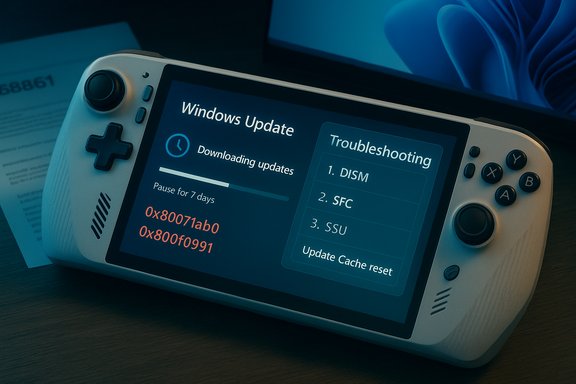
A handheld gaming console displays a Windows Update progress screen with troubleshooting options.Background / Overview​

KB5068861 was published on November 11, 2025 and is a combined servicing-stack plus latest cumulative update for Windows 11 (OS builds 26200.7171 for 25H2 and 26100.7171 for 24H2). Microsoft describes the release as a security-and-quality rollup that also folds in fixes from recent out‑of‑band updates and preview releases, and it explicitly includes fixes for certain issues affecting gaming handhelds and Start menu improvements. At the same time, community reports surfaced immediately after the patch shipped: one detailed Reddit thread and a short flurry of posts across Windows subreddits described update failures on ASUS handheld hardware, notably the ROG Ally X. These anecdotal reports cite the same KB number and identify installation failures at the Windows Update stage — often accompanied by the Windows UI showing only a “Retry” option — and by specific error codes such as 0x80071ab0 and 0x800f0991. This article summarizes what is known, verifies the update metadata from Microsoft, explains the error codes involved, analyzes why handhelds like the ROG Ally X can be more vulnerable to these kinds of update failures, and provides a practical, ordered troubleshooting playbook that has worked for many affected users.

What the reports say: symptoms and scope​

The pattern described by users​

  • Update is detected and downloads normally, then fails during the install/commit phase and reports an error.
  • Windows Update UI sometimes shows only a single “Retry” option after failure.
  • Error codes reported by multiple users include 0x80071ab0 on an initial attempt and 0x800f0991 on subsequent attempts; some users report the update eventually installed after repeating the retry multiple times.
  • Some posts describe additional symptoms after a failed install attempt: driver reinstall prompts (GPU driver redownloads), display/brightness oddities, or device instability — though these secondary symptoms are reported in only a small number of anecdotal threads and are not confirmed as widespread regressions.

What Microsoft’s documentation shows​

Microsoft’s official KB entry for KB5068861 lists the build numbers, the release date (11 November 2025), and the principal fixes and improvements included in the package, including specific notes for gaming handhelds (for example, fixes for devices not entering low‑power states and for brief gamepad input delays after sign-in). The KB does not list a known issue matching this particular install‑failure pattern at the time the KB went live, and Microsoft’s public release notes for the update describe no explicit roll‑back or hold for ROG Ally X hardware. That said, Microsoft’s update lifecycle and release health mechanisms sometimes lag community signals, and Microsoft occasionally publishes targeted guidance if a particular hardware pairing proves problematic in the field.

Error codes explained: 0x80071ab0 and 0x800f0991​

0x80071ab0 — what it typically means​

  • 0x80071ab0 is commonly observed when the Windows servicing stack or component store is in an inconsistent state, or when a required system file is locked or corrupted during an installation or restore operation. In other contexts, similar hex codes have pointed to locked files, service access issues, or conflicts with third‑party security software that prevents the servicing stack from writing or committing changes. Community troubleshooting threads often list this code in conjunction with problems in the Windows Component-Based Servicing (CBS) pipeline.

0x800f0991 — why it appears during cumulative installs​

  • 0x800f0991 is an installer/servicing error that usually signals component store corruption, missing prerequisite package content, or failures when the servicing stack attempts to commit an LCU (Latest Cumulative Update). Microsoft support channels and Tech Community threads repeatedly show the same remediation pattern: run the Windows Update Troubleshooter, repair component store corruption with DISM and SFC, reset Update components (SoftwareDistribution and catroot2), or install the servicing stack update (SSU) first. These steps often resolve 0x800f0991 when it arises from transient component-store inconsistencies.
Important: while the two error codes point to similar servicing‑pipeline problems, they are diagnostic clues, not definitive root‑cause proof. A failed install can be caused by underlying driver conflicts or faulty OEM drivers, third‑party security software interfering with the unpack/commit phase, corrupted local cache files, or even intermittent disk I/O issues.

Why handhelds and the ROG Ally X may see more reports​

Handheld Windows PCs combine laptop‑class software with highly integrated OEM drivers, unique power-management firmware, and specialized controller input stacks. Those design choices produce several risk factors during broad cumulative updates:
  • OEM driver/stacks: Handhelds often use custom graphics and input drivers (tight integration with AMD/Intel drivers, custom battery/bmc firmware, or gamepad stacks). If the update touches components those drivers depend on, driver compatibility mismatches can surface during or after installs. Community threads dating back to the launch of the ROG Ally family show driver-related update failures have been a recurring user theme.
  • Low‑power/wake behavior: Patches that adjust power-state handling can interact poorly with OEM firmware expectations (for example, code paths used when entering/exiting low‑power states on handheld hardware). KB5068861 explicitly lists fixes for handheld power-state issues, which makes this hardware class a primary testing surface — but also a place where edge-case regressions can appear.
  • Aggressive storage/cache usage: Handhelds with tight storage budgets and devices that prefetch or throttle update downloads to preserve battery may be more likely to encounter transient download corruption or cache inconsistencies when updates are reattempted repeatedly.
  • Driver rollbacks and in-place reinstalls: When cumulative updates attempt to update driver components, the device may try to reinstall or roll back drivers — and this driver dance increases the chance of a temporary failure that manifests as a Windows Update error code rather than a driver-only event. Community posts that include both update failures and driver reinstall prompts support this coupling.
Those technical realities explain why a patch can succeed on many devices yet fail on a small but noisy subset of units — particularly ones with unique firmware/driver combinations like the ROG Ally X.

Practical troubleshooting: an ordered playbook​

The following steps are an ordered, conservative playbook that balances safety and speed. Apply them in sequence; test Windows Update between the steps marked “Test.” Each step increases in intrusiveness and complexity.
Important safety notes before you begin:
  • Ensure you have a current backup of important data (cloud save or a backup image).
  • Keep the device plugged into power during updates.
  • Temporarily disable third‑party antivirus/security software during testing, then re-enable it afterward.

Quick checks (least intrusive)​

  • Reboot the device and try Windows Update again (sometimes the pending reboot state is the blocker).
  • Confirm at least 20–30 GB free on the system volume (low free space can cause commit failures).
  • Temporarily unplug non‑essential USB peripherals to rule out device interference.
Test: Check for updates in Settings → Windows Update.

Built‑in troubleshooters and quick repairs​

  • Run the Windows Update Troubleshooter: Settings → System → Troubleshoot → Other troubleshooters → Windows Update → Run. Apply any recommended fixes and reboot.
Test: Check for updates again.

Reset Windows Update cache and services (safe, effective)​

Run these commands in an elevated Command Prompt (copy/paste as a block):
net stop wuauserv
net stop cryptSvc
net stop bits
net stop trustedinstaller
ren C:\Windows\SoftwareDistribution SoftwareDistribution.old
ren C:\Windows\System32\catroot2 catroot2.old
net start wuauserv
net start cryptSvc
net start bits
net start trustedinstaller
This clears cached update payloads and forces Windows Update to re-download packages cleanly. Reboot after completing the block. Test: Check for updates.

Repair the component store (DISM + SFC)​

If retries still produce 0x80071ab0 or 0x800f0991, run these commands in an elevated Command Prompt:
  • DISM /Online /Cleanup-Image /CheckHealth
  • DISM /Online /Cleanup-Image /ScanHealth
  • DISM /Online /Cleanup-Image /RestoreHealth
  • sfc /scannow
Reboot after the commands complete. These commands check and repair the Windows image and the component store — the most common fix for the cited error codes. Multiple Microsoft support and Q&A threads recommend this as a primary remediation. Test: Check for updates.

Install Servicing Stack Update (SSU) manually (if required)​

Some cumulative installs require the SSU to be present and properly recorded before the LCU can apply. If the Microsoft KB for the update lists a separate SSU package or if automated steps above failed, manually download and install the SSU first from the Microsoft Update Catalog and retry the LCU. Microsoft’s documentation for KBs often calls out the SSU; recommend installing the combined package that includes the SSU where available. Test: Check for updates or attempt manual install.

Manual offline install via Microsoft Update Catalog​

If Windows Update continues to fail, manually download the .msu or .cab for KB5068861 from the Microsoft Update Catalog and install using wusa.exe or DISM. For a .msu:
wusa C:\Path\to\windows11.0-kb5068861-x64.msu /quiet /norestart
For a .cab with DISM:
DISM /Online /Add-Package /PackagePath:"C:\Path\to\somepackage.cab"
Manual installs sometimes succeed because they bypass a broken local Windows Update cache. Test: Reboot and verify build number in Settings → System → About.

In-place repair upgrade (if nothing else fixes it)​

If the update still fails and component store repairs don’t stick, perform an in‑place repair upgrade with an official Windows 11 ISO: mount ISO, run setup.exe, choose “Keep personal files and apps.” This replays the servicing stack and often fixes stubborn component store corruption while preserving user data and apps. Use this as a last step before a fresh install. Microsoft and community experts regularly recommend this path for persistent servicing failures.

Practical notes and escalation​

  • Repeating the update: a few users reported that retrying the update multiple times eventually succeeded (one user reported a successful third attempt), but repeated attempts consume bandwidth and may mask an underlying issue. Try the ordered remediation steps above rather than insistently retrying without changes.
  • Watch for driver reports: if you notice GPU or controller driver reinstall prompts after applying KB5068861, update GPU drivers from the OEM (ASUS/AMD/NVIDIA) page or use the vendor’s driver installer rather than relying solely on Windows Update. Community threads tie display/driver problems to update cycles in several cases.
  • Capture logs: if you need help from a support forum or from Microsoft, collect these logs first: Get-WindowsUpdateLog, Event Viewer entries for Setup and WindowsUpdateClient, and excerpts from CBS.log and DISM logs in C:\Windows\Logs\CBS and C:\Windows\Logs\DISM. Community experts ask for these exact artifacts when analyzing repeat failures.
If you’ve followed the steps and still cannot install the update, open a support case with ASUS or Microsoft (depending on warranty and support path) and supply the logs gathered above. For enterprise-managed devices, provide WSUS/ConfigMgr logs and update deployment telemetry.

Assessment: strengths of Microsoft’s approach, and real risks​

Notable strengths​

  • Microsoft shipped KB5068861 as a combined SSU+LCU with explicit fixes for handheld power states and Start menu improvements — that signals targeted engineering for a device class that’s now mainstream. The KB metadata and build numbers are clear and verifiable.
  • The company’s servicing model provides multiple remediation paths for stuck devices: Windows Update Troubleshooter, DISM/SFC repairs, manual SSU installation, Update Catalog offline installs, and the in‑place repair upgrade. Those are mature, documented options that work in most cases.

Risks and weak points​

  • Field heterogeneity: the combination of unique OEM drivers, specialized firmware, and the broad Windows installed base means even well-tested cumulative updates can produce edge‑case failures on a minority of devices. Handheld gaming hardware, by design, increases that heterogeneity. Community telemetry suggests this remains an operational reality.
  • Delayed public guidance: Microsoft’s KB pages and release health dashboards do not always map immediately to every community signal. A small number of early field failures may not trigger a Microsoft acknowledgement while community troubleshooting proliferates. That gap can create uncertainty and slow consistent remediation for affected users.
  • Data and bandwidth costs: repeated failed downloads are not just time‑wasting; they consume bandwidth and can be costly for users on metered or capped connections. Advising multiple retries without a remediation plan is poor user experience.

Final verdict and recommendations​

KB5068861 is a legitimate November 2025 cumulative update that includes both security fixes and several handheld-specific quality improvements. Microsoft’s documentation is consistent with the build numbers and release date. At the same time, a small but visible wave of community reports — particularly from ROG Ally X owners — describe installation failures with error codes 0x80071ab0 and 0x800f0991 that are symptomatic of servicing stack / component store inconsistencies or driver-related interactions on OEM hardware. These reports are credible as anecdotal field data, but they are not (yet) evidence of a systemic, universal regression across the installed base. If you own a ROG Ally X or similar handheld:
  • Try the ordered troubleshooting playbook above before repeating update attempts.
  • If you depend on the device for critical work or gaming sessions, consider delaying automatic installation until Microsoft or ASUS confirms mitigation steps or new driver packages, or stage the update in a pilot device first.
  • If you encounter persistent failures, gather logs and escalate to ASUS or Microsoft support; provide CBS, DISM, and WindowsUpdate logs to accelerate diagnosis. Community threads and Microsoft Q&A are already populated with similar reports — sharing logs increases the odds of a rapid engineered fix.

Quick reference: commands and steps (copy/paste)​

  • Windows Update Troubleshooter: Settings → System → Troubleshoot → Other troubleshooters → Windows Update → Run.
  • Reset Update cache (elevated CMD):
net stop wuauserv
net stop cryptSvc
net stop bits
net stop trustedinstaller
ren C:\Windows\SoftwareDistribution SoftwareDistribution.old
ren C:\Windows\System32\catroot2 catroot2.old
net start wuauserv
net start cryptSvc
net start bits
net start trustedinstaller
  • Repair image and files (elevated CMD):
DISM /Online /Cleanup-Image /RestoreHealth
sfc /scannow
  • Manual install via Update Catalog: download .msu and run:
wusa C:\Path\to\windows11.0-kb5068861-x64.msu /quiet /norestart
  • In‑place repair (mount ISO → run setup.exe → Keep personal files and apps).

The November 11 cumulative update is important for security and for several device‑specific fixes; it is reasonable to install it, but owners of specialized hardware such as the ROG Ally X should proceed with caution and follow a structured troubleshooting path if the update fails. Community reporting and expert guidance converge on component-store repair (DISM/SFC), update cache reset, and SSU-first installs as the most reliable remedies — and those steps should be attempted before more intrusive actions such as a reset or clean install. If the update is failing on your ROG Ally X and you’d like help interpreting specific logs (for example, CBS.log excerpts or the WindowsUpdate.log), collect them and seek targeted help on community forums or via vendor support — those logs are the fastest route to pinpointing whether the failure is a corrupted component store, a driver conflict, or something requiring an engineered patch.

Source: Windows Report KB5068861 Allegedly Fails to Install on ROG Ally X; Throws 0x80071ab0 & 0x800f0991 Error
 

Microsoft’s November Patch Tuesday brings a compact but consequential Windows 11 cumulative — KB5068861 (OS builds 26200.7171 and 26100.7171) — that folds October’s preview work into the mainstream channel and adds visible polish (a redesigned Start menu and a refreshed battery indicator), a new privilege model preview, and a raft of reliability fixes that deserve attention from both home users and IT pros.

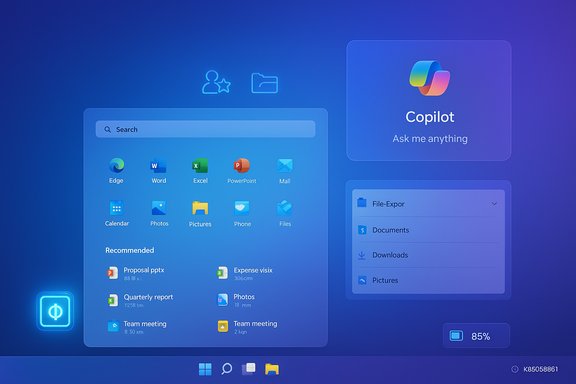
Windows 11 desktop showing a Start menu with pinned apps and an Administrator Protection shield.Background / Overview​

Microsoft shipped the November 11, 2025 cumulative update as KB5068861 for Windows 11 25H2 and 24H2, advancing affected machines to the 26200.x and 26100.x build families. The package is a typical Patch Tuesday rollup: it includes security updates, the latest servicing‑stack components, and non‑security improvements that first appeared in optional preview releases (notably the October non‑security preview family). A central operational detail: several UI changes in this update are staged via server‑side flags. That means installing the KB is necessary but not always sufficient to see every new visual or behavioral change immediately. Microsoft’s controlled, telemetry‑driven rollouts reduce risk but produce short‑term variability: two otherwise identical PCs on the same build may display different Start layouts or AI features. Treat this as an expected feature of modern Windows servicing.

What’s new at a glance​

  • KB / build: KB5068861 — Windows 11 builds 26200.7171 (25H2) and 26100.7171 (24H2).
  • Headline UI polish:
  • Start menu: single, scrollable surface with multiple All‑apps views (Category, Grid, List) and a Phone Link toggle.
  • Taskbar battery: color‑coded icons and an optional on‑tray battery percentage.
  • New security preview: Administrator Protection — a just‑in‑time elevation model that isolates elevated sessions and requires explicit authentication (Windows Hello) for privileged actions.
  • File Explorer’s planned “Recommended” Home panel rollout has been paused pending further rollout decisions; other Explorer fixes remain included.
  • Reliability fixes: Task Manager closure bug, Update-and‑shutdown semantics, Storage Spaces/cluster issues, large archive extraction errors, Voice Access setup, gaming handheld low‑power/resume issues, and others.

Start menu: the most customizable Start yet​

What changed​

The old split between Pinned/Recommended and All apps has been collapsed into a single, vertically scrollable Start surface that houses pinned apps, recommendations, and the All apps listing together. Microsoft introduced three presentation modes for the All apps area:
  • Category view — apps are automatically grouped into topical buckets (Productivity, Games, Creativity, etc..
  • Grid view — a denser, tile‑like alphabetical grid for quick scanning on wider screens.
  • List view — the classic A→Z vertical list that long‑time Windows users will recognize.
The Start canvas is responsive: it decides how much content to show based on display size and resolution. On large monitors, you’ll see more pins and categories by default.

What it feels like in practice​

In hands‑on testing, Category view automatically groups apps and only creates a category when there are enough apps for it to make sense — anecdotal testing suggests groups form when roughly three or more similar apps exist, so a lone or pair of games may be folded into “Entertainment” or “Other.” That behavior aligns with Microsoft’s intent to create meaningful buckets rather than many single‑item groups, but the exact threshold is not documented by Microsoft and should be viewed as a user‑observed behavior, not a guaranteed rule.
The Start menu now surfaces a compact Phone Link toggle next to the search bar so phone content can be shown or hidden without digging through Settings. You can also turn off the Recommended section entirely from Settings > Personalization > Start if you prefer a minimal launcher.

Strengths and limitations​

  • Strengths:
  • Better discoverability for users with many apps.
  • Multiple views let users choose a scanning model that suits them.
  • Tight Phone Link integration reduces friction for phone‑PC continuity.
  • Limitations:
  • Category ordering is not user‑reorderable; dragging tiles to rearrange category order is not supported in current builds. This is a UX omission power users will notice.
  • Server‑side gating means the Start redesign won’t appear instantly for everyone — expect phased visibility.

Taskbar battery: color, numbers, and a small UX victory​

Windows 11 now ships with a refreshed battery indicator across the taskbar, Quick Settings, lock screen, and Settings that uses color‑coded states:
  • Green — charging / healthy state
  • Orange / Yellow — Energy Saver / low battery state
  • Red — critical battery state
There’s also an optional setting to show a persistent battery percentage next to the icon (Settings > System > Power & battery → Show battery percentage). The feature is off by default to conserve the tiny amount of CPU/time used for continuous percentage updates, but turning it on gives the convenience of seeing an exact number without hovering.

Why this matters​

This is one of those small UI changes that materially improves day‑to‑day usability on laptops and handheld devices. Color cues deliver instant context (charging vs. critical), while a persistent percentage removes a tiny but practical friction point. For handheld gaming PCs — a class of devices where battery visibility is critical — this is a welcome refinement.

Caveats​

  • The battery color thresholds appear to be defined by Microsoft (Energy Saver defaults to 30% and critical to 6% in current builds), and users cannot tune the precise percentage thresholds through a simple UI setting today. That may change if Microsoft adds more granular controls. The thresholds reported in hands‑on tests are consistent across multiple coverage sources but are not exposed as tweakable options in the Settings GUI.

Administrator Protection: a preview of safer elevations​

What it is​

Administrator Protection is a preview security control introduced in KB5068861 that changes how elevated operations are handled. Instead of assuming a logged‑in admin’s token is safe and persistent, Windows can:
  • Require explicit authentication (Windows Hello, PIN, or biometric) before agreeing to elevation.
  • Spawn a temporary, system‑managed, isolated account to host the elevated operation; the elevated token is ephemeral and discarded after the task finishes.
This model aims to reduce the attack surface for privilege escalation and malware that tries to piggyback on persistent admin tokens.

How to enable and manage (preview)​

  • End users (where the toggle is exposed): Open Windows Security → Account protection and enable the Administrator protection toggle, then restart.
  • Enterprises: deploy via Intune (Settings Catalog / OMA‑URI), Group Policy, or local CSPs. Microsoft provides policy paths and Intune settings for controlled rollout and telemetry collection. A reboot is required after enabling on managed devices.

Risks and testing guidance​

  • Compatibility risk: Some legacy installers and poorly designed setup packages expect shared profile state during elevation. Running those installers inside an ephemeral account may fail. Test installers, drivers, and in‑house apps in a pilot ring before broad deployment.
  • Telemetry and logs: Expect new ETW events and logs for elevation instrumentation. Enterprises should monitor elevation events to detect potential application compatibility issues as they pilot the feature.

File Explorer: the “Recommended” panel was delayed​

Microsoft originally planned to replace Quick Access with a more visible Recommended panel in File Explorer Home (larger thumbnails surfacing frequently used, downloaded or shared files). That work — and a set of StorageProvider APIs for third‑party cloud integration — was included in October preview packages, but Microsoft updated the public changelog on November 5 and paused the rollout of the File Explorer Recommended surface and StorageProvider APIs pending a future release. The rest of the File Explorer fixes in KB5068861 remain.

What to expect if/when it returns​

  • The Recommended panel is optional and, when present, can be disabled via File Explorer Options → Privacy → Show recommended section, or by right‑clicking individual items and removing them from Recommended. Because it integrates recent activity, disabling the Recommended feed from Start may also affect “Recent files” in Explorer and jump lists — something to watch for when toggling the global “recommended/recent” controls.

Reliability and bug fixes you should care about​

KB5068861 addresses a number of stability and functionality problems that have real operational impact:
  • Task Manager closure bug: Fixed an issue where closing Task Manager with the Close button didn’t actually terminate the process, potentially leaving background instances consuming resources. This regression surfaced in earlier preview builds and is now patched in the cumulative.
  • Update and shutdown: The “Update and shut down” and “Update and restart” paths now behave correctly — previously some systems would update and return to a lock screen or start instead of powering down.
  • Storage Spaces / Storage Spaces Direct: Fixes for inaccessible Storage Spaces or failures when creating a Storage Spaces Direct cluster. Important for servers and high‑availability setups.
  • Large archive extraction: Archive files above ~1.5 GB that previously failed with a 0x8000FFF error can now be extracted successfully.
  • Voice Access setup: Resolved a problem where Voice Access initial setup failed if a microphone wasn’t present.
  • Gaming handhelds / controllers: Fixes improved low‑power behavior on handheld gaming devices and addressed controller sign‑in delays and touch‑keyboard visibility at sign‑in. These changes help the growing handheld PC segment.
These fixes are operationally important; many address regressions that affected user workflows, battery life, or manageability.

Deployment: how to get the update and verify what you installed​

  • For most users: use Settings → Windows Update → Check for updates and install the offered KB5068861 cumulative. Microsoft distributes this via Windows Update and the Microsoft Update Catalog.
  • For offline / scripted installs: download the matching .msu files from the Microsoft Update Catalog and install using DISM or wusa; when multiple MSUs are present, Microsoft’s guidance is to place them together and let DISM discover prerequisites.
  • Verify the build: press Win+R, type winver, and confirm your OS build (e.g., 26200.7171 for 25H2 machines receiving the November cumulative).

Important rollout note​

Because some features are server‑side gated, installing KB5068861 may not immediately expose the Start redesign, Administrator Protection toggle, or Copilot+ enhancements. Allow several days for feature‑flag propagation or check the Release Preview/Insider channels if you want to see changes earlier. Enterprises should pilot first and avoid assuming universal feature exposure just because the binary is installed.

Practical how‑tos (quick steps)​

  • Enable battery percentage (if you want it):
  • Settings → System → Power & battery → turn on Show battery percentage.
  • Toggle Start recommendations:
  • Settings → Personalization → Start → toggle Show recommended files in Start, recent files in File Explorer, and items in Jump Lists (turning this off will also disable related recent lists). Use with care.
  • Enable Administrator Protection (preview paths):
  • Windows Security → Account protection (toggle where available), then restart. For enterprise: deploy via Intune (Settings Catalog/OMA‑URI) or Group Policy and pilot.
  • Offline install (DISM sample):
  • Download MSUs to a folder and run:
    DISM /Online /Add‑Package /PackagePath:C:\Packages\Windows11.0‑KB5068861‑x64.msu
    Reboot and verify with winver.

Critical analysis — strengths, risks, and what to watch​

Notable strengths​

  • KB5068861 balances usability polish and real‑world reliability fixes. The Start menu and battery indicator are thoughtful user‑facing improvements that respond to long‑standing feedback.
  • The Administrator Protection preview is meaningful: moving to ephemeral, authenticated elevations is a sensible hardening of the privilege model and aligns with modern least‑privilege principles.
  • The cumulative fixes — Task Manager, Update‑and‑shutdown, Storage Spaces, large archive extraction — resolve problems that could degrade battery life, block automation, or cause data access failures.

Potential risks and operational caveats​

  • Server‑side gating creates inconsistency. For admins and helpdesk staff this adds a support challenge: “Did you install the update?” is no longer a sufficient diagnostic question; you must also confirm feature flag exposure and entitlement.
  • Administrator Protection compatibility: legacy installers that implicitly rely on shared profile state during elevation may break under the isolated elevated account model. Enterprises must pilot the setting with a representative application matrix before broad deployment.
  • File Explorer Recommended pause: Microsoft’s decision to delay the Recommended panel is a sign they are being cautious around cloud integration and privacy/regulatory complexity. If you saw the Preview appear on some devices earlier, don’t expect it to remain enabled universally.
  • Unverified community claims: small file artifacts, precise JSON payload sizes, or internal implementation details reported by community tools have not been confirmed by Microsoft. Treat those low‑level claims as speculative until Microsoft publishes engineering notes.

Recommendations — who should install now, who should wait​

  • Home users who want the Start and battery UX improvements and general security patches: install via Windows Update. The risk profile is low and the fixes are generally beneficial.
  • Power users and enthusiasts who want features fast: consider joining Release Preview or applying the optional non‑security preview first — but only on a non‑critical machine. Be prepared for staged visibility and potential minor regressions.
  • Enterprises: pilot KB5068861 in a small, representative ring. Validate:
  • Application compatibility (especially installers and drivers).
  • Imaging and offline servicing flows (SSU+LCU ordering, DISM).
  • Administrator Protection interactions with enterprise management stacks and scripted installs.

Closing assessment​

KB5068861 is not a blockbuster feature update, but it is one of the more meaningful quality releases Microsoft has shipped in months: a clearer, more customizable Start menu, a long‑requested battery percentage option and color cues, an important privilege hardening preview, and fixes for practical regressions that affected power users and admins. The most important operational truth remains the same: install the cumulative for security and reliability, but expect visible features to appear in waves. Strategically, administrators should treat this release like any other modern Windows servicing cycle — pilot, validate, and then scale.
The update is available now via Windows Update and the Microsoft Update Catalog; if you prefer a wait‑and‑watch approach, Microsoft reports no widespread known issues at this time, but careful piloting remains the safest route.

Source: Windows Latest I tested Windows 11 November 2025 Update, here's everything you need to know
 

Microsoft’s November cumulative for Windows 11, KB5068861, released on November 11, 2025, is installing cleanly for most machines but has produced a visible wave of installation failures for a subset of users — often surfacing as error codes 0x800f0983, 0x800f0991 and 0x80071ab0 — prompting community reports, repair guides, and cautious rollout advice for power users and administrators.

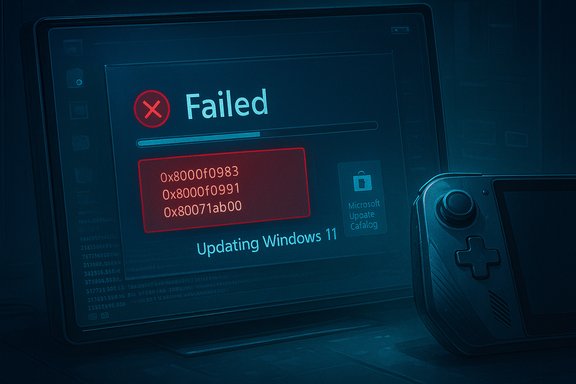
Screen shows a Windows 11 update failed message with error codes, beside a handheld game controller.Background / Overview​

Microsoft published KB5068861 on November 11, 2025, bundling the latest servicing-stack update (SSU) and the November cumulative (LCU) for Windows 11 versions 25H2 and 24H2, moving devices to the 26200.7171 and 26100.7171 build families respectively. The official KB entry lists the release date, build targets and a list of security and quality fixes rolled into the package. Microsoft’s support page also states it is not currently aware of any issues with this update, even while the community thread reports surfaced almost immediately after rollout. Industry coverage of the November patch emphasized visible user-facing improvements — notably Start menu refinements, a refreshed battery icon with optional on‑tray percentage, and a Task Manager fix that prevents the process from remaining active after closing. Independent outlets captured the same changelog and confirmed the update’s availability via Windows Update and the Microsoft Update Catalog.

What users are reporting right now​

Symptoms and scope​

Early field signals and community threads describe an installation pattern that looks familiar from previous servicing hiccups:
  • The update appears, downloads normally, then fails during the install/commit phase and rolls back.
  • Windows Update may present only a single Retry option after failure.
  • Reported error codes include 0x800f0983, 0x800f0991 and 0x80071ab0, sometimes appearing in sequence across multiple retries.
  • Affected devices range from common laptops and desktops to specialized hardware like the ASUS ROG Ally X handheld; multiple Reddit threads and forum posts show repeat failures and troubleshooting attempts.

Anecdotes vs. telemetry​

The community reports are credible as anecdotal field data, but they are not telemetry — Microsoft’s KB and release health pages have not added a matching known-issue entry for KB5068861 at the time of writing. Treat forum reports as urgent signals to triage, but not definitive proof of a universal regression until vendor telemetry or Microsoft’s release-health updates confirm scope.

Technical analysis: what the error codes mean​

0x800f0983 — a servicing (CBS) failure​

Error 0x800f0983 is a class of servicing failure commonly tied to the Component-Based Servicing (CBS) pipeline and the Windows component store (WinSxS). In practice this manifests as updates that download successfully but fail during the install/commit phase and then roll back. Microsoft support threads and community diagnostics equate the code to missing or mismatched servicing components — often summarized as PSFX_E_MATCHING_COMPONENT_DIRECTORY_MISSING — and the most reliable repair for stubborn cases has frequently been an in‑place repair (a repair upgrade) that replays servicing components. Common root causes that map to 0x800f0983:
  • Component store corruption or missing matching component directories.
  • Interrupted servicing sequences or incomplete payloads.
  • Interactions with language packs, optional components, or OEM drivers that change the expected servicing graph.

0x800f0991 and 0x80071ab0 — related installer/commit symptoms​

  • 0x800f0991 often appears when Windows Update cannot successfully commit the LCU, and it frequently co-occurs with component-store problems or with servicing-stack ordering issues (for example, when an SSU prerequisite is not applied before the LCU).
  • 0x80071ab0 is often seen where file/driver/service state prevents successful update commits or if system files are damaged. These codes are diagnostic clues — they help narrow the class of failure but do not substitute for logs or forensic data.

Why certain machines (like handhelds and niche configs) show higher incidence​

Specialized or non-standard hardware can amplify servicing fragility. A few reasons handhelds and niche configurations (for example, patched OEM firmware, custom drivers, or unusual optional features) are more likely to surface update-failures:
  • OEM driver interactions: Gaming handhelds like the ROG Ally X use custom drivers (power, GPU, gamepad input) and vendor firmware that can influence file system locks, driver staging, or driver installer semantics during an LCU commit. If the LCU attempts to update or enumerate components that depend on those drivers, a mismatch can cause a commit failure.
  • Smaller QA surface: Vendor-specific hardware has fewer test permutations in Microsoft’s broad validation matrix; tight coupling between kernel-mode drivers and the update servicing pipeline increases the chance of edge failures.
  • Staged rollouts and server-side gating: Some user-facing features in KB releases are server gated, so patching supplies new binaries without immediately enabling features; this can obscure whether the package applied correctly or whether the visible behavior is unchanged.

Verifying the facts (what’s confirmed and what remains tentative)​

  • Confirmed: KB5068861 shipped as the November cumulative for Windows 11 on November 11, 2025, targeting build families 26200.7171 (25H2) and 26100.7171 (24H2). This is explicitly documented on Microsoft’s KB pages.
  • Confirmed: independent outlets reproduced the KB’s feature list (Start menu, battery icon, Task Manager fix) and suggested standard install paths (Windows Update or Microsoft Update Catalog).
  • Corroborated: multiple community threads show repeated installation failures and the appearance of 0x800f0983 and related error codes; those threads include Reddit and specialist forum postings. These demonstrate a non‑zero failure cohort but do not quantify incidence.
  • Tentative / unverified at scale: claims that the update bricked large numbers of devices or that the update is globally broken. These remain anecdotal until Microsoft confirms telemetry or publishes a Known Issue note. Exercise caution before assuming systemic failure.

Practical troubleshooting playbook (ordered and pragmatic)​

The following is an ordered set of steps that balances safety and speed. Try the least intrusive options first and escalate only when necessary. Community responders, Microsoft support answers, and independent guides converge on this playbook as the most pragmatic route.

Quick, low-risk steps (try first)​

  • Pause updates temporarily (Settings → Windows Update → Pause updates). This prevents repeated failed attempts and wasted bandwidth.
  • Reboot and retry Windows Update → Check for updates → Retry. Sometimes transient locks resolve on restart.
  • Run Windows Update Troubleshooter: Settings → System → Troubleshoot → Other troubleshooters → Windows Update → Run. This fixes many common service-state issues.

Mid-level repairs (if the quick steps fail)​

  • Reset Windows Update components (elevated CMD — copy/paste as a block):
  • net stop wuauserv
  • net stop cryptSvc
  • net stop bits
  • net stop trustedinstaller
  • ren %windir%\SoftwareDistribution SoftwareDistribution.old
  • ren %windir%\System32\catroot2 catroot2.old
  • net start wuauserv
  • net start cryptSvc
  • net start bits
  • net start trustedinstaller
    After resetting, reboot and retry Windows Update.
  • Repair system image and files:
  • DISM /Online /Cleanup-Image /RestoreHealth
  • sfc /scannow
    These can identify and repair component-store corruption. If DISM cannot reach Microsoft’s repair source, mount an ISO with the matching build and point DISM to the install.wim or use the source option.

Stronger remediation (if the above fails)​

  • Install the servicing stack update (SSU) first, then the LCU manually from the Microsoft Update Catalog. Sometimes an SSU ordering issue causes commit failures. Use DISM /Online /Add-Package with the SSU and LCU files in the proper order.
  • Manual offline install of the KB .msu (if Windows Update refuses): download the correct architecture package from the Microsoft Update Catalog and run:
  • wusa C:\Path\to\windows11.0-kb5068861-x64.msu /quiet /norestart
    Note: if the combined package contains the SSU, wusa /uninstall won’t remove the SSU later — uninstall via DISM if needed and only if you understand the consequences.
  • In‑place repair (the reliable “nuclear light” repair that keeps files and apps): Settings → System → Recovery → Fix problems using Windows Update → Reinstall now or mount an official Windows 11 ISO, run setup.exe and choose “Keep personal files and apps.” This refreshes servicing components and fixes many persistent CBS problems. Microsoft support and community experts list this as the most consistent cure for stubborn 0x800f0983 cases.

When to escalate or fallback​

  • If an update repeatedly fails and the device is critical, revert to a pre-update snapshot or use your backup image rather than risk extended troubleshooting on a production machine.
  • If hardware-specific symptoms appear (black screen, brightness locked, BIOS artifacts), perform hardware triage (external monitor, BIOS/UEFI check) before attributing the problem solely to the cumulative. Community responders have flagged display or BIOS signs as evidence of hardware faults rather than universal software regressions.

Recommendations for consumers, power users and IT admins​

For home users and owners of specialized hardware (ROG Ally X, gaming handhelds)​

  • Pause automatic updates until a stable pattern or mitigation is published if you rely on the device daily for work or critical tasks. Repeated failed installs waste bandwidth and can trigger secondary issues.
  • Try the ordered playbook above — start with the Troubleshooter, use DISM/SFC, reset update components, and if necessary perform an in‑place repair. Many affected users saw success after these steps.
  • Collect logs (WindowsUpdate.log, CBS.log, and DISM logs) before major remediation; if you escalate to ASUS or Microsoft support these logs accelerate diagnosis.

For IT administrators and fleet managers​

  • Pilot first: deploy KB5068861 to a representative pilot ring before broad rollout. Validate imaging, line‑of‑business apps, and power-management scripts.
  • Maintain rollback and recovery artifacts: snapshots, VM images, and tested rollback procedures are vital. The combined SSU+LCU packaging complicates uninstalls; prefer image restores for critical servers.
  • Monitor telemetry for injection points: track Windows Update failure rates (0x800f0983 family) and correlate with OEM driver versions, language packs and optional features. If your fleet shows a reproducible failure, collect a support bundle and open a case with Microsoft.

Critical analysis — strengths, risks and the servicing tradeoffs​

Strengths in Microsoft’s approach​

  • The November cumulative bundles security fixes and targeted quality repairs (Task Manager, Start menu polish, battery indicator), delivering necessary security coverage and incremental UX enhancements in a single lifecycle. The KB is explicit about what changed and consolidates fixes from October preview updates.
  • Microsoft’s staged rollout and server-side gating reduce mass regression risk by enabling controlled feature exposure and progressive deployment.

Risks and operational downsides​

  • Opaque changelogs: Many KB entries use terse language (“addressed the underlying issue”) which leaves IT teams without the forensic detail needed to definitively attribute failures or craft precise mitigations. That lack of detail slows root-cause analysis when servicing pipeline complexities collide with OEM drivers.
  • Partial fixes and residual edge cases: While Microsoft’s October preview packages aimed to repair 0x800f0983 issues, community reports show that some installations continue to fail — indicating the fix reduced but did not eliminate all failure permutations. This heterogeneity is a natural consequence of a massive device ecosystem but is frustrating for users who encounter the remaining edge cases.
  • Repairability when WinRE is affected: Prior servicing incidents that affected WinRE input or recovery tools demonstrate how a bad servicing interaction can complicate repairability; urgent out-of-band patches are sometimes required to restore recovery usability. Maintain offline rescue media.

How to interpret the current situation (clear guidance)​

  • If your device updated successfully and reports the expected build (check with Win+R → winver), there is no immediate action required beyond routine monitoring and normal update hygiene.
  • If you are seeing repeated failures with 0x800f0983/0x800f0991/0x80071ab0:
  • Pause automatic updates temporarily to avoid repeated retries.
  • Follow the ordered troubleshooting playbook above, prioritizing data preservation (snapshots/backups).
  • Collect logs and escalate to vendor support if you reproduce the failure on vendor‑supported hardware (for example, ROG Ally X); vendor-specific drivers or firmware often play a role.

Conclusion​

KB5068861 is a legitimate November 2025 cumulative that delivers security and quality improvements across Windows 11 24H2 and 25H2, and it has already fixed several high-profile nuisances such as the Task Manager background‑process bug. Microsoft’s KB and independent coverage confirm the release date and build numbers. At the same time, a measurable cohort of users — often on specialized hardware or with idiosyncratic driver/firmware combinations — are encountering repeat installation failures that surface as 0x800f0983, 0x800f0991 and related errors. Community troubleshooting, Microsoft support guidance, and practical experience all point to an ordered remediation pathway (troubleshooter → reset update components → DISM/SFC → SSU+LCU manual install → in‑place repair) that resolves the majority of stubborn cases, but the process can be disruptive and time-consuming for affected users. For everyday users: pause updates if the device is critical, try the low-risk mitigations listed above, and collect logs before attempting in‑place repair. For administrators: pilot the update, validate critical workflows, and keep rollback and recovery assets ready. If a broader, reproducible pattern emerges that affects many machines, expect Microsoft to follow previous practice and post release‑health guidance or an out‑of‑band mitigation; until that point, treat community reports seriously, triage methodically, and escalate with logs when necessary.

Source: Windows Report Windows 11 KB5068861 Not Installing For Many; Throws 0x800f0983 Error Code
 

Microsoft’s November cumulative for Windows 11 — KB5068861 — delivers a pragmatic bundle of security hardening, reliability fixes, and a set of staged user-facing improvements that continue the OS’s gradual AI and UI rollouts, advancing 24H2 and 25H2 devices to OS Builds 26100.7171 and 26200.7171 respectively.

A futuristic blue Windows‑style desktop featuring Copilot and floating app icons.Background / Overview​

Microsoft shipped KB5068861 on November 11, 2025 as the regular Patch Tuesday cumulative for Windows 11 versions 24H2 and 25H2. The package is a combined servicing stack + LCU style release that folds October’s preview fixes and selected feature binaries into the mainstream servicing channel. The official KB lists the OS build targets, an AI component version table, and an itemized set of fixes and improvements. This update follows the modern Windows servicing pattern: Microsoft often ships feature-capable binaries in preview or preview-adjacent monthly packages, then enables or further stabilizes behavior through a cumulative release and server-side gating. The result is that installing the KB is often necessary to receive newer behaviors and UX, but not always sufficient to make a feature immediately visible — Microsoft may still flip feature flags selectively. That staged delivery is already visible in community reporting and early post-deployment notes.

What’s inside KB5068861 — quick summary​

  • Builds advanced to 26200.7171 (25H2) and 26100.7171 (24H2) on updated systems.
  • Includes security fixes and the non-security quality improvements that shipped in the October preview cycle.
  • Adds or promotes UI polish and Copilot-era features — notably a refreshed Start surface (rolled out in stages), colorful battery icon with optional percentage, Click to Do enhancements, File Explorer AI actions, Voice Access improvements, and accessibility refinements.
  • Updates Windows AI runtime components (image search, content extraction, semantic analysis, settings model) with new component versions.
These items are a mix of quality fixes (Task Manager shutdown bug, storage/cluster reliability fixes, voice access setup fixes) and incremental features (AI actions, Click to Do improvements) — a typical pattern for a monthly cumulative that also serves as a vehicle to broaden previously previewed changes.

Deep dive: user-facing features and AI improvements​

Click to Do — smarter, faster Copilot interactions​

KB5068861 contains several targeted improvements to Click to Do, Microsoft’s contextual Copilot entry-point that surfaces actions for selected on-screen content.
  • A streamlined prompt box that lets you type a custom query and send the prompt plus selected content to Copilot. Suggested prompts appear beneath the box and are powered locally by Microsoft’s on-device small language model, Phi Silica (see the Phi Silica discussion below). Suggested prompts are currently available for English, Spanish, and French in supported locales.
  • On-screen translation: when you select text in a language different from your Windows display or preferred language, Click to Do can suggest translating that text and open the translation in Copilot. This is presented as an integrated translate workflow rather than a separate app hop.
  • Unit conversion: hover over numeric values and units to get a tooltip conversion; selecting the pair opens a richer conversion menu and Copilot suggestions for related transforms.
  • Selection modes: Freeform and Rectangle selection modes plus Ctrl+click multi-selection for mixed content (text + images) to let Click to Do operate across visual content. A two-finger press-and-hold gesture on Copilot+ PC touchscreens opens Click to Do and selects content beneath fingers automatically.
Caveat: availability varies by device profile and Microsoft account sign-in state; some capabilities are gated to Copilot+ hardware or require an active Microsoft account. Early community notes stress that feature visibility is still staged.

File Explorer — hover commands, “Ask Copilot”, and image AI actions​

File Explorer Home now surfaces quick actions when you hover a file: commands like Open file location and Ask Copilot show as quick actions on supported devices signed in with a Microsoft account. File Explorer also gains deeper AI capabilities for compatible images — options such as Erase Objects, Blur Background, Visual Search, and quick AI-based image transforms are part of the broader “AI actions” effort introduced earlier in preview builds. Important operational note: several of the File Explorer AI features are being rolled out gradually and may require Copilot licensing or Copilot+ hardware for the best local-on-device performance. Microsoft delayed some “Recommended” Home panel features to refine rollout behavior; these items should reappear in later releases.

Voice Access — Fluid Dictation and expanded language support​

Voice Access receives a meaningful upgrade in two areas:
  • Fluid Dictation: on-device small language models (SLMs) power a smoother voice-to-text experience that performs grammar, punctuation, and filler-word corrections in real time. Fluid Dictation runs locally for speed and privacy and is enabled by default on Copilot+ PCs in supported English locales.
  • Japanese support: Voice Access is now available for Japanese, widening the accessibility reach. Administrators and accessibility teams should verify localized voice models and input handling in their test rings.
Voice Access also gained a configurable delay before executing commands — a small but important tweak that reduces accidental activations for some users. Fixes for known Voice Access initialization errors (e.g., error code 9001) are included in the cumulative.

Settings agent, advanced pages, and control panel migration​

KB5068861 introduces a new Advanced page in Settings that consolidates developer and system-level settings previously scattered around “For developers.” Microsoft is continuing the long-term migration of classic Control Panel settings (time, language, keyboard settings and more) into Settings, reducing the legacy control-plane surface area. The agent inside Settings also gains additional language support (French in this release), improving discoverability for common configuration tasks.

Copilot+ PCs and Phi Silica — what “on-device” really means​

A key thread in KB5068861 and parallel releases is the continued expansion of on-device AI experiences for Copilot+ PCs — systems that include dedicated NPUs and the firmware/software stack tuned for local inference.
  • Phi Silica is Microsoft’s on-device small language model (SLM) family optimized for NPUs on Copilot+ PCs. Microsoft’s developer docs and Windows AI guidance describe Phi Silica as the SLM used for local prompt suggestions and certain Click to Do features; the model is available via Windows AI Foundry APIs and is intended to provide low-latency, private inference for many interactive scenarios.
  • On-device SLMs reduce cloud roundtrips, improve responsiveness, and provide a stronger privacy posture for many prompt/selection operations. That said, some Copilot experiences still use hybrid architectures: local models for quick transforms and server-side models for heavier reasoning or when tenant/Microsoft 365 entitlements invoke cloud capabilities. Product pages make a clear distinction between what can run purely on-device and what requires networked Copilot services.
Practical implication: users on Copilot+ hardware will generally see faster suggestions and more offline-capable AI behaviors, but feature parity across the broader Windows population remains conditional on Microsoft’s staged enablement, licensing, and hardware checks.

Fixes and reliability improvements — what administrators should care about​

KB5068861 addresses a number of reliability and security items that are directly relevant to day-to-day operation and management:
  • Task Manager shutdown bug fixed: closing Task Manager with the Close button no longer leaves background instances running, an issue that could degrade system performance over time.
  • Gaming handheld behavior: fixes for handheld gaming devices that could not stay in low-power states and controller sign-in lags were included.
  • Storage/Storage Spaces and cluster fixes: the update corrects conditions that could cause Storage Spaces to become inaccessible or prevent Storage Spaces Direct from forming clusters. These are particularly important for server-appliance and hyperconverged scenarios.
  • HTTP.sys strict parsing adjustment and a registry toggle for lenient chunk extension parsing are documented for edge proxy scenarios.
Administrators should note the SSU behavior: KB5068861 bundles the latest servicing stack update for the branch, and because combined SSU+LCU packages include an SSU component that is not removable via wusa, offline deployment plans must account for non-rollbackable SSU installs. Use DISM-based rollback strategies or image-level rollbacks when necessary.

Installation: options, rollout, and recommended approach​

For most users the simplest approach remains:
  • Open Settings → Windows Update → Check for updates. If KB5068861 is offered, choose Download and install. Reboot when prompted. Verify the resulting build with winver.
  • For offline or imaging scenarios: obtain the matching .msu packages from the Microsoft Update Catalog and install via DISM /Add-Package or wusa for non-SSU-only packages. When multiple MSUs are present, follow the KB’s guidance or let DISM resolve prerequisites by placing all MSUs in the same folder.
Recommended deployment process for IT teams:
  • Pilot the update on a small, representative set of devices (including Copilot+ hardware if you plan to test on-device AI features).
  • Validate critical subsystems (IME/localized inputs, storage, Hyper-V/networking, printers, imaging/unattend flows).
  • Roll out in staged rings and monitor telemetry and helpdesk tickets for localized regressions.
Note about offline installers: they are significantly larger than express deltas and may include the SSU portion that cannot be uninstalled with wusa. Plan for revert strategies when using offline packages.

Privacy, data residency, and governance considerations​

The expansion of on-device AI reduces some cloud exposure, but several Windows AI flows remain hybrid or cloud-assisted:
  • Some File Explorer and Copilot features integrate with Microsoft 365 or cloud services for richer summaries or for actions that require broader context. Those behaviors can route content off-device depending on licensing and tenant configuration.
  • Administrators should review enterprise privacy controls, data handling policies, and Microsoft 365 tenant settings before enabling Copilot features broadly. Groups with strict data residency or regulatory constraints should pilot aggressively and consult legal/compliance teams.
In short: on-device SLMs like Phi Silica improve the privacy baseline for many tasks, but they do not remove the need for governance when cloud-backed Copilot features or Microsoft 365 integrations are enabled.

Known issues, community reports, and deployment caveats​

  • Staged enablement means two identical devices may present different UIs after installing the same build; features are often controlled server-side. This increases variability in helpdesk workflows and documentation.
  • Community reports surfaced some installation errors on niche hardware (e.g., handheld gaming devices and certain small-form-factor consoles) and third-party user reports of installation hiccups exist; these should be validated in pilot rings. If an error is encountered, collect winver, update history, and relevant logs before escalation.
  • Offline MSU installers are useful for imaging and offline networks but can complicate rollbacks due to bundled SSUs. Plan for image-level revert strategies when needed.
Where claims are not fully verifiable in public engineering notes — for example, granular telemetry thresholds used by Microsoft to enable server-side gating for a particular feature — treat those as operational details that Microsoft does not fully disclose. Flag such claims as controlled-by-Microsoft rather than absolute behavior.

Practical recommendations — who should install and when​

  • Home users and typical consumers: install via Windows Update when offered. The cumulative is security-forward and generally safe. If you prefer to wait for staged enablement, expect cosmetic features to appear gradually even after the update.
  • Power users and enthusiasts: if you want to test Click to Do, File Explorer AI actions, or Copilot+ local features, install the update but be aware that some features remain hardware- or license-gated. Maintain a recovery image or system restore point before major changes.
  • IT administrators and organizations: follow a pilot → validation → phased rollout approach; verify drivers, language inputs, and imaging workflows. Consider the SSU rollback implications and prepare image-based rollbacks for critical endpoints.

Verdict: what this update means for Windows 11 users​

KB5068861 is a classic example of Microsoft’s modern Windows servicing model: it bundles security patches and reliability fixes while continuing the incremental rollout of AI and UX improvements. For most users the update improves day-to-day stability (Task Manager fix, storage corrections) and surfaces new conveniences (battery percentage, Start refinements), while for Copilot+ hardware it enhances on-device AI responsiveness thanks to Phi Silica and related runtime updates. The principal trade-offs are operational rather than technical: staged rollouts create short-term heterogeneity across otherwise identical devices, and offline deployment requires careful handling of non-removable servicing stack components. Organizations should pilot before broad deployment; consumers can safely accept the update through Windows Update for the easiest experience.

Quick reference — what to check after installing​

  • Confirm build number via winver (should report 26200.7171 or 26100.7171).
  • Validate localized IMEs and input behavior on multi-language devices.
  • For Copilot+ PCs, verify Phi Silica availability via the Windows AI/HW diagnostics if you plan to rely on on-device features.
  • If you’re using offline installers, ensure you followed the KB’s recommended ordering when deploying multiple MSUs.

KB5068861 is an incremental but meaningful step for Windows 11’s continuous-evolution model: the release secures and stabilizes the platform while widening the footprint of Copilot-era workflows. Users who want the latest security and early access to AI improvements should deploy responsibly — piloting where appropriate and documenting any behavioral differences that may arise from Microsoft’s phased enablement.
Source: WinCentral Windows 11 25H2, 24H2 update KB5068861. Download Link
 

Microsoft’s November cumulative for Windows 11 — shipped as KB5068861 and rolling out as OS builds 26200.7171 (25H2) and 26100.7171 (24H2) — quietly targets a trio of small but consequential issues for gaming, with fixes aimed squarely at the growing class of Windows gaming handhelds. The update addresses runaway battery drain during Sleep/low‑power states, a short controller dead zone after built‑in gamepad sign‑in, and UI stuttering when a full‑screen game monopolizes redraws — changes that can materially improve handheld usability and reduce friction for people who play on the go.

A handheld gaming console shows Windows 11 with a neon runner and 75% battery.Background​

Windows has increasingly been asked to do double duty: remain a full desktop OS while behaving like a console when used on pocketable, controller‑first hardware. That tension is visible in the consumer reaction to handhelds such as the ASUS ROG Xbox Ally family, Lenovo Legion Go, MSI Claw, and a growing assortment of boutique devices. Microsoft’s updates over the past year — including the Full Screen Experience and Game Bar Compact/Controller features — have been part of a broader push to make Windows “feel” more like a gaming appliance on these devices. The November patch (KB5068861) is notable because the official KB notes explicitly call out fixes targeted at handhelds and low‑power behavior. These handheld‑focused items are small in scope on paper, but they address repeatedly reported pain points: unexpected battery drain while in Sleep (or Modern Standby), brief input dead zones that break immersion, and background windows that appear frozen when a full‑screen title consumes rendering time. For players who rely on quick alt‑tab workflows or frequent short sessions on battery, those frictions add up fast.

What KB5068861 actually changes​

Gaming-related fixes (the headline items)​

  • Fixed an issue where handheld gaming devices could not remain in low‑power states, producing faster battery drain while idle or sleeping. This was a common and highly visible complaint from handheld owners.
  • Fixed an issue where, on some handhelds, after signing in using the built‑in gamepad the controller might not respond in apps for about five seconds, creating a short but noticeable dead‑zone. The update also ensures the on‑screen touch keyboard hides automatically after successful PIN/password entry on the sign‑in screen.
  • Fixed an issue where background app windows could appear frozen (unable to scroll, resize or redraw) while a full‑screen game was rendering — a symptom of foreground rendering starving background UI redraws. Microsoft says the update improves Windows’ ability to manage full‑screen game workloads without degrading responsiveness of other apps.
These are documented in Microsoft’s official KB article released on November 11, 2025, which lists the builds and the scope of fixes. The KB entry confirms the handheld battery and controller items under the Gaming section.

Other noteworthy items in the rollup​

  • A known‑issue fix for Task Manager instances remaining in memory after closing (a bug some users experienced after a prior October preview). This was also included in the November cumulative.
  • Storage, language‑accessibility, and HTTP parser tweaks were included as part of the overall quality rollup; the handheld fixes were a targeted subset of a larger maintenance package.

Why these fixes matter (technical perspective)​

Modern Standby, RAM power, and handheld batteries​

The most impactful fix for handhelds is the one that reduces excessive battery drain in Sleep or low‑power modes. Most modern Windows handhelds rely on Modern Standby (connected or disconnected standby) which keeps DRAM powered for quick resume and allows selective background activity. The problem many users saw — rapid battery loss while “sleeping” — is typically caused by one of the following:
  • Components (DRAM, SoC power islands, or peripherals) remaining powered due to incorrect power policy or driver behavior.
  • Background system or OEM helper processes waking the CPU frequently and preventing deep idle states.
  • Unintended retention of resources (open I/O handles, device power requests) that block low‑power transitions.
Microsoft’s KB confirms the symptom and the remediation but does not publish a low‑level engineering post that explains which subsystem was changed or how RAM/IO power draw was reduced. That means the exact mechanism — whether it was a scheduling tweak, a driver policy change, or a component firmware handshake fix — is not publicly documented in the KB, and that claim should be treated as operationally verified (users should see reduced idle drain) but mechanistically unverifiable without additional Microsoft engineering detail.

Full‑screen rendering vs. background redraws​

Modern composited desktops rely on timely redraws of window surfaces. When a full‑screen game occupies the GPU and high‑priority rendering contexts, background windows sometimes cannot acquire GPU time or are deferred by scheduling heuristics. The symptom — a browser that looks “stuck” until you alt‑tab back — is caused by the OS deferring background redraw work to prioritize the foreground. The KB and hands‑on coverage indicate Microsoft has adjusted scheduling or resource allocation so that Windows can better balance full‑screen GPU/CPU workloads against background redraws, improving perceived responsiveness when switching tasks. This is a practical fix for the desktop experience on devices that juggle demanding render workloads within tight thermal/power envelopes.

Controller sign‑in dead zone and on‑screen keyboard behavior​

A five‑second dead zone after signing in with the integrated gamepad is a classic race‑condition/initialization problem: input stacks or app focus may not be receiving the expected window activation events until a delayed input route becomes ready. Fixing this typically requires either ensuring the input stack initializes synchronously with session activation or changing code paths so the controller input is forwarded to UWP/classic apps immediately after sign‑in. The KB’s confirmation that the dead zone and persistent on‑screen keyboard behavior are fixed is a clear quality‑of‑life improvement for handheld workflows, though hardware/OEM drivers on some models could still introduce edge cases.

Real‑world impact: What handheld users will notice​

  • Longer idle times: Devices that previously lost significant battery while “sleeping” should hold charge longer between sessions, making Steam‑style resume and quick pickups more practical. Expect improved overnight retention and fewer surprises when resuming a device left in a bag or pocket.
  • Smoother alt‑tab workflows: Background browser tabs and chat windows should no longer appear frozen after extended gaming sessions, reducing the awkward pause when trying to check guides, messages, or overlays.
  • Faster, more reliable sign‑ins for controller‑first devices: The brief controller dead zone that created awkward pauses after login is addressed; the on‑screen keyboard should hide correctly after PIN/password entry on the lock screen. That makes quick sign‑in with a controller less jarring.
These are incremental changes but practical ones: handheld gaming relies on fast access and seamless resumption, and these updates target precisely those user expectations. Independent coverage and community reporting reflect the same three handheld items as the ones listed in Microsoft’s KB.

Verification, testing and rollout notes​

  • Microsoft published the KB update and build numbers on November 11, 2025. If your device is in an Insider channel, staged feature flags and OEM entitlements may affect availability; retail rollout via Windows Update typically follows the staged release. Check Windows Update and your OEM firmware pages for corresponding microcode/UEFI updates.
  • Confirming the patch on your device:
  • Open Settings → Windows Update and check for updates. The update appears as KB5068861 with the relevant OS build applied after a reboot.
  • Verify the OS build via winver.exe (the About Windows dialog) — it should list 26200.7171 (25H2) or 26100.7171 (24H2) after successful installation.
  • Practical testing checklist (recommended for handheld owners):
  • Before updating, run a controlled battery drain test: record charge %, put device to Sleep, measure next‑day % remaining.
  • Install KB5068861 and repeat the test under identical conditions to measure change.
  • Test controller sign‑in: lock device, sign in with an integrated controller, and verify app responsiveness immediately after sign‑in.
  • Confirm background redraw behavior by running a full‑screen title for 10+ minutes and alt‑tabbing to a browser or chat window to observe any redraw or scrolling lag.
Using this simple before/after approach gives you objective data on real battery improvement and UI responsiveness rather than relying solely on anecdote.

Risks, caveats and compatibility notes​

  • OEM drivers and custom firmware still matter. Many handhelds rely on vendor-supplied power management drivers, firmware, or helper services. If you run modified or custom graphics drivers, community‑modified handheld software, or early Insider builds, expect higher risk for incompatibility; the KB itself cautions users to back up before installing major updates.
  • The KB lists the handheld fixes but does not offer a line‑by‑line explanation of the engineering changes. That means some users may see different results depending on device model, installed drivers, and OEM firmware versions. Treat observed battery improvements as device and configuration dependent.
  • Staged rollouts and feature gating: Microsoft often uses staged feature flags and OEM entitlements to limit exposure while monitoring telemetry. If you don’t see immediate changes after installing the KB, verify OEM firmware updates and driver versions; some fixes may require updated vendor drivers to be fully effective.
  • Edge cases in Modern Standby: Some handheld configurations historically forced a transition from Sleep to Hybrid or prevented deep S3-like states. If your device vendor documentation prescribes a particular power policy change or patch, follow OEM guidance. The KB can change OS behavior, but the full stack (firmware + drivers + OS) determines real outcomes.

Recommendations for handheld owners and gamers​

  • Always back up before installing cumulative updates. This remains best practice for any major system update, and it’s particularly important for devices running non‑standard drivers or community mod stacks.
  • Update OEM firmware and drivers first when available. If your handheld vendor publishes a firmware or driver update either concurrently with Microsoft’s rollup or shortly after, install that update — it may be required to realize the full benefit.
  • Test sleep drain before and after installation with a simple reproducible routine. Use airplane mode, disable background sync, and leave the device in the same environmental conditions to create a fair comparison.
  • If you rely on hibernation rather than Modern Standby as a workaround for sleep drain, be aware that hibernate tradeoffs (slower resume, potential wear on storage) still apply. The KB’s fix aims to make Sleep behave as intended so you can prefer faster resume without unacceptable battery loss.
  • For users running Insider or preview builds: consider pausing automatic updates or using a test partition to validate the update before rolling it into your daily system.

Broader implications for Windows on handhelds​

Microsoft’s small, targeted fixes are less an admission of failure than a sign of greater platform focus: the OS is being nudged to behave more like a console when hardware demands it. The emergence of the Full Screen Experience and controller‑first Game Bar modes, combined with these quality fixes, shows Microsoft is iterating toward a hybrid approach: preserve Windows’ openness and compatibility while trimming runtime noise and smoothing common handheld workflows. That strategy preserves the value proposition of Windows handhelds (multiple storefronts, native PC titles, cloud gaming) while making the UX more consistent with user expectations for devices that are meant to be picked up and played.
However, competition from purpose-built OSes like SteamOS remains real. Community testing on several handhelds has shown that a lean OS plus tuned drivers can sometimes produce higher sustained performance or battery life in specific scenarios. Microsoft’s route — update the session posture, optimize background behavior, and refine power policies — is pragmatic, but it relies on a cooperating ecosystem of OEMs and driver vendors to fully deliver.

What we could still use from Microsoft (and what remains unverifiable)​

  • A public engineering breakdown: the KB confirms symptoms fixed but does not detail which kernel or power policy changes were made. For power‑sensitive handhelds, an engineering note describing changed power states, driver calls, or telemetry thresholds would help hardware partners and the enthusiast community validate and tune their systems. Until that level of detail is published, the how behind the battery fix remains unverifiable.
  • OEM confirmation loops: while Microsoft can patch OS behavior, systemic improvements to idle current and deep‑sleep logic often require coordinated firmware and driver updates from vendors. Clear vendor advisories that indicate which firmware versions pair best with KB5068861 would reduce user confusion. Community reports suggest mixed results across models, reinforcing the need for vendor‑side harmonization.

Quick action checklist (install + validate)​

  • Back up data and create a restore point (or full system image).
  • Update OEM drivers and firmware if vendor updates are available.
  • Install Windows update KB5068861 via Settings → Windows Update, then reboot.
  • Verify build with winver.exe (26200.7171 or 26100.7171).
  • Run a controlled sleep/drain test and repeat controller sign‑in and alt‑tab redraw checks to validate improvements.
  • If results are inconsistent, collect logs and vendor diagnostic output, and report findings to Microsoft and your OEM for further telemetry correlation.

Conclusion​

KB5068861 is a compact but meaningful step toward making Windows 11 more respectful of the unique requirements of handheld gaming devices. By targeting sleep‑mode battery drain, controller input responsiveness at sign‑in, and background redraw starvation during full‑screen gameplay, Microsoft has addressed three of the most frequent annoyances for handheld owners. The update is not a magic bullet — the precise engineering changes are not exhaustively documented, and OEM/driver interplay will still determine outcomes on many devices — but the practical benefits are clear and measurable for most users who apply the update and follow vendor guidance. For handheld gamers, the update brings Windows a little closer to the “appliance” behavior that differentiates consoles and dedicated gaming OSes, while retaining the platform’s unmatched flexibility. The next step is deeper transparency and clearer coordination with hardware partners so that these small but vital fixes deliver consistent results across the increasingly crowded handheld market.

Source: Retro Handhelds New Windows 11 Update Improves Gaming Handheld Performance - Retro Handhelds
 

Back
Top