

For Windows 11 WSL 2 users on corporate VPNs, first install KB5074109 if the failure began with the KB5067036 mirrored-networking regression, then enable DNS tunneling and approve the WSL networking mode that passes your organization’s internal DNS and service tests. The January update fixes a documented ARP-related regression; it does not make mirrored networking a guaranteed fit for every deployed VPN client or policy.
WindowsForum user reports on the KB5067036 preview issue described a recognizable pattern: Windows could connect to the corporate VPN, but WSL distributions using mirrored networking could not reach corporate resources. Users commonly encountered a “No route to host” result even though the VPN appeared healthy on the Windows side.
Microsoft identified the KB5067036 issue as an ARP-related problem involving VPN virtual interfaces that did not respond to ARP requests. KB5074109 was released on January 13, 2026, to address that regression for Windows 11 24H2 and 25H2.
If the problem started after KB5067036, update Windows before changing WSL modes. After installing the applicable cumulative update and restarting, use
The
WindowsForum’s reports on the October 2025 mirrored-networking VPN failure and the later update that addressed it support a practical sequence: patch first when the timeline matches the documented regression, then test the active WSL configuration rather than assuming every remaining connectivity problem has the same cause.
Microsoft’s WSL networking documentation describes
The decision should be based on the actual developer or business task. A connected VPN is not enough evidence by itself. WSL must be able to resolve required internal names and connect to the approved services that users need.
Create or edit this file in the signed-in user’s Windows profile:
Add:
Apply the change:
Open the Linux distribution again. With the corporate VPN connected, test internal name resolution:
Replace
Use the same verification sequence for every mode:
Microsoft recommends DNS tunneling for WSL use with VPNs. Its networking guidance explains that DNS tunneling allows applicable Windows DNS policy, including Name Resolution Policy Table behavior, to be used for WSL DNS queries.
Set DNS tunneling in
Then apply the setting:
Reopen WSL and test again:
If the hostname resolves but the application still cannot connect, move to a service-specific test. Successful name resolution means DNS is no longer the only likely issue.
Do not substitute public DNS servers merely to make a private-name lookup appear to work. Public resolvers generally cannot answer private corporate zones, and changing resolvers can obscure whether the organization’s intended DNS policy is reaching WSL.
Set NAT explicitly:
Apply it:
Then reconnect the VPN, start WSL, and repeat the internal hostname and service tests.
NAT is a practical baseline for users who need reliable outbound access to approved internal and internet services but do not require mirrored-interface behavior. If NAT resolves internal names and reaches the required corporate services through VPN reconnects and WSL restarts, document that result and use it rather than continuing to change settings in search of a more feature-rich mode.
Configure it as follows:
Apply the setting:
Reconnect the VPN, reopen WSL, and run the same internal DNS and service checks used for mirrored mode and NAT. Testing the same endpoints matters: changing both the networking mode and the target service makes the result difficult to interpret.
For each approved configuration, record:
Run:
Then test the required corporate workflow. If NAT does not meet the need, test VirtioProxy as a separate controlled configuration:
WindowsForum’s broader reporting on Windows 11 networking problems, including DHCP, WPAD, and WcmSvc-related symptoms, offers a useful reminder: “no internet” is a user description, not a diagnosis. Keep WSL troubleshooting focused on the installed Windows build, the WSL mode, internal DNS behavior, and the specific approved service that fails.
Use:
You can also remove the
The operating policy is straightforward: patch the known KB5067036 regression when its symptoms and timing match, enable DNS tunneling for VPN-dependent internal resolution, and approve mirrored, NAT, or VirtioProxy only after the required corporate workflow succeeds through reconnects and WSL restarts.
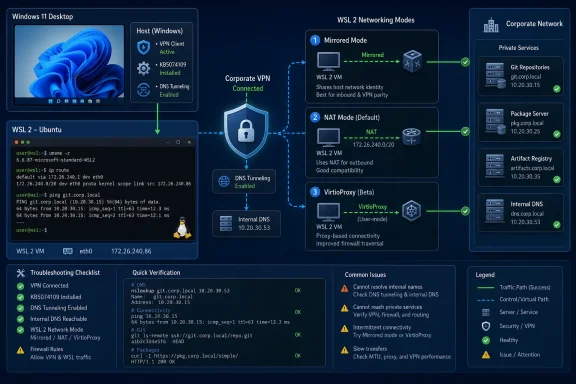 Start with the January 2026 regression check
WindowsForum user reports on the KB5067036 preview issue described a recognizable pattern: Windows could connect to the corporate VPN, but WSL distributions using mirrored networking could not reach corporate resources. Users commonly encountered a “No route to host” result even though the VPN appeared healthy on the Windows side.Microsoft identified the KB5067036 issue as an ARP-related problem involving VPN virtual interfaces that did not respond to ARP requests. KB5074109 was released on January 13, 2026, to address that regression for Windows 11 24H2 and 25H2.
If the problem started after KB5067036, update Windows before changing WSL modes. After installing the applicable cumulative update and restarting, use
winver to verify the target build:- Windows 11, version 24H2: OS build 26100.7623
- Windows 11, version 25H2: OS build 26200.7623
- Open Settings.
- Select Windows Update.
- Select Check for updates.
- Install the available cumulative update, including KB5074109 where applicable.
- Restart Windows when prompted.
- Press Windows + R, type
winver, and confirm that the build matches the appropriate target above.
Code:
wsl --update
wsl --status
wsl --version
wsl --list --verbosewsl --list --verbose result matters because .wslconfig networking settings apply to WSL 2 distributions. A WSL 1 distribution will not use these WSL 2 networking modes.WindowsForum’s reports on the October 2025 mirrored-networking VPN failure and the later update that addressed it support a practical sequence: patch first when the timeline matches the documented regression, then test the active WSL configuration rather than assuming every remaining connectivity problem has the same cause.
Choose the mode from the symptom
Do not change networking mode, DNS behavior, and VPN settings all at once. Make one controlled change, restart WSL, and repeat the same corporate-resource test.| Known condition or symptom | Set in %UserProfile%\.wslconfig | Apply and retest |
|---|---|---|
| Mirrored-mode VPN failure began after KB5067036 | Keep the existing mode until Windows is updated; if using mirrored mode, use networkingMode=mirrored and dnsTunneling=true after confirming KB5074109 | Run wsl --shutdown, reconnect the VPN, start WSL, resolve an internal hostname, and reach a required internal service |
| Internal corporate names fail in WSL | dnsTunneling=true | Run wsl --shutdown, reopen WSL, and test getent ahosts against an approved internal hostname |
| Mirrored mode still fails after patching | networkingMode=nat and dnsTunneling=true | Run wsl --shutdown, reconnect the VPN, and repeat the internal DNS and service tests |
| NAT does not meet the required workflow | networkingMode=virtioproxy and dnsTunneling=true | Run wsl --shutdown, reconnect the VPN, and repeat the same tests |
| Installed VPN version is listed as incompatible with mirrored mode | Start with networkingMode=nat and dnsTunneling=true | Run wsl --shutdown; test NAT before considering virtioproxy |
nat, mirrored, virtioproxy, and DNS tunneling. In brief:natis the documented default mode.mirroredmirrors Windows network interfaces into Linux.virtioproxyis an alternate WSL networking mode.nonedisables WSL networking.
The decision should be based on the actual developer or business task. A connected VPN is not enough evidence by itself. WSL must be able to resolve required internal names and connect to the approved services that users need.
Configure mirrored networking when it passes the VPN test
Mirrored mode is reasonable when Windows is current and the organization’s VPN profile passes a real WSL workflow test. WindowsForum discussions of mirrored networking repeatedly emphasize the gap between a VPN that looks connected in Windows and a Linux environment that can reach internal package feeds, source-control services, or development systems.Create or edit this file in the signed-in user’s Windows profile:
%UserProfile%\.wslconfigAdd:
Code:
[wsl2]
networkingMode=mirrored
dnsTunneling=truewsl --shutdownOpen the Linux distribution again. With the corporate VPN connected, test internal name resolution:
getent ahosts internal-service.exampleReplace
internal-service.example with an approved corporate hostname. Then test the service that actually matters, such as an internal Git server, package repository, development endpoint, or other authorized system.Use the same verification sequence for every mode:
- Connect the corporate VPN.
- Start the WSL distribution.
- Resolve an internal hostname with
getent ahosts. - Connect to the required internal service.
- Disconnect and reconnect the VPN.
- Repeat the hostname and service tests.
- Run
wsl --shutdown, reopen WSL, and repeat once more.
Enable DNS tunneling when internal DNS is the failure
DNS often separates “WSL has internet access” from “WSL can use the company network.” Windows may resolve a private corporate hostname while the Linux distribution cannot. That can look like a routing problem even when the immediate failure is name resolution.Microsoft recommends DNS tunneling for WSL use with VPNs. Its networking guidance explains that DNS tunneling allows applicable Windows DNS policy, including Name Resolution Policy Table behavior, to be used for WSL DNS queries.
Set DNS tunneling in
%UserProfile%\.wslconfig:
Code:
[wsl2]
dnsTunneling=truewsl --shutdownReopen WSL and test again:
getent ahosts internal-service.exampleIf the hostname resolves but the application still cannot connect, move to a service-specific test. Successful name resolution means DNS is no longer the only likely issue.
Do not substitute public DNS servers merely to make a private-name lookup appear to work. Public resolvers generally cannot answer private corporate zones, and changing resolvers can obscure whether the organization’s intended DNS policy is reaching WSL.
Use NAT as the controlled fallback from mirrored mode
NAT is WSL’s documented default networking mode and is the right comparison when mirrored mode remains unsuitable after the Windows update and DNS tunneling check.Set NAT explicitly:
Code:
[wsl2]
networkingMode=nat
dnsTunneling=truewsl --shutdownThen reconnect the VPN, start WSL, and repeat the internal hostname and service tests.
NAT is a practical baseline for users who need reliable outbound access to approved internal and internet services but do not require mirrored-interface behavior. If NAT resolves internal names and reaches the required corporate services through VPN reconnects and WSL restarts, document that result and use it rather than continuing to change settings in search of a more feature-rich mode.
Use VirtioProxy as a documented follow-up test
Usevirtioproxy only when NAT does not meet the required workflow and mirrored mode is not appropriate for the tested VPN configuration.Configure it as follows:
Code:
[wsl2]
networkingMode=virtioproxy
dnsTunneling=truewsl --shutdownReconnect the VPN, reopen WSL, and run the same internal DNS and service checks used for mirrored mode and NAT. Testing the same endpoints matters: changing both the networking mode and the target service makes the result difficult to interpret.
For each approved configuration, record:
- Windows version and OS build from
winver - WSL version from
wsl --version - VPN product and deployed version
- Selected WSL networking mode
- Whether internal names resolve
- Whether required internal services are reachable
- Whether the result survives a VPN reconnect and WSL restart
Do not standardize mirrored mode for listed incompatible VPN versions
Microsoft specifically lists these VPN versions as incompatible with WSL mirrored networking:- Bitdefender 26.0.2.1
- OpenVPN 2.6.501
- McAfee Safe Connect 2.16.1.124
Code:
[wsl2]
networkingMode=nat
dnsTunneling=truewsl --shutdownThen test the required corporate workflow. If NAT does not meet the need, test VirtioProxy as a separate controlled configuration:
Code:
[wsl2]
networkingMode=virtioproxy
dnsTunneling=trueFrequently Asked Questions
Does KB5074109 make mirrored networking work with every VPN?
No. KB5074109 fixes the documented KB5067036 ARP-related mirrored-VPN regression. Microsoft also lists specific VPN versions that are incompatible with WSL mirrored networking. Test the deployed VPN configuration against the required internal workflow.Should VPN users enable DNS tunneling?
Yes when WSL must resolve internal corporate names. Microsoft recommends DNS tunneling for WSL with VPNs because applicable Windows DNS policy, including NRPT behavior, can be used for WSL DNS queries.Is NAT a downgrade from mirrored mode?
No. NAT is WSL’s documented default mode. If it reliably resolves internal names and reaches required services through the organization’s VPN, it is a valid operating configuration.How do I undo a networking-mode change?
Edit%UserProfile%\.wslconfig, set the mode to NAT, save the file, and run:wsl --shutdownUse:
Code:
[wsl2]
networkingMode=nat
dnsTunneling=truenetworkingMode line to return to the documented default behavior.The operating policy is straightforward: patch the known KB5067036 regression when its symptoms and timing match, enable DNS tunneling for VPN-dependent internal resolution, and approve mirrored, NAT, or VirtioProxy only after the required corporate workflow succeeds through reconnects and WSL restarts.
References
- Primary source: learn.microsoft.com
Accessing network applications with WSL | Microsoft Learn
Learn about the considerations for accessing network applications when using Windows Subsystem for Linux (WSL).learn.microsoft.com - Independent coverage: github.com
KB5068861 breaks mirror networking with VPN · Issue #13724 · microsoft/WSL · GitHub
Windows Version Windows 1124H2 WSL Version 2.6.2.0 Are you using WSL 1 or WSL 2? WSL 2 WSL 1 Kernel Version 6.6.87.2-1 Distro Version Ubuntu 24.04 Other Software No response Repro Steps After the update is installed, no longer able to ac... github.com
- Independent coverage: wsl.dev

- Primary source: WindowsForum
WSL Networking in Windows 11: Mirrored Mode and DNS Tunneling Guide | Windows Forum
For years WSL made Linux on Windows feel like a magic trick — seamless file access, native tooling, and the ability to run servers, compilers, and...windowsforum.com
