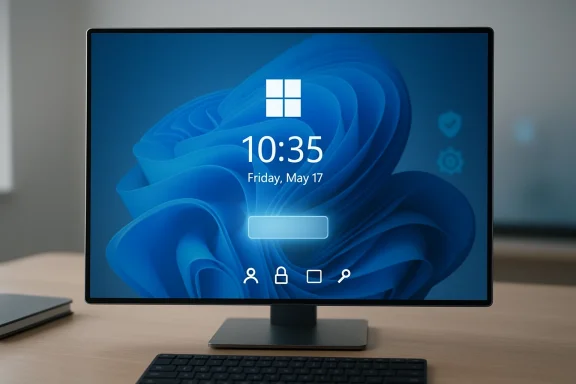
Microsoft has released an out-of-band cumulative update, KB5078127 (OS Builds 26200.7628 and 26100.7628), to address a series of January 2026 quality problems — and it includes a mitigation for a persistent, user-facing regression theat first appeared after the August 29, 2025 non‑security preview update (KB5064081): the password sign‑in icon on the Windows 11 lock screen can become invisible even though the password option itself remains functional.
The issue surfaced after the August 29, 2025 preview update and continued to appear in subsequent updates for Windows 11 versions 24H2 and 25H2. Affected systems show the password button area on the lock screen as blank; hovering the pointer reveals that a clickable placeholder still exists and will open the password text box. Functionality is intact — users can still sign in with a password after clicking the invisible area — but the missing icon creates confusion and degraded user experience, especially in environments with multiple sign‑in methods enabled (PIN, fingerprint, security key, etc.).
Microsoft published KB5078127 on January 24, 2026 as a cumulative out‑of‑band (OOB) update. The release bundles fixes from earlier January updates (including the January 13, 2026 security update and the January 17, 2026 OOB) along with additional quality improvements and an explicit Known Issue Rollback (KIR) mitigation for the invisible password icon problem targeted at enterprise/managed environments.
The episode underscores the importance of staged update testing and clear operational playbooks for KIR deployment. While the security posture is not directly impacted by the missing icon, the user experience and administrative overhead are real and measurable — and they merit structured remediation and a plan to remove the temporary KIR once Microsoft issues the permanent corrective update.
Source: Microsoft Support January 24, 2026—KB5078127 (OS Builds 26200.7628 and 26100.7628) Out-of-band - Microsoft Support
 Background
The issue surfaced after the August 29, 2025 preview update and continued to appear in subsequent updates for Windows 11 versions 24H2 and 25H2. Affected systems show the password button area on the lock screen as blank; hovering the pointer reveals that a clickable placeholder still exists and will open the password text box. Functionality is intact — users can still sign in with a password after clicking the invisible area — but the missing icon creates confusion and degraded user experience, especially in environments with multiple sign‑in methods enabled (PIN, fingerprint, security key, etc.).Microsoft published KB5078127 on January 24, 2026 as a cumulative out‑of‑band (OOB) update. The release bundles fixes from earlier January updates (including the January 13, 2026 security update and the January 17, 2026 OOB) along with additional quality improvements and an explicit Known Issue Rollback (KIR) mitigation for the invisible password icon problem targeted at enterprise/managed environments.
Overview of the problem and scope
Symptoms at a glance
- The password icon in the lock screen sign‑in options may be invisible after certain updates (starting with KB5064081).
- Hovering over the blank area shows a hidden placeholder that activates the password field when clicked.
- Entering the correct password signs the user in normally — this is a display/UX regression rather than an authentication failure.
- The issue primarily affects enterprise or managed IT environments; typical consumer Home/Pro personal device users are unlikely to see it.
Builds and updates involved
- Affected operating system builds cited by Microsoft: 26200.7628 and 26100.7628, addressed in KB5078127 (Jan 24, 2026).
- The regression began with the non‑security preview update KB5064081 (Aug 29, 2025) and persisted through later updates.
- Microsoft’s mitigation for managed environments is delivered through Known Issue Rollback (KIR); KIR policy definition MSI files for the relevant OS builds are provided to enterprises.
What Microsoft says (summary of official guidance)
Microsoft characterizes the problem as a visual regression introduced by earlier non‑security updates and states clearly that:- The password feature itself is not removed and remains usable by clicking the invisible placeholder.
- The issue is mitigated by a Known Issue Rollback (KIR) mechanism for enterprise‑managed devices.
- Enterprises can apply a special Group Policy (installed via a KIR policy definition MSI) to propagate the rollback across their managed fleet.
- After applying the Group Policy, a restart is required to activate the rollback on devices.
- The Group Policy temporarily disables the change that caused the issue; Microsoft intends to provide a permanent resolution in a future Windows update.
What is Known Issue Rollback (KIR) — and why Microsoft uses it
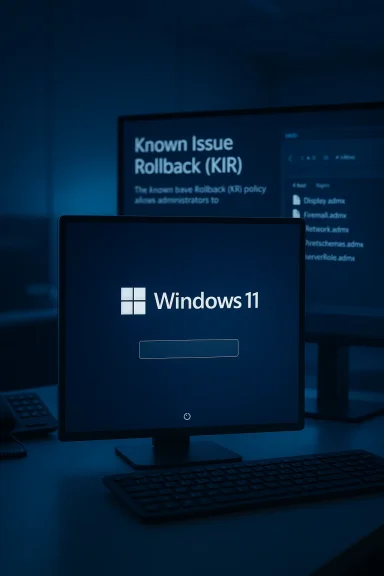
Known Issue Rollback (KIR) is a tool Microsoft uses to temporarily disable specific changes made by non‑security updates that result in regressions. Key points about KIR:- KIR targets a change introduced by a previous update, not the entire update package.
- KIR is intended for non‑security regressions; Microsoft generally will not KIR security fixes because removing security protections could create vulnerabilities.
- For consumer devices (Windows Update), KIR activation can happen automatically as part of Microsoft’s update pipeline; enterprise devices typically must import KIR policy definitions and deploy them via Group Policy or Intune for immediate control.
- The KIR policy definition is distributed as an MSI that installs ADMX/ADML template files into Group Policy administrative templates. Administrators then set the specific KIR policy under Computer Configuration > Administrative Templates > [KB ####### Issue XXX Rollback] and set it to Disabled (the Group Policy steps toggle the rollback activation).
- KIR is designed to be temporary: once Microsoft issues an amended update that resolves the root cause, the KIR policy can be removed.
Who is affected — enterprise vs. consumer risk profile
- Enterprise / Managed devices: Most likely to see the invisible password icon, especially where multiple sign‑in options are enabled and updates are deployed in preview or via managed channels. Enterprises that enforce change control and use preview/insider builds are at higher exposure.
- Consumers (Windows Home / Pro on personal devices): Microsoft states these users are very unlikely to encounter the issue. Many consumer devices either did not receive the specific preview updates or the environment differences (single sign‑in option, different policy state) reduce exposure.
- User impact: The bug is an UX regression rather than a credential or authentication failure. There is no evidence that users are locked out; clicking the invisible area still opens the password box. The main impact is confusion, helpdesk tickets, and decreased end‑user confidence.
Immediate workarounds and remediation options for IT administrators
Enterprises have three practical routes to remediate or mitigate the issue:- Option A — Apply Microsoft’s KIR via Group Policy (recommended for controlled rollouts).
- Option B — Use Microsoft Intune to deploy the KIR ADMX/ADML activation profile.
- Option C — If appropriate, remove the problematic LCU portion using DISM, though this is more complex and not always recommended.
Option A — Deploy KIR via Group Policy (Local or Domain)
- Download the KIR policy definition MSI that corresponds to your OS and the KIR package name provided by Microsoft (the MSI is the “Group Policy downloads” item Microsoft published for this issue).
- Run the MSI on a machine used for Group Policy management to install the ADMX/ADML into the PolicyDefinitions folder (or update your Central Store).
- Open Group Policy Management Console (GPMC) and create a new GPO (for example: “KIR — KB5078127 Password Icon Rollback”).
- Link the GPO to the appropriate OU(s) or domain containing affected systems.
- Configure a WMI filter if you want the GPO to target only specific OS builds: use Win32_OperatingSystem where Version = 10.0.xxxxx (use the specific build numbers Microsoft identified).
- Edit the GPO: navigate to Computer Configuration > Administrative Templates > [KB ####### Issue XXX Rollback > Windows 11, version YYMM] and set the policy state as instructed (usually Disabled to apply the rollback).
- Force policy update (gpupdate /force) or wait for normal Group Policy refresh (default 90–120 minutes) and restart affected devices to apply the rollback.
- Verify on a test machine by checking the lock screen sign‑in options.
Option B — Deploy KIR via Microsoft Intune
- Download and extract the KIR MSI to obtain the ADMX files.
- In the Intune admin console, create a Custom Configuration profile for Windows 10 and later using the ADMX ingestion method.
- Add the ADMX policy settings to set the KIR activation per Microsoft’s instructions (value: Disabled or the specified activation value).
- Assign the profile to a pilot group of devices, with applicability rules set to target the affected OS builds.
- Monitor deployment, have targeted devices restart, and validate remediation.
Option C — Remove LCU portion of the combined package (advanced)
- Microsoft’s combined packages often include an SSU bundled with the LCU. The standard wusa.exe /uninstall will not remove the combined SSU+LCU package. To remove only the LCU portion, use DISM /online /get-packages to identify the LCU package name and then DISM /Online /Remove-Package /PackageName:<LCU package name>.
- This route is intrusive and should be used with caution. Removing the LCU will revert fixes and could reintroduce other regressions that the LCU addressed. Always test in a lab before proceeding.
Testing and rollout recommendations
- Pilot on representative endpoints: Deploy the KIR policy to a small pilot group that mirrors the production environment (hardware diversity, sign‑in option permutations).
- Confirm behavior changes: Test lock screen behavior, remote sign‑on scenarios (RDP), and single sign‑on flows for managed apps to ensure no secondary regressions.
- Monitor helpdesk volume: Expect a short‑term spike in tickets; track root causes (policy, build mismatch, client not restarted) and resolve via standard operational playbooks.
- Document the rollback lifecycle: Note the KIR policy’s temporary nature; schedule to remove KIR once Microsoft publishes the corrected cumulative update.
- Coordinate with change windows: Because a restart is required for KIR activation, schedule deployment with maintenance windows to avoid user disruption.
Technical verification and what’s been confirmed
- The issue described is a visual UI regression impacting the lock screen password icon; the password authentication mechanism itself remains functional.
- Microsoft’s KB confirms the regression began with KB5064081 (Aug 29, 2025) and that KB5078127 (Jan 24, 2026) provides cumulative fixes and KIR mitigation for managed environments.
- The KIR distribution method for enterprises uses an ADMX/ADML policy definition MSI which is installed into Group Policy templates and applied under Computer Configuration > Administrative Templates > [KB ####### Issue XXX Rollback].
- The update package in KB5078127 is a combined SSU+LCU; standard wusa.exe uninstall of the combined package is not supported. DISM must be used to remove the LCU portion if necessary.
- KIR activation is intended only for non‑security changes; this aligns with Microsoft’s KIR design principle that KIRs must not remove security fixes.
Analysis — strengths of Microsoft’s approach and remaining risks
Notable strengths
- Rapid mitigation via KIR: KIR allows Microsoft and administrators to quickly disable a single problematic change without rolling back entire security packages.
- Granular control for enterprises: By distributing KIR as a policy definition MSI, IT departments retain precise control over which devices receive the rollback and when.
- Minimal impact to authentication: Because this is a UI regression rather than an authentication failure, the core security posture is unchanged; users can still sign in with passwords.
- Bundled cumulative fix: KB5078127 consolidates prior January fixes and addresses multiple regressions in a single OOB update, simplifying update management for some admins.
Remaining risks and operational concerns
- User confusion and helpdesk overhead: Even if the issue does not block sign‑in, invisible UI elements lead to user frustration and increased support tickets in large organizations.
- KIR adoption complexity: For large environments that rely on automatic Windows Update deferral or complex GPO links, correctly packaging and deploying the KIR MSI, configuring WMI filters by build number, and ensuring restarts adds operational load.
- Policy lifecycle management: KIRs are temporary by design; tracking and removing KIR policies after the permanent fix is released is an extra maintenance task that must not be forgotten.
- Perception of update reliability: Multiple out‑of‑band releases in a short time (January security, mid‑January OOB, late‑January cumulative) can erode IT trust in Windows Update timelines and may prompt more conservative patch‑testing regimes.
- Uninstall complexity with combined packages: The combined SSU+LCU model prevents simple wusa uninstall, requiring DISM expertise for any rollback of the LCU content — a potential barrier for some administrators.
Practical guidance for helpdesks and desktop support
- Update standard troubleshooting scripts to note this specific regression: instruct agents that if the password icon is not visible, the password field can still be activated by clicking the invisible placeholder. Agents should confirm the device has been restarted after any KIR policy or update change.
- For remote users, instruct how to use on‑screen keyboard or accessibility options if necessary, but emphasize that reinstall/uninstall is not usually required.
- Collect affected device build numbers (winver output) and whether the device uses multiple sign‑in options; escalate clusters of similar devices to infrastructure teams for KIR deployment.
Longer‑term considerations: patching strategy and trust
This event illustrates the tension between rapid update cycles and enterprise stability. Enterprises should consider:- More rigorous preproduction testing of optional preview updates before broad rollouts.
- Maintaining a staged deployment cadence (pilot → broad → all) and delaying preview channels on mission‑critical systems.
- Incorporating an automated policy to detect known regressions and auto‑apply KIR policies when Microsoft designates them for enterprise AD/Intune-managed devices.
- Ensuring helpdesk runbooks explicitly include known UI regressions so first‑line support can close tickets quickly.
What Microsoft still needs to clarify (and what remains unverifiable)
- Microsoft has stated that a permanent fix will be included in a future Windows update but has not committed to a specific release date for that fix. Until Microsoft publishes the fixed update, timeline expectations remain uncertain.
- Some third‑party commentary speculated about the root cause (for example, whether AI‑generated code was involved or whether a particular component change in the UI stack caused the regression). Those theories are unverified and should be treated as speculation unless Microsoft provides a technical postmortem.
- The precise propagation timing for automatic KIR application to unmanaged consumer devices varies; Microsoft’s guidance for other KIR rollouts has noted it may take up to 24 hours for automatic KIR activations to reach devices, but propagation timing for this specific regression has not been guaranteed in the KB beyond enterprise-admin instructions.
Checklist for IT teams (quick reference)
- Verify affected builds on endpoints (use winver).
- Confirm whether the environment uses multiple sign‑in options; if yes, prioritize remediation.
- Download the correct KIR policy definition MSI for your OS and extract ADMX/ADML.
- Create a GPO or Intune custom configuration profile with proper applicability rules (WMI filter by build).
- Deploy to pilot group, restart targeted devices, and validate the lock screen behavior.
- Monitor helpdesk tickets and device telemetry for any secondary regressions.
- Track Microsoft’s release notes for the permanent fix and schedule removal of the KIR policy after the fix is applied.
Conclusion
KB5078127 (January 24, 2026) addresses a frustrating but non‑blocking Windows 11 UI regression where the password sign‑in icon can become invisible on the lock screen after earlier preview updates. Microsoft’s use of Known Issue Rollback gives enterprise administrators a precise tool to disable only the offending change while keeping other quality and security updates in place. For IT teams, the immediate priorities are: confirm affected builds, deploy the KIR policy via Group Policy or Intune to targeted devices, and coordinate restarts and pilot testing to ensure the rollback behaves as intended.The episode underscores the importance of staged update testing and clear operational playbooks for KIR deployment. While the security posture is not directly impacted by the missing icon, the user experience and administrative overhead are real and measurable — and they merit structured remediation and a plan to remove the temporary KIR once Microsoft issues the permanent corrective update.
Source: Microsoft Support January 24, 2026—KB5078127 (OS Builds 26200.7628 and 26100.7628) Out-of-band - Microsoft Support