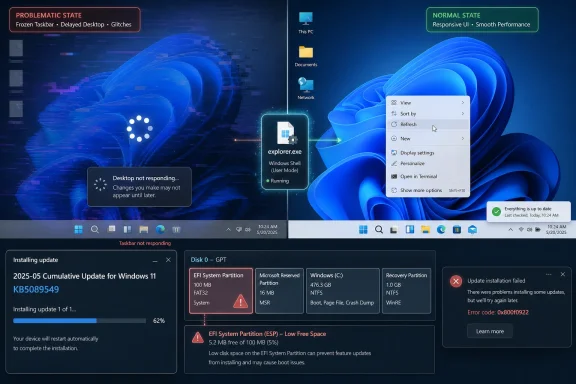
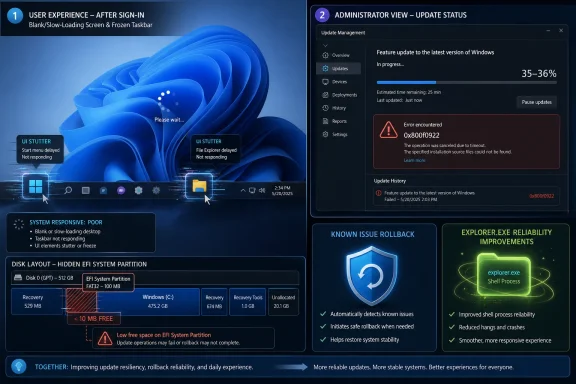
Microsoft’s May 12, 2026 cumulative update for Windows 11 versions 24H2 and 25H2, KB5089549, includes reliability fixes for explorer.exe problems that could freeze the taskbar after sign-in, break desktop right-click behavior, stall Task View, and interfere with unpinning items from File Explorer’s Quick Access. The fix is not glamorous, but it lands where Windows 11 most often loses user trust: the first thirty seconds after login. If the shell is late, missing, or unresponsive, the rest of the operating system may as well not have booted. Microsoft is treating that as a quality problem, and it should have done so sooner.
Windows users do not experience the kernel, the servicing stack, or the component store when they turn on a PC. They experience the lock screen, Windows Hello, the desktop, the taskbar, Start, File Explorer, and the right-click menu. In Windows terms, much of that first impression still runs through explorer.exe, the old workhorse that has survived decades of redesigns, shell experiments, Start menu rewrites, and Microsoft’s periodic attempts to pretend Windows is something more modern than it is.
That is why this particular fix matters more than a routine line in a changelog would suggest. A frozen taskbar after sign-in is not a minor cosmetic bug. It is the moment when the user has done everything correctly — powered on the machine, authenticated, waited for the desktop — only to find the computer behaving like it is half-awake.
The symptoms described around this update will sound familiar to many WindowsForum readers. The taskbar appears late or not at all. The desktop loads but does not respond properly. Right-clicking the taskbar or desktop feels like talking to a process that has already stopped listening. Task View may fail to open, and File Explorer’s Quick Access refuses to forget an item the user has unpinned.
Microsoft has grouped these as general reliability work rather than a single dramatic defect. That framing is technically plausible but rhetorically convenient. For users, “general reliability” is the polite name for the machine looking broken before coffee.
That monthly rhythm matters. Microsoft increasingly uses optional preview updates as a proving ground for fixes that become broadly available on Patch Tuesday. Enthusiasts and IT testers may see the behavior early; everyone else gets it once it is folded into the security release.
In this case, the explorer.exe work is part of a larger May quality package. Microsoft’s notes describe improvements at sign-in, when using taskbar menus and Task View, and when unpinning items from Quick Access. Windows Latest also reports that Microsoft confirmed the fix addresses the taskbar freezes and related shell weirdness seen by users after sign-in.
The company’s language leaves room for staged enablement. Microsoft says some improvements may not appear immediately, a familiar caveat in the Windows 11 era. The operating system now ships not just through updates, but through controlled feature rollouts, eligibility checks, server-side switches, and the increasingly loaded “get the latest updates” toggle.
That makes the user experience frustratingly probabilistic. Two machines can install the same KB and not behave identically on day one. For administrators, that complicates validation. For home users, it means “installed” no longer always means “fully active.”
Windows has long had a messy relationship with startup behavior. The user wants the desktop quickly. Vendors want updaters, sync clients, tray utilities, driver helpers, RGB controllers, password managers, launchers, VPN agents, device dashboards, and cloud storage clients available immediately. The result is a race that begins just as explorer.exe is trying to assemble the visual world the user expects.
On high-end hardware, this usually shows up as a stutter. On low-end or aging systems, it can become a visible freeze. On managed enterprise devices, the first login after patching can be worse because policy processing, security agents, inventory tools, and identity components are also active.
Microsoft is not claiming that every startup app will suddenly become lightweight. Nor could it. A badly behaved vendor updater can still be a badly behaved vendor updater. The more plausible improvement is scheduling and contention: Windows can do a better job deciding when and how these background processes begin so they do not all compete for CPU, disk, memory, and network at precisely the moment the user expects the shell to respond.
That is a subtle fix with a large psychological payoff. A PC can benchmark well and still feel slow if the first interaction after login is delayed. Responsiveness is not just throughput. It is timing.
The name itself misleads modern users. File Explorer is only one visible face of explorer.exe. The process is also tied to the desktop shell, taskbar, notification area, and assorted shell surfaces. When it hangs, users may interpret the entire operating system as frozen, even if the kernel, services, and running applications are technically alive.
That distinction is academically useful and practically irrelevant. If Start will not open, the taskbar will not respond, and the desktop right-click menu is dead, most users are not going to congratulate Windows for maintaining service health underneath the wreckage. They are going to hold the power button, open Task Manager if they know the shortcut, or search another device for “Windows 11 taskbar disappeared.”
This is where Windows 11’s design choices sharpen the pain. Microsoft has spent years making the shell look cleaner, lighter, and more centered. But a minimalist taskbar that freezes is not elegant. It is a thin strip of glass over an old dependency chain.
The May update is therefore not just fixing bugs. It is acknowledging that shell reliability is still a core platform feature. Users can forgive a missing AI button or a delayed widget feed. They are less forgiving when the machine cannot deliver a working desktop.
That is what makes the May explorer.exe work notable. Microsoft is aiming at the seams. The fix list points to sign-in, taskbar menu interaction, Task View, and Quick Access changes — small moments that collectively define whether Windows feels composed or brittle.
There is an old industry temptation to dismiss such problems if they do not cause data loss or blue screens. That is the wrong standard. An operating system that routinely hesitates at the interface layer teaches users to distrust every click. Once that happens, even successful operations feel suspect.
The Windows 11 taskbar has been especially sensitive because Microsoft rebuilt and simplified parts of it during the Windows 11 transition, removing or delaying features that long-time users considered basic. The company has since been adding back customization, including taskbar repositioning and sizing work in newer builds. But reliability has to come before configurability. A movable frozen taskbar is still a frozen taskbar.
For sysadmins, this is not merely a help desk nuisance. Shell instability generates tickets that are hard to reproduce, easy to misattribute to profiles or third-party software, and expensive to diagnose at scale. “The taskbar froze after login” can implicate Windows updates, startup agents, shell extensions, graphics drivers, roaming profiles, security tooling, and user impatience. A cumulative fix that reduces that noise has real operational value.
The May 2026 update lands differently because it is concerned with friction rather than spectacle. Faster startup app launch behavior, a more responsive system tray, Windows Hello reliability improvements, and explorer.exe fixes are not keynote features. They are the kind of changes users notice only when the old irritation disappears.
That is exactly the point. Operating system quality is often the absence of drama. The best shell update is the one that makes users stop thinking about the shell.
There is also a defensive business logic here. Windows 11 is now mature enough that users are less patient with foundational rough edges. Early in a release cycle, people may tolerate missing features or transitional bugs. Years in, a blank desktop after login looks less like growing pains and more like institutional neglect.
Microsoft appears to understand that Windows 11 cannot continue to be judged only by feature velocity. The platform is running into the limits of additive development. Every new surface — AI agents, richer search, deeper cloud integration, more background services — increases the importance of making the basics feel deterministic.
That creates a grim little Windows paradox. The update that fixes visible shell reliability may itself fail because of low-level servicing and partition constraints most users have never heard of. The desktop is being repaired by a package that some PCs cannot install cleanly.
Microsoft has offered mitigations, including a registry-based workaround and Known Issue Rollback handling for affected devices. For unmanaged consumer and small business systems, the mitigation may arrive automatically. Enterprise-managed devices can require Group Policy deployment and a restart.
This does not make the explorer.exe fix less important, but it does temper the victory lap. Windows servicing remains one of Microsoft’s great unsolved perception problems. The company can deliver meaningful quality improvements and still have users remember only the update that failed at 36 percent and rolled back after a reboot.
For IT departments, the lesson is familiar: do not confuse a good changelog with a safe deployment. Pilot rings still matter. ESP free space still matters. CBS logs still matter. The difference in 2026 is that even quality-of-life fixes may be worth actively pursuing rather than waiting for the next hardware refresh or annual image rebuild.
That mismatch explains much of the tension around Windows 11. Microsoft keeps asking the taskbar to do more while users keep asking it to fail less. Every freeze, disappearing icon, broken flyout, or delayed menu becomes evidence that the company is prioritizing ambition over dependability.
The May update is a partial course correction. By improving taskbar menu reliability and the surrounding explorer.exe behavior, Microsoft is paying down some of the debt accumulated by years of shell churn. But it is not the end of the argument. It is a reminder that the Windows shell is not merely a canvas for new features. It is infrastructure.
Task View belongs in the same category. Microsoft has long wanted Windows users to embrace virtual desktops and more fluid window management. But advanced windowing features live or die on confidence. If Task View hesitates or fails, users will retreat to older habits: Alt-Tab, a crowded taskbar, and a single messy desktop.
Quick Access is similarly mundane but important. When unpinning items does nothing, it signals that Windows is not honoring the user’s intent. These small failures accumulate. They make the interface feel like a negotiation rather than a tool.
The explorer.exe fixes should be especially relevant for organizations with heavy startup loads. Endpoint detection agents, VPN clients, device management extensions, cloud sync tools, print utilities, browser updaters, collaboration apps, and hardware vendor services all tend to crowd the same post-login window. If Microsoft has improved startup app orchestration, the practical result may be fewer “my PC is frozen after login” reports even when no single third-party app was at fault.
Still, admins should be cautious about over-attributing improvement. Shell reliability is affected by graphics drivers, shell extensions, profile state, Group Policy, OneDrive Known Folder Move, network latency, and security hooks. KB5089549 may reduce a class of failures without eliminating every slow desktop complaint.
The installation issue tied to the EFI System Partition also deserves attention in older fleets and OEM-heavy environments. Machines with cramped or cluttered ESPs can turn a routine Patch Tuesday into a rollback loop. That is the kind of problem that rewards preflight checks more than heroic troubleshooting after the fact.
For WindowsForum’s sysadmin readership, the most practical posture is measured optimism. Test the update. Watch sign-in performance. Monitor failed installs and CBS logs. If the shell feels better across pilot devices, treat that as a real win — but do not skip the boring deployment discipline just because the fix targets an annoying user-facing bug.
But users who are already stuck in shell weirdness should know the basic escape hatch. If the desktop appears but the taskbar is missing or unresponsive, Task Manager remains the first practical rescue tool. Restarting Windows Explorer from Task Manager can bring the shell back without rebooting the whole PC, though it is a workaround rather than a cure.
The better long-term fix is to install the cumulative update once the machine can do so cleanly. If Windows Update fails repeatedly with 0x800f0922, the issue may not be the shell at all but the servicing path. That is where Microsoft’s documented mitigations and future resolution become relevant.
It is also worth auditing startup apps. Windows 11 exposes startup entries under Settings, and many systems accumulate unnecessary background launchers over time. Microsoft can improve the traffic pattern, but it cannot make every vendor utility worthy of launching at boot.
Users should be especially skeptical of “optimizer” tools that promise to fix shell reliability by ripping through services and registry keys. The Windows shell is already complicated enough. Randomly disabling components may replace an intermittent annoyance with a durable self-inflicted wound.
The risk is that this becomes another episodic cleanup rather than a sustained priority. Windows history is full of quality pushes that last until the next strategic initiative demands attention. Today that initiative is AI. Tomorrow it may be a new device class, a new shell surface, or another attempt to turn Windows into a better distribution channel for Microsoft services.
The operating system can absorb those ambitions only if the basics become boringly dependable. Sign-in should be predictable. The taskbar should respond. Start should open. Task View should work. File Explorer should obey the user. Startup apps should not stage a denial-of-service attack against the desktop.
That is not nostalgia. It is platform hygiene. Windows remains valuable because it runs almost everything on almost every kind of PC used in homes, schools, offices, labs, shops, and datacenters. That breadth makes reliability harder, but it also makes reliability non-negotiable.
That is why user anecdotes about high-spec laptops feeling sluggish after sign-in ring true. A fast CPU and NVMe storage do not guarantee a responsive desktop if the shell is waiting on overloaded queues, blocking interactions, or recovering from startup contention. The user does not care whether the bottleneck is elegant. The user cares that right-clicking the taskbar does nothing.
There is also a reputational asymmetry at work. A successful fix makes the PC feel normal, which may earn little praise. A failed shell makes Windows look broken, which earns lasting resentment. Microsoft is playing defense against that asymmetry.
The company’s challenge now is to make these improvements cumulative in the human sense, not just the servicing sense. Every monthly update should leave Windows feeling a little less chaotic, not merely a little more patched.
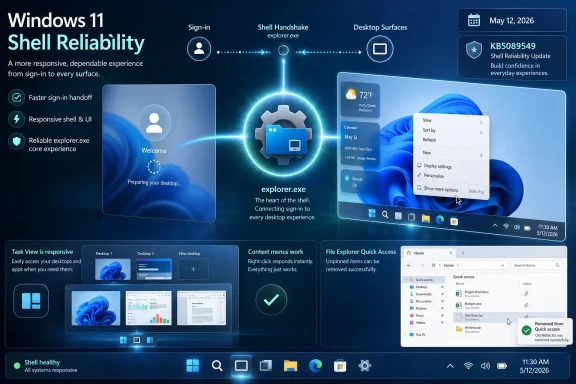 The Windows Shell Is Still the Operating System’s Handshake
Windows users do not experience the kernel, the servicing stack, or the component store when they turn on a PC. They experience the lock screen, Windows Hello, the desktop, the taskbar, Start, File Explorer, and the right-click menu. In Windows terms, much of that first impression still runs through explorer.exe, the old workhorse that has survived decades of redesigns, shell experiments, Start menu rewrites, and Microsoft’s periodic attempts to pretend Windows is something more modern than it is.That is why this particular fix matters more than a routine line in a changelog would suggest. A frozen taskbar after sign-in is not a minor cosmetic bug. It is the moment when the user has done everything correctly — powered on the machine, authenticated, waited for the desktop — only to find the computer behaving like it is half-awake.
The symptoms described around this update will sound familiar to many WindowsForum readers. The taskbar appears late or not at all. The desktop loads but does not respond properly. Right-clicking the taskbar or desktop feels like talking to a process that has already stopped listening. Task View may fail to open, and File Explorer’s Quick Access refuses to forget an item the user has unpinned.
Microsoft has grouped these as general reliability work rather than a single dramatic defect. That framing is technically plausible but rhetorically convenient. For users, “general reliability” is the polite name for the machine looking broken before coffee.
KB5089549 Turns a Preview Fix Into Patch Tuesday Reality
KB5089549 is the May 2026 Patch Tuesday cumulative update for Windows 11 24H2 and 25H2, bringing systems to OS builds 26100.8457 and 26200.8457 respectively. Like most modern Windows cumulative updates, it is not only a security vehicle. It also rolls in non-security fixes that appeared in the previous optional preview release, which is where many of the more visible quality changes first surfaced.That monthly rhythm matters. Microsoft increasingly uses optional preview updates as a proving ground for fixes that become broadly available on Patch Tuesday. Enthusiasts and IT testers may see the behavior early; everyone else gets it once it is folded into the security release.
In this case, the explorer.exe work is part of a larger May quality package. Microsoft’s notes describe improvements at sign-in, when using taskbar menus and Task View, and when unpinning items from Quick Access. Windows Latest also reports that Microsoft confirmed the fix addresses the taskbar freezes and related shell weirdness seen by users after sign-in.
The company’s language leaves room for staged enablement. Microsoft says some improvements may not appear immediately, a familiar caveat in the Windows 11 era. The operating system now ships not just through updates, but through controlled feature rollouts, eligibility checks, server-side switches, and the increasingly loaded “get the latest updates” toggle.
That makes the user experience frustratingly probabilistic. Two machines can install the same KB and not behave identically on day one. For administrators, that complicates validation. For home users, it means “installed” no longer always means “fully active.”
Startup Apps Were the Quiet Accomplice
The most interesting part of the May update may be the one that sounds least exciting: Microsoft says it improved the performance of launching startup apps after a device starts. That line connects directly to the shell story, because startup apps are often where the elegant boot sequence turns into a resource scrum.Windows has long had a messy relationship with startup behavior. The user wants the desktop quickly. Vendors want updaters, sync clients, tray utilities, driver helpers, RGB controllers, password managers, launchers, VPN agents, device dashboards, and cloud storage clients available immediately. The result is a race that begins just as explorer.exe is trying to assemble the visual world the user expects.
On high-end hardware, this usually shows up as a stutter. On low-end or aging systems, it can become a visible freeze. On managed enterprise devices, the first login after patching can be worse because policy processing, security agents, inventory tools, and identity components are also active.
Microsoft is not claiming that every startup app will suddenly become lightweight. Nor could it. A badly behaved vendor updater can still be a badly behaved vendor updater. The more plausible improvement is scheduling and contention: Windows can do a better job deciding when and how these background processes begin so they do not all compete for CPU, disk, memory, and network at precisely the moment the user expects the shell to respond.
That is a subtle fix with a large psychological payoff. A PC can benchmark well and still feel slow if the first interaction after login is delayed. Responsiveness is not just throughput. It is timing.
Explorer.exe Carries Too Much History to Fail Gracefully
The persistence of explorer.exe as a central shell process is one of Windows’ great compatibility bargains. It keeps decades of habits, shell extensions, namespace integrations, taskbar assumptions, and enterprise workflows alive. It also means that when explorer.exe misbehaves, the blast radius feels absurdly large.The name itself misleads modern users. File Explorer is only one visible face of explorer.exe. The process is also tied to the desktop shell, taskbar, notification area, and assorted shell surfaces. When it hangs, users may interpret the entire operating system as frozen, even if the kernel, services, and running applications are technically alive.
That distinction is academically useful and practically irrelevant. If Start will not open, the taskbar will not respond, and the desktop right-click menu is dead, most users are not going to congratulate Windows for maintaining service health underneath the wreckage. They are going to hold the power button, open Task Manager if they know the shortcut, or search another device for “Windows 11 taskbar disappeared.”
This is where Windows 11’s design choices sharpen the pain. Microsoft has spent years making the shell look cleaner, lighter, and more centered. But a minimalist taskbar that freezes is not elegant. It is a thin strip of glass over an old dependency chain.
The May update is therefore not just fixing bugs. It is acknowledging that shell reliability is still a core platform feature. Users can forgive a missing AI button or a delayed widget feed. They are less forgiving when the machine cannot deliver a working desktop.
The First Login After Boot Became a Reputation Problem
Windows 11’s most persistent quality complaints often cluster around transitions: waking from sleep, resuming from hibernate, logging in after restart, switching virtual desktops, launching File Explorer, opening context menus, and waiting for the taskbar to populate. These are not obscure edge cases. They are the connective tissue of daily computing.That is what makes the May explorer.exe work notable. Microsoft is aiming at the seams. The fix list points to sign-in, taskbar menu interaction, Task View, and Quick Access changes — small moments that collectively define whether Windows feels composed or brittle.
There is an old industry temptation to dismiss such problems if they do not cause data loss or blue screens. That is the wrong standard. An operating system that routinely hesitates at the interface layer teaches users to distrust every click. Once that happens, even successful operations feel suspect.
The Windows 11 taskbar has been especially sensitive because Microsoft rebuilt and simplified parts of it during the Windows 11 transition, removing or delaying features that long-time users considered basic. The company has since been adding back customization, including taskbar repositioning and sizing work in newer builds. But reliability has to come before configurability. A movable frozen taskbar is still a frozen taskbar.
For sysadmins, this is not merely a help desk nuisance. Shell instability generates tickets that are hard to reproduce, easy to misattribute to profiles or third-party software, and expensive to diagnose at scale. “The taskbar froze after login” can implicate Windows updates, startup agents, shell extensions, graphics drivers, roaming profiles, security tooling, and user impatience. A cumulative fix that reduces that noise has real operational value.
Microsoft’s Quality Push Is Finally Aiming Below the Marketing Layer
Microsoft has spent much of the Windows 11 cycle promoting visible changes: rounded corners, centered icons, Copilot integration, Widgets, redesigned Settings pages, new inbox apps, AI features on Copilot+ PCs, and a steady reworking of Start and the taskbar. Some of that work is useful. Some of it is strategic positioning. But none of it compensates for the machine feeling unreliable at sign-in.The May 2026 update lands differently because it is concerned with friction rather than spectacle. Faster startup app launch behavior, a more responsive system tray, Windows Hello reliability improvements, and explorer.exe fixes are not keynote features. They are the kind of changes users notice only when the old irritation disappears.
That is exactly the point. Operating system quality is often the absence of drama. The best shell update is the one that makes users stop thinking about the shell.
There is also a defensive business logic here. Windows 11 is now mature enough that users are less patient with foundational rough edges. Early in a release cycle, people may tolerate missing features or transitional bugs. Years in, a blank desktop after login looks less like growing pains and more like institutional neglect.
Microsoft appears to understand that Windows 11 cannot continue to be judged only by feature velocity. The platform is running into the limits of additive development. Every new surface — AI agents, richer search, deeper cloud integration, more background services — increases the importance of making the basics feel deterministic.
The Installation Bug Undercuts the Repair Narrative
The awkward part is that KB5089549 itself has a known installation issue. Microsoft’s release health information says some devices may fail to complete installation with error 0x800f0922 when the EFI System Partition has limited free space, particularly around 10 MB or less available. Affected systems may install through the initial phase, fail during restart at roughly the mid-30 percent mark, roll back, and show the familiar “Something didn’t go as planned” message.That creates a grim little Windows paradox. The update that fixes visible shell reliability may itself fail because of low-level servicing and partition constraints most users have never heard of. The desktop is being repaired by a package that some PCs cannot install cleanly.
Microsoft has offered mitigations, including a registry-based workaround and Known Issue Rollback handling for affected devices. For unmanaged consumer and small business systems, the mitigation may arrive automatically. Enterprise-managed devices can require Group Policy deployment and a restart.
This does not make the explorer.exe fix less important, but it does temper the victory lap. Windows servicing remains one of Microsoft’s great unsolved perception problems. The company can deliver meaningful quality improvements and still have users remember only the update that failed at 36 percent and rolled back after a reboot.
For IT departments, the lesson is familiar: do not confuse a good changelog with a safe deployment. Pilot rings still matter. ESP free space still matters. CBS logs still matter. The difference in 2026 is that even quality-of-life fixes may be worth actively pursuing rather than waiting for the next hardware refresh or annual image rebuild.
The Taskbar Is Where Windows 11’s Ambitions Meet User Patience
The taskbar is deceptively political. Microsoft sees it as a launch surface, a status surface, a place for search, Copilot, agents, widgets, notifications, app switching, system controls, and increasingly monetizable or strategic entry points. Users see it as the strip that must always work.That mismatch explains much of the tension around Windows 11. Microsoft keeps asking the taskbar to do more while users keep asking it to fail less. Every freeze, disappearing icon, broken flyout, or delayed menu becomes evidence that the company is prioritizing ambition over dependability.
The May update is a partial course correction. By improving taskbar menu reliability and the surrounding explorer.exe behavior, Microsoft is paying down some of the debt accumulated by years of shell churn. But it is not the end of the argument. It is a reminder that the Windows shell is not merely a canvas for new features. It is infrastructure.
Task View belongs in the same category. Microsoft has long wanted Windows users to embrace virtual desktops and more fluid window management. But advanced windowing features live or die on confidence. If Task View hesitates or fails, users will retreat to older habits: Alt-Tab, a crowded taskbar, and a single messy desktop.
Quick Access is similarly mundane but important. When unpinning items does nothing, it signals that Windows is not honoring the user’s intent. These small failures accumulate. They make the interface feel like a negotiation rather than a tool.
Enterprise IT Will Read This as a Shell Stability Patch, Not a Feature Drop
For managed environments, KB5089549 is best understood as a shell stability patch bundled inside a mandatory security update. That distinction matters because help desk pain often comes from areas that security teams do not track in vulnerability dashboards. A device can be fully compliant and still annoy its owner every morning.The explorer.exe fixes should be especially relevant for organizations with heavy startup loads. Endpoint detection agents, VPN clients, device management extensions, cloud sync tools, print utilities, browser updaters, collaboration apps, and hardware vendor services all tend to crowd the same post-login window. If Microsoft has improved startup app orchestration, the practical result may be fewer “my PC is frozen after login” reports even when no single third-party app was at fault.
Still, admins should be cautious about over-attributing improvement. Shell reliability is affected by graphics drivers, shell extensions, profile state, Group Policy, OneDrive Known Folder Move, network latency, and security hooks. KB5089549 may reduce a class of failures without eliminating every slow desktop complaint.
The installation issue tied to the EFI System Partition also deserves attention in older fleets and OEM-heavy environments. Machines with cramped or cluttered ESPs can turn a routine Patch Tuesday into a rollback loop. That is the kind of problem that rewards preflight checks more than heroic troubleshooting after the fact.
For WindowsForum’s sysadmin readership, the most practical posture is measured optimism. Test the update. Watch sign-in performance. Monitor failed installs and CBS logs. If the shell feels better across pilot devices, treat that as a real win — but do not skip the boring deployment discipline just because the fix targets an annoying user-facing bug.
Home Users Should Still Know the Escape Hatch
For home users, the fix may arrive through Windows Update without much ceremony. If it installs successfully and the staged improvements activate, the result should simply be a machine that feels less sticky after sign-in. That is the ideal outcome: no registry spelunking, no manual package downloads, no ritual restart of explorer.exe in Task Manager.But users who are already stuck in shell weirdness should know the basic escape hatch. If the desktop appears but the taskbar is missing or unresponsive, Task Manager remains the first practical rescue tool. Restarting Windows Explorer from Task Manager can bring the shell back without rebooting the whole PC, though it is a workaround rather than a cure.
The better long-term fix is to install the cumulative update once the machine can do so cleanly. If Windows Update fails repeatedly with 0x800f0922, the issue may not be the shell at all but the servicing path. That is where Microsoft’s documented mitigations and future resolution become relevant.
It is also worth auditing startup apps. Windows 11 exposes startup entries under Settings, and many systems accumulate unnecessary background launchers over time. Microsoft can improve the traffic pattern, but it cannot make every vendor utility worthy of launching at boot.
Users should be especially skeptical of “optimizer” tools that promise to fix shell reliability by ripping through services and registry keys. The Windows shell is already complicated enough. Randomly disabling components may replace an intermittent annoyance with a durable self-inflicted wound.
The Real Test Is Whether Microsoft Keeps Fixing the Boring Stuff
The encouraging sign in KB5089549 is not that Microsoft found a magic explorer.exe fix. It is that the company is spending visible engineering effort on boring, first-order reliability. That is where Windows 11 needs the most credibility.The risk is that this becomes another episodic cleanup rather than a sustained priority. Windows history is full of quality pushes that last until the next strategic initiative demands attention. Today that initiative is AI. Tomorrow it may be a new device class, a new shell surface, or another attempt to turn Windows into a better distribution channel for Microsoft services.
The operating system can absorb those ambitions only if the basics become boringly dependable. Sign-in should be predictable. The taskbar should respond. Start should open. Task View should work. File Explorer should obey the user. Startup apps should not stage a denial-of-service attack against the desktop.
That is not nostalgia. It is platform hygiene. Windows remains valuable because it runs almost everything on almost every kind of PC used in homes, schools, offices, labs, shops, and datacenters. That breadth makes reliability harder, but it also makes reliability non-negotiable.
The May Patch Is a Small Admission With Large Implications
Microsoft’s May 2026 fix says more than the changelog admits. It acknowledges that Windows 11’s perceived performance problem is often a coordination problem, not a raw horsepower problem. The shell, startup apps, authentication, taskbar surfaces, and file management all collide in the first moments after login.That is why user anecdotes about high-spec laptops feeling sluggish after sign-in ring true. A fast CPU and NVMe storage do not guarantee a responsive desktop if the shell is waiting on overloaded queues, blocking interactions, or recovering from startup contention. The user does not care whether the bottleneck is elegant. The user cares that right-clicking the taskbar does nothing.
There is also a reputational asymmetry at work. A successful fix makes the PC feel normal, which may earn little praise. A failed shell makes Windows look broken, which earns lasting resentment. Microsoft is playing defense against that asymmetry.
The company’s challenge now is to make these improvements cumulative in the human sense, not just the servicing sense. Every monthly update should leave Windows feeling a little less chaotic, not merely a little more patched.
The Fix Worth Installing Is Still the One Worth Testing
This update is worth attention because it targets the place where Windows frustration becomes visible, but it should be approached with the same caution as any Patch Tuesday release.- KB5089549 is the May 12, 2026 cumulative update for Windows 11 24H2 and 25H2, moving systems to builds 26100.8457 and 26200.8457.
- The update includes explorer.exe reliability work affecting sign-in, taskbar menus, Task View, and Quick Access unpinning behavior.
- Microsoft also says it improves startup app launch performance, which may reduce post-login sluggishness on systems with crowded background app loads.
- Some devices may fail installation with error 0x800f0922 when the EFI System Partition has very limited free space.
- Home users should receive mitigations automatically in many cases, while enterprise-managed devices may require administrator action through policy.
- The practical win is not a new feature but a less fragile desktop at the exact moment users expect Windows to be ready.
References
- Primary source: Windows Latest
Published: Fri, 22 May 2026 01:08:01 GMT
Microsoft says Windows 11's explorer.exe has been unstable across taskbar, sign-in, and Task View, rolls out fix
Microsoft says a known Windows 11 issue causes the taskbar to freeze immediately after you sign in and is rolling out a fix. www.windowslatest.com
- Official source: support.microsoft.com
May 12, 2026—KB5089549 (OS Builds 26200.8457 and 26100.8457) - Microsoft Support
 support.microsoft.com
- Related coverage: windowscentral.com
Windows 11’s May update is causing install failures and slow internet — here’s what we know | Windows Central
Some users are hitting install failures and internet slowdowns after the May 2026 Patch Tuesday update.www.windowscentral.com - Related coverage: techradar.com
Windows 11 bug breaks the entire desktop for some users — but luckily there's a fix | TechRadar
Frustrating bug causes pretty much the whole desktop to vanishwww.techradar.com