

If GeForce Experience fails to install an NVIDIA driver on Windows 10, you can still get a clean, fully functional driver installed manually — but you should do it deliberately, safely, and with an eye toward provenance and rollback. This article walks through why the app sometimes fails, how to prepare, every manual installation route (standard installer, DCH vs Standard packages, manual INF install), how to use Display Driver Uninstaller (DDU) safely, and the practical troubleshooting and security checks you must perform before and after changing kernel‑level display drivers.
GeForce Experience is convenient: it detects your GPU, downloads the matched driver, and offers an automated install path including optional components like the GeForce app, telemetry, and capture features. That convenience comes with occasional failure modes — download problems, installer errors such as “installation failed” or “no compatible hardware found,” or conflicts with OEM-supplied drivers on laptops. When the app fails, NVIDIA still provides standalone driver packages and the community’s fallback is a manual, stage‑by‑stage install that gives you maximum control. The community guidance and vendor advice both recommend the manual path as a reliable alternative and stress a conservative workflow: identify your GPU and OS, download the correct package from the vendor (or OEM for laptops), create backups/restore points, optionally run DDU in Safe Mode for a clean slate, then run the NVIDIA installer as Administrator and choose Custom → Perform a clean installation.
Before we get into step‑by‑step instructions, a short note about the small piece of content you included: the Born2Invest “outlet” snippet that often appears in search results is not a reliable place to obtain kernel drivers. Community scans of similar “outlet” or mirror pages repeatedly flag them as unverified; do not trust third‑party repackagers for kernel drivers, and avoid “one‑click” driver updaters that source packages from unknown mirrors. Use OEM pages or NVIDIA’s official archives instead.
Windows Update can reapply Microsoft‑signed drivers and create “driver version loops” that confuse validation. If you need a specific driver for compatibility or legacy support, block the Windows Update driver while testing using the Microsoft “Show or hide updates” tool or Group Policy. Always keep an archived copy of your working installer so you can reinstall offline.
Source: Born2Invest https://born2invest.com/?b=style-238929712/
 Background / Overview
GeForce Experience is convenient: it detects your GPU, downloads the matched driver, and offers an automated install path including optional components like the GeForce app, telemetry, and capture features. That convenience comes with occasional failure modes — download problems, installer errors such as “installation failed” or “no compatible hardware found,” or conflicts with OEM-supplied drivers on laptops. When the app fails, NVIDIA still provides standalone driver packages and the community’s fallback is a manual, stage‑by‑stage install that gives you maximum control. The community guidance and vendor advice both recommend the manual path as a reliable alternative and stress a conservative workflow: identify your GPU and OS, download the correct package from the vendor (or OEM for laptops), create backups/restore points, optionally run DDU in Safe Mode for a clean slate, then run the NVIDIA installer as Administrator and choose Custom → Perform a clean installation.Before we get into step‑by‑step instructions, a short note about the small piece of content you included: the Born2Invest “outlet” snippet that often appears in search results is not a reliable place to obtain kernel drivers. Community scans of similar “outlet” or mirror pages repeatedly flag them as unverified; do not trust third‑party repackagers for kernel drivers, and avoid “one‑click” driver updaters that source packages from unknown mirrors. Use OEM pages or NVIDIA’s official archives instead.
Why GeForce Experience sometimes fails
GeForce Experience can fail for many reasons; understanding the common causes helps you pick the right manual remedy.- Installer conflict with OEM-signed drivers on laptops: OEMs often ship vendor‑signed INF files and expect you to use their package for full power/thermal/tuning support. If the installer detects an OEM expectation it may refuse to proceed.
- INF/device‑ID mismatch (“No compatible hardware found”): The installer checks the driver INF for supported device IDs. If your vendor’s subsystem ID is missing from the package, the GUI installer stops. Extracting the package and checking the INF can confirm the cause.
- Leftover artifacts from previous installs: partial uninstall, bad registry entries, or driver store fragments can block a clean install or cause instability. Community consensus is to use DDU for a surgical clean removal when problems are persistent.
- Windows Update interference: Windows Update sometimes pushes Microsoft‑signed NVIDIA drivers that can replace or conflict with the driver you just installed. Microsoft’s “Show or hide updates” tool or Group Policy controls can block this behavior while you validate a chosen driver.
- App-level download or account issues: GeForce Experience needs network access and (depending on version) some optional services — network blocks, proxy issues, or app corruption can stop the download/install. In these cases the manual installer bypasses the app entirely.
Preparation: safety checklist (do this first)
Do not skip these preparatory steps. Drivers run in kernel mode; a safe rollback plan is essential.- Create a full disk image if the machine is mission‑critical; at minimum create a Windows System Restore point.
- Record current driver version: Device Manager → Display adapters → Properties → Driver tab. Keep a copy of the working installer if you need to roll back.
- Note hardware identifiers: Device Manager → Display adapters → Properties → Details → Hardware Ids (copy the VEN/DEV/SUBSYS strings). You’ll need these if the GUI installer won’t accept your hardware.
- Close overlays and capture utilities, and temporarily disable antivirus or endpoint protection (briefly) — these can block installer steps. Re‑enable them after validation.
- Prefer official sources: download drivers only from NVIDIA’s official driver archive or your OEM’s support page; confirm digital signature and file size if the site provides them. Avoid repackagers.
Manual installation: the standard, safe path
This is the recommended route for most desktop users.- Identify GPU and OS precisely.
- Settings → System → About to confirm OS build; Device Manager → Display adapters to confirm adapter string. Save Hardware Ids if you can.
- Download the correct NVIDIA package.
- Use NVIDIA’s download portal and select Product Type (GeForce), Series, Product, and Windows 10 (64‑bit) or choose an OEM driver for branded laptops if available. Read the release notes for supported products.
- Optionally perform a clean uninstall with DDU first (recommended if you’ve had previous driver problems).
- Boot into Safe Mode, run Display Driver Uninstaller (DDU) and follow the tool’s guidance to remove NVIDIA drivers and registry traces. DDU is the community standard for surgical removals.
- Run the NVIDIA installer as Administrator.
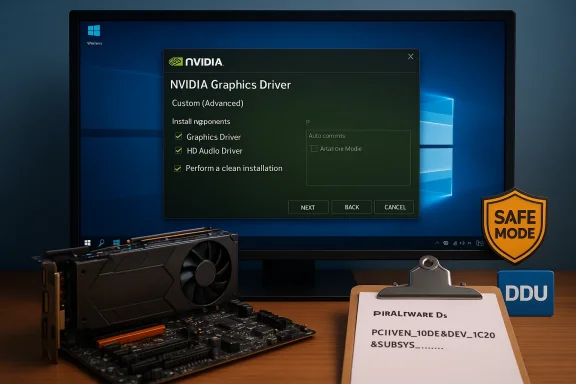
- When prompted choose Custom (Advanced) and check Perform a clean installation. This overwrites residual files and resets driver settings. Uncheck GeForce Experience if you prefer a driver‑only install.
- Reboot and verify.
- Open NVIDIA Control Panel → System Information to confirm the driver version; run representative workloads (a game or 3D app) and check Event Viewer for nvlddmkm or other driver events.
Advanced manual options
Manual INF install (when the installer rejects your hardware)
If the NVIDIA GUI installer refuses but the INF inside the package contains your hardware ID, you can install the driver directly from the INF. This method preserves Microsoft’s driver signing enforcement and avoids modifying INF files.- How to check INF: Extract the NVIDIA executable (it self‑extracts, or use 7‑Zip) and inspect the Display.Driver*.inf for your VEN/DEV/SUBSYS values.
- Install from Device Manager: Device Manager → Display adapters → Update driver → Browse my computer → Let me pick → Have Disk → point to the Display.Driver*.inf you located. The OS will apply the signed driver if the INF and driver files match.
- Do not edit INFs to force an install; editing breaks signing and can produce unstable, untrusted drivers. Use this method only if the INF already contains your exact hardware ID and you trust the origin of the package.
DCH vs Standard driver packages
Modern NVIDIA packages come in DCH and Standard flavors. DCH is the Microsoft‑recommended modern driver model and is normally what recent driver downloads provide. If you're switching between package styles (or if Windows complains about package style mismatches), a DDU clean uninstall before installing the alternate style is strongly advised.Temporary driver signature enforcement disable (diagnostic only)
As a last‑ditch diagnostic, you can boot with driver signature enforcement disabled for one session to test an unsigned driver. This is dangerous and should not be used as a permanent fix — it opens the kernel to unsigned code. Use only on a test machine or after full backups.Using Display Driver Uninstaller (DDU) correctly
DDU is a powerful utility; mishandling it can be counterproductive. Follow this safe, stepwise approach.- Download DDU from the authoritative community thread (use the official distribution referenced by tech communities). Back up first.
- Boot Windows into Safe Mode. DDU’s developer and community strongly recommend Safe Mode for the deepest clean.
- Run DDU and choose “Clean and restart” for NVIDIA. Let it finish and reboot. The tool removes NVIDIA registry keys, driver store entries, and control‑panel artifacts.
- After reboot, install the NVIDIA package as Administrator and choose Custom → Perform a clean installation. Reboot again and verify.
Troubleshooting common installer errors (and fixes)
- “No compatible hardware found” or “Installer cannot find compatible hardware”: Confirm the package targets your GPU and check the INF for your hardware ID. If the INF contains your ID, use the manual INF route. If not, seek the OEM package for branded systems.
- “Not compatible with this version of Windows”: Confirm the driver’s supported OS in the release notes; if needed update Windows to the required build or use an archived driver that targets your Windows build. If switching DCH/Standard, use DDU first.
- Windows reverts to a Microsoft‑signed driver after install: Use Microsoft’s “Show or hide updates” troubleshooter to block the driver update, or use Group Policy to prevent automatic driver updates while you validate the chosen driver. Keep a local copy of the working installer.
- Black screen or boot failure after install: Boot Safe Mode, run DDU, then reinstall. If you cannot boot to Safe Mode, use Windows Recovery to roll back or restore from your system image.
- Recurrent VIDEO_TDR_FAILURE (nvlddmkm.sys): After cleaning and reinstalling, if crashes persist under minimal load run hardware diagnostics — stress tests, temperature monitoring, PSU checks, and, if available, test the GPU in another system. If crashes persist despite a clean driver install, suspect hardware.
Windows Update, OEM drivers, and the laptop caveat
For laptops and vendor‑branded desktops, OEM drivers are often the safest first choice. Vendor packages can include model‑specific INF entries and customised power/thermal tuning that generic NVIDIA packages lack. If your system is OEM-branded, check the vendor support page before forcing a generic installer.Windows Update can reapply Microsoft‑signed drivers and create “driver version loops” that confuse validation. If you need a specific driver for compatibility or legacy support, block the Windows Update driver while testing using the Microsoft “Show or hide updates” tool or Group Policy. Always keep an archived copy of your working installer so you can reinstall offline.
Privacy and telemetry: GeForce Experience and the driver-only choice
GeForce Experience offers features like automatic game optimization and capture, but it historically collects telemetry (hardware profile, game list, driver version, usage metrics). If you prefer minimal telemetry, choose a driver‑only install (uncheck the GeForce Experience component during Custom installation) and disable optional NVIDIA services. Many users install drivers manually to avoid the app entirely.Security and supply‑chain risks: what to avoid
Kernel drivers are a critical supply‑chain attack surface. Avoid repackagers, “outlet” pages, and third‑party updater tools that do not clearly reference the OEM or NVIDIA package name and digital signature. Community scans flag many mirror pages — including SEO‑optimized blog posts and aggregator pages — as untrusted. If you already installed a driver from an untrusted source and experience instability or suspicious behavior, disconnect from the internet, run a full antimalware sweep with trusted engines, and consider restoring from a known good image. If provenance cannot be verified, a fresh Windows reinstall is often the safest path.Verification and post‑install checks
After installation, verify the driver and test functionality using objective checks.- Confirm driver version: NVIDIA Control Panel → System Information or Device Manager → Properties → Driver tab.
- Check Event Viewer for driver errors (nvlddmkm) and monitor stability for several hours while running representative workloads. Sample a short benchmark or a gameplay run you use often.
- If you used DDU, ensure the virtual audio device (nvvad) is present for HDMI/DP audio; its entry can appear under Sound, video and game controllers or as a USB‑style device in Device Manager. If audio is missing, reinstall the NVIDIA package and ensure audio components are included.
Longer‑term considerations
- Legacy hardware and Windows 10: If your GPU is legacy and you’re running Windows 10, be aware of lifecycle and support realities — some older GPUs have archived builds only, and Windows 10 mainstream support ended on October 14, 2025, which affects security and driver maintenance timelines. Consider hardware upgrade if you rely on current driver support.
- Stability vs new features: For critical workloads prefer WHQL‑signed Game Ready or Studio drivers that correspond to your needs; avoid betas and hotfixes unless they address a specific, documented issue you are experiencing.
Quick troubleshooting checklist (copyable)
- Record your current driver version and create a System Restore point.
- Confirm GPU and hardware IDs in Device Manager.
- Download the official NVIDIA/OEM installer and verify its signature.
- If installer fails, extract and inspect the INF for your hardware ID. If found, use Device Manager → Have Disk to install.
- If repeated failures, DDU in Safe Mode and reinstall with Custom → Perform a clean installation.
- If problems persist after a clean install, run hardware diagnostics and consider restoring from a backup image.
Conclusion
When GeForce Experience fails, manual installation is a robust and widely used alternative — but it must be done with discipline. Identify your GPU, download official packages (NVIDIA or OEM), back up first, and favor a clean workflow: optionally use DDU in Safe Mode, install the driver as Administrator with Custom → Perform a clean installation, and verify results with objective tests. Avoid third‑party “outlet” mirrors and repackagers; kernel drivers are not a place to trust ambiguous sources. If you follow the conservative, stepwise process described here you will minimize risk and restore a stable graphics stack on Windows 10, even when the automated app encounters problems.Source: Born2Invest https://born2invest.com/?b=style-238929712/
