

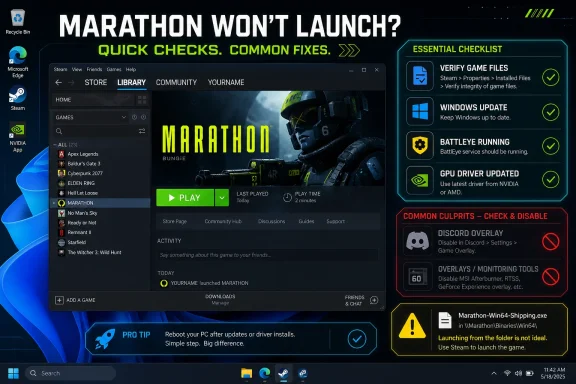
To stop Marathon failing before it reaches the main menu on Windows, launch it from Steam, verify the game files, make sure BattlEye is installed and running, fully update Windows, refresh GPU drivers, and disable overlays before clicking Play again. That is the practical preflight checklist for Bungie’s March 5, 2026 Steam launch, especially for players moving from the February 26–March 2 Server Slam client into the release build. The mistake is treating a failed launch as a single “Marathon bug” when the first breakage point may be Steam, BattlEye, Windows, the graphics stack, or a third-party overlay. The smart move is to decide whether the PC is launch-ready before you burn an evening troubleshooting in circles.
Marathon is launching on Steam, PlayStation 5, and Xbox Series X|S, but Windows players have the messiest path to a clean first boot because PC launch state is assembled from multiple moving parts. Bungie can ship the game, Steam can deliver it, BattlEye can police it, Windows can permit it, and your GPU driver can render it — and any one of those pieces can be the one that says no.
So the first thing to do is not reinstall the game. The first thing is to stop guessing and run the launch chain in the order the game expects.
Open Steam, go to Library, right-click Marathon, choose Properties, then open Installed Files and select Verify integrity of game files. When that finishes, launch Marathon from the green Steam Play button, not from the game’s executable in the install folder. Bungie’s own BattlEye guidance warns that launching from the game folder instead of the platform launcher can trigger login errors, which means “I tried the EXE directly” is not a harmless shortcut here.
Next, make sure Windows is actually ready for an anti-cheat-protected game. Open Settings > Windows Update, click Check for updates, install anything pending, and restart the PC even if Windows does not aggressively demand it. Bungie’s BattlEye help specifically tells PC players to ensure Windows is fully updated when BattlEye flags a problem, which puts Windows Update in the preflight checklist, not in the “maybe later” pile.
Then remove the noise. Close Discord overlays, GPU performance overlays, capture tools, RGB control panels, macro utilities, motherboard tuning software, and anything else that injects itself into games. You do not have to uninstall your entire desktop personality, but for the first clean launch you want Marathon, Steam, BattlEye, Windows, and the GPU driver talking with as few intermediaries as possible.
That is why the Steam integrity check matters. It is not magic, and it will not solve bad drivers or blocked services, but it answers a clean yes-or-no question: does the local install match what Steam thinks should be on disk? If it does not, you want Steam to repair that before BattlEye is asked to evaluate a broken or incomplete game folder.
The second Steam check is more behavioral than technical. Do not pin Marathon’s executable to the taskbar, do not launch it from File Explorer, and do not use a desktop shortcut that bypasses Steam’s normal command path unless it was created by Steam itself and behaves properly. A direct executable launch may feel like a sensible diagnostic step, but Bungie’s BattlEye support guidance makes clear that the platform launcher is not optional plumbing.
If Steam itself is misbehaving, restart it fully rather than just closing the visible window. Exit Steam from the tray icon, reopen it, and try again. If that still fails, reboot Windows so Steam, the Steam client service, and BattlEye are all starting from a clean session rather than inheriting whatever failed ten minutes ago.
WindowsForum readers who have fought similar platform handoff errors in other live-service games will recognize the pattern. A game can look guilty when the actual failure is a launcher token, a stale client state, or an authentication handoff that never reaches the game process in a usable form.
That changes the diagnostic order. A failed BattlEye launch is not the same class of problem as bad frame pacing or shader compilation. It is closer to a locked front door: the game may be intact, your PC may be powerful enough, and Steam may be working, but the session still will not begin because the anti-cheat layer has not accepted the environment.
Start by launching Marathon from Steam and watching what happens before the game window appears. If a BattlEye prompt appears, allow it to install or update. If Windows asks for permission, approve the legitimate BattlEye prompt tied to the game launch. If security software interrupts or quarantines a BattlEye component, do not blindly whitelist random files; instead, restore the official game install through Steam verification and relaunch from Steam.
If Marathon still refuses to open, restart Windows and try once more from Steam before escalating. Anti-cheat services live at an awkward intersection of user-mode launchers, kernel-sensitive protections, Windows updates, and security tooling. A restart is not a superstition here; it clears a failed service state and gives BattlEye a fresh attempt to initialize with the current Windows session.
This is also where the Server Slam history matters. Marathon’s Server Slam ran from February 26 to March 2, only days before the March 5 launch. Players who participated are not all arriving with clean systems; some are arriving with a test-era install history, cached expectations, old shortcuts, and assumptions formed around a pre-release build. Treat the launch build as a fresh launch chain, not as a continuation of the test weekend.
But anti-cheat has changed the calculus. Bungie’s guidance for BattlEye-related problems explicitly points players back to a fully updated Windows install. For Marathon, that makes Settings > Windows Update > Check for updates a launch requirement, not a generic support script.
The practical order is simple. Check Windows Update, install pending updates, restart, then launch Steam and Marathon. If Windows reports that a restart is pending, do not attempt five more game launches before completing it. A half-updated Windows state is exactly the kind of ambiguous environment that makes anti-cheat troubleshooting miserable.
For sysadmins and power users, the sharper point is that gaming PCs are increasingly behaving like endpoint-security case studies. Anti-cheat software has to make trust decisions about the machine. Windows patch state, driver state, and security configuration are not background details; they are part of whether the machine looks like a trustworthy place to run the game.
That does not mean every failed launch is the user’s fault. It means the fastest path to a clean diagnosis is to remove the obvious reasons BattlEye or the launcher might object before blaming the game binary itself.
Open your GPU vendor’s driver application or driver download page and install the current driver appropriate for your card. Restart Windows afterward. If you recently installed a driver and the failure started immediately after that, consider rolling back through Device Manager > Display adapters > [your GPU] > Properties > Driver > Roll Back Driver, if that option is available.
This is not because every launch failure is a GPU issue. It is because the GPU driver is one of the few pieces of system software that can fail before a game gives you a useful error. A bad driver state can produce a silent exit, a black screen, or a crash that looks like the game simply changed its mind about existing.
Once the game launches, then it makes sense to move into performance work: frame pacing, stutter, resolution scaling, background load, and graphics settings. Until then, performance tuning is a distraction. You cannot optimize a session you cannot start.
That distinction matters for enthusiasts because the PC gaming community often collapses “won’t launch,” “crashes,” “stutters,” and “runs badly” into one giant troubleshooting soup. Marathon deserves a narrower first pass. Launch readiness comes before frame-rate heroics.
The clean test is to disable nonessential overlays for the first successful launch. In Steam, right-click Marathon, open Properties, and under General turn off Enable the Steam Overlay while in-game for the initial test if you suspect overlay trouble. In Discord, open User Settings > Game Overlay and turn off the in-game overlay. In GPU utilities and recording tools, disable live performance and capture overlays until Marathon proves it can boot cleanly.
This is not a permanent indictment of overlays. Once Marathon launches reliably, you can re-enable them one at a time. The point is to avoid testing six injected components at once and then pretending the result tells you something.
The same logic applies to keyboard macro tools, mouse software, fan-control suites, motherboard utilities, and RGB controllers. Most are legitimate. Some are poorly behaved. A few may look suspicious to anti-cheat layers because they hook input, monitor processes, or inject on-screen components.
For a Windows enthusiast, the right mindset is not paranoia; it is isolation. Strip the environment down to the expected launch path, establish a baseline, and then add convenience tools back only after the baseline works.
That is why the first March 5 troubleshooting step should be verification, not improvisation. If the launch build differs from the Server Slam client, Steam needs to reconcile the install. If BattlEye components changed or reinitialized, the player needs to let that happen through the launcher. If Windows received updates between the test and launch, the machine needs a clean restart before the first real attempt.
The timing is tight enough to matter. The Server Slam ended March 2. Marathon launches March 5. That leaves only a short window in which players may have cached test files, stale shortcuts, unfinished downloads, or half-remembered workarounds from the preview period.
The right question is not “Why did it work in the Server Slam?” The right question is “Is this PC launch-ready for the release build, through the official Steam path, with BattlEye initialized and Windows updated?” That reframing saves time because it treats the test weekend as useful context, not as proof that the release path must behave identically.
Steam is the identity and delivery layer. BattlEye is the enforcement layer. Windows Update is the platform hygiene layer. GPU drivers are the hardware abstraction layer. Overlays and utilities are the uncontrolled third-party ecosystem that users forget to mention until the fourth support exchange.
That is why a preflight checklist is better than a troubleshooting maze. It turns an emotional launch failure into a sequence of verifiable conditions. Is the game installed correctly? Is it launched through the supported platform? Is anti-cheat installed and running? Is Windows fully updated? Is the GPU driver sane? Are optional injectors removed from the first test?
This is also the logic administrators use when dealing with line-of-business software after a major Windows update. You do not begin with the most exotic explanation. You confirm the supported path, patch state, required services, device drivers, and interfering software. Marathon just happens to make the pattern visible in a more entertaining and more frustrating form.
The lesson for household IT departments — the one-person kind, usually unpaid — is to write down what changed. Did Windows update? Did a GPU driver update? Did Steam repair files? Did an overlay get disabled? If Marathon suddenly launches after step four, that information matters more than the vague memory that “I clicked a bunch of stuff.”
A better escalation path is narrower. Verify Steam files. Launch only through Steam. Update Windows and restart. Confirm BattlEye is allowed to install and run. Update or roll back the GPU driver if there is a clear driver timeline. Disable overlays and background injectors. Only after those steps should reinstalling the game become a serious option.
If you do reinstall, treat it as a reset of the game install, not of the entire PC. Remove the game through Steam, restart, reinstall, verify files, and launch from Steam. Resist the temptation to combine a reinstall with twenty unrelated tweaks, because then a successful launch teaches you nothing about the actual cause.
This is where PC troubleshooting becomes less about bravery and more about discipline. The player who changes one variable at a time often fixes the issue faster than the player who rage-clicks every forum suggestion in one pass.
Marathon’s first week on Windows will likely be judged by how many players get from Steam to a live session without being forced into amateur endpoint forensics. Bungie owns the game experience, but PC players own the launch environment around it, and the boundary between those two responsibilities is exactly where Steam, BattlEye, drivers, and Windows updates collide. The winning approach is not to memorize every possible error; it is to make the machine launch-ready first, then hold the game accountable for what happens after it actually starts.
 The First Fix Is Not a Fix, It Is a Launch Gate
Marathon is launching on Steam, PlayStation 5, and Xbox Series X|S, but Windows players have the messiest path to a clean first boot because PC launch state is assembled from multiple moving parts. Bungie can ship the game, Steam can deliver it, BattlEye can police it, Windows can permit it, and your GPU driver can render it — and any one of those pieces can be the one that says no.So the first thing to do is not reinstall the game. The first thing is to stop guessing and run the launch chain in the order the game expects.
Open Steam, go to Library, right-click Marathon, choose Properties, then open Installed Files and select Verify integrity of game files. When that finishes, launch Marathon from the green Steam Play button, not from the game’s executable in the install folder. Bungie’s own BattlEye guidance warns that launching from the game folder instead of the platform launcher can trigger login errors, which means “I tried the EXE directly” is not a harmless shortcut here.
Next, make sure Windows is actually ready for an anti-cheat-protected game. Open Settings > Windows Update, click Check for updates, install anything pending, and restart the PC even if Windows does not aggressively demand it. Bungie’s BattlEye help specifically tells PC players to ensure Windows is fully updated when BattlEye flags a problem, which puts Windows Update in the preflight checklist, not in the “maybe later” pile.
Then remove the noise. Close Discord overlays, GPU performance overlays, capture tools, RGB control panels, macro utilities, motherboard tuning software, and anything else that injects itself into games. You do not have to uninstall your entire desktop personality, but for the first clean launch you want Marathon, Steam, BattlEye, Windows, and the GPU driver talking with as few intermediaries as possible.
Steam Must Be the Door, Not Just the Store
Steam is not merely the place where Marathon lives. For a game using platform authentication and anti-cheat, Steam is part of the launch sequence. If Marathon refuses to start, shows a black window, silently exits, or appears as “running” for a moment before dropping back to Play, your first assumption should be that the launch chain broke before the game session ever truly began.That is why the Steam integrity check matters. It is not magic, and it will not solve bad drivers or blocked services, but it answers a clean yes-or-no question: does the local install match what Steam thinks should be on disk? If it does not, you want Steam to repair that before BattlEye is asked to evaluate a broken or incomplete game folder.
The second Steam check is more behavioral than technical. Do not pin Marathon’s executable to the taskbar, do not launch it from File Explorer, and do not use a desktop shortcut that bypasses Steam’s normal command path unless it was created by Steam itself and behaves properly. A direct executable launch may feel like a sensible diagnostic step, but Bungie’s BattlEye support guidance makes clear that the platform launcher is not optional plumbing.
If Steam itself is misbehaving, restart it fully rather than just closing the visible window. Exit Steam from the tray icon, reopen it, and try again. If that still fails, reboot Windows so Steam, the Steam client service, and BattlEye are all starting from a clean session rather than inheriting whatever failed ten minutes ago.
WindowsForum readers who have fought similar platform handoff errors in other live-service games will recognize the pattern. A game can look guilty when the actual failure is a launcher token, a stale client state, or an authentication handoff that never reaches the game process in a usable form.
BattlEye Is the Bouncer, and It Does Not Negotiate
BattlEye is not a post-launch feature. It is part of the admission process. If it is missing, blocked, stale, or started outside the expected launcher path, Marathon may never reach the point where normal graphics or gameplay troubleshooting applies.That changes the diagnostic order. A failed BattlEye launch is not the same class of problem as bad frame pacing or shader compilation. It is closer to a locked front door: the game may be intact, your PC may be powerful enough, and Steam may be working, but the session still will not begin because the anti-cheat layer has not accepted the environment.
Start by launching Marathon from Steam and watching what happens before the game window appears. If a BattlEye prompt appears, allow it to install or update. If Windows asks for permission, approve the legitimate BattlEye prompt tied to the game launch. If security software interrupts or quarantines a BattlEye component, do not blindly whitelist random files; instead, restore the official game install through Steam verification and relaunch from Steam.
If Marathon still refuses to open, restart Windows and try once more from Steam before escalating. Anti-cheat services live at an awkward intersection of user-mode launchers, kernel-sensitive protections, Windows updates, and security tooling. A restart is not a superstition here; it clears a failed service state and gives BattlEye a fresh attempt to initialize with the current Windows session.
This is also where the Server Slam history matters. Marathon’s Server Slam ran from February 26 to March 2, only days before the March 5 launch. Players who participated are not all arriving with clean systems; some are arriving with a test-era install history, cached expectations, old shortcuts, and assumptions formed around a pre-release build. Treat the launch build as a fresh launch chain, not as a continuation of the test weekend.
Windows Update Belongs in the Gaming Checklist Now
PC gamers have spent years learning to fear updates before a major launch. That instinct is understandable. Driver regressions happen, Windows changes can be annoying, and nobody wants to reboot when friends are already in queue.But anti-cheat has changed the calculus. Bungie’s guidance for BattlEye-related problems explicitly points players back to a fully updated Windows install. For Marathon, that makes Settings > Windows Update > Check for updates a launch requirement, not a generic support script.
The practical order is simple. Check Windows Update, install pending updates, restart, then launch Steam and Marathon. If Windows reports that a restart is pending, do not attempt five more game launches before completing it. A half-updated Windows state is exactly the kind of ambiguous environment that makes anti-cheat troubleshooting miserable.
For sysadmins and power users, the sharper point is that gaming PCs are increasingly behaving like endpoint-security case studies. Anti-cheat software has to make trust decisions about the machine. Windows patch state, driver state, and security configuration are not background details; they are part of whether the machine looks like a trustworthy place to run the game.
That does not mean every failed launch is the user’s fault. It means the fastest path to a clean diagnosis is to remove the obvious reasons BattlEye or the launcher might object before blaming the game binary itself.
Driver Cleanup Should Come Before Performance Tuning
A Marathon PC that will not launch is not yet ready for optimization guides. Do not start by changing every graphics setting, forcing exotic launch options, or tweaking Windows gaming features. First establish that the graphics driver is current, stable, and boring.Open your GPU vendor’s driver application or driver download page and install the current driver appropriate for your card. Restart Windows afterward. If you recently installed a driver and the failure started immediately after that, consider rolling back through Device Manager > Display adapters > [your GPU] > Properties > Driver > Roll Back Driver, if that option is available.
This is not because every launch failure is a GPU issue. It is because the GPU driver is one of the few pieces of system software that can fail before a game gives you a useful error. A bad driver state can produce a silent exit, a black screen, or a crash that looks like the game simply changed its mind about existing.
Once the game launches, then it makes sense to move into performance work: frame pacing, stutter, resolution scaling, background load, and graphics settings. Until then, performance tuning is a distraction. You cannot optimize a session you cannot start.
That distinction matters for enthusiasts because the PC gaming community often collapses “won’t launch,” “crashes,” “stutters,” and “runs badly” into one giant troubleshooting soup. Marathon deserves a narrower first pass. Launch readiness comes before frame-rate heroics.
Overlays Are Useful Until They Become Suspects
Overlays are one of the great conveniences of modern PC gaming and one of the great irritants of launch-day troubleshooting. Steam overlay, Discord overlay, GPU overlays, capture overlays, chat overlays, monitoring overlays, and input overlays all want to sit close to the game process. Anti-cheat software, by design, cares deeply about what sits close to the game process.The clean test is to disable nonessential overlays for the first successful launch. In Steam, right-click Marathon, open Properties, and under General turn off Enable the Steam Overlay while in-game for the initial test if you suspect overlay trouble. In Discord, open User Settings > Game Overlay and turn off the in-game overlay. In GPU utilities and recording tools, disable live performance and capture overlays until Marathon proves it can boot cleanly.
This is not a permanent indictment of overlays. Once Marathon launches reliably, you can re-enable them one at a time. The point is to avoid testing six injected components at once and then pretending the result tells you something.
The same logic applies to keyboard macro tools, mouse software, fan-control suites, motherboard utilities, and RGB controllers. Most are legitimate. Some are poorly behaved. A few may look suspicious to anti-cheat layers because they hook input, monitor processes, or inject on-screen components.
For a Windows enthusiast, the right mindset is not paranoia; it is isolation. Strip the environment down to the expected launch path, establish a baseline, and then add convenience tools back only after the baseline works.
The Server Slam Left Some PCs in the Wrong Mental Model
The Server Slam was useful because it put real PC configurations in front of Marathon before launch. It also created a subtle support problem: many players now believe they already know what Marathon’s PC launch behavior looks like. They may be right, but they may also be carrying over assumptions from a test client into a launch-day build.That is why the first March 5 troubleshooting step should be verification, not improvisation. If the launch build differs from the Server Slam client, Steam needs to reconcile the install. If BattlEye components changed or reinitialized, the player needs to let that happen through the launcher. If Windows received updates between the test and launch, the machine needs a clean restart before the first real attempt.
The timing is tight enough to matter. The Server Slam ended March 2. Marathon launches March 5. That leaves only a short window in which players may have cached test files, stale shortcuts, unfinished downloads, or half-remembered workarounds from the preview period.
The right question is not “Why did it work in the Server Slam?” The right question is “Is this PC launch-ready for the release build, through the official Steam path, with BattlEye initialized and Windows updated?” That reframing saves time because it treats the test weekend as useful context, not as proof that the release path must behave identically.
IT Pros Should Recognize the Endpoint Pattern
For WindowsForum’s sysadmin audience, Marathon’s launch issues are not just gamer pain. They are a consumer version of the same endpoint-state problem enterprise IT deals with every day. A user reports that “the app does not work,” but the actual failure may live in identity, policy, patching, service startup, driver compatibility, or security tooling.Steam is the identity and delivery layer. BattlEye is the enforcement layer. Windows Update is the platform hygiene layer. GPU drivers are the hardware abstraction layer. Overlays and utilities are the uncontrolled third-party ecosystem that users forget to mention until the fourth support exchange.
That is why a preflight checklist is better than a troubleshooting maze. It turns an emotional launch failure into a sequence of verifiable conditions. Is the game installed correctly? Is it launched through the supported platform? Is anti-cheat installed and running? Is Windows fully updated? Is the GPU driver sane? Are optional injectors removed from the first test?
This is also the logic administrators use when dealing with line-of-business software after a major Windows update. You do not begin with the most exotic explanation. You confirm the supported path, patch state, required services, device drivers, and interfering software. Marathon just happens to make the pattern visible in a more entertaining and more frustrating form.
The lesson for household IT departments — the one-person kind, usually unpaid — is to write down what changed. Did Windows update? Did a GPU driver update? Did Steam repair files? Did an overlay get disabled? If Marathon suddenly launches after step four, that information matters more than the vague memory that “I clicked a bunch of stuff.”
Reinstalling Is the Last Resort, Not the Opening Move
Reinstalling Marathon may eventually be necessary, but it is an expensive first move. It consumes bandwidth, time, and attention while failing to address the most common launch-chain problems. If the issue is Windows patch state, BattlEye initialization, a launcher mismatch, or an overlay conflict, downloading the same files again may leave you exactly where you started.A better escalation path is narrower. Verify Steam files. Launch only through Steam. Update Windows and restart. Confirm BattlEye is allowed to install and run. Update or roll back the GPU driver if there is a clear driver timeline. Disable overlays and background injectors. Only after those steps should reinstalling the game become a serious option.
If you do reinstall, treat it as a reset of the game install, not of the entire PC. Remove the game through Steam, restart, reinstall, verify files, and launch from Steam. Resist the temptation to combine a reinstall with twenty unrelated tweaks, because then a successful launch teaches you nothing about the actual cause.
This is where PC troubleshooting becomes less about bravery and more about discipline. The player who changes one variable at a time often fixes the issue faster than the player who rage-clicks every forum suggestion in one pass.
The Preflight Card Marathon Players Should Keep Beside Steam
The useful version of this guide is not a giant decision tree. It is a short readiness card that tells you whether the PC deserves a clean Play attempt or needs cleanup first. If Marathon will not launch on Windows, run this sequence before treating the game as broken beyond repair.- Launch Marathon from Steam’s Library Play button rather than from the game folder or a manually pinned executable.
- Verify the installation through Steam by opening Marathon’s Properties, selecting Installed Files, and running the integrity check.
- Open Settings, go to Windows Update, check for updates, install pending updates, and restart before trying again.
- Let BattlEye install, update, and run when prompted, and do not block its official launch-time components with security software.
- Refresh the GPU driver state with a current driver installation, or roll back if a just-installed driver clearly coincided with the failure.
- Disable overlays and game-adjacent utilities for the first successful launch, then re-enable them one at a time after Marathon starts reliably.
Marathon’s first week on Windows will likely be judged by how many players get from Steam to a live session without being forced into amateur endpoint forensics. Bungie owns the game experience, but PC players own the launch environment around it, and the boundary between those two responsibilities is exactly where Steam, BattlEye, drivers, and Windows updates collide. The winning approach is not to memorize every possible error; it is to make the machine launch-ready first, then hold the game accountable for what happens after it actually starts.
References
- Primary source: bungie.net
Bungie.net
www.bungie.net
- Independent coverage: help.bungie.net
Marathon FAQ – Bungie Help
What is Marathon? Marathon is a sci-fi PVP extraction shooter set on the mysterious planet of Tau Ceti IV. Players take on the role of...help.bungie.net - Primary source: WindowsForum
Marathon Won’t Launch on Windows? Fix Steam, BattlEye, and Driver Conflicts | Windows Forum
Marathon refusing to launch on a Windows PC is more than a simple inconvenience; for some players, it can mean a failed first install, a wasted download...windowsforum.com
