

Bluetooth has become so central to modern PCs — powering headsets, keyboards, mice, controllers and occasional file transfers — that when Windows breaks a Bluetooth connection it stops being a minor annoyance and becomes a productivity problem; Microsoft’s own troubleshooting guidance provides a concise, methodical checklist and the community playbook fills in the practical detail and escalation steps that resolve the majority of real‑world failures.
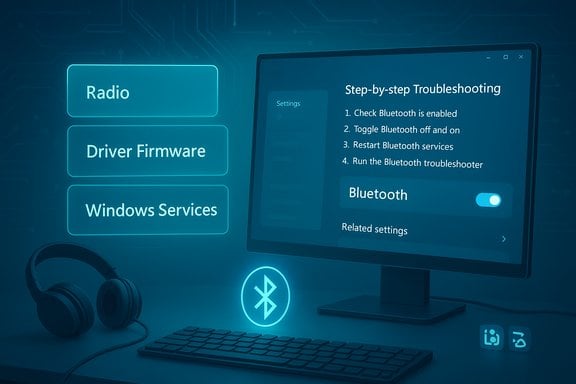
Bluetooth is a short‑range wireless protocol operating in the crowded 2.4 GHz band and implemented as a stack of three interdependent layers: the physical radio, the chipset/device driver and firmware, and the Windows services and user‑level settings that present Bluetooth devices to apps and the UI. Failures typically map to a few predictable buckets — the peripheral isn’t discoverable, a Windows service is stopped, power management suspends the radio, or drivers/firmware are mismatched after an update. Microsoft’s published flow — basics first, automated troubleshooters next, then service and driver work — reflects that layered reality.
Windows 10 and Windows 11 introduced additional user conveniences such as Quick Settings, Swift Pair and support for LE Audio, but those features increase the number of components that must be aligned for a flawless experience. A Bluetooth 5.x radio does not, by itself, guarantee LE Audio functionality — LE Audio requires OS, driver and headset firmware support for LC3 and Isochronous Channels, and vendor drivers or firmware updates are often necessary to expose those capabilities in Windows.
The main structural risk is fragmentation: modern Bluetooth features like LE Audio are gated not just by the Windows build but by chipset firmware, vendor drivers and headset firmware. This dependency chain means Windows updates alone may not deliver new capabilities or fixes — vendor action is frequently required, which complicates mass remediation in the field. For enterprises, driver rollbacks and uninstalling updates are disruptive and must be coordinated with IT.
When followed in order and combined with vendor‑level checks, the Microsoft checklist plus the practical community playbook will restore reliable Bluetooth for most users. Keep vendor drivers and firmware current, disable aggressive power‑saver settings for Bluetooth radios when reliability matters, and keep a wired or USB audio fallback for critical calls until LE Audio is widely and consistently supported across your devices.
Bluetooth problems are rarely mysterious when you treat them as layered problems: identify whether the failure is at the peripheral, radio, driver/firmware, or OS service layer, apply the least intrusive fix first, and escalate methodically while documenting changes so you can roll back if needed. The combination of Microsoft’s automated troubleshooters and the community’s practical escalations gives both casual users and technicians a reliable path to restore connections and audio quality.
Source: PCWorld Bluetooth problems in Windows? Here's how to fix connection issues
 Background / Overview
Bluetooth is a short‑range wireless protocol operating in the crowded 2.4 GHz band and implemented as a stack of three interdependent layers: the physical radio, the chipset/device driver and firmware, and the Windows services and user‑level settings that present Bluetooth devices to apps and the UI. Failures typically map to a few predictable buckets — the peripheral isn’t discoverable, a Windows service is stopped, power management suspends the radio, or drivers/firmware are mismatched after an update. Microsoft’s published flow — basics first, automated troubleshooters next, then service and driver work — reflects that layered reality.Windows 10 and Windows 11 introduced additional user conveniences such as Quick Settings, Swift Pair and support for LE Audio, but those features increase the number of components that must be aligned for a flawless experience. A Bluetooth 5.x radio does not, by itself, guarantee LE Audio functionality — LE Audio requires OS, driver and headset firmware support for LC3 and Isochronous Channels, and vendor drivers or firmware updates are often necessary to expose those capabilities in Windows.
What Microsoft’s guidance covers (summary)
Microsoft’s public troubleshooting advice for Bluetooth in Windows organizes fixes by symptom and risk level. The highest‑value, lowest‑risk steps are:- Run the built‑in Bluetooth troubleshooter (Settings > System > Troubleshoot > Other troubleshooters > Bluetooth). This automates many safe fixes such as restarting the Bluetooth Support Service and reinitializing the adapter.
- Verify Bluetooth is on and the peripheral is in pairing/discoverable mode; check Quick Settings (Win + A).
- Remove and re‑pair devices to clear stale pairing state.
- Adjust power‑management options so Windows doesn’t suspend the radio (Device Manager → Bluetooth adapter → Properties → Power Management).
Step‑by‑step troubleshooting by symptom
The sections below convert Microsoft’s concise advice into actionable steps and explain why each action matters. Try items in the order shown; stop once the problem is resolved.Missing Bluetooth icon or grayed‑out Bluetooth toggle
When the Bluetooth toggle is missing or dimmed, Windows is unable to present or activate the radio in the UI. Typical causes include a missing driver, a disabled service, Airplane Mode, or a hardware kill switch.- Check Quick Settings (Win + A) and Settings > Bluetooth & devices to confirm the toggle is Off or missing. If the tile was removed, use the Quick Settings edit option to restore it.
- Ensure Airplane Mode is off and any laptop hardware radio switches are set to enable wireless.
- Run the Bluetooth troubleshooter (Settings > System > Troubleshoot > Other troubleshooters > Bluetooth) — it can restart services and reinitialize adapters without manual driver surgery.
- Open Device Manager (Win + X → Device Manager). Expand Bluetooth and look for the adapter (e.g., “Intel Wireless Bluetooth,” “Realtek,” “Qualcomm”). If the adapter is missing entirely, check “Show hidden devices” and inspect USB Host controllers if the adapter is USB‑based.
- Update or reinstall the Bluetooth driver. Right‑click the adapter → Update driver → Search automatically; if Windows finds nothing, download the OEM or chipset vendor driver package and install manually. Reboot after installation.
Bluetooth visible in Device Manager but cannot pair or connect
If Device Manager shows the adapter but you cannot pair, the problem often sits at the pairing state, peripheral side, or in driver/service negotiation.- Quick checks (5 minutes):
- Ensure the peripheral is powered, charged, and in pairing/discoverable mode. Low battery or an accessory already connected to another host can block pairing.
- Move the devices closer (Bluetooth effective range in a typical environment is around 10 meters / 30 feet, but walls and interference reduce this).
- Short troubleshooting sequence:
- Toggle Bluetooth off → on (Settings or Quick Settings).
- Remove and re‑pair the device (Settings > Bluetooth & devices → device → More options (…) → Remove device → Add device). Re‑pairing clears stale pairing keys that can block new connections.
- Run the Bluetooth troubleshooter to let Windows attempt automated recovery steps.
- Restart Bluetooth Support Service (services.msc → Bluetooth Support Service → Restart). If the service is disabled, set it to Automatic or Trigger Start and start it.
- If pairing still fails, update or roll back the driver (Device Manager → adapter → Driver tab → Update or Roll Back). Prefer OEM/chipset vendor drivers over generic Microsoft drivers.
Connected but no sound, poor audio quality, or profile collapse
Audio issues are among the most common complaints: the device shows as connected but no audio plays, audio quality is poor, or stereo collapses to mono when the microphone is used.- Basic checks first:
- Confirm the Bluetooth device is set as the default output in Sound settings or the speaker selector in the app. Windows doesn’t always switch the default automatically.
- Check the app‑level volume and the Windows volume mixer. Close other apps that might hold exclusive audio access.
- Audio profile specifics:
- Legacy Bluetooth audio uses A2DP for high‑quality stereo playback and HFP (Hands‑Free Profile) for telephony with low sample rates. When the mic activates, older stacks switch from A2DP to HFP, which lowers quality and can collapse stereo to mono.
- LE Audio (LC3 codec, Isochronous Channels) solves the tradeoff by allowing high‑quality media and microphone audio simultaneously — but it requires end‑to‑end support (Windows build + chipset driver + headset firmware). A PC that advertises Bluetooth 5.x may still lack LE Audio until drivers and firmware expose it.
- Practical fixes:
- Disable “Hands‑Free Telephony” on the headphone device in Devices and Printers to force A2DP stereo for media if you don’t need the headset microphone. This disables the mic system‑wide but restores stereo quality for listening sessions.
- Disable audio enhancements and set a stable default sample rate: Sound Control Panel → Playback device → Properties → Enhancements → Disable all enhancements; Advanced → Default Format → choose 16 bit, 44100 Hz or 48000 Hz and disable Exclusive Mode.
- Update Bluetooth and audio drivers from the OEM or chipset vendor; if the problem started after an update, use Roll Back Driver or uninstall the offending driver.
Bluetooth keeps disconnecting or requires frequent re‑pairing
Intermittent disconnects commonly stem from power management, interference, or driver instability.- Check power settings:
- Device Manager → Bluetooth adapter → Properties → Power Management → uncheck “Allow the computer to turn off this device to save power.” Also disable USB selective suspend in Power Options for USB dongles.
- Interference and placement:
- Move away from 2.4 GHz sources (Wi‑Fi routers, microwaves, USB 3.0 cables). If using a USB dongle, use a short extension cable or a front port to improve line‑of‑sight.
- Driver and firmware:
- Update drivers; prefer OEM/chipset packages. If disconnects started after an update, roll back the driver or uninstall the update. Test with a known‑good USB dongle to isolate internal radio hardware issues.
Bluetooth file transfer problems
If file transfers hang (“Waiting for connection”) or never start, the usual causes are pairing state, encryption compatibility, or Windows not being put into receive mode.- Quick checklist:
- Run the Bluetooth troubleshooter.
- Ensure Windows is prepared to receive files: right‑click the Bluetooth icon or open Settings > Bluetooth & devices > Related settings and select Receive a file before initiating the send from the other device. This is a common gotcha — some senders expect the receiver to be explicitly awaiting a file.
- If transfers fail due to encryption mismatch with older devices, temporarily change File sharing encryption compatibility under Settings > Network & internet > Advanced network settings > Advanced sharing settings and select 40‑ or 56‑bit encryption (only in trusted environments).
Advanced diagnostics and recovery (power‑user steps)
If the safe steps don’t fix the problem, escalate methodically. These steps are higher effort and — in enterprise or managed environments — should be coordinated with IT.- Restart core services and run system integrity checks:
- Open an elevated Command Prompt and run:
net stop bthservthennet start bthservsfc /scannowDISM /Online /Cleanup-Image /RestoreHealth
These refresh the Bluetooth Support Service and check for OS component corruption.- Uninstall and reinstall the adapter driver:
- Device Manager → Bluetooth → adapter → Uninstall device (optionally check “Delete the driver software for this device”) → Reboot. Windows will attempt to reinstall a driver automatically; if it fails, install the OEM driver manually.
- Use Event Viewer and powercfg:
- Collect system logs for Bluetooth events around disconnect timestamps (Windows Logs → System). Generate
powercfg /energyto capture power anomalies that may suspend USB/Bluetooth devices. These artifacts help vendor support diagnose firmware or driver regressions. - Test with a known‑good host and a USB dongle:
- Pair the headset to a smartphone or another PC. Try a reputable USB Bluetooth dongle on the target PC — if the dongle works while the internal adapter fails, the internal radio or antenna is suspect.
- BIOS/firmware and vendor advisories:
- Check the PC vendor for BIOS/UEFI updates and chipset drivers. Some Bluetooth regressions require firmware-level fixes that only the OEM can provide.
Risks, caveats, and enterprise considerations
- Driver rollbacks and uninstalling updates carry risk: you may temporarily lose Bluetooth (and other) functionality and complicate managed environments. Always back up current drivers or create a restore point before changes.
- Avoid third‑party driver updaters: community guidance and vendor warnings stress that these tools often install mismatched stacks that make problems worse. Use OEM or chipset vendor update utilities (Intel Driver & Support Assistant, Realtek downloads, Qualcomm portals).
- In enterprise settings, Group Policy, MDM, or security agents can hide Quick Settings and block driver installs. Coordinate any escalations with IT to avoid violating support policies.
Preventive best practices
- Keep headset firmware, PC Bluetooth drivers and BIOS/UEFI up to date from the manufacturer. Windows Update does not always carry the latest vendor driver.
- Disable aggressive power savings for Bluetooth and HID devices on laptops used as primary audio hosts; the battery penalty is usually small compared with repeated disconnects.
- Maintain a wired or USB microphone fallback for mission‑critical calls until LE Audio support is verified across devices.
- Keep a documented copy of known‑good driver packages for business devices to simplify rollbacks when updates cause regressions.
Quick troubleshooting checklist (copyable)
- Toggle Bluetooth Off → On (Quick Settings or Settings > Bluetooth & devices).
- Restart the peripheral and ensure it’s in pairing mode and charged.
- Run Settings > System > Troubleshoot > Other troubleshooters > Bluetooth > Run.
- Remove and re‑pair the device.
- Disable “Allow the computer to turn off this device to save power” in Device Manager for Bluetooth and HID entries.
- Update drivers from OEM/chipset vendor; if problems started after an update, roll back.
- For audio: set device as default output, disable enhancements, set stable sample rate, and if necessary disable Hands‑Free Telephony to force A2DP.
- Advanced: Restart Bluetooth Support Service, run
sfc /scannowandDISM /RestoreHealth, collect Event Viewer, and test with a USB dongle.
Final analysis: strengths and remaining risks
Microsoft’s guidance is strong because it follows a low‑risk, high‑leverage escalation model: quick checks → automated troubleshooter → services/power checks → driver operations → system repair. That flow resolves the majority of consumer problems and is safe to run on both home and managed machines when coordinated properly.The main structural risk is fragmentation: modern Bluetooth features like LE Audio are gated not just by the Windows build but by chipset firmware, vendor drivers and headset firmware. This dependency chain means Windows updates alone may not deliver new capabilities or fixes — vendor action is frequently required, which complicates mass remediation in the field. For enterprises, driver rollbacks and uninstalling updates are disruptive and must be coordinated with IT.
When followed in order and combined with vendor‑level checks, the Microsoft checklist plus the practical community playbook will restore reliable Bluetooth for most users. Keep vendor drivers and firmware current, disable aggressive power‑saver settings for Bluetooth radios when reliability matters, and keep a wired or USB audio fallback for critical calls until LE Audio is widely and consistently supported across your devices.
Bluetooth problems are rarely mysterious when you treat them as layered problems: identify whether the failure is at the peripheral, radio, driver/firmware, or OS service layer, apply the least intrusive fix first, and escalate methodically while documenting changes so you can roll back if needed. The combination of Microsoft’s automated troubleshooters and the community’s practical escalations gives both casual users and technicians a reliable path to restore connections and audio quality.
Source: PCWorld Bluetooth problems in Windows? Here's how to fix connection issues
