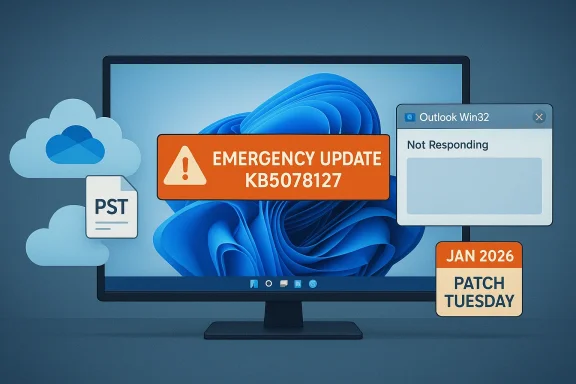
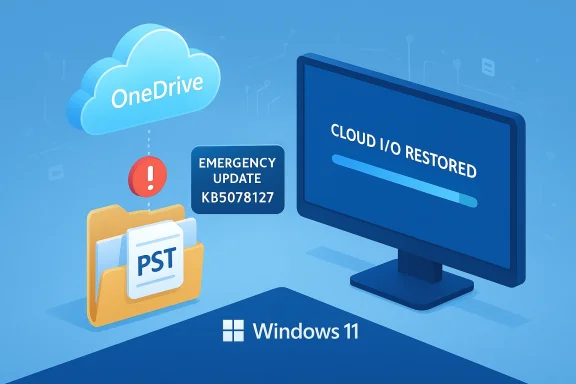
Microsoft pushed an emergency out‑of‑band update late last week to repair a regression introduced by its January security rollup that left Outlook and other programs unable to open or save files stored in cloud‑backed folders such as OneDrive and Dropbox. The fix — delivered as KB5078127 for Windows 11 24H2/25H2 (with parallel KBs for other Windows and Server branches) — is cumulative and consolidates the January 13 security updates plus earlier emergency patches, and Microsoft is urging affected systems to install it via Windows Update or the Microsoft Update Catalog.
By January 24 Microsoft released a second OOB cumulative update — KB5078127 for the newest Windows 11 branches — that explicitly addresses the cloud‑storage file I/O regressions, including the Outlook hangs tied to PST files saved in OneDrive‑synced folders. That January 24 package is delivered via Windows Update to devices that had already installed the January 13 security update or the January 17 OOB. Parallel KBs cover other Windows 11 branches, Windows 10 servicing channels, and server SKUs.
The problem extended beyond Outlook. Any third‑party application that relies on traditional file I/O semantics while accessing files in a synchronized cloud folder — editors, backup utilities, or custom line‑of‑business tools — could freeze or error when the OS’s cloud‑file interaction changed. Because PSTs are sensitive to file locks and expect reliable synchronous access, they were a predictable casualty of any regression in the cloud hydration or file I/O stack.
When the operating system’s interaction with cloud‑backed placeholder files or hydration state changes — for example, if metadata or lock behavior shifts — applications that expect direct, consistent access can block waiting for operations that never complete or time out. Those conditions can produce the “Not Responding” symptoms Outlook users saw, and can lead to duplicate downloads or missing Sent Items if synchronization events are replayed incorrectly. This clustering of behaviors is consistent with Microsoft’s description of a file I/O and cloud sync interaction regression.
That said, the incident is a reminder that cloud‑backed storage changes the failure modes of desktop apps, and that organizations still relying on legacy file‑centric applications must explicitly test those workflows as part of update validation. For Windows users and admins, the safest immediate course is to verify whether you installed the January 13 updates, confirm whether any PSTs live inside OneDrive or other synced folders, and either apply the Jan 24 OOB fixes now or implement the documented mitigations while you stage the patch.
Microsoft’s public advisories and the consolidation into a single cumulative OOB are the right operational moves; the longer‑term lesson is structural: as Windows grows more cloud‑integrated, testing and deployment practices — for both vendors and IT teams — will need to adapt to reduce the friction between security, functionality, and enterprise continuity.
Source: cp24.com Microsoft releases update to fix another Windows 11 bug
 Background
How we got here: three updates in two weeks
January’s Patch Tuesday rollout on January 13, 2026 (notably KB5074109 and siblings), introduced a set of serious regressions that were quickly reported by enterprise and consumer users alike. Those initial reports included systems that could not shut down or hibernate correctly and Remote Desktop sign‑in failures. Microsoft shipped an emergency out‑of‑band (OOB) update on January 17 to correct the shutdown and Remote Desktop issues, but that initial OOB did not fully address a separate regression impacting file I/O for cloud‑backed storage.By January 24 Microsoft released a second OOB cumulative update — KB5078127 for the newest Windows 11 branches — that explicitly addresses the cloud‑storage file I/O regressions, including the Outlook hangs tied to PST files saved in OneDrive‑synced folders. That January 24 package is delivered via Windows Update to devices that had already installed the January 13 security update or the January 17 OOB. Parallel KBs cover other Windows 11 branches, Windows 10 servicing channels, and server SKUs.
What broke — the symptoms and the scale
The observable user impact
After installing the January 13 security update, users and admins reported that applications which open or save files in cloud‑backed locations sometimes became unresponsive or displayed unexpected errors. Outlook (classic Win32) configurations that store PST files inside OneDrive‑synced folders were hit especially hard: Outlook could hang, refuse to reopen unless the process was terminated or the system rebooted, and exhibit odd mail behavior — missing Sent Items entries or previously downloaded messages being downloaded again. Those behaviors were documented by Microsoft in its Message Center and product support notes.The problem extended beyond Outlook. Any third‑party application that relies on traditional file I/O semantics while accessing files in a synchronized cloud folder — editors, backup utilities, or custom line‑of‑business tools — could freeze or error when the OS’s cloud‑file interaction changed. Because PSTs are sensitive to file locks and expect reliable synchronous access, they were a predictable casualty of any regression in the cloud hydration or file I/O stack.
Who was affected
- Enterprise/IT-managed deployments were the most visible victims because classic Outlook PST workflows are still common in corporate environments.
- Home users were less likely to be affected because most consumer Outlook installations use the newer, cloud‑native profile models and do not rely on PST files in OneDrive. Microsoft’s advisories emphasize that classic Outlook scenarios, often tied to enterprise licensing, were primarily impacted.
Microsoft’s response: the patches, KB numbers, and timeline
Microsoft’s remediation unfolded in three main steps:- January 13, 2026 — baseline Patch Tuesday security updates (originating KBs including KB5074109) were released and later identified as the source of multiple regressions.
- January 17, 2026 — first out‑of‑band (OOB) emergency updates (for example, KB5077744 for Windows 11 24H2/25H2 and companion KBs for other branches) addressed Remote Desktop sign‑in failures and shutdown/hibernate regressions. Those OOBs added a temporary known‑issue flag referencing cloud‑backed storage problems.
- January 24, 2026 — second, consolidated OOB cumulative update KB5078127 (Windows 11 24H2/25H2) was published to specifically fix the cloud‑file I/O regression and Outlook PST hangs; matching KBs were released for other Windows and Server SKUs. Microsoft stated the update includes all protections from the January 13 security updates and the Jan 17 OOBs.
The technical anatomy: why Outlook and cloud‑backed PST files collided
What PST files need — and how cloud sync complicates it
A PST file is a monolithic data container used by classic Outlook for mail, calendar items, and local archives. Many PST‑centric workflows depend on precise, synchronous file semantics: immediate writes, granular locking, and predictable file handles. Cloud sync clients, such as OneDrive, layered over local file systems introduce additional states (placeholders, hydration, opportunistic locking) and asynchronous behaviors that can change how and when data is physically present on disk.When the operating system’s interaction with cloud‑backed placeholder files or hydration state changes — for example, if metadata or lock behavior shifts — applications that expect direct, consistent access can block waiting for operations that never complete or time out. Those conditions can produce the “Not Responding” symptoms Outlook users saw, and can lead to duplicate downloads or missing Sent Items if synchronization events are replayed incorrectly. This clustering of behaviors is consistent with Microsoft’s description of a file I/O and cloud sync interaction regression.
Causation vs. correlation — what Microsoft has said (and what remains inferred)
Microsoft’s published advisories describe the symptom set and identify the January 13 update as the originating change. The company’s statements do not enumerate a single line‑by‑line root cause (for example, a faulty commit in a specific driver or the exact failure mode within the hydration service). Several technical observers and community posts point to regressions in placeholder/hydration semantics, oplock/locking behavior, or timing changes in file I/O, but those remain plausible analyses rather than confirmed root‑cause statements. Where an engineer would require stack traces and internal telemetry to confirm a singular cause, outside observers must label such explanations as informed inference.How to know if you’re affected
Quick checklist for end users and admins
- Did you install the January 13, 2026 Windows updates (KB5074109 or siblings)? If yes, you are in scope for the regression.
- Do you or your users run classic Outlook (Win32) with PST files stored in OneDrive or other synchronized cloud folders? Those setups are the most likely to see hangs or mail anomalies.
- Are other apps that open/save files from OneDrive or Dropbox reporting hangs, error dialogs, or unexplained crashes? If so, you may be seeing the same cloud‑file I/O regression.
Detecting the symptoms
- Outlook becomes “Not Responding” on open or when closing, leaving OUTLOOK.EXE resident in Task Manager.
- Sent messages don’t appear in Sent Items, or messages re‑download repeatedly.
- Applications that open files from OneDrive or Dropbox freeze or throw file‑I/O errors.
What Microsoft recommends (and immediate mitigations)
Official remediation and installation channels
Microsoft has made the Jan 24 OOB updates available through Windows Update for devices that have installed January security updates or the earlier OOBs. For environments preferring manual control, the packages are available in the Microsoft Update Catalog for offline or staged deployment. The specific KB for Windows 11 24H2/25H2 is KB5078127; other SKUs have corresponding KB numbers (for example, KB5078132 for 23H2 and KB5078129 for supported Windows 10 branches).Practical workarounds for administrators and users
- Install the OOB update (recommended). If you already installed January updates, the cumulative KB5078127 family restores normal cloud file behavior.
- Move PST files out of OneDrive as a temporary mitigation if you cannot immediately deploy the OOB update. Microsoft explicitly lists moving PSTs out of OneDrive as an effective workaround for Outlook‑specific scenarios. Accessing mail via webmail is also a fallback until your client is fixed.
- Uninstall the January 13 update only if other mitigations are not feasible and you accept the security trade‑off — a last resort for environments where business continuity for legacy apps is critical. Several community threads advised caution with this approach.
Enterprise deployment considerations: controls, KIR, and Windows Update management
Known Issue Rollback and Group Policy
Microsoft included Known Issue Rollback (KIR) artifacts and Group Policy options to allow targeted, temporary mitigations without uninstalling security fixes. For managed enterprises, applying Group Policy to temporarily disable the change causing the regression can reduce user impact while IT prepares a controlled rollout of the corrective update. This is ideal for large fleets where an immediate, blanket installation is impractical.Intune, Autopatch, and Update Catalog workflows
- Use Windows Update for Business or Microsoft Intune to expedite the OOB update to affected devices while respecting deployment rings. Microsoft published guidance for expediting quality updates in Intune and Windows Autopatch to accelerate remediation. For offline or isolated networks, the Update Catalog provides packages for manual distribution.
Testing and verification
- Stage the OOB update in a pilot ring with representative Outlook/PST workflows.
- Confirm Outlook opens cleanly, Sent Items are intact, and messages no longer re‑download.
- Monitor cloud sync telemetry and endpoint logs for I/O errors or sync conflicts.
Broader analysis: what this episode says about Windows update quality and cloud‑first workflows
Strengths in Microsoft’s response
- Rapid emergency patches. Microsoft acknowledged the regressions and delivered out‑of‑band fixes within days, culminating in a consolidated January 24 cumulative patch that simplified remediation for administrators. That sequence demonstrates a capacity for quick triage and focused remediation.
- Multiple remediation paths. The availability of KIR, Group Policy rollbacks, Update Catalog packages, and Windows Update distribution gives enterprises the flexibility to remediate without undue disruption.
Risks, structural problems, and user impact
- Frequent emergency updates degrade trust. A string of rapid OOB releases in the same month — first for shutdown/RDP, then for cloud file I/O — erodes confidence in the predictability of Windows Update, especially for mission‑critical environments that historically avoided Patch Tuesday until thorough testing. Industry commentary and community threads highlight growing frustration with rolling regressions.
- Cloud layering increases fragility for legacy apps. Legacy applications that expect direct disk semantics (PSTs being a canonical example) are inherently fragile when combined with modern file virtualization and sync clients. Organizations relying on such hybrids must weigh the operational costs of continuing legacy patterns versus migrating to cloud‑native profiles or supported mail architectures.
- Testing gaps between Insider/telemetry and production reality. When multiple regressions escape pre‑release testing and surface at scale, it suggests a mismatch between testing scenarios and the diversity of real‑world deployments — especially enterprise workloads that combine old and new behaviors. That gap increases the chance of needing OOB updates, which themselves add operational complexity.
Recommendations — a pragmatic checklist for Windows users and IT admins
For IT administrators (ranked priorities)
- Patch quickly but safely: Prioritize KB5078127 (or the SKU‑specific OOB) for affected rings after pilot verification.
- Use Known Issue Rollback (KIR) or Group Policy if you need to delay installing the OOB while maintaining service availability.
- Audit PST storage locations: Identify Outlook PSTs stored in OneDrive or Dropbox and plan migration to supported profiles or on‑premise network shares that your organization certifies.
- Communicate with users: Inform staff about the symptoms and the planned remediation window; provide webmail access as a temporary alternative for affected users.
- Revisit update testing: Expand test matrices to include cloud‑sync clients and legacy app patterns to catch interactions early in the cycle.
For end users
- If Outlook hangs: Check for pending Windows updates; apply the OOB update when available. If you can’t install it immediately, move PST files out of OneDrive temporarily or use webmail.
- If you must keep PSTs in cloud folders: Be prepared for potential instability and coordinate with IT to prioritize remediation and backups.
- Backup before changes: Always back up PST files before moving or modifying them — PST corruption can be catastrophic for mail archives.
Closing assessment — balancing security, reliability, and modernization
Microsoft’s rapid issuance of multiple out‑of‑band updates in January demonstrates both the company’s ability to respond quickly and the fragility that can emerge when complex, layered systems (legacy apps + cloud sync + modern OS updates) interact in the real world. The January 24 cumulative OOB (KB5078127 and related SKUs) appears to restore normal behavior for affected users and systems, and Microsoft’s use of KIR and Group Policy options provides administrators useful levers to balance patching and continuity.That said, the incident is a reminder that cloud‑backed storage changes the failure modes of desktop apps, and that organizations still relying on legacy file‑centric applications must explicitly test those workflows as part of update validation. For Windows users and admins, the safest immediate course is to verify whether you installed the January 13 updates, confirm whether any PSTs live inside OneDrive or other synced folders, and either apply the Jan 24 OOB fixes now or implement the documented mitigations while you stage the patch.
Microsoft’s public advisories and the consolidation into a single cumulative OOB are the right operational moves; the longer‑term lesson is structural: as Windows grows more cloud‑integrated, testing and deployment practices — for both vendors and IT teams — will need to adapt to reduce the friction between security, functionality, and enterprise continuity.
Source: cp24.com Microsoft releases update to fix another Windows 11 bug