

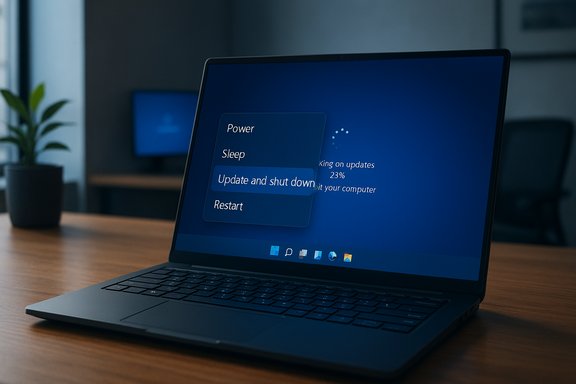
Microsoft has quietly repaired one of Windows’ quietly maddening UX bugs: the long-running “Update and shut down” option — which often installed updates only to leave machines powered on instead of finishing with a true shutdown — now behaves as labeled in recent Windows 11 preview builds.
Background / Overview
For many Windows users the “Update and shut down” power-menu option is meant to be a convenience: pick it, let Windows apply pending patches during the shutdown sequence, and come back to a patched, powered-off machine. For years that expectation was unreliable. In a non-trivial subset of systems the update flow would apply changes, reboot into the offline servicing phase, and then stop at the lock screen or desktop rather than powering off — effectively leaving the PC running. That mismatch has been reported across community forums, Feedback Hub entries, and multiple tech outlets.Microsoft has documented and begun rolling out a servicing fix in Insider preview channels that explicitly addresses the problem with a terse but clear changelog entry: “Fixed an underlying issue which could lead ‘Update and shutdown’ to not actually shut down your PC after.” The remediation is present in recent Beta and Dev channel release notes and has been distributed to Insiders as part of preview packages tied to the KB preview cycles.
What Microsoft shipped (builds, KBs, and channels)
Microsoft has staged the fix through Insider preview flights and bundled it into optional preview cumulative packages for wider testing. Key identifiers reported in the preview notes and community tracking include:- Windows 11 Build series with the fix appearing in Dev and Beta Insider notes (examples referenced in September preview flights such as Build 26220.x and related Beta builds).
- The October preview package often discussed alongside the fix is published under the KB preview umbrella (reported as KB5067036 in community summaries); the optional preview described in those notes is targeted at Windows 11 24H2 and 25H2 and carries build strings such as 26100.7019 (24H2) and 26200.7019 (25H2) in reporting.
Why the bug was more than a label problem
On the surface the issue reads like a UI mismatch: the option says “shut down,” but some machines returned to life. In practice the behavior emerged from the interaction of several low-level subsystems and multi-phase servicing flows, which made the outcome conditional and environment-dependent.Key technical factors that explain the intermittent nature:
- Fast Startup (hybrid shutdown): On many Windows configurations, Fast Startup changes shutdown semantics by preserving kernel session state to accelerate boot. That hybrid flow can conflict with multi-stage update servicing and occasionally force an intermediate restart rather than a true power-off. Disabling Fast Startup has been a common user workaround.
- Multi-phase servicing and offline commits: Many modern Windows updates require an offline servicing phase where locked system files are replaced. This can include one or more reboots to fully commit component replacements. If the servicing stack decides a reboot is required to keep the system consistent, it may route the flow into a restart even when shutdown was requested.
- Sign-in and automatic finish behaviors: Features that sign in automatically to finish configuration tasks can change whether the system can complete updates and shut down without returning to the lock screen. Interactions between these sign-in finish paths and the servicing pipeline were noted as a potential contributor to inconsistent outcomes.
- Drivers and file handoffs: A running driver or process that must be reloaded to replace in-use files can push the servicing pipeline toward a restart. The conditionally triggered nature of these handoffs explains why not every machine experienced the problem.
What the published fix actually says (and what it does not)
Microsoft’s preview release notes use conservative language: they describe an “underlying issue” that could cause “Update and shutdown” to not power off a device after updates. The language is intentionally light on root-cause detail. Community summaries and Insider sleuthing indicate Microsoft adjusted servicing orchestration logic — the control flow that decides whether to finalize updates with a shutdown or perform a restart — rather than simply changing the label or the UI messaging.Crucially, Microsoft has not published a low-level root cause analysis or a detailed engineering postmortem in public release notes. That means any statements claiming an exact cause — for example, a single race condition in the Servicing Stack — remain speculative until Microsoft publishes a formal bug analysis. Community reporting has offered plausible hypotheses (race conditions during the offline commit, lost shutdown directives during reboot sequencing, interaction with Fast Startup), but these are not Microsoft-confirmed root causes. Treat any single-cause claim with caution.
Real-world impact: why this mattered for users and admins
This fix is small in code scope but large in practical effect. The “Update and shut down” bug produced real inconveniences:- Laptops left overnight expecting to be off sometimes drained battery because the machine returned to the lock screen instead of powering off. That’s measurable user pain and real battery wear for mobile users.
- IT teams that rely on deterministic power-down behavior for maintenance windows, imaging tasks, or scripted flows had to design around the unreliability. Unplanned powered-on devices break automated maintenance and create audit friction.
- Casual users lost trust in a simple UI promise. When a label no longer maps to predictable behavior, people stop using the option; that loss of trust is hard to quantify but easy to observe in forum threads and feedback volumes.
How to test and validate the fix on your device
If you want to confirm the corrected behavior on a test machine, follow a conservative test plan. This is the recommended sequence for enthusiasts or IT pros who want to validate results before broad deployment:- Join the Windows Insider Program (Beta or Dev) on a spare/test device and ensure it receives the preview builds that include the fix. Insider channel enrollment is the fastest public path to early exposure.
- Apply the preview update (or KB preview) and reboot to the new build. Confirm the build string in Settings > About (match with the reported preview build).
- With a pending security-only update or cumulative preview ready, choose Start > Power > Update and shut down. Allow the machine to complete the offline servicing phase (you should see the “working on updates” screens).
- Observe whether the system finishes by powering off, rather than returning to the lock screen or desktop. Repeat the test across different update packages if possible (drivers vs. component updates).
- If you have Fast Startup enabled, repeat tests with Fast Startup disabled to compare behaviors. This helps confirm whether Fast Startup had been a contributing factor on your hardware.
Recommended short-term workarounds (if you can’t install the preview)
Until the fix reaches your production ring, use conservative practices that reduce exposure to the bug:- Prefer “Update and restart” if you need certainty that the update flow will complete immediately, then shut down manually after a successful restart.
- Disable Fast Startup on machines where deterministic shutdown semantics matter (especially laptops used overnight). Disabling Fast Startup forces a full shutdown sequence that removes hybrid semantics.
- For enterprise environments, pilot the preview on a small ring of non-critical devices before broad rollout; treat preview KBs as validation releases. Maintain backups and standard rollback plans.
Risks, regressions, and why staged rollout matters
Fixing complex servicing orchestration logic is delicate; servicing touches many subsystems and any regression can have outsized consequences. A few important risk considerations:- Preview packages frequently bundle multiple changes. The KB preview often announced alongside the shutdown fix also contained other UI and shell updates (Start menu changes, File Explorer adjustments) and, in at least one reported preview, a reproducible Task Manager regression that left multiple hidden taskmgr.exe processes running. That regression shows why staged validation is necessary: a fix for one issue can surface another.
- Device diversity amplifies risk. Servicing orchestration must behave correctly across hundreds of hardware configurations and third-party drivers. What passes on one device may fail on another until the rollout is exercised broadly.
- Enterprise caution: Administrators should treat optional previews as validation tools, not emergency production patches. Wait for Microsoft’s cumulative update inclusion on Patch Tuesday (or the equivalent mainstream distribution channel) for a hardened release unless your environment tolerates preview risk.
How confident should you be that the root cause is fixed?
Public-facing release notes indicate the orchestration logic was modified, and early Insider testers report the option now behaves as expected. That is strong circumstantial evidence the symptom is addressed for the tested scenarios. However:- Microsoft has not published a deep-dive root-cause analysis or a reproducible bug report tied specifically to a single code path. Without that, some claims about exact causal mechanisms (for example, a single race condition being the culprit) remain plausible but unverified public hypotheses.
- Because update servicing paths are complex and configuration-dependent, residual edge cases are possible. Continued telemetry and community reporting will surface any missed scenarios that escaped initial validation.
What this episode says about Windows servicing and QA
This long-running UX failure — visible in community threads for years — highlights several broader themes around modern Windows servicing:- Small UX behaviors matter: users notice and are inconvenienced by features that fail silently or intermittently. The “Update and shut down” label is a simple promise, and breaking it erodes trust. Fixing such small but visible problems improves perceived reliability.
- Servicing is inherently cross-cutting: a change in the servicing stack interacts with drivers, boot sequences, sign-in behaviors, and hybrid power features. That makes testing across hardware diversity essential and explains why organization-level rollouts must be staged.
- Trade-offs between speed and depth of testing: staged Insider and preview KB deployments are Microsoft’s way to balance rapid iteration with risk mitigation. Users who push preview builds accept higher variance to get fixes earlier; production environments should remain conservative.
- The importance of transparent engineering notes: public root-cause write-ups help IT pros and independent researchers understand the fix, reproduce it in labs, and prepare mitigations. Microsoft’s short changelog entry fixes the symptom but leaves deeper forensic detail to corporate engineering channels.
Practical checklist for Windows power users and IT admins
- If you want the fix soon: enroll a spare device in the Windows Insider Beta or Dev channel and apply the preview update to verify behavior.
- If you manage production systems: wait for the fix to be included in the mainstream cumulative update cycle and pilot on a small group first.
- If you cannot wait and need deterministic shutdowns: use “Update and restart” then shut down, or disable Fast Startup as a conservative mitigation.
- If you encounter regressions in the preview (for example, Task Manager issues): collect diagnostics, withhold the optional preview from production, and report feedback through the Feedback Hub.
Conclusion
The correction to Windows’ “Update and shut down” orchestration is a welcome fix for a small but pervasive annoyance. By adjusting servicing logic in Insider preview builds and rolling the change into optional KB preview packages, Microsoft has taken a pragmatic, staged approach: validate in the wild, collect telemetry across diverse hardware, and then promote to broader distribution when confidence is high. Early reports from testers indicate the option now behaves as promised for most tested scenarios, but because servicing changes touch many subsystems there is prudence in validating the fix in controlled pilots and watching for any regressions that may accompany bundled preview updates.For users who rely on deterministic shutdown behavior, the practical advice remains the same: validate the fix on a test device, disable Fast Startup if precise shutdown semantics are essential, and prefer “Update and restart” when absolute certainty matters. When the fix completes its staged rollout into mainstream cumulative updates, the Windows update UX will be a little less frustrating — a quiet quality-of-life improvement that quietly matters to millions of daily users.
Source: TechPowerUp Windows 11 Finally Fixes "Update and Shut Down" Functionality After a Decade | TechPowerUp}
