• Thread Author
Microsoft Edge’s built‑in payments and autofill capabilities let you move from cart to confirmation in seconds — but recent UI changes and privacy trade‑offs mean a quick, secure setup matters more than ever for Windows 11 users. This guide walks through a fast, practical setup of the Microsoft Edge wallet experience (payments, saved cards, billing addresses and security checks), explains what changed recently, and gives a frank assessment of benefits, limitations, and hardening tips so you can use Edge to pay online without creating new headaches.

Blue-toned browser UI showing a Checkout page with saved cards and a Settings panel.Background​

Microsoft Edge previously exposed saved cards, addresses and other checkout data under a feature labeled Wallet, but Microsoft has been consolidating that functionality into the browser’s Passwords & autofill / Payment info area. The retirement of the old Wallet label (announced as part of a rework that took effect May 29, 2025) means you’ll find the same data under updated Settings pages rather than a separate “Wallet” entry. This consolidation is intended to simplify access, but it also changes some expected flows and labels in Edge’s UI. Under the hood, Edge’s autofill for payment instruments is a standard browser feature that stores card numbers (with exceptions for CVV), expiry dates, and billing addresses for faster checkouts. Microsoft’s support documentation explains how saved payment info autofills into payment forms and that card verification charges (small temporary holds) may appear in some regions. Edge can sync saved payment data to your Microsoft account in supported geographies, enabling cross‑device use when you sign into Edge.

Quick overview: What you’ll accomplish in five minutes​

  • Add a credit/debit card to Edge’s payment store (the “wallet” experience).
  • Link a billing address for smooth checkout.
  • Enable Windows Hello authentication so only you can authorize autofill at checkout.
  • Confirm sync options if you want cards to follow you across Windows devices.
  • Apply a few privacy and policy controls to limit risk on shared machines.
The step‑by‑step below assumes you’re running Microsoft Edge on Windows 11 and are signed into a Microsoft account (recommended for sync). If you use a local Windows account you can still save cards locally, but cross‑device syncing won’t be available.

Fast, step‑by‑step: Set up Edge’s Wallet (Payments) in Windows 11​

1. Open Edge settings and locate Payments / Passwords & autofill​

  • Launch Microsoft Edge.
  • Click the three‑dot menu (Settings and more) in the top right, then choose Settings.
  • Select Profiles in the left column, then open Passwords & autofill or Payment info (label varies by Edge version due to the recent Wallet consolidation). You may also open edge://settings/payments directly in the address bar to jump to the payment area.

2. Add a new credit or debit card​

  • In the Payments / Wallet area click Add payment method (or Add card).
  • Enter the card number, expiration date, and the cardholder name exactly as printed on the card.
  • Decide whether to enable Save this card for autofill. For most users who shop frequently, leaving this on reduces checkout time; for shared or public devices, leave it off.
  • Click Save. Edge stores the card details securely and will then offer the card when it detects a payment field on a checkout page.

3. Add or confirm your billing address​

  • Still under Profiles > Passwords & autofill (or the Personal info section), choose Add address.
  • Enter the billing name, street address, city, postal code and country.
  • Save the address so Edge can attach it to the card automatically during autofill. Having this linked eliminates form mismatches at checkout that can trigger declines or manual verification steps.

4. Turn on the autofill and confirm security requirements​

  • Navigate to Settings → Profiles → Passwords & autofill → Payment info (or Payment info directly) and make sure Save and fill payment info is turned On.
  • Enable Require Windows Hello to confirm payments (or the “Require authentication before autofill” toggle). This makes Edge ask for your Windows Hello PIN, fingerprint or face recognition before inserting saved card numbers. If you don’t have Windows Hello set up, the dialog will guide you to Windows Settings → Accounts → Sign‑in options to register a PIN or biometric. The Windows Hello step keeps stored payment data protected by local device authentication.

5. Use the stored card at checkout​

  • On any checkout page with a payment field, click inside the card number input.
  • Edge will display a dropdown with saved cards and addresses; pick the correct card.
  • Edge may prompt you to authenticate with Windows Hello before filling the fields. Complete the verification, review the details and confirm the purchase on the merchant’s page. For faster paths, Edge’s Express Checkout features may also appear when you’ve saved personal info and payment methods.

Where the labels changed — and why it matters​

Microsoft’s May 29, 2025 change retires the “Wallet” label and consolidates payment, password and personal info management under Passwords & autofill. That means older guides that say “Wallet > Add card” may no longer match your UI exactly; the new flow centralizes these controls and hides Wallet as a separate menu. Expect the same functionality (payment saves, address management, authentication) in the updated settings pages. If you prefer the old phrasing, look for Payment info or Personal info under Profiles.

What Microsoft actually stores (and what it doesn’t)​

  • Edge stores card numbers, expiry dates and billing addresses for autofill. CVV codes are not stored by Edge; the browser uses CVV only for one‑time authorization when adding or verifying cards. That protects an important secret value from long‑term storage.
  • If you sign into Edge with a Microsoft account, saved payment data may be synced to your account in supported countries (US, AU, UK, CA, DK, FR, JP, MX, KR, BR, and more over time). If you don’t want cross‑device syncing, turn Off Payment info sync in Profiles → Sync.

Security analysis: protections, gaps, and hardening tips​

Strong points​

  • Windows Hello authentication: Requiring Windows Hello before autofill adds local, biometric or PIN protection, using the device’s secure path to unlock card data. This is a robust barrier against casual misuse on an unlocked or unattended machine.
  • No CVV retention: Edge’s policy not to store CVV reduces the risk of full card cloning from saved browser data — a meaningful design choice for browser wallets.
  • Policy & enterprise controls: Administrators can control autofill and payment storage via Group Policy or Edge browser policies (for example, the AutofillCreditCardEnabled policy), which helps enterprises prevent sensitive data from being stored on managed devices.

Risks and limitations​

  • Local device compromise: If an attacker obtains physical access to an unlocked device or can bypass Windows Hello (rare but possible with advanced hardware attacks or stolen credentials), saved cards could be exposed. That risk increases on shared or public machines.
  • Syncing to the cloud: Syncing cards to your Microsoft Account is convenient but concentrates risk. A compromised Microsoft account could expose your autofill data if it’s synced. Use multi‑factor authentication and a strong account recovery setup.
  • Browser autofill bugs and UX quirks: Community reports show Edge occasionally saves irrelevant fields or misapplies autofill entries to incorrect fields. That means auditing saved entries periodically is wise to avoid shipping incorrect info to merchants.

Hardening checklist (recommended)​

  • Only enable Save and fill payment info on personal devices.
  • Turn on Require Windows Hello for payment autofill.
  • Keep your Microsoft account protected with MFA and a unique strong password if you enable sync.
  • Review saved payment methods periodically and delete old cards you no longer use.
  • For shared corporate machines, have IT disable autofill via Group Policy (AutofillCreditCardEnabled = Disabled) so sensitive payment info cannot be stored.

Troubleshooting: common issues and fixes​

  • Edge doesn’t show your saved card at checkout: Confirm Save and fill payment info is On, confirm you’re signed into the profile with the saved card, and check whether the site’s payment field is non‑standard. If sync is enabled but a card is missing on another device, verify that the other device supports saved cards in your region.
  • Edge autofills strange or incorrect fields: Manually edit or delete the offending Personal info entry in Settings → Profiles → Personal info; Edge sometimes collects extraneous entries, so pruning helps.
  • You don’t see Express Checkout: Edge shows Express Checkout only when it detects saved personal info and payment methods, and when the “Save time and money with Shopping in Microsoft Edge” service toggle is on. If you’ve turned autofill toggles off, Express Checkout won’t appear.

Advanced options and enterprise considerations​

Edge flags and experimental features​

Power users sometimes enable Edge flags to test new shopping or autofill behaviors, but flags are experimental and may introduce bugs. Use them only in Dev or Canary builds and avoid flags on production machines. For stable setups, rely on the official Settings UI and Microsoft documentation.

Group Policy and MDM control​

Enterprises have granular control over autofill and payment storage through ADMX/Group Policy templates and Intune settings. Policies let admins disable saving or filling addresses and payment methods entirely, enforce encryption, or restrict sync. This is crucial for regulated environments or shared workstation scenarios.

Cross‑checking the claims: what’s verifiable and what to watch​

  • Verified: Edge will autofill saved credit/debit card info when Save and fill payment info is enabled, and Edge does not store CVV codes. Microsoft documents these points on its support pages.
  • Verified: Express Checkout appears only when you’ve saved personal info and payment methods and when the Shopping feature is enabled. Microsoft Support explains the conditions for Express Checkout’s availability.
  • Verified and time‑sensitive: The Wallet label was retired May 29, 2025; settings and controls moved under Passwords & autofill. Guides referencing “Wallet” may be out of date. Treat the label change as authoritative — the functionality remains but the menu path changed.
  • Policy verification: Microsoft Learn documents the AutofillCreditCardEnabled policy and admin controls, confirming enterprises can restrict browser payment autofill. This is important for admins who must comply with PCI or internal rules.
If you read older walkthroughs that tell you to look for “Wallet” as a menu item, update your mental map: check Profiles → Passwords & autofill or use edge://settings/payments to go straight to payment controls.

Practical recommendations for everyday users​

  • Use Windows Hello for payment confirmation — it’s fast and significantly reduces the chance someone else can use your saved cards.
  • Keep Edge and Windows 11 up to date. Security improvements and bug fixes around autofill happen frequently — updates reduce exposure to known issues.
  • Use a dedicated card for online purchases where you can (a card with limited balance or virtual card) to reduce exposure if a site is compromised or you accidentally leak autofill data.
  • Consider a password manager with dedicated payment features if you want additional controls or cross‑browser integration; these managers often provide vaults and shared family plans that are independent of browser sync.
  • Audit saved payment methods quarterly: delete retired cards, correct obsolete addresses, and remove entries you don’t recognize. Edge’s Personal info and Payment info panels make this straightforward.

Final verdict: speed vs. control​

Microsoft Edge’s payments/autofill capability gives Windows 11 users a fast, integrated checkout experience with sensible security defaults — notably Windows Hello gating and no CVV retention. The recent UI consolidation (Wallet → Passwords & autofill) simplifies the settings but does introduce a short help‑text mismatch for users following older tutorials. For most personal users, enabling autofill and Windows Hello strikes the best balance: fast checkouts with local biometric or PIN confirmation.
For high‑risk or shared environments, treat browser autofill as an operational decision: disable saving and filling of payment info through browser settings or enterprise policy and rely on dedicated, centrally managed payment tools. Administrators should use the documented Edge policies to enforce safe defaults.

Quick reference (cheat sheet)​

  • Settings path: edge://settings/payments or Settings → Profiles → Passwords & autofill → Payment info.
  • Turn on: Save and fill payment info.
  • Enable protection: Require Windows Hello to confirm payments.
  • Add billing address: Profiles → Personal info → Add address.
  • Admin lock: Use the AutofillCreditCardEnabled policy or Group Policy templates to disable saving/auto‑filling on managed devices.

Microsoft Edge’s payments features are a modern convenience built into Windows 11 — powerful when used correctly, and safe when paired with Windows Hello and sensible sync controls. Follow the short setup steps above, audit saved details regularly, and use enterprise policies where appropriate to reduce the risk surface while enjoying faster checkouts online.

Source: Windows Report How to Set Up Microsoft Edge Wallet in Windows 11 Fast
 

Windows Update installing an apparently “old” driver is usually not a bug — it’s the result of how drivers are packaged, targeted, and ranked inside Windows, and of choices vendors make when they publish driver packages to Microsoft’s distribution system. Recent guidance from Microsoft — summarized in the tech press and community threads — makes one thing clear: the driver date shown in Device Manager is metadata supplied by the vendor, not the authoritative signal Windows uses to pick the right driver for your hardware.

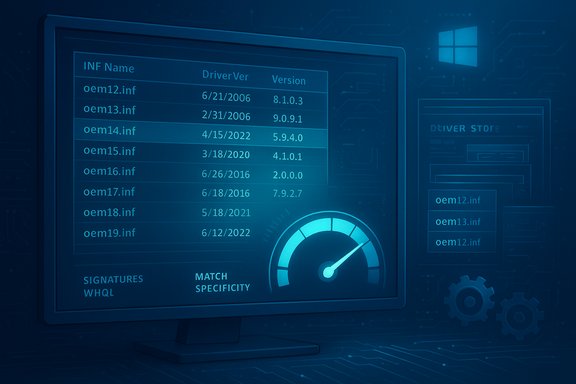
Blue-toned monitor shows a list of OEM .inf driver files with versions and a speedometer gauge.Background / Overview​

Windows devices get drivers from three primary sources: the local driver store on the machine, the driver packages shipped with Windows itself, and driver packages offered through Windows Update (the Microsoft Update Catalog and partner submissions). Hardware vendors (IHVs/OEMs) create packages — INF files, binaries, optional components — then use Microsoft’s Partner/Hardware dashboard to certify and target those packages for distribution. Windows, in turn, uses a deterministic matching and ranking algorithm to decide which package to bind to a device. That algorithm prioritizes signature, match specificity, and feature support; the INF DriverVer date and version are used only after the ranking step when ties remain. This explains two common, confusing behaviors:
  • Windows Update may offer or even place into the driver store a package that shows an old-looking date in Device Manager, even though vendors intend that package as the correct match for certain machines.
  • Multiple driver packages with similar names or versions may appear in Update history and the driver store because modern device stacks often include several components (main driver, filters, co‑installers) delivered as separate packages. Windows keeps staged packages as fallbacks.

Why a “old” driver date is rarely the real problem​

The driver date is vendor-controlled metadata​

The DriverVer directive inside an INF file declares a date and version string. That date is chosen and embedded by the driver author; it’s a label, not a warranty of recency. Vendors sometimes reuse dates for compatibility reasons, or to avoid accidentally outranking in‑box packages. Microsoft’s selection logic does not treat the visible file date as the primary quality metric — it uses ranking rules first.

Ranking beats date​

Windows builds a ranked list of matching driver packages for a device. Rank is a composite measure that includes signature trust (WHQL/Microsoft-signed vs. Authenticode), how specifically the INF matches the device hardware IDs, and what feature flags the package supports. The package with the lowest rank (i.e., best match) wins. Only when multiple candidates share the same rank does Windows consult DriverVer date and then version to break ties. That is why a package with an older-looking DriverVer date can still be chosen if it’s a higher-ranked match.

Vendors control targeting and delivery​

When a hardware maker publishes a package to the Windows Hardware dashboard, they also configure targeting — who should get the package and under what conditions (automatic vs. optional, OS floors/ceilings, specific hardware IDs). That targeting lets vendors “promote” a package for specific laptop models, BIOS revisions, or firmware combinations even if the package’s DriverVer date looks older to users. Windows Update respects that targeting.

What Microsoft and the press are saying​

Microsoft’s guidance summarized for users says essentially: don’t trust the date stamp by itself — check the package metadata and the publisher, and if a driver came via Windows Update it was chosen because the distribution pipeline marked it as a good match. Independent coverage (press and community) replicated that explanation and added context about cleanup work Microsoft is doing to reduce legacy noise in the Windows Update catalog. Note: some reporting referenced a Microsoft knowledge base entry or support article number that could not be located on public indexes at the time of checking; readers should treat any single KB number as provisional and rely on the broader Microsoft developer documentation for the definitive mechanics.

How driver packages actually reach your PC — step by step​

  • Vendor builds driver package (INF(s) + binaries), chooses DriverVer date, and submits to Microsoft for certification and distribution if desired.
  • Vendor configures targeting (hardware IDs, delivery mode: automatic/critical, optional/manual) in the Partner/Hardware dashboard.
  • Windows Update will surface driver packages according to targeting, ranking, and your OS policies. If the vendor set the package to automatic, it can be offered or installed without user action; optional drivers appear under “View optional updates.”
  • On the device, Windows builds a ranked match list and selects the best package. If multiple packages are applicable, Windows may stage additional packages into the driver store as fallbacks.

Practical implications for consumers and IT pros​

When to trust Windows Update​

  • For the majority of basic hardware (network adapters, generic input, chipset support), letting Windows Update manage drivers is the lowest-risk approach. Microsoft vets packages that flow through the Windows Update program, and vendor-targeted packages reduce large-scale breakage.

When to manually intervene​

  • If you rely on high-cadence drivers for GPUs, capture cards, or pro audio — or need bleeding‑edge fixes and game optimizations — vendor portals (NVIDIA, AMD, Intel, Realtek, vendor OEM support pages) often publish newer builds sooner than Windows Update. Use those channels when you need the absolute newest driver.

When Windows Update seems to “downgrade”​

  • In many community reports, users install a new driver from the vendor site, only to see Windows Update later apply a vendor-targeted package that looks older. Often the older-looking package is intentionally targeted (e.g., a laptop-specific OEM driver) or is staged as a fallback in the driver store; Windows may still be using the newer driver at runtime. Community troubleshooting shows you can inspect the active driver in Device Manager (Driver tab → Driver Details) and use rollbacks/uninstall if needed.

Troubleshooting: a short, practical checklist​

  • Check the active driver in Device Manager: Right-click device → Properties → Driver tab → Driver Details to see which files are currently loaded. If the updated binaries you expect are active, the apparent “old” package may be merely staged.
  • View optional driver updates: Settings → Windows Update → View optional updates → Driver updates. Some newer vendor drivers are intentionally published as optional.
  • Use pnputil to inspect the driver store: open an elevated Command Prompt and run pnputil /enum-drivers to list third‑party packages in the store. To view matching/rank details for a device, pnputil can be used with /enum-devices and driver flags.
  • If you must remove a problematic package from the store: pnputil /delete-driver oemXX.inf /uninstall /force (replace oemXX.inf with the actual published name). Use this only if you understand the consequences — forcing removal of in-use drivers can cause regressions.
  • Roll back drivers from Device Manager if a new driver causes regressions. If Roll Back Driver is missing, consider uninstalling the device and reinstalling the preferred driver.
Numbered recovery steps for a problematic GPU driver:
  • Create a full system restore point or disk image.
  • Boot to Safe Mode if the device is unstable, and run a clean uninstall tool if needed (DDU for GPUs is commonly recommended by enthusiasts).
  • Reinstall the vendor-supplied driver, ideally the “zip” package or standard installer from the vendor site (many vendors offer both).
  • If Windows Update later attempts an unwanted package, hide it with Microsoft’s Show or hide updates tool (if available) or use Group Policy to block driver deliveries.

Controlling Windows Update behavior (for power users and admins)​

  • To prevent Windows Update from including drivers with quality updates, enable the Group Policy “Do not include drivers with Windows Updates” at Computer Configuration → Administrative Templates → Windows Components → Windows Update. This toggles the registry policy ExcludeWUDriversInQualityUpdate. Use this in environments where you manage drivers directly via WSUS, SCCM/ConfigMgr, or Intune.
  • For unmanaged Home devices, a registry tweak can mimic the Group Policy, but caution is required: blocking driver delivery increases the administrative burden of keeping hardware secure and stable. Enterprises should pilot such changes in rings before broad deployment.
  • Windows Update for Business and MDM tools also expose controls for driver delivery (exclude, block, or define source), and for large fleets these are the recommended management paths.

Strengths of Microsoft’s driver model — and the trade-offs​

Strengths:
  • Security and scale: driver packages that pass HLK/WHQL and are delivered through Microsoft’s pipeline are signed and vetted, which reduces the risk of unstable or malicious drivers.
  • Targeting flexibility: vendors can push laptop‑specific or firmware‑dependent packages to just the devices that need them, preventing broad misapplication of device‑generic packages.
  • Fallback safety: leaving previously validated packages in the driver store provides a recovery path if a newer driver fails.
Trade-offs / Risks:
  • Opaque metadata: INF naming, DriverVer dates, and vendor naming conventions are inconsistent and often confusing to end users. That confusion fuels the “Windows is downgrading my driver” narrative even when selection logic is intentional.
  • Lag for high‑cadence components: GPU and specialized pro drivers frequently appear on vendor sites before being published (or published as optional) on Windows Update. Users who need the latest must use vendor channels.
  • Residual legacy noise: Microsoft has announced a cleanup program to remove legacy or “no audience” drivers from Windows Update to reduce catalog bloat and potential attack surface, but this can create compatibility risks for truly legacy devices that depend on those packages unless vendors republish updates. This cleanup effort aims to improve signal/noise but requires careful coordination with OEMs.

Case studies from the field (community reporting)​

Community threads are rich with examples of the perceived problem:
  • Gamers and laptop owners report installing a vendor-updated GPU driver, only to see Windows Update later download a driver with an older DriverVer date flagged as “Intel Corporation – Display – [old date]”. In many recorded cases, Windows’ event logs indicate the older package was downloaded but ultimately outranked or not used at runtime; in other cases, the staged package may cause a race with the vendor installer.
  • Forums also document workarounds: using the “Show or hide updates” troubleshooter to hide specific driver packages, using pnputil and DDU for deep clean installs, and setting Group Policy to exclude drivers from Windows Update on systems where timing and vendor control are critical. These are practical if manual, and administrators should test them first.

Recommendations — what to do next (professional checklist)​

  • For most users: keep Windows Update enabled for drivers; allow Microsoft’s vetting to reduce risk. If you need the latest GPU or peripheral driver, get it from the vendor and create a restore point before installing.
  • For power users: use pnputil to audit driver packages and keep a log of oemXX.inf entries; use DDU for graphics driver swaps and be prepared to hide problematic Windows Update packages.
  • For IT teams: manage driver rollouts with WSUS/ConfigMgr/Intune and set pilot rings. Use the ExcludeWUDriversInQualityUpdate policy only after validating your own vendor update cadence and recovery processes.
  • If you see a driver with a confusing date: check the publisher name and version in the Windows Update UI, inspect the driver files in Device Manager → Driver Details, and consult the vendor’s release notes where available. Treat the DriverVer date as a clue, not as the definitive truth.

What remains murky (and where to be cautious)​

  • Specific support KB references cited in some press summaries could not be located on Microsoft’s public support index at the time of verification; the underlying mechanics, however, are thoroughly documented in Microsoft’s driver selection and publishing documentation. Users should prefer the developer‑focused pages (Windows Hardware docs) for authoritative selection rules and use community/press posts to understand practical impact. Flag any untraceable KB numbers as provisional.
  • Vendor practices vary wildly. Some OEMs do not publish driver release notes in a single consolidated way, and the Windows Update UI does not display detailed change logs. If you need exact patch content, the vendor’s support site or Partner Center publishing logs (for vendors) are the only places to get definitive change history.

Final assessment​

Windows Update installing a driver that looks old is usually not an error but a normal consequence of vendor metadata, targeted distribution choices, and Windows’ ranking-based selection process. The visible DriverVer date is simply one piece of INF metadata and is not the controlling factor in most selections. That said, the model’s opaqueness can be frustrating — particularly for enthusiasts and IT admins who want predictable, granular control over driver versions.
The practical response is straightforward: trust Windows Update for everyday stability; rely on vendors for cutting-edge components; use pnputil, Device Manager, and Group Policy when you must assert tighter control; and document any manual interventions so you can recover cleanly. Microsoft’s ongoing driver-catalog cleanup and the move to clearer Windows Update UI labels are positive steps, but improved release‑note visibility and consistent INF hygiene from vendors would do more to reduce surprise and frustration than any single client-side tweak. For users seeing unexpected driver installs today, the best immediate course is to inspect the active driver, verify behavior, and apply the small set of administrative controls described above rather than assuming Windows Update is “broken.” The system is complex by design: it trades a little transparency for broad compatibility and safety at scale.
Source: gHacks Technology News Microsoft explained why Windows might be installing old drivers - gHacks Tech News
 

Microsoft’s latest Copilot update turns Edge from a chatty sidebar into an agentic browser mode that can see across tabs, remember past sessions, and — with explicit permission — perform multi‑step tasks on your behalf, a feature set Microsoft is calling Copilot Mode and is rolling out today as a limited preview in the United States.

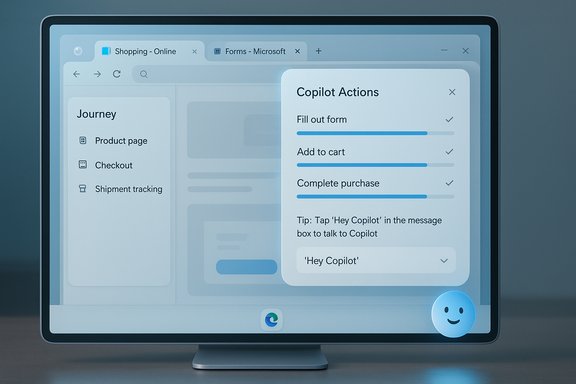
Blue-toned monitor showing Copilot Actions panel over an online form with a smiley chatbot.Background​

The browser has quietly become the front line of the next phase of AI: not merely a window to the web, but the place an assistant can act, remember, and automate. Over the past year major players — OpenAI, Perplexity, Google and Microsoft — have moved to embed conversational AI directly into browsing, shifting the user experience from link lists to contextual agents that can synthesize, compare and perform actions across the open web. This week’s Microsoft release follows OpenAI’s ChatGPT Atlas announcement and Perplexity’s Comet launch, placing Edge firmly in the “AI browser” conversation. Microsoft’s public documentation frames Copilot Mode as optional and permissioned: users who update Edge can toggle Copilot Mode on or off, and advanced features such as Copilot Actions and Journeys are available in a U.S. limited preview that must be enabled separately. Microsoft emphasizes visible consent flows and gives users a Page Context opt‑in for letting Copilot access browsing history.

What Copilot Mode actually does​

Copilot Mode stitches together several capabilities Microsoft had been rolling out independently and packages them into a single, persistent browsing experience.

Actions: agentic automation in the browser​

  • Copilot Actions give the assistant the ability to act on your behalf inside Edge. That includes clicking through page elements, filling forms, and sequencing multi‑step flows (for example: search multiple product listings, extract prices, and create a comparison table). Microsoft describes both voice and text triggers for Actions, and preview UI shows explicit progress indicators and confirmation prompts when Copilot acts.
  • The feature is described as “suggest-and-wait” or act-on-your-behalf depending on permissions; Microsoft says visible cues and stop controls let users intervene while the agent runs. Early hands‑on reporting finds these automations promising but not yet reliable in complex edge cases.

Journeys: resumable work and memory​

  • Journeys is Copilot’s approach to session memory and project continuity. It groups past browsing into topic cards so you can resume a research thread — for example, a day‑long shopping session for a new TV becomes a single resumable Journey with summaries and suggested next steps. Journeys require user opt‑in and are surfaced in the new tab area when Copilot Mode is active.
  • Journeys is functionally similar to the memory-style features other AI browsers are shipping, but Microsoft emphasizes enterprise controls and the ability to turn off or clear Journey data. The practical gain is reduced friction: no more bookmarking dozens of tabs or manual note‑taking when research stretches across sessions.

Multi‑tab context, voice and Quick Assist​

  • With explicit permission, Copilot can see all open tabs and synthesize content across them for tasks like product comparisons or aggregated research. Quick Assist brings Copilot into the current page without losing context, and voice controls promise hands‑free navigation via “Hey Copilot.” Microsoft’s documentation stresses that all context access is opt‑in.

UX: a new-tab, unified prompt and an optional avatar​

  • Copilot Mode replaces the traditional new‑tab clutter with a focused new‑tab experience that blends search, chat and browsing. Microsoft also introduced an optional expressive avatar (Mico) as part of the broader Copilot release — a design decision intended to make voice interactions feel more personable while remaining toggleable.

How Copilot Mode compares with rival AI browsers​

AI-first browsers are no longer experimental niches; they’re a category battle. The main competitors and how they differ:
  • OpenAI — ChatGPT Atlas: Atlas embeds ChatGPT as a persistent sidecar and includes an Agent Mode for multi‑step tasks, launching initially on macOS and gated for paid users for agentic capabilities. Atlas emphasizes continuity with ChatGPT’s existing memory and account systems.
  • Perplexity — Comet: A Chromium‑based browser with Perplexity’s assistant front‑and‑center; Comet’s sidecar can act on pages and has been pitched as a search‑centric, agentic browser alternative. Comet rolled out earlier this year and has been rapidly iterating.
  • Google — Gemini in Chrome: Google has folded Gemini features into Chrome, focusing on summarization, multi‑step task assistance, and deep links to Google apps. Chrome’s approach meshes AI into its existing search and app ecosystem rather than shipping a separate AI‑centric shell.
Microsoft’s strategy is distinct: rather than ship a brand‑new browser, it converts Edge into an AI‑first experience via a mode that can be toggled on and off. That leverages Edge’s distribution on Windows and Microsoft’s ecosystem ties (Outlook, OneDrive, Microsoft 365), giving Copilot Mode a natural path to adoption that new entrants must fight to obtain.

The market context: Chrome still dominates, challengers fight for share​

Browser market shares vary across measurement providers, but the broader picture is clear: Google Chrome remains dominant, commanding well over half of global usage, while Edge trails in single digits by most measures. Some widely cited aggregates place Chrome near 71% worldwide, with Edge around 4–6% depending on the sampling window and methodology. These figures underline the uphill task Microsoft faces in changing entrenched user behavior despite Windows distribution advantages. Numbers fluctuate month‑to‑month, so treat any single percentage as a snapshot rather than an absolute.

Why Microsoft’s approach matters (strategic advantages)​

  • Distribution leverage: Edge ships with Windows and integrates with Microsoft accounts and Microsoft 365, enabling a smoother trial path for Copilot Mode than a brand‑new browser would enjoy.
  • Ecosystem integration: Tight links to Outlook, OneDrive and enterprise identity let Copilot perform cross‑app tasks that a standalone browser may struggle to coordinate. This is a practical edge in productivity scenarios.
  • Incremental, permissioned rollout: Shipping Copilot as an opt‑in mode allows Microsoft to gauge real‑world behavior, add enterprise controls, and avoid fragmenting the user base. This reduces the friction of migration for administrators and users.

Key risks and trade‑offs​

Embedding agentic AI into the browser amplifies benefits and risks at once. The major concerns to weigh:
  • Privacy and telemetry: Copilot’s multi‑tab reasoning and Journeys require access to browsing context — potentially sensitive information. Microsoft insists that browsing history is only accessed with opt‑in Page Context settings and that data collection is limited to “what’s needed,” but opt‑in defaults, UI nudges and the granularity of controls will determine real exposure. Enterprise admins should audit default policies before enabling agentic features broadly.
  • Reliability and correctness: Early reports across competing AI browsers show agentic automations can be brittle — performing the wrong clicks, choosing the wrong dates, or reporting that an action was completed when it wasn’t. That brittleness matters because actions can have real consequences (charges, bookings, message sending). Visual confirmations and user approval steps are essential safeguards, but they are not foolproof.
  • Security and automation defenses: Agentic behavior has to navigate CAPTCHAs, multi‑factor authentication, and site anti‑automation defenses. There are also novel attack surfaces: an agent that can act on pages becomes a higher‑value target for phishing or malicious script injection if contextual permissions are abused. Enterprises will need to integrate DLP and conditional access policies.
  • Economic disruption for publishers: Agents that fetch answers and complete purchases can reduce pageviews, undercutting advertising and affiliate revenue models that sustain much of the web. The industry‑level effects could be substantial if agentic browsing becomes mainstream.
  • Regulatory and antitrust scrutiny: Browsers shape gatekeeper power. Microsoft’s history with browser defaulting and prior antitrust scrutiny means regulators will be watching how Copilot Mode is presented, whether it nudges users toward Microsoft services, and how it competes with Chrome and other entrants.

Hands‑on reality: what early testing reveals​

Independent reviews and hands‑on testing by journalists and technology sites show a consistent picture: Copilot Mode’s automation and Journeys are useful in straightforward scenarios (summaries, simple unsubscribes, single‑site reservations) and fragile in complex flows (multi‑site bookings, sites with dynamic forms). Visual cues and stop controls exist, but users should verify important results rather than accept an automated action as final. Microsoft’s opt‑in approach reduces immediate risk, yet real‑world reliability will define how broadly people trust agentic browsing.

Practical guidance for Windows users and IT teams​

For individual users:
  • Keep Copilot Mode off by default; enable it only for specific tasks where agency would save meaningful time.
  • Use the Page Context opt‑in sparingly: only grant Copilot access to tabs or history when you need cross‑tab synthesis.
  • Verify actions that have financial or privacy implications (purchases, cancellations, credential use).
For IT administrators:
  • Pilot with a controlled group before rolling Copilot Actions into production.
  • Audit default settings in Edge and the Microsoft 365 admin center for any automatic opt‑ins or connector consent flows.
  • Integrate DLP and conditional access with Copilot connectors and disallow third‑party connectors where compliance risk is unacceptable.
  • Educate end users about agent limitations and confirmation steps; encourage manual review for mission‑critical automations.
These steps reduce exposure while allowing teams to evaluate productivity gains on a manageable scale.

Strengths: why Copilot Mode could succeed​

  • Familiarity + capability: By turning Edge into an AI‑first mode rather than a separate product, Microsoft reduces the cognitive cost for users to try agentic features and leverages existing enterprise management tools.
  • Cross‑service utility: Copilot’s ability to connect to Outlook, OneDrive, and third‑party connectors (when permitted) offers productivity workflows that single‑vendor browsers may struggle to replicate without equivalent enterprise ties.
  • Iterative control: The staged, opt‑in preview lets Microsoft refine UI affordances (visual consent, progress bars, stop buttons) before a wide release, which is the prudent path for agentic features with potential for error.

Weaknesses and open questions​

  • Trust is earned, not toggled: Users will withhold authority from agents until reliability and transparency are demonstrably high. Repeated small errors will erode trust faster than early wins build it.
  • Privacy defaults and nudges: The balance between helpful defaults and privacy protections is delicate. Microsoft’s promise of opt‑in controls is necessary but not sufficient; how those controls are implemented and surfaced in the UI will shape adoption and pushback.
  • Interoperability limits: Agentic automations can be brittle across a fragmented web. Sites with nonstandard DOMs, paywalls, bot defenses, or aggressive anti‑automation measures may thwart Actions, limiting the practical scope of what Copilot can do reliably today.

What to watch next​

  • Rollout scope and region expansion: Microsoft has positioned Actions and Journeys as a U.S. limited preview; watch for the pace of global rollout and any enterprise‑tier gating or subscription requirements.
  • Default settings and onboarding UX: Small changes to defaults, permission prompts, or setup flows will materially affect exposure and user sentiment. Expect lively analysis if Microsoft nudges users toward enabling memory or connectors.
  • Independent audits and third‑party assessments: Given the potential for harm, third‑party evaluations of Copilot’s data handling, accuracy, and security posture will be essential for enterprises and privacy advocates.
  • Competitive responses: OpenAI’s Atlas, Perplexity’s Comet and Google’s Gemini integrations are all iterating quickly. Differentiation will come from reliability, privacy guarantees, and how well agents integrate into real workflows.

Conclusion​

Copilot Mode in Edge represents Microsoft’s pragmatic answer to the AI browser wave: not a brand‑new app, but a powerful, opt‑in mode that turns the browser into an assistant capable of remembering, synthesizing and acting across the web. The approach plays to Microsoft’s distribution and enterprise strengths and could meaningfully accelerate productivity for users who adopt it carefully. At the same time, agentic browsing raises real privacy, security and economic questions that cannot be papered over by toggles and marketing language. The promise is genuine — fewer repetitive chores, faster research, and more natural interactions — but the promise depends on hard engineering: robust permissions, reliable automation, and clear, user‑centered transparency.
For Windows users and IT teams considering Copilot Mode today, the sensible path is cautious experimentation: test in controlled pilots, lock down sensitive connectors, and require manual confirmation for high‑stakes actions. If Microsoft nails the balance between power and governance, Copilot Mode will be a substantive step toward a more productive browser. If it fails to do so, the feature risks reinforcing long‑running concerns about browsers as vectors of gatekeeper power and hidden data collection — a reminder that convenience and control must be designed together, not retrofitted after the fact.

Source: CNET Not to Be Outdone by ChatGPT Atlas, Microsoft Enhances Copilot Mode in Its Edge Browser
 

Microsoft has quietly changed the Microsoft Store’s app‑update behavior so the old consumer toggle that permanently disabled automatic updates is gone — in its place the Store now only lets you pause updates for one to five weeks, after which automatic updates resume.

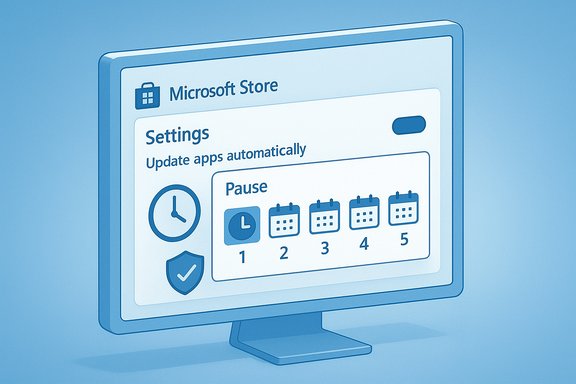
Blue-toned monitor showing Microsoft Store settings to pause automatic app updates.Background​

For years Windows allowed a simple consumer‑level choice in the Microsoft Store: a toggle labeled Update apps automatically that could be set to On or Off. That durable Off setting let home power users, creators, testers and small businesses freeze Store‑installed app versions indefinitely when compatibility or workflow stability mattered. Over the last several months Microsoft has been rolling out a change to the Microsoft Store client that replaces that permanent Off position with a pause‑only flow: when you switch the setting “Off” the UI now prompts you to choose a pause duration — typically 1, 2, 3, 4 or 5 weeks — and after the selected interval updates are re‑enabled and delivered automatically. Microsoft’s own support copy explains the new Pause option and lists the 1–5 week increments. This is not merely a cosmetic tweak. The behavior aligns consumer Store updates with how Windows Update treats OS patches on unmanaged PCs: you can delay temporarily but you cannot permanently stop patching from the standard consumer UI. Independent reporting and community testing show the change is being applied via staged Microsoft Store client updates rather than a single, high‑visibility announcement. That staggered rollout has left many users discovering the change by accident and reporting it in forums and tech outlets.

What changed — the facts, verified​

  • The Store still exposes Settings → Profile → App updates and the label Update apps automatically remains visible, but its behavior is different on affected clients: toggling Off opens a pause dialog rather than permanently disabling updates.
  • Pause options are weekly increments up to five weeks; after that interval ends the Store re‑enables automatic updates and installs available updates.
  • The change affects apps and games installed from the Microsoft Store (UWP, APPX / MSIX, and Store‑packaged Win32 binaries). Applications that use their own updaters or are installed outside the Store (Steam, Adobe, vendor MSI/.exe updaters, etc. are not governed by the Store UI.
  • Enterprise and managed devices remain under administrative control: Group Policy, Intune/MDM and corresponding CSPs still provide authoritative ways to enforce persistent update behavior across fleets. The consumer UI change primarily affects unmanaged Home users and similar scenarios.
Several independent outlets and community threads corroborate these points and describe the staged rollout and user reactions. The Store support article explicitly states the On/Off toggle has been replaced by a Pause option and that previously disabled devices will be migrated to the new behavior (their updates will be paused and later resume).

Why Microsoft did this — the official rationale and reasonable inferences​

Microsoft frames the change as a security and reliability improvement: outdated apps are an exploitable attack surface, and automating patch delivery reduces the window in which critical vulnerabilities can be exploited. The support text explicitly emphasizes keeping apps “up to date” to strengthen device defenses. That security rationale is straightforward and mirrors long‑standing best practices in platform security engineering. From an operational perspective, centralized automatic updates make emergency rollouts, telemetry‑driven staged deployments and vulnerability mitigation simpler at scale. For the majority of casual users — who do not want to manage dozens of app updates manually — this reduces friction and improves baseline protection. It also aligns Windows more closely with mobile ecosystems, where store‑level update enforcement is the norm. Independent reporting highlights this alignment and places Microsoft’s move in the context of the company’s broader effort to modernize Windows update orchestration.

The tradeoffs — benefits and notable strengths​

  • Improved baseline security for millions of consumer devices by shrinking the population of unpatched Store apps.
  • Reduced support complexity for developers and Microsoft because fewer devices will run legacy, unpatched versions that produce diverse bug reports.
  • Simpler experience for non‑technical users: less manual housekeeping, fewer update prompts, fewer missed security fixes.
  • Consistency with Windows Update semantics (temporary pause ceilings rather than permanent Off in consumer UI), which simplifies the end‑user mental model about updates.
These outcomes are material: forcing a re‑enable after a pause guarantees eventual delivery of critical fixes, which is very difficult to achieve if a sizable fraction of devices remain opt‑out forever.

The risks and user harms​

  • Broken workflows and regressions: Some updates introduce regressions, break third‑party integrations, or change behavior in ways that harm creators and small businesses who depend on specific app versions. The five‑week ceiling can be insufficient for long‑running projects or compatibility testing. Community reports underscore how seriously some power users take the ability to pin versions.
  • Erosion of user agency and trust: The quiet, staged rollout without a conspicuous public announcement has aggravated the perception that Microsoft is narrowing user control without transparent communication. That view has surfaced frequently in forum threads and independent commentary.
  • Supply‑chain amplification: While forced updates reduce exposure to old vulnerabilities, they also raise the stakes if a publisher or Microsoft itself ships a faulty or malicious update. A compulsory, automatic distribution model increases the number of endpoints affected by any flawed update. Tech outlets have highlighted past incidents where buggy updates caused widespread outages, underscoring the real‑world consequences of forced rollouts.
  • Reduced options for non‑technical home users: Unlike enterprises that can use Group Policy or MDM, Windows Home users lack easy persistent overrides. Registry hacks and unsupported workarounds exist in the wild, but are fragile and risky; they can be broken by subsequent Store or OS updates and may void support terms.

Who this hits hardest​

  • Creative professionals who rely on exact plugin/app versions for production workflows.
  • Small teams and studios that need deterministic environments for testing and release.
  • Hobbyists and power users who prefer to control update timing and content.
  • Home users on constrained data plans who may find automatic downloads problematic despite metered connection protections.
Enterprises, MSPs and managed education deployments are largely unaffected because Microsoft preserved administrative controls; the change matters primarily to unmanaged consumer devices and small environments that lack formal management tooling.

Technical controls and how to preserve durable behavior​

Administrators have supported, documented paths to control Store update behavior:
  • Group Policy (Windows Pro/Enterprise):
  • Computer Configuration → Administrative Templates → Windows Components → Store → Turn off Automatic Download and Install of updates. Enabling this policy prevents the Store from auto‑downloading updates. Microsoft documents the ADMX mapping and the corresponding registry value (AutoDownload under Software\Policies\Microsoft\WindowsStore).
  • Registry for scripted deployments (use with caution):
  • Set HKEY_LOCAL_MACHINE\SOFTWARE\Policies\Microsoft\WindowsStore\AutoDownload to 2 to disable auto updates, or 4 to enable them. Test thoroughly before mass deployment.
  • MDM/Intune:
  • Use ApplicationManagement CSP / AllowAppStoreAutoUpdate in device configuration profiles to enforce policy at scale. Intune can apply profiles to Windows Home via provisioning packages or other supported enrollment flows where appropriate.
  • Alternate distribution and control:
  • For apps that must be pinned, prefer vendor‑hosted installers or package managers (WinGet, Chocolatey) under the team’s control and maintain offline installer archives for deterministic rollbacks.
These supported controls ensure businesses retain the levers they need. The practical problem is that many consumer devices are unmanaged and lack easy access to these policies.

Practical, role‑based guidance​

For everyday consumers:
  • Use the Store’s Pause option (1–5 weeks) if you need a short freeze.
  • Set your connection as metered for limited data situations — the Store respects metered connections for large downloads.
  • Maintain regular backups or system restore points before large updates to allow safe rollback.
For power users and creators:
  • Avoid Store installs for mission‑critical apps where pinned versions matter. Install directly from vendors and manage updates yourself.
  • Use virtual machines or isolated test systems to validate updates before applying them to production devices.
  • Keep local copies of known‑good installers and use WinGet manifests or private repositories for reproducible installs.
For administrators:
  • Enforce update behavior via Group Policy or Intune, and implement staged deployment/testing pipelines.
  • Use telemetry and pilot rings to catch regressions early and coordinate rollouts with app vendors.
For developers/publishers:
  • Provide clear release notes, semantic versioning, and enterprise distribution channels for customers who require pinned versions. Communicate any breaking or behavior‑changing updates well in advance. Community and business trust hinges on responsible release processes.

Workarounds and why they’re risky​

  • Registry edits, service stoppage and third‑party hacks are circulating as ways to force longer suppression — but they’re unsupported, fragile and may be undone by future Store/OS updates. Relying on these is not a durable strategy and can create security holes.
  • Removing or disabling the Microsoft Store is sometimes suggested, but that eliminates the supported update surface and can break dependencies for Store‑managed components. This is a blunt instrument and not recommended for general use.

Policy, transparency and the communications failure​

A recurring criticism is not the engineering rationale but the rollout and communication. Changes that alter user agency — even when done for security — benefit from upfront, high‑visibility explanations. The staged client rollout and limited public note created confusion and anger among advanced users who discovered their long‑standing toggle had silently changed behavior. The pragmatic remedy is straightforward: publish a clear changelog, document the exact policy mechanisms and provide an advanced users pathway (with explicit warnings) for those who accept the trade‑offs. Community threads have repeatedly requested exactly this clarity and better discoverability for supported escape routes.

Strategic implications — a platform‑level shift​

This move signals Windows’ continued migration toward a more curated, Store‑centric model for app distribution and update orchestration. Mobile platforms have long enforced centralized patching; Microsoft is bringing elements of that model to Windows while retaining broad options for enterprise and technical users. That trend improves security hygiene at scale but narrows the consumer UI levers of permanent control that many Windows enthusiasts value. Expect similar Store‑centric integrations to appear over time; the ecosystem consequences — from distribution economics to antitrust scrutiny in some jurisdictions — are worth watching.

What to watch next​

  • Official Microsoft changelog updates and any refinements to the Pause ceiling or an “advanced user” override path. The support page is already live and should be monitored for edits.
  • Whether Microsoft extends the same model to other update surfaces beyond Store‑packaged apps. Community observers are tracking whether Windows Update will subsume more third‑party updaters.
  • Developer responses: whether major ISVs will offer enterprise channels, pinned builds, or clearer versioning to protect customers who require determinism.

Conclusion — balanced assessment​

The Microsoft Store’s switch from a durable On/Off toggle to a limited 1–5 week pause is a deliberate trade‑off. It privileges security, uniformity and operational simplicity for the large population of consumer users at the expense of durable local control for a smaller but vocal group of power users and small organizations. That trade‑off is defensible from a platform‑health perspective: fewer unpatched apps means a smaller attacker surface. But the execution could be better: clearer, earlier communication and a supported advanced‑user pathway would have reduced confusion and preserved trust.
Practical reality: if you depend on fixed app versions, do not rely on Store installations alone — keep installers, use alternative distribution channels, or manage devices with Group Policy/Intune. If you’re a typical consumer, accept the pause model and use the brief window to defer updates when needed. Either way, document your critical apps, maintain backups, and treat the new Store behavior as another design constraint in your Windows management playbook.
Source: Trusted Reviews Microsoft is making a change to app update that’ll likely infuriate users
 

Back
Top